
Google Authenticator: Complete 2FA Setup & Security Guide
Published August 8, 2026 · Updated August 14, 2026
Passwords alone are no longer enough for many important online accounts. A password can be reused, guessed, stolen through phishing, exposed in a data breach, or captured by malware. Adding a second verification step significantly changes that security model because an attacker now needs more than the password.
That is where Google Authenticator fits in.
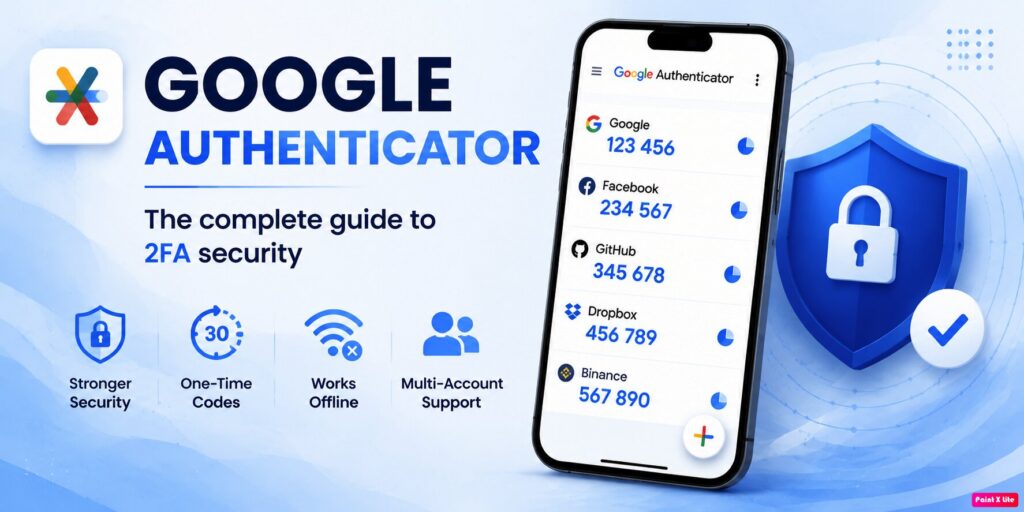
At its core, Google Authenticator is a mobile authentication app that generates temporary verification codes for services that support authenticator-app-based two-step verification. These codes can be generated even when the phone has no mobile service or internet connection. Google also supports syncing Authenticator codes through a Google Account, allowing them to appear across compatible devices signed into that account.
People searching what is google authenticator are often trying to answer several questions at once: Is it an app? Does it replace a password? Is it only for Gmail? Can it protect Facebook or Instagram? Does it work on a PC? What happens when a phone is lost?
This pillar guide explains all of those topics while also separating Google Authenticator from related technologies such as passkeys, security keys, FIDO, OAuth, SMS verification, and password managers.
Most importantly, Google Authenticator should be viewed as one part of a broader account-security strategy. It can provide a practical second factor, but users should still maintain strong passwords, recovery methods, backup authentication options, and secure devices.
1. What Is Google Authenticator and Why Does It Matter?
Google Authenticator explained simply
If you are asking what is google authenticator, the simplest explanation is that it is an app that produces temporary verification codes for compatible online accounts.
Instead of signing in with only a username and password, an account protected by Google Authenticator may ask for two things:
- Something you know — usually your password.
- Something generated or available on a device you possess — the temporary verification code.
This is why people often call it google authenticator 2fa or a google mfa app.
Google describes Authenticator as an app capable of creating one-time verification codes for sites and apps that support authenticator-app-based 2-Step Verification. The codes remain available without network or cellular connectivity.
Is Google Authenticator an OTP app?
Yes, although terminology matters.
People sometimes search for a google otp app because the codes are one-time passwords, or OTPs. More precisely, most common Authenticator configurations use time-based one-time passwords.
A typical Google Authenticator entry includes:
- The account or service name.
- A temporary six-digit code.
- A timer showing when that code will change.
The code is not your permanent password. It is designed to expire quickly.
That distinction is important when trying to understand google authenticator app code searches. The number shown in the app is a temporary authentication factor rather than a reusable credential.
Why use Google Authenticator?
A major advantage of Google Authenticator is independence from SMS delivery.
If your mobile network is unavailable, the app can still generate codes. Google explicitly states that Authenticator codes can be generated without internet connectivity or mobile service.
The app also supports multiple accounts, which means one installation can store authentication entries for many compatible services rather than requiring a separate code app for every account.
For everyday users, that combination makes Google Authenticator a relatively straightforward way to add another security layer without carrying a separate hardware device.
📖 Explore Articles:
What Is Google Authenticator? How It Works, Codes, Setup, and Securit
2. How Google Authenticator Works: TOTP, OTP Codes, and QR Codes
The shared secret behind each code
To understand Google Authenticator, it helps to understand what happens during enrollment.
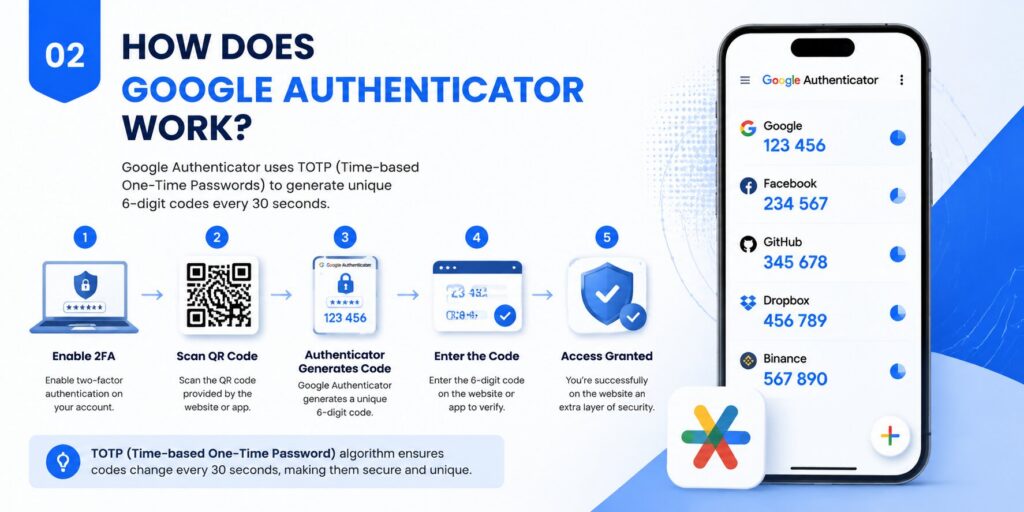
When a compatible website asks you to enable an authentication app, it typically creates a secret value shared between that service and your authenticator.
The website commonly presents that secret as a QR code.
When Google Authenticator scans that QR code, the app stores the information required to calculate future verification codes.
This is the basic concept behind a google account authenticator qr code as well as QR enrollment for many third-party services.
OpenVPN’s official documentation provides a useful technical description of the same TOTP model: the server and authenticator possess a shared key and independently calculate a temporary code using that key and the current time. Authentication succeeds when the values match.
Why the code changes
The temporary code displayed by Google Authenticator changes after a short period.
That design limits how long a captured code remains usable.
Suppose a code is displayed as:
483 271
A short time later, Google Authenticator may display another code such as:
925 604
The previous value is no longer intended to remain valid indefinitely.
This is fundamentally different from a password.
Does Google Authenticator send the code to Google?
For ordinary TOTP generation, the app can calculate codes locally, which is why it can operate without an internet connection.
If users choose Google Account synchronization, their Authenticator entries can also synchronize across devices. Google states that synchronized codes are encrypted in transit and at rest across its products.
That means there are now two common ways to use Google Authenticator:
- With Google Account synchronization.
- Without a Google Account, keeping the Authenticator data on the device and using manual transfer when necessary.
Both models are officially supported.
📖 Read More Guides:
Google Authenticator 2FA: Complete Guide to Two-Step Verification
3. How to Set Up Google Authenticator on Android and iPhone
Installing the official application
The first step in setting up google authenticator is installing the official app from a trusted store.
For Android users, the official google authenticator app android listing is published by Google LLC on Google Play. Google Play describes the app as supporting multiple accounts, QR-code setup, offline code generation, synchronization, and Privacy Screen protection.
For Apple devices, google authenticator for iphone is available through Apple’s App Store from Google LLC. The current App Store listing describes it as free and compatible with supported iPhone and iPad versions.
Connecting an account
After installing Google Authenticator, the next step happens inside the account you want to protect.
The exact menu varies by service, but the general flow is:
- Open the account’s security settings.
- Enable two-factor or two-step verification.
- Choose “Authenticator app” or a similar option.
- Display the QR code.
- Open Google Authenticator.
- Scan the QR code.
- Enter the generated code back into the service.
Google’s own account setup follows this general pattern through the Google Account 2-Step Verification settings.
Protect the setup secret
The QR code used during setup should be treated carefully.
Someone who obtains the underlying authentication secret may be able to configure another authenticator that generates matching codes.
For that reason, do not casually screenshot authentication QR codes, place them in public cloud folders, post them in chats, or share them with someone who claims to provide technical support.
After enrollment, Google Authenticator should be protected by the device’s screen security. Google also provides a Privacy Screen feature that can require device authentication such as a PIN, pattern, or biometric verification before Authenticator is opened.
Download Authenticator App
Secure your accounts with fast, reliable two-factor authentication. Download now and protect your login in seconds.
4. Google Authenticator for Google Account Two-Step Verification
Enabling a second step
For a Google Account, google account two step verification can include several possible methods.
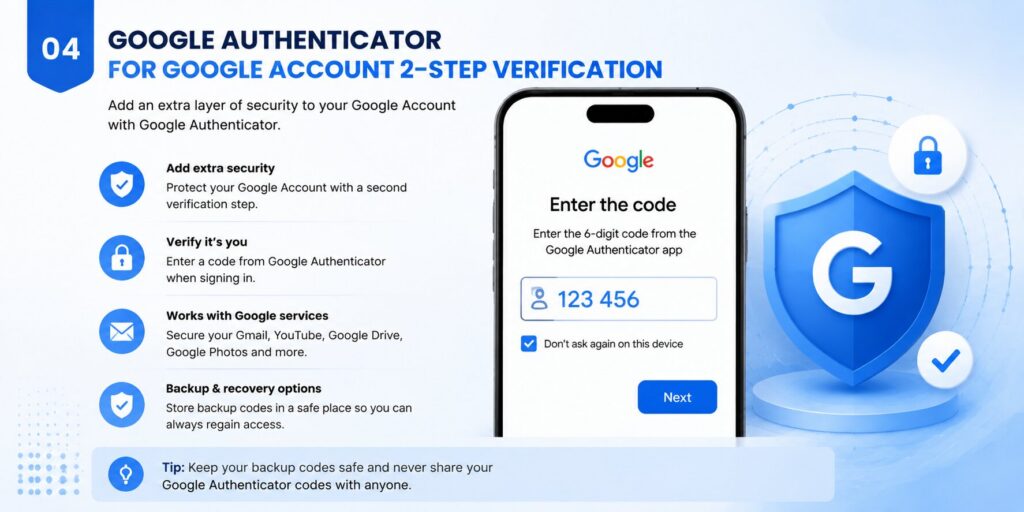
Google supports verification through options such as prompts, authentication apps, backup codes, security keys, and passkeys depending on account configuration.
If you choose Google Authenticator, the app becomes one method for generating a code during sign-in.
This does not normally eliminate the account password.
Instead, the traditional model is:
Password → Google Authenticator code → account access.
That distinction is particularly useful when people search google password verification and assume the authenticator replaces the password.
How to use Google Authenticator during sign-in
If you are wondering how to use google authenticator after setup, the normal process is simple.
When the login screen requests an authenticator code:
- Open Google Authenticator.
- Find the correct account.
- Read the current six-digit code.
- Enter it before the timer expires.
Do not send that code to another person.
Google warns that verification codes should not be shared and that Google will not call users asking them to disclose a verification code.
What does “sign in Google Authenticator” mean?
The keyword sign in google authenticator can refer to two different activities.
First, you can sign into a Google Account inside Google Authenticator so that Authenticator entries synchronize across devices.
Second, you can use a code from Google Authenticator when signing into another account.
Those are separate actions.
The authenticator app is not a universal login portal. It generally supplies a temporary code to a login process that happens somewhere else.
📖 Read More Guides: Google Authenticator Web: How to Use 2FA Securely in Your Browser
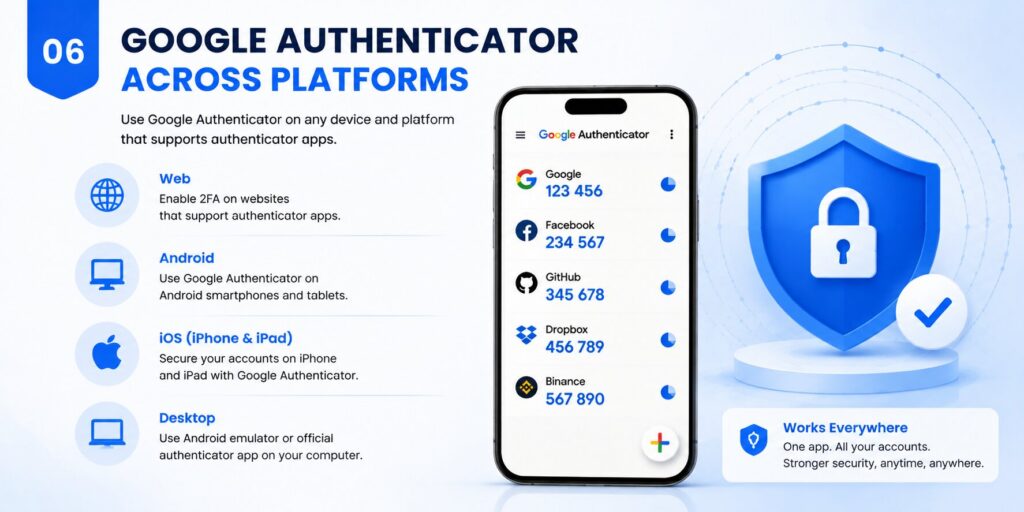
5. Google Authenticator on Web, PC, MacBook, and Chrome
Is there a Google Authenticator web app?
People frequently search google authenticator web, expecting the same code generator in a browser tab.
Google’s official Authenticator documentation and current store listings describe the product as a mobile app for Android and iOS/iPadOS. Google does not document a standalone official browser-based Authenticator product equivalent to those mobile apps. This is an inference from Google’s current official product documentation and listings.
This matters because putting a second factor into the same browser environment as the password can change the security model.
Google Authenticator for PC
The same issue appears with google authenticator for pc.
There is no official standalone Windows edition listed alongside Google’s official Android and Apple releases.
Searches for google authenticator for pc free download can therefore lead to unrelated third-party software.
Before installing anything labeled “Google Authenticator for Windows,” check who published it.
Do not assume that a similar name means Google created it.
Google Authenticator on MacBook
Likewise, google authenticator macbook and google authenticator for mac are common searches, but Google’s official Authenticator distribution remains centered on supported mobile platforms.
A Mac can still be the computer where you enter a code generated on your phone.
For example:
MacBook login page → asks for six-digit code → open Google Authenticator on your phone → enter code on MacBook.
The code generator and the website do not have to run on the same device.
What about Chrome extensions?
Searches for chrome google authenticator can surface third-party extensions.
Google Chrome supports extensions through the Chrome Web Store, but Google explicitly advises users to approve only extensions they trust and to review requested permissions.
A Chrome authenticator extension should therefore not automatically be treated as the official Google Authenticator product.
For security-sensitive tools, verify the publisher and permissions before installing anything.
📖 Read More Guides: Google Authenticator MacBook: How to Use 2FA Safely on Mac
6. Google Authenticator vs FIDO, Passkeys, OAuth, and Password Verification
Google Authenticator and FIDO are different technologies
The search phrase fido google often appears next to questions about two-factor authentication, but FIDO and Google Authenticator are not the same mechanism.
Google supports FIDO-compatible security keys and FIDO2 passkeys.
Google states that FIDO1 or FIDO2 security keys may be used as a second step, while FIDO2-capable hardware can also store passkeys.
A TOTP authenticator, by contrast, asks the user to read and enter a temporary numeric code.
📖 Read More Guides: FIDO Google: Complete Guide to Secure Login and FIDO2
Passkeys
Google describes passkeys as a phishing-resistant alternative to passwords that can use device authentication such as a fingerprint, face scan, or screen lock.
For Google Accounts with 2-Step Verification, a successful passkey sign-in may bypass the additional second step because possession and unlocking of the device have already been verified.
That is structurally different from Google Authenticator, where the user normally transfers a temporary code from the app into a login screen.
Google OAuth is not Google Authenticator
Another common source of confusion is google oauth.
OAuth 2.0 is an authorization framework used by applications to request access to Google APIs and user data through granted scopes and access tokens. Google’s developer documentation describes OAuth flows involving client credentials, authorization, access tokens, scopes, and refresh tokens.
That is not what Google Authenticator does.
A simple distinction is:
Google Authenticator → temporary second-factor codes.
OAuth → delegated access and authorization between applications and Google services.
They can exist in the same application architecture, but they solve different problems.
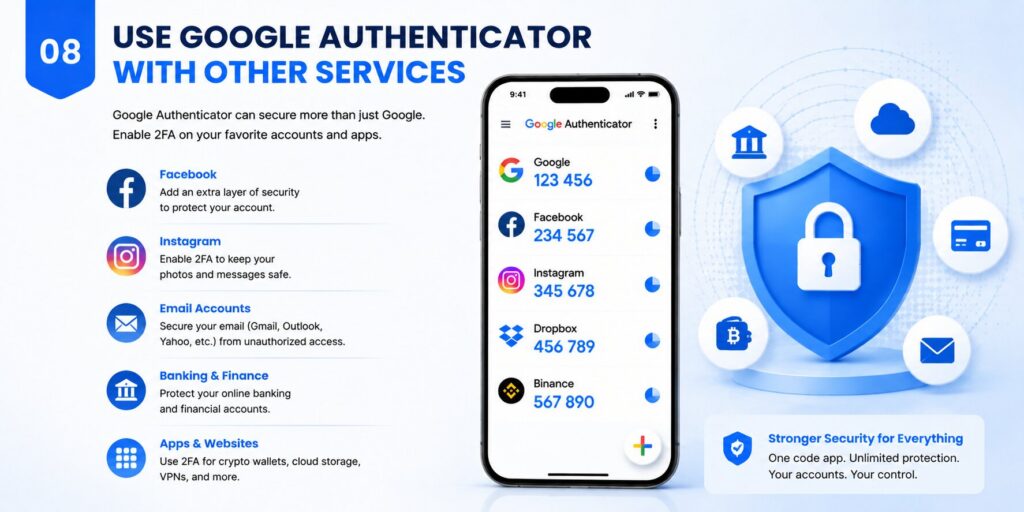
7. Using Google Authenticator With Facebook, Instagram, OpenVPN, and Other Services
You do not need to use Google Authenticator only with Google products.
Many third-party services support standard authentication apps.
For example, Meta’s official Facebook documentation explicitly states that third-party authentication apps such as Google Authenticator can generate login codes for Facebook two-factor authentication.
That means users searching use google authenticator for facebook are generally looking for Facebook’s Authentication App option.
The account should be configured from Facebook’s own security settings rather than through an unofficial QR code received elsewhere.
📖 Explore Articles: Sign In Google Authenticator: Complete Setup and Login Guide
Meta also documents authentication-app-based 2FA for Instagram and specifically lists Google Authenticator as an example of a supported third-party authenticator.
Therefore, google authenticator for instagram is a valid use case when the Instagram account has authentication-app 2FA enabled.
Again, the connection should originate inside Instagram’s official account security settings.
OpenVPN
google authenticator openvpn is another legitimate technical use case.
OpenVPN Access Server includes support for TOTP multi-factor authentication. OpenVPN’s documentation specifically names Google Authenticator as an example TOTP application users can enroll by scanning an Access Server QR code or entering a shared key.
This illustrates an important principle: Google Authenticator is useful beyond Google because TOTP is a broader authentication standard.
Other third-party services
Searches such as google authenticator tokocrypto may refer to security settings on third-party platforms that support authenticator applications. For any financial platform, users should rely on that service’s official security documentation and avoid authentication QR codes sent through unsolicited messages.
Similarly, battle net google authenticator can be misleading because Blizzard documents its own Battle.net Authenticator mechanism. Users should follow the account-security options provided by Battle.net instead of assuming every service uses generic Google Authenticator TOTP.
8. Google Authenticator for Developers and TOTP Integrations
Google Authenticator is not a special server API
Developers sometimes assume that integrating Google Authenticator means sending authentication requests to Google.
That is usually not how TOTP integration works.
The more general model is:
Server creates shared secret → authenticator stores secret → both calculate time-based code → server compares the submitted value.
OpenVPN’s official TOTP documentation describes this shared-secret and time-based calculation process clearly.
Because this is standards-based behavior, the server does not need to ask Google whether the current six-digit number is valid.
Laravel applications
Developers searching google authenticator laravel are typically looking to add TOTP-based multi-factor authentication to a Laravel login flow.
Conceptually, the backend needs to securely handle enrollment secrets, display an appropriate QR code, validate a temporary code, and protect recovery paths.
The important architectural point is that Google Authenticator acts as the user’s TOTP code generator. It should not be confused with google oauth, which handles delegated Google authorization.
Secure enrollment matters
When building an authentication flow, the QR code is sensitive because it encodes or represents the shared enrollment secret.
A secure implementation should therefore treat enrollment as a privileged action rather than a harmless image-generation step.
Applications should also provide a safe recovery path.
If a user destroys the only device holding the authenticator secret and has no backup method, a technically strong 2FA system can become an account-lockout problem.
That is why mature Google Authenticator deployments should think about enrollment, authentication, recovery, revocation, and device replacement as one complete lifecycle.
📖 Read More Guides: Google Password Verification: Passwords, 2FA, Passkeys and Authenticator
9. Google Authenticator Lost: Sync, Recovery, Transfer, and Support
What happens if your phone is lost?
The phrase google authenticator lost often appears only after something has already gone wrong.
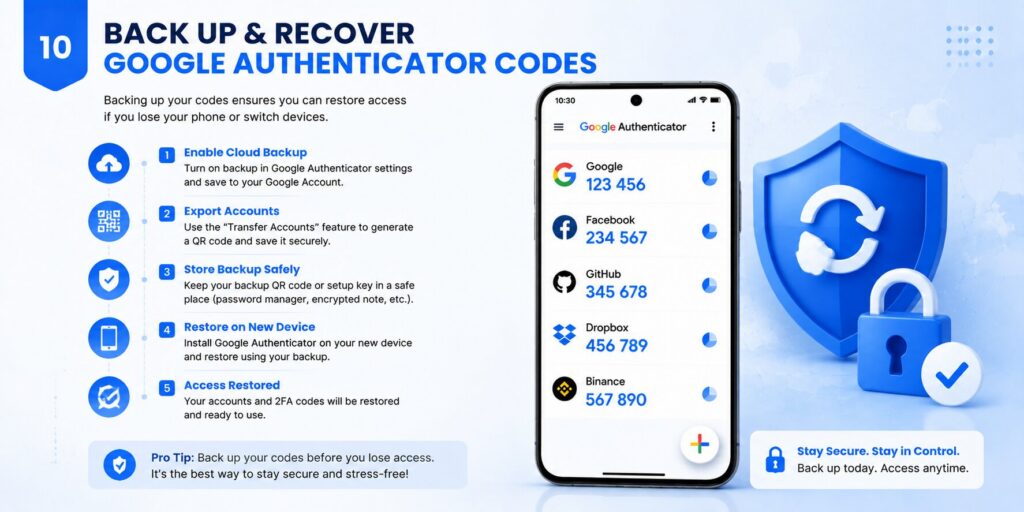
Modern Google Authenticator offers Google Account synchronization, which can make device replacement easier.
When codes are synced, signing into the same Google Account in Authenticator on another supported device can restore synchronized entries.
However, users can also run Authenticator without a Google Account.
In that case, automatic cloud synchronization is not available.
Manual transfer
Google supports manually transferring Authenticator entries when you still have access to the old device.
The official help documentation describes code transfer between devices for users who do not rely on Google Account synchronization.
This is one reason replacing a phone before it completely stops working is much easier than recovering after a device disappears.
If the device is gone
If an unsynchronized device is lost and no backup authentication method exists, the recovery process occurs at each protected account.
For a Google Account, possible backup methods can include another signed-in phone, another registered number, backup codes, security keys, or a passkey on another device depending on how the account was configured.
Google also recommends removing or remotely erasing lost devices when appropriate.
Google Authenticator support
For google authenticator support, start with Google’s official Account Help documentation rather than unofficial “support agents” asking for codes.
Never provide an active Google Authenticator code to someone claiming they need it to diagnose your account.
Verification codes are authentication credentials.
📖 Read More Guides: Google Authenticator Lost: How to Recover Codes and Account Acces
10. How to Download Google Authenticator Safely
Google Play
For Android, google authenticator google play should lead to the application published by Google LLC.
The current official Google Play listing identifies Google LLC as the developer and describes QR setup, multiple accounts, offline code generation, synchronization, and Privacy Screen.
If you want to download google authenticator app on Android, verifying the publisher is more important than simply choosing the first similarly named result.
📖 Explore Articles: Google Authenticator Google Play: Download, Setup & 2FA App Guide
Apple App Store
For iPhone and iPad, google authenticator app store searches should resolve to the Google LLC application.
Apple currently lists Google Authenticator as free.
Avoid unofficial desktop downloads
A search engine may show pages advertising “Authenticator for Windows,” browser versions, APK mirrors, or desktop clones.
That is especially important for searches such as google authenticator for pc free download.
The official Google product is distributed through supported mobile platforms, so treat third-party desktop packages as different products rather than assuming they are an official PC version.
Security apps deserve more scrutiny than ordinary utilities because they store information connected to account access.
A compromised authenticator can undermine the extra security it is supposed to provide.
11. Google Authenticator vs SMS, Security Keys, and Other MFA Methods
Google Authenticator vs SMS
SMS verification is easy to understand because codes arrive as text messages.
However, Google Authenticator does not depend on cellular delivery.
That makes it useful when mobile reception is poor, a phone has no active SIM, or network connectivity is unavailable.
Google also recommends stronger second-verification options than SMS for users concerned about phishing and account security.
📖 Read More Guides: Google Authenticator Web: How to Use 2FA Securely in Your Browser
Google Authenticator vs security keys
Security keys offer a different security model.
Google describes compatible hardware security keys as among its strongest second-step options and supports FIDO-based keys.
With Google Authenticator, users can still be tricked into typing a valid temporary code into a convincing phishing website.
FIDO-based authentication is designed to provide stronger resistance to that class of phishing.
Google Authenticator vs passkeys
Passkeys can be even more streamlined because users may authenticate through device unlock rather than copying a six-digit code.
Google describes passkeys as more resistant to phishing and supports them on compatible computers, phones, browsers, and FIDO2 security keys.
Does that make Google Authenticator obsolete?
Not necessarily.
TOTP remains widely supported and useful for services that do not yet provide passkeys.
For users managing many different websites, Google Authenticator can therefore remain a practical compatibility layer even as more phishing-resistant authentication methods become available.
Download Authenticator App
Secure your accounts with fast, reliable two-factor authentication. Download now and protect your login in seconds.
12. Common Google Authenticator Problems and How to Fix Them
“Invalid code”
If a Google Authenticator code is rejected, first confirm that you selected the correct account entry and entered the code before it expired.
Also confirm that the device time is accurate.
Google’s current documentation notes that Authenticator now relies on the operating system’s time settings rather than the older in-app time-correction option.
Codes disappeared
If synchronized codes appear to have vanished, verify which Google Account is active inside Google Authenticator.
Google notes that users may have saved codes under another Google Account or may have been signed out.
Duplicate accounts
During phone migrations, manual transfers, or repeated enrollment, users can sometimes end up with multiple entries that look similar.
Before deleting anything, determine which entry produces the code currently accepted by the service.
Deleting an authenticator entry does not necessarily turn off two-factor authentication on the website.
The account may continue expecting codes even after you remove the local entry.
New phone
If Google Authenticator is synchronized, the easiest path may be signing into the same Google Account on the new device.
If synchronization is disabled but the old phone is still accessible, Google’s manual transfer process can move entries.
If neither option exists, use the recovery methods provided by the individual service.
Never “fix” Authenticator by disabling security everywhere
A temporary login problem does not automatically mean two-factor authentication should be permanently removed.
It is usually better to recover access, enroll the replacement device, confirm that recovery options work, and then remove outdated devices or credentials.
📖 Explore Articles: Google OTP App: Complete Guide to OTP, TOTP, and 2FA
13. Frequently Asked Questions About Google Authenticator
Is Google Authenticator free?
Yes. For users asking is google authenticator free, the official iOS App Store currently lists the application as free, and Google’s Android version is distributed through Google Play.
There is no subscription required simply to generate Google Authenticator codes.
Can Google Authenticator work without internet?
Yes.
After an account is enrolled, Google Authenticator can generate verification codes without internet or cellular connectivity.
Connectivity may still be required by the website where you are attempting to sign in.
Can I use Google Authenticator without a Google Account?
Yes.
Google officially supports using Google Authenticator without signing the authenticator into a Google Account.
The trade-off is that Google Account-based synchronization will not be available for those locally stored entries.
Does Google Authenticator back up my codes?
If you sign into a Google Account inside Google Authenticator, supported versions can synchronize authentication entries across devices.
Google says synchronized Authenticator data is encrypted in transit and at rest.
If you choose to use the app without an account, plan for manual transfer and account-specific recovery methods instead.
Can Google Authenticator protect several accounts?
Yes.
The official app supports multiple accounts.
You can therefore use Google Authenticator with several compatible websites without installing a separate application for each one.
Is Google Authenticator only for Google?
No.
As Facebook, Instagram, and OpenVPN demonstrate, third-party services can support compatible authentication-app/TOTP workflows.
That cross-platform compatibility is one of the reasons Google Authenticator is widely recognized.
Does Google Authenticator replace a password?
Usually not.
With a conventional two-factor login, the password remains one factor and the Google Authenticator code becomes another.
Passkeys use a different model and may bypass the traditional password-plus-second-step flow for Google Accounts.
14. Best Practices and Final Verdict
Keep more than one recovery option
The biggest mistake with Google Authenticator is treating the authenticator itself as the recovery plan.
A second factor protects the account only while you can still access it.
Before depending heavily on Authenticator, check whether critical accounts offer recovery codes, trusted devices, security keys, additional authentication factors, or another recovery route.
Google specifically recommends additional 2-Step Verification methods so users do not become locked out of their Google Account.
Protect the device
Because Google Authenticator lives on a phone, device security matters.
Use a secure screen lock.
Consider enabling Authenticator’s Privacy Screen.
Keep the operating system updated.
Avoid installing untrusted software.
Do not hand an unlocked device to someone who should not have access to your authentication codes.
Never share verification codes
An authenticator code is temporary, but while it is valid it can still help authorize a login.
A convincing phishing page may ask for both a password and the current Google Authenticator code.
That is why users should treat six-digit verification codes as secrets rather than harmless numbers.
For accounts that support phishing-resistant passkeys or FIDO security keys, consider those methods for especially important accounts. Google specifically describes passkeys and security keys as stronger protection against phishing.
Is Google Authenticator still worth using?
For many users, yes.
Google Authenticator is free, relatively simple, works offline for code generation, supports multiple accounts, can synchronize through a Google Account, and works with many services that support authenticator-app-based two-factor verification.
It is not the strongest possible authentication technology for every scenario.
Passkeys and FIDO security keys offer better phishing resistance in supported environments.
However, not every website supports those methods.
That makes Google Authenticator particularly valuable as a widely compatible security tool.
For users who want a practical improvement over password-only authentication, Google Authenticator remains a strong option. Pair it with unique passwords, secure recovery methods, device protection, and phishing-resistant authentication wherever available.
The most useful way to think about Google Authenticator is not as a complete security solution but as one reliable layer in a broader account-protection strategy.
Download Authenticator App
Secure your accounts with fast, reliable two-factor authentication. Download now and protect your login in seconds.
