
Chrome Google Authenticator: Setup, Extensions & Security Tips
Published August 12, 2026
Using two-factor authentication is one of the easiest ways to make an online account harder to compromise. Passwords can be leaked, reused, guessed, or stolen through phishing, but an additional verification step gives attackers another barrier to overcome.
That is why many users search for chrome google authenticator when they want authentication codes available while working on a desktop computer.
However, there is one important distinction to understand before installing anything.
Google Authenticator itself is officially documented by Google as a mobile application that generates one-time verification codes. Google currently supports using the app for sites and apps that support Authenticator-based 2-Step Verification, and the app can generate codes without an internet connection.
Chrome, meanwhile, can be the browser where you enter those codes. You can also install third-party authenticator extensions from the Chrome Web Store, but you should not automatically assume that an extension named “Authenticator” is Google’s official Google Authenticator application.
This guide explains how chrome google authenticator setups work, the safest ways to use them, how to install a browser-based authenticator when appropriate, and what to do when verification codes fail.
1. What Is Chrome Google Authenticator?
The phrase chrome google authenticator can describe several different setups, which is why searches for this topic often become confusing.
In most cases, users mean one of three things:
- Using the official Google Authenticator mobile app while signing into websites through Chrome.
- Installing a third-party TOTP authenticator extension in Chrome.
- Using Google’s broader two-factor authentication features when signing into a Google Account through Chrome.
If your goal is simply to use google authenticator in chrome, you usually do not need a special Chrome version of Google’s mobile app.
A common workflow looks like this:
- Open a website in Chrome.
- Enter your username and password.
- The website requests a verification code.
- Open Google Authenticator on your phone.
- Find the account.
- Enter the current code into Chrome.
- Complete the login.
Google confirms that Google Authenticator can generate one-time verification codes for supported sites and apps and that these codes can work without mobile service or an internet connection.
This arrangement is actually useful from a security perspective because your password is entered on the computer while the verification code is generated on another device.
A different chrome google authenticator workflow keeps both the login and the TOTP code generator inside Chrome. That can be more convenient, especially for users who sign in to many services throughout the workday, but it changes your security model.
If malware, a malicious browser extension, or another person gains access to the same browser profile, both parts of your login workflow may become easier to access.
Therefore, convenience should not be the only factor when deciding how to configure chrome google authenticator.
🧭 Explore Guides: Google Authenticator: Complete 2FA Setup & Security Guide
2. Is There an Official Google Authenticator Extension for Chrome?
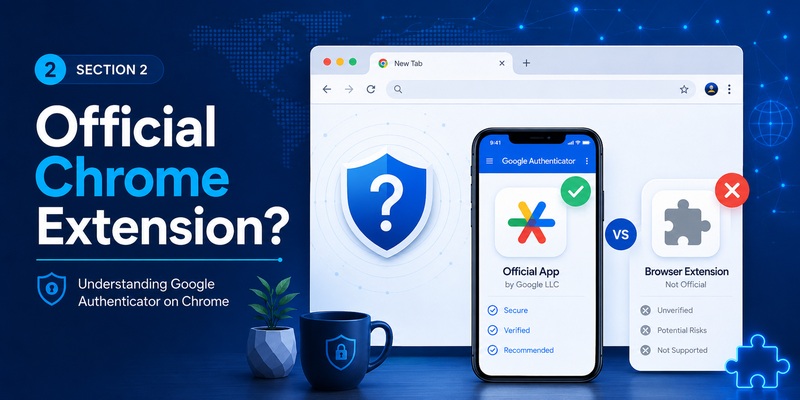
This is one of the most important questions surrounding chrome google authenticator.
Users frequently search for a google authenticator chrome extension, expecting to find an official browser extension produced by Google that duplicates the mobile Google Authenticator experience.
Google’s current Authenticator documentation directs users to the Google Authenticator mobile application. Google’s Chrome documentation separately explains how third-party Chrome extensions can be installed and managed.
The Chrome Web Store contains multiple authenticator extensions capable of generating TOTP or HOTP codes. For example, third-party extensions named Authenticator are currently available and advertise features such as QR-code scanning, encrypted storage, backups, and browser synchronization.
The key word is third-party.
Do not assume that something is Google’s official product simply because:
- Its name contains “Google.”
- Its icon looks similar to an authenticator icon.
- The listing mentions Google Authenticator.
- It supports Google accounts.
- It appears when searching google authenticator for chrome.
When evaluating any chrome google authenticator extension, check the developer, permissions, privacy information, update history, reviews, source-code availability if applicable, and whether the extension needs access to every website you visit.
Google explicitly advises Chrome users to approve only extensions they trust. Chrome also allows users to control whether an extension can read and change data when clicked, on specific sites, or on all sites.
That permission control matters particularly for authentication tools because TOTP secrets should be treated as sensitive credentials.
3. How to Use Chrome Google Authenticator With the Mobile App
For most people, the easiest chrome google authenticator setup is also the simplest: keep Google Authenticator on your phone and use Chrome only for the website you are signing into.
You do not have to install a dedicated google authenticator app chrome package.
Step 1: Enable two-factor authentication on the website
Open the website in Chrome and navigate to its account security settings.
Look for options such as:
- Two-Factor Authentication
- Two-Step Verification
- Multi-Factor Authentication
- Authenticator App
- TOTP
- Verification App
Select the authenticator app method if available.
The website will normally display either a QR code or a secret setup key.
Step 2: Open Google Authenticator on your phone
Open the official Google Authenticator application.
Choose the option to add an account, then scan the QR code displayed on your Chrome screen.
Your phone should immediately begin generating verification codes for that account.
Step 3: Verify the initial code
The website will typically ask you to enter one of the generated codes before it finishes enabling 2FA.
Type the current code into Chrome.
Because TOTP codes expire quickly, enter the code before the timer runs out.
Google recommends checking that you are using the correct account and that your device time is correct if a code is rejected.
Step 4: Store recovery methods
Do not stop immediately after your chrome google authenticator configuration starts working.
Save any recovery codes supplied by the website.
If supported, consider adding another recovery method such as:
- A passkey.
- Hardware security key.
- Backup codes.
- Another trusted authentication method.
Google itself recommends additional forms of 2-Step Verification to reduce the risk of being locked out of an account.
Step 5: Test before signing out everywhere
Open a private test session or another browser and verify that your login works.
Do not remove old authentication methods until the new configuration has been successfully tested.
This is especially important when migrating an existing chrome google authenticator workflow to a new phone.
Download Authenticator App
Secure your accounts with fast, reliable two-factor authentication. Download now and protect your login in seconds.
💡 Discover Helpful Guides: Google Authenticator App Code: How to Get, Use, and Fix Verification Codes
4. How to Add an Authenticator Extension to Chrome
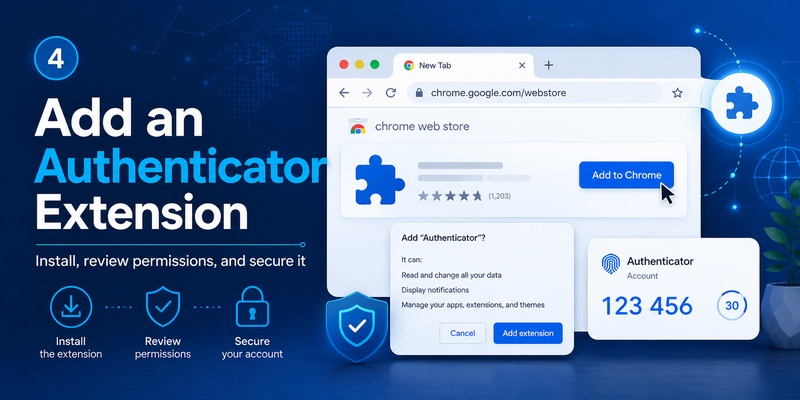
Some users specifically want to add google authenticator to chrome because checking a phone every time they sign in interrupts their workflow.
Technically, you can use a compatible third-party browser authenticator.
There are multiple chrome extensions google authenticator searches and authenticator tools available through the Chrome Web Store, but choosing one requires more care than installing a normal productivity extension.
Step 1: Open the Chrome Web Store
Search for an authenticator that supports TOTP.
Do not install the first result automatically.
Review:
- Developer identity.
- Number and type of requested permissions.
- Recent update activity.
- Privacy disclosures.
- Backup features.
- Encryption options.
- Import and export support.
- Whether data is stored locally or synchronized.
Step 2: Review permissions before installing
Chrome’s official installation process is:
- Open the Chrome Web Store.
- Select the extension.
- Choose Add to Chrome.
- Review the permissions.
- Confirm Add extension if you trust it.
For chrome google authenticator, permissions deserve extra attention because the extension may store the secret used to create your future verification codes.
An extension does not necessarily need unrestricted access to every page you browse.
Chrome allows site access to be limited to when you click the extension, certain websites, or all websites.
Use the narrowest permission scope that still allows the extension to work properly.
Step 3: Add your TOTP account
A typical google authenticator app for chrome alternative may offer one or more methods:
- Scan an on-screen QR code.
- Upload a QR-code screenshot.
- Enter a secret key manually.
- Import an existing encrypted backup.
Available features vary by extension.
Never upload an authentication QR code to an unknown website just to decode it. The QR code often contains the secret required to generate future authentication codes.
Anyone who obtains that secret may be able to generate the same codes.
Step 4: Secure the extension
If your chosen google authenticator browser extension supports a separate master password, encryption, locking, or biometric verification, consider enabling it.
Avoid leaving a browser-based authenticator permanently unlocked on a shared computer.
5. How to Set Up Google Account 2-Step Verification in Chrome
Another common meaning of chrome google authenticator is protecting the Google Account used in Chrome itself.
This is slightly different from generating codes for another website.
Google’s current instructions for enabling 2-Step Verification on a computer are to open your Google Account, select “Security & sign-in,” find the sign-in options, enable 2-Step Verification, and follow the on-screen instructions.
Once enabled, Google can use different second-step methods.
Google Authenticator
You can configure Google Authenticator as one of your verification methods.
Google’s Authenticator documentation instructs users to access their Google Account’s 2-Step Verification settings, choose the authenticator setup option, and follow the displayed steps.
After configuration, chrome google authenticator works like this:
Password → verification request → Authenticator code → account access.
Google prompts
Google may also use prompts on a signed-in mobile device.
This can be faster because you approve or reject the sign-in instead of manually typing a code. Google currently recommends prompts when users are not signing in with passkeys.
Passkeys
Passkeys are another increasingly important option for google chrome 2 factor authentication and passwordless sign-in.
Google explains that passkeys can use a device’s fingerprint, face scan, PIN, or screen lock to authenticate the user. For Google Account sign-in, a passkey can satisfy possession verification without requiring the normal additional code step.
That means chrome google authenticator is useful, but it is not the only modern authentication option available to Chrome users.
For high-value accounts, evaluate passkeys or hardware security keys instead of relying exclusively on manually entered codes.
💡 Discover Helpful Guides: Google OAuth: Complete Developer Guide to Tokens and APIs
6. Chrome Extension vs Mobile Google Authenticator
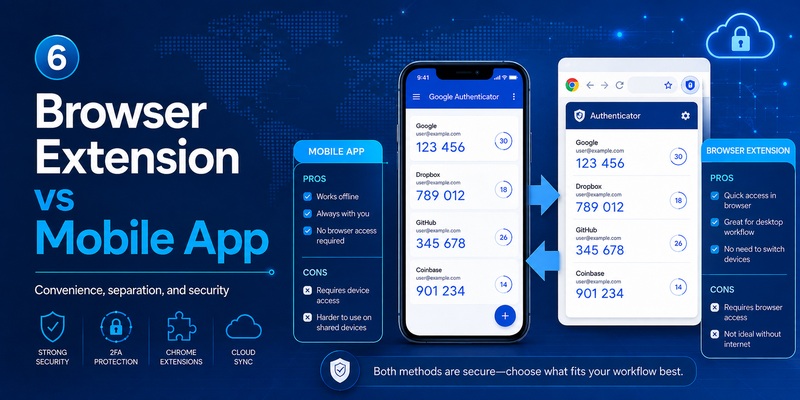
Should chrome google authenticator live in your browser or on your phone?
There is no single answer for every user.
Mobile Authenticator advantages
Keeping the official Authenticator app on your phone separates your second factor from the browser where you enter your password.
It also works offline.
Google Authenticator can synchronize codes through a Google Account across devices when the synchronization feature is used. Manual account transfer is also available when Authenticator is used without account synchronization.
This approach is a good default for personal email, banking-related services, administrative accounts, developer accounts, or other important logins.
Browser extension advantages
A browser-based extension google authenticator alternative can be much faster during repetitive desktop workflows.
You can:
- Open the extension beside the login page.
- Copy the current TOTP.
- Paste it into the website.
- Avoid switching between computer and phone.
For teams, developers, or users managing many accounts, this speed can be attractive.
Browser extension disadvantages
The biggest tradeoff is concentration.
Your browser may now contain:
- The login page.
- Saved usernames.
- Saved passwords.
- Session cookies.
- Authentication secrets.
If everything is stored in one Chrome profile, compromising that profile can have a larger impact.
For that reason, the most convenient chrome google authenticator configuration is not necessarily the strongest configuration.
7. Security Tips When Using Authenticator Codes in Chrome
If you regularly use chrome google authenticator, a few habits can significantly improve your setup.
Never share verification codes
Google explicitly warns users never to share verification codes. Google states that it will not call users to request an authentication code.
A legitimate-looking login page can still be a phishing page.
Check the domain before entering credentials.
Protect the TOTP secret, not just the six-digit code
People sometimes treat the temporary six-digit number as the only secret.
It is not.
The QR code or manual setup key used to create the account is extremely sensitive because it can allow another authenticator to generate future codes.
Never store screenshots of authentication QR codes in random folders, shared cloud drives, chat conversations, or unsecured note apps.
Limit extension permissions
If you use google authenticator browser software, open Chrome’s extension settings and review its permissions.
Chrome allows you to change site access from broad “all sites” access to more restrictive options when supported.
Use Chrome’s security protections
Google offers Enhanced Safe Browsing protection that can warn when an extension being installed is not considered trusted.
A warning should prompt further investigation rather than an automatic “Continue.”
Avoid shared computers
Do not store chrome google authenticator secrets in a Chrome profile used by coworkers, family members, students, customers, or public users.
Convenience becomes irrelevant if another person can simply open the extension.
Keep recovery options
Even a carefully configured system can fail.
Keep secure backup codes or another approved verification method available.
Do not store the only recovery method inside the same device that requires recovery.
📘 Find the Right Guide: Google Authenticator Web: How to Use 2FA Securely in Your Browser
8. Common Chrome Google Authenticator Problems and Fixes
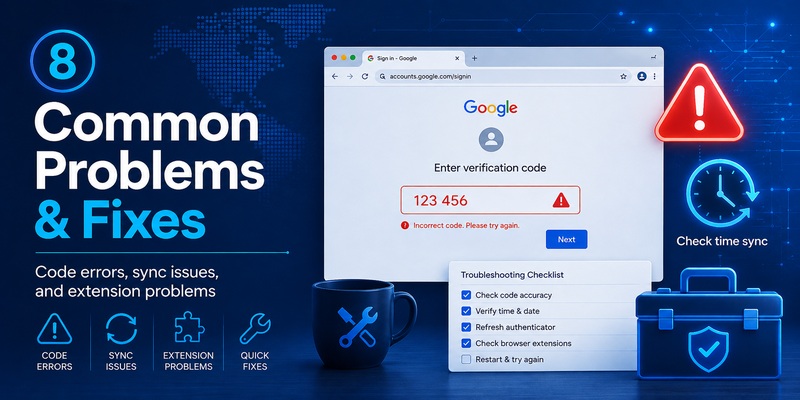
Even a correctly configured chrome google authenticator setup can occasionally produce errors.
Here are the most common problems.
Authenticator code is incorrect
If a code is rejected:
- Confirm you selected the correct account.
- Wait for a new code.
- Enter it before expiration.
- Check the phone’s date, time, and time zone.
- Verify that the website is using the same Authenticator enrollment.
Google specifically recommends confirming the correct service, correct Google Account where relevant, unexpired code, and correct device time.
Codes disappeared after switching phones
If Google Authenticator was synchronized with your Google Account, signing into Authenticator on a new device can restore synchronized codes.
If you used Authenticator without synchronization, Google provides a manual transfer process using export and import QR codes between the old and new devices.
Do this before wiping or selling your old phone.
Chrome extension disappeared
Open:
Chrome → Extensions → Manage Extensions.
Check whether the extension is disabled.
Chrome also provides options to repair corrupted extensions or remove them entirely.
Extension does not work in Incognito
Chrome does not automatically make every extension available in Incognito.
Extension access to Incognito can be configured from the extension’s Details page.
For authentication extensions, however, think carefully before expanding access unnecessarily.
Website keeps requesting 2FA
This does not necessarily mean chrome google authenticator is malfunctioning.
The site may intentionally request verification after:
- Clearing cookies.
- Changing IP address.
- Using another Chrome profile.
- Using private browsing.
- Signing in from a new device.
- Triggering a security check.
Do not disable 2FA simply because verification appears more frequently than expected.
9. Using Authenticator Across Chrome, Firefox, and Other Browsers
Users who work with several browsers often search google authenticator for browser because they want the same authentication workflow everywhere.
The official mobile Google Authenticator approach is naturally browser-independent.
Whether you log in through:
- Chrome
- Firefox
- Edge
- Safari
- Another compatible browser
you can read the verification code on your phone and enter it into the website.
That makes mobile Authenticator especially useful for multi-browser workflows.
Searching for firefox google authenticator may produce third-party Firefox add-ons with similar TOTP functionality, just as searching the Chrome Web Store produces third-party authenticator extensions.
However, browser extensions do not automatically share the same database.
If you create chrome google authenticator secrets inside one Chrome extension, moving to Firefox may require an export/import process supported by that particular extension.
Before importing anything, check:
- Export encryption.
- Backup format.
- Password protection.
- Whether secret keys are stored locally.
- Whether cloud synchronization is optional.
- Whether the project is actively maintained.
The safest approach is to avoid repeatedly copying raw TOTP secrets between browsers unless there is a clear reason to do so.
For users who switch browsers frequently, keeping the second factor on a separate mobile device can be simpler.
🛠️ Learn with Step-by-Step Guides: Google Account Authenticator QR Code: Complete Setup Guide
10. Best Setup for Chrome Google Authenticator
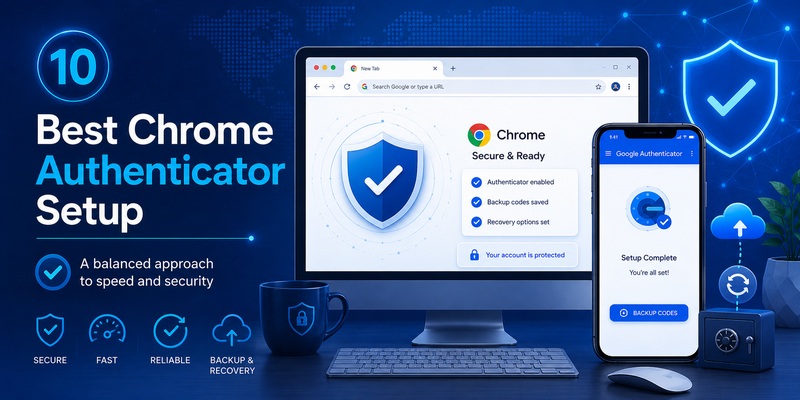
The ideal chrome google authenticator configuration depends on how much you value convenience versus separation between your credentials.
For most users, a strong default setup is:
- Use Chrome for browsing and login.
- Use the official Google Authenticator mobile app to generate TOTP codes.
- Synchronize or securely transfer Authenticator codes according to your recovery preference.
- Keep backup authentication methods.
- Consider passkeys or hardware security keys for particularly important accounts.
- Avoid unnecessary third-party extensions.
Google currently supports Authenticator code synchronization across devices when the user signs into Authenticator with a Google Account. It also offers a manual transfer process for users who choose to use Authenticator without account synchronization.
If desktop convenience is essential, a carefully evaluated third-party browser extension can be considered. But before making that chrome google authenticator extension your primary authentication method, review its developer, requested permissions, storage model, encryption, backup system, and update history.
Chrome’s own guidance is straightforward: approve only extensions you trust.
For high-security accounts, keeping authentication entirely inside the same browser profile is usually less attractive than separating the second factor or adopting phishing-resistant options such as passkeys or hardware security keys.
Ultimately, chrome google authenticator should not mean “install whatever Authenticator extension appears first.”
A better approach is to understand what you actually need.
If you simply want to sign into websites in Chrome with Google Authenticator, the official mobile app already provides that workflow. If you want codes directly inside the browser, choose a reputable third-party extension only after reviewing its security model. If your goal is protecting your Google Account itself, enable 2-Step Verification and consider Authenticator alongside prompts, passkeys, backup codes, and hardware security keys.
Used correctly, chrome google authenticator can give you a practical balance between fast desktop access and stronger account protection without turning convenience into an unnecessary security risk.
Download Authenticator App
Secure your accounts with fast, reliable two-factor authentication. Download now and protect your login in seconds.
