
Google Account Authenticator QR Code: Complete Setup Guide
Published August 8, 2026 · Updated August 14, 2026
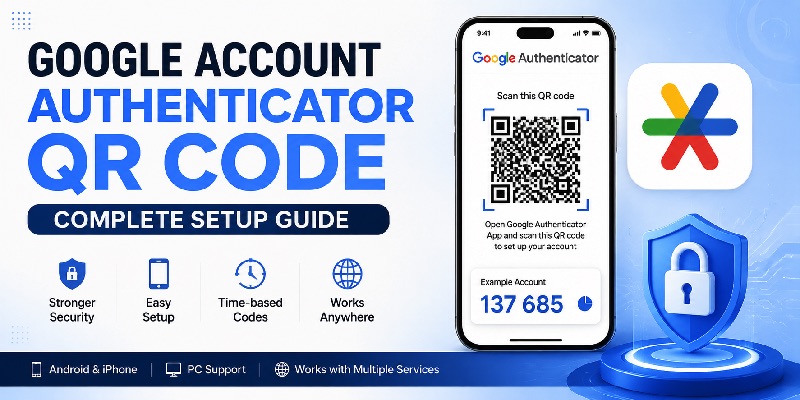
A google account authenticator qr code is one of the fastest ways to connect a Google Account or another compatible online service to a time-based one-time password authenticator. Instead of manually typing a long secret key, you scan a QR code once and the authenticator begins generating temporary verification codes for future sign-ins.
For most users, the process is simple: enable two-step verification, choose an authenticator method, display the QR code, and scan it with Google Authenticator or another compatible Authenticator App. Google confirms that Google Authenticator can generate one-time verification codes for sites and apps supporting authenticator-based 2-Step Verification, and codes can continue to be generated without mobile service or an internet connection.
The main challenge is understanding that several different kinds of QR codes may appear during account security and sign-in. A google account authenticator qr code used for TOTP enrollment is not necessarily the same thing as a QR code Google displays for another sign-in verification flow.
This guide explains how to get the correct QR code, scan it, use it on Android and iPhone, handle PC-based setup, transfer Authenticator to a new device, troubleshoot invalid codes, and understand how similar QR-based 2FA works with services such as OpenVPN, Instagram, and Activision.
1. What Is a Google Account Authenticator QR Code?
A google account authenticator qr code is a machine-readable method for transferring an authenticator setup secret from an account service to an authentication application. It normally appears when you enroll in authenticator-based two-factor authentication.
When you scan the QR code, the authenticator stores the required setup information and begins creating temporary verification codes. These codes are then used as a second step during future sign-ins.
The QR code is mainly for initial setup
The most important distinction is that you normally scan a google account authenticator qr code during enrollment, not every time you log in.
Once the account is successfully added, the authenticator generates rotating verification codes. You simply open the application, find the correct account, and enter the current code when Google asks for it.
The QR image should therefore be treated as sensitive information. It represents the secret used to establish the authenticator relationship. Posting an enrollment QR code publicly, including it in an uncensored screenshot, or sending it to someone else could expose an important part of your two-factor authentication setup.
A google authenticator qr code may look like any other black-and-white QR image, but it has a security-specific purpose. Instead of simply containing a public webpage address, it supplies the authenticator with information needed to create future one-time verification codes.
Google sign-in QR codes are not always Authenticator QR codes
Google also uses QR codes in certain sign-in and account-verification processes. Those are not automatically the same as a google account authenticator qr code.
For example, Google documents a QR sign-in method where a user can scan a code using a device on which they are already signed in. That process verifies a login, while Authenticator enrollment establishes a TOTP-based verification method.
If you search for google verification qr code, check the instructions shown beside the QR image. Wording such as “Set up authenticator” usually indicates authenticator enrollment. A screen asking you to verify a new login from another trusted device may use QR technology for a completely different purpose.
📖 Explore Articles: Google Authenticator: Complete 2FA Setup & Security Guide
2. How to Get a Google Account Authenticator QR Code
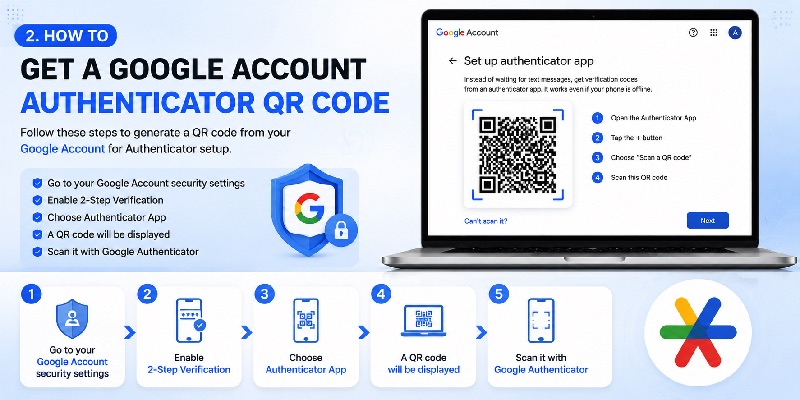
If your goal is to get google authenticator qr code access for your Google Account, start from the security settings of the account you want to protect.
Google’s current instructions direct users to the 2-Step Verification settings and then to the Authenticator setup option.
Step-by-step setup
To create a new google account authenticator qr code:
- Sign in to the Google Account you want to protect.
- Open the Security or Security & sign-in settings.
- Find 2-Step Verification.
- Complete any identity-verification step Google requests.
- Find the Authenticator option.
- Select the available setup action.
- Keep the page containing the google account qr code for authenticator open.
- Open Google Authenticator on your phone.
- Choose the option to add an account or scan a QR code.
- Scan the QR image displayed by Google.
- Enter the generated verification code if Google asks you to confirm enrollment.
The confirmation step proves that your authenticator has received the correct information and is producing the expected verification code. At that point, the google account authenticator qr code has completed its primary role.
What if no QR code appears?
If a google account authenticator qr code does not appear, first confirm that you are adding an Authenticator method rather than entering another Google security flow.
Depending on the account and recent security activity, Google may request additional verification before allowing a new sign-in method to be registered.
Google currently notes that Authenticator may take up to seven days to appear as an available sign-in option in some situations. Google also says that using a trusted passkey or security key may help establish trust more quickly.
If the setup screen gives you a manual setup key instead of a QR code, a compatible authenticator can usually accept that key directly.
Both approaches configure the same general type of TOTP authentication, but scanning the google account authenticator qr code is normally faster and reduces the chance of making a typing error.
Download Authenticator App
Secure your accounts with fast, reliable two-factor authentication. Download now and protect your login in seconds.
3. How to Scan a Google Account Authenticator QR Code
Scanning a google account authenticator qr code is generally easier than entering a secret manually.
For authenticator enrollment, you should use the QR-scanning option inside the authenticator application rather than relying on an unrelated QR scanner.
Scan from Google Authenticator
A standard google authenticator scan qr code process looks like this:
- Install or open Google Authenticator.
- Choose the option to add an account.
- Select “Scan a QR code” when shown.
- Allow camera access if requested.
- Point the camera at the full google account authenticator qr code.
- Keep the phone steady while the app detects the code.
- Wait for the new account to appear.
- Use the generated verification code on Google’s setup page.
- Complete the confirmation process.
For easier scanning, make sure the whole QR image is visible. If it is displayed on a laptop or desktop monitor, avoid excessive zooming or shrinking.
You should also avoid reflections, strong glare, or a screen brightness level so low that the phone camera cannot distinguish the pattern.
What happens after the scan?
After the google account authenticator qr code is accepted, Google Authenticator creates a new account entry with a temporary verification code.
You do not need to scan the QR code again every time the number changes. The google account authenticator qr code is primarily an enrollment shortcut; the rotating verification codes are what you use afterward.
Google confirms that Authenticator codes can continue to be generated without internet access or cellular service after setup.
If your first verification code does not work, do not immediately remove the new account.
First check that:
- The code has not expired.
- You selected the correct account.
- You are entering the code for the correct service.
- Your phone’s date and time are accurate.
Google currently recommends checking these areas when troubleshooting an incorrect Authenticator code.
📖 Explore Articles: What Is Google Authenticator? How It Works, Codes, Setup, and Securit
4. Google Account Authenticator QR Code on iPhone
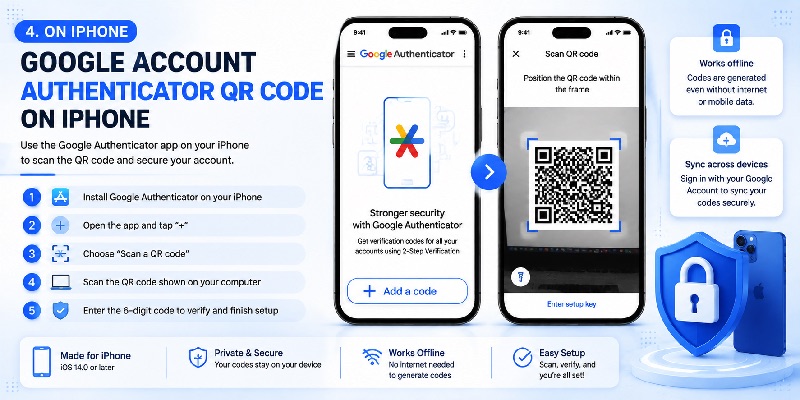
The google account authenticator qr code process on iPhone is very similar to Android.
You normally display the enrollment QR code on another device and use Google Authenticator on the iPhone to scan it.
Setting up Google Authenticator on iPhone
For a google authenticator qr code iphone setup:
- Install the current Google Authenticator app on your iPhone.
- Open the application.
- Sign in with your Google Account if you want supported synchronization.
- Open your Google Account security settings on another device.
- Start the Authenticator setup.
- Display the google account authenticator qr code.
- Choose the QR scanning option in Google Authenticator.
- Point the iPhone camera at the code.
- Wait for the new account entry to appear.
- Enter the generated code on Google’s setup screen if confirmation is requested.
Google’s current iPhone documentation confirms that Authenticator can generate one-time verification codes for compatible websites and apps and that code generation can work without mobile service or an internet connection.
Synchronizing codes across devices
Google Authenticator now supports synchronization through a Google Account.
According to Google’s current documentation, signing in to Google Authenticator with your Google Account allows Authenticator verification codes to be synchronized across supported devices.
This can make changing phones much easier.
It also reduces the need to depend on an old google account authenticator qr code when replacing an iPhone. Instead, supported synchronization or account-transfer features can help move your Authenticator configuration.
If you do not want to synchronize Authenticator with your Google Account, Google also allows Authenticator to be used without an account. In that configuration, planning how you will transfer or recover locally stored entries becomes particularly important.
5. Can You Use a Google Account Authenticator QR Code on PC?
A common search query is google authenticator pc qr code, but it can mean two different things.
Some users want to display the QR code on their PC and scan it with a smartphone. Others are looking for a way to use their computer itself as the authenticator.
Display the QR code on a computer
Displaying a google account authenticator qr code on a desktop or laptop is a normal way to perform setup.
The workflow is simple:
- Open Google Account security settings on the computer.
- Begin Authenticator setup.
- Leave the QR code visible on the monitor.
- Open Google Authenticator on your phone.
- Scan the QR code.
- Verify the generated code.
This setup is convenient because the device displaying the QR code and the device scanning it are separate.
Be careful with desktop alternatives
Generating TOTP codes directly on a computer is a different security decision.
Some desktop authentication utilities and password-management tools support TOTP verification codes. However, users should carefully consider how the authenticator secret is stored and whether keeping the password and second factor in the same environment matches their preferred security model.
For Google Account security, the simplest approach is usually to follow the authenticator options directly provided in Google Account settings rather than importing a google account authenticator qr code into an unknown third-party desktop utility.
📖 Explore Articles: Google OTP App: Complete Guide to OTP, TOTP, and 2FA
6. How Google Authenticator QR Codes Work With Other Services
A google account authenticator qr code specifically refers to an Authenticator setup involving a Google Account, but QR-based TOTP enrollment is used by many other services.
The basic pattern is similar:
- The service creates a unique TOTP secret.
- The secret is shown as a QR code.
- You scan it with an authenticator application.
- The application begins generating codes for that service.
The important point is that every service has its own secret and enrollment process.
OpenVPN Google Authenticator QR code
An openvpn google authenticator qr code comes from OpenVPN, not Google.
OpenVPN’s current Access Server documentation says its built-in TOTP multi-factor authentication works with applications such as Google Authenticator. During enrollment, the MFA shared key can be displayed as both a QR code and plaintext.
The process resembles a google account authenticator qr code setup:
- TOTP MFA is enabled in OpenVPN Access Server.
- The user starts enrollment.
- OpenVPN generates the MFA shared key.
- The key is displayed as a QR code.
- The user scans it with Google Authenticator or another compatible application.
- The Authenticator creates a new OpenVPN entry.
- Future VPN authentication can require the current TOTP code.
Even though Google Authenticator scans the QR code, the TOTP account belongs to OpenVPN.
Instagram Google Authenticator QR code
When users search for an instagram google authenticator qr code, they are generally looking for a way to connect Instagram two-factor authentication to Google Authenticator.
Meta’s Instagram help documentation states that two-factor authentication can require a verification code when a login comes from a device the service does not recognize.
When using an authentication-app option, begin from Instagram’s own account-security settings. If Instagram provides a QR code, scan that QR code with your chosen authenticator.
The resulting account entry is for Instagram.
It is not a google account authenticator qr code simply because Google Authenticator was used to scan it.
Activision Google Authenticator QR code
The same concept applies to an activision google authenticator qr code.
Activision supports two-factor authentication for Activision Accounts and provides recovery guidance for users who cannot access their authenticator app. Activision also provides backup-code recovery and recommends using an authenticator application when possible.
If Activision provides an authentication-app setup QR code, that QR image belongs to the Activision account’s 2FA configuration.
Once scanned, Google Authenticator will create a separate Activision entry and generate codes specifically for that service.
📖 Explore Articles: Google Authenticator App Store: Download, Setup & Best App
7. How to Transfer Google Authenticator With a QR Code
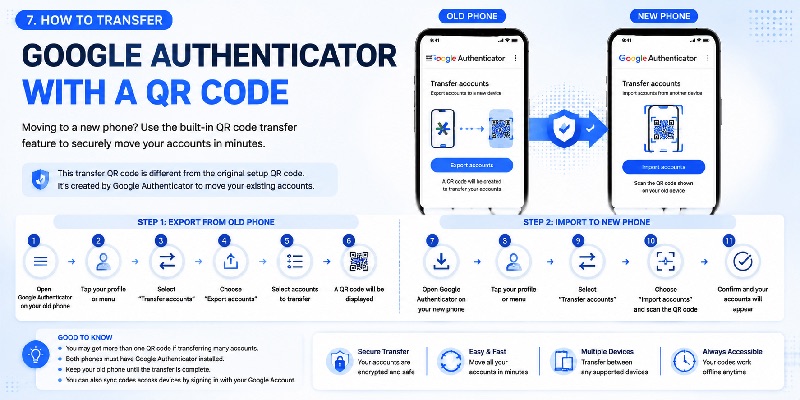
Changing phones is one of the most common reasons people begin searching for a google account authenticator qr code again.
You may think that you need the original enrollment QR image, but Google Authenticator provides more practical transfer options.
Automatic sync when signed in
Google says that when Authenticator codes have been saved to a Google Account, signing in to Google Authenticator with that account on a new supported device can synchronize the verification codes automatically.
For users who have this configuration, there may be no need to generate every google account authenticator qr code again.
Before removing the old device, verify that all required accounts appear correctly on the new phone.
Manual QR transfer
Google also supports manual QR-based transfer.
This is particularly useful when Google Authenticator is being used without a signed-in Google Account.
Google’s current transfer instructions explain that the old device can export selected Authenticator accounts as one or more QR codes. The new device then scans those codes through the Import accounts option.
A typical transfer process is:
- Keep your existing phone available.
- Install Google Authenticator on the new phone.
- Open Authenticator on the old device.
- Choose Transfer accounts.
- Choose Export accounts.
- Select the accounts you want to move.
- Continue until the old device displays a transfer QR code.
- Open Google Authenticator on the new device.
- Choose Transfer accounts.
- Choose Import accounts.
- Scan the QR code displayed on the old device.
- Confirm that the transferred accounts appear correctly.
Google notes that transferring multiple accounts can create more than one QR code. After scanning, Authenticator provides confirmation that the codes were transferred.
The transfer QR code is different from the original google account authenticator qr code generated during first-time enrollment.
It is created by the Authenticator application specifically to move existing entries.
Understanding this distinction prevents users from unnecessarily looking for an old google account authenticator qr code when Google’s supported transfer process already provides a safer and easier solution.
📖 Explore Articles: FIDO Google: Complete Guide to Secure Login and FIDO2
8. Troubleshooting a Google Account Authenticator QR Code
A google account authenticator qr code can fail at two main stages.
The first problem occurs when the phone cannot scan the QR image.
The second occurs when the scan succeeds but the generated verification code is rejected.
Identifying which stage is failing makes troubleshooting the google account authenticator qr code much easier.
The QR code will not scan
If the google account authenticator qr code is visible but Google Authenticator does not recognize it, try the following:
- Make sure the complete QR image is visible.
- Increase the brightness of the screen displaying the code.
- Reduce glare or reflections.
- Keep the phone camera steady.
- Move the phone slightly farther away if the camera cannot focus.
- Keep the QR code reasonably straight.
- Confirm that Google Authenticator has camera permission.
- Reload the setup screen if necessary.
- Use the manual setup key if the service provides one.
If you are scanning a general Google sign-in QR code rather than an Authenticator enrollment code, Google’s documentation also notes that tilting the phone can make QR scanning more difficult.
The QR code scans but the verification code is invalid
If the google account authenticator qr code scans successfully but your verification number is rejected, check these areas before restarting setup:
- Make sure the code has not expired.
- Check that you selected the correct service.
- Check that you selected the correct account.
- Confirm that your device’s time and time zone are accurate.
Google’s current troubleshooting guidance recommends checking code expiration, the correct service and account, and accurate device time.
Do not repeatedly scan the same google account authenticator qr code without understanding why the verification is failing.
If enrollment was already completed, repeated setup attempts can leave several entries with similar names in the authenticator, making it harder to identify the correct code.
You lost the old phone
If your original phone is unavailable, searching for a screenshot of the previous google account authenticator qr code should not be your first recovery strategy.
Instead, check whether you have:
- Authenticator synchronization through your Google Account.
- Another registered 2-Step Verification method.
- Backup codes.
- A passkey or security key.
- Another recovery option supported by the account provider.
Google recommends enrolling in additional 2-Step Verification methods to reduce the risk of becoming locked out when Authenticator is unavailable.
📖 Read More Guides:
Google Account Two Step Verification: Complete Setup Guide
9. Security Best Practices for Authenticator QR Codes
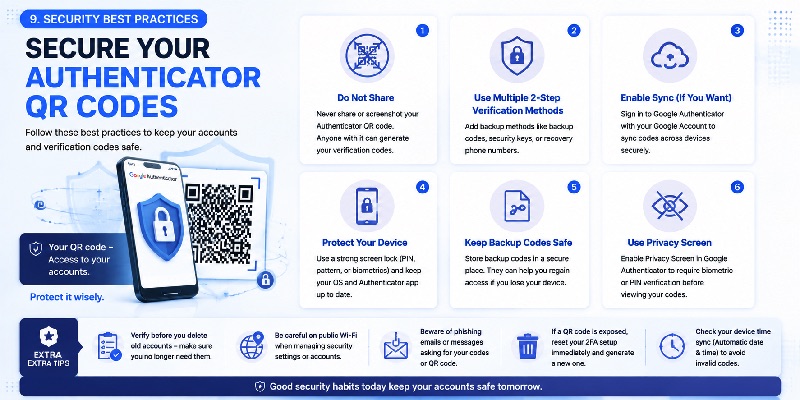
Because a google account authenticator qr code carries information used to establish a TOTP authenticator, it should be treated as sensitive security information.
Do not share or publish enrollment QR codes
Never publish a google account authenticator qr code in a support forum, social-media post, public document, video, or uncensored screenshot.
You should also avoid sending it through group chats or sharing it with people who do not need access to your authentication setup.
If an enrollment QR code has been exposed, resetting the authenticator setup and enrolling again with a new secret is safer than continuing to use an exposed configuration.
Keep backup methods
Do not make one google account authenticator qr code or a single smartphone your only path back into an important account.
Google currently recommends adding other 2-Step Verification methods and, where appropriate, using Authenticator synchronization to reduce the chance that a device change becomes an account-lockout problem.
Backup methods are particularly important before:
- Replacing a phone.
- Factory-resetting a device.
- Changing security settings.
- Removing an old authenticator.
- Traveling without access to your usual device.
Protect the phone itself
A google account authenticator qr code may only appear during enrollment, but the resulting authenticator information remains stored in the Authenticator environment afterward.
Protect your phone with a strong screen lock and keep its operating system updated.
Google Authenticator also offers a Privacy Screen feature. Google’s current documentation states that Privacy Screen can require device verification, such as a PIN, pattern, or biometric check, before access to Authenticator is allowed.
Two-factor authentication is most useful when both your password and your authenticator environment are properly protected.
10. Google Account Authenticator QR Code FAQ
Where can I find my Google Account Authenticator QR code?
You normally receive a google account authenticator qr code while adding Google Authenticator as a 2-Step Verification method.
Open the security settings for your Google Account, enter 2-Step Verification, find the Authenticator setup option, and follow Google’s on-screen instructions.
Google’s current support documentation directs users to the “Set up authenticator” option from their 2-Step Verification settings.
Is a Google verification QR code the same as an Authenticator QR code?
No.
A google verification qr code may be part of another Google identity-verification or sign-in process.
A google account authenticator qr code specifically refers to the setup used to establish an authenticator capable of generating time-based verification codes.
Always read the instructions shown beside the QR code before scanning it.
Does Google Authenticator need internet access?
Google states that Authenticator can generate one-time verification codes without internet access or mobile service after the relevant account has been configured.
You still need connectivity when signing in to an online website or service, but generation of the temporary Authenticator code itself can occur offline.
What should I do if my verification code is always wrong?
First check:
- Whether the code expired before you submitted it.
- Whether you selected the correct account.
- Whether you selected the correct service.
- Whether your phone’s time and time zone are correct.
Google recommends these checks when troubleshooting incorrect Authenticator codes.
If the problem continues, use the service’s official security settings to reset and reconfigure authenticator-based 2FA rather than scanning unrelated QR codes.
Can I use the same Authenticator app for Google, Instagram, OpenVPN, and Activision?
A compatible authenticator can contain multiple TOTP accounts.
Each service creates its own secret and its own enrollment QR code.
For example, an OpenVPN or Instagram QR code does not become a google account authenticator qr code just because Google Authenticator is the application scanning it.
The authenticator application acts as the code generator, while each connected service manages its own account and authentication secret.
What is the safest way to replace my phone?
Transfer or synchronize Authenticator entries before wiping the old phone.
After setting up the new device:
- Confirm that the expected Authenticator entries appear.
- Test several important accounts.
- Verify that generated codes work.
- Confirm that backup or recovery options are available.
- Only then remove or reset the old device.
Following this sequence reduces the risk of discovering too late that an important account was not transferred successfully.
Final Thoughts
A google account authenticator qr code makes TOTP enrollment much faster because it eliminates the need to manually copy a long setup secret.
For a new Google Account configuration, the most reliable workflow is to start inside Google’s official 2-Step Verification settings, generate the google account authenticator qr code, scan it with Google Authenticator, and confirm the first generated verification code.
After enrollment, you usually do not need the QR image again. Google Authenticator generates temporary codes that are used during future sign-ins.
If you replace your phone, use Google’s synchronization or QR-based account-transfer features rather than relying on old screenshots.
Similar QR enrollment flows are also available for services such as OpenVPN, Instagram, and Activision. However, each QR code belongs to the service that generated it.
Understanding the difference between a general QR sign-in screen, a service-specific TOTP enrollment QR code, and a true google account authenticator qr code makes account setup easier, reduces troubleshooting problems, and helps you manage two-factor authentication more securely.
Download Authenticator App
Secure your accounts with fast, reliable two-factor authentication. Download now and protect your login in seconds.
