
How to Add Email to Microsoft Authenticator
Published September 22, 2026
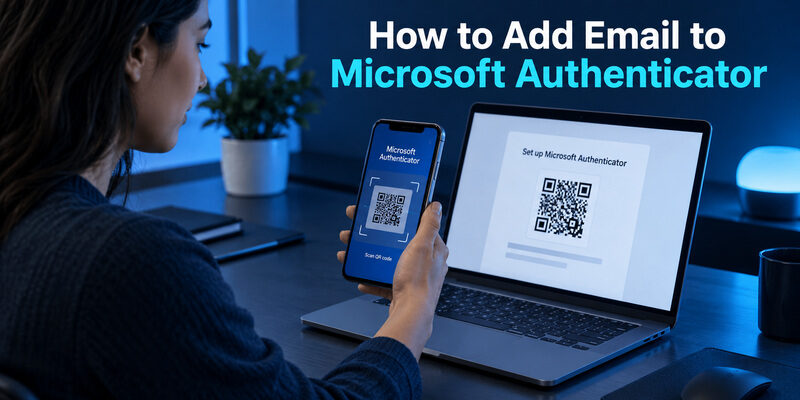
Add your email account through its security settings, then finish registration in . You are enrolling a sign-in method, not importing an inbox. The account provider supplies the registration flow; Microsoft Authenticator stores or activates the credential that the flow requires.
If you are learning how to add email to Microsoft authenticator for the first time, identify whether the account is personal, work or school, or from another provider before scanning anything. This guide starts with the preparation checklist, walks through the main registration paths, and then covers testing, replacement phones, address changes, and removal. Keep any currently working method until the new registration passes a real sign-in test, particularly when the account is managed by your employer.
Before You Add the Account
Confirm access and ownership
Start from a trusted browser session for the account you want to protect. Have the phone available, install or update Microsoft’s official Authenticator app, and confirm that you can complete any existing security challenge. If registration itself asks for an unavailable method, resolve that access problem first; a new installation alone cannot authorize a replacement credential.
The first decision in how to add email to Microsoft authenticator is account ownership. An email-looking username does not establish that it is a personal Microsoft account. Ask your organization’s support team if the address belongs to work and the correct enrollment portal is unclear.
| Account | Start enrollment at | App account category |
|---|---|---|
| Personal Microsoft identity | Personal account security settings | Personal account |
| Employer or school identity | Organization’s Security info flow | Work or school account |
| Another compatible provider | That provider’s two-step settings | Other account |
Prepare a usable setup screen
Use a second screen for the QR code when convenient. Keep the browser window open until the provider confirms registration. If camera access is unavailable, look for the manual-entry option within the same legitimate flow; not every account type exposes identical fields.
Before following how to add email to Microsoft authenticator instructions from any source, verify that the QR code comes from your own account’s settings. Do not scan a setup image sent by an unsolicited helper. Keep recovery material private and prepare an approved alternative method before making changes that could remove existing access.
💡 Discover Helpful Guides: Email Authenticator: Complete Guide to Secure Email Authentication
How to Add Email to Microsoft Authenticator for Work
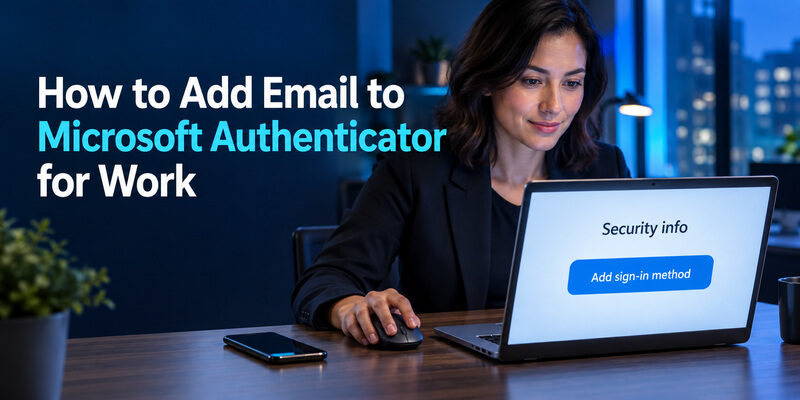
Open Security info
For how to set up Microsoft authenticator for work email, sign in to your organization’s Security info page. Microsoft’s account-addition guide describes choosing Add sign-in method, selecting Microsoft Authenticator, and continuing through the registration instructions. The browser then presents the setup information needed by the phone.
Your organization may restrict methods or require an administrator-assisted registration process. If the option is missing, stop and ask IT rather than choosing a different account category to force enrollment. Understanding how to add email to Microsoft authenticator includes recognizing when registration is controlled by policy.
Scan with the work-account option
On the phone, open Authenticator, choose the add-account control, select Work or school account, and choose the QR-scanning path. Allow camera access if needed and scan the code from the browser. Confirm that the resulting entry names the expected organization and identity.
Complete the browser’s test
Return to the registration page and follow its test request. Respond only to the request you just initiated, then continue until the browser confirms completion. A phone entry without this confirmation may represent an unfinished setup.
If you were searching how to add work email to Microsoft authenticator, this browser-and-phone sequence is the key practical difference from adding a mailbox to Outlook. Record completion, keep an existing alternative available, and test a fresh work sign-in before retiring any old registration. Knowing how to add email to Microsoft authenticator is useful only when the added method actually satisfies your organization’s challenge.
📘 Find the Right Guide: Email Authentication Outlook: Setup and Recovery
Register a Personal Microsoft Account
Begin at personal account security
For a personal Outlook or Hotmail identity, open the Microsoft account’s security settings and find the controls for managing sign-in methods. Microsoft Support describes adding a new way to sign in or verify, then choosing an app. Follow the displayed instructions for Microsoft Authenticator or the permitted app-registration option.
This branch of how to add email to Microsoft authenticator belongs to the personal account even if you normally read its mail in a work-installed Outlook application. The software displaying your inbox does not determine who owns the identity. Confirm the account name in the browser before adding a credential.
Finish the personal-account enrollment
In Authenticator, use the Personal account category and the registration route presented by Microsoft. When the flow supplies a QR code, scan it from the app; complete any verification requested on the account page. If the flow instead offers a direct Microsoft sign-in, follow that flow rather than searching for a QR code that has not been issued.
Review the account’s security settings afterward. Adding a method and enabling a particular protection, such as two-step verification, are related but distinct decisions. Do not infer the latter solely from an app tile.
When explaining how to add email to Microsoft authenticator to someone else, include this final settings check. It prevents a common misunderstanding: successfully adding an account name does not prove every desired sign-in policy is enabled. Keep a working recovery route and verify the next sign-in behavior before closing the setup session.
💡 Discover Helpful Guides: Email 2FA: Protect Your Inbox and Understand Email Codes
Add Another Provider or Use Manual Entry
Use the provider’s authenticator setting
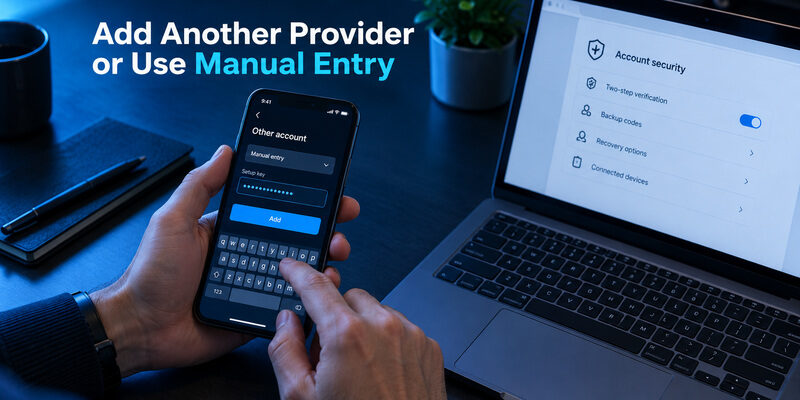
A non-Microsoft email provider must support compatible authenticator enrollment. Open that provider’s account-security settings and choose its authenticator-app method. In Microsoft Authenticator, select Other account and scan the provider’s enrollment QR code. Enter the generated confirmation code back on the provider’s page when requested.
This is how to set up email on Microsoft authenticator when the mailbox belongs elsewhere: the provider creates the credential and validates the result. Typing the email address into an unrelated Microsoft sign-in form will not establish a TOTP relationship with that provider.
Handle a missing camera or second screen
If the legitimate setup page offers a manual key, use the app’s corresponding manual-entry option and preserve the settings supplied by the provider. Work-account setup can present different manual fields from a standard TOTP secret. Copy exactly what that flow requests; do not substitute one kind of setup data for another.
For someone learning how to add email to Microsoft authenticator on a single phone, a second trusted screen is often easier than switching repeatedly between apps. Where manual entry is offered, it can avoid the camera problem. Do not upload the QR code to a public decoder or send it to another person.
After manual setup, complete the provider’s confirmation step. A plausible-looking code is not proof of success. The decisive step in how to add email to Microsoft authenticator remains the provider accepting the newly enrolled credential for the correct account.
📘 Find the Right Guide: Email Authentication Failed Fixes for Login and Sending
Prove the Registration Works
Test a fresh sign-in
Keep your setup session open while testing from a separate browser session. Sign in to the intended service and use the new method when challenged. Confirm both the account identity and the resulting access. If an existing session opens the inbox without another challenge, that alone does not test the new credential.
A short completion checklist makes how to add email to Microsoft authenticator repeatable:
- The provider confirmed enrollment.
- The phone entry matches the intended account.
- A fresh sign-in accepted the expected method.
- An approved recovery or alternative route remains available.
Understand the requested challenge
A push request and a rotating code are different tests. Follow the method the sign-in page names. Microsoft’s number-matching guidance explains that some push flows show a number to enter in the app, while certain same-device Microsoft mobile-app flows can show a Yes/No confirmation instead.
Do not fail a setup merely because its screen differs from an old screenshot. Equally, do not approve a request that cannot be connected to your own test. If several notifications appear, cancel the extra attempts and start one clean session.
The final answer to “how do i add my email to Microsoft authenticator” should include this verification stage. Without it, the account may look finished while the provider still expects an old device. Testing how to add email to Microsoft authenticator now is easier than discovering the missing step after the old phone has been erased.
💡 Discover Helpful Guides: Passwordless Email Authentication With Magic Links and Codes
Fix QR, Notification, and Enrollment Errors
The QR code will not scan
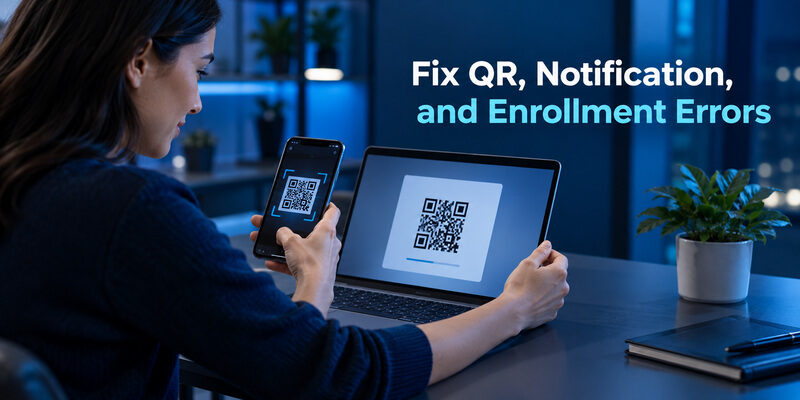
Confirm that the code belongs to the current enrollment session and account category. Increase screen brightness, keep the whole code inside the camera view, and avoid glare. Restart an expired registration flow rather than reusing a saved screenshot. Where available, use the provider’s manual-entry option.
Troubleshooting how to add email to Microsoft authenticator should begin with the specific stage that failed. “The camera cannot read the code” is different from “the code scans but the browser test fails.” That distinction prevents unnecessary account removal and gives support something concrete to investigate.
Registration or approval cannot finish
For push-based registration, check phone connectivity and notification permissions, and open the app directly. For a TOTP confirmation, verify automatic device time and use a fresh code from the correct entry. If an organization blocks registration, ask its administrator about the approved method or temporary recovery process.
Avoid repeatedly generating new enrollments while leaving several indistinguishable entries on the phone. Keep track of which browser attempt created which entry. Do not delete your only known working credential just to make the list look tidy.
When how to add email to Microsoft authenticator stalls at a policy message, quote the message to IT without sending secrets. Include whether the account is personal or work, whether the QR code was accepted, and whether another registered method still works. The guide provides a related troubleshooting path.
Move to a New Phone Before Removing the Old One
Treat replacement-phone enrollment as a new verification task. Microsoft’s restoration guidance warns that work or school accounts can require further sign-in or registration after restoring account entries. Seeing the same email address on a replacement device is therefore not the finish line.
Apply how to add email to Microsoft authenticator in this order: retain the old device, enroll or restore according to the account’s supported process, complete any required re-registration, and test the new phone. Then review the provider’s registered methods and remove the obsolete device deliberately. Handle each account independently instead of assuming one successful test covers the entire list.
If the old phone is already lost, use an existing alternative shown by the provider or contact the organization’s support team. Do not expect a reinstall to produce a missing credential. For personal accounts, follow the account-specific recovery instructions; for managed identities, use your employer’s identity-verification process.
Before discarding the old phone, check accounts you use infrequently as well as your main mailbox. A secondary work tenant or another provider’s code can be easy to overlook. Store recovery material in an appropriate private location, separate from a public setup checklist.
This migration step belongs in any complete how to add email to Microsoft authenticator guide because enrollment often happens during a device change. The useful result is uninterrupted access, not simply a cleaner phone screen. Related guidance is available in .
💡 Discover Helpful Guides
Google Email Two Factor Authentication Setup for Gmail
Change an Address or Remove an Account Carefully
Separate the three kinds of change
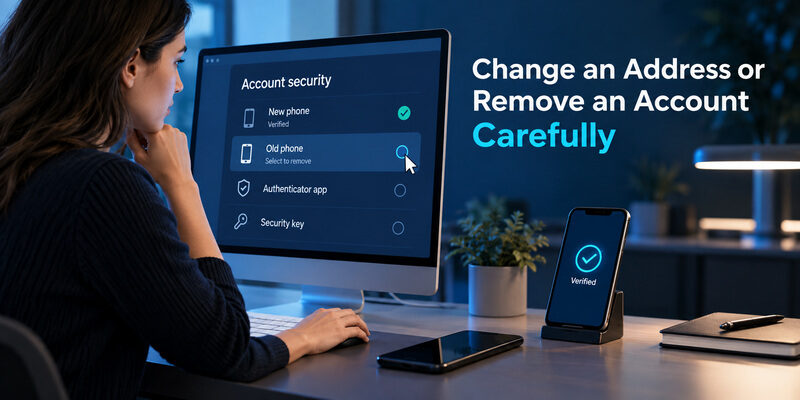
A Microsoft authenticator change email request can mean editing an account alias, changing an app label, or replacing the identity itself. These are different operations. An alias change belongs to the account provider; a work username change may require IT. Renaming an entry does not transfer the credential to another mailbox.
| Intended change | Where to act | What to verify |
|---|---|---|
| Change a personal sign-in alias | Microsoft account profile settings | The same account still signs in |
| Change a work identity | Organization’s account-management process | Required re-registration instructions |
| Remove an old phone’s method | Provider security settings | Another method already works |
Remove the provider registration
Before following how to remove email from Microsoft authenticator instructions, ensure another approved method works. Review the provider’s security settings and remove the obsolete app registration when that is the intended change. An employer may restrict this action. This is also the essential context for how to remove Microsoft authenticator from Outlook email: Outlook itself does not control the organization’s MFA requirement.
Remove the local app entry
Then open the relevant account’s controls inside Authenticator and use its removal option. Microsoft documents account removal separately from provider-side security changes. For how to delete email from Microsoft authenticator, remember that deleting a local entry does not delete the mailbox and does not necessarily remove the server’s requirement.
Learning how to add email to Microsoft authenticator and learning how to remove email account from Microsoft authenticator should share the same rule: verify the replacement route first. If you are asking how to change email on Microsoft authenticator app after an employer renames your account, follow IT’s instructions instead of deleting and recreating entries blindly.
💡 Discover Helpful Guides: How to Add Email to Authenticator App With QR or Manual Setup
When a Different Authenticator Is Appropriate
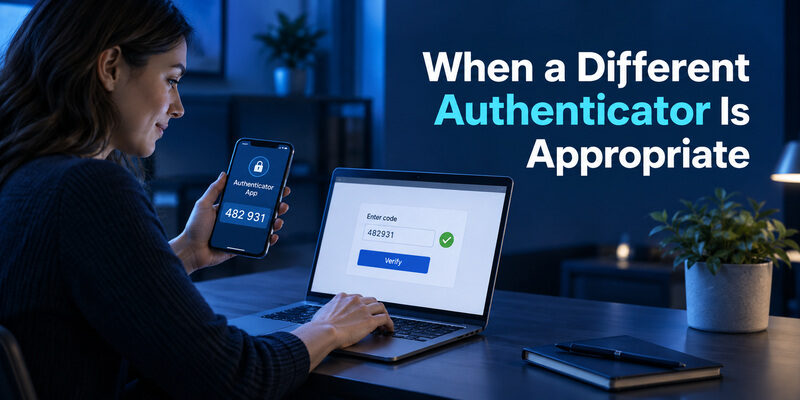
Some providers offer standard TOTP enrollment that can work with a compatible third-party app. If that is the method you need, is an option to evaluate through the provider’s normal setup process. Confirm its compatibility with the account’s requirements and test enrollment before replacing an existing method.
This is not a workaround for an employer that specifically requires Microsoft’s push approval or managed registration. A generic authenticator code cannot automatically satisfy every Microsoft-specific challenge. The answer to how to add email to Microsoft authenticator should not quietly turn into instructions for bypassing an organization’s chosen method.
For a supported change, create the replacement credential at the provider, verify it, and keep the approved recovery path available. Do not assume a QR code intended for one registration mechanism can be reused elsewhere. If the provider rotates the secret, the old app’s code may stop working even though its entry remains visible.
Choose based on the method you actually need, not the appearance of an account list. Where Microsoft registration is required, finish that process. Where compatible standard codes are allowed, compare the provider’s enrollment options and the app’s documented capabilities.
The broader lesson in how to add email to Microsoft authenticator is that the account provider remains in control. An app stores or presents a credential; it does not grant itself access to a mailbox. Keep that boundary clear when switching apps or helping another person complete their setup.
💡 Discover Helpful Guides: Microsoft Email Authenticator: Outlook Sign-In Explained
Final Thoughts
Knowing how to add email to Microsoft authenticator starts with the correct account category and ends with a successful sign-in test. Open the account’s own security settings, initiate enrollment, add the matching account in the app, and finish the provider’s verification. Keep the setup session and any working alternative available until that sequence is complete.
For work email, use Security info and follow your organization’s rules. For personal Microsoft accounts, review personal security settings. For another email provider, use its compatible authenticator-app enrollment. Manual entry can help when a camera or second screen is unavailable, but only use fields supplied by that same legitimate setup flow.
If you later ask, “how do i remove an email from Microsoft authenticator,” return to the provider-side method list before deleting the local entry. An address change, a phone change, and removal of a sign-in method deserve separate checks. Each can leave a visible account name that no longer describes the credential’s actual status.
The practical outcome of how to add email to Microsoft authenticator is a verified, recoverable sign-in method. Test it while you still have alternatives, keep recovery details private, and involve IT when policy or a lost work credential blocks progress. That small verification step is what turns a successful scan into a dependable setup.
Download Authenticator App
Secure your accounts with fast, reliable two-factor authentication. Download now and protect your login in seconds.
