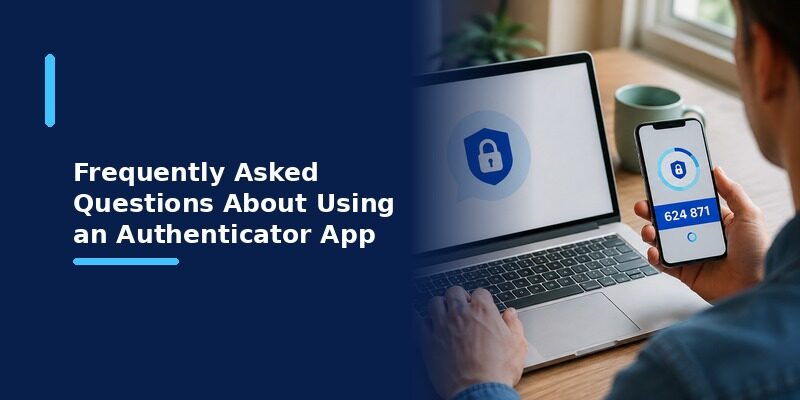
Authenticator ℠ App Authenticator ℠ App by Begamob

Best Free Authenticator App for Mac: Top Picks Compared

The best free authenticator app for Mac depends on what you own and how you work: a browser extension suits any Mac, an iPhone app via Mac Catalyst suits Apple Silicon, and a hardware-tied client like Yubico Authenticator suits YubiKey owners.

All of the main options are free for their core code generation, so this is less about cost and more about which one fits your Mac, your other devices, and your habits.

This guide compares the strongest free options directly, explains the trade-offs of each, and helps you pick the best free authenticator app for Mac for your specific situation rather than naming a single winner for everyone.

What Makes a Good Free Authenticator App for Mac?

The best free authenticator app for Mac combines genuine macOS compatibility, reliable code generation, and a way to keep accounts available when you switch between the Mac and your other devices.

No single app wins on every one of these at once, which is why the right choice genuinely depends on your own setup rather than a universal ranking.

Keeping these four qualities in mind as you read the comparison below makes it easier to spot which option is the best free authenticator app for Mac for you specifically.

  • Runs properly on your specific Mac, whether Apple Silicon or Intel.
  • Generates standard rotating codes that work with any compatible service.
  • Offers some path to back up or sync accounts, so a lost Mac isn’t a lockout.
  • Costs nothing for the core feature, which nearly every reputable option does.

An option that ticks all four of these boxes is a strong candidate, and most of the picks below satisfy at least three depending on your specific hardware.

Best Free Authenticator Apps for Mac Compared
Best Free Authenticator App for Mac: Top Picks Compared
Best Free Authenticator Apps for Mac Compared

Here are the strongest free options, each a reasonable pick for the best free authenticator app for Mac depending on your setup.

App How It Runs on Mac Best For Trade-Off
Browser extension (e.g. open-source authenticator) Runs in Chrome or Safari on any Mac Anyone, especially Intel Macs Lives in the browser rather than a standalone app
iPhone app via Mac Catalyst Runs on Apple Silicon Macs from the Mac App Store Apple Silicon owners wanting a native window Not available on Intel Macs; varies by developer
Yubico Authenticator Official native macOS desktop app People who own a YubiKey Full functionality expects a physical key
Authenticator App Runs across Mac, iPhone, and browser with one synced list People wanting consistency across every device Newer than some long-established names

Browser Extensions: The Most Universal Free Option

Why They Work on Any Mac

A browser-based authenticator runs the same on Intel and Apple Silicon Macs alike, since it depends on the browser rather than the Mac’s chip, making it the most universally compatible free choice.

This universality is exactly why it’s often the first recommendation for anyone on an older Intel Mac, where the Catalyst route simply isn’t available.

It also works identically across Chrome and Safari, so you’re not tied to a particular browser to keep your codes accessible.

The Main Trade-Off

Codes live inside the browser rather than a standalone app, which is convenient but carries a slightly larger security surface than an isolated application, worth managing by keeping extensions minimal.

Removing extensions you no longer use and keeping the browser itself updated goes a long way toward keeping this approach safe in everyday use.

For a lot of Mac users, this combination of zero cost and universal compatibility is what makes a browser extension their default answer for the best free authenticator app for Mac.

iPhone Apps via Mac Catalyst on Apple Silicon

How Catalyst Makes This Possible

Apple Silicon Macs can run many iPhone authenticator apps directly from the Mac App Store, giving a native app window without the developer building a separate Mac version.

This gives you a proper resizable window and keyboard support, which feels more natural on a desktop than a phone interface squeezed onto a larger screen.

The experience isn’t always perfectly polished, since it’s still fundamentally a phone app, but for many people it’s close enough to a native app to be a strong free option.

Checking Compatibility First

Not every app opts into this, so confirm a specific app supports Mac before assuming it’s a candidate for the best free authenticator app for Mac on your machine.

The quickest way to check is simply searching the Mac App Store directly, since only apps the developer has enabled for Mac will appear there.

If a familiar phone app doesn’t show up in Mac App Store results, that developer simply hasn’t enabled it for Mac, and a browser extension becomes the better fallback.

Yubico Authenticator: Best for Hardware Key Owners

Best Free Authenticator App for Mac: Top Picks Compared
Yubico Authenticator: Best for Hardware Key Owners

A Genuine Native Mac Client

Yubico Authenticator is Yubico’s own free native macOS app, built to generate the same standard rotating codes as any other authenticator, with a proper desktop interface.

As a purpose-built desktop client rather than a ported phone app, it tends to feel especially at home on a Mac.

That native feel is a genuine advantage for anyone who spends most of their day on the Mac and wants their authenticator to match the rest of their desktop apps.

It won’t matter much to someone who only occasionally needs a code on their Mac, but for heavy desktop users it noticeably improves the day-to-day experience.

Why It Suits YubiKey Users Specifically

Its design centers on working with a physical YubiKey, so it’s an excellent fit for anyone already invested in that hardware, though less compelling for someone who doesn’t own one.

If you already carry a YubiKey for other logins, using Yubico’s own app to manage your codes keeps everything within a single, coherent ecosystem.

Authenticator App: Best for Cross-Device Consistency
Authenticator App: Best for Cross-Device Consistency

Download Authenticator App

Secure your accounts with fast, reliable two-factor authentication. Download now and protect your login in seconds.

Download Now

One Synced List Everywhere

For anyone whose main frustration is juggling different setups across a Mac, an iPhone, and a browser, makes a strong case for the best free authenticator app for Mac by keeping one synced account list identical everywhere.

The Mac Treated as a First-Class Device

Rather than treating the Mac as an afterthought behind a phone-first app, it’s built so the same accounts, labels, and codes appear consistently whether you’re at your desk or reaching for your phone, all free for core use.

Free Authenticator App vs a Hardware Key on Mac

Approach Strength Consideration
Free authenticator app No extra hardware, works immediately Relies on securing your device
Hardware key (e.g. YubiKey) Strong physical second factor Costs money and can be lost

For most people, a free authenticator app is the practical best free authenticator app for Mac choice, while a hardware key suits those wanting the strongest possible physical protection and willing to buy one.

The two aren’t mutually exclusive either; some people use an app for everyday accounts and reserve a hardware key for their most sensitive logins.

That layered setup lets a free app handle the bulk of your accounts while a hardware key protects the handful that matter most, a genuinely practical middle ground.

What to Look for When Comparing Free Mac Options

Best Free Authenticator App for Mac: Top Picks Compared
What to Look for When Comparing Free Mac Options

Backup and Recovery

Whichever option you lean toward, check how it handles backup, since a Mac can be lost or reset just like a phone, and an app with no recovery path means re-adding every account by hand.

This is easy to overlook when everything is working, but it’s the factor most likely to matter on the day something goes wrong.

How Many Devices You Use

If the Mac is your only device, a simple browser extension may be all you need; if you switch constantly between a Mac, a phone, and a tablet, a synced cross-platform app saves real friction.

Being honest about how many devices you actually use points more clearly to the best free authenticator app for Mac than any feature comparison can.

Whether You Already Own Security Hardware

Owning a YubiKey tips the balance toward Yubico Authenticator, while not owning one makes a software-only free app the more practical starting point.

There’s no wrong answer here as long as the option you pick actually runs on your Mac and keeps your accounts recoverable.

Setting Up Your Chosen App on a Mac

Installing and Adding Accounts

Install your chosen option from the Mac App Store or the browser’s extension store, then add each account by scanning its QR code or entering a manual setup key from that service’s security settings.

Verifying It Works Before Relying on It

Sign into one account using a code from the new setup before removing any older method, confirming the codes are accepted so you’re never caught without a working option.

This quick test takes under a minute and removes any doubt about whether the setup actually worked.

Login vs Authentication: A Quick Clarification
Best Free Authenticator App for Mac: Top Picks Compared
Login vs Authentication: A Quick Clarification

What Login Means

Login refers to the overall act of signing into an account, typically starting with a username and password as the first step.

People often use the word loosely to mean the whole sign-in experience, including any verification steps that follow.

Where Authentication Fits In

Authentication is the broader process of proving who you are, and an authenticator app handles one part of it, the second factor, adding a step beyond the login credentials themselves.

Understanding this distinction helps clarify why an authenticator app is worth using: it strengthens the authentication step that a password alone leaves vulnerable.

Whichever tool you choose as the best free authenticator app for Mac, its job is the same: making that authentication step much harder for anyone but you to pass.

Common Mistakes When Choosing a Free Mac Authenticator

Assuming a Phone App Works on Mac

A frequent misstep in the search for the best free authenticator app for Mac is assuming a favorite phone app automatically runs on the Mac, when many simply aren’t offered there.

Checking Mac App Store availability first, before getting attached to a particular app, avoids this disappointment entirely.

Ignoring Backup Until It’s Too Late

Choosing an app without any backup or sync path works fine until the Mac is reset or replaced, at which point every account has to be rebuilt from scratch.

Paying for Features You Don’t Need

Since the core feature is free everywhere, paying for a premium tier only makes sense if you genuinely need its specific extras, which most individuals don’t.

Starting free and upgrading only if you later hit a genuine limitation is almost always the smarter order.

How to Choose the Best Free Authenticator App for Your Mac

  • On an Intel Mac: a browser extension is usually the simplest reliable choice.
  • On an Apple Silicon Mac wanting a native window: an iPhone app via Mac Catalyst.
  • Already own a YubiKey: Yubico Authenticator is the natural fit.
  • Want one consistent app across every device: Authenticator App.

Because every option here is free, you can try one and switch later at no cost, so the best free authenticator app for Mac is ultimately whichever matches how you actually work.

Trying two of them for a week each, before committing, costs nothing and often makes the right fit obvious in a way that reading comparisons alone can’t.

Frequently Asked Questions About Free Authenticator Apps for Mac
Best Free Authenticator App for Mac: Top Picks Compared
Frequently Asked Questions About Free Authenticator Apps for Mac

Is there a truly free authenticator app for Mac?

Yes, several. Browser extensions, iPhone apps via Mac Catalyst, and Yubico Authenticator are all free for core code generation, so cost is rarely the deciding factor.

Because so many genuine free options exist, the search for the best free authenticator app for Mac is really a search for the best fit, not the lowest price.

Does Apple include a built-in authenticator on Mac?

Recent macOS versions include a verification-code feature within the Passwords app, which covers basic needs, though a dedicated app offers more flexibility across devices.

For someone who lives entirely within Apple’s ecosystem, that built-in option may be enough on its own, without installing anything extra.

Anyone who also uses Android or Windows devices, though, will usually want a cross-platform app instead so their codes travel with them.

This is the scenario where a synced app pulls clearly ahead of any platform-locked built-in option.

Can I use the same authenticator on my Mac and iPhone?

Yes, either by scanning the same QR code on both during setup or by choosing an app with sync, which keeps a single account list consistent across both.

Sync is the more convenient of the two, since it means adding an account once rather than repeating setup on each device.

For anyone regularly using both a Mac and a phone, that convenience is often the single biggest factor in what makes an app feel like the best free authenticator app for Mac in daily use.

Do I need a YubiKey to use Yubico Authenticator on Mac?

No, but the app is designed around one, so its full value is realized by people who already own a YubiKey rather than someone starting from scratch.

Someone without a YubiKey is generally better served by one of the other free options covered here.

There’s no need to buy hardware just to get started, since the software-only free options protect your accounts perfectly well on their own.

Is a browser extension safe as the best free authenticator app for Mac?

It’s reasonably safe for most people, with a slightly larger security surface than an isolated app; keeping your browser updated and extensions minimal keeps that risk low.

For high-value accounts, some people prefer a standalone app or a hardware key, reserving the browser extension for lower-stakes logins.

This tiered approach lets you match the level of protection to how sensitive each account actually is, all without spending anything on software.

Final Thoughts

There’s no single best free authenticator app for Mac for everyone, since a browser extension, a Catalyst app, Yubico Authenticator, and a cross-platform app each suit a different kind of user, and all are free at their core.

Match the option to your Mac’s chip, whether you own a hardware key, and how much you value consistency across devices, and the right choice becomes clear for your specific situation.

For the largest number of people, the best free authenticator app for Mac is simply the one that stays consistent across every device they own, which is where a synced cross-platform app has a real edge.

Want one free app that stays consistent across your Mac, iPhone, and browser? Download and keep every account in sync.

Download Authenticator App

Secure your accounts with fast, reliable two-factor authentication. Download now and protect your login in seconds.

Download Now

Authenticator Free: Are Authenticator Apps Really Free, and Which One to Pick

Nearly every mainstream authenticator app is genuinely authenticator free to download and use for its core job of generating two-factor codes, with no purchase required on iPhone, Android, Mac, or Windows.

Where a cost sometimes appears is around extras like cloud backup, priority support, or business features, not the basic code generation itself, which is free across essentially every reputable option.

This guide explains what “authenticator free” actually covers, which apps are free on each platform, how to choose between them, and the handful of cases where a paid tier might genuinely be worth it.

Is an Authenticator App Free?

Yes. Almost every well-known authenticator app is authenticator free for its core function, generating rotating two-factor codes, on every major platform, with no upfront cost or subscription required to use that feature.

This is genuinely one of the rare areas of software where the free options are not a stripped-down compromise but the same core product most people would ever need.

This is true whether you’re on an iPhone, an Android phone, a Mac, or a Windows PC, since the underlying technology is an open standard that no single company charges to use.

That open standard is the key reason the market is full of no-cost options rather than a handful of paid products, since anyone can build a compliant app without owing a license fee to a central owner.

Download Authenticator App

Secure your accounts with fast, reliable two-factor authentication. Download now and protect your login in seconds.
Download Now

What “Free” Actually Covers

Authenticator Free: Are Authenticator Apps Really Free, and Which One to Pick
What “Free” Actually Covers

What’s Always Free

Adding accounts, scanning QR codes, and generating the rotating six-digit codes you use to sign in are free in every mainstream authenticator app, and this covers what the vast majority of people need.

For a typical person protecting an email account, a bank login, and a few social accounts, this free core is genuinely everything required, with nothing left behind a paywall.

There’s rarely a moment where a personal user bumps into a limit that forces an upgrade, which is part of what makes authenticator free apps such a genuinely accessible security tool.

What Sometimes Costs Extra

Some apps charge for optional extras layered on top of the authenticator free core, such as encrypted cloud backup, priority customer support, or advanced features aimed at businesses rather than individuals.

None of these extras change the actual codes or make sign-ins any more secure; they add convenience and management, not stronger protection.

This is the key thing to internalize about authenticator free apps: the security you get for nothing is the same security a paid plan provides.

Free Authenticator Apps by Platform

Platform Free Options Available Notes
iPhone Yes Many free apps on the App Store, plus a built-in code generator in Passwords
Android Yes Many free apps on the Play Store, often with Google account sync
Mac Yes Browser extensions and some apps via Mac Catalyst or native clients
Windows Yes Browser extensions and standalone desktop apps

Because authenticator free options exist on every platform, the real decision is rarely about cost and more about which app fits how you actually work across your devices.

Someone who lives on a single phone has very different needs from someone switching constantly between a work laptop, a personal phone, and a tablet, and that difference matters far more than price.

Thinking about where you actually sign in most often is a more useful starting point than comparing feature lists, since it points to whether cross-device sync matters to you at all.

Why Authenticator Apps Can Be Free at All

An Open Standard Behind the Scenes

The rotating codes almost every authenticator app generates are based on an open, freely usable standard, so no company has to pay a license fee to build a basic authenticator, which keeps the core feature free.

This same standard is why codes from one app work interchangeably with any service that supports authenticator apps, rather than locking you into a single vendor.

It also means switching between apps later never requires the services themselves to change anything, since they only care that a valid code arrives, not which app produced it.

That interoperability is a quiet but real benefit, since it means choosing a free authenticator today never locks you out of a better fit later.

How Free Apps Sustain Themselves

Free authenticator apps are often funded by an optional paid tier, by a larger company offering the app as part of its ecosystem, or by an open-source community, rather than by charging for the core codes.

Understanding how a given app funds itself is a useful lens for judging it: a large-company app, an open-source project, and a startup with a paid tier each have different incentives worth being aware of.

An open-source app, for instance, is transparent about how it works but may rely on volunteers for updates, while a big-company app has resources but ties you into its ecosystem.

Best Ways to Get a Free Authenticator App

Authenticator Free: Are Authenticator Apps Really Free, and Which One to Pick
Best Ways to Get a Free Authenticator App

Since almost every option is authenticator free, the useful question is which one to actually install. A few genuinely free choices cover most needs, each suited to a slightly different kind of user.

App Platforms Best For Trade-Off
Google Authenticator iPhone, Android People who want a simple, widely trusted free option Interface is minimal; sync tied to a Google account
Microsoft Authenticator iPhone, Android People already inside the Microsoft ecosystem Heavier app; most useful with Microsoft accounts
Proton Authenticator iPhone, Android, and desktop People who prioritize privacy and open-source tools Newer than some longer-established names
Authenticator App iPhone, Android, and browser People who want one synced list across every device Newer to the market than some rivals

Google Authenticator is the most widely recognized free option and works well for anyone who wants something simple and trusted, though its interface is deliberately minimal and its sync is tied to a Google account.

Its simplicity is genuinely a strength for people who just want codes and nothing else, though anyone wanting richer organization or cross-ecosystem sync may find it a little bare.

As a completely authenticator free option with a name almost everyone recognizes, it remains the default many people reach for first.

Microsoft Authenticator is also completely free and makes the most sense for people already signed into Microsoft services, since it integrates push approvals for those accounts, though it’s a heavier app if all you need is basic code generation.

For someone whose work and personal life both run through Microsoft accounts, that integration can genuinely save time, which offsets the app’s larger footprint.

Like the others here, it’s fully authenticator free, so the decision is purely about whether its Microsoft-focused strengths match your accounts.

Proton Authenticator is a free, privacy-focused option from the makers of Proton Mail, appealing to anyone who prefers open-source tools, though it’s newer than some of the longer-established names on this list.

Its appeal is strongest for people who already value the privacy-first philosophy behind Proton’s other products and want their authenticator to match.

It’s offered authenticator free in line with Proton’s broader approach of making privacy-focused tools widely accessible.

is another fully authenticator free choice, built around keeping one synced account list consistent across your phone and a browser session, so the experience stays the same regardless of which device you happen to reach for.

None of these costs anything for everyday use, so the choice comes down to fit: a simple trusted name, deep integration with an existing ecosystem, a privacy-first philosophy, or consistency across every device you own.

Because they’re all free, there’s also no real cost to trying one and switching later if it doesn’t suit you, as long as you re-add your accounts to the new app before removing the old one.

Free vs Paid: When a Paid Tier Is Worth It

When Free Is All You Need

For the vast majority of people protecting personal accounts, a free authenticator app covers everything required, and there’s no practical reason to pay for anything beyond it.

Paying for an authenticator when a free one would serve you identically is a common, avoidable mistake driven by the assumption that paid always means better.

In this specific category, that assumption simply doesn’t hold, since the core security is identical whether you pay or not.

When Paid Features Make Sense

A paid tier or business plan may be worth it for organizations needing centralized management, guaranteed support, or advanced backup controls, needs that go well beyond an individual’s personal use.

If you’re not an IT administrator managing many accounts, it’s very likely none of these paid features apply to your situation at all.

For an individual, the honest answer is usually that a free app is not just adequate but genuinely the right choice.

Watch Out for Fake “Free” Authenticator Apps

Spotting an Untrustworthy Listing

Because the category is popular, imitation apps sometimes appear in app stores; checking the developer name, review count, and reputation before installing avoids handing sensitive codes to an untrustworthy app.

A genuine, established app typically has millions of reviews accumulated over years, which an imitation listing simply can’t fake convincingly.

A brand-new listing with few reviews claiming to be a well-known authenticator is worth treating with real suspicion rather than installing on impulse.

Avoiding Hidden Costs or Data Practices

An app advertised as authenticator free but demanding excessive permissions or pushing aggressive in-app purchases is worth approaching with caution, since a genuine authenticator needs very little access to do its job.

A real authenticator mainly needs camera access to scan QR codes and little else, so broad requests for contacts, location, or unrelated data are a genuine red flag.

Reviewing the permission list before installing takes only a moment and is one of the simplest ways to avoid a poor-quality or malicious app.

How to Choose a Free Authenticator App for Your Situation

Authenticator Free: Are Authenticator Apps Really Free, and Which One to Pick
How to Choose a Free Authenticator App for Your Situation

With so many authenticator free options, matching one to your actual habits is more useful than chasing whichever is most popular.

  • Want the simplest, most recognized name: Google Authenticator.
  • Already deep in Microsoft services: Microsoft Authenticator.
  • Privacy is your top priority: a privacy-focused, open-source option like Proton Authenticator.
  • Want one consistent synced list across phone and browser: Authenticator App.

Any of these protects your accounts equally well at the core level, so choosing based on fit rather than cost leads to a tool you’ll actually keep using.

The best authenticator is ultimately the one you’ll consistently use, so a slightly less feature-rich app you actually open beats a powerful one you find annoying and avoid.

Consistency of use is what actually protects your accounts over time, and an app that fits your habits naturally is the one you’ll keep reaching for.

Since every option here is authenticator free, there’s no financial risk in trying one for a few weeks and switching if it doesn’t fit how you work.

Does a Free Authenticator App Cover Every Service?

Banking, Email, and Social Accounts

A authenticator free authenticator works with any service supporting standard authenticator-app codes, which covers the overwhelming majority of banks, email providers, and social networks people use daily.

Services That Require a Specific App

A small number of banks or enterprise systems require their own proprietary app or a specific named authenticator, in which case a general free app can’t substitute, though this is the exception rather than the rule.

When this happens, the requirement comes from that specific institution’s own policy, not from any limitation of free authenticator apps in general.

Free Authenticator Apps and Cloud Backup

Authenticator Free: Are Authenticator Apps Really Free, and Which One to Pick
Free Authenticator Apps and Cloud Backup

When Backup Is Included Free

Some free apps include account sync or backup at no cost, tied to a sign-in, which makes moving to a new phone far easier without paying anything extra.

When Backup Sits Behind a Paid Tier

Other apps keep the authenticator free code generation free but place encrypted cloud backup behind a paid plan, so it’s worth checking which model an app uses if easy recovery matters to you.

If effortless recovery on a new phone is a priority, favor an app that includes sync at no cost rather than one that charges for it.

Free Authenticator Apps vs a Built-In Option

Beyond standalone authenticator free apps, several platforms now include a built-in code generator, which raises a fair question about whether a separate app is even needed.

The Case for a Built-In Generator

A built-in option, such as the verification-code feature in a phone’s password manager, means one less app to install and works seamlessly within that ecosystem, which suits people who stay entirely on one platform.

The Case for a Dedicated App

A dedicated app usually offers clearer organization, easier cross-platform use, and more control over backups than a built-in generator, which matters most for anyone using a mix of devices from different makers.

Someone with an iPhone, a Windows work laptop, and an Android tablet, for example, is far better served by a single dedicated app than by three separate built-in generators that don’t talk to each other.

How Free Authenticator Apps Handle Your Data

Local-Only Storage

Some free apps keep every secret key stored only on your device, never sending it anywhere, which maximizes privacy at the cost of making recovery entirely your responsibility.

With this model, losing the device without a manual backup means losing the accounts, so it rewards careful users and punishes forgetful ones.

Synced or Cloud-Backed Storage

Other authenticator free apps sync encrypted copies of your accounts to make recovery easier, trading a little of that local-only privacy for the convenience of a simple restore on a new device.

For most people, that trade is worth it, since the practical risk of losing access to every account far outweighs the marginal privacy gain of keeping everything strictly local.

Frequently Asked Questions About Free Authenticator Apps

Authenticator Free: Are Authenticator Apps Really Free, and Which One to Pick
Frequently Asked Questions About Free Authenticator Apps

Are all authenticator apps free?

Nearly all mainstream ones are free for their core code-generation feature. Some charge for optional extras like cloud backup or business management, but the basic function is free across essentially every reputable option.

If you ever encounter an app charging just to generate basic codes, that’s unusual enough to be worth treating as a reason to look elsewhere.

Is there a free authenticator app for iPhone?

Yes, several, plus a built-in verification-code feature in the Passwords app on recent iOS versions, all at no cost.

That built-in option means many iPhone users already have a free authenticator available without installing anything at all, though a dedicated app often offers more flexibility.

Is there a free authenticator app for Windows?

Yes, through free browser extensions and standalone desktop apps, so Windows users aren’t limited to phone-only options.

A browser extension in particular is a popular free route on Windows, since it puts codes right in the toolbar without needing a separate app window.

Does a free authenticator app work with PayPal or other services?

Yes. A free authenticator app works with any service that supports standard authenticator-app two-factor authentication, which includes the large majority of major platforms.

PayPal, major email providers, and most social networks all fall into this category, so a single free app typically covers your whole account list.

Is a free authenticator app as secure as a paid one?

For core code generation, yes; security comes from the underlying standard rather than the price. Paid tiers add convenience and management features, not stronger codes.

A free app and a paid app protecting the same account generate codes of identical strength, since both follow the same open standard.

Which free authenticator app is best?

There’s no single best one; it depends on your priorities, a trusted simple name, ecosystem integration, privacy, or cross-device consistency, since all protect accounts equally well at the core.

Rather than searching for a universal winner, pick the one whose strengths line up with how you actually use your devices day to day.

Final Thoughts

An authenticator being authenticator free is the norm rather than the exception: essentially every reputable app generates two-factor codes at no cost, on every major platform, funded through optional extras rather than the core feature.

Because cost rarely separates the options, the smarter question is fit, whether you value simplicity, ecosystem integration, privacy, or a single consistent experience across every device you own.

Want a free authenticator that stays consistent everywhere you sign in? Download and keep every account in one place.

Download Authenticator App

Secure your accounts with fast, reliable two-factor authentication. Download now and protect your login in seconds.
Download Now

Disable Authenticator App Office 365: User and Admin Steps

To disable authenticator app Office 365 verification, an individual user changes their own security settings, while an administrator manages it for others through the Microsoft admin center, and the exact path depends on which of those two you are.

This distinction matters more than almost anything else here: a personal Microsoft account and a work or school account managed by an organization behave very differently, and one person often can’t change the other’s setup.

This guide covers how to disable authenticator app Office 365 prompts as a regular user, how an admin does it for others, how to switch to a different verification method instead, and the security trade-offs worth weighing first.

Can You Disable the Authenticator App on Office 365?

Yes, though how you disable authenticator app Office 365 verification depends on whether you’re changing your own personal account or an administrator is changing it for a managed organization account.

For a work or school account, organizational policy may require some form of two-factor authentication regardless, meaning you can sometimes switch methods but not remove the requirement entirely.

Understanding this split before you start saves frustration, since attempts to disable authenticator app Office 365 verification on a managed account often hit a policy wall that no amount of clicking will get past.

Download Authenticator App

Secure your accounts with fast, reliable two-factor authentication. Download now and protect your login in seconds.
Download Now

Before You Disable It: Security Considerations

Disable Authenticator App Office 365: User and Admin Steps
Before You Disable It: Security Considerations

Removing app-based verification lowers the protection on an account, so it’s worth confirming an alternative method is in place rather than leaving the account protected by a password alone.

In most cases, switching to a different second factor is a better choice than removing two-factor authentication entirely, since a password on its own remains the weakest common point of account compromise.

If the goal is simply to stop using one specific app rather than to weaken security, keeping some second factor in place achieves that without the downside of an unprotected account.

Being clear with yourself about which of these you actually want, stop using an app versus remove all two-factor protection, points directly to the right approach in the sections below.

How to Disable the Authenticator App as a Regular User

Opening Your Security Info

Sign into your account’s security settings page, find the security or verification methods section, and locate the authenticator app entry among your listed sign-in methods.

This page lists every verification method currently on the account, which is useful for confirming what else is set up before removing anything.

Take a moment to note which methods are already active here, since that determines whether removing the app leaves you with a working fallback or nothing at all.

Removing the Authenticator App Method

Choose to remove or delete the authenticator app as a method; depending on organizational policy, you may be prompted to set up a replacement method before the change to disable authenticator app Office 365 verification is allowed to take effect.

If a replacement is required, having a phone number or a second app ready beforehand makes the whole process a single smooth session rather than two separate visits to the settings page.

Preparing this in advance is the difference between a two-minute change and a frustrating loop where the system won’t let you disable authenticator app Office 365 verification until something else is in place.

How an Admin Disables the Authenticator App for Others

Disable Authenticator App Office 365: User and Admin Steps
How an Admin Disables the Authenticator App for Others

Using the Microsoft Admin Center

An administrator manages verification methods through the Microsoft admin center or the associated identity management console, where per-user and organization-wide authentication settings are controlled.

The exact menu names and layout of these consoles change over time, so an admin unfamiliar with the current interface should confirm the current path in Microsoft’s own documentation rather than relying on memory.

Microsoft periodically reorganizes these admin consoles, so a step-by-step guide written even a year ago may no longer match the current menu structure exactly.

Adjusting Authentication Method Policies

Rather than removing verification account by account, an admin usually adjusts the authentication method policy that governs which options are available or required across the organization.

This policy-level approach is more scalable for anything beyond a single user, since it applies consistently rather than requiring the same change to be repeated per account.

For an admin needing to disable authenticator app Office 365 verification across many users at once, adjusting the policy is far more practical than editing each account by hand.

Switching to a Different Verification Method Instead

Using Text Message or Phone Call Codes

A phone-based method can replace the authenticator app for users who prefer it, though it carries its own trade-offs, such as vulnerability to SIM-swapping, compared with an app-generated code.

For many users, a phone-based method is more convenient day to day, but it’s worth understanding that convenience comes with a slightly weaker security profile than an app.

Organizations focused on security sometimes disallow phone-based methods entirely for this reason, in which case switching apps is the only route that keeps you compliant.

Using a Different Authenticator App

Switching to a different authenticator app, rather than removing app verification entirely, keeps the stronger app-based protection while still letting you disable authenticator app Office 365 prompts tied to the original app.

This is often the ideal middle path: you stop using the app you didn’t want, without giving up the security an app-based code provides.

It also sidesteps any organizational policy that requires app-based verification specifically, since a different app still satisfies that requirement.

Add the new app as a method first, confirm it generates an accepted code, and only then remove the old one, keeping protection unbroken throughout.

What Happens After You Disable It

On the Next Sign-In

The next sign-in uses whatever verification method remains active, or the password alone if no second factor is left in place, depending on the account’s configuration.

If a password alone is all that remains, that’s a strong signal to add a replacement second factor promptly rather than leaving the account in that state.

An Office 365 account often holds email, files, and access to other connected services, which makes leaving it password-only especially risky.

Removing the App Entry Itself

After removing the method from the account, deleting the corresponding entry from the authenticator app itself keeps your app list tidy, though it isn’t strictly required for the change to take effect.

Leaving an unused entry in the app is harmless, but removing it avoids the future confusion of an old code that no longer corresponds to any active requirement.

A tidy app list, with only active accounts in it, makes the whole thing easier to trust and navigate at a glance.

Common Problems Disabling the Authenticator App on Office 365

Disable Authenticator App Office 365: User and Admin Steps
Common Problems Disabling the Authenticator App on Office 365
Symptom Likely Cause Fix
No option to remove the method Organization policy requires a second factor Switch to another method instead of removing it
Change reverts after saving A conditional access policy re-enforcing it Contact your admin about the governing policy
Locked out mid-change Removed the only method before adding another Use backup codes or contact your admin to recover

The Remove Option Is Greyed Out

This usually means an organizational policy requires a verification method, so you can switch to a different one but not remove the requirement entirely as an individual user.

In this situation, the only way to fully disable authenticator app Office 365 verification is for an administrator to change the governing policy, not something an individual account can override.

The Setting Keeps Reverting

A conditional access or security-defaults policy set by an administrator can automatically re-enforce two-factor authentication, overriding an individual attempt to disable it.

If a setting keeps reverting no matter what you do, this policy-level enforcement is almost always the reason, and only an admin can adjust it.

Locked Out After Removing the Method

Removing the only active method without setting up a replacement first can lock you out; backup codes or an administrator’s help become the way back in.

This is exactly why setting up a replacement method before removing the old one, rather than after, is the safer order of operations.

User vs Admin: Who Can Do What

Because the steps to disable authenticator app Office 365 verification differ so much by role, it helps to see the two side by side before deciding who needs to act.

Action Regular User Administrator
Remove their own app method Yes, if policy allows Yes
Remove another user’s method No Yes
Change the organization-wide requirement No Yes
Reset a locked-out account Limited (backup codes) Yes

If a change you need sits in the administrator column, contacting your IT team is faster than trying to force it from an individual account that doesn’t have the permission.

Explaining exactly what you’re trying to achieve, rather than just asking to turn something off, helps IT point you to the right method the first time.

How to Re-Enable the Authenticator App Later

Adding It Back as a Method

Re-adding the authenticator app works the same as the original setup: open the security methods page, choose to add an authenticator app, and scan the QR code it presents.

Because re-enabling is this quick, temporarily switching away and coming back later carries very little cost if your needs change.

Why You Might Want To

App-based verification remains one of the stronger everyday second factors, so re-enabling it later, after temporarily switching away, restores that protection without much effort.

For accounts that hold sensitive work data, the case for keeping app-based verification active is especially strong compared with weaker alternatives.

The few seconds an app adds to each sign-in is a small cost against the protection it provides for that kind of account.

Common Scenarios Where People Want to Disable It

Disable Authenticator App Office 365: User and Admin Steps
Common Scenarios Where People Want to Disable It

People look to disable authenticator app Office 365 verification for a handful of recurring reasons, and the right response depends on which one applies.

Switching to a New Phone

A phone upgrade is one of the most common triggers, but in this case transferring or re-adding the app is usually a better fix than disabling it, since the underlying need for a second factor hasn’t changed.

Finding the App Inconvenient

Some people simply find opening an app for every sign-in tedious, in which case a push-based approval or a different method can reduce friction without removing protection entirely.

Leaving an Organization

When leaving a job, the impulse to disable authenticator app Office 365 verification tied to that employer is understandable, though the organization’s IT team typically handles deprovisioning the account itself.

In that scenario, simply removing the account entry from your personal authenticator app is usually all you need to do on your end.

Can Authenticator App Be a Better Fit for Office 365?

For users who want to move away from Microsoft’s own app but keep strong app-based protection rather than fully disable authenticator app Office 365 verification, Authenticator App works as a standard authenticator for Microsoft accounts alongside every other service.

This keeps the security benefit of an app-generated code while consolidating Office 365 and every other account into a single, consistent app.

So rather than a straight choice to disable authenticator app Office 365 verification outright, this becomes a switch from one app to another that still satisfies the account’s security requirement.

Frequently Asked Questions About Disabling the Authenticator App on Office 365

Disable Authenticator App Office 365: User and Admin Steps
Frequently Asked Questions About Disabling the Authenticator App on Office 365

Can I fully turn off two-factor authentication on a work Office 365 account?

Usually not as an individual user, since organizational policy typically requires at least one second factor. An administrator controls whether the requirement itself can be removed.

On a purely personal Microsoft account with no organization behind it, you generally have more freedom to remove it, though doing so is still not recommended.

Will disabling the app log me out of Office 365?

Not immediately; existing sessions generally continue, but the next fresh sign-in uses whatever verification method remains active on the account.

This means you won’t be abruptly kicked out mid-task, but you should be ready to verify differently the next time you sign in from scratch.

Does an admin need my password to change my method?

No. An administrator manages verification methods through the admin center without needing your account password, which is part of why admin-level control exists.

This is by design, so that a locked-out or unavailable user can still have their access restored without anyone needing to know their password.

What if I removed the app and now can’t sign in?

Use backup codes if you have them, or contact your organization’s administrator, who can reset your verification methods so you can set up a new one.

For a personal account with no admin, Microsoft’s own account recovery process becomes the fallback, which can take longer but is designed for exactly this situation.

Is it safe to disable the authenticator app entirely?

Only if another second factor replaces it. Relying on a password alone significantly increases the risk of account compromise, so switching methods is safer than removing protection outright.

The safest mindset is to treat disabling the app as a switch to something else, never as a return to password-only sign-in.

Final Thoughts

How you disable authenticator app Office 365 verification comes down to who you are: a regular user changes their own security methods, while an administrator manages it for the organization through the admin center.

In nearly every case, switching to a different second factor is a wiser move than removing two-factor authentication entirely, since a password on its own is the single easiest thing for an attacker to compromise.

Want to keep strong app-based protection while consolidating every account? Download and manage Office 365 alongside everything else.

Download Authenticator App

Secure your accounts with fast, reliable two-factor authentication. Download now and protect your login in seconds.
Download Now

Authenticator App Restore From Backup: A Complete Recovery Guide

An authenticator app restore from backup works only if a backup was actually created beforehand, through the app’s own cloud sync, an exported file, or a device backup that happened to include the app’s data.

The method you use to restore depends entirely on which kind of backup exists, and the uncomfortable truth is that many people discover no usable backup was ever made until the moment they need one.

This guide covers every realistic way to complete an authenticator app restore from backup, how to tell which backup type you actually have, and what to do when no backup exists at all.

Can You Restore an Authenticator App From a Backup?

Yes, but only if a backup already exists. An authenticator app restore from backup depends on one of three things being in place beforehand: the app’s own cloud sync, a manually exported backup file, or a device-level backup that captured the app’s data.

In other words, an authenticator app restore from backup is really the second half of a two-part process, and the first half, creating the backup, has to have happened already for any of this to work.

If none of these were set up before the app was lost or the phone was replaced, there’s no backup to restore from, and recovery shifts to each individual account’s own process instead.

This is the single most important thing to understand before starting: a restore is only ever as good as the backup made in advance, and no amount of troubleshooting can recover data that was never saved anywhere.

Download Authenticator App

Secure your accounts with fast, reliable two-factor authentication. Download now and protect your login in seconds.

Download Now

Types of Authenticator App Backups

Authenticator App Restore From Backup: A Complete Recovery Guide
Types of Authenticator App Backups
Backup Type How It’s Created How You Restore
Cloud sync Enabled once in the app’s settings Sign into the same account on a new device
Exported file Manually exported to a file or QR code Import the file or scan the code on the new device
Device backup Part of an iCloud or Google device backup Restore the whole device, then reopen the app

Knowing which type you have determines the entire restore process, so identifying it first saves time compared with trying methods that were never going to work.

If you’re not sure which type you have, start by opening the app’s settings on any device where it’s still installed, since that’s usually where an enabled sync or a previous export option will be visible.

A quick look at these settings tells you immediately whether an authenticator app restore from backup through sync is even an option, or whether you’ll be relying on a file or backup codes instead.

How to Restore Using Built-In Cloud Sync

Signing Into the Same Account

If the app offered sync tied to an account and you enabled it, installing the app on a new device and signing into that same account restores every entry automatically.

This is by far the smoothest kind of restore, since it requires no files, no QR codes, and no access to the old device at all, only the account credentials used for sync.

For anyone who set this up in advance, an authenticator app restore from backup through sync often feels almost anticlimactic, since the entire list simply reappears within seconds of signing in.

Confirming the Sync Actually Populated

After signing in, wait a moment for the list to fill in before assuming the authenticator app restore from backup failed, since a slow connection can delay entries appearing for a few seconds.

If the list is still empty after a minute or two on a solid connection, the most likely explanation is that you’re signed into a different account than the one sync was originally enabled with.

Signing out and back in with the correct account almost always resolves this, since the entries were never lost, just tied to a different sign-in.

How to Restore From an Exported Backup File

Authenticator App Restore From Backup: A Complete Recovery Guide
How to Restore From an Exported Backup File

Importing a Saved Export File

If you previously exported accounts to a file, the app’s import option reads that file and rebuilds the account list from it, provided the file hasn’t been moved or deleted since.

Locating that file is often the hardest part, since export files are easy to save somewhere and forget about; checking cloud storage folders and email attachments from around the time of the export is a good place to start.

Once the file is found, the actual authenticator app restore from backup step itself usually takes only a few seconds through the app’s import option.

Scanning a Transfer QR Code

Some exports take the form of a QR code rather than a file; scanning it from the new device rebuilds the accounts the same way, without needing a saved file at all.

This method only works if you still have access to the QR code, which is why a screenshot of it stored securely can be a practical backup in its own right.

Store any such screenshot the same way you would a sensitive file, since it contains everything needed to regenerate your codes elsewhere.

Restoring From an iCloud or Google Device Backup

When Device Backups Include Authenticator Data

Some authenticator apps allow their data to be included in a full device backup, meaning restoring the whole phone from iCloud or Google also restores the app’s accounts.

When this works, it’s convenient because it happens as part of the normal device-setup flow, with no separate authenticator-specific step required at all.

The catch is that you often can’t tell in advance whether a given app supports this, which makes it the least predictable of the three backup types.

Why Some Apps Exclude Themselves From Device Backups

Many apps deliberately exclude their secret keys from standard device backups for security reasons, which is why a full phone restore doesn’t always complete an authenticator app restore from backup the way people expect.

This is intentional rather than a flaw: excluding secret keys from a device backup means a leaked or stolen backup file can’t be used to clone your two-factor codes elsewhere.

This is worth keeping in mind before relying on a device backup as your only recovery plan, since it may quietly leave your authenticator data out entirely.

What to Do If No Backup Exists

Authenticator App Restore From Backup: A Complete Recovery Guide
What to Do If No Backup Exists

Using Backup Codes

Without any app backup, the backup codes generated by each service when two-factor authentication was first set up become the fastest way back into each account individually.

Work through the most important accounts first, email and financial services especially, since those often hold the keys to recovering everything else.

Each backup code is typically single-use, so cross off or note each one as you use it to avoid confusion about which still work.

Recovering Through Each Account’s Support

Without backup codes either, each account’s own identity-verification recovery process is the remaining path, handled one service at a time rather than through a single restore.

This route takes the most time and patience, sometimes several days per account for stricter services, which is exactly why setting up any backup in advance matters so much.

Starting the recovery for time-sensitive accounts first, rather than working alphabetically, gets you back the access that matters most sooner.

Common Problems Restoring an Authenticator App

Symptom Likely Cause Fix
Restore brings back an empty list Signed into the wrong account for sync Confirm the exact account used when sync was enabled
Import file won’t open File corrupted, moved, or from an incompatible app Locate the original file or try re-exporting from the old device
Codes restored but rejected Device clock out of sync Enable automatic date and time on the new device

Restored Accounts Generate Wrong Codes

This almost always traces back to the new device’s clock being slightly off; enabling automatic date and time settings resolves it in nearly every case.

It’s worth ruling this out before assuming the authenticator app restore from backup itself went wrong, since the entries are usually restored correctly and only the clock is at fault.

Only Some Accounts Came Back

A partial restore usually means the backup itself was incomplete, often because it was created before some accounts were added; the missing ones need to be re-added individually.

This is a good reason to refresh a manual export periodically rather than relying on one made months ago, since anything added since then simply won’t be in it.

Backup File Is From a Different App

Export formats aren’t always compatible between different authenticator apps, so a file exported from one app may not import cleanly into another without a QR-based transfer instead.

When switching between apps entirely, a QR-based transfer is generally more reliable than a file, since it uses a widely shared format rather than one app’s proprietary export.

How to Choose a Restore Method for Your Situation

Picking the right approach to an authenticator app restore from backup depends entirely on what you have available, so matching your situation to a method first avoids wasted effort.

  • Have the old phone still working: use a QR-based transfer or export directly from it, the fastest and most complete option.
  • Have cloud sync enabled: simply sign into the same account on the new device and let the list rebuild.
  • Have only an old export file: import it, accepting that anything added after the export won’t be included.
  • Have nothing but backup codes: recover each account individually and set up fresh entries afterward.

Working out which of these describes you before starting turns an authenticator app restore from backup from a frustrating guessing game into a clear, single path forward.

How to Set Up Reliable Backups Going Forward

Authenticator App Restore From Backup: A Complete Recovery Guide
How to Set Up Reliable Backups Going Forward

Turning On Cloud Sync

Enabling sync as soon as you set up an authenticator app is the single most effective way to make any future restore quick and automatic rather than manual and stressful.

Turning it on early, before you have dozens of accounts, also means every account you add afterward is covered automatically without any extra thought.

This set-it-and-forget-it quality is what makes sync so much more reliable in practice than a manual export that depends on you remembering to refresh it.

Keeping Backup Codes Separately

Storing each account’s backup codes somewhere off the phone, such as a password manager or printed copy, gives you a fallback even when an authenticator app restore from backup isn’t possible at all.

Think of backup codes and app backups as two independent safety nets: having both means a single failure never leaves you completely locked out.

The two protect against different failures, a lost phone versus a corrupted backup, so neither one fully replaces the other.

Can Authenticator App Make Restoring Simpler?

Authenticator App treats sync as a core feature, so an authenticator app restore from backup usually means nothing more than signing into the same account on a new device and letting the list rebuild itself.

That removes the most common failure point described throughout this guide: discovering, too late, that no usable backup was ever created in the first place.

Building this same habit into whichever app you currently use, by enabling its sync or keeping a fresh export, closes most of the gap even without switching apps at all.

Frequently Asked Questions About Restoring an Authenticator App

Authenticator App Restore From Backup: A Complete Recovery Guide
Frequently Asked Questions About Restoring an Authenticator App

Does restoring my phone from backup also restore my authenticator app?

Sometimes, but not always. Some apps include their data in a device backup while others deliberately exclude it for security, so a full phone restore is not a guaranteed way to recover authenticator accounts.

The only way to know for certain is to check the specific app’s own documentation, since this behavior varies from one authenticator app to the next.

Can I restore an authenticator app without the old phone?

Only if a cloud sync or an exported backup was created beforehand. Without either, and without the old device, each account has to be recovered through its own process instead.

This is why enabling sync the moment you first install an app matters so much: it’s the one step that makes a restore possible even when the old phone is gone entirely.

Is an exported backup file safe to keep?

Treat it like any sensitive file: store it somewhere encrypted or otherwise protected, since it contains the secret keys used to generate your account codes.

Anyone who obtains this file could potentially generate your codes, so it deserves the same care as a password file rather than being left in an easily accessible folder.

Why did only some of my accounts come back after restoring?

The backup was most likely created before those accounts were added, so they were never included in it; re-adding them individually is the only way to bring them back.

Refreshing your backup after adding any important new account prevents this gap from appearing in the first place.

How often should I back up my authenticator app?

With cloud sync enabled, backups happen continuously and automatically. With manual exports, re-exporting whenever you add a significant new account keeps the backup reasonably current.

For most people, cloud sync is worth choosing precisely because it removes the need to remember this step at all.

Final Thoughts

An authenticator app restore from backup is straightforward when a backup already exists, whether through cloud sync, an exported file, or a device backup that happened to include the app’s data.

The real work happens before anything goes wrong: enabling sync, keeping an export current, or saving backup codes separately turns a potential lockout into a quick, routine recovery.

Confirm which backup type you have, match it to the right restore method, and check the device clock if codes are rejected. Those three steps cover nearly every authenticator app restore from backup situation this guide has walked through.

Want restores that just work without hunting for a backup file? Download and keep every account synced automatically.

Download Authenticator App

Secure your accounts with fast, reliable two-factor authentication. Download now and protect your login in seconds.
Download Now

Authenticator App Delete Account: How to Remove Entries Safely

An authenticator app delete account action removes that single entry from your app’s list; it doesn’t touch the account itself or turn off two-factor authentication on the service’s own side.

That distinction trips up a fair number of people, since deleting the wrong entry by mistake feels like it should be easy to undo, when in reality it means setting the account up again from scratch.

Understanding both sides of this equation before touching anything makes the whole process far less stressful, whether you’re removing one old entry or cleaning up several at once.

This guide covers exactly how to complete an authenticator app delete account action correctly, what actually happens on both sides when you do, how to recover from deleting the wrong one, and when renaming makes more sense than deleting at all.

How Do You Delete an Account From an Authenticator App?

Most apps let you complete an authenticator app delete account action by tapping or long-pressing the specific entry, then choosing a delete, remove, or edit option that reveals a removal button.

The exact gesture varies slightly between apps, but the underlying pattern, select the entry, find its edit or delete control, confirm the removal, stays consistent across nearly every authenticator app.

Once you’ve done this once, repeating it for any other entry in the future takes only a few seconds, since the process is identical regardless of which account you’re removing.

Download Authenticator App

Secure your accounts with fast, reliable two-factor authentication. Download now and protect your login in seconds.

Download Now

What Happens When You Delete an Account From the App

Authenticator App Delete Account: How to Remove Entries Safely
What Happens When You Delete an Account From the App

What’s Removed Locally

The entry disappears from your account list immediately, along with the app’s locally stored copy of the secret key used to generate that account’s codes.

This removal is generally immediate and doesn’t require confirming anything with the account provider itself, since it only affects data stored locally in the app.

What Happens on the Account’s Own Side

Nothing changes on the account’s side when you complete an authenticator app delete account action; the service still expects a two-factor code at sign-in until you separately turn that requirement off in its own settings.

This one-sided relationship is the source of nearly every problem covered later in this guide, so keeping it in mind from the start avoids a lot of confusion.

Treat every authenticator app delete account action as purely local to your device, never as something that reaches out and changes settings on the account provider’s end.

How to Remove or Delete an Account

Deleting From the Account List Directly

Open the app, locate the account you want to remove, and use its delete option, typically found by tapping the entry, swiping it, or opening a small menu next to it.

If none of these gestures reveal a delete option right away, check whether the app has a dedicated edit mode that needs to be turned on first before individual entries become editable.

An edit mode toggle, often shown as a small pencil icon or an “Edit” label near the top of the account list, is a common pattern across many list-based mobile apps, not just authenticator apps specifically.

Confirming the Deletion

Most apps show a confirmation prompt before finalizing the removal, specifically to prevent an accidental tap from deleting an entry you didn’t mean to touch.

Take the extra second to actually read this prompt rather than tapping through it reflexively, since it’s specifically there to catch a mistake before it becomes permanent.

A prompt that shows the exact account name being removed, rather than a generic “Are you sure?” message, makes this final check especially easy to rely on.

Deleting the Wrong Account by Mistake

Authenticator App Delete Account: How to Remove Entries Safely
Deleting the Wrong Account by Mistake

Re-Adding an Account You Deleted Too Soon

If you accidentally remove the wrong entry, simply set it up again the same way you originally did: scan its QR code or enter a manual key from that account’s own security settings page.

This kind of mistake is more common than it might sound, especially with a long authenticator app delete account list full of similarly named entries.

Taking a moment to double check the account name and username shown before confirming any removal catches the vast majority of these mix-ups before they happen.

Preventing Accidental Deletion in the Future

Reading the confirmation prompt carefully before tapping through it, rather than dismissing it automatically, is the simplest habit that prevents most accidental deletions.

Labeling accounts clearly from the start also reduces this risk significantly, since a well-named entry is much harder to confuse with another one during a quick scroll through the list.

Consider including the specific username or email address in the label itself for any account sharing a name with another, similar service.

Does Deleting From the App Turn Off Two-Factor Authentication?

Why the Account Still Expects a Code

An authenticator app delete account action only removes the app’s local copy of the account’s secret key; the account provider has no way of knowing the entry was deleted and continues requiring a code as usual.

This is a deliberate design choice across virtually every authenticator app, since the app and the account provider never directly communicate with each other about deletions or any other change.

This separation is actually a security feature rather than a limitation, since it means an authenticator app being compromised can’t silently disable an account’s two-factor protection remotely.

How to Actually Turn Off Two-Factor Authentication

Disabling two-factor authentication has to happen on the account’s own security settings page, entirely separate from anything done inside the authenticator app itself.

Look for a toggle labeled two-factor authentication, two-step verification, or similar wording, usually found in a security or sign-in section of that account’s settings.

Some services require re-entering your password before allowing this toggle to change, as an extra safeguard against someone else disabling your protection without your knowledge.

Deleting an Email Account From an Authenticator App

Authenticator App Delete Account: How to Remove Entries Safely
Deleting an Email Account From an Authenticator App

An authenticator app delete account action for an email account specifically works exactly the same as for any other service, since email accounts don’t require special handling inside the authenticator app itself.

Deleting a Personal Email Entry

Locate the email account’s entry and remove it the same way as any other; the email account and its inbox remain completely untouched by this action.

This is worth stating plainly since email accounts often feel more sensitive than others, when in practice the same rules apply regardless of what kind of account is involved.

An authenticator app delete account action never touches the underlying inbox or its stored messages, no matter which email provider the account belongs to.

Deleting a Work or Managed Email Entry

A work email account managed by an organization’s IT department may still require two-factor authentication through that organization’s own policy, so re-adding the entry may be necessary even after deleting it locally.

Check with IT before assuming you can permanently remove a work account’s two-factor setup, since organizational policy may not allow disabling it entirely even if the local app entry is gone.

Company-managed accounts sometimes automatically re-enforce a two-factor requirement on the next sign-in regardless of what was removed locally, which is worth expecting rather than treating as a surprise.

Common Problems Deleting an Account From an Authenticator App

Symptom Likely Cause Fix
Locked out after deleting an account Two-factor authentication still required on that service Use backup codes or the account’s recovery process
Can’t find a delete option Interface hides it behind a swipe or long-press gesture Try swiping the entry or long-pressing it
Deleted entry keeps reappearing Account sync restoring it from another device Delete it on every synced device, not just one

Locked Out of the Account After Deleting

This happens when the account still expects a code that no longer exists anywhere; backup codes or that service’s own account recovery process become the way back in.

This scenario is entirely avoidable by turning off two-factor authentication on the account first, before removing its entry from the app, rather than doing it in the reverse order.

This exact ordering mistake is the single biggest cause of lockouts related to authenticator app delete account actions covered throughout this guide.

No Obvious Delete Button

Some apps hide account management behind a swipe gesture or a long press rather than a visible button, so trying both before assuming the feature is missing is worth doing.

Checking the app’s own help documentation or support page is a reasonable next step if neither gesture reveals anything after a reasonable attempt.

A quick search for the app’s name alongside “delete account” often surfaces a specific answer faster than experimenting with every possible gesture yourself.

When to Delete vs When to Just Rename an Account

Signs You Should Just Rename

If the account is still active and you simply want a clearer label, renaming preserves the working entry while making it easier to identify in a long list.

Renaming is also the safer default whenever you’re not entirely certain an entry is truly no longer needed, since it costs nothing and can always be deleted later.

There’s no real downside to defaulting to rename over delete whenever a authenticator app delete account decision feels uncertain; the entry costs nothing to keep around a little longer.

Signs You Should Delete and Re-Add

An entry generating consistently rejected codes, or one tied to an account you’ve fully closed, is a better candidate for deletion than a simple rename.

Confirm the underlying account is genuinely closed or no longer relevant before deleting, rather than assuming based on how long it’s been since you last used it.

A quick sign-in attempt on the actual account, right before deleting its authenticator entry, confirms whether it’s genuinely inactive or just infrequently used.

Managing Multiple Accounts Before a Bulk Cleanup

Authenticator App Delete Account: How to Remove Entries Safely
Managing Multiple Accounts Before a Bulk Cleanup

Anyone considering an authenticator app delete account action for several old entries at once benefits from a quick review pass before deleting anything, rather than removing entries one by one as they’re noticed.

  • List every account currently in the app and note which ones are still genuinely active.
  • Confirm two-factor authentication is turned off first for any account you plan to close entirely.
  • Delete inactive entries in one focused session rather than spreading the cleanup across several unrelated visits to the app.

A deliberate, one-time cleanup like this is far less error-prone than deleting entries reactively whenever one happens to catch your eye.

Setting aside fifteen minutes for this kind of review once or twice a year keeps an authenticator app delete account decision deliberate rather than rushed.

Can Authenticator App Make Account Management Easier?

Authenticator App includes clear labeling and search alongside a straightforward authenticator app delete account option, so managing a long list of accounts, whether renaming, reordering, or removing entries, stays simple even as the list grows.

A confirmation step before any deletion also helps prevent the exact accidental-removal scenario covered earlier in this guide.

Consistent, predictable behavior across every account entry, rather than a mix of different gestures and confirmation styles, is what makes routine account management feel simple rather than error-prone.

Frequently Asked Questions About Deleting an Account From an Authenticator App

Authenticator App Delete Account: How to Remove Entries Safely
Frequently Asked Questions About Deleting an Account From an Authenticator App

Will deleting an account from the app affect my password?

No, removing an entry from the authenticator app has no effect on your password for that account; the two are managed completely separately.

Passwords and authenticator entries live in entirely different systems, so a change to one never automatically affects the other in either direction.

This separation is one of the reasons two-factor authentication adds real security value: compromising one system alone isn’t enough to gain full account access.

Can I delete an email account from the authenticator app without losing email access?

Yes, deleting the entry only removes the two-factor code generator; your email account and its contents remain fully intact and accessible through normal sign-in.

You may simply be prompted to set up two-factor authentication again the next time you sign in somewhere new, which is a normal part of the account’s own security policy.

This is a routine, expected prompt rather than a sign of a lingering problem, and completing it takes only as long as any other fresh authenticator setup.

What if I delete an account I still need two-factor authentication for?

Re-add it the same way you originally set it up, scanning the QR code or entering the manual key from that account’s security settings again.

This full re-setup, rather than any kind of quick undo, is the only way to restore a deleted entry, so treat every deletion as effectively permanent from the app’s perspective.

Keeping this in mind before tapping delete is a healthier mental model than expecting any kind of built-in recovery option to exist afterward.

Does deleting an account remove backup codes too?

No, backup codes are generated and stored by the account provider, not the authenticator app, so they remain valid regardless of what happens inside the app.

This is exactly why keeping backup codes stored somewhere outside the app is so useful; they survive an accidental deletion completely unaffected.

Losing an authenticator entry and losing backup codes are two entirely separate failures, and having one intact when the other is gone still gets you back into the account.

Is there a way to temporarily disable an account instead of deleting it?

Most authenticator apps don’t offer a pause feature separate from deletion, so renaming an entry to note it’s inactive is a reasonable middle ground if you’re not ready to fully remove it.

A label like “inactive” or “unused” added to the account name keeps the entry visible as a reminder without forcing an immediate decision either way.

This lightweight middle ground avoids forcing a firm authenticator app delete account decision before you’re actually ready to make one.

Final Thoughts

An authenticator app delete account action is quick and reversible in the sense that re-adding an entry is always possible, but it’s worth remembering that the account’s own two-factor requirement never actually changes just because the app entry is gone.

When in doubt about whether to delete or simply rename an entry, renaming is the safer, lower-risk choice, especially for any account you’re not entirely certain you’re finished using.

Read the confirmation prompt, disable two-factor authentication on the account first if you’re closing it entirely, and treat every authenticator app delete account decision as a deliberate one rather than a reflexive tap. Those three habits cover nearly everything this guide has walked through.

Want clearer labels and an easier way to manage every account? Download and keep your list organized.

Download Authenticator App

Secure your accounts with fast, reliable two-factor authentication. Download now and protect your login in seconds.
Download Now

How to Reset Your Authenticator App Without Losing Access

How to reset your authenticator app usually means one of two different things: clearing the entire app back to a blank slate, or removing and re-adding just one troublesome account while leaving everything else untouched.

Confusing the two is the most common way people end up wiping every account when they only ever needed to fix one, so getting this distinction right before doing anything else saves real time.

Which one you actually need matters a lot, since a full reset erases every account currently stored in the app, while a single-account reset only affects the one entry you’re working on.

This guide covers both meanings of how to reset your authenticator app, what you’ll lose either way, how to get back into your accounts afterward, and what to do if you’re locked out of the app entirely with no access at all.

What Does It Mean to Reset an Authenticator App?

How to reset your authenticator app can mean a full app reset, clearing every stored account back to zero, or resetting just one account entry that stopped working correctly, while every other entry stays exactly as it was.

Most people searching for this actually want the second, narrower option, since a genuinely broken app that needs a complete wipe is far less common than a single account causing trouble.

Type of Reset What It Affects When to Use It
Single-account reset One entry only One account is corrupted or generating bad codes
Full app reset Every stored entry Starting fresh on a new device or after a suspected compromise

Download Authenticator App

Secure your accounts with fast, reliable two-factor authentication. Download now and protect your login in seconds.
Download Now

Before You Reset: What You’ll Lose

How to Reset Your Authenticator App Without Losing Access
Before You Reset: What You’ll Lose

What Gets Erased

A full reset removes every account entry stored in the app, along with any local settings like custom labels or ordering you’ve set up over time.

This includes accounts you may have forgotten were even set up in the app, so it’s worth reviewing the full list before committing to a full reset rather than after.

Skipping this review is one of the most common regrets people have after completing how to reset your authenticator app steps, discovering an old but still-needed account only after it’s already gone.

What Stays Intact

The accounts themselves, on their own respective services, aren’t deleted or changed by resetting your authenticator app; only the app’s local copy of their secret keys disappears.

This distinction matters most in the moment right after a reset, when it can feel like accounts have vanished entirely, when in reality they’re simply waiting to be reconnected.

Every account still shows the same two-factor requirement on its own login page; only the piece that generates a matching code needs to be reconnected.

Understanding this before you start makes the whole how to reset your authenticator app process feel far less alarming than it otherwise might.

How to Reset an Authenticator App

Resetting From Within the App’s Settings

Some apps include a built-in reset or “clear all data” option in their settings menu, which wipes stored accounts without requiring a full uninstall and reinstall.

This built-in option is generally the cleaner choice when available, since it avoids any leftover cached data an uninstall sometimes leaves behind on the device.

Check the settings menu thoroughly before assuming this option doesn’t exist, since it’s sometimes tucked under an “advanced” or “account” submenu rather than the main settings screen.

Uninstalling and Reinstalling as a Full Reset

When no in-app reset option exists, deleting and reinstalling the app accomplishes the same how to reset your authenticator app result, since a fresh install starts with an empty account list by default.

Confirm you actually want a full reset before going this route, since there’s no undo once the app and its local data are removed from the device.

Once you’re certain, completing how to reset your authenticator app this way takes only a couple of minutes: delete, reinstall, and start re-adding accounts one at a time.

What to Do If You Can’t Access Your Authenticator App at All

How to Reset Your Authenticator App Without Losing Access
What to Do If You Can’t Access Your Authenticator App at All

Trying Backup Codes First

If the app itself won’t open or the phone is unavailable, backup codes generated when two-factor authentication was first set up let you sign into each account directly without needing the app at all.

These codes were designed specifically for this exact situation, so using one here isn’t a workaround, it’s the intended fallback path.

If you can’t find where these codes were originally saved, check email confirmations from when two-factor authentication was first turned on, since many services send a copy at setup time.

Using Each Account’s Own Recovery Process

Without backup codes either, each account’s own identity-verification recovery flow becomes the remaining path back in, handled individually rather than through the authenticator app.

This route typically takes longer, sometimes several days for stricter services, which is exactly why backup codes are worth generating in advance rather than relying on this as a first option.

Start this process as soon as you realize backup codes aren’t available, since the sooner it begins, the sooner full access returns.

Resetting a Single Account Instead of the Whole App

Removing Just One Entry

Find the specific account in your list and use its delete or remove option, leaving every other stored account completely untouched.

Double-check you’ve selected the correct entry before confirming the removal, especially if several accounts have similar names in your list.

Renaming ambiguous entries to something clearer, right after adding them in the first place, avoids this exact mix-up months or years down the line.

Re-Adding That Account Fresh

After removing the problematic entry, complete a normal setup for that one account again: scan its QR code or enter a manual key from its security settings, the same way you would for how to reset your authenticator app on any new account.

This whole process typically takes under a minute once you’re on the account’s own security settings page, since the setup flow is identical to adding any brand-new account.

Test the newly re-added entry immediately by signing into that account once, confirming the code is accepted before considering the single-account reset complete.

Common Reasons People Need to Reset Their Authenticator App

How to Reset Your Authenticator App Without Losing Access
Common Reasons People Need to Reset Their Authenticator App

A Corrupted Account Entry

An interrupted app update or a rare sync glitch can leave a single account generating codes that no longer match what the service expects, which a targeted reset of just that entry fixes.

This is by far the most common reason someone searches how to reset your authenticator app in the first place, rather than needing a full app wipe.

A single corrupted entry is genuinely a minor issue once you know it’s isolated, so there’s no need to worry about the health of every other account in the list.

Recognizing this early is the fastest path to the right fix, since it points directly toward a single-account reset rather than a broader how to reset your authenticator app process.

Wanting a Clean Start on a New Phone

Some people prefer to reset the app entirely and re-add only the accounts they still actively use, rather than carrying forward years of accumulated, sometimes outdated entries.

This kind of deliberate clean start is a reasonable choice periodically, even without a specific problem prompting it, simply to keep the account list manageable.

Doing this once a year or so, rather than letting the list grow indefinitely, keeps the app quick to navigate and easy to trust at a glance.

Suspecting the App Itself Was Compromised

In the rare case a device is believed to be compromised, resetting the authenticator app and re-adding accounts from a trusted, clean device is a reasonable precaution alongside changing passwords.

Treat this as one part of a broader security response in that scenario, not a complete fix on its own; changing passwords and reviewing account activity matter just as much.

Work through affected accounts methodically in this scenario, starting with email and financial accounts, rather than resetting everything at once in a rush.

How to Avoid Needing a Full Reset in the Future

Generate Backup Codes for Every Account

Backup codes generated at setup time remain the single most reliable fallback if the app itself ever needs to be reset or reinstalled unexpectedly.

Store them somewhere separate from the phone itself, since the entire point is having a fallback that survives even if the device generating your usual codes is unavailable.

Doing this now, before you ever actually need how to reset your authenticator app steps, is the single cheapest form of insurance covered anywhere in this guide.

Keep a Second Trusted Device When Possible

A second device with the same accounts set up, through sync or a duplicate manual setup, means a reset on one device never leaves you completely without access.

A tablet or a spare older phone works just as well as a second full-time device for this specific purpose.

Neither device needs to be your primary phone; it just needs to be somewhere reasonably safe and occasionally checked to confirm it’s still working correctly.

Resetting an Authenticator App on Different Platforms

How to Reset Your Authenticator App Without Losing Access
Resetting an Authenticator App on Different Platforms

The core steps behind how to reset your authenticator app stay the same across iPhone, Android, and desktop versions, though the exact menu location for a reset option varies by app and platform.

On iPhone or Android

Check the app’s own settings menu first for a built-in reset option before defaulting to a full uninstall, since a built-in option avoids leaving cached data behind.

The exact wording and location of this option varies between apps, so a quick look through every settings submenu is worth the extra minute before assuming it doesn’t exist.

Finding this option before resorting to an uninstall is the cleanest way to complete how to reset your authenticator app on a phone without leaving any stray cached files behind.

On a Browser Extension or Desktop App

A desktop or browser-based authenticator typically clears its stored data through the browser’s own extension management page or the app’s uninstaller, rather than a dedicated in-app reset button.

Removing and reinstalling the extension itself is usually the most reliable way to achieve a full reset on this kind of platform.

The end result is the same regardless of platform: a completed how to reset your authenticator app leaves you with a clean, empty account list ready for fresh setup.

Can Authenticator App Make Resets Less Painful?

Authenticator App keeps accounts synced to your account rather than only stored locally, so how to reset your authenticator app scenario caused by a device problem doesn’t necessarily mean losing every entry permanently.

Signing back in after a reset or reinstall restores the synced account list automatically, rather than requiring you to manually re-add each one from scratch.

This turns what would otherwise be a stressful full how to reset your authenticator app scenario into something closer to a routine sign-in, with the entire account list already waiting.

Frequently Asked Questions About Resetting an Authenticator App

How to Reset Your Authenticator App Without Losing Access
Frequently Asked Questions About Resetting an Authenticator App

Does resetting my authenticator app turn off two-factor authentication?

No. Resetting only affects the app’s local copy of your accounts; two-factor authentication remains active on each account’s own settings until you specifically disable it there.

This is precisely why re-adding the account after a reset is necessary; the service still expects a valid code, it just needs your app to generate it again correctly.

Think of the reset as clearing the messenger, not the message; the account’s own security requirement never went anywhere.

Can I reset just one account without affecting the others?

Yes, removing and re-adding a single account entry leaves every other stored account completely unaffected.

This is the more common and far less disruptive option, and it’s worth confirming this is genuinely what you need before considering a full app reset instead.

When in doubt, always start with the narrower single-account option; it costs nothing to try first and can always be followed by a full reset later if truly needed.

What if I reset the app and don’t have backup codes for an account?

That account’s own identity-verification recovery process becomes the remaining path back in, which can take longer than using a backup code but is usually still available.

This is exactly the situation generating backup codes in advance is meant to prevent, so treat a recovery like this as a reminder to set them up for your other accounts too.

Will resetting the app fix a code that’s constantly rejected?

Sometimes, if the underlying issue is a corrupted entry, but check that your phone’s clock is set automatically first, since that’s a more common cause and doesn’t require a reset at all.

Ruling out the simpler clock-based cause first avoids resetting an account that never actually needed it in the first place.

This quick check takes under a minute and can save the extra few minutes a full account reset would otherwise require.

Is it safe to reset an authenticator app before selling or giving away a phone?

Yes, and it’s recommended: clearing your accounts from the app before handing over a device prevents whoever receives it from having any access to your protected accounts.

Pair this with a full factory reset of the device itself for a genuinely clean handoff, rather than relying on the app reset alone.

Final Thoughts

How to reset your authenticator app is rarely as drastic as it sounds; most situations only call for removing and re-adding a single problematic entry, not wiping the entire app back to zero.

Whichever type of reset you actually need, having backup codes or a synced backup ready beforehand turns what could be a stressful lockout into a quick, routine fix.

Identify whether you actually need a single-account fix or a full wipe, check for a built-in reset option before uninstalling, and confirm backup codes exist before starting. Those three checks cover nearly everything this guide has walked through.

Want a reset that never means starting completely from scratch? Download APP and keep your accounts synced automatically.

Download Authenticator App

Secure your accounts with fast, reliable two-factor authentication. Download now and protect your login in seconds.

Download Now

Authenticator App for Mac: Every Way to Get Codes on Your Computer

Authenticator app for mac comes in three practical forms: an iPhone app running natively on Apple Silicon through Mac Catalyst, a Chrome or Safari browser extension, or a dedicated cross-platform authenticator with its own native Mac client.

Which specific app is worth installing depends on more than just compatibility, though. Some options are tied to a hardware security key, some only run on newer Apple Silicon Macs, and some are built from the ground up to feel identical across every device you own.

This guide walks through every realistic way to run authenticator app for mac, how to set each one up, a direct comparison of the actual apps worth considering, and what to do when Continuity, a QR code, or a synced account doesn’t behave as expected.

Is There an Authenticator App for Mac?

Yes, though not always as a dedicated native Mac app. Authenticator app for mac typically means either an iPhone app running through Apple’s Mac Catalyst compatibility layer, a browser extension, or a cross-platform app that happens to publish a Mac client directly.

Intel-based Macs have fewer options than Apple Silicon Macs, since the iPhone-app-via-Catalyst route only works on Apple’s own chip architecture.

Knowing which chip your Mac uses before starting is the single most useful piece of information for figuring out which authenticator app for mac option actually applies to you.

This gap has narrowed over time as more people migrate to Apple Silicon, but it still matters for anyone still using an older Intel Mac day to day. Check About This Mac from the Apple menu if you’re unsure which chip your machine uses; it’s listed clearly near the top of that window alongside the macOS version.

Once you know your chip, the rest of the authenticator app for mac decision comes down to preference rather than a hard technical limit, since every chip type has at least one workable path covered later in this guide.

Download Authenticator App

Secure your accounts with fast, reliable two-factor authentication. Download now and protect your login in seconds.

Download Now

Options for Using an Authenticator App on Mac

Apple Silicon apps • Browser extensions • Yubico • Which one to pick
Options for Using an Authenticator App on Mac

Running an iPhone App via Mac Catalyst (Apple Silicon)

Apple Silicon Macs can run many iPhone and iPad apps directly from the Mac App Store, including several authenticator apps, without those developers needing to build a separate Mac version.

This works because Apple Silicon shares the same underlying processor architecture as iPhone and iPad, letting compatible apps run largely unmodified through Apple’s own compatibility layer. Not every developer opts into making their app available this way, so checking the Mac App Store listing directly is more reliable than assuming compatibility.

Using a Chrome or Safari Browser Extension

A browser-based authenticator extension works identically on Mac as on any other computer, generating rotating codes directly in the browser toolbar regardless of the Mac’s chip.

For many people comparing authenticator app for mac options side by side, a browser extension ends up being the simplest choice precisely because chip architecture never becomes a factor.

In practice, a browser extension covers nearly everything most people need day to day, so the narrower compatibility question rarely translates into a genuinely worse experience.

Using a Cross-Platform Authenticator App With a Mac Client

Some authenticator apps publish a dedicated Mac application built specifically for macOS, rather than relying on an iPhone app running through compatibility software, offering a more native experience with full keyboard and window support.

A dedicated Mac client typically feels more polished than a Catalyst-ported iPhone app, since it was designed from the start around a mouse, keyboard, and resizable window rather than a touchscreen. Fewer authenticator apps take this route, since building and maintaining a separate native Mac client takes more ongoing developer effort than relying on Catalyst or a browser extension.

Yubico Authenticator, covered in more detail further below, is one concrete example of this dedicated-client approach, built as a genuine macOS app rather than a ported phone interface.

How to Set Up an Authenticator App on Mac

Installing From the Mac App Store

  1. Open the Mac App Store and search for the authenticator app by name.
  2. Confirm the listing shows the correct developer before installing.
  3. Click Get or the price button, then authenticate with your Apple ID if prompted.

Signing In and Adding Accounts

Once installed, authenticator app for mac setup continues the same way as on a phone: open the app, choose to add a new account, then scan a QR code with your Mac’s camera or enter a manual setup key.

Using a manual key is often more convenient on a Mac specifically, since positioning the built-in camera to scan a QR code on the same screen can be awkward compared with a phone’s more flexible camera angle. Some accounts display the manual key right next to the QR code specifically for this reason, anticipating that Mac and desktop users will prefer typing over scanning.

If your authenticator app supports pasting directly from the clipboard, use that instead of typing the key by hand, since it removes the most common source of manual-entry mistakes entirely.

Using Continuity to View iPhone Codes on Mac

Apple Silicon apps • Browser extensions • Yubico • Which one to pick
Using Continuity to View iPhone Codes on Mac

What Continuity Can Show

Apple’s Continuity features can surface an SMS verification code received on a nearby iPhone directly in a macOS notification, letting you copy and paste it without touching your phone at all.

This works automatically once both devices are signed into the same Apple ID and are near each other, requiring no special setup beyond having both Continuity-compatible devices already configured normally.

This convenience feature has existed for several macOS and iOS versions now and tends to just work in the background without requiring any deliberate configuration on either device.

What Continuity Cannot Do

Continuity only forwards text messages, not codes generated inside an authenticator app itself; an actual authenticator app installed on the Mac, through one of the methods above, is still needed for app-generated codes.

This distinction trips people up more than almost anything else covered in this guide: relying on Continuity alone is not the same as having a genuine authenticator app for mac solution installed.

Anyone whose accounts rely on app-generated codes rather than text messages will still hit a wall without one of the setups covered elsewhere in this guide, no matter how well Continuity is configured.

Best Ways to Get an Authenticator App for Mac

Compatibility is only half the question. The other half, and usually the more useful one, is which specific app is actually worth installing once you know authenticator app for mac is possible in the first place.

App How It Runs on Mac Best For Trade-Off
General App Store authenticator apps Via Mac Catalyst on Apple Silicon (varies by developer) People who want a free, familiar option already used elsewhere Not every app supports Mac; quality and features vary widely between developers
Yubico Authenticator Official native macOS desktop app People who already use a YubiKey hardware security key Full functionality typically expects a physical key inserted; less useful without one
Authenticator App Runs on Mac, iPhone, and iPad with one synced account list People who want one consistent app across every device they own Newer to the market than some longer-established names

General-purpose authenticator apps in the Mac App Store are a reasonable free starting point, but support for Mac specifically is decided individually by each developer, so it’s worth confirming directly in the Mac App Store listing before assuming a popular phone app also has solid Mac support, rather than treating that as guaranteed.

This is the trade-off at the center of choosing a general-purpose authenticator app for mac solution: it costs nothing extra, but the burden of checking compatibility falls entirely on you rather than the app guaranteeing it upfront.

Yubico Authenticator is Yubico’s own official desktop client, built to manage the same TOTP-style codes as any other authenticator app, and it can work with or without a YubiKey physically inserted. It’s a genuinely strong choice for anyone already invested in Yubico’s hardware ecosystem, though its main appeal centers on that hardware-key workflow rather than being the simplest general-purpose option for someone without one.

is built specifically around the idea that authenticator app for mac shouldn’t feel different from using it on an iPhone or iPad: the same account list, the same layout, and the same codes, kept in sync across every device rather than treating the Mac as an afterthought.

If you’re choosing based on which device you’re most likely to have open when a code is needed, rather than which one you happen to be using right now, that cross-device consistency is the practical advantage Authenticator App offers over a single-purpose Mac Catalyst port or a hardware-tied option.

None of these three options is universally correct. If you already carry a YubiKey, Yubico Authenticator is the natural fit. If you want the simplest free option and don’t mind checking Mac compatibility developer by developer, a general App Store app can work well. If consistency across every device you own matters most, Authenticator App is built specifically to solve that.

Whichever you pick, the goal of any authenticator app for mac search is the same: a reliable way to see a rotating code on your computer without reaching for your phone every single time.

Choosing Based on What You Already Own


The fastest way to settle on an authenticator app for mac option is to start from what’s already in your bag rather than researching every choice from scratch.

Working through the three scenarios below takes less time than reading every individual app’s feature list, and gets you to a workable choice just as reliably.

If You Already Own a YubiKey

Yubico Authenticator is the obvious starting point, since it’s built specifically to work with hardware you already have, and installing a second unrelated app would only duplicate functionality you can already access.

If You Want One App Across Every Apple Device

Authenticator App is the more direct answer here, since consistent authenticator app for mac support across Mac, iPhone, and iPad is the specific problem it’s designed to solve rather than a side benefit of a phone-first app.

If You Just Want a Free, No-Commitment Option

A general Mac App Store authenticator app is the lowest-effort starting point, provided you’re comfortable checking that specific developer’s Mac support directly rather than assuming it matches the iPhone version.

This path works fine for plenty of people, but it does mean re-evaluating the authenticator app for mac question again if that specific developer ever drops Mac support in a future update.

Syncing Accounts Across Mac and Other Devices

Whichever route you choose for authenticator app for mac, the ability to sync accounts across devices, rather than setting each one up separately, saves real time once you own more than one Apple device.

  • Check whether your chosen app offers account sync tied to a single sign-in, rather than device-by-device setup.
  • If sync isn’t available, keep a written or printed record of which accounts are set up on which device.
  • Test that a synced account actually works on the second device before relying on it during an actual login.

Setting up sync once at the very start, rather than adding it as an afterthought, avoids the tedious process of manually re-adding every account a second time later.

This is another area where the three options from earlier genuinely differ: a general App Store app may or may not sync at all, Yubico Authenticator ties its state to the physical key rather than the cloud, and a cross-platform app like Authenticator App is built around sync as a core feature rather than an optional extra.

Common Problems Using an Authenticator App on Mac

Apple Silicon apps • Browser extensions • Yubico • Which one to pick
Common Problems Using an Authenticator App on Mac
Symptom Likely Cause Fix
App not available in Mac App Store Developer hasn’t enabled Mac Catalyst for their app Try a browser extension or a cross-platform app instead
Camera won’t scan a QR code Mac’s built-in camera not granted permission Allow camera access in System Settings for the app
Codes out of sync with phone version Clock drift between devices Enable automatic date and time on both devices

App Missing From the Mac App Store

Not every iPhone developer enables their app to run on Mac, even on Apple Silicon; when this happens, a browser extension or a dedicated cross-platform app becomes the practical fallback.

Developers make this decision individually, so one popular authenticator app might run fine on Mac while another, equally popular one, simply isn’t offered there at all.

Codes Rejected as Incorrect

As on any device, this typically comes down to the Mac’s clock being out of sync; checking that automatic date and time is enabled in System Settings resolves most cases. A Mac left in sleep mode for an extended period occasionally drifts more than a phone would, since it isn’t constantly syncing its clock over a cellular network the way a phone does.

This clock-drift issue affects every authenticator app for mac option equally, whether it’s a Catalyst app, a browser extension, or a dedicated client, since all three depend on the same underlying time-based code calculation.

Can’t Scan a QR Code With the Mac’s Camera

Confirm the app has camera permission under System Settings, Privacy & Security; without it, the built-in camera won’t be available to the app at all, regardless of what’s on screen. MacOS asks for this permission the first time an app requests camera access, but denying it accidentally means manually re-enabling it later rather than being asked again automatically.

Camera permission issues are consistently one of the most common early stumbling blocks people run into with a new setup, simply because it’s easy to dismiss the permission prompt without reading it carefully.

Mac Authenticator App vs iPhone Authenticator App

Feature Differences

An app running through Mac Catalyst sometimes has a slightly adapted interface compared with its iPhone version, occasionally missing small features like an Apple Watch companion view that only makes sense on a phone. This is normal rather than a sign anything is broken.

Core functionality, adding accounts and generating codes, remains identical between versions even when small phone-specific extras don’t carry over to the Mac experience.

Which One to Use Day to Day

Most people running authenticator app for mac setups use the Mac version while working at a desk and fall back on the iPhone version everywhere else, rather than picking one exclusively.

Treating authenticator app for mac and the iPhone version as two windows into the same account list, rather than two separate setups, is the mental model that makes this dual-device habit feel effortless rather than duplicated work.

That consistency removes the biggest annoyance with mixing several separate authenticator solutions across devices: relearning a different interface every time you switch which device happens to be closest.

Frequently Asked Questions About Authenticator App for Mac

Apple Silicon apps • Browser extensions • Yubico • Which one to pick
Frequently Asked Questions About Authenticator App for Mac

Which authenticator app should I actually use on Mac?

It depends on what you already own: Yubico Authenticator if you use a YubiKey, a general App Store app if you want a free familiar option and don’t mind checking compatibility yourself, or Authenticator App if you want the same consistent experience across every device you own.

There’s rarely a single objectively best answer independent of what you already carry; the comparison earlier in this guide is meant to help you match an option to your existing setup rather than declare one universal winner.

Do Intel Macs support authenticator apps?

Intel Macs can’t run iPhone apps through Mac Catalyst, but browser extensions and dedicated cross-platform Mac apps both work regardless of chip architecture, so Intel Mac owners aren’t locked out of two-factor protection at all.

Is a Mac authenticator app as secure as a phone app?

Generally yes for a dedicated native app; a browser extension carries a slightly larger security surface than an isolated app, similar to the trade-off on any computer. Keeping the browser itself updated narrows this gap further.

Do I need a YubiKey to use Yubico Authenticator?

No, but the app is built around that hardware-key workflow, so its full range of features is most useful to people who already own one rather than someone starting from scratch.

Buying a YubiKey solely to unlock Yubico Authenticator’s full feature set is a reasonable choice for security-focused users, but it’s an unnecessary added step for anyone who just wants a rotating code without any physical hardware involved.

Can I use the same account on both Mac and iPhone versions?

Yes, most authenticator apps let you scan the same QR code on both devices during setup, or sync accounts automatically if the app supports it. Test this once on both devices right after adding an account so you know for certain both copies stay in sync before you actually need them.

Does Continuity replace the need for an authenticator app on Mac?

No. Continuity only forwards text-message codes; an authenticator app is still required for any account using app-generated rotating codes rather than SMS.

Final Thoughts

Authenticator app for mac isn’t a single fixed option, but a choice between an iPhone app running through Mac Catalyst, a browser extension, a hardware-tied client like Yubico Authenticator, or a cross-platform app like Authenticator App, depending on what you already own and how much consistency you want across devices.

Match the authenticator app for mac option to what you already carry, confirm sync works before you need it, and the rest of the day-to-day experience becomes routine rather than something to think about again.

Whichever option you choose, pairing it with the same account already set up on a phone keeps you covered if the Mac itself is ever unavailable.

Want the same consistent experience across Mac, iPhone, and everywhere else? Download and keep every code in sync.

Download Authenticator App

Secure your accounts with fast, reliable two-factor authentication. Download now and protect your login in seconds.
Download Now

How to Log Into Outlook Email Without an Authenticator App

How to login to outlook email without authenticator app usually comes down to one of three backup options: a trusted phone number, a set of backup codes generated when two-factor authentication was first turned on, or a trusted device already signed into the account.

Outlook and Microsoft 365 accounts almost always offer at least one of these alternatives, since requiring a single method with no fallback would lock people out permanently the moment a phone was lost or replaced.

This guide walks through how to login to outlook email without authenticator app using each backup method, the same pattern for related accounts like Microsoft 365, PayPal, Salesforce, and login.gov, and what to do when your authenticator app won’t let you sign in at all.

How Do You Log Into Outlook Without an Authenticator App?

How to login to outlook email without authenticator app works by choosing an alternate verification method on the sign-in screen, usually a small link reading “use a different method” or “I can’t use my authenticator app,” which reveals your available backup options.

That link only appears once at least one backup method was already configured on the account beforehand, which is why setting one up in advance matters more than remembering it exists during an actual lockout.

Knowing where to click is really the entire trick behind how to login to outlook email without authenticator app, since the option has always been there once a backup method exists, it just isn’t the first thing shown on the sign-in screen.

Download Authenticator App

Secure your accounts with fast, reliable two-factor authentication. Download now and protect your login in seconds.
Download Now

Why Outlook Sometimes Requires an Authenticator App

Why Outlook Sometimes Requires an Authenticator App

Microsoft has steadily expanded when accounts require app-based verification rather than a simple password, since it closes off the most common way stolen passwords lead to actual account takeovers.

This trend explains why more people are searching for how to login to outlook email without authenticator app today than in past years: the requirement itself has become more common across Microsoft’s services generally, not just for Outlook specifically.

Understanding this helps explain why how to login to outlook email without authenticator app isn’t as simple as just clicking past the prompt: the requirement exists specifically to prevent someone without your phone from getting in, which necessarily means a legitimate backup path has to exist too.

This balance, strong enough to stop most attackers while still leaving a legitimate way back in, is exactly what every backup method described in this guide is designed to provide.

🛠️ Learn with Step-by-Step Guides: How to Use an Authenticator App: Setup, Codes, and Every Account Type

How to Log Into Outlook Using a Backup Method

Using a Trusted Phone Number Instead

On the sign-in screen, choose the option for a different verification method and select text message or phone call to a trusted number already on file, then enter the code it sends.

This method works exactly like the standard authenticator app flow otherwise, just with the code arriving by text or call instead of appearing inside an app already on the phone.

For many people, this text-message fallback ends up being the fastest way to complete how to login to outlook email without authenticator app steps, since it requires no advance preparation beyond having a working phone number on file.

Using Backup Codes Generated at Setup

If backup codes were saved when two-factor authentication was first enabled, entering one of those single-use codes on the sign-in screen works exactly like an authenticator app code would.

Backup codes are, by a wide margin, the fastest way to complete how to login to outlook email without authenticator app steps when a phone is genuinely unavailable, since they don’t depend on a working phone number or a network connection at all.

Logging Into Microsoft 365 Without an Authenticator App

Backup codes • Trusted devices • Microsoft 365 • PayPal • Salesforce
Logging Into Microsoft 365 Without an Authenticator App

Using a Trusted Device Instead

A device already signed into Microsoft 365 and marked as trusted may not require the same verification step again for a set period, which is one of the simplest ways to complete how to login to outlook email without authenticator app steps for this specific service.

Check whether the device you’re using was previously marked as trusted before assuming a fresh verification is required; many people re-verify unnecessarily on a device that would have let them straight through.

This trusted-period window varies by organization policy, so a device that skipped verification last week might still ask again sooner than expected if the administrator has set a shorter trust duration.

This is one of the cleanest how to login to outlook email without authenticator app-style solutions available for Microsoft 365 specifically, since it requires no extra action once a device is already marked as trusted.

Contacting Your Organization’s IT Admin

Work and school Microsoft 365 accounts are managed by an organization’s IT administrator, who can reset the two-factor requirement or issue a temporary access pass when personal backup methods aren’t available.

A temporary access pass is specifically designed for exactly this situation: a short-lived code an administrator issues that lets you sign in once and reconfigure your usual verification method from inside the account.

A temporary access pass is specifically designed for exactly this situation, letting an admin issue a short-lived code that substitutes for the authenticator app until it can be properly reconfigured.

💡 Discover Helpful Guides: How to Download TCS Authenticator App on iPhone: Step-by-Step Guide

What to Do When Your Authenticator App Won’t Let You Sign In

The App Shows an Error Instead of a Code

Restarting the app, and confirming the phone’s date and time are set automatically rather than manually, resolves the majority of cases where an authenticator app suddenly stops generating a usable code.

If the app opens normally but every code it generates gets rejected, a clock mismatch between the phone and the account’s server is almost always the underlying cause rather than anything wrong with the account itself.

If the app opens normally but every code it shows gets rejected, the clock-sync issue is by far the most likely explanation, ahead of anything wrong with the account itself.

Fixing the clock setting first, before assuming how to login to outlook email without authenticator app steps are needed at all, saves the extra effort of using a backup method for a problem a simple settings change would have solved.

The App Was Deleted or the Phone Was Reset

Without the original app installation, the account’s backup methods, phone number, backup codes, or trusted device, become the only way back in until the authenticator app itself can be reconfigured.

This is precisely the scenario how to login to outlook email without authenticator app guidance is most useful for, since it’s the moment someone actually needs an alternative rather than just being curious about one.

Once back in through a backup method, immediately reconfiguring the authenticator app on the new or reset phone prevents needing to repeat this same fallback process for the next sign-in.

Treat this reconfiguration step as the actual final part of how to login to outlook email without authenticator app, since restoring access without also restoring the authenticator app just means facing the same situation again at the next sign-in.

Logging Into PayPal Without an Authenticator App

Requesting a Text Message Code

PayPal’s sign-in screen typically offers a text message option alongside an authenticator app, so choosing that alternative sends a code to your registered phone number instead.

This option appears in the same place the authenticator app prompt would, usually as a small link or toggle offering an alternate verification method rather than a completely separate sign-in page.

Using PayPal’s Account Recovery Flow

Without a trusted phone number on file either, PayPal’s account recovery process asks a series of identity-confirming questions before restoring access, which can take longer than the other methods but remains available.

Because PayPal handles financial transactions, its recovery process tends to be more thorough than a typical email account, which is a reasonable trade-off given what’s actually at stake if the process were faster but less secure.

🗺️ Browse How-To Guides: Authenticator App Download: The Complete Guide to Getting Set Up Safely (2026)

Logging Into Salesforce When Prompted for an Authenticator App

Backup codes • Trusted devices • Microsoft 365 • PayPal • Salesforce
Logging Into Salesforce When Prompted for an Authenticator App

Understanding Salesforce’s Lightning Login Challenge

Salesforce’s Lightning Login sometimes presents a specific verification challenge tied to an organization’s own security policy, which behaves similarly to a standard authenticator prompt but is configured per organization rather than universally.

Anyone hitting this challenge for the first time may search for how to login to outlook email without authenticator app-style solutions expecting the same fix, when Salesforce’s specific configuration actually depends on decisions made by their own organization’s admin.

Contacting Your Salesforce Admin

Because Salesforce accounts are typically managed through a company’s own instance, a Salesforce administrator can reset or adjust the verification requirement in a way an individual user account settings page usually cannot.

Reaching out to that admin directly, rather than searching for a generic workaround, is consistently the fastest way to resolve a stuck Salesforce verification challenge.

Using Login.gov Without an Authenticator App

Backup Codes for Login.gov

Login.gov accounts generate backup codes during setup specifically for situations where the usual authentication method isn’t available, and these work the same way as backup codes on any other service.

Because login.gov often gates access to government services, keeping these codes stored somewhere reliable is worth extra care compared with a typical commercial account.

Contacting Login.gov Support

Without backup codes or another registered method, login.gov’s own support process is the remaining option, since the identity verification standards behind government accounts tend to be stricter than typical commercial services.

Expect this process to take longer than a typical commercial account recovery, since the identity checks involved are intentionally more rigorous given what login.gov protects access to.

💡 Discover Helpful Guides: Which Authenticator App Is Best? The Best 2FA Apps Compared for 2026

Common Problems Signing In Without an Authenticator App

Symptom Likely Cause Fix
No “use a different method” link appears No backup method was ever configured Contact account support or an organization admin
Backup code rejected as invalid Code was already used once before Try a different unused code from the original list
Text message code never arrives Trusted number outdated or out of signal Try a different backup method or update the number once signed in

No Alternate Method Option Appears at All

This typically means no backup method was ever set up on the account, which unfortunately limits the immediate options to that specific service’s account recovery or support process.

This is the single most avoidable scenario in this entire guide, since setting up even one backup method in advance would have turned a stuck how to login to outlook email without authenticator app situation into a two-minute fix.

Backup Code Already Used

Backup codes are single-use by design; once one has been used successfully, it won’t work again, so keeping track of which codes remain matters if this is your only backup method.

Crossing out or deleting each code as it’s used, rather than trying to remember which ones are still valid, avoids the frustrating experience of repeatedly trying an already-used code during an actual lockout.

Locked Out After Too Many Attempts

Repeated failed attempts trigger a temporary lockout on most services as a security measure, so waiting the specified cooldown period before trying a different verification method is usually faster than retrying immediately.

Switching to a completely different backup method during this cooldown, rather than repeatedly retrying the same one, often succeeds even while the original method remains temporarily locked.

When You Genuinely Can’t Bypass an Authenticator App

Backup codes • Trusted devices • Microsoft 365 • PayPal • Salesforce
When You Genuinely Can’t Bypass an Authenticator App

When a Backup Method Doesn’t Exist

If two-factor authentication was enabled without ever setting up a backup phone number, backup codes, or a second trusted device, that specific account’s own recovery process becomes the only path forward.

This scenario is more common than it should be, since many people enable two-factor authentication quickly during initial account setup without pausing to also configure a backup option at the same time.

Why Some Accounts Enforce This Strictly

Financial, government, and enterprise accounts sometimes intentionally limit bypass options, since the same flexibility that helps a locked-out legitimate user also helps an attacker attempting to bypass the same protection.

This trade-off is deliberate rather than an oversight: a system that’s too easy to bypass for a locked-out legitimate user is, by the same logic, too easy to bypass for someone who shouldn’t have access at all.

📖 Read More Guides: Why Is My Authenticator App Not Opening? 7 Fixes That Actually Work

Setting Up a Backup Plan So This Never Happens Again

Generating Backup Codes Now

Most accounts let you generate a fresh set of backup codes at any time from their security settings, even if two-factor authentication is already active, so there’s no need to wait for a lockout to create them.

Doing this now, before ever needing how to login to outlook email without authenticator app steps for real, turns what could be a stressful lockout into a routine backup-code entry instead.

Adding a Second Trusted Device

Registering a second device, such as a tablet or a family member’s phone in some setups, provides a fallback that doesn’t depend on backup codes being stored somewhere safe.

This approach works well specifically because it removes the single point of failure a phone-only setup creates, giving you a completely separate device to fall back on if the primary one is ever lost.

💡 Discover Helpful Guides: Best Discord Authenticator App: 6 Best Apps Reviewed and Setup Guide

Frequently Asked Questions About  In Without an Authenticator App

Backup codes • Trusted devices • Microsoft 365 • PayPal • Salesforce
Frequently Asked Questions About  In Without an Authenticator App

Can I permanently turn off the authenticator app requirement?

For personal accounts, often yes, though doing so removes a meaningful layer of security. For work, school, or government accounts, this is usually controlled by an administrator rather than the individual user.

Before turning it off entirely just to avoid needing how to login to outlook email without authenticator app steps occasionally, consider whether a properly configured backup method would solve the same underlying problem with less security trade-off.

What if I don’t have backup codes and lost my phone?

The account’s own identity-verification recovery process becomes the remaining option, which can take longer than a backup code but is designed specifically for this situation.

Start this recovery process as soon as you realize you’re locked out rather than waiting, since some of these flows include mandatory waiting periods that only begin once you’ve actually initiated them.

Does every service offer a text message backup option?

Most do, but not all; some accounts, particularly government or highly secured ones, may only accept backup codes or a previously registered trusted device.

Checking each account’s specific backup options ahead of time, rather than assuming they all work the same way, avoids an unpleasant surprise during an actual lockout.

Is using a backup method less secure than the authenticator app?

Backup methods are generally slightly less secure than an authenticator app, which is exactly why they exist only as a fallback rather than the default, everyday sign-in method.

This modest security trade-off is intentional and reasonable, since a fallback that’s impossible to compromise would likely also be impossible for a legitimate locked-out user to actually use.

How many backup codes should I keep on hand?

Most services generate ten or so at once; using a couple and regenerating a fresh set periodically keeps a reasonable buffer available without needing to track exactly how many remain.

🧭 Explore Guides: TOTP Authenticator App Guide 2026: How to Use & Compare the Best Options

Final Thoughts

How to login to outlook email without authenticator app is almost always possible through a trusted phone number, backup codes, or a trusted device, provided one of those was set up before the authenticator app became unavailable.

Save this guide somewhere handy, since the exact steps for how to login to outlook email without authenticator app are worth remembering the next time a phone is lost, damaged, or simply out of reach at the wrong moment.

The best time to prepare a backup method is right after setting up two-factor authentication in the first place, not during the stressful moment of actually being locked out.

Take five minutes today to confirm at least one backup method is active on every important account, since that small bit of preparation is what turns a potential lockout into a minor inconvenience.

Want your authenticator codes for every account organized and always accessible? Download and keep every backup option in one place.

Download Authenticator App

Secure your accounts with fast, reliable two-factor authentication. Download now and protect your login in seconds.
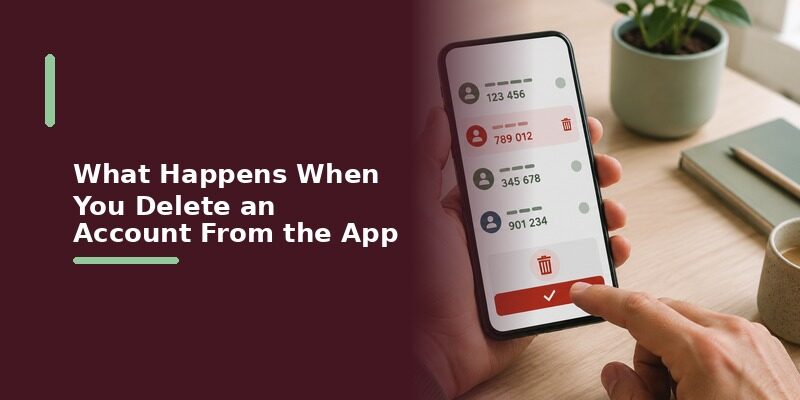
Download Now

Authenticator App for Chrome: Extensions, Setup, and Security Trade-Offs

Authenticator App for Chrome options exist as browser extensions that generate the same rotating six-digit codes a phone app would, installed directly into Chrome rather than as a separate mobile app.

These extensions work well for anyone who spends most of the day at a desktop or laptop and doesn’t want to reach for a phone every time a website asks for a verification code.

This guide covers authenticator app chrome extensions from installation through everyday use, how they compare with a phone-based authenticator app, syncing across multiple computers, and the security trade-offs worth understanding before relying on one.

The trade-off, covered later in this guide, is a slightly different security profile than a dedicated phone app, which is worth understanding before making a browser extension your primary authenticator.

Is There an Authenticator App for Chrome?

Yes, several browser extensions offer Authenticator App for Chrome functionality, generating the same time-based rotating codes a mobile authenticator app produces, directly inside the browser toolbar.

Clicking the extension icon reveals the current code the same way opening a phone app would, with a small countdown showing how long it remains valid.

Option Where It Lives Best For
Chrome extension Browser toolbar Desktop-heavy workflows
Mobile authenticator app Phone home screen Codes needed away from a computer
Password manager with built-in codes Browser extension plus mobile app People wanting one tool for passwords and codes

Download Authenticator App

Secure your accounts with fast, reliable two-factor authentication. Download now and protect your login in seconds.

Download Now

How to Install an Authenticator App as a Chrome Extension

Browser extensions • QR code setup • Sync across computers • Security notes
How to Install an Authenticator App as a Chrome Extension

Finding a Trustworthy Extension

Search the Chrome Web Store directly rather than a general web search, check the developer name and review count, and confirm the permissions requested make sense for an authenticator’s actual function.

A high review count paired with a developer name matching a recognizable company or a well-documented open-source project is a reasonable baseline of trust before installing anything that will hold sensitive account codes.

Rushing this step is the most common way a poor Authenticator App for Chrome choice leads to regret later, so a few extra minutes of research before installing is time well spent.

Granting the Extension Permission

Most authenticator extensions ask for minimal permissions, since they don’t need to read webpage content the way many other extensions do; a request for broad, unrelated access is worth questioning before installing.

Chrome shows the exact permission list before installation completes, so reviewing that screen for a moment before clicking through is a small habit that pays off over time.

Comparing that permission list against what a similar, well-known extension typically requests gives a useful reference point if something about a specific listing feels off.

Setting Up Your First Account in a Chrome Authenticator Extension

Scanning a QR Code From Your Screen

Some authenticator app chrome extensions can scan a QR code shown on the same screen using your webcam, while others require switching to a phone camera briefly since a webcam pointed at its own screen doesn’t always focus correctly.

If the webcam option is available, position the QR code on a second monitor or a printed copy rather than the same screen the extension is running on, since scanning a code directly off the active display rarely works well.

Entering a Manual Key Instead

When scanning isn’t practical, copying the manual setup key directly from the account’s settings page into the extension works just as reliably, since copy-paste avoids any typing mistakes.

This manual method is often the more reliable choice for a desktop-only setup anyway, since it avoids the webcam-focus issue entirely and takes only a few extra seconds.

Chrome Extension vs Mobile Authenticator App

When a Browser Extension Makes Sense

A desktop-focused workflow, such as managing several accounts throughout a workday without frequently switching to a phone, is where a Chrome extension genuinely saves time over reaching for a separate device.

This is the main reason Authenticator App for Chrome extensions have grown popular among people who work primarily from a single computer, since the phone stays in a pocket or bag most of the day.

When a Phone App Is Still Better

Any time you’re signing in from a phone, a public computer, or somewhere your usual browser and its extensions aren’t available, a mobile authenticator app remains the more flexible option.

A phone app also travels with you by default, while a browser extension only helps on the specific computers it’s installed on, which matters for anyone who regularly switches between devices.

Best Ways to Get an Authenticator App for Chrome

Browser extensions • QR code setup • Sync across computers • Security notes
Best Ways to Get an Authenticator App for Chrome

Beyond simply confirming that authenticator app chrome options exist, the more useful question is which specific extension or app is actually worth installing.

Option How It Works in Chrome Best For Trade-Off
Open-source “Authenticator” extension Standalone extension, minimal permissions, no account required People who want a free, no-account-needed option No built-in cross-device sync unless paired with Chrome’s own browser sync
Password manager extension (e.g. Bitwarden, 1Password) TOTP codes stored alongside saved passwords People who already use that password manager daily Ties your second factor to the same vault as your passwords
Authenticator App Mobile app with codes also reachable from a synced account, rather than a native Chrome extension People who want one consistent app across phone, tablet, and desktop browsing Not a native browser extension, so it’s a separate window rather than a toolbar icon

A standalone, open-source Chrome extension is a reasonable free starting point for anyone who wants a simple, no-account, toolbar-based option, though it typically doesn’t sync automatically across computers unless paired with Chrome’s own browser sync feature.

This kind of authenticator app chrome option appeals most to people who work from a single, personal computer and don’t need the codes to follow them anywhere else.

Password managers that also generate authenticator codes make sense mainly for people who already keep their passwords in that same tool, since it avoids installing yet another separate extension. The trade-off is that a compromised password vault then also exposes the second factor meant to protect it, which is worth weighing against the convenience.

Security-conscious users sometimes deliberately keep passwords and authenticator codes in separate tools specifically to avoid this single point of failure, even though it means one extra app to manage.

takes a different approach to authenticator app chrome altogether: rather than living only in the browser toolbar, it keeps one synced account list reachable from your phone, tablet, and any browser session, so switching between a desktop workday and being away from the computer never means switching to a different tool.

Some historically popular desktop or browser-based authenticator options have moved toward mobile-only in recent years, so it’s worth confirming current availability directly in the Chrome Web Store before assuming an older recommendation still applies exactly as described.

This kind of shift is a useful reminder that any authenticator app chrome recommendation, including this one, is worth double-checking against the current Chrome Web Store listing rather than treating it as permanent.

If you want the simplest possible free toolbar icon and don’t mind setting up sync separately, the open-source extension route works well. If you already live inside a password manager daily, its built-in codes are a reasonable convenience. If you want one account list that behaves identically whether you’re at a desk or reaching for a phone, that consistency is Authenticator App’s main advantage over a browser-only extension.

Choosing the Right Option for Your Chrome Workflow

Matching the right Authenticator App for Chrome option to how you actually work saves time compared with researching every choice from scratch.

If You Want the Simplest Free Toolbar Icon

The open-source extension route is the lowest-commitment starting point, provided you’re comfortable checking its permissions and reviews before installing.

If You Already Live Inside a Password Manager

Using that same tool’s built-in code generation avoids a second extension entirely, at the cost of tying your second factor to the same vault as your passwords.

If You Want the Same Experience on Every Device

Authenticator App is the more direct answer here, since consistent authenticator app chrome access alongside phone and tablet support is the specific problem it solves rather than a side benefit of a browser-only tool.

Using aka.ms/authapp on Your Phone’s Browser

What aka.ms/authapp Is Used For

This short link is commonly used as part of Microsoft’s own authenticator app setup flow, typically shown on a screen instructing you to open your phone’s browser and type it in to reach a download or setup page.

Short links like this one are a common pattern for hard-to-type or hard-to-scan setup instructions displayed on a computer screen that a phone then needs to reach separately.

Completing Setup From a Mobile Browser

Typing the link into your phone’s browser, rather than a desktop one, matters here specifically because the resulting page is designed to hand off directly into installing or opening the app on that same phone.

Typing it into a desktop browser instead usually just shows a generic landing page rather than completing the phone-specific handoff the instructions actually intended.

Syncing a Chrome Authenticator Extension Across Computers

Browser extensions • QR code setup • Sync across computers • Security notes
Syncing a Chrome Authenticator Extension Across Computers

Using Built-In Browser Sync

Some extensions tie into Chrome’s own sync feature tied to your Google account, carrying accounts over to any other computer signed into the same Chrome profile.

This means installing the same extension on a second computer and signing into the same Chrome profile can restore access to every synced authenticator entry automatically, without repeating the QR code setup.

This automatic restoration is one of the most convenient parts of a well-implemented sync feature, saving significant setup time when adding a new work or personal computer.

Not every authenticator app chrome extension implements this kind of sync equally well, so testing it once deliberately on a second computer, rather than assuming it works, is worth the few minutes it takes.

Limitations of Syncing Codes This Way

Relying on browser sync for authenticator codes means anyone with access to that same signed-in Chrome profile can potentially see them too, which is worth weighing against the convenience it offers.

A shared family computer with everyone signed into the same Chrome profile is a common scenario where this limitation becomes a real practical concern rather than a theoretical one.

Using a separate Chrome profile for sensitive accounts, rather than sharing one profile across an entire household, meaningfully reduces this specific exposure.

Chrome Authenticator Extensions on Chromebooks and Managed Devices

A managed Chromebook, common in schools and workplaces, sometimes restricts which extensions can be installed, so confirming whether authenticator app chrome tools are permitted before attempting installation saves time.

Checking Extension Policies on a Managed Device

An administrator-controlled device may show a message explaining that an extension is blocked by policy rather than allowing the install to proceed silently, which is the clearest sign a workplace or school restriction is in effect.

Some organizations pre-approve a specific list of extensions, including a chosen authenticator, so checking with IT about an approved option is often faster than trying several and hitting the same block repeatedly.

What to Do If Installation Is Blocked

Contacting whoever manages the device’s policies is the direct path forward; a mobile authenticator app on a personal, unmanaged phone remains available in the meantime.

This is a reasonable temporary workaround rather than a permanent solution, since a personal phone shouldn’t need to carry the entire burden of a workplace’s two-factor requirements long-term.

Raising the issue with IT proactively, rather than quietly working around it indefinitely, is more likely to result in an actual policy update that benefits everyone facing the same restriction.

Managing Multiple Accounts in a Chrome Authenticator Extension

Browser extensions • QR code setup • Sync across computers • Security notes
Managing Multiple Accounts in a Chrome Authenticator Extension

A typical authenticator app chrome extension holds dozens of accounts just as easily as a mobile app, with a search or filter feature becoming genuinely useful once the list grows past a handful of entries.

Organizing accounts thoughtfully from the start avoids the frustrating scroll-and-squint experience of hunting for one specific entry among dozens of similarly named ones later on.

  • Label each account clearly with the service name and username, since a long list of similarly named entries becomes hard to scan quickly.
  • Reorder or pin frequently used accounts near the top if the extension supports it.
  • Periodically remove entries for accounts you no longer use to keep the list manageable.

A quarterly cleanup of unused entries keeps a heavily used Authenticator App for Chrome extension fast and easy to navigate, rather than accumulating years of abandoned accounts.

Common Problems With Chrome Authenticator Extensions

Symptom Likely Cause Fix
Extension icon disappeared Chrome update reset the toolbar Re-pin the extension from the extensions menu
Codes not syncing to another computer Browser sync not enabled or signed into a different profile Confirm sync is turned on for the same Google account
Extension won’t scan a QR code Webcam permission not granted Allow camera access in the extension’s settings

Extension Stops Generating Codes

A Chrome update occasionally disables extensions temporarily until manually re-enabled; checking the extensions menu after any major browser update resolves this quickly.

This is one of the more common complaints associated with authenticator app chrome tools generally, since browser updates happen automatically and often without much warning.

Codes Rejected as Incorrect

Just like a phone app, this typically points to the computer’s clock being out of sync; confirming automatic date and time settings usually fixes it.

Desktop and laptop clocks drift less often than phones, but a manually set time zone or a long-idle computer can still occasionally cause this exact problem.

Lost Access After Reinstalling Chrome

Without sync enabled beforehand, reinstalling Chrome or switching computers usually means re-adding every account from scratch, which is the main argument for keeping a phone-based backup as well.

Anyone relying heavily on authenticator app chrome extensions for daily work should treat a phone-based backup as cheap insurance against exactly this kind of full reinstall scenario.

Is a Browser Extension as Secure as a Phone App?

Browser-Based Security Risks

A compromised browser, through malware or a malicious extension installed alongside it, has a theoretically larger attack surface than a dedicated phone app running in its own isolated environment.

This is a meaningful but manageable trade-off rather than a reason to avoid browser extensions entirely, provided reasonable precautions are already in place.

Most people evaluating Authenticator App for Chrome security concerns end up landing here: genuinely worth some caution, but not a reason to dismiss the convenience entirely for typical, well-managed browser setups.

Practical Steps to Reduce Risk

Keep the number of installed browser extensions minimal, review permissions periodically, and keep Chrome itself updated, since most real-world browser security issues trace back to an outdated browser or an unrelated, overly permissive extension.

Removing extensions you no longer actively use is a simple habit that meaningfully shrinks the overall attack surface a browser presents, beyond just the authenticator extension itself.

A browser profile with a dozen rarely used extensions installed is inherently riskier than one with only the handful actually needed day to day, regardless of how careful any single extension’s permissions are.

Frequently Asked Questions About Authenticator App for Chrome

Browser extensions • QR code setup • Sync across computers • Security notes
Frequently Asked Questions About Authenticator App for Chrome

Are Chrome authenticator extensions free?

Most widely used ones are free to install and use, though always confirm the specific extension’s listing on the Chrome Web Store before assuming, since pricing models occasionally vary.

A paid tier, when one exists, usually adds extras like unlimited cloud backup or priority support rather than gating the core code-generation feature behind a paywall.

Can I use a Chrome extension and a phone app for the same account?

Yes, most services allow scanning the same QR code with both, letting either one generate a valid code independently for that account.

Running both at once is actually a reasonable redundancy strategy, ensuring a code is always available whether you’re at your desk or away from the computer entirely.

Does closing Chrome delete my authenticator codes?

No, extension data persists between browser sessions the same way bookmarks or saved passwords do, unless the extension itself is uninstalled.

Closing and reopening Chrome, or even restarting the computer, has no effect on the accounts stored inside the extension.

Is aka.ms/authapp safe to type into a browser?

Yes, it’s a Microsoft-owned short link commonly used in their own official setup instructions, though always verify it was shown to you by a legitimate, expected source before typing it in.

General caution around typing any link into a browser applies here too: it’s only as trustworthy as the context it appeared in, such as an official IT onboarding document.

What happens if I uninstall the extension?

Any accounts stored only in that extension, without a phone app backup or browser sync, become inaccessible until reconfigured, so exporting or confirming a backup before uninstalling is worth doing first.

Checking whether the extension offers an export feature before removing it is a quick step that can save a significant amount of re-setup work across multiple accounts.

Final Thoughts

Authenticator app chrome extensions offer genuine convenience for a desktop-heavy workflow, generating the same rotating codes a phone app would without requiring you to reach for a separate device.

Weigh that convenience against the slightly larger security surface a browser extension carries compared with an isolated phone app, and consider keeping both options available rather than relying on just one.

Install from the Chrome Web Store directly, review permissions before accepting them, and keep a phone-based backup on hand, and a authenticator app chrome extension becomes a genuinely reliable part of your everyday sign-in routine rather than a risky shortcut.

Want the convenience of a browser session alongside a full mobile experience? Download and keep every account accessible everywhere.

Download Authenticator App

Secure your accounts with fast, reliable two-factor authentication. Download now and protect your login in seconds.
Download Now

How to Use an Authenticator App: Setup, Codes, and Every Account Type

How to use authenticator app comes down to three steps for almost any account: open the account’s security settings, scan the QR code or enter the setup key with your authenticator app, then type the six-digit code it generates to confirm the connection.

That same three-step pattern applies whether you’re protecting an email account, a work login, a video conferencing tool, or a password manager doubling as your authenticator, even though each account’s own settings screen looks slightly different.

This guide covers how to use authenticator app from first setup through everyday use, including the specific steps for email, Zoom, LinkedIn, and 1Password, how the codes actually work without an internet connection, and what to do when something doesn’t scan or sync correctly.

What Is an Authenticator App and How Does It Work?

An authenticator app generates a new six-digit code roughly every thirty seconds, calculated from a secret key shared between the app and the account during setup, without needing an internet connection to produce that code.

Once you understand how to use authenticator app for one account, the same pattern carries over to every other account you protect, since the underlying math and setup flow rarely changes between services.

Term What It Means
Secret key A unique code shared once during setup that both sides use to generate matching codes
QR code A scannable image encoding that same secret key, so you don’t have to type it manually
Six-digit code The rotating code the app displays, valid for a short window before it changes

Download Authenticator App

Secure your accounts with fast, reliable two-factor authentication. Download now and protect your login in seconds.
Download Now

Getting the Secret Key or QR Code From an Account

QR codes • Secret keys • Email accounts • Zoom, LinkedIn, 1Password
Getting the Secret Key or QR Code From an Account

Finding the QR Code Option in Account Settings

Look for a security or two-factor authentication section in the account’s settings, then choose the option for an authenticator app specifically, rather than SMS or email codes, to reveal the QR code.

Some services bury this option a level deeper, under a general “login and security” or “privacy” menu rather than a dedicated two-factor page, so a quick search within the settings app itself often saves time.

Regardless of exact placement, every legitimate account offering two-factor protection will surface this option somewhere in its own settings, so persistence usually pays off if the first how to use authenticator app step isn’t immediately obvious.

Using a Manual Setup Key Instead

Every account offering a QR code also offers a text version of the same secret key, usually behind a small “can’t scan” or “enter manually” link, for situations where a camera isn’t available.

Copy this key carefully, since it’s usually a long string of letters and numbers, and a single mistyped character produces an app entry that will never generate a matching code.

If your authenticator app supports pasting directly from the clipboard, use that instead of typing the key by hand, since it removes the most common source of manual-entry mistakes entirely.

How to Scan a QR Code With an Authenticator App

What Happens After Scanning

Open your authenticator app, tap the button to add a new account, choose the scan option, and point your camera at the QR code shown on the other screen until the app confirms the account was added and starts showing a code.

Good lighting and a steady hand make this faster than it might sound; most modern phone cameras recognize a QR code almost instantly once it’s clearly in frame.

For most people, this scanning step is genuinely the entire hands-on part of how to use authenticator app for a new account; everything after it happens automatically inside the app.

This is the fastest way to complete how to use authenticator app setup for most accounts, since scanning takes a few seconds compared with carefully typing a long manual key.

How to Get a 6-Digit Code From an Authenticator App

Open the app, find the account in your list, and the current six-digit code appears immediately alongside a small countdown showing how long it remains valid before the next one generates.

This step is the part of how to use authenticator app people repeat most often day to day, since setup only happens once per account but checking the code happens every time you sign in.

Type that code into the login screen requesting it before the countdown reaches zero; if it expires mid-entry, simply wait for the next code and enter that one instead.

How to Add an Email Account to Your Authenticator App

QR codes • Secret keys • Email accounts • Zoom, LinkedIn, 1Password
How to Add an Email Account to Your Authenticator App

Adding a Personal Email Account

Open your email provider’s account security settings, enable two-factor authentication, choose an authenticator app as the method, and scan the resulting QR code the same way as any other account.

Do this for every email account you own, not just your primary one, since email is often the recovery path for other accounts and deserves the same level of protection as anything it can be used to reset.

This is arguably the single most valuable place to apply how to use authenticator app steps first, since a compromised email account can cascade into every other account that uses it for password resets.

Adding a Work or Outlook Email Account

Work and Outlook accounts often route two-factor setup through an organization’s own identity system, so the exact settings location can vary; look for a security or sign-in options page, or check with your IT team if it isn’t where you expect.

Once added, how to use authenticator app for a work email account behaves the same way day to day as any personal account, generating the same rotating code your organization’s login page will ask for.

Many workplaces mandate how to use authenticator app as a condition of accessing company email or systems at all, rather than leaving it optional the way many personal accounts still do.

How to Add Zoom to an Authenticator App

Finding Zoom’s Two-Factor Setting

Inside Zoom’s account security settings, look for two-factor authentication and choose the authentication app option rather than a text message, which reveals a QR code specific to your Zoom account.

This setting typically lives under the account profile’s security tab on Zoom’s website rather than inside the desktop or mobile app itself, so starting from a browser is usually the more direct path.

Meeting hosts and account administrators sometimes have this option enabled by default across an entire organization, so it’s worth checking whether the setting is already active before assuming it needs to be turned on manually.

Scanning Zoom’s QR Code

Scan it the same way as any other account, then enter the six-digit code Zoom asks for to confirm the connection before finishing setup.

From that point on, Zoom may prompt for a code only occasionally, such as when signing in from a new device or browser, rather than on every single meeting join.

This occasional-prompt behavior is common across most services once an authenticator app is set up, since the goal is verifying new or unusual sign-ins rather than adding friction to every single login.

Using LinkedIn’s Authenticator App Option

Enabling Two-Step Verification on LinkedIn

LinkedIn’s account settings include a two-step verification section where an authenticator app appears as one of the available methods alongside SMS.

Switching an existing SMS-based setup over to an authenticator app on LinkedIn usually just means re-running the two-step verification setup and choosing the app option instead the second time through.

There’s no need to remove the old SMS method first in most cases; simply adding the authenticator app option and selecting it as the default is enough to change how future sign-ins are verified.

Choosing an Authenticator App Over SMS

An authenticator app works even without cell signal and isn’t vulnerable to SIM-swapping the way SMS codes can be, which is why LinkedIn, like most services, lists it as the stronger of the two options.

This same reasoning applies well beyond LinkedIn: any time a service offers a choice, how to use authenticator app through a dedicated authenticator generally beats relying on text messages alone.

Can You Use 1Password as an Authenticator App?

QR codes • Secret keys • Email accounts • Zoom, LinkedIn, 1Password
Can You Use 1Password as an Authenticator App?

Yes. Password managers like 1Password can store the same secret key an authenticator app would, generating the same rotating six-digit codes directly inside the password manager instead of a separate dedicated app.

The trade-off is convenience versus separation: keeping codes in the same app as your passwords is faster day to day, but a dedicated authenticator app keeps that second factor independent if the password manager itself is ever compromised.

Either approach still follows the same underlying how to use authenticator app pattern; the only real difference is which app displays the rotating code when you need it.

🗺️ Browse How-To Guides: TOTP Authenticator App Guide 2026: How to Use & Compare the Best Options

What Is Symantec VIP Access and How Does It Compare?

How Symantec VIP Access Differs From a Standard Authenticator App

Symantec VIP Access is an older authentication app used by some financial institutions and enterprise accounts, generating its own rotating codes in a similar way to a standard authenticator app but tied to services that specifically require it.

When You Might Still Need It

If a specific bank or workplace account explicitly requires Symantec VIP Access rather than a general authenticator app, that requirement comes from the account provider, not from any technical limitation of standard authenticator apps.

Outside of those specific required cases, a general-purpose authenticator app covers the overwhelming majority of everyday accounts without needing a separate specialized app installed.

If you’re not sure whether a specific account requires a specialized app like this, its own security settings page will typically say so explicitly rather than leaving you to guess.

Does an Authenticator App Work Without Internet?

What Works Offline

Generating and viewing a code works entirely offline once an account has already been set up, since how to use authenticator app for daily logins only depends on the shared secret key and the device’s own clock, not a live connection.

This makes an authenticator app noticeably more reliable while traveling internationally or in areas with poor cell coverage, compared with an SMS code that depends on active network signal to arrive at all.

What Requires a Connection

The very first setup step, scanning a QR code or confirming a manual key with the account provider, typically happens while both devices are online, even though the resulting codes work offline afterward.

Keep this distinction in mind if you’re planning to set up a new account while traveling: complete the initial connection before losing signal, and everything afterward will work regardless of connectivity.

💡 Discover Helpful Guides: Authenticator App Code: How to Get Verification Codes and Fix Common Problems

How to Remove or Change an Account in Your Authenticator App

Open the app, find the account entry, and use its edit or delete option to remove it, rename it, or replace it entirely if you’re resetting two-factor authentication for that service.

Removing an entry from the app doesn’t automatically turn off two-factor authentication on the account itself; disable it from the account’s own settings first if that’s the actual goal, to avoid getting locked out.

A safer order of operations is to disable two-factor authentication on the account first, confirm it took effect, and only then remove the entry from your authenticator app, rather than doing it the other way around.

Getting this order right is a small but important part of how to use authenticator app responsibly, since doing it backward can briefly leave an account expecting a code that no longer exists anywhere.

💡 Discover Helpful Guides: Facebook Authentication App: Setup, Login Codes, and Recovery Guide

Common Problems Using an Authenticator App

QR codes • Secret keys • Email accounts • Zoom, LinkedIn, 1Password
Common Problems Using an Authenticator App
Symptom Likely Cause Fix
QR code won’t scan Poor lighting or screen glare Increase screen brightness or try manual key entry
Code rejected as invalid Device clock out of sync Enable automatic date and time on your phone
Can’t find the account in the app Search wasn’t used or list wasn’t scrolled Use the app’s search or filter feature if available

Code Rejected Even Though It Looks Correct

This almost always traces back to the device’s clock drifting slightly out of sync, since the code calculation depends on matching time between the app and the account’s server.

Enabling automatic date and time settings on the phone, rather than a manually set clock, resolves nearly every case of a code that looks correct but keeps getting rejected.

Lost Phone With No Backup

Most services offer backup codes generated at setup time specifically for this situation; without them, each affected account’s own recovery process becomes the remaining path back in.

Store those backup codes somewhere separate from the phone itself, such as a printed copy or a password manager, since keeping them only on the same device defeats the purpose if that device is what’s actually lost.

Switching to a New Phone

Some authenticator apps offer an export or sync feature to transfer accounts to a new device; without one, each account typically needs to be set up again from scratch on the new phone.

Doing this transfer before deactivating the old phone, rather than after, avoids the awkward situation of needing a two-factor code from an app that’s no longer accessible to unlock the very account you’re trying to move.

How to Use an Authenticator App When You Switch Devices

Switching to a new phone is one of the moments how to use authenticator app habits matter most, since a poorly planned switch can lock you out of dozens of accounts at once rather than just one.

  • Check whether your authenticator app offers a built-in export or account-transfer feature before wiping the old device.
  • For apps without a transfer feature, re-add each critical account one at a time on the new device before deactivating the old one.
  • Keep the old device functional and signed in until every account is confirmed working on the new one.

Following this order, confirming the new setup before disabling the old one, turns a potentially stressful device switch into a routine part of how to use authenticator app rather than an emergency.

Comparing Popular Authenticator Apps

App Type Backup/Sync Best For
Dedicated authenticator app Varies by app Anyone wanting a single, focused tool for all accounts
Password manager with authenticator built in Usually synced with the password vault People who want fewer apps to manage overall
Enterprise-specific app (e.g. Symantec VIP) Tied to that provider’s account system Accounts that specifically require it

None of these options changes the underlying mechanics of how to use authenticator app: a shared secret, a rotating code, and a short window to enter it. The differences come down to where that code lives and how it’s backed up.

📘 Find the Right Guide: Authenticator App Download APK: Safe Android Download and Installation Guide

Frequently Asked Questions About Using an Authenticator App

QR codes • Secret keys • Email accounts • Zoom, LinkedIn, 1Password

Do I need a different authenticator app for every account?

No. A single authenticator app can hold codes for dozens of different accounts at once, each clearly labeled and generating its own independent rotating code.

This is one of the most common points of confusion for people new to the concept, since it feels like each service should need its own separate app the way some banking apps work.

What happens if I enter the wrong code?

Most services simply reject the attempt and let you try again with the current code; repeated failures may temporarily lock the login attempt as a security precaution.

This lockout is usually temporary and lifts after a short waiting period, so pausing for a minute before trying again is often faster than repeatedly re-entering a code that keeps failing.

Can I use the same authenticator app on two phones?

Yes, if the app supports sync or if you scan the same QR code on both devices during setup, though most people use one primary device to avoid confusion over which one is current.

Running how to use authenticator app steps twice for the same account, once per device, is the most common way people end up with codes on two phones intentionally rather than by accident.

Is an authenticator app safer than SMS codes?

Generally yes, since an authenticator app isn’t vulnerable to SIM-swapping attacks that can redirect a phone number’s text messages to someone else’s device.

This is one of the strongest practical reasons security-conscious services and IT departments increasingly push users toward an authenticator app instead of leaving SMS as the default option.

Why does the code keep changing?

The code rotates roughly every thirty seconds by design, so it can’t be reused later even if someone intercepts it, which is the core security benefit of this approach.

Do I need to keep the app open in the background?

No. Opening the app briefly to view or copy the current code is all that’s needed; it doesn’t need to run continuously in the background between logins.

This is part of what makes an authenticator app so lightweight on battery life compared with apps that genuinely do need to run continuously in the background.

Final Thoughts

How to use authenticator app follows the same basic pattern everywhere: scan or enter a setup key once, then type the rotating code it generates whenever a service asks for a second verification step.

Once that pattern clicks for one account, whether it’s email, Zoom, LinkedIn, or a workplace login, applying it to every other account becomes routine rather than something to relearn each time.

The specific menu names and screen layouts will keep changing as services update their own settings pages, but the core how to use authenticator app pattern, secret key, rotating code, short entry window, has stayed remarkably consistent for years and is unlikely to change any time soon.

Want every one of these accounts organized in a single app? Download and manage them all in one place.

Download Authenticator App

Secure your accounts with fast, reliable two-factor authentication. Download now and protect your login in seconds.
Download Now