
How to Use an Authenticator App: Setup, Codes, and Every Account Type
How to use authenticator app comes down to three steps for almost any account: open the account’s security settings, scan the QR code or enter the setup key with your authenticator app, then type the six-digit code it generates to confirm the connection.
That same three-step pattern applies whether you’re protecting an email account, a work login, a video conferencing tool, or a password manager doubling as your authenticator, even though each account’s own settings screen looks slightly different.
This guide covers how to use authenticator app from first setup through everyday use, including the specific steps for email, Zoom, LinkedIn, and 1Password, how the codes actually work without an internet connection, and what to do when something doesn’t scan or sync correctly.
What Is an Authenticator App and How Does It Work?
An authenticator app generates a new six-digit code roughly every thirty seconds, calculated from a secret key shared between the app and the account during setup, without needing an internet connection to produce that code.
Once you understand how to use authenticator app for one account, the same pattern carries over to every other account you protect, since the underlying math and setup flow rarely changes between services.
| Term | What It Means |
|---|---|
| Secret key | A unique code shared once during setup that both sides use to generate matching codes |
| QR code | A scannable image encoding that same secret key, so you don’t have to type it manually |
| Six-digit code | The rotating code the app displays, valid for a short window before it changes |
Download Authenticator App
Secure your accounts with fast, reliable two-factor authentication. Download now and protect your login in seconds.
Getting the Secret Key or QR Code From an Account
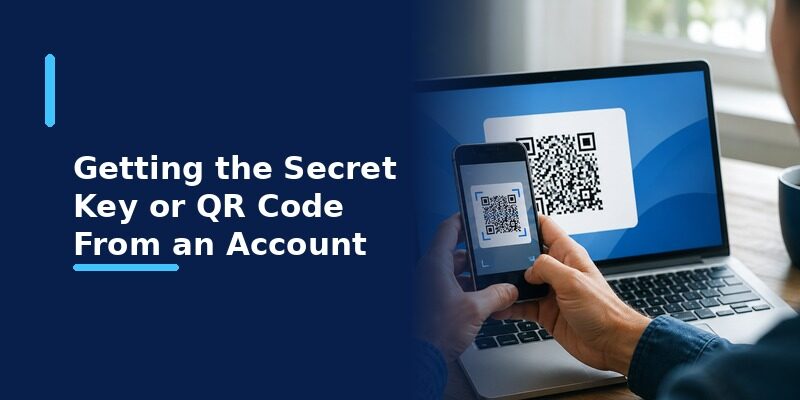
Finding the QR Code Option in Account Settings
Look for a security or two-factor authentication section in the account’s settings, then choose the option for an authenticator app specifically, rather than SMS or email codes, to reveal the QR code.
Some services bury this option a level deeper, under a general “login and security” or “privacy” menu rather than a dedicated two-factor page, so a quick search within the settings app itself often saves time.
Regardless of exact placement, every legitimate account offering two-factor protection will surface this option somewhere in its own settings, so persistence usually pays off if the first how to use authenticator app step isn’t immediately obvious.
Using a Manual Setup Key Instead
Every account offering a QR code also offers a text version of the same secret key, usually behind a small “can’t scan” or “enter manually” link, for situations where a camera isn’t available.
Copy this key carefully, since it’s usually a long string of letters and numbers, and a single mistyped character produces an app entry that will never generate a matching code.
If your authenticator app supports pasting directly from the clipboard, use that instead of typing the key by hand, since it removes the most common source of manual-entry mistakes entirely.
How to Scan a QR Code With an Authenticator App
What Happens After Scanning
Open your authenticator app, tap the button to add a new account, choose the scan option, and point your camera at the QR code shown on the other screen until the app confirms the account was added and starts showing a code.
Good lighting and a steady hand make this faster than it might sound; most modern phone cameras recognize a QR code almost instantly once it’s clearly in frame.
For most people, this scanning step is genuinely the entire hands-on part of how to use authenticator app for a new account; everything after it happens automatically inside the app.
This is the fastest way to complete how to use authenticator app setup for most accounts, since scanning takes a few seconds compared with carefully typing a long manual key.
How to Get a 6-Digit Code From an Authenticator App
Open the app, find the account in your list, and the current six-digit code appears immediately alongside a small countdown showing how long it remains valid before the next one generates.
This step is the part of how to use authenticator app people repeat most often day to day, since setup only happens once per account but checking the code happens every time you sign in.
Type that code into the login screen requesting it before the countdown reaches zero; if it expires mid-entry, simply wait for the next code and enter that one instead.
How to Add an Email Account to Your Authenticator App
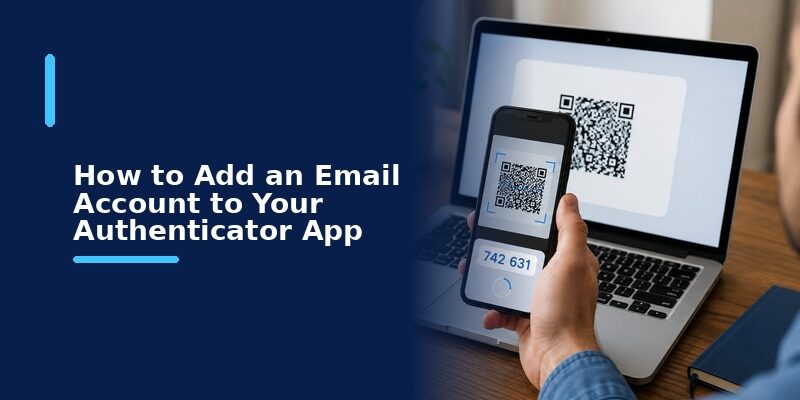
Adding a Personal Email Account
Open your email provider’s account security settings, enable two-factor authentication, choose an authenticator app as the method, and scan the resulting QR code the same way as any other account.
Do this for every email account you own, not just your primary one, since email is often the recovery path for other accounts and deserves the same level of protection as anything it can be used to reset.
This is arguably the single most valuable place to apply how to use authenticator app steps first, since a compromised email account can cascade into every other account that uses it for password resets.
Adding a Work or Outlook Email Account
Work and Outlook accounts often route two-factor setup through an organization’s own identity system, so the exact settings location can vary; look for a security or sign-in options page, or check with your IT team if it isn’t where you expect.
Once added, how to use authenticator app for a work email account behaves the same way day to day as any personal account, generating the same rotating code your organization’s login page will ask for.
Many workplaces mandate how to use authenticator app as a condition of accessing company email or systems at all, rather than leaving it optional the way many personal accounts still do.
How to Add Zoom to an Authenticator App
Finding Zoom’s Two-Factor Setting
Inside Zoom’s account security settings, look for two-factor authentication and choose the authentication app option rather than a text message, which reveals a QR code specific to your Zoom account.
This setting typically lives under the account profile’s security tab on Zoom’s website rather than inside the desktop or mobile app itself, so starting from a browser is usually the more direct path.
Meeting hosts and account administrators sometimes have this option enabled by default across an entire organization, so it’s worth checking whether the setting is already active before assuming it needs to be turned on manually.
Scanning Zoom’s QR Code
Scan it the same way as any other account, then enter the six-digit code Zoom asks for to confirm the connection before finishing setup.
From that point on, Zoom may prompt for a code only occasionally, such as when signing in from a new device or browser, rather than on every single meeting join.
This occasional-prompt behavior is common across most services once an authenticator app is set up, since the goal is verifying new or unusual sign-ins rather than adding friction to every single login.
Using LinkedIn’s Authenticator App Option
Enabling Two-Step Verification on LinkedIn
LinkedIn’s account settings include a two-step verification section where an authenticator app appears as one of the available methods alongside SMS.
Switching an existing SMS-based setup over to an authenticator app on LinkedIn usually just means re-running the two-step verification setup and choosing the app option instead the second time through.
There’s no need to remove the old SMS method first in most cases; simply adding the authenticator app option and selecting it as the default is enough to change how future sign-ins are verified.
Choosing an Authenticator App Over SMS
An authenticator app works even without cell signal and isn’t vulnerable to SIM-swapping the way SMS codes can be, which is why LinkedIn, like most services, lists it as the stronger of the two options.
This same reasoning applies well beyond LinkedIn: any time a service offers a choice, how to use authenticator app through a dedicated authenticator generally beats relying on text messages alone.
Can You Use 1Password as an Authenticator App?
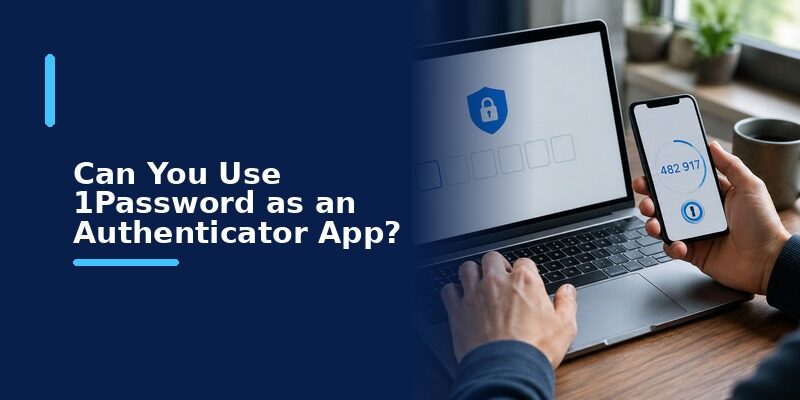
Yes. Password managers like 1Password can store the same secret key an authenticator app would, generating the same rotating six-digit codes directly inside the password manager instead of a separate dedicated app.
The trade-off is convenience versus separation: keeping codes in the same app as your passwords is faster day to day, but a dedicated authenticator app keeps that second factor independent if the password manager itself is ever compromised.
Either approach still follows the same underlying how to use authenticator app pattern; the only real difference is which app displays the rotating code when you need it.
🗺️ Browse How-To Guides: TOTP Authenticator App Guide 2026: How to Use & Compare the Best Options
What Is Symantec VIP Access and How Does It Compare?
How Symantec VIP Access Differs From a Standard Authenticator App
Symantec VIP Access is an older authentication app used by some financial institutions and enterprise accounts, generating its own rotating codes in a similar way to a standard authenticator app but tied to services that specifically require it.
When You Might Still Need It
If a specific bank or workplace account explicitly requires Symantec VIP Access rather than a general authenticator app, that requirement comes from the account provider, not from any technical limitation of standard authenticator apps.
Outside of those specific required cases, a general-purpose authenticator app covers the overwhelming majority of everyday accounts without needing a separate specialized app installed.
If you’re not sure whether a specific account requires a specialized app like this, its own security settings page will typically say so explicitly rather than leaving you to guess.
Does an Authenticator App Work Without Internet?
What Works Offline
Generating and viewing a code works entirely offline once an account has already been set up, since how to use authenticator app for daily logins only depends on the shared secret key and the device’s own clock, not a live connection.
This makes an authenticator app noticeably more reliable while traveling internationally or in areas with poor cell coverage, compared with an SMS code that depends on active network signal to arrive at all.
What Requires a Connection
The very first setup step, scanning a QR code or confirming a manual key with the account provider, typically happens while both devices are online, even though the resulting codes work offline afterward.
Keep this distinction in mind if you’re planning to set up a new account while traveling: complete the initial connection before losing signal, and everything afterward will work regardless of connectivity.
💡 Discover Helpful Guides: Authenticator App Code: How to Get Verification Codes and Fix Common Problems
How to Remove or Change an Account in Your Authenticator App
Open the app, find the account entry, and use its edit or delete option to remove it, rename it, or replace it entirely if you’re resetting two-factor authentication for that service.
Removing an entry from the app doesn’t automatically turn off two-factor authentication on the account itself; disable it from the account’s own settings first if that’s the actual goal, to avoid getting locked out.
A safer order of operations is to disable two-factor authentication on the account first, confirm it took effect, and only then remove the entry from your authenticator app, rather than doing it the other way around.
Getting this order right is a small but important part of how to use authenticator app responsibly, since doing it backward can briefly leave an account expecting a code that no longer exists anywhere.
💡 Discover Helpful Guides: Facebook Authentication App: Setup, Login Codes, and Recovery Guide
Common Problems Using an Authenticator App
| Symptom | Likely Cause | Fix |
|---|---|---|
| QR code won’t scan | Poor lighting or screen glare | Increase screen brightness or try manual key entry |
| Code rejected as invalid | Device clock out of sync | Enable automatic date and time on your phone |
| Can’t find the account in the app | Search wasn’t used or list wasn’t scrolled | Use the app’s search or filter feature if available |
Code Rejected Even Though It Looks Correct
This almost always traces back to the device’s clock drifting slightly out of sync, since the code calculation depends on matching time between the app and the account’s server.
Enabling automatic date and time settings on the phone, rather than a manually set clock, resolves nearly every case of a code that looks correct but keeps getting rejected.
Lost Phone With No Backup
Most services offer backup codes generated at setup time specifically for this situation; without them, each affected account’s own recovery process becomes the remaining path back in.
Store those backup codes somewhere separate from the phone itself, such as a printed copy or a password manager, since keeping them only on the same device defeats the purpose if that device is what’s actually lost.
Switching to a New Phone
Some authenticator apps offer an export or sync feature to transfer accounts to a new device; without one, each account typically needs to be set up again from scratch on the new phone.
Doing this transfer before deactivating the old phone, rather than after, avoids the awkward situation of needing a two-factor code from an app that’s no longer accessible to unlock the very account you’re trying to move.
How to Use an Authenticator App When You Switch Devices
Switching to a new phone is one of the moments how to use authenticator app habits matter most, since a poorly planned switch can lock you out of dozens of accounts at once rather than just one.
- Check whether your authenticator app offers a built-in export or account-transfer feature before wiping the old device.
- For apps without a transfer feature, re-add each critical account one at a time on the new device before deactivating the old one.
- Keep the old device functional and signed in until every account is confirmed working on the new one.
Following this order, confirming the new setup before disabling the old one, turns a potentially stressful device switch into a routine part of how to use authenticator app rather than an emergency.
Comparing Popular Authenticator Apps
| App Type | Backup/Sync | Best For |
|---|---|---|
| Dedicated authenticator app | Varies by app | Anyone wanting a single, focused tool for all accounts |
| Password manager with authenticator built in | Usually synced with the password vault | People who want fewer apps to manage overall |
| Enterprise-specific app (e.g. Symantec VIP) | Tied to that provider’s account system | Accounts that specifically require it |
None of these options changes the underlying mechanics of how to use authenticator app: a shared secret, a rotating code, and a short window to enter it. The differences come down to where that code lives and how it’s backed up.
📘 Find the Right Guide: Authenticator App Download APK: Safe Android Download and Installation Guide
Frequently Asked Questions About Using an Authenticator App
Do I need a different authenticator app for every account?
No. A single authenticator app can hold codes for dozens of different accounts at once, each clearly labeled and generating its own independent rotating code.
This is one of the most common points of confusion for people new to the concept, since it feels like each service should need its own separate app the way some banking apps work.
What happens if I enter the wrong code?
Most services simply reject the attempt and let you try again with the current code; repeated failures may temporarily lock the login attempt as a security precaution.
This lockout is usually temporary and lifts after a short waiting period, so pausing for a minute before trying again is often faster than repeatedly re-entering a code that keeps failing.
Can I use the same authenticator app on two phones?
Yes, if the app supports sync or if you scan the same QR code on both devices during setup, though most people use one primary device to avoid confusion over which one is current.
Running how to use authenticator app steps twice for the same account, once per device, is the most common way people end up with codes on two phones intentionally rather than by accident.
Is an authenticator app safer than SMS codes?
Generally yes, since an authenticator app isn’t vulnerable to SIM-swapping attacks that can redirect a phone number’s text messages to someone else’s device.
This is one of the strongest practical reasons security-conscious services and IT departments increasingly push users toward an authenticator app instead of leaving SMS as the default option.
Why does the code keep changing?
The code rotates roughly every thirty seconds by design, so it can’t be reused later even if someone intercepts it, which is the core security benefit of this approach.
Do I need to keep the app open in the background?
No. Opening the app briefly to view or copy the current code is all that’s needed; it doesn’t need to run continuously in the background between logins.
This is part of what makes an authenticator app so lightweight on battery life compared with apps that genuinely do need to run continuously in the background.
Final Thoughts
How to use authenticator app follows the same basic pattern everywhere: scan or enter a setup key once, then type the rotating code it generates whenever a service asks for a second verification step.
Once that pattern clicks for one account, whether it’s email, Zoom, LinkedIn, or a workplace login, applying it to every other account becomes routine rather than something to relearn each time.
The specific menu names and screen layouts will keep changing as services update their own settings pages, but the core how to use authenticator app pattern, secret key, rotating code, short entry window, has stayed remarkably consistent for years and is unlikely to change any time soon.
Want every one of these accounts organized in a single app? Download and manage them all in one place.
Download Authenticator App
Secure your accounts with fast, reliable two-factor authentication. Download now and protect your login in seconds.
