
Authenticator App Code: How to Get Verification Codes and Fix Common Problems
An authenticator app code is typically a 6-digit, time-based verification code that changes every 30 seconds, adding a second layer of protection beyond your password. If a code expires too quickly, is rejected, or simply does not appear in your authenticator app, issues with device time, account setup, or recovery settings may be the cause. This guide explains how authenticator codes work, where to find them, and how to fix the most common verification code problems.
1. What Is an authenticator app code?
An authenticator app code is a short, temporary number used as a second proof of identity when you sign in. It is part of two-factor authentication (2FA), a security method that requires something you know, such as a password, plus something you have, such as your phone.
Most apps create a six-digit number that changes approximately every 30 seconds. The number is often called a time-based one-time password, or TOTP. When a website asks for your code, it compares the number entered with the number it expects at that exact time. If the values match, the login can continue.
Codes are different from text messages
It is important to separate an authenticator app code from an SMS verification code. A text message is delivered by a mobile network. A TOTP code is generated directly inside the app using a secret set up earlier. That means it usually works even when your phone has no signal, no mobile data, and no Wi-Fi.
This difference explains many support questions. If a user says an app is “not sending” a code, they may be expecting an SMS or a push notification. A code-generating authenticator normally does not send anything; you open the app and read the current code.
Why temporary codes improve security
Passwords can be guessed, reused, leaked, or collected through phishing. A temporary authenticator app code reduces the value of a stolen password because the attacker would also need access to the rotating code. The code expires quickly, so a number copied from a previous login is not useful later.
However, 2FA is not a reason to share codes. A legitimate company will not call, message, or email asking you to read your current authenticator code aloud. If someone asks, treat it as a likely attempt to access your account.
Download Authenticator App
Secure your accounts with fast, reliable two-factor authentication. Download now and protect your login in seconds.
2. How to Get an authenticator app code from Your App

The basic process is simple: open the authenticator, locate the right account, and use the number currently shown. Yet users often have several similar entries or do not know whether the service expects a code, a push approval, or a recovery method.
The fastest way to find the current number
If you are searching for how to get code from authenticator app, start by opening the app on the device where you originally configured 2FA. Look for the account name, service name, or email address. The matching entry should display a rotating six- or eight-digit number and a small countdown indicator.
Copy or type the number immediately into the website. If the countdown is nearly finished, wait for the next number before submitting. This gives you the full validity period and avoids a failed verification caused by entering a code just as it expires.
People sometimes search for authenticator codes as though the app stores a permanent list. It does not. Each code is temporary. The permanent security element is the secret stored when you enrolled the account, not the visible number on screen.
Use the correct account entry
A single authenticator app code only works for one configured account. If you use separate Google, Microsoft, work, banking, shopping, or exchange accounts, make sure the displayed label matches the login page. Two entries for the same provider may also represent different email addresses.
If the account label is unclear, do not randomly delete entries. Instead, compare the email address or username shown in the app with the account you are trying to access. Rename entries only after you confirm their purpose.
Push approvals and codes are not interchangeable
Some services use push notifications. In that situation, you may see “Approve,” “Deny,” or number-matching prompts instead of a six-digit authenticator app code. Other services use both methods, depending on the account type and administrator settings.
For example, a work account can be set up for push approval but not for time-based codes. This is one common reason users expect a code but see nothing. Read the login screen carefully: if it asks you to approve a sign-in, wait for the prompt rather than looking for a TOTP number.
🗺️ Browse How-To Guides:App Authenticator: Complete Guide to 2FA, OTP Codes, Setup & Recovery
3. Set Up an authenticator app code with a QR Code
A QR code is normally used once, during enrollment. It safely transfers the setup secret from the website to your authenticator without requiring you to type a long key manually.
Where the setup QR code comes from
To obtain a qr code for authenticator app, sign in to the service you want to protect and open its Security, Login, Privacy, or Two-Factor Authentication settings. Choose an option such as “Authenticator app,” “Authentication app,” or “Set up manually.” The website then displays a QR code.
The code on that page is not your changing verification number. It is a setup credential. Scan it only with your own trusted authenticator app and never post a screenshot of it online.
If you are wondering how to get qr code for authenticator app, remember that the QR code must be generated by each individual website or service. Your authenticator does not create a universal QR code for every account.
Scan the code correctly
Open the app, choose Add Account or the plus icon, and select Scan QR Code. Point the phone camera at the image shown on the website. Once the account is added, the app begins generating a rotating authenticator app code immediately.
An authenticator app qr code should be scanned only after you have confirmed that the browser is on the real service website. Phishing pages can imitate a familiar QR setup screen. Verify the domain name, use a trusted bookmark when possible, and avoid enrolling through links sent in unsolicited messages.
For Google accounts, the google authenticator app qr code is available during the account’s two-step verification setup. Complete the website’s confirmation step after scanning; scanning alone may not activate 2FA.
Manual setup is a secure fallback
If the camera cannot scan the image, use the “Can’t scan?” or “Enter setup key” option on the website. The service will provide a secret key and may ask you to select time-based authentication. Enter that key in the app manually.
This approach is useful when setting up from the same phone that runs the authenticator. It also helps when a damaged screen or camera prevents scanning. Treat the manual key with the same care as a password: anyone who gets it can generate the same codes.
4. How to Enter an authenticator app code Correctly
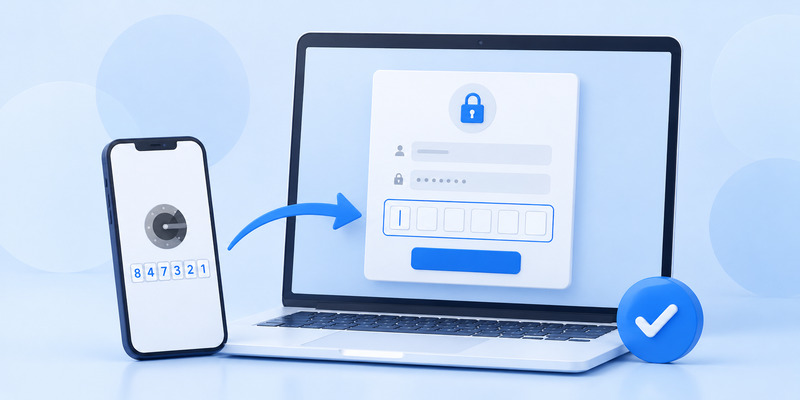
After setup, the sign-in flow usually asks for your username, password, and then the temporary number. The wording differs across platforms, but the goal is the same.
Follow the prompt, not assumptions
When a page says enter the code generated by your authenticator app, open the matching account entry, then type the latest number exactly as displayed. Do not include spaces unless the form automatically adds them. Do not use a number from a text message, old screenshot, or password manager unless you know that is the configured verification method.
A prompt that says enter the code from your authenticator app means the site expects a current TOTP value. If you have no entry for that account, do not keep guessing. Use an approved recovery method or contact the service’s support team.
Timing matters
Every authenticator app code has a limited lifespan. A code can fail if it changes while you are entering it. Wait for a fresh number when fewer than five seconds remain. Also ensure your device’s date, time, and time zone are set automatically. Incorrect device time causes the app and service to calculate different valid codes.
The phrase authenticator app codes can refer to six-digit TOTP values, but some systems use eight digits or a push-based number match. Always follow the format requested on the login page.
Do not repeatedly retry with old codes
Repeatedly entering expired or wrong codes may trigger extra security checks. If the code fails once, pause and check the account label, device time, and countdown. Then try a fresh code. If it still fails, use the troubleshooting steps below rather than continuing to submit numbers.
🗺️ Browse How-To Guides: Two Factor Authentication App: How to Choose, Set Up, and Use One Safely
5. Why Is Your authenticator app code Not Showing?
A missing code is frustrating, but it is usually explainable. The answer depends on whether the app should display a TOTP number or send a push notification.
The account may be configured for approval only
The search microsoft authenticator app not showing code often describes an account that is set up for push approval, passwordless login, or number matching rather than TOTP. In that configuration, no rotating code is expected. Open the account entry and look for a sign-in approval instead.
This also answers why is my authenticator app not showing a code in many workplace setups. Your organization may control the authentication methods available. Choose “Use another method” on the sign-in page if offered, or ask your IT administrator which method your account requires.
The account entry may be missing
If authenticator app not showing code means the whole account entry disappeared, first check whether you changed phones, reinstalled the app, restored a backup, or signed in with a different app profile. A newly installed app does not automatically recreate every TOTP secret unless the chosen app supports and has completed a secure backup or transfer.
Do not delete the remaining entries while troubleshooting. They may be your only working verification method. Use backup codes, a second registered device, a recovery email, or the service’s official account-recovery process.
The app may be locked or outdated
An app lock, unavailable biometric prompt, outdated software, or disabled device permissions can stop you from seeing the expected interface. Update the authenticator from the official app store, unlock the device, and restart it. Keep your phone operating system current as well.
The generic term authenticator App includes many products with different backup and display behavior. Consult the app’s official documentation before resetting, restoring, or removing an account.
💡 Discover Helpful Guides: Facebook Authentication App: Setup, Login Codes, and Recovery Guide
6. Fix “Not Sending” and Notification Problems

A rotating TOTP code does not need internet access, but push-based approvals do. Therefore, “not sending” usually means that the notification flow needs attention.
Check network and notification settings
The phrase microsoft authenticator app not sending code is slightly misleading because Microsoft Authenticator may be waiting to deliver a push approval rather than a code. Confirm that the phone has an internet connection, airplane mode is off, notifications are enabled, and battery optimization is not restricting the app.
Likewise, authenticator app not sending code may actually be a device notification issue. Switch between Wi-Fi and mobile data, update the app, restart the phone, and ensure the device’s date and time are correct. If you use a VPN, temporarily disconnect it to see whether it is blocking the approval request.
Confirm that you are signing in to the right account
A push notification can be sent to a different registered phone or profile. Check whether the login page displays the last digits of the enrolled phone number, a device name, or an email address. For work and school accounts, an administrator may have disabled a method or required number matching.
Never approve a prompt you did not initiate. If an unexpected request appears, choose Deny and change the account password. Unsolicited push prompts can be a sign that someone already knows your password.
Use an approved alternative method
If you urgently need access and notifications still fail, use “Try another way,” if available. A recovery code, a security key, a verified phone number, or another authenticator device may be accepted. Avoid switching to email or SMS permanently if the service provides stronger methods, but use a legitimate recovery route when necessary.
💡 Discover Helpful Guides: What Is Authenticator App? How It Works, How to Use It, and Why It Matters
7. Recover a Lost authenticator app code on a New Phone
Changing phones is one of the biggest risks in 2FA. The old device can still generate the current code, but the new device may not have the required account secrets.
Move accounts before erasing the old phone
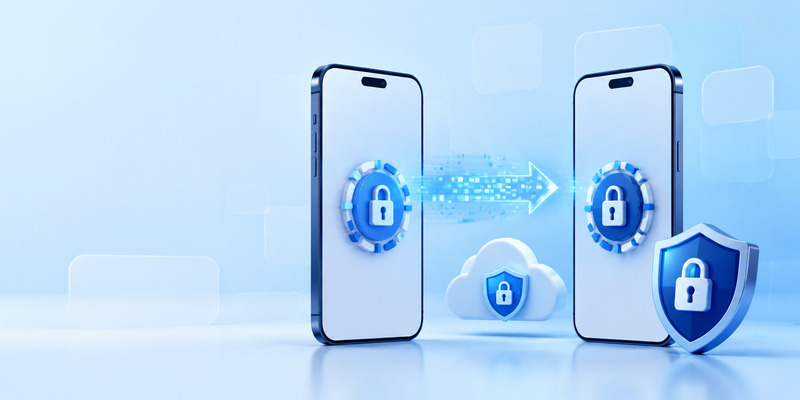
If possible, keep the old phone powered on and signed in until every account has been tested on the new one. Use the transfer or export process supported by your authenticator app, then verify one account at a time. Store recovery codes in a protected location before starting the migration.
The issue microsoft authenticator app not showing code on new phone can happen when the new installation restores account names but not the full authentication method, or when the account relies on organizational policies. Re-register the app through the account’s Security Info page or ask the organization’s IT team for assistance.
Re-scan only a newly generated setup code
A saved screenshot of an old microsoft authenticator app qr code may no longer work, and keeping it is unsafe. Sign in using an approved recovery option, disable the old authenticator method if necessary, and generate a fresh QR code. Then scan it on the new phone and confirm a current number before removing the old entry.
This is safer than trying random codes or repeatedly resetting the app. It also helps you keep control of which devices can generate a valid authenticator app code.
Plan for recovery before an emergency
For every important account, save one or more recovery options. These can include printed backup codes stored securely, a hardware security key, a second trusted device, or a recovery phone number. Review these options periodically, especially before replacing a device, changing a phone number, or traveling.
8. Authenticator app code Security Practices, FAQs, and Final Thoughts
The best authentication setup is one you can use safely under pressure. Treat the rotating number, QR setup key, and recovery codes as sensitive credentials.
Frequently asked questions
Can I get a verification code from the Google Authenticator app without internet?
Yes. If the account has already been added, you can get a verification code from the google authenticator app offline because time-based codes are calculated on the device.
Why is my app asking for a code from itself?
The phrase authenticator app asking for code from itself usually describes a circular-looking login flow. It often occurs after an app reinstall, a new-device registration, or a service requesting an existing 2FA method to approve changes. Use another registered factor, backup code, or the official recovery process; do not expect the new app installation to prove itself automatically.
Can I reuse an old number?
No. An authenticator app code is meant to expire. Use the newest number shown and submit it promptly.
What if the QR scanner does not work?
Update the app, allow camera permission, increase screen brightness, and try manual key entry. Never send the QR image or setup key to another person for “help.”
💡 Discover Helpful Guides: Authenticator App Desktop: Safe Ways to Use 2FA on Windows and Laptops
Final thoughts

An authenticator app code is a small number with an important role: it adds a time-limited proof of possession to your password. To use it successfully, make sure you understand whether the website wants a rotating code or a push approval, identify the right account entry, keep device time accurate, and use a fresh code before it expires.
When a code is missing, do not panic or repeatedly guess. Check whether the account is configured for notifications instead, update the app, verify network and time settings, and use trusted recovery options. With secure QR-code setup, a documented new-phone plan, and a refusal to share codes with anyone, your authenticator app code becomes a reliable and effective layer of account protection.
Download Authenticator App
Secure your accounts with fast, reliable two-factor authentication. Download now and protect your login in seconds.
