
Authenticator App Desktop: Safe Ways to Use 2FA on Windows and Laptops
An authenticator app desktop setup can make 2FA codes more convenient to access on Windows PCs and laptops, but it also changes the security trade-off of keeping your authentication factor on the same device you use to sign in. Desktop-based authenticators vary in privacy, encryption, backup, and recovery features, so choosing a trusted option matters. This guide explains safe ways to use an authenticator app on desktop, how to set it up, and when a separate phone-based authenticator may be the better choice.
1. What Is an Authenticator App Desktop?
An authenticator app desktop is a tool that lets you access, generate, or manage two-factor authentication codes from a computer rather than only from a smartphone. People often search for one when they work mainly on a Windows PC, use a laptop throughout the day, or want to avoid reaching for a phone every time they sign in.
Two-factor authentication, also called 2FA, adds a second check after your password. Instead of relying only on credentials that may be leaked or reused, you enter a short code, approve a prompt, use a passkey, or connect a physical security key. An authenticator app desktop can make that process more convenient for desktop-based work, but it also changes the security tradeoffs.
Why people want desktop authentication
Many users manage work accounts, email, cloud storage, developer tools, social platforms, and business dashboards from a computer. When a login page requests a one-time password, copying a code from a phone can feel slow, especially when you repeat the process many times per day.
An authenticator app laptop setup may be useful for remote workers, people who use multiple monitors, IT teams, and users who have a secure personal computer. It can also be helpful as a backup method when a phone is charging, temporarily unavailable, or being replaced.
The important distinction
Not every product called an authenticator has a Windows desktop version. Some authenticators are intentionally mobile-only. For example, Microsoft states that Microsoft Authenticator is a mobile app and is not available for PC or Mac because authenticator apps are designed for smartphones for security reasons.
That does not mean you cannot use 2FA while signing in on a computer. It means you need to choose the right method: approve a mobile notification, use a desktop-capable password manager, use a browser extension from a trusted provider, rely on a security key, or enter a code generated on your phone.
An authenticator app desktop should therefore be viewed as one option in a broader 2FA strategy, not as the only secure way to protect an account.
Download Authenticator App
Secure your accounts with fast, reliable two-factor authentication. Download now and protect your login in seconds.
2. Can You Install an Authenticator App on Windows?
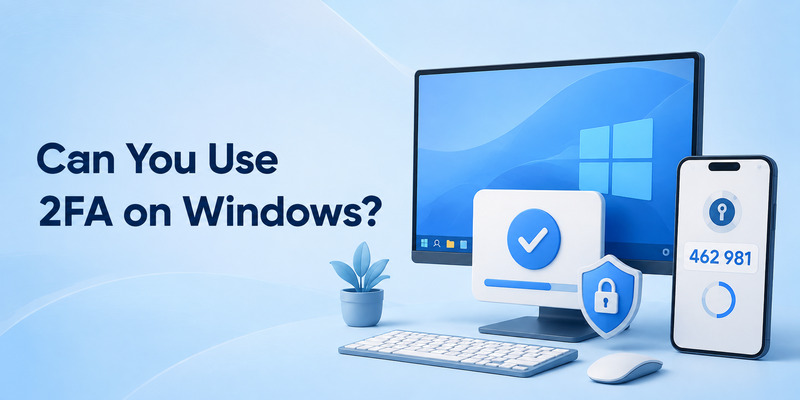
The short answer is: sometimes, but you should be selective. An authenticator app windows search can lead to legitimate desktop-capable tools, browser-based solutions, password managers, and also unsafe downloads that imitate trusted brands.
Microsoft Authenticator and Windows
Users searching for authenticator app microsoft windows 10 often expect to find an official desktop edition of Microsoft Authenticator. Microsoft’s official documentation says the app is available for iOS and Android, not PC or Mac. That means you should not download an unknown Windows installer claiming to be “Microsoft Authenticator for desktop.”
You can still sign in to Microsoft services on your computer while using Microsoft Authenticator on your phone. The laptop displays the login request, while the mobile app handles approval, number matching, or a verification code.
This separation is intentional. When your password is entered on a desktop and the verification approval happens on another device, a single compromised computer is less likely to expose both factors.
What a real desktop option may look like
A legitimate authenticator app desktop may come from a trusted password manager or a security-focused provider that explicitly supports desktop apps, encrypted sync, or browser extensions. It should have a transparent website, documented security model, current updates, and a clear recovery process.
Before installing anything, verify:
- The download comes from the vendor’s official site or a trusted app store.
- The publisher name matches the real product developer.
- The app has current release notes and support documentation.
- It supports standard TOTP codes if you need codes for many services.
- You understand whether codes are stored locally, synced, or protected by encryption.
- The computer itself has a strong login password and automatic security updates enabled.
An authenticator desktop app can be convenient, but convenience should never make you ignore source verification. Fake authenticator software is especially dangerous because it can steal both your password and your rotating 2FA codes.
🗺️ Browse How-To Guides:App Authenticator: Complete Guide to 2FA, OTP Codes, Setup & Recovery
3. Safe Desktop Options for Authentication Codes
There is no single best authenticator app desktop for every person. The right choice depends on whether you value convenience, separation of devices, cross-platform access, or stronger phishing resistance.
Option 1: Use a mobile authenticator with your desktop login
This is the simplest and often safest approach. You sign in on your laptop, then open your phone’s authenticator App to enter the temporary code or approve the request.
The benefit is device separation. Your password is typed on the computer, while the second factor remains on your phone. If malware compromises one device, it may not automatically control the other.
This option works well for users who do not want to store authentication codes on their Windows machine. It is also a strong default for high-value accounts such as primary email, banking, password managers, work systems, and social-media administration.
Option 2: Use a trusted desktop password manager with TOTP support
Some password managers can store login credentials and generate time-based one-time passwords. This creates a desktop-friendly authenticator app 2fa windows workflow: open the password manager, unlock it with your master password and available second-factor protection, then retrieve the code.
The advantage is speed. You can fill a password and retrieve the matching code in the same workspace. The drawback is reduced separation: passwords and 2FA codes may be stored in the same product.
That tradeoff can still be reasonable if the password manager is protected by a strong unique master password, a separate recovery plan, a trusted device, and a strong second factor. For highly sensitive accounts, many users prefer to keep TOTP codes on a separate mobile device or use a hardware security key.
Option 3: Use a hardware security key
A hardware security key is a small physical device that connects through USB, NFC, or another supported method. Instead of typing a rotating code, you tap or insert the key to confirm your identity.
For users worried about phishing, a security key can be stronger than many code-based methods. A proper security key can help confirm that you are logging in to the real website rather than a lookalike phishing page.
An authenticator app desktop may be useful for routine accounts, but a hardware key is worth considering for administrators, business owners, journalists, developers, creators, and users who manage valuable digital assets.
Option 4: Use Windows Hello or passkeys where available
Some services let you use Windows Hello, a device PIN, fingerprint, facial recognition, or passkeys. These options can reduce the number of manual codes you need to enter.
Windows Hello is tied to the device, so it should be combined with a secure device login and an account-recovery plan. It can be very convenient, but you should still keep backup methods for a lost laptop, damaged hardware, or a sign-in attempt from another device.
🗺️ Browse How-To Guides: Two Factor Authentication App: How to Choose, Set Up, and Use One Safely
4. How to Use 2FA When Signing In on a Laptop

An authenticator app desktop setup begins with the account you want to protect—not with installing random software. First, decide whether a mobile authenticator, desktop password manager, security key, or passkey is the best method for that account.
Step 1: Start from the account’s security settings
Sign in to the website from a trusted device. Open its security area and look for labels such as:
- Two-factor authentication
- Two-step verification
- Multi-factor authentication
- Login verification
- Security methods
- Authenticator app
Choose the authenticator-app option if you want to use time-based codes. The website will normally display a QR code or a manual setup key.
Step 2: Add the account securely
If you are using a mobile authenticator, scan the QR code with your phone. If you are using an approved windows app authenticator or password manager, follow the provider’s official process to add the account.
Never email the QR code to yourself, save it in an unencrypted document, or paste the setup key into a chat. The QR code contains the secret required to generate valid codes. Anyone who copies it may be able to access your account.
After adding the account, enter the current six-digit code to confirm setup. Your authenticator app desktop or phone will then generate new codes automatically.
Step 3: Save recovery options
Before you close the setup screen, download or record the recovery codes offered by the website. Keep them in a secure place separate from your laptop.
A good recovery plan may include:
- One-time backup codes.
- A second trusted device.
- A verified recovery email.
- A secure mobile number, when appropriate.
- A backup security key.
- Documented workplace recovery procedures for managed accounts.
Step 4: Test before relying on it
Sign out and sign in again from a trusted browser. Confirm that the code works and that you can find the correct account entry quickly. This step is particularly important after you configure an authenticator app laptop workflow or move to a new Windows computer.
Testing now is safer than discovering a problem when you are locked out of email, a work platform, or an important business dashboard.
5. Desktop vs. Mobile Authenticator Apps: Security Differences
An authenticator app desktop can improve workflow efficiency, but desktop and mobile authentication do not provide identical protection. Understanding the difference helps you choose the right setup for each account.
Device separation is valuable
With a mobile authenticator, your computer and your second factor are separate. A keylogger or remote-access tool on the computer might capture your password, but it may not be able to read your phone’s current code or approve a mobile notification.
With a desktop-based authenticator, both the password and the code may be available on the same device. If the computer is compromised, an attacker may have a better chance of reaching both factors.
That does not mean desktop authentication is always unsafe. It means you should protect the computer carefully. Use full-disk encryption, a strong Windows login, automatic updates, anti-malware protections, and a locked screen whenever you leave your desk.
Convenience versus risk
A authenticator app desktop is often convenient for low- to medium-risk accounts that require frequent sign-ins. It can reduce interruptions and help users manage numerous work logins.
For high-risk accounts, you may choose a different approach. Keep codes on a phone, use a hardware key, or require passkeys. The more damaging an account takeover would be, the more useful it is to separate your login factors.
Shared and public computers
Never use a desktop authenticator on a public, borrowed, or shared computer. Do not install extensions or save codes in a browser profile that other people can access.
Even on a personal computer, use a separate Windows user account if family members share the device. This reduces accidental exposure of browser sessions, saved passwords, and authenticator app desktop entries.
Sync and backup choices
Some desktop-capable authenticator products sync codes between devices. This can make recovery easier, but you should learn how the sync is secured. Look for end-to-end encryption, a unique vault password, device authorization controls, and account-recovery protections.
Backup is important, but an insecure backup can become a weak point. Choose a provider that explains its security model clearly instead of relying on vague marketing language.
💡 Discover Helpful Guides: Facebook Authentication App: Setup, Login Codes, and Recovery Guide
6. Windows 11, Windows 10, and Windows 7 Considerations

Your operating system matters when you choose an authenticator app desktop solution. The goal is not simply to make codes appear on your screen; it is to keep the device that stores or displays those codes secure.
Authenticator app Windows 11 guidance
An authenticator app windows 11 workflow should begin with basic Windows protection. Turn on automatic updates, use Windows Hello or a strong device password, enable screen locking, and keep your browser current.
Windows 11 can work well with mobile authenticators, password managers, supported security keys, and passkeys. Before adding a desktop app or browser extension, confirm that the vendor officially supports your current version of Windows.
For business devices, follow your organization’s identity and device-management policies. A company may require a mobile authenticator, an approved password manager, a managed browser, or a specific hardware key. Do not bypass those requirements with an unapproved desktop tool.
Authenticator app Microsoft Windows 10 guidance
A authenticator app microsoft windows 10 search should not lead you to unofficial installers that claim to be Microsoft Authenticator. Microsoft Authenticator remains a mobile app, while your Windows 10 computer can be used to access sign-in pages and account-security settings.
Windows 10 users should keep the operating system updated through Microsoft’s available support path and use a current browser. If your device cannot receive important security updates, do not use it as the only place where you store authentication secrets.
Authenticator app Windows 7 warning
The query authenticator app windows 7 still appears in search results, but Windows 7 is not a good platform for managing authentication codes. Microsoft ended Windows 7 support on January 14, 2020, and its Extended Security Updates program has also ended.
A device without current security support should not be trusted for password-manager vaults, browser-stored passwords, financial accounts, or an authenticator app desktop installation. If you still use Windows 7, prioritize upgrading to a supported operating system and use a separate updated phone for authentication in the meantime.
7. Common Authenticator Desktop Problems and Fixes
An authenticator app desktop can fail for practical reasons, but most issues can be resolved safely without disabling 2FA entirely.
Codes are rejected
If a website rejects a rotating code, wait for the next one and try again. Check that your computer and phone use automatic date and time settings. Time-based codes depend on accurate clocks, so even a small mismatch can cause a failure.
Also confirm that you are reading the correct account entry. Users often have duplicate entries after moving to a new phone, setting up the same service twice, or keeping separate personal and work accounts.
The desktop app or extension does not sync
If your authenticator desktop app is supposed to sync but appears empty on a new computer, do not delete entries on the old device immediately. First, verify whether the provider uses encrypted sync, a vault sign-in, device approval, or manual export.
Use the provider’s official recovery instructions. Avoid copying QR codes through email or cloud notes just to speed up migration. That can expose every account stored in the authenticator.
You lost your laptop or phone
If you lose a computer that stores authenticator app desktop codes, act quickly. Lock or remotely erase the device if that option is available, change your password-manager or authenticator-vault password from a trusted device, review active sessions, and remove the lost device from account security settings.
If you lose the phone that holds your primary authenticator, use saved recovery codes, another trusted device, or the service’s official recovery process. Once you regain access, review all security methods and create new backup codes.
You are asked for a code you did not request
Unexpected code prompts or approval notifications can indicate that someone knows your password. Do not approve the request. Change the account password from a secure device, sign out unfamiliar sessions, and review the recovery email and phone number attached to the account.
A legitimate authenticator app desktop should confirm your own login attempts—not help someone else complete theirs.
💡 Discover Helpful Guides: What Is Authenticator App? How It Works, How to Use It, and Why It Matters
8. Frequently Asked Questions and Final Recommendation
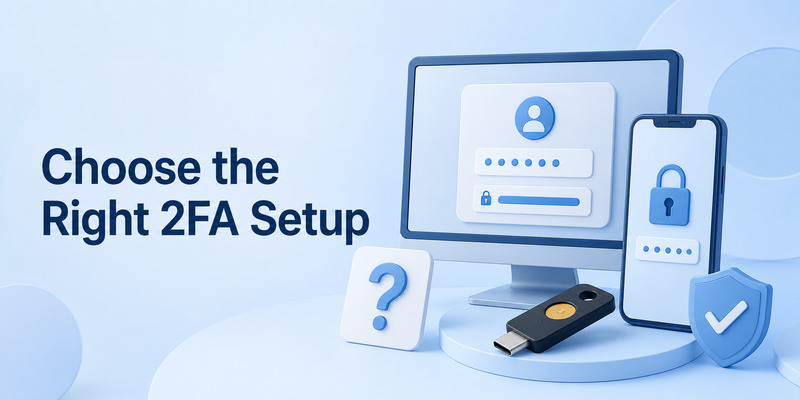
Is there an official Microsoft Authenticator desktop app?
No. Microsoft’s official support page says Microsoft Authenticator is not available for PC or Mac and is designed as a mobile app. Use it on iOS or Android while signing in to your Microsoft account from a laptop or desktop browser.
Can I use an authenticator app on my laptop?
Yes, but choose carefully. You can use a trusted password manager with TOTP support, a secure browser-based workflow from a reputable provider, a passkey, or a hardware security key. For many people, keeping the authenticator on a phone while logging in on a laptop remains the safer default.
Is a desktop authenticator safer than a phone app?
Not always. A mobile app often keeps the second factor separate from the computer where you type your password. A desktop authenticator can be convenient, but it may place both factors on one device. For important accounts, use a mobile authenticator or hardware key as an additional layer.
Should I install an authenticator app from the Microsoft Store?
Install only software you can verify as official and currently supported by the developer. Do not assume a search listing with “Microsoft,” “Windows,” or “2FA” in the title is legitimate. Check the publisher, official website, update history, and security documentation first.
What is the best authenticator app desktop setup?
The best authenticator app desktop setup depends on your risk level:
- For most personal users: a reputable mobile authenticator plus recovery codes.
- For people who need desktop convenience: a trusted password manager with strong encryption and a separate recovery plan.
- For high-value or business accounts: a mobile authenticator combined with one or more hardware security keys.
- For Windows 7 users: upgrade the operating system before storing authentication codes on the computer.
Final recommendation

An authenticator app desktop can be useful, but it should not be chosen only for convenience. First protect the computer itself, verify the software source, and decide whether your most valuable accounts need stronger separation between passwords and verification codes.
For everyday use, a mobile authenticator App remains a reliable default when you sign in on Windows or a laptop. Add a desktop solution only when it is from a trusted provider, supported by a secure recovery plan, and appropriate for the sensitivity of the accounts you manage.
Download Authenticator App
Secure your accounts with fast, reliable two-factor authentication. Download now and protect your login in seconds.
