
Two Factor Authentication App: How to Choose, Set Up, and Use One Safely
A Two Factor Authentication app adds an extra layer of protection to your online accounts by generating secure verification codes during login. But with many authenticator apps available, choosing the right one means considering security, privacy, backup options, and account recovery. This guide explains how to choose a reliable 2FA app, set it up correctly, and use it safely to protect your accounts without losing access.
1. What Is a Two Factor Authentication App?
A two factor authentication app is a security tool that creates temporary login codes for your online accounts. These codes provide a second verification step after you enter your password. Instead of relying only on a password—which can be guessed, leaked, reused, or stolen—you prove that you also have access to a trusted device.
Most people use a two factor authentication app on a smartphone. After connecting the app to an account, it generates a six-digit code that refreshes about every 30 seconds. When a website asks for two-factor verification, you open the app, find the matching account, and enter the current code.
This process is often called app-based 2FA, authenticator-based verification, or time-based one-time passwords (TOTP). The technical name may sound complicated, but the day-to-day experience is simple: password first, temporary code second.
A 2fa authentication app does not normally need an internet connection to create codes. Once an account is added, the code is generated locally on your device. That makes it useful while traveling, when mobile data is unavailable, or when you cannot receive a text message.
For individuals, using a two factor authentication app is one of the most practical ways to protect email, social media, work accounts, shopping services, banking platforms, and password managers. For businesses, it adds a meaningful barrier against account takeover and credential-stuffing attacks.
Download Authenticator App
Secure your accounts with fast, reliable two-factor authentication. Download now and protect your login in seconds.
2. How a Two Factor Authentication App Works
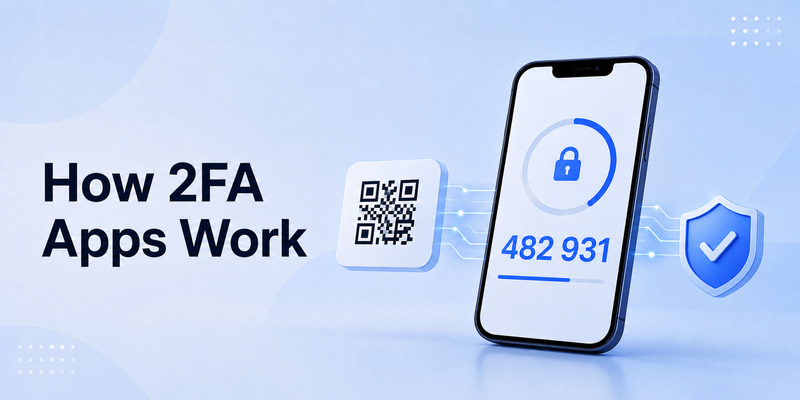
A two factor authentication app works by sharing a secret setup key with the website or service you want to protect. During setup, the service usually displays a QR code. You scan that QR code using your authenticator, and both systems can then generate matching temporary codes.
The QR code contains a unique secret. Your app uses that secret along with the current time to calculate a one-time code. The website performs the same calculation. If the code you enter matches the expected code during its short validity period, the login is approved.
This is why a 2 factor authentication app is different from a password manager alone. A password manager stores or creates passwords, while an authenticator generates a separate verification code. Some products combine both features, but they still serve different security functions.
A two factor authentication app also supports different login experiences. Some websites ask you to type the six-digit code manually. Others send a push notification asking you to approve or deny a sign-in. Advanced services may support passkeys, security keys, or number matching as additional protection.
The key point is that the temporary code should be difficult for an attacker to use without your device. Even if someone obtains your password through a phishing page or data breach, they still need your current verification code to complete the login.
3. Why You Should Use an Authenticator App Instead of SMS
SMS verification is better than using only a password, but an app is often the stronger option. A two factor authentication app is not dependent on your phone number, mobile carrier, or text-message delivery.
One risk with SMS is SIM swapping. In this attack, a criminal convinces a mobile provider to transfer your number to another SIM card. Once that happens, the attacker may receive your security texts and reset-account messages. A two factor authentication app reduces this risk because the codes stay inside the app on your device.
SMS can also be delayed, blocked while roaming, or inaccessible when you lose signal. By contrast, a two factor authentication app can generate time-based codes offline. You can authenticate from an airplane, a remote location, or an area with weak reception.
Another advantage is privacy. You may not want every online service connected to your phone number. An authenticator App lets you secure accounts without exposing a number where it is not required.
However, app-based authentication is not automatically perfect. If you scan a fake QR code, share a code with a scammer, or fail to save recovery options, you can still lose access. The app improves security, but careful setup and phishing awareness remain essential.
4. How to Choose the Best Two Factor Authentication App
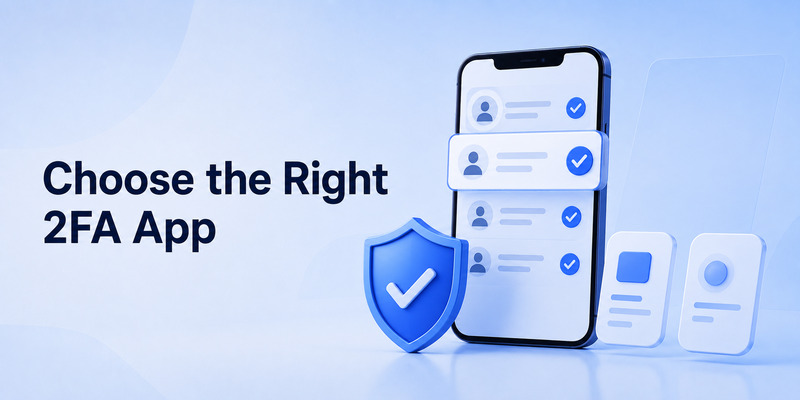
The best two factor authentication app is not necessarily the one with the longest feature list. It is the one you can use consistently, recover safely, and trust with access to your most important accounts.
Start by checking compatibility. A reliable two factor authentication app should support standard TOTP codes, because this format works with thousands of websites. If an app only works with one brand or one ecosystem, it may be less flexible for your broader account security.
Next, consider backup and sync. Some apps store codes only on one device, while others offer encrypted cloud backup or secure device-to-device transfer. Local-only storage can reduce cloud exposure, but it also makes recovery harder if your phone is lost. Cloud sync can be convenient, but you should understand how it is protected.
Look for these features when selecting a two factor authentication app:
- Standard TOTP support for broad compatibility.
- Encrypted backup or a clear export and recovery method.
- Biometric lock, PIN protection, or device-level authentication.
- Support for multiple devices when needed.
- Easy account labels and search for a growing list of codes.
- A trustworthy developer with transparent security practices.
- Recovery guidance that you can understand before an emergency occurs.
Many people search for a google two factor authentication app because Google Authenticator is widely known and supports common TOTP codes. It can be a sensible choice for basic use, particularly when you want a simple and familiar interface. Still, compare recovery, device transfer, backup, and account-management features with other established options before deciding.
Avoid choosing an app only because it appears first in a search result or uses vague claims such as “military-grade security.” Read its official documentation, review its privacy approach, and download it only from a trusted app marketplace or the provider’s official website.
5. Step-by-Step Setup for Your First Account
Setting up a two factor authentication app takes only a few minutes. The exact labels vary by website, but the overall process is similar.
First, install your chosen authenticator App from the official Apple App Store, Google Play Store, or the provider’s official download page. Open the app and enable a screen lock, PIN, fingerprint, or Face ID if the option is available.
Next, sign in to the account you want to secure. Open its security settings and find options such as “Two-Factor Authentication,” “Two-Step Verification,” “Login Verification,” or “Authenticator App.”
Choose the option to set up an app. The service will usually show a QR code. In your two factor authentication app, tap the button to add a new account and scan the code. If scanning is not possible, choose the manual-entry option and carefully type the setup key.
Your app will then display a temporary code. Enter that code into the website to confirm the setup. If it is accepted, app-based 2FA is active.
Before leaving the security page, download or write down the recovery codes. These one-time backup codes are extremely important. Store them in a secure place that is separate from your phone, such as a password manager’s secure notes area, an encrypted document, or a locked physical location.
Finally, test the setup. Sign out and sign in again on a trusted device. Confirm that the two factor authentication app produces a valid code and that you know where to find the account entry. A short test now can prevent a stressful lockout later.
6. Backup, Recovery, and New-Phone Security
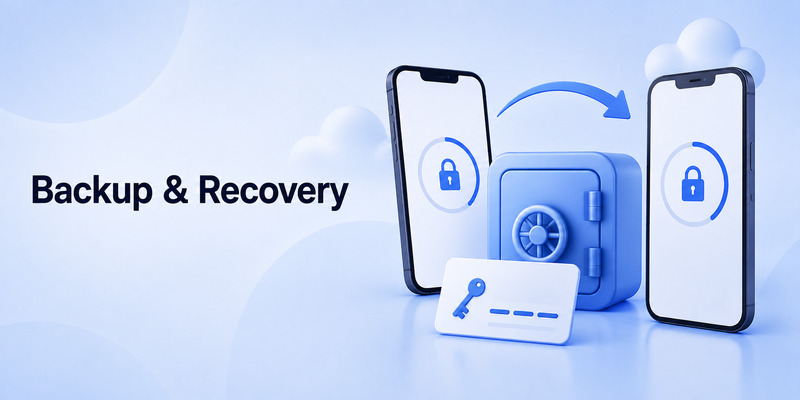
The biggest mistake people make with a two factor authentication app is assuming they will never lose their phone. Phones can be damaged, stolen, replaced, reset, or inaccessible at exactly the wrong time. Recovery planning should be part of setup, not an afterthought.
Start by saving recovery codes for every critical account. Do not take a screenshot and leave it in your photo library. Screenshots may sync automatically, appear in backups, or be exposed if someone accesses your unlocked phone.
If your two factor authentication app offers encrypted backup, make sure you understand what protects that backup. Use a long, unique password for the backup account and enable strong two-factor protection there too. Your backup system should not become an easier target than the accounts it protects.
Before changing phones, transfer your accounts while you still have access to the old device. Some apps provide a QR-based transfer workflow, while others sync accounts securely after you sign in. Complete the transfer, verify several codes on the new phone, and only then remove the old device or reset it.
A well-configured two factor authentication app can make account recovery manageable, but no app can fix missing recovery information. For essential services—especially email, banking, work tools, and password managers—keep at least two recovery methods. That might include recovery codes, a second trusted device, a hardware security key, or a verified recovery email.
7. Can You Use a Two Factor Authentication Desktop App?
A two factor authentication desktop app can be useful for people who work primarily from a computer. It may reduce the need to pick up a phone every time you log in, especially when managing multiple work accounts.
However, desktop authentication requires careful security decisions. If your computer is shared, poorly protected, infected with malware, or left unlocked, stored codes could be exposed. Use a strong computer login password, full-disk encryption, current security updates, and a locked screen whenever you step away.
Some people prefer a two factor authentication desktop app that syncs securely with their mobile device. Others use a password manager that can generate TOTP codes. This can be convenient, but keeping passwords and second-factor codes in one place reduces separation between the two factors. Whether that tradeoff is acceptable depends on your threat model and the strength of your password-manager account.
For high-value accounts, consider using a physical security key instead of relying entirely on software-based codes. Security keys offer stronger phishing resistance because they verify the legitimate website before approving access.
A two factor authentication app on your phone remains a practical default for many users. Desktop access can be a helpful addition, but it should not replace good recovery planning or basic device security.
8. Common Problems and How to Fix Them
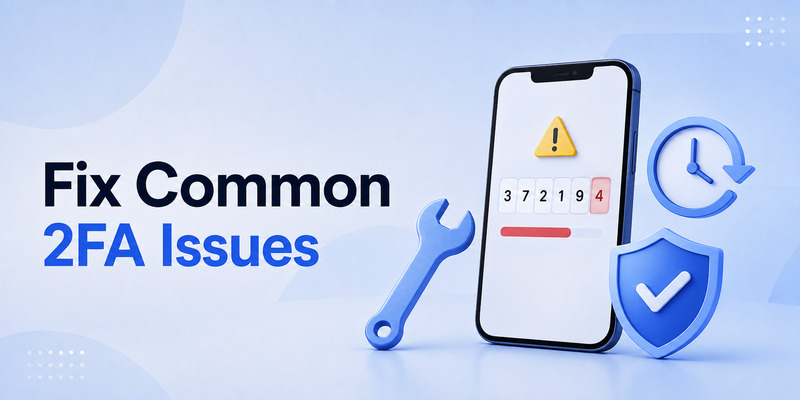
A common issue is that a two factor authentication app generates a code that a website rejects. In many cases, the device time is incorrect. Automatic date and time settings should be enabled so your phone stays synchronized.
Another problem is scanning the wrong QR code or adding the same account twice. Check the account name and email address shown in the app. If you are uncertain, do not delete existing entries immediately. First, test which entry works and confirm that recovery codes are available.
If you changed phones and the two factor authentication app appears empty, do not panic. Check whether the app supports cloud backup, account sync, or an old-device transfer process. If those options are unavailable, use your saved recovery codes or another approved sign-in method to reconnect each account.
Never give a current code to someone who contacts you unexpectedly. Real support teams should not ask for your password, recovery code, or authentication code through a random message. Scammers often create urgency by claiming there is suspicious activity or that your account will be closed.
If you see repeated verification prompts that you did not initiate, deny them. Change your password from a trusted device and review your recent sign-in activity. Your two factor authentication app is there to confirm your actions—not to approve someone else’s login.
9. Best Practices for Everyday 2FA Protection
Use your two factor authentication app first on the accounts that could unlock everything else. Your primary email account should be at the top of the list because it is often used for password resets. Next, protect your password manager, financial accounts, cloud storage, social networks, work accounts, and shopping services.
Do not reuse passwords. A two factor authentication app is valuable, but it should work alongside unique, strong passwords. A reputable password manager can help generate and store those passwords.
Review your security settings every few months. Remove old devices, update recovery emails and phone numbers, and replace outdated backup codes if a website allows it. If you no longer use an account, close it instead of leaving it inactive with old personal information.
You should also recognize phishing attempts. A fake website can ask for both your password and your live authentication code. Always check the domain name before entering credentials. If possible, use passkeys or hardware security keys for your most sensitive accounts because they are designed to resist phishing more effectively.
The best two factor authentication app is one part of a larger security routine. Keep your phone updated, use a screen lock, avoid installing unknown apps, and never ignore a lost-device incident. If your phone is stolen, remotely lock or erase it when appropriate and update critical account credentials promptly.
10. Frequently Asked Questions
Is a two factor authentication app free?
Many services offer a free two factor authentication app with standard code generation. Some paid options add features such as encrypted synchronization, shared business access, advanced backup, or password management. Free can be enough for basic personal use, but evaluate recovery and security features carefully.
Is a two factor authentication app safer than text messages?
In most cases, yes. A two factor authentication app is generally more resistant to SIM-swapping attacks and does not depend on mobile-network delivery. However, you must still protect your device and avoid phishing scams.
Can I use one app for many accounts?
Yes. A standard 2fa authentication app can usually store codes for many websites and services. Label every account clearly so you can find the correct code quickly.
What happens if I lose my phone?
You can recover access through backup codes, a synced backup, another trusted device, or a service’s official account-recovery process. This is why recovery planning is essential before you need it.
Should I use Google Authenticator?
A google two factor authentication app can be a good fit if you want a straightforward tool that supports standard code-based verification. Compare it with other established apps based on backup, device transfer, biometric protection, and the way you prefer to manage recovery.
11. Final Thoughts
A two factor authentication app is one of the simplest upgrades you can make to your online security. It helps ensure that a stolen password alone is not enough to access your most important accounts.
Choose an app from a trusted provider, protect it with a device lock, save recovery codes, and test your setup before an emergency happens. Whether you use a mobile authenticator, a desktop option, or a hardware security key for high-risk accounts, the goal is the same: make unauthorized access much harder.
Set up your two factor authentication app first for email and your password manager. Those two actions can protect the rest of your digital life far more effectively than waiting until after an account is compromised.
Download Authenticator App
Secure your accounts with fast, reliable two-factor authentication. Download now and protect your login in seconds.
