
App Authenticator: Complete Guide to 2FA, OTP Codes, Setup & Recovery
Published August 11, 2026 · Updated September 11, 2026
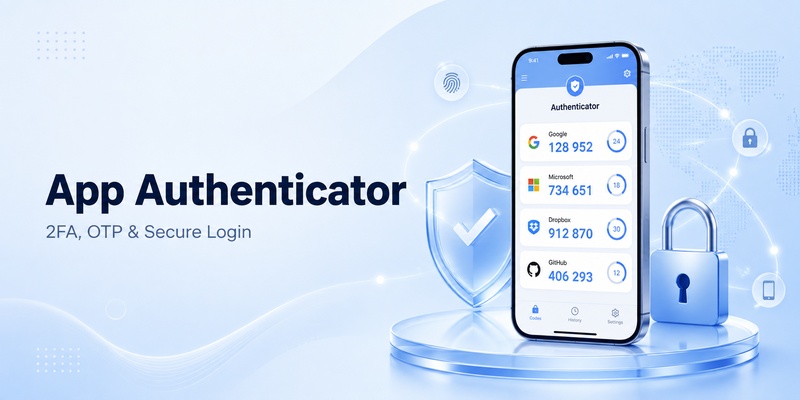
An app authenticator is one of the most common ways to add a second layer of security to an online account. Instead of relying only on a password, a compatible service can ask for another form of proof often a short-lived verification code generated by an application on your phone.
You may encounter an app authenticator when securing email, social media, cloud storage, gaming accounts, workplace systems, banking-related portals, developer services, or online productivity tools. The website normally asks you to scan a QR code during setup, after which the authentication application begins producing verification codes for that account.
This type of two factor authentication app commonly uses TOTP, or Time-Based One-Time Password. TOTP is formally described in RFC 6238. It derives temporary passwords from a shared secret and the current time, with 30 seconds being the recommended default time step.
That means an app authenticator usually does not receive a brand-new code from the website each time you log in. Once configured, the app and the server independently calculate matching codes from the secret established during enrollment.
However, modern authentication applications can do more than generate TOTP numbers. Microsoft Authenticator, for example, supports Microsoft account notifications and other sign-in methods in addition to one-time codes. Apple Passwords can generate verification codes for compatible websites, while Google Authenticator can synchronize or transfer supported authenticator entries.
As a result, choosing and managing an app authenticator involves more than downloading the first app with “authenticator” in its title. You need to understand how the code works, what recovery options exist, whether accounts can be transferred to another phone, and what happens if the application is deleted or the device stops working.
This guide covers the complete process.
1. What Is an App Authenticator and How Does It Work?
What is an authenticator app?
If you are searching what is authenticator app, the simplest explanation is that it is software used to prove your identity during a login.
A password answers:
“What do you know?”
An app authenticator can add another factor related to:
“What do you have?”
The account owner has a phone or device containing the registered authentication credential. When the website asks for additional verification, the application supplies the required code or confirmation.
A traditional app authenticator often works by storing a secret associated with each account. During setup, the website may display a QR code containing information required to establish the relationship between the service and the authentication application.
Once configured, a totp authenticator app uses the secret together with the current time to calculate a temporary code. RFC 6238 specifies TOTP as the time-based version of HOTP and identifies 30 seconds as the default time interval.
You enter that number after entering your username and password.
The service independently calculates what the correct number should be. If your app authenticator and the server produce matching results within the accepted time window, the login can continue.
Why use an app instead of SMS?
An app authenticator does not necessarily need to receive an SMS every time a standard TOTP code is generated.
Because TOTP is calculated locally, compatible apps can generate a temporary code even when internet connectivity is limited. The critical requirement is that the device and authentication service use compatible timing and the same enrollment secret.
A typical otp app can therefore feel faster than waiting for a text message.
Modern services may still offer SMS, email, push notifications, security keys, passkeys, and recovery codes as alternative methods.
The correct choice depends on what the service supports.
📘 Find the Right Guide: Two Factor Authentication App: How to Choose, Set Up, and Use One Safely
2. OTP, TOTP, and Two-Factor Authentication Explained

OTP means one-time password
OTP stands for one-time password.
An app authenticator can generate an OTP designed for temporary use rather than acting as a permanent password.
HOTP, standardized in RFC 4226, generates one-time passwords using an HMAC-based algorithm and a counter. TOTP extends that approach by using time as the moving factor.
Most people using an app authenticator do not need to understand the underlying cryptographic calculations. What matters practically is that codes expire and are replaced frequently.
TOTP codes usually rotate
A standard authenticator app code often contains six digits and changes around every 30 seconds, although an implementation can use different parameters.
Microsoft’s documentation, for example, states that verification codes for supported accounts change every 30 seconds.
Because an app authenticator is time-based, incorrect device time can cause codes to fail.
If a service repeatedly rejects an apparently correct TOTP number, checking automatic date and time is a useful troubleshooting step before deleting the account.
2FA versus MFA
Two-factor authentication means the login depends on two factors.
Multifactor authentication is the broader concept of requiring multiple forms of authentication.
An app authenticator may participate in either.
For example:
- Enter password.
- Enter temporary code.
That is a common 2FA workflow.
Alternatively, Microsoft environments can combine passwordless methods, number matching, push verification, security keys, or other policies depending on how an organization has configured authentication.
So an app authenticator should not automatically be equated with “six-digit code only.”
📖 Explore Articles: Facebook Authentication App: Setup, Login Codes, and Recovery Guide
3. How to Use an App Authenticator Step by Step
General setup process
People searching how to use authenticator app can normally follow this general process:
- Install a reputable app authenticator.
- Open the account you want to secure.
- Visit Security or Sign-In settings.
- Turn on two-factor authentication.
- Choose Authenticator App as the method.
- The website displays a QR code or setup key.
- Open the app authenticator.
- Select Add account.
- Scan the QR code.
- Enter the generated code back into the website.
- Save any recovery codes supplied by the website.
This QR-based approach is used by many major services. Microsoft’s instructions for adding non-Microsoft accounts, for example, describe scanning a QR code and entering the generated verification number to confirm enrollment.
Once the website accepts the initial code, your app authenticator is registered.
What happens during future logins?
A normal authenticator login might look like:
- Enter username.
- Enter password.
- Website asks for authentication code.
- Open the app authenticator.
- Select the correct account.
- Enter the current code.
- Complete sign-in.
If the current number is nearly expired, wait for the next one rather than rushing.
Some applications provide push-based approval instead. Microsoft Authenticator, for instance, can display a new sign-in request and use number matching or approval depending on the account and organizational configuration.
Save backup codes
When a website supplies recovery or backup codes, store them somewhere secure.
Discord explicitly advises users to download and store its backup codes after enabling an authentication application because those codes can be used when the app authenticator is unavailable. Discord also warns that its support team cannot simply generate new backup codes for a locked-out account.
Backup preparation is one of the most important parts of using an app authenticator safely.
💡 Discover Helpful Guides: Authenticator App Desktop: Safe Ways to Use 2FA on Windows and Laptops
4. How to Download an Authenticator App Safely
Use official stores whenever possible
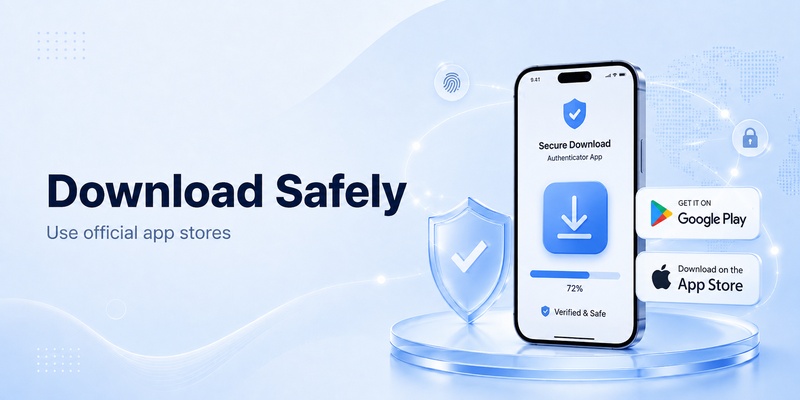
An authenticator app download should come from a trustworthy source.
For Android, the standard route is Google Play.
For iPhone, use Apple’s App Store.
Before installing an app authenticator, check the publisher carefully. Many applications use similar names, so a familiar-looking title alone does not prove that the app comes from Google, Microsoft, or another company you recognize.
For Microsoft Authenticator, Microsoft’s own download documentation directs users to its mobile applications on Android and iOS.
Google’s official documentation similarly provides the setup process for Google Authenticator on Android and iPhone.
What about APK downloads?
The phrase authenticator app download apk usually comes from Android users searching for a manual installation package.
An APK is an Android package, but an app authenticator handles authentication secrets. That makes the source especially important.
Avoid downloading an unknown APK simply because it has the correct icon or name.
For security software, prefer the publisher’s official distribution method whenever possible.
Authenticator app on Android
For authenticator app android, the setup is generally:
- Open Google Play.
- Search for the authenticator required by your service.
- Verify its developer.
- Install the application.
- Add the account using the website’s QR code.
- Save account recovery methods before finishing.
Google Authenticator and Microsoft Authenticator both have official Android workflows documented by their publishers.
What about TCS Authenticator on iPhone?
The phrase how to download tcs authenticator app on iphone appears to relate to TCS/Ultimatix workplace access rather than a universal public authenticator product.
Current public App Store results for Tata Consultancy Services list several TCS applications, but a generic public iPhone application clearly named “TCS Authenticator” is not shown in the TCS developer listing returned by Apple’s App Store.
Therefore, if your employer tells you to install a TCS app authenticator, use your organization’s TCS/Ultimatix instructions or internal IT documentation.
Do not install an unrelated application simply because a third-party tutorial calls it “TCS Authenticator.”
Enterprise deployment links and availability can differ from normal public App Store applications.
Download Authenticator App
Secure your accounts with fast, reliable two-factor authentication. Download now and protect your login in seconds.
5. Can You Use an Authenticator App on PC, Mac, or Chrome?
Authenticator app for PC
An authenticator app for pc search often comes from users who want authentication codes on the same Windows computer they use for login.
Some third-party desktop tools exist, but not every major mobile authenticator has an official Windows version.
Microsoft specifically says Microsoft Authenticator is not available for PC or Mac and explains that its Authenticator product is designed for smartphones.
Therefore, if a website advertises a “Microsoft Authenticator Windows download,” do not assume it is an official Microsoft product.
You can still use a phone-based app authenticator while logging into websites on a Windows PC.
The code is generated on the phone and entered on the computer.
Authenticator app for Mac
The situation is similar for authenticator app for mac.
Microsoft Authenticator does not provide an official Mac version.
Apple users, however, have a built-in alternative for many TOTP accounts. Apple’s Passwords application can set up and generate verification codes for websites and apps that support authenticator-based verification.
For someone asking for the best free authenticator app for mac, Apple Passwords may therefore be the simplest built-in option if their accounts use standard verification codes and they primarily use Apple devices.
A cross-platform user may prefer a dedicated app authenticator instead.
Authenticator app in Chrome
An authenticator app chrome search can mean one of two things:
- Using an authentication code when signing into a website in Chrome.
- Installing a Chrome extension that generates authentication codes.
These are not the same.
You do not need an authenticator extension just because the login page is open in Chrome. A phone-based app authenticator can generate the code while Chrome displays the website.
Google’s official Authenticator instructions focus on the Android and iOS application rather than providing a Google Authenticator Chrome product.
Browser extensions from other developers may exist, but evaluate the publisher, permissions, backup design, and security model before storing TOTP secrets inside a browser extension.
📘 Find the Right Guide: Best OTP App Guide 2026: Top Authenticator Apps Reviewed & Compared
6. How to Use an Authenticator App With Facebook and Discord
Facebook authentication app
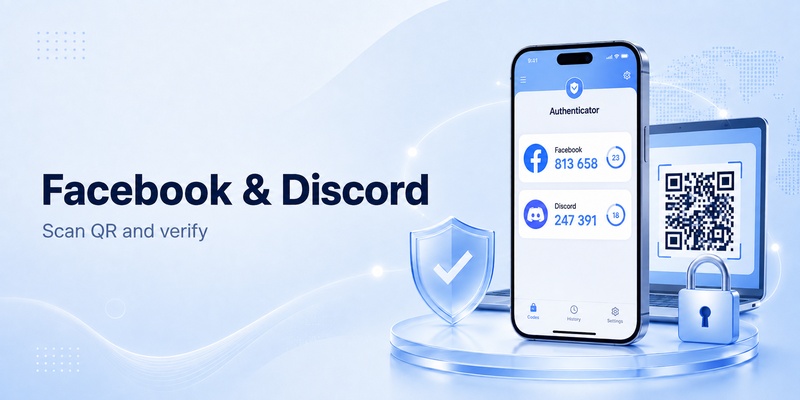
A facebook authentication app can be a compatible third-party authenticator that generates Facebook login codes.
Meta’s current Help Center states that users can configure a third-party authentication application for Facebook two-factor authentication.
The typical process is:
- Open Facebook account security settings.
- Enable two-factor authentication.
- Choose an authentication application.
- Facebook displays setup information.
- Scan it with your app authenticator.
- Enter the generated code into Facebook.
- Save Facebook recovery methods.
Meta also provides recovery codes for accounts using two-factor authentication.
That is useful if your app authenticator or phone becomes unavailable.
Discord authenticator app
A discord authenticator app works in a similar way.
Discord’s current documentation tells users to enable Authenticator App under its MFA settings, scan the QR code with a supported authentication application, and enter the resulting six-digit code.
After setup, your app authenticator generates the codes used during Discord login.
Discord strongly emphasizes backup codes. Its documentation says these codes can be used when the authentication application is unavailable and advises users to save them somewhere secure.
This is particularly important because losing both your app authenticator and Discord backup methods can make recovery difficult.
📖 Read More Guides: Is Authenticator App Safe? A Complete Security Breakdown for 2026
7. Microsoft Authenticator Login and Microsoft Accounts
How Microsoft Authenticator differs from basic TOTP
A microsoft authenticator login may use a temporary code, but Microsoft Authenticator also supports richer Microsoft sign-in experiences.
Microsoft’s current documentation describes sign-in requests where the user opens Authenticator, reviews the request, enters or matches the displayed number when required, and approves the authentication.
This means Microsoft Authenticator can function as more than a conventional TOTP app authenticator.
For personal, work, and school Microsoft identities, available features depend on the account type and administrative policies.
Adding other accounts to Microsoft Authenticator
Microsoft also documents adding Facebook, Google, Amazon, and other non-Microsoft accounts using QR codes.
Those accounts can use rotating verification numbers, meaning Microsoft Authenticator can also act as a conventional app authenticator for compatible services.
Microsoft states that these verification codes change every 30 seconds.
Is Microsoft Authenticator free?
Microsoft describes Authenticator as a free application.
Therefore, users searching authenticator free can consider Microsoft Authenticator when its supported features match their accounts.
However, “free” should not be the only criterion when choosing an app authenticator. Backup options, cross-platform support, organizational requirements, and recovery procedures are equally important.
8. How to Log Into Outlook Without the Authenticator App
Use another method only if it is available
The query how to login to outlook email without authenticator app should not be interpreted as bypassing authentication.
If Microsoft requires MFA, you still have to prove your identity using a method permitted by the account’s security policy.
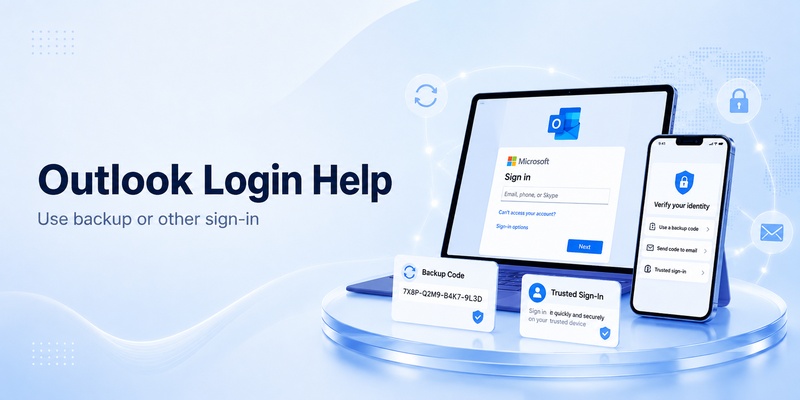
For work or school accounts, Microsoft says users can select Sign in another way if another verification method has already been configured. Depending on policy, this might include a phone call, text, security key, or another permitted method.
If no alternative method exists, Microsoft says the user may need to contact the organization’s administrator.
So losing an app authenticator does not automatically mean that the MFA requirement disappears.
Personal Microsoft accounts
For personal Microsoft accounts, Microsoft supports multiple forms of security information, including phone and email-based verification depending on the account’s configuration.
If your app authenticator is unavailable but another registered method appears on the sign-in screen, use that legitimate recovery option.
Microsoft recommends maintaining multiple pieces of security information precisely because losing access to one factor can otherwise complicate recovery.
Disable Authenticator in Office 365?
The keyword disable authenticator app office 365 usually refers to Microsoft Entra/Microsoft 365 administration.
This is not simply a switch inside Outlook.
Microsoft Entra can enforce MFA through several mechanisms, including authentication method policies, Conditional Access, security defaults, and legacy per-user MFA settings. Microsoft’s current guidance increasingly favors managed MFA policies rather than treating per-user MFA as the primary design.
If an organization needs to change allowed authentication methods, an authorized administrator should review the tenant’s actual Entra policies rather than deleting an app authenticator from a user’s phone and assuming MFA is disabled.
💡 Discover Helpful Guides: How to Download TCS Authenticator App on iPhone: Step-by-Step Guide
9. Moving an Authenticator App to a New Phone
Plan before erasing your old device
The phrase authenticator app new phone often appears only after someone has already purchased or reset a device.
The ideal time to plan migration is before wiping the old phone.
Different app authenticator products use different migration systems.
Google Authenticator supports transferring codes between devices by exporting accounts on the old device and scanning the resulting QR code on the new device. Google also documents account synchronization when Authenticator is used with a Google Account.
Microsoft Authenticator uses its own backup and recovery system.
Do not assume that copying all phone files automatically transfers every app authenticator credential.
Google Authenticator transfer
For Google Authenticator:
- Open Authenticator on the old phone.
- Open Transfer accounts.
- Choose Export accounts.
- Select the accounts.
- Generate the transfer QR code.
- Install Authenticator on the new device.
- Choose Import accounts.
- Scan the QR code.
Google documents this workflow for both Android and iPhone.
Test the app authenticator on the new phone before deleting the old configuration.
Microsoft Authenticator migration
Microsoft recommends backing up Authenticator before switching phones.
Its current backup documentation includes specific iOS and Android requirements and notes that some account types require reauthentication after recovery.
A successful app authenticator migration should therefore include testing important accounts after restoration rather than assuming every restored entry is immediately ready.
10. Authenticator App Not Opening or Not Showing Codes
App will not open
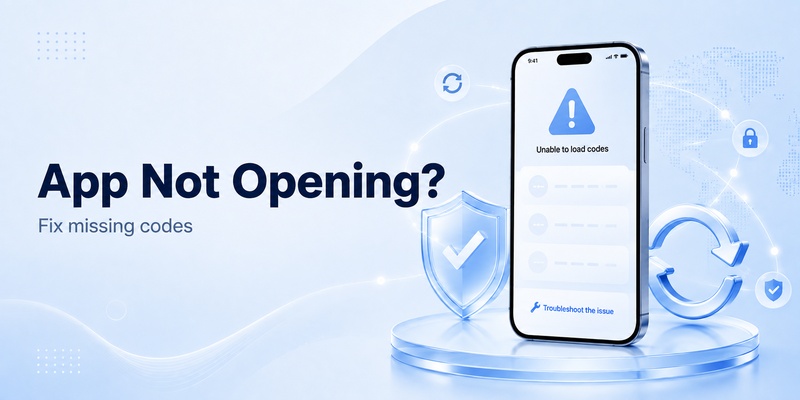
The search why is my authenticator app not opening can describe anything from an application crash to an outdated operating system.
Start with low-risk troubleshooting:
- Restart the phone.
- Update the app authenticator.
- Update the operating system.
- Check available storage.
- Confirm the app was installed from the official source.
- Check whether the publisher reports compatibility requirements.
- Avoid deleting app data until you understand the backup and recovery situation.
Microsoft’s Authenticator troubleshooting documentation specifically recommends keeping the application current and checking connectivity, notifications, battery optimization, and other device settings for Microsoft-specific problems.
Do not immediately uninstall an app authenticator containing accounts you cannot re-add.
Authenticator app is not showing code
For authenticator app is not showing code, first identify what authentication method the account actually uses.
Not every account in an app authenticator is required to display a TOTP code.
Microsoft work or school accounts, for example, can be configured around notification approval rather than a manually copied OTP.
If a standard TOTP account should display a code but does not:
- Confirm that the account was added successfully.
- Make sure you selected the correct entry.
- Check for required reauthentication after device recovery.
- Review whether the website expects a push request instead.
- Revisit the website’s security settings only if you have another recovery method.
Code appears but is rejected
If your app authenticator displays a code but the website rejects it, check the device clock.
TOTP relies on time synchronization. RFC 6238 explicitly discusses time steps and clock drift between the authenticator and validating server.
Turn on automatic date and time where appropriate and wait for a fresh code.
Only re-enroll the app authenticator if simpler troubleshooting fails and you have a safe way to regain access.
11. How to Reset, Remove, or Delete an Authenticator Account
Resetting is potentially destructive
The query how to reset your authenticator app should be approached carefully.
A reset may remove locally stored authentication credentials.
For Microsoft Authenticator on Android, Microsoft documents clearing application data as a way of removing all accounts and warns that the action cannot be undone.
Therefore, do not reset an app authenticator unless you have verified:
- Cloud backup or transfer status.
- Recovery codes.
- Alternative sign-in methods.
- Access to each account’s security settings.
- Administrator support for workplace accounts.
Authenticator app delete account
The phrase authenticator app delete account can refer to two very different actions.
First, you might remove an authentication entry from the app.
Second, you might disable two-factor authentication on the website.
Removing an account from the app authenticator does not necessarily disable MFA on the service.
The website may continue asking for a code that your phone can no longer generate.
For Microsoft accounts, Microsoft recommends adding replacement security information before removing an old verification method when the method must be changed.
That same principle is useful for any app authenticator migration: establish the replacement first, test it, then remove the old method.
Removing Microsoft Authenticator
Microsoft provides account-specific options for removing verification methods and separate controls for removing accounts from Authenticator.
For managed accounts, workplace administrators may also control which authentication methods are allowed.
Do not treat deleting the app authenticator itself as an administrative method for disabling organizational MFA.
12. How Authenticator Backup and Restore Works
Backup varies by app
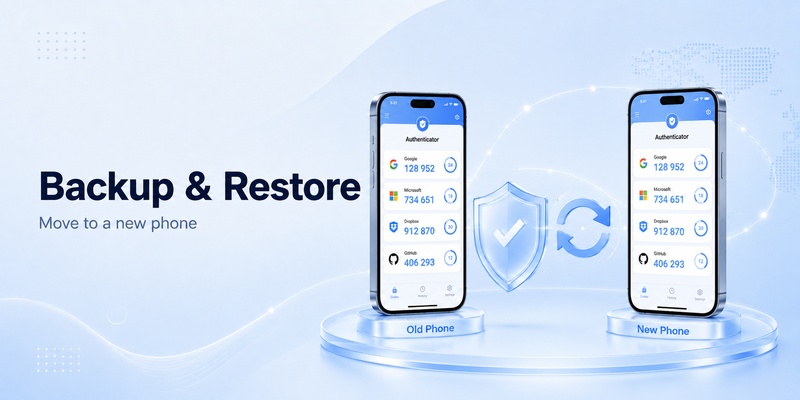
An app authenticator backup can make changing phones far easier, but backup behavior differs considerably between products.
Microsoft Authenticator allows backups and subsequent account recovery, while noting platform and account-type limitations.
Google Authenticator supports Google Account synchronization as well as manual account transfer.
Therefore, before selecting an app authenticator, investigate its recovery design rather than assuming every app behaves identically.
Microsoft Authenticator restore
For authenticator app restore from backup in Microsoft Authenticator, Microsoft says users should select Restore from backup or Begin recovery before signing in during the recovery process. Some restored accounts subsequently require the user to sign in again.
Microsoft also notes that backup and restore have device-platform limitations.
A restored app authenticator entry is therefore not always equivalent to restoring an ordinary photo or document.
Account security systems may intentionally require re-verification.
Keep recovery methods outside the app
Even if your app authenticator supports backup, save recovery codes offered by important websites.
A backup system can fail because:
- You cannot access the cloud account.
- The old device was never backed up.
- The account type requires re-registration.
- The service refuses the restored credential.
- You changed mobile platforms.
A separate recovery method reduces dependence on a single app authenticator installation.
13. Apple Authentication, Passwords, and CarPlay Errors
Apple has built-in verification code support
Apple users do not necessarily need a standalone app authenticator for every standard TOTP website.
Apple’s Passwords app can set up automatic verification codes for compatible services. The user can scan a QR code or provide a setup key, and iPhone can then suggest the code during login.
That means Passwords can function as an integrated app authenticator alternative for many Apple-centric users.
CarPlay authentication errors are different
The keyword apple device authentication failed carplay is not necessarily related to TOTP or an app authenticator.
CarPlay connection problems can involve iPhone software, wireless connectivity, Bluetooth, Wi-Fi, USB connectivity, vehicle compatibility, Siri, permissions, or vehicle firmware.
Apple has previously shipped iOS fixes addressing specific wireless CarPlay connection issues, demonstrating that a CarPlay authentication or connection error can originate in the device/vehicle connection layer rather than in a TOTP application.
Also note that if an iPhone app is intentionally locked, Apple says its information will not appear in some other locations, including CarPlay.
So do not reset your app authenticator merely because CarPlay displays an authentication-related error.
Troubleshoot the actual Apple/CarPlay connection first.
14. Is an Authenticator App Safe?
Authenticator apps can improve account security
Users searching is authenticator app safe are usually deciding whether putting login codes on a phone introduces another risk.
A properly implemented app authenticator can significantly strengthen an account compared with relying only on a password because an attacker needs access to another authentication factor.
TOTP itself is an established specification published as RFC 6238.
But an app authenticator is not automatically safe simply because it generates six-digit numbers.
Security also depends on:
- Where you downloaded it.
- How the secret is stored.
- Whether the device is protected.
- How backups are secured.
- Whether synchronization is encrypted appropriately.
- Whether you approve unexpected prompts.
- Whether recovery methods are secure.
Protect the QR setup secret
The QR code used to enroll a TOTP app authenticator can contain the secret needed to reproduce future codes.
Treat that enrollment QR code as sensitive.
Do not post screenshots publicly or store unnecessary copies in places other people can access.
RFC 6238 emphasizes that TOTP keys should be protected from unauthorized access and that each prover should have a unique secret.
Never share codes on request
A legitimate app authenticator code is designed to prove possession of your authentication credential.
If another person asks you to send that code, they may be attempting to complete a login themselves.
Enter authenticator codes only into the service where you intentionally initiated the sign-in.
15. Which Authenticator App Is Best?
There is no universal winner
The question which authenticator app is best depends on your ecosystem and recovery requirements.
A useful comparison is:
Google Authenticator: strong fit for users who want a straightforward TOTP app authenticator, Google Account synchronization, and account-transfer tools. Google officially supports Android and iPhone.
Microsoft Authenticator: particularly useful for Microsoft accounts and Microsoft Entra environments because it supports Microsoft-specific sign-in requests in addition to standard codes. Microsoft officially supports Android and iOS, not PC or Mac.
Apple Passwords: convenient for Apple-centric users because verification codes can be stored with login credentials and automatically suggested on supported Apple devices.
Different services can also require a particular app authenticator or sign-in method.
Your employer may specifically require Microsoft Authenticator even if you personally prefer another application.
What should you compare?
Before choosing an app authenticator, consider:
- Android and iPhone support.
- Backup method.
- New-phone migration.
- Cross-platform requirements.
- Offline TOTP generation.
- Biometric or device-lock protection.
- Account synchronization.
- Export tools.
- Organizational requirements.
- Recovery documentation.
- Publisher reputation.
The best app authenticator is one that works with your required accounts and has a recovery process you understand before something goes wrong.
16. Free Authenticator Apps: What Should You Look For?
What is a free authenticator app?
The phrase what is a free authenticator app simply means authentication software that provides its core authentication functionality without requiring the user to purchase the application.
Microsoft currently describes Microsoft Authenticator as free.
Google Authenticator is also distributed as Google’s authentication application for Android and iOS through its documented setup ecosystem.
Apple Passwords is integrated into supported Apple operating systems rather than requiring a separate TOTP application purchase.
However, the fact that an app authenticator is free does not automatically make it the best option.
Look beyond price
When evaluating a free app authenticator, ask:
Can I move accounts to another phone?
Does it synchronize?
Can I keep codes offline?
What happens if the cloud account is lost?
Does it work with my workplace?
Can I export accounts?
Does the publisher provide clear recovery documentation?
Can I protect the app with my phone’s security?
A good app authenticator should have a recovery plan that is understandable before you depend on it.
17. Authenticator App Security and Recovery Tips
Add more than one recovery method
When a service allows it, keep multiple recovery methods.
Microsoft recommends maintaining multiple security methods for accounts protected with two-step verification because losing the only authentication method can create a difficult recovery situation.
That advice applies broadly when using an app authenticator.
You might maintain:
- Recovery codes.
- A secondary trusted phone number.
- A security key.
- A secondary email where supported.
- A synchronized backup.
- Another organization-approved sign-in method.
Test the new phone first
When migrating your app authenticator, do not erase the original device immediately.
First:
- Transfer or restore accounts.
- Test several important logins.
- Confirm codes work.
- Verify push notifications.
- Confirm backup codes are stored.
- Review the website’s registered authentication methods.
- Remove the old device only after successful testing.
A little preparation prevents many app authenticator recovery problems.
Keep device time automatic
Because TOTP depends on time, keep automatic date and time enabled when possible.
Clock drift can cause an otherwise correctly configured app authenticator to generate a value the server does not accept. RFC 6238 specifically discusses resynchronization and clock differences between the prover and verifier.
Keep applications updated
An old app authenticator version can experience compatibility problems.
Microsoft currently states that it no longer supports Authenticator versions more than one year old and advises keeping the application updated.
The same general principle is sensible for other authentication software.
Be careful with unexpected approvals
Push-based authentication can be convenient, but do not blindly approve prompts.
If an app authenticator suddenly requests approval and you did not initiate a login, reject the request.
Authentication only improves security when the user verifies that the login is legitimate.
Download Authenticator App
Secure your accounts with fast, reliable two-factor authentication. Download now and protect your login in seconds.
