Authenticator ℠ App Authenticator ℠ App by Begamob

Google Authenticator for PC Free Download: Full Guide For Everyone

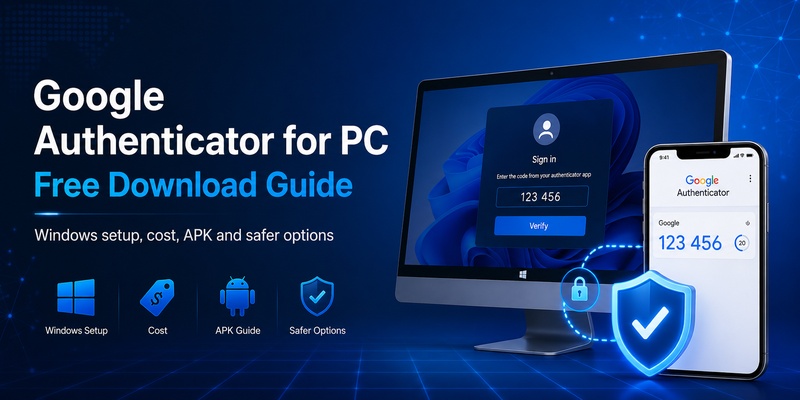
Searching for google authenticator for pc free download usually means you want two-factor authentication codes available while working on a Windows computer.

You may want to avoid reaching for your phone each time you sign in. You might also be searching for a Windows 10 installer, Windows 7 version, desktop application, APK file, or completely free version of Google Authenticator.

There is one important fact to understand before downloading anything.

Google currently distributes Google Authenticator as a mobile application. Google’s official support documentation describes the app for Android and iOS, while the official Google Play listing specifically describes verification codes generated by the Google Authenticator app on your phone.

Therefore, google authenticator for pc free download does not currently mean downloading an official Google .exe installer for Windows.

Google Authenticator itself is available through Google’s official Android distribution and Apple’s App Store. The app can generate verification codes even when the phone has no network or cellular connection, and newer versions can synchronize codes through a Google Account.

This guide explains what PC users can actually download, whether Google Authenticator costs money, what to do with APK files, and the safest ways to use Google Authenticator while signing in on a desktop computer.

1. What Is Google Authenticator for PC Free Download?

The keyword google authenticator for pc free download can represent several different intentions.

Some users are looking for:

  • A Windows desktop application.
  • A Windows 10 installer.
  • A Windows 7 version.
  • An Android APK.
  • A Chrome-compatible solution.
  • A way to view TOTP codes on a PC.
  • A free alternative to paid authentication software.

Google Authenticator is an application that adds a second verification step to supported online accounts. After you configure an account, the application generates temporary verification codes that you enter in addition to your password. Google’s official store descriptions state that these codes can be generated without a data or cellular connection.

A typical workflow is:

Website on PC

     ↓

Username + Password

     ↓

Website requests 2FA code

     ↓

Google Authenticator on phone

     ↓

Enter code on PC

     ↓

Login complete

That workflow explains why google authenticator for pc free download can be misleading.

The website may be running on your PC, but the second factor is traditionally generated on your mobile device.

This separation can also be useful because your password and authentication generator are not necessarily stored in the same application environment.

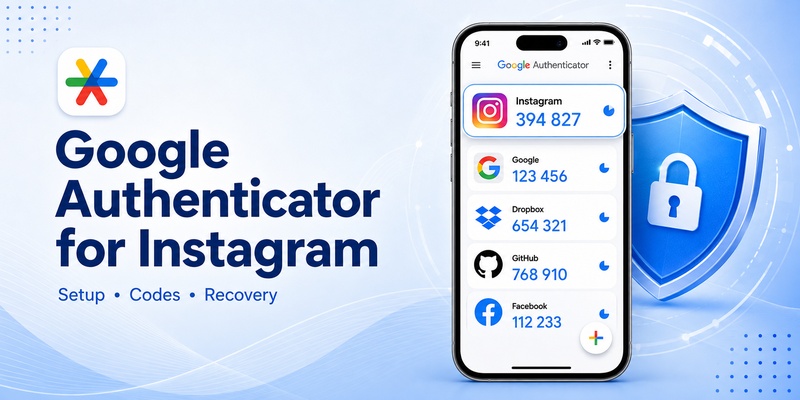
🗺️ Browse How-To Guides: Google Authenticator for Instagram: Setup & Fixes Guide

2. Is There an Official Google Authenticator App for Windows?

Google Authenticator for PC Free Download: Full Guide For Everyone
Is There an Official Google Authenticator App for Windows?

This is the most important question for anyone searching google authenticator for pc free download.

Google’s current official Authenticator documentation focuses on Android and iOS. The official Google Play listing is published by Google and describes Authenticator as generating codes on your phone; Google’s support documentation provides platform-specific instructions for mobile devices.

There is no official Windows desktop download listed alongside those official mobile distributions.

That means you should be cautious when a website advertises:

“Official Google Authenticator for Windows.exe”

or:

“Google Authenticator PC installer.”

A file can support the same TOTP standard without being Google’s official Google Authenticator application.

The search google authenticator for desktop free download may therefore return third-party authenticator software, browser extensions, Android emulators, and unofficial download sites.

Those are different products.

If your objective is specifically to use Google’s official application, the supported route is the mobile app.

If your objective is simply to generate compatible TOTP codes on a desktop, third-party software may exist, but it should be evaluated independently for security, maintenance, storage method, and developer reputation.

So when considering google authenticator for pc free download, distinguish between:

Official Google Authenticator: Google’s mobile application.

TOTP-compatible desktop application: A third-party product capable of generating similar verification codes.

They are not automatically interchangeable from a trust perspective.

Download Authenticator App

Secure your accounts with fast, reliable two-factor authentication. Download now and protect your login in seconds.

Download Now

3. Is Google Authenticator Free?

A frequent question is is google authenticator free?

The official Google Authenticator listings on Google Play and Apple’s App Store provide the application directly through their standard app-installation interfaces, with Google listed as the Android developer and Google LLC associated with the official app.

For ordinary users looking for a free google authenticator app, there is no need to purchase a special desktop license just to generate standard Google Authenticator codes with the official mobile application.

Related searches include is google authenticator app free, google authenticator is it free, google authenticator cost, and does google authenticator cost money.

The important distinction is between Google Authenticator itself and third-party products.

A separate desktop authenticator, password manager, emulator, enterprise authentication service, or browser extension may have its own pricing model.

Do not assume a product is free or officially operated by Google just because its title contains “Google Authenticator.”

For google authenticator for pc free download, this means you should not pay for a supposed “Windows edition of Google Authenticator” under the assumption that Google requires a PC license.

Google’s official application distribution is mobile-focused.

4. Google Authenticator Free Download: Official Options

Google Authenticator for PC Free Download: Full Guide For Everyone
Google Authenticator Free Download: Official Options

If you want google authenticator free download, use the official application store associated with your device.

Android

Google Authenticator is available on Google Play under Google’s developer account. The official listing states that the application adds a second verification step and can generate codes without network connectivity.

To install google authenticator app on Android:

  1. Open Google Play.
  2. Search for Google Authenticator.
  3. Verify that you are looking at Google’s official listing.
  4. Install the application.
  5. Open the app.
  6. Add an account by following the 2FA instructions provided by the service you want to protect.

iPhone and iPad

Google Authenticator is also distributed through Apple’s App Store. Its listing describes the same core second-step verification functionality and Google Account code synchronization.

The official route is therefore straightforward:

Android → Google Play

iPhone/iPad → Apple App Store

Windows PC → use mobile Authenticator alongside the PC

That last line is essential for interpreting google authenticator for pc free download correctly.

You normally do not need Google Authenticator installed directly on Windows to use authentication while logging into websites on Windows.

5. Can You Install Google Authenticator on Windows 10?

Users often search free download google authenticator for windows 10 because Windows 10 computers are commonly used for work accounts, VPNs, email, cloud platforms, gaming services, and administrative dashboards.

The official Google Authenticator application is not presented by Google as a native Windows 10 desktop application in Google’s current Authenticator documentation or official app listings.

So the recommended workflow for google authenticator for pc free download on Windows 10 is usually:

Step 1: Install Google Authenticator on your phone

Use Google Play or Apple’s App Store.

Step 2: Open the service on Windows 10

For example:

Windows browser

→ Account Settings

→ Security

→ Two-Factor Authentication

→ Authenticator App

Step 3: Display the QR code on the PC

The website may show a QR code or manual setup key.

Step 4: Scan it with your phone

Open Google Authenticator and add the account.

Step 5: Enter the generated code on Windows

Your PC and phone now work together during authentication.

If you specifically want to install google authenticator on pc, you may encounter Android emulators or independent TOTP desktop applications.

These should not be described as Google’s official Windows edition.

For highly sensitive accounts, keeping the authentication generator separate from the computer where you enter the password can also avoid concentrating every credential in one environment.

6. Google Authenticator for Windows 7: What You Should Know

Google Authenticator for PC Free Download: Full Guide For Everyone
Google Authenticator for Windows 7: What You Should Know

Another long-tail search is free download google authenticator for windows 7.

The same core limitation applies.

Google does not currently present Google Authenticator as a native Windows 7 application in its official Authenticator download documentation. Its official distribution is through mobile platforms.

Therefore, a search result claiming:

GoogleAuthenticator-Windows7.exe

should not automatically be trusted as an official Google file.

For users searching google authenticator for pc free download from an older Windows computer, the simplest architecture remains:

Windows 7 PC → Website login

Mobile device → Google Authenticator code

The computer itself does not need to generate the code.

This is important because TOTP authentication is designed so that the service validates a temporary code generated from an enrolled secret. The website does not care whether your login page is displayed on Windows 7, Windows 10, Windows 11, macOS, or another system, provided its authentication requirements are met.

If you are using Windows 7 for important account administration, also consider the broader security implications of relying on older desktop environments rather than trying to solve only the authenticator component.

7. Google Authenticator APK Download and APKPure

The phrase google authenticator apk free download typically comes from Android users who want the installation package directly.

A google authenticator apk is an Android application package.

It is not a Windows executable.

This distinction matters because downloading an APK does not create an official native PC version of Google Authenticator.

Google distributes the official Android application through Google Play.

Users may also search google authenticator apkpure or other APK mirror websites.

Those sites are third-party distribution channels rather than Google’s official Google Play listing.

For security software, the source deserves extra scrutiny.

An authenticator handles secrets used to generate future login codes. That makes source verification more important than it might be for an ordinary game or utility.

If Google Play is available on your device, using Google’s official listing is the straightforward option.

Downloading an APK should also not be confused with google authenticator for pc free download.

An APK is intended for Android environments. Running it on Windows typically requires another compatibility layer or emulator, which creates a different architecture and introduces another piece of software that must be trusted and maintained.

🛠️ Learn with Step-by-Step Guides: Battle.net Google Authenticator: 2FA Setup Guide A-Z 2026

8. How to Use Google Authenticator While Working on a PC

Google Authenticator for PC Free Download: Full Guide For Everyone
How to Use Google Authenticator While Working on a PC

For most people, the best solution to google authenticator for pc free download is not actually installing Authenticator on the PC.

Instead, use the official phone application beside your desktop.

Here is the complete process.

First, enable 2FA on the website

Open the website or application account settings on your computer.

Look for:

  • Security
  • Two-Factor Authentication
  • 2-Step Verification
  • Multi-Factor Authentication
  • TOTP
  • Authenticator App

Select the authenticator option.

Second, scan the QR code

Open Google Authenticator on your phone.

Add a new account and scan the QR code displayed on your computer.

Third, verify setup

Google Authenticator starts generating a temporary code.

Enter it on the PC.

If accepted, setup is complete.

Fourth, save recovery methods

Store recovery codes securely if the service provides them.

Do not make your phone the only possible recovery path.

Fifth, use it during login

The next login becomes:

PC:

Username

Password

Request verification code


Phone:

Google Authenticator

Current code


PC:

Enter code

Access

This fulfills the practical intent behind google authenticator for pc free download without requiring an unofficial Windows application.

Google’s official description confirms that Authenticator can generate verification codes even without an internet or mobile connection.

🗺️ Browse How-To Guides: Google Authenticator Tokocrypto – Setup and Security Guide

9. Desktop Authenticator Alternatives and Security Risks

Sometimes users genuinely need authentication codes directly on a PC.

For example:

  • A phone is unavailable at a restricted workplace.
  • A desktop-only workflow requires rapid repeated authentication.
  • A test environment needs TOTP generation.
  • An accessibility requirement makes mobile usage difficult.

In those cases, searching google authenticator for pc free download may lead to third-party TOTP applications.

The most important thing is understanding what you are installing.

A desktop application may be compatible with codes commonly associated with Google Authenticator without being Google Authenticator.

Evaluate:

  • Who develops the application?
  • Is it actively maintained?
  • Where are TOTP secrets stored?
  • Are backups encrypted?
  • Can the application lock itself?
  • Does it synchronize secrets to a cloud service?
  • Can other Windows users access its database?
  • Does it require unnecessary permissions?

Remember that your TOTP secret is more sensitive than a single google authenticator code free login value.

A six-digit code expires quickly.

The underlying secret can generate future codes.

Therefore, screenshots of QR codes, exported secrets, backup files, and unencrypted authentication databases should be protected carefully.

For many users, keeping Google Authenticator on a phone while using the website on the PC remains the simpler security model.

10. How to Install Google Authenticator Correctly

Google Authenticator for PC Free Download: Full Guide For Everyone
How to Install Google Authenticator Correctly

If your objective is to install google authenticator, use the official mobile application.

Android installation

  1. Open Google Play.
  2. Locate the official Google Authenticator listing.
  3. Confirm the developer/source.
  4. Install.
  5. Open the application.
  6. Follow the onboarding process.
  7. Scan the QR code from the account you want to protect.

Google’s Play listing describes the app as adding a second verification step and generating codes on the phone.

iOS installation

  1. Open Apple’s App Store.
  2. Search for Google Authenticator.
  3. Select the official listing.
  4. Install the application.
  5. Add your accounts.

The official iOS listing also supports synchronization of Authenticator codes through a Google Account.

Google’s support documentation says verification codes can be synchronized across devices by signing into a Google Account in Authenticator.

This makes device migration easier than older versions of Authenticator that depended more heavily on manual transfers.

But synchronization does not turn Authenticator into a native google authenticator for pc free download application.

It remains important to distinguish mobile synchronization from desktop Windows installation.

11. Common Google Authenticator PC Download Problems

“I cannot find Google Authenticator in the Microsoft Store”

This is expected if you are specifically searching for Google’s official mobile Authenticator as a native Windows app.

Google’s official documentation and current store distribution point users toward Android and Apple mobile platforms rather than a Windows desktop package.

“I found an EXE claiming to be Google Authenticator”

Do not assume the file is official.

Verify the software publisher and source before installing anything related to authentication.

“I downloaded the APK but Windows won’t open it”

An Android APK is not a normal Windows desktop executable.

This is why google authenticator apk free download and google authenticator for pc free download are not the same thing.

“Do I need internet for codes?”

Google’s official app descriptions state that verification codes can be generated even without network or cellular connectivity.

“Can I sync my accounts?”

Current Google Authenticator supports synchronizing verification codes across devices when you sign into your Google Account in Authenticator.

“Do I have to pay for codes?”

The official Google Authenticator application does not require users to purchase individual verification codes through Google’s normal app workflow.

Be wary of unrelated services that attempt to charge for “Google Authenticator codes.”

🛠️ Learn with Step-by-Step Guides: Download Google Authenticator App – Setup and Security Guide

12. Best Setup for Google Authenticator and PC Users

For most users searching google authenticator for pc free download, the recommended setup is simpler than downloading additional desktop software.

Use:

PC

→ Password and website login

Phone

→ Official Google Authenticator

Together

→ Two-factor authentication

This configuration works well because the PC handles your normal web session while the phone supplies the additional verification factor.

Install the official application through Google Play on Android or the App Store on iOS. Google’s current listings confirm that Authenticator generates second-step codes and can operate without an active network connection.

If you search free google authenticator, google authenticator free download, or ask whether the application costs money, you do not need a special paid Windows package to use the official Google Authenticator mobile application.

If you search free download google authenticator for windows 10 or free download google authenticator for windows 7, remember that Google’s official Authenticator distribution is mobile-focused rather than a native Windows download.

If you search for google authenticator for desktop free download, third-party desktop TOTP applications may appear, but they should not automatically be described as Google’s official software.

If you search for a google authenticator apk, use caution with unofficial mirrors. Google’s official Android distribution is available through Google Play.

And if your only goal is to sign in to websites from a Windows computer, you normally do not need to install google authenticator on pc at all.

Install it on your phone, scan the service’s QR code, and enter the temporary code into the website running on your computer.

That is the simplest way to satisfy the real intent behind google authenticator for pc free download while staying aligned with Google’s current official application model.

Download Authenticator App

Secure your accounts with fast, reliable two-factor authentication. Download now and protect your login in seconds.

Download Now

Download Google Authenticator App – Setup and Security Guide

Download Google Authenticator App is not complete when the app merely opens; it is complete when the correct account is enrolled, a fresh code or approval succeeds, the device is protected, and recovery remains possible. Google Authenticator generates time-based one-time passwords and can produce codes without a data connection after enrollment. Account sync, manual QR transfer, account recovery, and the provider security page are separate parts of the workflow. This guide follows that full path and distinguishes official support from risky shortcuts.

The instructions below match the user intent behind download google authenticator app: understand what is supported, set it up from the verified account page, test it, troubleshoot without destroying access, and prepare for a lost or replaced phone. Treat every setup QR code and manual key as a reusable credential. Do not place it in screenshots, tickets, chat, or an unencrypted notes app.

1. What Download Google Authenticator App Means

Official mobile availability

Before changing Download Google Authenticator App, confirm which account and sign-in method are actually registered. The account site is the source of truth for enrollment. Installing an app does not automatically protect an account, and deleting an entry in the app does not necessarily remove the server-side authentication method. The useful scope therefore includes installation, enrollment, verification, recovery, and eventual removal. Google Authenticator generates time-based one-time passwords and can produce codes without a data connection after enrollment. Account sync, manual QR transfer, account recovery, and the provider security page are separate parts of the workflow. Treat “google authenticator download” as a prompt to check the provider’s current enrollment flow rather than as proof that any app will work.

What desktop users should expect

A sound Download Google Authenticator App workflow has three proofs: correct enrollment, a successful challenge, and a usable fallback. Check the account security page before and after the change. It should show the intended method and device, while the app should show the matching account name. Finish with one sign-out and sign-in test, and keep a separate recovery method until the result has been proven. Treat every setup QR code and manual key as a reusable credential. Do not place it in screenshots, tickets, chat, or an unencrypted notes app. If google authenticator download for pc is the immediate task, prove one fresh sign-in and one recovery route before removing anything.

Download Authenticator App

Secure your accounts with fast, reliable two-factor authentication. Download now and protect your login in seconds.

Download Now

2. Supported Devices and Official Sources

Download Google Authenticator App
Supported Devices and Official Sources

Android and iOS requirements

For Download Google Authenticator App, compatibility depends on both the device platform and the account provider. Compatibility has two layers: whether the app can run on the device and whether the account provider accepts that method. A current operating system, secure screen lock, working camera for QR enrollment, and access to the account security page are the practical baseline. Managed devices can add compliance requirements. Google Authenticator generates time-based one-time passwords and can produce codes without a data connection after enrollment. Account sync, manual QR transfer, account recovery, and the provider security page are separate parts of the workflow. For “google authenticator pc download,” verify the account, publisher, and recovery path before following any setup shortcut.

PC, Mac, and browser limitations

For Google Authenticator, compatibility depends on both the device platform and the account provider. Use the official mobile application for the enrolled credential and use the computer only to open the verified setup or sign-in page. If a desktop alternative is unavoidable, review its publisher, source, storage model, update path, export behavior, and organizational approval before importing any secret. Treat every setup QR code and manual key as a reusable credential. Do not place it in screenshots, tickets, chat, or an unencrypted notes app. For google authenticator download for pc windows 11, keep the change attached to the verified account and test it before retiring the previous method.

Readiness table

Check Ready when
Official support The account provider currently lists the intended method and platform.
Enrollment The new credential is visible on the verified account security page.
Validation A fresh sign-in succeeds without relying on an existing session.
Recovery A separate tested fallback or recovery path remains available.

3. Download from a Trusted Store

Verify the publisher and listing

With Google Authenticator, the provider security page is the source of truth; the app is only one part of the record. A safe download decision is based on the official publisher page or mobile store listing, not a search-result headline. Check the publisher, target operating system, update history, requested permissions, and exact application name. APK mirrors, repackaged installers, and look-alike browser extensions can expose enrollment secrets. Google Authenticator generates time-based one-time passwords and can produce codes without a data connection after enrollment. Account sync, manual QR transfer, account recovery, and the provider security page are separate parts of the workflow. The wording “download google authenticator on pc” can be misleading unless app availability is separated from actual account support.

Avoid APK and extension traps

A trustworthy Download Google Authenticator App installation begins with the verified publisher and official store listing. Navigate from the vendor’s official support page to the store, then compare the publisher and app name before tapping Install. After installation, review permissions and updates. If a page offers a Windows EXE, macOS DMG, or browser extension for a mobile-only product, treat that claim as unverified. Treat every setup QR code and manual key as a reusable credential. Do not place it in screenshots, tickets, chat, or an unencrypted notes app. When working through google authenticator app download for pc, make the smallest reversible change and validate the result.

💡 Discover Helpful Guides: Setting Up Google Authenticator: Complete 2FA Setup Guide

4. Install and Complete First Launch

Download Google Authenticator App
Install and Complete First Launch

Permissions worth reviewing

A sound Google Authenticator workflow has three proofs: correct enrollment, a successful challenge, and a usable fallback. The first launch should be quiet and controlled. Grant camera access only when scanning a QR code, enable notifications only when push approval is needed, and confirm that automatic date and time are active. The app is ready only after an account entry appears and the account site accepts a fresh test. Google Authenticator generates time-based one-time passwords and can produce codes without a data connection after enrollment. Account sync, manual QR transfer, account recovery, and the provider security page are separate parts of the workflow. In practice, “google two factor authentication download” should lead back to the provider’s verified security page and its current device requirements.

Create a safe first setup

Keep the previous sign-in method while validating Download Google Authenticator App so a setup mistake does not become a lockout. Enable automatic time, open the app once, and lock the device before enrollment. Start with one non-critical account, scan its QR code, verify the first code, sign out, and sign back in. Only then add additional or high-value accounts. This sequence isolates mistakes while recovery is still easy. Treat every setup QR code and manual key as a reusable credential. Do not place it in screenshots, tickets, chat, or an unencrypted notes app. Use download google authenticator for windows 11 only after the publisher, account context, and fallback path have been confirmed.

5. Add the First Account

Scan a QR code

Treat Google Authenticator enrollment as an account-security change that must be verified end to end. Enrollment normally begins under the account provider’s security, two-step verification, or authentication-method settings. After identity verification, choose an authenticator method and keep the page open. Scan the displayed QR code or enter the setup key manually, then submit the current code to bind the app entry to the account. Google Authenticator generates time-based one-time passwords and can produce codes without a data connection after enrollment. Account sync, manual QR transfer, account recovery, and the provider security page are separate parts of the workflow. People searching for “google authenticator app download for windows 11” usually need the same account-side check: confirm current support before changing a working method.

Use a manual setup key

Treat Download Google Authenticator App enrollment as an account-security change that must be verified end to end. On the verified account site, open security settings, choose Add method or Set up authenticator, and authenticate again if asked. Scan the QR code with the mobile app, label the entry clearly, submit the current code, and save any recovery codes. Do not close the setup page before confirmation. Treat every setup QR code and manual key as a reusable credential. Do not place it in screenshots, tickets, chat, or an unencrypted notes app. While evaluating download google authenticator for android, compare the app entry with the method shown on the account security page.

6. Confirm Codes Before Relying on Them

Download Google Authenticator App
Confirm Codes Before Relying on Them

Test one generated code

For Google Authenticator, setup and recovery belong in the same change plan. The first accepted code proves that the phone and server share the same enrollment secret and that their clocks fall within the accepted time window. For push approval, a successful test proves that the correct device registration receives the request. Complete a fresh sign-in after setup rather than trusting the enrollment screen alone. Google Authenticator generates time-based one-time passwords and can produce codes without a data connection after enrollment. Account sync, manual QR transfer, account recovery, and the provider security page are separate parts of the workflow. Treat “download google authenticator app for android” as a prompt to check the provider’s current enrollment flow rather than as proof that any app will work.

Save recovery methods

A sound Google Authenticator workflow has three proofs: correct enrollment, a successful challenge, and a usable fallback. Perform two checks: accept the code or approval inside the setup flow, then complete a new sign-in in a private window or another device. Verify that the expected phone receives the prompt or generates an accepted code. Record the recovery method, not the QR code, as the handoff documentation. Treat every setup QR code and manual key as a reusable credential. Do not place it in screenshots, tickets, chat, or an unencrypted notes app. If download google authenticator android is the immediate task, prove one fresh sign-in and one recovery route before removing anything.

7. Fix Download and Installation Errors

Storage, OS, and store issues

Troubleshoot Download Google Authenticator App from the least destructive checks toward re-registration. Troubleshooting should move from reversible checks to destructive ones. Confirm the selected account, automatic date and time, app version, network, camera, notifications, battery restrictions, and device registration. Record the exact error and timestamp; that evidence is more useful than repeatedly reinstalling the app. Google Authenticator generates time-based one-time passwords and can produce codes without a data connection after enrollment. Account sync, manual QR transfer, account recovery, and the provider security page are separate parts of the workflow. For “download google authenticator chrome,” verify the account, publisher, and recovery path before following any setup shortcut.

Managed-device restrictions

Google Authenticator is dependable only when the local credential and the account-side method agree. Try the low-risk sequence: choose the right account entry, enable automatic time, update the app, restart the phone, verify connectivity, allow required notifications, and retry from the official site. If that fails, compare the account security-method list with the current device before re-registering or clearing data. Treat every setup QR code and manual key as a reusable credential. Do not place it in screenshots, tickets, chat, or an unencrypted notes app. For download google authenticator chrome extension, keep the change attached to the verified account and test it before retiring the previous method.

🛠️ Learn with Step-by-Step Guides: Google Password Verification: Passwords, 2FA, Passkeys and Authenticator

8. Move from Another Authenticator

Download Google Authenticator App
Move from Another Authenticator

Transfer and re-enroll options

With Google Authenticator, the provider security page is the source of truth; the app is only one part of the record. Migration is an account-by-account credential change, not a simple app copy. Inventory every protected account, register a second working method, enroll the destination, complete a fresh sign-in, and retain the old method until recovery succeeds. Record ownership and exceptions for managed or high-value accounts. Google Authenticator generates time-based one-time passwords and can produce codes without a data connection after enrollment. Account sync, manual QR transfer, account recovery, and the provider security page are separate parts of the workflow. The wording “download google authenticator for chrome browser” can be misleading unless app availability is separated from actual account support.

Do not delete the old method too early

For Download Google Authenticator App, setup and recovery belong in the same change plan. Export an inventory, not a secret dump. For each account, record owner, provider, current method, alternate method, recovery status, and migration result. Enroll and test the destination one account at a time, keep the source until verification passes, then revoke the obsolete credential from the provider page. Treat every setup QR code and manual key as a reusable credential. Do not place it in screenshots, tickets, chat, or an unencrypted notes app. When working through download google authenticator for google chrome, make the smallest reversible change and validate the result.

9. Frequently Asked Questions

Is the app free?

A sound Google Authenticator workflow has three proofs: correct enrollment, a successful challenge, and a usable fallback. The account site is the source of truth for enrollment. Installing an app does not automatically protect an account, and deleting an entry in the app does not necessarily remove the server-side authentication method. The useful scope therefore includes installation, enrollment, verification, recovery, and eventual removal. Google Authenticator generates time-based one-time passwords and can produce codes without a data connection after enrollment. Account sync, manual QR transfer, account recovery, and the provider security page are separate parts of the workflow. In practice, “google authenticator app download for windows 11” should lead back to the provider’s verified security page and its current device requirements.

Can it be downloaded to a computer?

For Google Authenticator, the right answer depends on the account provider, registration state, and available recovery methods. Review recent sessions and authentication methods quarterly and after any lost-device event. Remove obsolete registrations only after the replacement works. Keep recovery codes in an encrypted password manager or offline secure record, separate from the phone, and protect the recovery email with its own strong factor. Treat every setup QR code and manual key as a reusable credential. Do not place it in screenshots, tickets, chat, or an unencrypted notes app. Use download google authenticator for android only after the publisher, account context, and fallback path have been confirmed.

What should I save before changing devices?

For Download Google Authenticator App, the right answer depends on the account provider, registration state, and available recovery methods. A backup does not always reproduce a fully working credential. Some products restore TOTP secrets, while work or school accounts may restore only the account name and require sign-in or re-registration. Platform changes can also limit restore. Verify each account on the new phone before wiping the old one. Google Authenticator generates time-based one-time passwords and can produce codes without a data connection after enrollment. Account sync, manual QR transfer, account recovery, and the provider security page are separate parts of the workflow. People searching for “download google authenticator app for android” usually need the same account-side check: confirm current support before changing a working method.

When should I contact support or an administrator?

With Google Authenticator, the provider security page is the source of truth; the app is only one part of the record. Provide the help desk with the exact username, device platform, failure time, error text, and whether codes or push notifications are affected. The administrator can review registration, policy, compliance, and sign-in logs. Ask for re-registration only when the evidence points to a stale or broken method. Treat every setup QR code and manual key as a reusable credential. Do not place it in screenshots, tickets, chat, or an unencrypted notes app. While evaluating download google authenticator android, compare the app entry with the method shown on the account security page.

📖 Read More Guides: Chrome Google Authenticator: Setup, Extensions & Security Tips

10. Final Checklist for Download Google Authenticator App

Download Google Authenticator App
Final Checklist for Download Google Authenticator App

Complete a safe installation

Finish Download Google Authenticator App only after a real sign-in test and a recovery check both succeed. Completion means more than seeing an account tile in the app. The method should pass a fresh sign-in, unexpected requests should be recognizable and rejectable, the device should be protected, and a recovery route should work without the old phone. That is the standard for a dependable deployment. Google Authenticator generates time-based one-time passwords and can produce codes without a data connection after enrollment. Account sync, manual QR transfer, account recovery, and the provider security page are separate parts of the workflow. Treat “download google authenticator apk” as a prompt to check the provider’s current enrollment flow rather than as proof that any app will work.

Keep the app recoverable

Finish Google Authenticator only after a real sign-in test and a recovery check both succeed. Use a final acceptance checklist: correct account label, accepted fresh code or initiated approval, rejected unexpected prompt, protected phone, stored recovery method, tested alternate sign-in, and removed obsolete registration only after success. Schedule a later review so a future phone change does not become an emergency. Treat every setup QR code and manual key as a reusable credential. Do not place it in screenshots, tickets, chat, or an unencrypted notes app. If download google authenticator for windows is the immediate task, prove one fresh sign-in and one recovery route before removing anything.

Download Authenticator App

Secure your accounts with fast, reliable two-factor authentication. Download now and protect your login in seconds.

Download Now

Google Authenticator Tokocrypto – Setup and Security Guide

Google Authenticator Tokocrypto is not complete when the app merely opens; it is complete when the correct account is enrolled, a fresh code or approval succeeds, the device is protected, and recovery remains possible. Google Authenticator generates time-based one-time passwords and can produce codes without a data connection after enrollment. Account sync, manual QR transfer, account recovery, and the provider security page are separate parts of the workflow. This guide follows that full path and distinguishes official support from risky shortcuts.

The instructions below match the user intent behind google authenticator tokocrypto: understand what is supported, set it up from the verified account page, test it, troubleshoot without destroying access, and prepare for a lost or replaced phone. Because the account may control money or withdrawals, verify the provider domain, protect the email account too, and never give a setup key, QR seed, password, or current code to a recovery service.

1. How Google Authenticator Tokocrypto Fits the Account

Confirm the provider supports an authenticator

Before changing Google Authenticator Tokocrypto, confirm which account and sign-in method are actually registered. The account site is the source of truth for enrollment. Installing an app does not automatically protect an account, and deleting an entry in the app does not necessarily remove the server-side authentication method. The useful scope therefore includes installation, enrollment, verification, recovery, and eventual removal. Google Authenticator generates time-based one-time passwords and can produce codes without a data connection after enrollment. Account sync, manual QR transfer, account recovery, and the provider security page are separate parts of the workflow. For “google authenticator for zerodha,” verify the account, publisher, and recovery path before following any setup shortcut.

Understand the security boundary

Before changing Google Authenticator Tokocrypto, confirm which account and sign-in method are actually registered. Check the account security page before and after the change. It should show the intended method and device, while the app should show the matching account name. Finish with one sign-out and sign-in test, and keep a separate recovery method until the result has been proven. Because the account may control money or withdrawals, verify the provider domain, protect the email account too, and never give a setup key, QR seed, password, or current code to a recovery service. For google authenticator bitkub, keep the change attached to the verified account and test it before retiring the previous method.

Download Authenticator App

Secure your accounts with fast, reliable two-factor authentication. Download now and protect your login in seconds.

Download Now

💡 Discover Helpful Guides: Setting Up Google Authenticator: Complete 2FA Setup Guide

2. Prepare the Account and Phone

Google Authenticator Tokocrypto
Prepare the Account and Phone

Use the official account page

Configure Google Authenticator Tokocrypto from documented prerequisites instead of filling gaps with assumptions. Before enrollment, confirm the exact username, keep the old sign-in method available, and obtain recovery codes if the provider offers them. Update the phone and authenticator app, verify access to the recovery email, and identify the help-desk route for a managed account. These checks prevent avoidable lockouts. Google Authenticator generates time-based one-time passwords and can produce codes without a data connection after enrollment. Account sync, manual QR transfer, account recovery, and the provider security page are separate parts of the workflow. The wording “crypto com google authenticator” can be misleading unless app availability is separated from actual account support.

Save alternate recovery options

For Google Authenticator, setup and recovery belong in the same change plan. Prepare a short preflight list: verified account URL, working password, old factor, recovery email, saved recovery codes, current phone OS, current app version, and administrator contact if relevant. Schedule changes to business-critical accounts when support is available, not immediately before travel or a deadline. Because the account may control money or withdrawals, verify the provider domain, protect the email account too, and never give a setup key, QR seed, password, or current code to a recovery service. When working through stepn google authenticator, make the smallest reversible change and validate the result.

Readiness table

Check Ready when
Official support The account provider currently lists the intended method and platform.
Enrollment The new credential is visible on the verified account security page.
Validation A fresh sign-in succeeds without relying on an existing session.
Recovery A separate tested fallback or recovery path remains available.

3. Enable Two-Factor Authentication

Find the security control

Treat Google Authenticator enrollment as an account-security change that must be verified end to end. Enrollment normally begins under the account provider’s security, two-step verification, or authentication-method settings. After identity verification, choose an authenticator method and keep the page open. Scan the displayed QR code or enter the setup key manually, then submit the current code to bind the app entry to the account. Google Authenticator generates time-based one-time passwords and can produce codes without a data connection after enrollment. Account sync, manual QR transfer, account recovery, and the provider security page are separate parts of the workflow. In practice, “google authenticator crypto” should lead back to the provider’s verified security page and its current device requirements.

Choose an authenticator method

Treat Google Authenticator Tokocrypto enrollment as an account-security change that must be verified end to end. On the verified account site, open security settings, choose Add method or Set up authenticator, and authenticate again if asked. Scan the QR code with the mobile app, label the entry clearly, submit the current code, and save any recovery codes. Do not close the setup page before confirmation. Because the account may control money or withdrawals, verify the provider domain, protect the email account too, and never give a setup key, QR seed, password, or current code to a recovery service. Use google 2fa tokocrypto only after the publisher, account context, and fallback path have been confirmed.

🛠️ Learn with Step-by-Step Guides: Battle.net Google Authenticator: 2FA Setup Guide A-Z 2026

4. Scan and Verify the QR Code

Google Authenticator Tokocrypto
Scan and Verify the QR Code

Protect the enrollment secret

Google Authenticator is dependable only when the local credential and the account-side method agree. The QR code is a compact enrollment package, not a login shortcut. It can contain the shared secret that allows the app to reproduce future codes. Scan it directly from the verified provider page, keep the browser session open until confirmation succeeds, and regenerate it if it has been exposed. Google Authenticator generates time-based one-time passwords and can produce codes without a data connection after enrollment. Account sync, manual QR transfer, account recovery, and the provider security page are separate parts of the workflow. People searching for “zerodha google authenticator” usually need the same account-side check: confirm current support before changing a working method.

Enter the first rotating code

With Google Authenticator Tokocrypto, the provider security page is the source of truth; the app is only one part of the record. If the camera cannot scan, increase screen brightness, clean the lens, keep the entire code inside the frame, or use the provider’s manual key option. If the page says the QR code was already used, restart enrollment to create a new secret rather than repeatedly scanning the stale image. Because the account may control money or withdrawals, verify the provider domain, protect the email account too, and never give a setup key, QR seed, password, or current code to a recovery service. While evaluating google authenticator code stepn, compare the app entry with the method shown on the account security page.

5. Sign In Safely

Use only the current code

Reliable daily use of Google Authenticator depends on matching the prompt, account, and device state. During normal sign-in, select the account entry that exactly matches the service and username. Enter only the current code, or approve only a request that follows an action you initiated. Check the displayed application, number, and location when available; a prompt arriving by itself should be denied. Google Authenticator generates time-based one-time passwords and can produce codes without a data connection after enrollment. Account sync, manual QR transfer, account recovery, and the provider security page are separate parts of the workflow. Treat “kode google authenticator tokocrypto” as a prompt to check the provider’s current enrollment flow rather than as proof that any app will work.

Reject unexpected prompts and phishing pages

A sound Google Authenticator Tokocrypto workflow has three proofs: correct enrollment, a successful challenge, and a usable fallback. Pause before every approval. Match the prompt to the sign-in you just started and compare the displayed number when required. For TOTP, wait for the next code if only a few seconds remain. Never send a code to another person or paste it into a chat because a genuine support agent does not need it. Because the account may control money or withdrawals, verify the provider domain, protect the email account too, and never give a setup key, QR seed, password, or current code to a recovery service. If lupa kode google authenticator tokocrypto is the immediate task, prove one fresh sign-in and one recovery route before removing anything.

🧭 Explore Guides: Google Authenticator: Complete 2FA Setup & Security Guide

6. Protect a High-Value Account

Google Authenticator Tokocrypto
Protect a High-Value Account

Harden email and device access

The security value of Google Authenticator comes from the whole recovery and approval design, not the app icon alone. The app is only one layer of account security. Protect the phone with a strong PIN or biometric, keep the operating system current, harden the recovery email, and review active sessions after a suspicious event. Store recovery codes separately from the phone so losing one device does not remove every path back in. Google Authenticator generates time-based one-time passwords and can produce codes without a data connection after enrollment. Account sync, manual QR transfer, account recovery, and the provider security page are separate parts of the workflow. For “stepn wallet google authenticator,” verify the account, publisher, and recovery path before following any setup shortcut.

Review sessions and recovery data

The security value of Google Authenticator comes from the whole recovery and approval design, not the app icon alone. Review recent sessions and authentication methods quarterly and after any lost-device event. Remove obsolete registrations only after the replacement works. Keep recovery codes in an encrypted password manager or offline secure record, separate from the phone, and protect the recovery email with its own strong factor. Because the account may control money or withdrawals, verify the provider domain, protect the email account too, and never give a setup key, QR seed, password, or current code to a recovery service. For zerodha kite google authenticator, keep the change attached to the verified account and test it before retiring the previous method.

7. Fix Invalid Codes or Login Loops

Correct time and account selection

With Google Authenticator Tokocrypto, the provider security page is the source of truth; the app is only one part of the record. Troubleshooting should move from reversible checks to destructive ones. Confirm the selected account, automatic date and time, app version, network, camera, notifications, battery restrictions, and device registration. Record the exact error and timestamp; that evidence is more useful than repeatedly reinstalling the app. Google Authenticator generates time-based one-time passwords and can produce codes without a data connection after enrollment. Account sync, manual QR transfer, account recovery, and the provider security page are separate parts of the workflow. The wording “google authenticator for zerodha” can be misleading unless app availability is separated from actual account support.

Use official recovery channels

Troubleshoot Google Authenticator from the least destructive checks toward re-registration. Try the low-risk sequence: choose the right account entry, enable automatic time, update the app, restart the phone, verify connectivity, allow required notifications, and retry from the official site. If that fails, compare the account security-method list with the current device before re-registering or clearing data. Because the account may control money or withdrawals, verify the provider domain, protect the email account too, and never give a setup key, QR seed, password, or current code to a recovery service. When working through google authenticator bitkub, make the smallest reversible change and validate the result.

8. Change Phones Without Lockout

Google Authenticator Tokocrypto
Change Phones Without Lockout

Transfer or re-enroll before deletion

Plan migration for Google Authenticator while the old device and a fallback method still work. A backup does not always reproduce a fully working credential. Some products restore TOTP secrets, while work or school accounts may restore only the account name and require sign-in or re-registration. Platform changes can also limit restore. Verify each account on the new phone before wiping the old one. Google Authenticator generates time-based one-time passwords and can produce codes without a data connection after enrollment. Account sync, manual QR transfer, account recovery, and the provider security page are separate parts of the workflow. In practice, “crypto com google authenticator” should lead back to the provider’s verified security page and its current device requirements.

Test the new method

Keep the previous sign-in method while validating Google Authenticator Tokocrypto so a setup mistake does not become a lockout. On the old device, enable and confirm the product’s supported backup or export process. On the new device, choose Restore or Import before adding unrelated accounts, sign in with the correct recovery account, and test every restored entry. Re-register work or school accounts when the provider requires it. Because the account may control money or withdrawals, verify the provider domain, protect the email account too, and never give a setup key, QR seed, password, or current code to a recovery service. Use stepn google authenticator only after the publisher, account context, and fallback path have been confirmed.

📖 Explore Articles: Google Authenticator for Instagram: Setup & Fixes Guide

9. Frequently Asked Questions

Google Authenticator Tokocrypto
Frequently Asked Questions

Can support ask for the QR seed?

For Google Authenticator, the right answer depends on the account provider, registration state, and available recovery methods. The account site is the source of truth for enrollment. Installing an app does not automatically protect an account, and deleting an entry in the app does not necessarily remove the server-side authentication method. The useful scope therefore includes installation, enrollment, verification, recovery, and eventual removal. Google Authenticator generates time-based one-time passwords and can produce codes without a data connection after enrollment. Account sync, manual QR transfer, account recovery, and the provider security page are separate parts of the workflow. People searching for “kode google authenticator tokocrypto” usually need the same account-side check: confirm current support before changing a working method.

What if the old phone is gone?

For Google Authenticator, the right answer depends on the account provider, registration state, and available recovery methods. Review recent sessions and authentication methods quarterly and after any lost-device event. Remove obsolete registrations only after the replacement works. Keep recovery codes in an encrypted password manager or offline secure record, separate from the phone, and protect the recovery email with its own strong factor. Because the account may control money or withdrawals, verify the provider domain, protect the email account too, and never give a setup key, QR seed, password, or current code to a recovery service. While evaluating lupa kode google authenticator tokocrypto, compare the app entry with the method shown on the account security page.

What should I save before changing devices?

For Google Authenticator Tokocrypto, setup and recovery belong in the same change plan. A backup does not always reproduce a fully working credential. Some products restore TOTP secrets, while work or school accounts may restore only the account name and require sign-in or re-registration. Platform changes can also limit restore. Verify each account on the new phone before wiping the old one. Google Authenticator generates time-based one-time passwords and can produce codes without a data connection after enrollment. Account sync, manual QR transfer, account recovery, and the provider security page are separate parts of the workflow. Treat “stepn wallet google authenticator” as a prompt to check the provider’s current enrollment flow rather than as proof that any app will work.

When should I contact support or an administrator?

For Google Authenticator, the right answer depends on the account provider, registration state, and available recovery methods. Provide the help desk with the exact username, device platform, failure time, error text, and whether codes or push notifications are affected. The administrator can review registration, policy, compliance, and sign-in logs. Ask for re-registration only when the evidence points to a stale or broken method. Because the account may control money or withdrawals, verify the provider domain, protect the email account too, and never give a setup key, QR seed, password, or current code to a recovery service. If zerodha kite google authenticator is the immediate task, prove one fresh sign-in and one recovery route before removing anything.

Download Authenticator App

Secure your accounts with fast, reliable two-factor authentication. Download now and protect your login in seconds.

Download Now

Battle.net Google Authenticator: 2FA Setup Guide A-Z 2026

Gaming accounts are valuable targets for attackers because they can contain purchased games, rare characters, payment information, inventories, competitive progress, and years of account history. A password leak can therefore create much more trouble than simply losing access to a launcher.

That explains why users frequently search for Battle.net google authenticator when trying to add two-factor authentication to a Blizzard account.

There is, however, an important detail to understand immediately.

Battle.net does not currently direct users to configure Battle.net account authentication through the Google Authenticator app. Blizzard’s official approach is the Battle.net Authenticator feature built directly into the Battle.net mobile app. Blizzard migrated the old standalone Authenticator into its Battle.net app and instructed users of the legacy app to migrate before January 5, 2024.

Therefore, when someone searches Battle.net google authenticator, what they usually need is not a Google Authenticator QR code. They need to configure Battle.net’s own authentication feature.

This guide explains exactly how that system works, how to enable it, what to do when changing phones, how login approval works, and why Activision’s Google Authenticator support should not be confused with Battle.net authentication.

1. What Does Battle.net Google Authenticator Mean?

The phrase Battle.net google authenticator is commonly used as a generic search term for “how do I add an authenticator to my Battle.net account?”

The terminology is understandable because Google Authenticator is one of the most recognizable applications associated with two-factor authentication.

But an authenticator is a category of security technology, not necessarily a reference to Google’s application.

For Battle.net, Blizzard provides its own authentication system through the Battle.net mobile app. Blizzard’s support pages continue to list articles specifically for attaching a Battle.net Authenticator, troubleshooting the authenticator, approving login requests, restoring authentication, and using security codes.

So a typical Battle.net google authenticator search should actually be interpreted as:

Battle.net Account

        ↓

Battle.net Mobile App

        ↓

Battle.net Authenticator

        ↓

Login Verification

        ↓

Battle.net Access

You should not assume that a setup QR code found in another gaming service can be added to Battle.net.

Likewise, installing Google Authenticator on your phone does not automatically add 2FA to Battle.net.

The important step is attaching Battle.net’s Authenticator feature to the Battle.net account itself.

This distinction is particularly important for users who manage multiple gaming accounts on the same email address.

Your Battle.net account, Activision account, Steam account, Nintendo account, and Epic account are separate authentication systems even if some of those accounts can be linked together.

For the remainder of this guide, Battle.net google authenticator refers to the user’s intent of protecting Battle.net with an authenticator, while the actual Battle.net implementation uses Blizzard’s own mobile app.

🗺️ Browse How-To Guides: Google Authenticator: Complete 2FA Setup & Security Guide

2. Does Battle.net Actually Work With Google Authenticator?

Battle.net Google Authenticator
Does Battle.net Actually Work With Google Authenticator?

If by Battle.net google authenticator you mean “Can I scan a Battle.net QR code into the official Google Authenticator app and use its standard rotating TOTP codes?”, Blizzard’s current documentation does not direct users to that workflow.

Instead, Blizzard tells users to download the Battle.net mobile app and use the Authenticator feature built into it. Blizzard moved the authenticator into the Battle.net mobile app and retired the previous standalone authenticator application.

This matters because there are two very different authentication experiences.

A typical third-party authenticator app works like this:

Website displays QR code

→ Authenticator scans QR

→ App generates 6-digit TOTP

→ User enters code

Battle.net can provide a more integrated account-verification experience through its own application.

Blizzard’s current support index includes separate documentation for One-Touch approval as well as using an Authenticator security code instead of One-Touch.

That means Battle.net google authenticator should not be configured by experimenting with unrelated TOTP secrets or unofficial tools.

Use the official Battle.net account-management and Battle.net mobile application flow.

This also reduces confusion when troubleshooting.

If Battle.net says “Check your Authenticator,” it normally refers to the Authenticator connected to your Battle.net account, not whichever third-party TOTP application happens to be installed on the same phone. Blizzard even maintains troubleshooting information for situations where that authentication request disappears before a user can approve it.

Download Authenticator App

Secure your accounts with fast, reliable two-factor authentication. Download now and protect your login in seconds.

Download Now

3. How the Battle.net Authenticator Works

The basic purpose of Battle.net google authenticator security is to prevent a password from being sufficient on its own.

Without a second factor:

Email + Password

      ↓

Account Access

With Battle.net authentication enabled:

Email + Password

      ↓

Additional verification

      ↓

Battle.net Authenticator

      ↓

Approval

      ↓

Account Access

The extra verification step is valuable when the password has been exposed.

For example, an attacker might obtain credentials through phishing, malware, password reuse, or a breach on another service. If the Battle.net account requires authentication approval, possession of the password alone may no longer be enough to complete the login.

The Battle.net mobile app is therefore central to the modern Battle.net google authenticator workflow.

Blizzard says the Authenticator functionality was moved into the Battle.net mobile app, which is available for supported iOS and Android devices.

Users should also understand that an authenticator does not make a weak password irrelevant.

A strong security model still includes:

  • A unique Battle.net password.
  • A secure email account.
  • Battle.net Authenticator.
  • Reliable account recovery.
  • Awareness of phishing.
  • Updated devices and applications.

Treat 2FA as another security layer rather than permission to reuse passwords.

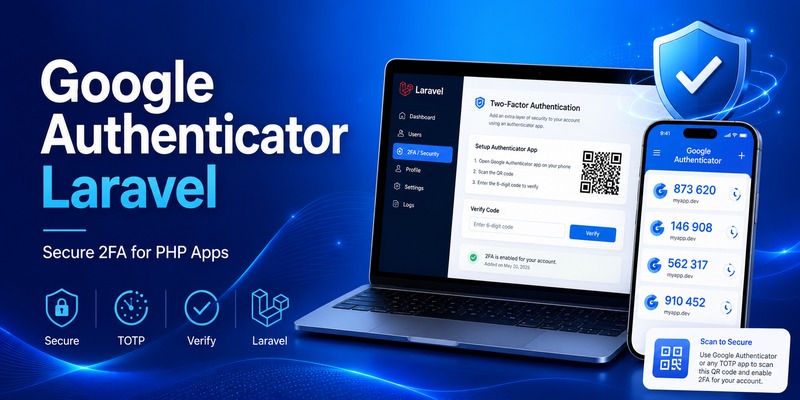
🗺️ Browse How-To Guides: Google Authenticator Laravel: Complete 2FA Setup Guide

4. How to Set Up Battle.net Google Authenticator Security

Battle.net Google Authenticator
How to Set Up Battle.net Google Authenticator Security

When users ask how to configure Battle.net google authenticator, the safest approach is to start with Battle.net’s official mobile application.

Blizzard currently maintains an “Attaching a Battle.net Authenticator” support path, and the company identifies the Battle.net mobile app as the current home of the Authenticator feature.

Step 1: Secure the Battle.net account first

Before changing authentication settings, make sure you know:

  • Your Battle.net email.
  • Your current password.
  • Your account recovery information.
  • The phone number associated with your account, where applicable.

Do not start a Battle.net google authenticator migration while you are uncertain whether you can access your primary email account.

Your email is often essential during account recovery.

Step 2: Install the Battle.net mobile app

Use the official Battle.net application available through your device’s supported app store.

Remember: you are looking for the Battle.net application, not merely downloading Google Authenticator because the search keyword contains “Google Authenticator.”

Blizzard specifically moved its authentication feature to the Battle.net mobile app.

Step 3: Sign in to your Battle.net account

Open the application and authenticate with the Battle.net account you want to protect.

Double-check the account before attaching the authenticator.

This is especially important if you manage several Battle.net profiles or family accounts.

Step 4: Attach the Authenticator

Follow the account-security prompts for enabling the Battle.net Authenticator.

Once connected, your mobile device becomes an important component of the Battle.net google authenticator security workflow.

Step 5: Test the login

Do not assume the configuration works simply because setup completed.

Log into Battle.net on a trusted browser or computer and verify that the account requests the expected authentication step.

A successful test confirms that you understand the approval process before you actually need it during an urgent login.

5. How to Approve Battle.net Login Requests

One reason Battle.net google authenticator differs from a generic TOTP implementation is Battle.net’s integrated approval process.

Blizzard’s support resources reference One-Touch Authenticator approval and maintain troubleshooting pages for users whose Authenticator request disappears too quickly or returns a request error.

A login may conceptually work like this:

  1. Enter Battle.net credentials
  2. Battle.net requests verification
  3. Open Battle.net mobile app
  4. Review authentication request
  5. Approve legitimate login
  6. Continue to Battle.net

Before approving a request, ask yourself whether you actually initiated the login.

If the answer is no, do not approve it.

Unexpected authenticator prompts can indicate that someone else is attempting to access the account.

This is an important habit regardless of whether you searched Battle.net google authenticator, Microsoft Authenticator, passkeys, or another MFA solution.

Never approve requests automatically.

Authentication fatigue attacks depend on users becoming so accustomed to security prompts that they approve one without checking.

When an unexpected Battle.net request appears, securing the password and reviewing account security is safer than simply dismissing the notification and forgetting about it.

🗺️ Browse How-To Guides: Google MFA App: Complete Guide to Secure Multi-Factor Authentication

6. Battle.net Authenticator Codes vs One-Touch Approval

Battle.net Google Authenticator
Battle.net Authenticator Codes vs One-Touch Approval

Some Battle.net google authenticator users specifically expect to see a six-digit code because that is how Google Authenticator and many TOTP applications traditionally work.

Battle.net can use an integrated approval experience, but Blizzard also maintains support documentation titled “How Do I Use the Authenticator Security Code Instead of One-Touch?”

This is useful when the normal approval workflow is unavailable.

Conceptually, there are two verification styles:

One-Touch-style approval

Login request

→ Mobile app notification/request

→ Approve

→ Login

Security-code verification

Login request

→ Open Authenticator

→ Obtain security code

→ Enter code

→ Login

This explains some of the confusion behind Battle.net google authenticator.

A user may see a numerical security code and assume Battle.net is simply using Google Authenticator.

But seeing a temporary authentication code does not mean that Google’s Authenticator application controls the account.

The important question is which security system generated and registered the authenticator.

For Battle.net, use the Battle.net Authenticator linked through Battle.net.

7. Moving the Battle.net Authenticator to a New Phone

Changing phones is one of the situations where Battle.net google authenticator searches increase because users worry about losing account access.

Blizzard previously required users of the legacy Authenticator application to migrate to the Battle.net mobile app. The old standalone app was scheduled for removal from app stores beginning January 1, 2024, and users were told to migrate by January 5, 2024.

That migration is historical now, but it illustrates an important principle:

Do not erase your old phone until you know the new authentication configuration works.

Blizzard’s support system still includes information for restoring an Authenticator on a new device and troubleshooting serial-number, restoration-code, or SMS-verification problems.

When replacing your phone:

  1. Confirm access to your Battle.net email.
  2. Confirm the account’s phone information is current.
  3. Install the Battle.net app on the new phone.
  4. Follow the supported transfer or authentication flow.
  5. Test a Battle.net login.
  6. Only then wipe the old device.

Battle.net Phone Notifications can also play a role in recovery. Blizzard has stated that phone notifications can help with actions such as removing a lost Authenticator, resetting a password, unlocking an account, and recovering an account name.

Recovery planning should be part of Battle.net google authenticator setup, not something considered only after the phone has already been lost.

8. Battle.net Google Authenticator vs Activision Google Authenticator

Battle.net Google Authenticator
Battle.net Google Authenticator vs Activision Google Authenticator

This distinction is particularly important for Call of Duty players.

Battle.net and Activision accounts can both be relevant to the same player, but their account security systems are not identical.

The search term google authenticator activision is valid because Activision officially supports third-party authenticator applications including Google Authenticator, Authy, Duo Mobile, and Microsoft Authenticator for Activision-account 2FA.

That differs from Battle.net google authenticator.

For an Activision account, the official flow can involve:

Activision Account

→ Privacy & Security

→ Two-Factor Authentication

→ Authenticator App

→ Google Authenticator

→ Verification Code

Activision’s updated 2026 documentation states that users can enable Authenticator App authentication and can choose Google Authenticator as one supported option.

Battle.net’s current flow instead uses the Battle.net mobile app’s Authenticator.

So you may legitimately have both:

Battle.net

→ Battle.net Authenticator


Activision

→ Google Authenticator

on the same phone.

The two should not be treated as interchangeable.

If a Call of Duty login problem is asking for an Activision 2FA code, opening the Battle.net Authenticator may not solve it.

Similarly, a Battle.net verification request should not automatically be searched for under an Activision entry in Google Authenticator.

Understanding which account is requesting authentication will save significant troubleshooting time.

💡 Discover Helpful Guides: Google Authenticator for PC: Windows, Desktop and Laptop Guide

9. Common Battle.net Authenticator Problems and Fixes

Even a correctly configured Battle.net google authenticator setup can encounter problems.

“Check your Authenticator” disappears too quickly

Blizzard maintains a support case specifically for authentication requests that disappear before the user can complete them.

Retry the login and keep the Battle.net mobile app ready before submitting your credentials.

One-Touch approval does not work

Blizzard also documents Authenticator request errors and an option for using a security code instead of One-Touch.

If the approval flow fails, use the supported alternative rather than repeatedly reinstalling random authentication apps.

New phone cannot restore authentication

Verify account ownership and recovery information.

Blizzard’s support resources include troubleshooting for restoring Authenticator access with previous authenticator information or SMS verification.

Battle.net Authenticator cannot be found in the app store

If you are searching for a standalone “Battle.net Authenticator,” this may be the problem.

The authenticator was moved into the Battle.net mobile app. Blizzard maintains a support result specifically for people unable to find the old Authenticator app in mobile storefronts.

You receive a login request you did not initiate

Do not approve it.

Treat unexpected Battle.net google authenticator prompts as a warning that your credentials may be known to someone else.

Change the password from a trusted device and review the account’s security information.

10. Best Security Practices for Your Battle.net Account

Battle.net Google Authenticator
Best Security Practices for Your Battle.net Account

Adding Battle.net google authenticator protection is useful, but MFA works best as part of a larger account-security strategy.

Use a unique password

Do not use the same password for Battle.net and your email account.

If one site is breached, credential reuse can turn that leak into access to multiple accounts.

Protect the email account

Your Battle.net authentication may be strong, but an attacker controlling your email can interfere with account recovery.

Enable strong MFA on your email provider as well.

Keep your recovery information current

A phone number that you stopped using years ago can make account recovery significantly harder.

Blizzard currently provides self-service options for updating Battle.net phone information and notes that phone notifications can assist with authenticator-related recovery.

Never approve unexpected requests

A secure Battle.net google authenticator setup still depends on user decisions.

Read every verification prompt before approving it.

Use only official software

Avoid unofficial “Battle.net Google Authenticator generators,” browser extensions, APK files, or websites that claim to create Battle.net authentication codes.

They may attempt to capture credentials.

Test recovery before you need it

Know which email address, phone number, and device are connected to the account.

The worst moment to discover outdated recovery information is after losing your phone.

📖 Explore Articles: Google Authenticator for Instagram: Setup & Fixes Guide

11. Should You Use Battle.net Google Authenticator?

Yes—you should use two-factor protection for a valuable Battle.net account.

But the correct implementation matters.

If your goal is Battle.net google authenticator, don’t start by searching for a way to force Battle.net into Google Authenticator.

Use Battle.net’s supported Authenticator system.

The current recommended architecture is effectively:

Battle.net password

        +

Battle.net Authenticator

        =

Stronger Battle.net security

Google Authenticator can still be useful elsewhere.

For example, google authenticator activision is directly relevant because Activision officially supports Google Authenticator as one of its third-party authentication applications.

But that does not turn Google Authenticator into the authentication system for Battle.net.

Think of each service independently:

Account Authentication approach
Battle.net Battle.net Authenticator in Battle.net mobile app
Activision Supported third-party authenticator app, including Google Authenticator

This separation is the key lesson behind Battle.net google authenticator.

12. Conclusion

The most important thing to know about Battle.net google authenticator is that the search phrase does not describe Battle.net’s current official setup literally.

Battle.net uses its own Authenticator feature inside the Battle.net mobile app. Blizzard moved authentication away from the legacy standalone Battle.net Authenticator application, with the migration occurring around the beginning of January 2024.

For current users, the recommended process is straightforward:

Install the Battle.net mobile app, attach the Battle.net Authenticator to the correct account, test authentication, keep recovery information current, and carefully review login requests before approving them.

If One-Touch approval causes problems, Blizzard also maintains support for using Authenticator security codes and provides troubleshooting for login requests, lost authenticators, new devices, and authentication errors.

Do not confuse this with Activision authentication.

Activision currently allows third-party applications including Google Authenticator for account 2FA, which is why google authenticator activision is a legitimate but separate setup.

Therefore, the safest interpretation of Battle.net google authenticator is:

You want stronger 2FA security for Battle.net—but you should use Battle.net’s own supported Authenticator rather than trying to substitute Google Authenticator.

That approach keeps the setup aligned with Blizzard’s current account-security system, makes recovery easier to understand, and avoids mixing authentication codes belonging to completely different gaming accounts.

Download Authenticator App

Secure your accounts with fast, reliable two-factor authentication. Download now and protect your login in seconds.

Download Now

Google Authenticator Laravel: Complete 2FA Setup Guide

Adding two-factor authentication is one of the most effective ways to improve login security for a Laravel application. Instead of relying only on a username and password, google authenticator laravel adds a second verification step using a temporary code generated by an authenticator application.

This approach is generally based on TOTP, or Time-Based One-Time Passwords. A user scans a QR code when enabling two-factor authentication, their authenticator stores a secret, and the application generates a short-lived verification code from that secret.

The server independently calculates whether the submitted code is valid.

This means your Laravel application does not need to send every verification code through SMS, email, or an external Google API.

As of Laravel 13, Laravel’s official starter kits include built-in two-factor authentication compatible with TOTP authenticator applications. Laravel states that its starter kits support any TOTP-compatible authenticator and enable 2FA through Fortify configuration.

Developers can therefore implement google authenticator laravel either through Laravel’s first-party authentication stack or through a specialized PHP package such as PragmaRX Google2FA.

This guide explains both approaches, including QR-code enrollment, secret storage, verification, login middleware, PHP integration, WordPress comparisons, Laravel 8 considerations, and security best practices.

1. What Is Google Authenticator Laravel?

The term google authenticator laravel normally describes adding TOTP-based two-factor authentication to a Laravel application so users can verify logins with Google Authenticator or another compatible authenticator app.

Google Authenticator is only the client-side code generator.

Your Laravel server handles the important backend logic:

  1. Generate a unique TOTP secret for each user.
  2. Present that secret as a QR code.
  3. Allow the user to scan the QR code.
  4. Ask the user for a verification code.
  5. Validate the submitted code.
  6. Mark two-factor authentication as enabled.
  7. Require another TOTP code during future logins.
  8. Provide a recovery mechanism if the authenticator is lost.

A laravel 2fa google authenticator implementation therefore has two separate components.

The first is the authenticator application on the user’s phone.

The second is your Laravel backend.

They share a secret during setup, but the user’s phone does not have to contact your Laravel server each time it creates a code.

TOTP rather than Google OAuth

A common misunderstanding is to confuse google authenticator laravel with “Sign in with Google.”

They solve different problems.

Google OAuth allows users to authenticate using a Google account.

Google Authenticator provides a second authentication factor through temporary verification codes.

Laravel Socialite supports OAuth authentication providers including Google, but that is separate from TOTP-based two-factor authentication.

You could even use both.

For example:

User chooses “Sign in with Google.”

Google verifies the identity.

Your Laravel application receives the authenticated user.

Laravel then requires a TOTP code before opening sensitive account features.

That creates a more layered authentication architecture.

🧭 Explore Guides: Google Authenticator: Complete 2FA Setup & Security Guide

2. How Google Authenticator Works With Laravel

Google Authenticator Laravel
How Google Authenticator Works With Laravel

A typical google authenticator laravel setup starts when a logged-in user visits account security settings and clicks “Enable Two-Factor Authentication.”

Laravel creates a random secret such as:

JBSWY3DPEHPK3PXP

That value should never be treated as harmless configuration data.

It is effectively the seed used to generate the user’s TOTP codes.

Your application then creates an otpauth:// configuration URI containing information such as:

otpauth://totp/MyApp:[email protected]?secret=SECRET&issuer=MyApp

The URI can be converted into a QR code.

The user scans it with Google Authenticator.

From that point onward, both the Laravel backend and the phone can independently calculate the expected verification code based on the shared secret and current time.

Why the codes keep changing

TOTP codes are time based.

They usually change after a short time window.

The user sees something similar to:

517 204

After the current period expires, the authenticator generates another value.

The backend validates whether the submitted value matches the expected code for the secret.

The PragmaRX Google2FA project supports both HOTP under RFC 4226 and TOTP under RFC 6238 and provides a Laravel bridge designed to create QR-code data and verify user-submitted codes.

Does Laravel contact Google?

No Google Authenticator API request is required for ordinary TOTP verification.

That is one of the main advantages of google authenticator laravel.

Your server does not ask Google:

“Is this code valid?”

Instead, the server validates it locally.

This can make TOTP fast, inexpensive, and resilient to temporary connectivity problems with third-party services.

🗺️ Browse How-To Guides: Google MFA App: Complete Guide to Secure Multi-Factor Authentication

3. Laravel 2FA Options: Built-In vs Google2FA Packages

There are now two major ways to approach google authenticator laravel.

Option 1: Laravel’s authentication starter kits

For a new Laravel application, the first-party stack deserves serious consideration.

Laravel 13 starter kits include built-in two-factor authentication for TOTP-compatible authenticator applications. Laravel’s documentation states that 2FA is enabled through Features::twoFactorAuthentication() in config/fortify.php.

Fortify powers much of the authentication backend provided by Laravel starter kits. The framework documentation describes Fortify as a backend authentication implementation providing routes and controllers without forcing a particular frontend.

This option is particularly attractive if you are building:

  • A new SaaS product
  • A Laravel dashboard
  • A customer portal
  • A team-management platform
  • A subscription service
  • A standard account-based web application

You may not need to manually build every part of laravel google 2fa.

Option 2: PragmaRX Google2FA

Developers who need more direct control can use pragmarx/google2fa-laravel.

The package describes itself as a Laravel bridge for the underlying Google2FA PHP implementation. Its purpose includes generating authentication information and checking codes entered by users.

Installation is performed with Composer:

composer require pragmarx/google2fa-laravel

The package currently documents compatibility through Laravel 13, with different PHP requirements depending on Laravel version.

This route can be useful when:

  • You already have custom authentication.
  • You do not use Laravel starter kits.
  • You want complete control over your 2FA screens.
  • You have custom middleware.
  • You need to integrate TOTP into an existing product.
  • Your login architecture does not fit Fortify’s standard workflow.

4. How to Install Google Authenticator Laravel

Google Authenticator Laravel
How to Install Google Authenticator Laravel

For a custom google authenticator laravel implementation, start by adding the package through Composer:

composer require pragmarx/google2fa-laravel

Current package documentation lists version 3.x as the active major line and includes compatibility for modern Laravel releases.

Modern Laravel applications can take advantage of package auto-discovery rather than manually registering every service provider.

Publish the configuration

The package documentation provides a vendor-publish command:

php artisan vendor:publish –provider=“PragmaRX\Google2FALaravel\ServiceProvider”

This gives you application-level configuration that can be adjusted when required.

Add database fields

Your application needs somewhere to store the user’s TOTP configuration.

A migration might include:

Schema::table(‘users’, function (Blueprint $table) {

    $table->text(‘two_factor_secret’)->nullable();

    $table->timestamp(‘two_factor_enabled_at’)->nullable();

});

Depending on your architecture, you might also add:

$table->text(‘two_factor_recovery_codes’)->nullable();

Do not store the secret carelessly.

Laravel provides encryption functionality for values that need application-level confidentiality. Laravel’s encryption system signs encrypted values with a message authentication code to protect them from modification.

A production google authenticator laravel implementation should therefore consider encrypting TOTP secrets at rest.

💡 Discover Helpful Guides: Google Authenticator for PC: Windows, Desktop and Laptop Guide

5. How to Generate and Store a TOTP Secret

After installation, your application needs to generate a unique secret for each user enabling two-factor authentication.

With Google2FA, the conceptual PHP flow is:

$google2fa = app(‘pragmarx.google2fa’);

$secret = $google2fa->generateSecretKey();

The package documentation also supports access through its Laravel integration and facade.

You then associate that secret with the authenticated user.

For example:

$user = auth()->user();

user->twofactorsecret=encrypt(secret);

$user->save();

At this stage, do not necessarily mark 2FA as enabled.

Why?

Because the user may close the setup screen before scanning the QR code.

A stronger google authenticator laravel enrollment flow is:

  1. Generate secret.
  2. Store the secret temporarily or in pending state.
  3. Display the QR code.
  4. Ask for the current code.
  5. Verify the code.
  6. Only then mark 2FA as active.

Laravel’s current starter-kit 2FA configuration includes a confirmation option specifically designed to require a successful code verification before two-factor authentication is considered fully enabled.

That is a good model even if you implement the workflow manually.

Download Authenticator App

Secure your accounts with fast, reliable two-factor authentication. Download now and protect your login in seconds.

Download Now

6. How to Create a QR Code for Google Authenticator

Google Authenticator Laravel
How to Create a QR Code for Google Authenticator

Typing a long secret manually is inconvenient.

QR enrollment is much easier.

For google authenticator laravel, your application generally needs to create a TOTP provisioning URI containing:

  • Application name
  • User identifier
  • Secret
  • Issuer

Conceptually:

$qrUrl = $google2fa->getQRCodeUrl(

    config(‘app.name’),

    $user->email,

    $secret

);

You can then convert the provisioning URI into a QR image using a compatible QR-code library.

The phone scans this configuration and adds the account.

What the user should see

A clean setup screen might display:

Secure your account

  1. Open Google Authenticator.
  2. Tap Add Account.
  3. Scan the QR code below.
  4. Enter the six-digit code.

Under the QR code, provide the manual setup secret as a fallback.

Never expose the secret after setup unnecessarily

Once the google authenticator laravel enrollment is confirmed, avoid continuously showing the raw secret in account settings.

If an attacker obtains the secret, they may be able to clone the user’s TOTP generator.

For the same reason, avoid:

  • Logging the secret
  • Including it in analytics
  • Sending it to client-side error reporting
  • Adding it to debugging output
  • Saving it in plaintext backups
  • Sending it in email

📖 Explore Articles: Google Authenticator for Instagram: Setup & Fixes Guide

7. How to Verify Google Authenticator Codes in Laravel

After the user enters a six-digit code, your application verifies it against the stored secret.

A simplified google authenticator php example might look like:

secret=decrypt(user->two_factor_secret);


$isValid = $google2fa->verifyKey(

    $secret,

    $request->input(‘code’)

);

If verification succeeds:

if ($isValid) {

    $user->two_factor_enabled_at = now();

    $user->save();

}

The actual production implementation should also validate input.

For example:

$request->validate([

    ‘code’ => [‘required’, ‘digits:6’],

]);

This pattern is relevant not just to Laravel but to general google authenticator php applications.

Verification failures

Never simply allow unlimited attempts.

Attackers could brute-force short numerical codes if you provide unlimited retries.

Laravel includes rate-limiting tools, and its starter-kit documentation explicitly discusses rate limiting for authentication endpoints.

A good implementation should limit:

  • Login attempts
  • 2FA verification attempts
  • Recovery attempts
  • Resend or regeneration actions

This is essential for a secure google 2fa php login system.

8. How to Add 2FA to the Laravel Login Flow

Google Authenticator Laravel
How to Add 2FA to the Laravel Login Flow

Generating a secret is only half the job.

The important part of google authenticator laravel is actually enforcing the second factor.

A standard flow looks like:

Email

Password

Credentials valid?

Is 2FA enabled?

Ask for TOTP code

Verify code

Create fully authenticated session

You should avoid giving the user unrestricted authenticated access immediately after the password succeeds.

Use middleware

Laravel middleware is designed to inspect incoming requests and decide whether they should continue through the application. Laravel’s documentation describes middleware as a mechanism for filtering requests, including checking authentication state.

A custom php login google authenticator workflow might set a session flag:

session([

    ‘two_factor_verified’ => true,

]);

Then a middleware can verify it:

if (! session(‘two_factor_verified’)) {

    return redirect()->route(‘2fa.challenge’);

}


return next(request);

Routes containing sensitive content can then require both normal authentication and 2FA completion.

PHP login with Google Authenticator

A php login with google authenticator flow should always treat password verification and TOTP verification as two separate stages.

Do not combine everything into an uncontrolled single form if doing so makes rate limiting, logging, or session state difficult.

A clearer architecture gives you better control over:

  • Failed-password logging
  • Failed-TOTP logging
  • Suspicious activity detection
  • Account lockout policies
  • Recovery actions
  • Trusted-device features

9. Google Authenticator Laravel 8 and Legacy Projects

Many production applications still search specifically for google authenticator laravel 8 because upgrading a mature Laravel project can require significant testing.

The good news is that the PragmaRX Google2FA Laravel package documentation currently lists compatibility with Laravel 8.

The fundamental TOTP architecture is the same.

You still need:

  • Secret generation
  • QR enrollment
  • Code confirmation
  • Middleware or login-state enforcement
  • Recovery codes
  • Rate limiting

However, dependency versions matter.

Do not copy installation commands from an old blog post without checking Composer compatibility.

A tutorial written for Laravel 5 or early Laravel 8 may use package versions, QR-code dependencies, or service-provider registration instructions that are no longer appropriate.

Should an old project be upgraded?

Laravel 13 was released on March 17, 2026, while Laravel 12 remains within its documented security-support window until February 24, 2027. Laravel 13 requires PHP 8.3 or newer.

Therefore, if you maintain an older google authenticator laravel project, authentication work is a good opportunity to review the framework’s support lifecycle rather than only adding another package.

Security features are most useful when the underlying framework is also receiving security fixes.

💡 Discover Helpful Guides: Setting Up Google Authenticator: Complete 2FA Setup Guide

10. Google Authenticator PHP Integration

Google Authenticator Laravel
Google Authenticator PHP Integration

Laravel developers sometimes assume TOTP requires Laravel specifically.

It does not.

The underlying concepts also apply to plain php 2fa google authenticator systems.

A generic architecture looks like:

Register user

→ generate TOTP secret

→ create provisioning URI

→ generate QR code

→ scan with authenticator

→ verify initial OTP

→ store activation state

During login:

Verify password

→ retrieve encrypted TOTP secret

→ ask for current code

→ verify TOTP

→ establish authenticated session

This pattern can power php login google authenticator implementations in custom frameworks as well.

Google Authenticator PHP example architecture

Suppose you have:

userSecret=getUserTwoFactorSecret(userId);

The application validates:

isValid=verifyTotp(userSecret, $_POST[‘otp’]);

If valid:

$_SESSION[‘2fa_verified’] = true;

The details depend on your library, but the security model remains consistent.

The PragmaRX base Google2FA project is a PHP implementation, while google2fa-laravel provides its Laravel integration layer.

That distinction is useful when deciding whether you need framework integration or only google authenticator php functionality.

11. Google Authenticator With WordPress

Laravel is not the only PHP ecosystem using TOTP.

Searches for google authenticator wordpress and google authenticator for wordpress generally come from administrators looking to secure WordPress login screens using authenticator-generated codes.

The key difference is implementation.

With Laravel, developers frequently build 2FA into application code.

With WordPress, administrators typically use a plugin.

The official WordPress.org plugin directory contains multiple two-factor authentication plugins supporting TOTP-compatible applications.

For example, WP 2FA describes support for Google Authenticator and other TOTP-compatible applications.

WordPress 2FA Google Authenticator

A typical wordpress 2fa google authenticator setup works like this:

  1. Install a reputable 2FA plugin.
  2. Enable authenticator-based verification.
  3. Open the user’s security settings.
  4. Scan the provided QR code.
  5. Enter the generated code.
  6. Save recovery codes.
  7. Require 2FA on future logins.

A wordpress login google authenticator implementation therefore follows the same TOTP principles as Laravel.

The major difference is who manages the integration.

WordPress users often rely on a plugin.

Laravel developers have more direct control over controllers, middleware, models, encryption, rate limiting, and recovery flows.

🛠️ Learn with Step-by-Step Guides: Google Password Verification: Passwords, 2FA, Passkeys and Authenticator

12. Security Best Practices for Laravel Google 2FA

Installing a package does not automatically make google authenticator laravel secure.

The surrounding implementation matters just as much as code verification.

Encrypt TOTP secrets

Treat each user’s secret like a credential.

Do not store it as ordinary readable text if your architecture can avoid doing so.

Laravel offers built-in encryption functionality for protecting sensitive application data.

Require password confirmation before changing 2FA

An attacker who obtains access to an unattended authenticated session should not be able to silently replace the victim’s authenticator.

Laravel’s current two-factor configuration supports password confirmation for enabling or disabling 2FA.

Consider requiring password re-entry before:

  • Enabling 2FA
  • Disabling 2FA
  • Regenerating secrets
  • Viewing recovery codes
  • Creating new recovery codes

Provide recovery codes

Users lose phones.

Phones break.

Authenticator app get deleted.

Your google authenticator laravel implementation should have a recovery path.

The PragmaRX Google2FA documentation explicitly points users toward recovery or backup-code solutions when account recovery is needed.

Recovery codes should be:

  • Random
  • Single-use
  • Stored securely
  • Regeneratable
  • Invalidated after use

Rate-limit verification

Do not allow unlimited OTP attempts.

Apply rate limits by a combination of:

  • User
  • Session
  • IP address
  • Device
  • Authentication flow

Log important security events

Consider logging:

  • 2FA enabled
  • 2FA disabled
  • Recovery codes regenerated
  • Repeated invalid OTP attempts
  • Recovery-code usage

Do not log actual secrets or valid OTP values.

Use HTTPS

A strong laravel google 2fa implementation still needs transport security.

Never expose login credentials or TOTP codes over insecure HTTP in production.

13. Common Google Authenticator Laravel Problems

The code is always invalid

One of the most common google authenticator laravel problems is time synchronization.

TOTP depends on time.

Check:

  • Server time
  • Server timezone configuration
  • Device time
  • Code expiration
  • Whether the correct secret is being used

Do not create huge verification windows simply to hide synchronization problems.

QR code scans but codes fail

Make sure the QR code was generated from the same secret stored for the user.

A common bug is:

  1. Generate secret A.
  2. Create QR code using secret A.
  3. Accidentally generate secret B.
  4. Save secret B to database.

The phone now generates codes from A while Laravel validates against B.

They will never match.

Users are authenticated before entering OTP

This is usually a session-flow problem.

If Auth::attempt() creates full access before your google authenticator laravel challenge has succeeded, protected routes may become reachable.

Use middleware or a staged login flow so sensitive routes remain inaccessible until 2FA is confirmed.

Composer package conflict

When installing laravel 2fa google authenticator, Composer may report dependency conflicts if your PHP or Laravel version does not match the package requirements.

Check the package’s current compatibility matrix rather than randomly forcing an older dependency. The current Google2FA Laravel documentation lists supported Laravel and PHP combinations through Laravel 13.

Lost phone

This is why recovery codes are critical.

Never design a 2FA system in which the only recovery method is asking an administrator to manually edit the database.

Build the recovery flow before releasing the feature.

📖 Read More Guides: Chrome Google Authenticator: Setup, Extensions & Security Tips

Final Recommendations

For new applications, google authenticator laravel is easier to implement than it was in older versions of the framework.

Laravel 13 starter kits already include TOTP-compatible two-factor authentication through the framework’s Fortify-based authentication architecture.

If your project uses Laravel’s standard authentication stack, starting with the first-party implementation will usually reduce the amount of custom security code you need to maintain.

For an established application with custom authentication, pragmarx/google2fa-laravel remains a flexible approach. Its documentation currently lists compatibility across Laravel versions through Laravel 13 and provides a Laravel bridge for the underlying PHP Google2FA implementation.

Whichever approach you choose, a production-ready google authenticator laravel implementation should contain more than a QR code and a six-digit input box.

A complete system needs:

  • Secure secret generation
  • Encrypted secret storage
  • QR-code enrollment
  • Initial code confirmation
  • Login challenge enforcement
  • Rate limiting
  • Recovery codes
  • Password confirmation for sensitive changes
  • Audit logging
  • HTTPS
  • Tested account-recovery procedures

Developers implementing php 2fa google authenticator outside Laravel should follow the same fundamental principles.

Likewise, administrators using google authenticator wordpress should choose a reputable TOTP-compatible plugin rather than attempting to build authentication directly inside theme files. WordPress.org currently lists multiple two-factor authentication options supporting authenticator applications and TOTP.

The important concept is that Google Authenticator is not a remote authentication API your Laravel server must call. It is one compatible client for the TOTP standard.

Your Laravel application generates and stores the secret, your user’s authenticator app generates temporary codes, and your backend verifies those codes.

When that architecture is implemented correctly, google authenticator laravel can provide a practical additional security layer for SaaS platforms, internal dashboards, administration systems, customer portals, and other PHP applications where password-only authentication is no longer sufficient.

Download Authenticator App

Secure your accounts with fast, reliable two-factor authentication. Download now and protect your login in seconds.

Download Now

Google Authenticator for Instagram: Setup & Fixes Guide

Using google authenticator for instagram gives your Instagram account an additional verification step beyond your password. Instead of relying only on login credentials, Instagram can request a temporary code generated by an authentication application when two-factor authentication is enabled.

Instagram officially supports third-party authentication apps, including Google Authenticator, as a method for generating login codes. Meta also recommends authentication apps as one of the available two-factor authentication methods for protecting an Instagram account.

For users who want stronger account protection without depending on SMS every time they log in, google authenticator for instagram is a practical option. Once Instagram and Google Authenticator are connected, the app continuously generates temporary codes associated with your Instagram account.

However, installing Google Authenticator alone is not enough. You must enable authentication-app-based 2FA inside Instagram and correctly connect the Instagram account to the authenticator app.

This guide explains how to configure google authenticator for instagram, find the correct login code, troubleshoot rejected codes, and move your authentication setup when you get a new phone.

1. What Is Google Authenticator for Instagram?

Google authenticator for instagram is a way to use Google’s authentication application as the second verification step for an Instagram account.

When two-factor authentication is enabled, Instagram may require something in addition to your password. If you select an authentication application, a temporary code generated by Google Authenticator can serve as that second step.

How the connection works

Instagram first provides information that allows an authentication application to connect to your account.

Once that information has been added to Google Authenticator, the application begins generating temporary login codes.

The basic process is:

  1. Enable two-factor authentication in Instagram.
  2. Choose Authentication app.
  3. Connect Google Authenticator.
  4. Confirm the generated code in Instagram.
  5. Use new codes whenever Instagram requests 2FA.

Instagram specifically allows third-party apps such as Google Authenticator to generate these login codes.

After setup, google authenticator instagram does not replace your Instagram password. Your password remains the first authentication step, while the Authenticator code acts as an additional verification factor.

Is Google Authenticator built into Instagram?

No. Google Authenticator is a separate application.

You configure Instagram to work with it, but the code is generated inside Google Authenticator rather than directly inside the normal Instagram login screen.

That is why users looking for google authenticator app instagram should first make sure they have both applications available and that the authentication-app method has actually been enabled inside Instagram.

Download Authenticator App

Secure your accounts with fast, reliable two-factor authentication. Download now and protect your login in seconds.

Download Now

💡 Discover Helpful Guides: Google Authenticator: Complete 2FA Setup & Security Guide

2. Why Use Google Authenticator With Instagram?

Google Authenticator for Instagram
Why Use Google Authenticator With Instagram?

The main reason to use google authenticator for instagram is to reduce the risk of someone accessing your account with only a stolen or leaked password.

If two-factor authentication is active, knowing the password may not be enough to complete a new login.

It adds another login requirement

Suppose someone obtains your Instagram password.

Without two-factor authentication, that password could potentially be enough to attempt a login.

With google authenticator for instagram enabled, Instagram can also request the temporary code associated with your authentication setup.

That makes the account dependent on two separate pieces of authentication information.

You do not need to wait for an SMS code

Google Authenticator generates verification codes inside the application. Google states that Authenticator can generate verification codes even without an active internet or cellular connection once the account has been configured.

This can make google authenticator app for instagram useful when:

  • Mobile reception is weak.
  • SMS delivery is delayed.
  • You change SIM cards.
  • You travel internationally.
  • You prefer an authentication app instead of SMS.

The Instagram account itself still requires internet access for normal online login activity, but the Authenticator code generation process does not depend on receiving a new text message every time.

It works with normal Instagram login

Using google authenticator for instagram does not significantly change how you start logging in.

You still enter your Instagram username, email address, or other login identifier and password.

The main difference comes after the password step, when Instagram asks you to provide the additional verification code.

3. How to Set Up Google Authenticator for Instagram

To set up google authenticator for instagram, start from the security settings of the Instagram account you want to protect.

Instagram’s current help documentation directs users through Accounts Center, Password and security, Two-factor authentication, the relevant Instagram account, and then the Authentication app option.

Step 1: Open Instagram security settings

Open Instagram and go to your profile.

Access the settings area and navigate to Accounts Center.

From there:

  1. Open Password and security.
  2. Select Two-factor authentication.
  3. Choose the Instagram account you want to protect.
  4. Select Authentication app.

The exact appearance of menus can vary slightly between app versions, but the security function is the important part.

Step 2: Choose the authentication app method

Instagram supports third-party authentication applications such as Google Authenticator for login codes.

Choose the authentication app option and continue.

Instagram may provide a setup key or guide you into your installed authentication application.

Step 3: Open Google Authenticator

If Google Authenticator is already installed, open it and add the Instagram account using the setup information provided by Instagram.

After the connection succeeds, google authenticator for instagram should begin displaying a temporary code for the Instagram account.

Step 4: Verify the setup

Return to Instagram and enter the current code generated by Google Authenticator.

Do not consider the process finished until Instagram confirms that two-factor authentication has been enabled successfully.

At that point, google authenticator for instagram is connected to the account and can be used for future login verification.

💡 Discover Helpful Guides: Google Account Two Step Verification: Complete Setup Guide

4. How to Add Instagram to Google Authenticator

Google Authenticator for Instagram
How to Add Instagram to Google Authenticator

The phrase add instagram to google authenticator refers to creating an Instagram entry inside Google Authenticator that can generate valid Instagram login codes.

Start from Instagram, not from a random code

A common mistake is opening Google Authenticator first and expecting it to discover Instagram automatically.

It does not.

The connection begins inside Instagram’s two-factor authentication settings.

Instagram provides the information required to pair the account with the authentication application.

Once that information is transferred into Google Authenticator, a new entry can appear in the application.

Confirm the account label

After adding the account, make sure the new entry clearly corresponds to your Instagram profile.

If you have multiple Instagram accounts, you may eventually have multiple authenticator entries.

Organizing them correctly becomes important because every account can generate a different code.

A google authenticator code for instagram for one profile should not be assumed to work for another profile.

Complete Instagram verification

After adding the entry to Google Authenticator, Instagram normally requires a verification code to confirm that the authentication app was connected successfully.

Open google authenticator for instagram, locate the Instagram entry, and enter the currently displayed number into Instagram.

Once accepted, the setup is complete.

5. How to Get a Google Authenticator Code for Instagram

After google authenticator for instagram has been configured, getting a login code takes only a few seconds.

Open Google Authenticator

Launch the Google Authenticator application.

Find the Instagram account that matches the profile you are trying to access.

The number displayed beside that account is the current google authenticator code for instagram.

You do not normally need to request that code by SMS or press a “send code” button.

Use the current code

Authenticator codes are temporary.

If the code is nearly at the end of its current cycle, wait for a new one before entering it.

The normal process is:

  1. Open Google Authenticator.
  2. Find Instagram.
  3. Read the current code.
  4. Return to Instagram.
  5. Enter the code.
  6. Continue the login.

A google authenticator code Instagram search usually refers to this temporary verification number.

Make sure you select the correct Instagram account

If several Instagram profiles are connected to Google Authenticator, look carefully at the labels.

Do not simply copy the first code displayed.

Each configured Instagram account can have a separate Authenticator setup, so google authenticator for instagram should always be matched with the exact Instagram profile requesting verification.

6. How to Use the Code When Logging Into Instagram

Google Authenticator for Instagram
How to Use the Code When Logging Into Instagram

After setup, google authenticator for instagram becomes part of the normal sign-in process whenever Instagram requests two-factor authentication.

Enter your Instagram password first

Start by entering your normal Instagram login credentials.

If Instagram recognizes that 2FA is enabled, it can then request an additional login code.

Open Google Authenticator and find the Instagram entry.

Enter the temporary code

Read the current code and enter it into the Instagram verification field.

Submit the verification request before the code changes.

If the number expires before Instagram processes it, simply return to google authenticator for instagram and use the next code.

Never use a code from another account

You may have Google, Dropbox, Instagram, Facebook, or other services inside the same authenticator app.

Each entry is independent.

The fact that another account currently displays a six-digit number does not mean that number can be used for Instagram.

Always use the Instagram-specific entry created when you configured google authenticator for instagram.

🗺️ Browse How-To Guides: Chrome Google Authenticator: Setup, Extensions & Security Tips

7. What to Do If the Instagram Authenticator Code Does Not Work

Occasionally, google authenticator for instagram displays a code but Instagram rejects it.

This does not automatically mean the account has been compromised.

Check the account entry

First, confirm that you are using the code for the correct Instagram account.

This becomes especially important when you manage several profiles.

Wait for a new code

If the current number is close to changing, wait for the next google authenticator for instagram code and enter it immediately.

Temporary codes only remain valid for a limited period.

Check your phone’s time

Authenticator-generated codes rely on accurate device time.

If your phone’s date or time is significantly incorrect, generated codes may not match what the service expects.

Use your device’s automatic date and time settings when possible.

Confirm that Instagram still uses the same setup

If you recently disabled and re-enabled Instagram 2FA, an older entry in Google Authenticator may no longer match the current Instagram authentication configuration.

In that case, the old entry can continue generating numbers even though Instagram no longer accepts them.

Reconfigure google authenticator for instagram through Instagram’s current two-factor authentication settings rather than repeatedly attempting rejected codes.

8. How to Move Instagram Google Authenticator to a New Phone

Google Authenticator for Instagram
How to Move Instagram Google Authenticator to a New Phone

The query instagram google authenticator new phone is especially important because changing devices can cause access problems if authentication data is not transferred first.

Do not erase the old phone until the new device can successfully generate the Instagram code.

Option 1: Use Google Authenticator synchronization

Google Authenticator supports signing in with a Google Account so Authenticator codes can be synchronized across devices. Google’s current support documentation describes signing into Authenticator on the new device and also provides a manual transfer option.

After installing Google Authenticator on the new phone, check whether your Instagram entry appears.

If it does, test google authenticator for instagram before wiping the old device.

Option 2: Transfer accounts manually

Google also supports account transfer using QR codes.

On the old device:

  1. Open Google Authenticator.
  2. Open Transfer accounts.
  3. Choose Export accounts.
  4. Select the accounts to move.
  5. Generate the transfer QR code.

On the new device:

  1. Install Google Authenticator.
  2. Open Transfer accounts.
  3. Choose Import accounts.
  4. Scan the QR code from the old device.

Google documents this export-and-import process for moving Authenticator codes between devices.

After the transfer, confirm that google authenticator for instagram produces a working login code before deleting anything from your old phone.

9. How to Recover Instagram If You Lose Authenticator Access

Losing the phone containing google authenticator for instagram can become a serious issue if you have no backup verification method.

That is why recovery preparation should be completed while you still have access.

Use Instagram backup codes

Instagram supports backup codes as an additional two-factor authentication recovery method.

Instagram’s current help documentation allows users to access Two-factor authentication, select the relevant account, open Additional methods, and manage Backup codes.

Store these codes securely.

Do not keep your only copy exclusively on the same phone running google authenticator for instagram.

Try another available verification method

Depending on your account configuration, Instagram may offer another verification route.

Use only official Instagram recovery or authentication methods.

Avoid websites claiming they can generate an Instagram Authenticator code for you.

Reconfigure Authenticator after recovery

Once you regain access to Instagram, review the account’s two-factor authentication settings.

If the original google authenticator for instagram configuration can no longer be used, connect the replacement phone and verify the new setup.

Generate new backup codes if necessary.

💡 Discover Helpful Guides: Google Authenticator OpenVPN: Setup 2FA with PAM A-Z

10. How to Use Google Authenticator for Instagram Safely

Google Authenticator for Instagram
How to Use Google Authenticator for Instagram Safely

Setting up google authenticator for instagram improves login protection, but the authentication setup itself also needs to be protected.

Never share your current code

A temporary Instagram Authenticator code should be treated as sensitive login information.

Do not send it to someone claiming they need the code to verify your identity.

A legitimate code is meant to be entered into the Instagram login or security process that you initiated.

Protect the phone containing Authenticator

Use a strong screen lock, Face ID, fingerprint authentication, or another secure device-lock method.

Google Authenticator also supports a Privacy Screen feature on supported devices, which can require biometric or device verification before Authenticator is opened.

Protecting your phone also helps protect access to google authenticator for instagram.

Keep recovery codes separately

Store Instagram backup codes somewhere secure and separate from the Authenticator phone.

If your phone is lost, stolen, or damaged, those codes may provide an alternative route into the Instagram account. Instagram provides controls for generating new backup codes when required.

Verify your setup before changing devices

Whenever you buy a new phone, transfer and test google authenticator for instagram before wiping the old device.

Confirm that:

  • The Instagram entry appears.
  • The new phone generates a code.
  • Instagram accepts the code.
  • Backup codes remain available.
  • Your recovery email and other security details are current.

Final takeaway

Google authenticator for instagram is designed to add an additional verification layer to your Instagram account.

The setup process starts inside Instagram: enable two-factor authentication, choose an authentication application, connect Google Authenticator, and confirm the first generated code. Instagram officially supports Google Authenticator as one of the third-party apps that can provide login codes.

After setup, using google authenticator for instagram is straightforward. Enter your Instagram password, open Google Authenticator when prompted, locate the correct Instagram entry, and enter the current temporary code.

The most important preparation happens before something goes wrong. Save backup codes, protect your phone, and transfer Authenticator data before replacing a device.

If a code stops working, check that you selected the correct Instagram account, wait for a fresh code, verify your device time, and confirm that Instagram’s current 2FA configuration still matches the entry stored in Google Authenticator.

Used correctly, google authenticator for instagram provides a simple way to add another barrier between your Instagram account and anyone who obtains your password.

Download Authenticator App

Secure your accounts with fast, reliable two-factor authentication. Download now and protect your login in seconds.

Download Now

Google Authenticator OpenVPN: Setup 2FA with PAM A-Z

Passwords alone are increasingly insufficient for protecting VPN access. If a user’s VPN password is leaked through phishing, credential reuse, malware, or another breach, an attacker may be able to attempt remote access without possessing the user’s physical device. This is where google authenticator openvpn becomes useful.

A typical implementation combines OpenVPN username/password authentication with Linux PAM and a TOTP-compatible authentication module. Google maintains the google-authenticator-libpam project, which provides the pam_google_authenticator module for PAM-based authentication. OpenVPN Community Edition can authenticate usernames and passwords through its openvpn-auth-pam plugin.

The result is a practical two-factor authentication architecture:

Password + temporary TOTP code → PAM validation → OpenVPN connection.

However, google authenticator openvpn should not be confused with OAuth, JWT authentication, Google Sign-In, Amazon Cognito, or GitHub’s own 2FA implementation. These technologies can all involve tokens or verification codes, but they solve different authentication problems.

This guide focuses first on implementing google authenticator openvpn, then explains how the same TOTP concept relates to application development with PAM, GitHub, AWS Cognito, Spring Boot, JWT, and Node.js.

1. What Is Google Authenticator OpenVPN?

Google authenticator openvpn is a configuration in which an OpenVPN server requires a time-based one-time password in addition to another credential such as the user’s normal password.

Google Authenticator itself does not function as an OpenVPN server plugin. Instead, a common Linux architecture uses PAM as the connection layer between OpenVPN and the TOTP verification component.

OpenVPN documentation states that the server can receive a username and password from a client using auth-user-pass. The server can then pass these credentials to an authentication plugin. For production PAM authentication, OpenVPN documents its openvpn-auth-pam shared-object plugin.

The flow can be visualized as:

OpenVPN Client

      ↓

Username + Password/OTP

      ↓

OpenVPN Server

      ↓

openvpn-auth-pam

      ↓

PAM Stack

      ↓

pam_google_authenticator

      ↓

TOTP validated

This makes google authenticator openvpn especially suitable for Linux environments that already use PAM.

PAM can combine multiple authentication modules in a stack. For example, one module can validate a Unix password while another validates the current TOTP.

The Google Authenticator PAM project specifically supports options that help applications with limited password prompts. Its forward_pass option can request the system password and verification code together and then pass the password to the next PAM module.

Therefore, the important concept is not that OpenVPN talks directly to the mobile application. The server and the user’s authenticator share information that enables matching time-based codes.

🧭 Explore Guides:

Google Authenticator for Mac: Setup, Use & Best Alternatives

2. How Google Authenticator OpenVPN Works With PAM

Google Authenticator OpenVPN: Setup 2FA with PAM A-Z
How Google Authenticator OpenVPN Works With PAM

The key component behind many google authenticator openvpn deployments is google authenticator pam.

PAM, or Pluggable Authentication Modules, allows Linux applications to use configurable authentication stacks rather than implementing every login mechanism internally.

OpenVPN provides a PAM plugin for this purpose. The OpenVPN documentation shows a server-side configuration concept such as:

plugin /usr/share/openvpn/plugin/lib/openvpn-auth-pam.so login

The exact plugin path can vary depending on Linux distribution and packaging, but the purpose is the same: OpenVPN passes submitted credentials into the selected PAM service.

The google authenticator pam module then validates the TOTP supplied by the user.

A simplified PAM configuration can contain:

auth required pam_google_authenticator.so

You can also combine the module with another password module when both password and OTP verification are required.

One useful feature of libpam google authenticator is its handling of applications that cannot present multiple independent prompts. The project documents forward_pass, try_first_pass, and use_first_pass as options for credential stacking.

For google authenticator openvpn, this matters because the VPN client interface may present only a traditional username/password dialog.

A deployment can therefore adopt a credential format that PAM can separate or process according to its configured authentication stack.

The exact configuration should be tested with the actual OpenVPN client software used by employees because different clients can handle credential prompts differently.

Download Authenticator App

Secure your accounts with fast, reliable two-factor authentication. Download now and protect your login in seconds.

Download Now

3. Install and Configure Google Authenticator PAM

Before enabling google authenticator openvpn for production users, install the Google Authenticator PAM package supplied by your Linux distribution or build the upstream google-authenticator-libpam project when appropriate.

After installation, each user normally needs a TOTP secret.

The Google Authenticator PAM project includes a google-authenticator utility that can create the user’s configuration.

The secret file requires careful protection. The upstream PAM module normally expects the secrets file to be owned by the authenticating user and, by default, requires restrictive permissions. The project’s documentation warns that disabling ownership checks or allowing more permissive file modes reduces security.

That makes file permissions an important part of a secure google authenticator openvpn setup.

PAM options worth understanding

The module includes several useful options.

forward_pass helps when the PAM application provides only one password prompt.

nullok allows a user without an OTP configuration to continue through the module, but the upstream documentation notes that another PAM module must still return success.

This option may be useful during migration but should be evaluated carefully. Leaving it enabled indefinitely could undermine the goal of mandatory VPN 2FA.

noskewadj disables automatic clock-skew adjustment.

Time synchronization is important because TOTP is time based. The PAM documentation specifically notes that incorrect server/device clock alignment can cause valid-looking codes to fail.

For that reason, keep the VPN server’s system clock synchronized before troubleshooting TOTP failures.

🧭 Explore Guides:

Google Authenticator for iPhone: Setup, Transfer & Fixes

4. Connect the PAM Module to OpenVPN

Google Authenticator OpenVPN: Setup 2FA with PAM A-Z
Connect the PAM Module to OpenVPN

Once PAM works locally, the next step is connecting it to google authenticator openvpn.

On the client side, OpenVPN documents:

auth-user-pass

This instructs the client to obtain username/password credentials and send them securely through the TLS connection to the server.

On the server side, enable the PAM authentication plugin and point it to the PAM service you have configured.

OpenVPN notes that using username/password authentication alongside normal client certificates results in dual authentication by default: both the certificate and username/password checks must succeed.

That can provide a layered google authenticator openvpn design:

Client certificate

       +

User password

       +

TOTP

This is generally preferable to removing certificate-based client authentication merely for convenience.

A practical rollout process is:

  1. Configure the PAM stack.
  2. Test password authentication locally.
  3. Enroll one test user in Google Authenticator.
  4. Verify TOTP through PAM.
  5. Configure OpenVPN’s PAM plugin.
  6. Test from a separate VPN client.
  7. Confirm invalid OTP codes are rejected.
  8. Test recovery procedures.
  9. Only then migrate additional users.

Do not immediately roll google authenticator openvpn out to every administrator account without first testing a recovery path.

A PAM typo or authentication-stack ordering mistake can lock legitimate users out of VPN access.

5. Security Tips and Common OpenVPN 2FA Problems

Several problems repeatedly appear in google authenticator openvpn deployments.

Correct password but OTP is rejected

Check server time first.

TOTP authentication depends on time windows, and the Google PAM project notes that server/device clock differences are a common reason codes fail.

New users can connect without OTP

Review whether nullok has been enabled.

That option intentionally allows users without a configured OTP secret to bypass that PAM module, although another PAM module must still authenticate them.

If 2FA is mandatory, remove migration exceptions after enrollment is complete.

PAM works but OpenVPN does not

Verify:

  • PAM service name
  • OpenVPN plugin path
  • File permissions
  • Plugin availability
  • OpenVPN server logs
  • PAM logs
  • Credential format

OpenVPN recommends its compiled openvpn-auth-pam plugin rather than the demonstration PAM script for real-world use. The official documentation notes that the shared-object plugin supports a split-privilege model and avoids passing credentials through temporary files or environment variables.

A reliable google authenticator openvpn deployment should also maintain recovery codes or an administrator-controlled re-enrollment process rather than disabling MFA whenever someone loses a phone.

📖 Explore Articles: Google Authenticator: Complete 2FA Setup & Security Guide

6. GitHub and Google Authenticator 2FA

Google Authenticator OpenVPN: Setup 2FA with PAM A-Z
GitHub and Google Authenticator 2FA

The search terms github 2fa google authenticator and github google authenticator refer to a different implementation.

GitHub supports TOTP applications as a two-factor authentication method. GitHub’s current documentation states that users can configure a TOTP application on mobile or desktop as a 2FA method.

The concept resembles google authenticator openvpn because both use an authenticator application to produce temporary codes.

The infrastructure, however, is separate.

With GitHub:

GitHub account

→ TOTP secret

→ Authenticator app

→ Verification code

→ GitHub

With OpenVPN:

VPN account

→ PAM/TOTP secret

→ Authenticator app

→ PAM

→ OpenVPN

A code created for a GitHub account cannot be reused as the OTP for your VPN unless both systems were intentionally and insecurely provisioned around the same secret—which should not be your design.

GitHub also recommends configuring recovery methods so users can regain access if their authentication device is lost.

Apply the same recovery planning to google authenticator openvpn.

7. Google JWT Tokens and Spring Boot Authentication

TOTP should also not be confused with a google jwt token.

Google’s OpenID Connect implementation returns an id_token as a digitally signed JSON Web Token containing identity information. Google states that this JWT must be verified using Google’s published key material.

A simplified google jwt token example conceptually contains claims such as:

{

  “iss”: “https://accounts.google.com”,

  “sub”: “USER_ID”,

  “aud”: “YOUR_CLIENT_ID”,

  “exp”: 1234567890

}

This JWT is fundamentally different from the six-digit TOTP in google authenticator openvpn.

For google login jwt, an application receives an identity token after the Google authentication flow and validates it on the backend. Google recommends sending ID tokens to backend servers over HTTPS and verifying them rather than trusting client-provided user identifiers.

For Java developers searching google authenticator spring boot, first determine the goal.

If the goal is Google login, Spring Security and Spring Boot support OAuth 2.0/OIDC client configuration. Spring Boot’s current documentation includes Google as an OAuth client registration provider.

A spring boot jwt google login system usually deals with Google OIDC authentication, verified ID tokens, and optionally the application’s own session or JWT architecture.

If the goal is TOTP 2FA, implement a standards-compatible TOTP layer separately rather than treating a Google ID token as an Authenticator code.

8. AWS Cognito and Google Authenticator TOTP

Google Authenticator OpenVPN: Setup 2FA with PAM A-Z
AWS Cognito and Google Authenticator TOTP

The phrase cognito google authenticator usually means configuring Amazon Cognito User Pools to use TOTP MFA with Google Authenticator or another compatible application.

Amazon Cognito officially supports software-token MFA using authenticator applications that generate TOTP codes.

The enrollment process is similar in concept to google authenticator openvpn:

Create secret

→ Show QR code

→ User scans it

→ Authenticator generates TOTP

→ User submits code

→ Server verifies code

AWS documents that Cognito can generate a shared secret through AssociateSoftwareToken; the application can display it as a QR code, and users can scan that QR code with an application such as Google Authenticator. Cognito then verifies the submitted code with VerifySoftwareToken.

This is often what developers mean when searching aws google auth, although that phrase can also refer to federated Google login.

Do not confuse Cognito TOTP MFA with Google OAuth federation. One verifies an additional authentication factor; the other can establish or federate user identity.

9. Google Authenticator With Node.js Applications

Developers searching 2fa google authenticator node js typically want to add TOTP MFA to their own application.

The conceptual architecture is similar to google authenticator openvpn, even though PAM is no longer involved.

A Node.js application generally needs to:

  1. Generate a unique TOTP secret for the user.
  2. Store that secret securely.
  3. Create an otpauth:// provisioning URI.
  4. Present it as a QR code.
  5. Ask the user for a generated code.
  6. Verify the code.
  7. Mark 2FA as enabled only after successful verification.

The authenticator app and the server independently calculate the temporary code from the shared secret and time.

Never use one global TOTP secret for every account.

Likewise, never treat a TOTP secret like an ordinary preference field. Anyone who obtains the secret can potentially reproduce valid OTP codes.

The same principle applies to google authenticator openvpn: the server-side TOTP material must be protected just as carefully as other authentication credentials.

🛠️ Learn with Step-by-Step Guides: Google Authenticator Lost: How to Recover Codes and Account Acces

10. Best Practices for Google Authenticator, VPN, and Application Security

Google Authenticator OpenVPN: Setup 2FA with PAM A-Z
Best Practices for Google Authenticator, VPN, and Application Security

A production google authenticator openvpn deployment should be designed as an authentication system rather than as a quick PAM modification.

Protect TOTP secret files with strict ownership and permissions. The upstream Google PAM module intentionally performs ownership and permission checks and labels options that weaken them as dangerous.

Keep server clocks synchronized.

Retain certificate authentication where practical instead of weakening the VPN architecture simply to add TOTP.

Test PAM independently before connecting it to OpenVPN.

Use an enrollment and recovery process for lost or replaced devices.

Avoid permanently enabling bypass options for users without TOTP configuration.

Most importantly, distinguish between authentication technologies.

Google authenticator openvpn uses TOTP as an additional VPN authentication factor.

A google jwt token can carry signed identity claims in Google OpenID Connect.

GitHub can use TOTP for account 2FA.

Amazon Cognito can manage TOTP MFA for application users.

Spring Boot can use OAuth 2.0 and OpenID Connect for Google login.

Node.js applications can implement their own TOTP verification layer.

These technologies may appear similar because they all involve “tokens,” but their tokens have different meanings.

For VPN administrators, the strongest starting point is a layered design:

TLS-protected OpenVPN connection

        +

Client certificate

        +

User password

        +

TOTP verification

OpenVPN’s PAM plugin provides the bridge to Linux authentication, while Google’s PAM module provides TOTP verification.

When configured carefully, google authenticator openvpn adds a practical second factor without requiring the VPN server to depend on the mobile Google Authenticator application itself.

The phone generates the temporary code; PAM verifies it; OpenVPN enforces the authentication result.

That separation is the key to understanding google authenticator openvpn and also explains why JWT, OAuth, Cognito, GitHub 2FA, and application-level TOTP should remain distinct components in a modern security architecture.

Download Authenticator App

Secure your accounts with fast, reliable two-factor authentication. Download now and protect your login in seconds.

Download Now

Google Authenticator for Mac: Setup, Use & Best Alternatives

If you regularly work on a MacBook, iMac, Mac mini, or Mac Studio, keeping your phone nearby every time a website asks for a two-factor authentication code can become inconvenient. This is why many users search for google authenticator for mac and expect to find a desktop application that works exactly like Google Authenticator on a smartphone.

The situation is slightly more complicated.

Google Authenticator is primarily distributed as a mobile application. Google’s own documentation describes it as an application for generating one-time verification codes, while the official Apple App Store listing is designed for Apple’s mobile platforms rather than providing a dedicated macOS desktop edition.

That does not mean Mac users cannot generate authenticator codes on their computers.

Modern versions of macOS provide built-in support for verification codes through Apple’s Passwords app. Apple states that Passwords can store passwords, passkeys, and verification codes, and users can configure automatic verification codes for supported websites and applications.

Therefore, understanding google authenticator for mac is less about downloading one specific Google desktop application and more about choosing the right way to manage time-based one-time passwords, or TOTP codes, within your Mac-centered workflow.

This guide explains your options, how to configure them, and how to securely use authentication codes when working on macOS.

1. What Is Google Authenticator for Mac?

When people search for google authenticator for mac, they are usually looking for one of three things:

  • A native Google Authenticator desktop application.
  • A way to view Google Authenticator codes from a Mac.
  • An alternative authenticator app capable of generating the same type of verification codes.

Google Authenticator generates temporary verification codes used as a second authentication factor. Google explains that Authenticator can generate one-time verification codes for websites and applications that support authenticator-based two-step verification.

A typical login process works like this:

You enter your username and password.

The website then asks for a six-digit verification code.

Your authenticator generates a temporary code.

You enter the code to finish signing in.

This additional factor makes an account harder to access using only a stolen password.

Google also notes that authenticator-generated codes can work when you do not have an internet connection or mobile service, which is one reason TOTP authentication remains useful.

The important point for Mac users is that the website generating the QR code normally does not require Google Authenticator specifically. It typically requires a compatible authenticator that understands the same verification-code setup.

Therefore, a mac google authenticator workflow can use another compatible code manager even if Google’s own Authenticator desktop app is unavailable.

Why Mac users want desktop authentication

A desktop authenticator can make sense if you spend most of your day working from a Mac.

For example, imagine signing into:

  • Google Workspace
  • GitHub
  • Cloud dashboards
  • Social platforms
  • Email services
  • Project-management software
  • Banking or financial services
  • Developer platforms

Switching from your keyboard to a smartphone dozens of times can interrupt your workflow.

Using google authenticator on mac or a compatible macOS solution can reduce that friction while maintaining two-factor authentication.

However, convenience should never come at the expense of account security. Keeping your password and second factor on exactly the same device changes the security model, which is why you should understand the trade-offs before migrating every code to your Mac.

Download Authenticator App

Secure your accounts with fast, reliable two-factor authentication. Download now and protect your login in seconds.

Download Now

💡 Discover Helpful Guides: Google Authenticator: Complete 2FA Setup & Security Guide

2. Is Google Authenticator Available for Mac?

Google Authenticator for Mac: Setup, Use & Best Alternatives
Is Google Authenticator Available for Mac?

The first question most users have is simple:

Can you download an official google authenticator app for mac?

At present, Google’s official support documentation focuses Google Authenticator on mobile devices, and Apple’s official App Store listing describes Google Authenticator as generating codes on your phone. Google does not document a dedicated native macOS desktop version of Google Authenticator.

That distinction is important.

You may encounter websites claiming to provide a downloadable google authenticator app mac installer. Unless the software is distributed and verified by Google, it should not automatically be treated as the official Google Authenticator application.

Authentication applications contain highly sensitive secrets. Installing an unknown authenticator from an untrusted download website can potentially expose the very accounts you are trying to protect.

What can Mac users use instead?

Mac users have several practical approaches:

  1. Keep Google Authenticator on an iPhone or Android phone.
  2. Use Apple’s built-in Passwords verification-code feature.
  3. Use another reputable TOTP-compatible desktop authenticator.
  4. Use passkeys or hardware security keys where supported.

Apple provides built-in verification-code functionality through the Passwords app. Apple explains that Passwords on Mac can keep verification codes alongside passwords and passkeys.

So while a dedicated official google authenticator for mac os application is not required, the underlying authentication method can still be used conveniently on macOS.

Avoid confusing Google Authenticator with Google sign-in prompts

Google provides several methods for two-step verification.

An authenticator code is only one method.

Depending on your account configuration, you may also encounter security keys, Google prompts, backup codes, or other verification methods. Google recommends 2-Step Verification as an additional layer of protection and provides Authenticator as one of the available verification options.

Therefore, searching for google authenticator in mac does not necessarily mean Google authentication itself requires a dedicated Mac application.

3. How Google Authenticator Works With a Mac

To understand google authenticator for mac, it helps to understand what happens behind the scenes.

When you enable authenticator-based two-factor authentication on a website, the service normally provides either:

  • A QR code
  • A secret setup key

Your authenticator stores that secret.

It then combines the secret with the current time to calculate temporary verification codes.

That is why your authenticator can continue producing codes even without an active internet connection.

Google explicitly notes that Authenticator can provide verification codes even when you lack internet connectivity or mobile service.

The Mac does not need to communicate with Google Authenticator

This is an important distinction.

Your Mac generally does not have to remotely retrieve every verification code from your phone.

Instead, an authenticator installed or configured on the Mac can independently generate compatible codes if it has the appropriate setup secret.

This is why Apple’s Passwords app can function as a verification-code generator.

Apple provides a setup process where users copy a website’s authenticator setup key into Passwords, after which the Mac generates verification codes for that account.

This means that users searching for google authenticator mac os can often accomplish their actual goal without having Google’s mobile application running directly on macOS.

Example workflow

Suppose a website asks you to enable two-factor authentication.

You select:

“Authenticator app.”

The site displays a QR code and possibly a setup key.

If you use Google Authenticator on your smartphone, you add the account there.

If you want verification codes on the Mac instead, you can use a compatible macOS authenticator or Apple’s Passwords feature.

Once configured, both approaches generate temporary verification codes accepted by the website.

🧭 Explore Guides: Google MFA App: Complete Guide to Secure Multi-Factor Authentication

4. How to Set Up Google Authenticator for Mac

Google Authenticator for Mac: Setup, Use & Best Alternatives
How to Set Up Google Authenticator for Mac

There are two main ways to create a google authenticator for mac workflow.

Method 1: Keep Google Authenticator on your phone

This remains the simplest approach for users who specifically want Google’s application.

First, install Google Authenticator from the official application store for your smartphone.

Next, open the security settings for the account you want to protect.

Enable two-step verification.

Choose the authenticator application option.

The service should display a QR code.

Scan the QR code using Google Authenticator.

Google Authenticator generates a verification code.

Enter that code into the website to confirm setup.

Google’s account documentation states that Authenticator can be configured as a method for generating one-time verification codes for accounts supporting authenticator-based two-step verification.

After setup, you can continue logging into websites on your Mac while reading your verification codes from your phone.

This approach keeps your password entry environment and authentication device separated.

Method 2: Generate verification codes directly on your Mac

If your goal is really google authenticator on mac, Apple’s built-in Passwords app can provide a more desktop-native workflow.

Apple’s documented method is:

  1. Open the security settings of the website you want to protect.
  2. Enable two-factor authentication.
  3. Select the authenticator application option.
  4. Choose the option to reveal or manually enter a setup key.
  5. Copy the setup key.
  6. Open Passwords on your Mac.
  7. Select the corresponding website account.
  8. Choose Edit.
  9. Choose Set Up Code.
  10. Paste the setup key.
  11. Confirm the setup.
  12. Copy the generated verification code back to the website.

These steps are based on Apple’s current macOS Passwords documentation.

Once configured, the verification code can appear as an autofill suggestion when a compatible website requests it.

Why the setup key matters

Many websites primarily display a QR code.

However, desktop setup is often easier with the underlying textual setup key.

Apple specifically instructs users setting up verification codes on Mac to choose the website’s manual setup-key option and paste that value into Passwords.

Treat this setup key like a sensitive credential.

Someone with access to the secret may be able to generate the same verification codes.

Do not paste it into random websites, online QR decoders, chat rooms, screenshots, or unsecured notes.

5. How to Use Verification Codes Directly on macOS

Once verification codes are configured, using google authenticator for mac functionality becomes straightforward.

Apple’s Passwords application can store verification codes alongside account credentials.

When a website requests your authentication code, macOS may offer the current verification code automatically.

If no automatic suggestion appears, Apple says you can open Passwords, select the account, copy the verification code, and paste it into the website or application.

Using automatic verification-code suggestions

A convenient workflow looks like this:

Open the website.

Enter your username.

Enter or autofill your password.

The website requests a two-factor code.

Select the verification-code suggestion from macOS.

Complete the login.

This is significantly faster than opening a phone, unlocking it, finding the authenticator app, locating the account, memorizing the code, and typing it on the Mac.

When desktop verification codes are useful

Using google authenticator in mac through a compatible verification-code manager is especially convenient for:

  • Remote workers
  • Software developers
  • Digital marketers
  • System administrators
  • Business owners
  • Freelancers
  • Users managing many SaaS accounts

If you authenticate multiple times each day, reducing the number of device switches can noticeably streamline your workflow.

Download Authenticator App

Secure your accounts with fast, reliable two-factor authentication. Download now and protect your login in seconds.

Download Now

6. Google Authenticator for Apple Silicon Macs

Google Authenticator for Mac: Setup, Use & Best Alternatives
Google Authenticator for Apple Silicon Macs

Another common search involves processor-specific versions such as google authenticator for mac m1, google authenticator mac m4, and even google authenticator mac m5.

The processor does not fundamentally change how TOTP verification works.

Whether your Mac uses Intel or Apple silicon, verification codes are generated from the same underlying authentication secrets and time-based process.

Google Authenticator for Mac M1

Users searching for google authenticator for mac m1 often assume that because Apple silicon Macs can run some applications from Apple’s mobile ecosystem, the official Google Authenticator application must automatically be available as a Mac application.

That should not be assumed.

Application availability is controlled by the developer and the platform’s distribution settings.

The official Google Authenticator App Store listing is still presented as a mobile Google Authenticator product rather than Google’s documented native Mac desktop authenticator.

For an M1 Mac, your reliable choices remain:

  • Google Authenticator on a phone.
  • Passwords on macOS.
  • Another trusted Mac authenticator.
  • A hardware security key.
  • Passkeys when available.

Google Authenticator Mac M4

The same principle applies to google authenticator mac m4.

An M4-based Mac does not require a special authentication protocol.

If your Mac supports Apple’s current Passwords functionality, you can use macOS verification codes regardless of whether the underlying hardware is an M-series MacBook Pro, MacBook Air, Mac mini, iMac, or Mac Studio.

Apple says the Passwords app can manage passwords, passkeys, and verification codes across supported Apple software.

Google Authenticator Mac M5

Users searching for google authenticator mac m5 should likewise focus on macOS software compatibility rather than processor branding.

The important questions are:

Does your version of macOS support the verification-code manager you want?

Does the website support standard authenticator codes?

Can you securely import or configure the authenticator secret?

If the answer is yes, the underlying Apple silicon generation does not alter how the website’s TOTP code is created.

📖 Read More Guides: Google Authenticator for iPhone: Setup, Transfer & Fixes

7. How to Sync Google Authenticator Codes Across Devices

Synchronization is another major concern when evaluating google authenticator for mac.

Google has added the ability for Authenticator codes to be stored with a Google Account when users choose to sync them.

Google’s current Authenticator documentation explains that users can save Authenticator codes to their Google Account and manage the synced Authenticator data associated with that account.

This helps reduce one of the traditional weaknesses of authenticator applications: losing access when the original device disappears.

Google Authenticator sync does not automatically create a Mac app

Syncing your Google Authenticator codes to your Google Account should not be confused with installing an official google authenticator app for mac.

Synchronization primarily provides continuity between supported instances of Google Authenticator.

You should not assume that logging into Google in Safari automatically makes every Google Authenticator code available inside macOS Passwords.

They are separate systems.

Using Apple’s ecosystem

Apple’s Passwords app can manage verification codes alongside passwords and passkeys on supported devices.

For users already deeply invested in Apple’s ecosystem, this may provide a smoother cross-device workflow than trying to duplicate Google Authenticator itself on the desktop.

The decision comes down to which ecosystem you want responsible for managing your authentication information.

Plan for account recovery

Regardless of whether you choose mac google authenticator, Apple Passwords, or Google Authenticator on a smartphone, create recovery options before you need them.

Google provides backup codes for situations where your regular second step is unavailable. Google specifically describes backup codes as an option when you lose your phone, change your number, or otherwise cannot obtain your normal 2-Step Verification code.

Save backup codes somewhere secure and separate from the device used for everyday authentication.

8. Best Ways to Use an Authenticator App on Mac

Google Authenticator for Mac: Setup, Use & Best Alternatives
Best Ways to Use an Authenticator App on Mac

There is no single configuration that is ideal for everyone searching for google authenticator for mac.

The best approach depends on your security priorities and workflow.

Option 1: Google Authenticator on phone

Use this configuration if you want Google’s official authenticator and prefer keeping the second factor physically separate from your Mac.

Advantages include:

  • Dedicated authentication device
  • Official Google Authenticator experience
  • Codes available even when your Mac is unavailable
  • Reduced dependence on one desktop device

The disadvantage is additional friction every time you log in.

Option 2: macOS Passwords verification codes

This configuration is excellent for users who value convenience.

Apple’s Passwords application combines passwords, passkeys, and verification codes in one interface.

Advantages include:

  • Verification codes available directly on Mac
  • Faster login workflow
  • Native macOS integration
  • Verification-code autofill
  • Fewer device switches

The primary trade-off is that storing multiple authentication factors in the same ecosystem can reduce some of the isolation gained from using a separate physical authentication device.

Option 3: Third-party authenticator

Some users prefer a dedicated third-party authenticator app with desktop support.

If you choose this route, evaluate the provider carefully.

Look for:

  • Strong reputation
  • Transparent security design
  • Secure synchronization
  • Encrypted backups
  • Active development
  • Clear recovery procedures
  • Export controls
  • Biometric or device authentication

Avoid downloading unknown applications simply because their names contain phrases like google authenticator mac os.

Google branding in a filename does not make software an official Google product.

Option 4: Security key or passkey

For high-value accounts, consider phishing-resistant authentication methods where supported.

Google’s security settings support multiple forms of 2-Step Verification, so an authenticator code does not have to be your only security method.

A layered strategy can include:

Password or passkey.

A hardware security key.

Authenticator codes as a fallback.

Offline backup codes for recovery.

📘 Find the Right Guide: Chrome Google Authenticator: Setup, Extensions & Security Tips

9. Google Authenticator for Mac Security Best Practices

Convenience should not be the only factor when setting up google authenticator for mac.

Authentication secrets deserve the same level of protection as passwords.

Never expose authenticator setup secrets

When a website displays a QR code or setup key, that information can be highly sensitive.

Do not:

  • Upload screenshots publicly.
  • Send QR codes over unsecured chat.
  • Store setup keys in plain-text documents.
  • Paste secrets into unknown websites.
  • Include QR codes in screen recordings.
  • Share authentication secrets with coworkers.

If someone obtains the authenticator secret, they may be able to generate valid verification codes.

Protect your Mac login

If your Mac stores verification codes, the Mac itself becomes part of your account-security boundary.

Use:

  • A strong Mac login password.
  • Automatic screen locking.
  • FileVault where appropriate.
  • Touch ID when available.
  • Current security updates.
  • Careful control of administrator permissions.

Keep recovery codes separate

Your recovery method should not depend entirely on the same device.

For example, if your Mac contains:

  • Your passwords
  • Your authentication codes
  • Your backup codes

losing access to the Mac could create a much larger recovery problem.

Google recommends backup codes as an alternative second step when your usual verification method is unavailable.

Store them securely outside your normal authentication workflow.

Avoid fake Mac Authenticator downloads

Search terms like google authenticator app mac and google authenticator for mac os can surface unofficial software.

Before installing anything, verify:

Who developed it?

Where is it distributed?

Does the developer have a credible security history?

Does the application need unnecessary permissions?

How are authenticator secrets stored?

Does it support encrypted export or recovery?

A malicious authenticator application is especially dangerous because users deliberately provide it with authentication secrets.

10. Common Google Authenticator for Mac Problems

Google Authenticator for Mac: Setup, Use & Best Alternatives
Common Google Authenticator for Mac Problems

Even after configuring google authenticator for mac, you may occasionally encounter login problems.

Verification code is rejected

TOTP codes depend on accurate time.

If a verification code repeatedly fails:

Wait for the next code.

Make sure you are selecting the correct account.

Confirm the website expects an authenticator code.

Check the device’s date and time settings.

Avoid repeatedly submitting an expired code.

If you still cannot log in, use another configured verification method or recovery option.

Google maintains troubleshooting guidance for common 2-Step Verification problems.

You lost access to your authenticator

This is one of the most serious situations.

If your google authenticator on mac workflow becomes unavailable, try another configured second factor.

Google’s backup-code system is specifically intended for scenarios where your normal two-step verification method cannot be accessed.

This is why recovery preparation should happen when you configure 2FA rather than after your device is lost.

Verification code does not autofill

If a code is stored in Apple’s Passwords app but does not automatically appear, Apple recommends opening Passwords, selecting the appropriate account, copying the verification code, and manually pasting it into the website.

Autofill behavior can vary depending on the website and application.

You cannot find a Google Authenticator Mac download

That may be because you are looking for a product Google does not currently document as a dedicated native macOS application.

Instead of downloading an unfamiliar package labeled google authenticator for mac, use Google’s official smartphone application or a trusted macOS verification-code solution.

You changed Macs

Before replacing or resetting a Mac, verify that you still have access to your two-factor authentication credentials.

Do not erase your old authentication method until you confirm that:

Your new authenticator works.

Your verification codes are accepted.

Your recovery methods are available.

Your backup codes are stored securely.

Test the new setup before removing the old one.

📖 Read More Guides: Google Authenticator App Android: Setup & Use Guide 2026

11. Google Authenticator vs macOS Passwords

Users searching for google authenticator for mac often need to decide between Google’s Authenticator ecosystem and Apple’s built-in Passwords functionality.

Both can participate in authenticator-based authentication, but their workflows are different.

Google Authenticator

Google Authenticator focuses on generating one-time verification codes.

Google states that Authenticator supports websites and applications that use authenticator-based two-step verification and can store codes with a Google Account when synchronization is enabled.

It makes sense when:

You already use Google Authenticator.

You switch between Android and iOS devices.

You want a dedicated authentication application.

You prefer to keep your authentication codes on a phone.

macOS Passwords

Apple Passwords provides a broader credentials-management environment.

Apple says the Passwords app manages passwords, passkeys, and verification codes.

It makes sense when:

You primarily use Apple devices.

You want verification-code autofill on Mac.

You prefer fewer applications.

You want authentication integrated into the macOS workflow.

Which is more convenient?

For someone working on a Mac all day, Apple’s verification-code integration is typically more convenient.

You do not have to constantly reach for a smartphone.

If your priority is keeping your second factor on a separate physical device, however, Google Authenticator on a smartphone may be preferable.

Can both generate the same type of code?

For websites supporting standard authenticator-based verification codes, compatible applications can generate the codes required by the service once correctly configured.

This is why you do not necessarily need Google’s application specifically to use authenticator-based two-factor authentication from a Mac.

The authentication website is ultimately validating the temporary code generated from the shared setup secret.

12. Should You Use Google Authenticator for Mac?

For most people searching for google authenticator for mac, the key takeaway is straightforward:

You do not need to disable two-factor authentication simply because you work primarily on macOS.

Google Authenticator remains a strong option when used on a supported mobile device. Google’s documentation confirms that it generates one-time verification codes for services supporting Authenticator-based two-step verification.

If you specifically want your verification codes available on the desktop, macOS provides its own built-in solution.

Apple’s Passwords app can store and generate verification codes and can automatically suggest those codes when signing into supported websites and applications.

Therefore, your choice should depend on how you balance convenience and separation.

Choose Google Authenticator on your phone if you want:

  • A dedicated second-factor device.
  • Google’s official Authenticator experience.
  • Authentication independent of your Mac.

Choose macOS Passwords if you want:

  • Codes available directly on your Mac.
  • Faster sign-ins.
  • Native macOS integration.
  • Verification-code autofill.

Choose another trusted authenticator app if you need:

  • Cross-platform desktop support.
  • Specific backup capabilities.
  • More advanced account organization.

Regardless of the method, always keep recovery options available.

Google supports backup codes for circumstances where your regular second verification method cannot be used.

Final thoughts

The phrase google authenticator for mac can be misleading because many users expect a direct Google Authenticator download for macOS.

In practice, the better question is:

“How can I securely generate authenticator verification codes while using my Mac?”

You have several good answers.

You can keep Google Authenticator on your smartphone and enter its codes on your Mac.

You can configure Apple’s Passwords application to generate verification codes directly within macOS.

Or you can use a reputable third-party authenticator app that supports your preferred desktop workflow.

For users who want the familiar Google ecosystem and clear separation between devices, keeping Google Authenticator on a smartphone remains a sensible approach.

For users who spend almost all their time on a Mac and value speed, Apple’s built-in verification-code functionality can provide the experience many people expect when they search for google authenticator for mac.

Whichever option you choose, protect the authenticator setup secret, maintain secure recovery methods, keep backup codes available, and avoid unofficial applications pretending to be an official google authenticator app for mac.

Two-factor authentication is most valuable when it is both secure and practical enough that you continue using it consistently.

Download Authenticator App

Secure your accounts with fast, reliable two-factor authentication. Download now and protect your login in seconds.

Download Now

Google Authenticator for iPhone: Setup, Transfer & Fixes

Using two-factor authentication is one of the simplest ways to protect an online account from password theft. Instead of relying only on a password, you can use google authenticator for iphone to generate a temporary security code whenever a supported account asks for additional verification.

The app is especially useful for Google accounts, email services, social networks, cloud platforms, cryptocurrency services, developer tools, password managers, and other websites that support time-based one-time passwords, commonly called TOTP.

Once configured, google authenticator for iphone can generate verification codes directly on your device. In most cases, you do not need to wait for an SMS message or depend on cellular reception every time you sign in.

However, installing the app is only one part of the process. You also need to connect each account correctly, understand where verification codes come from, know how to transfer accounts when replacing your iPhone, and keep recovery options available in case the phone is lost.

This complete guide focuses specifically on using google authenticator for iphone, from the first installation to account migration and troubleshooting.

1. What Is Google Authenticator for iPhone?

Google authenticator for iphone is a mobile application that generates temporary verification codes for accounts protected by two-factor authentication.

Instead of proving your identity with only something you know — your password — two-factor authentication asks for another verification method. With an authenticator app, that second factor is usually a six-digit code generated on your phone.

How the authentication process works

When you enable authenticator-based 2FA on a website, the service normally displays either a QR code or a secret setup key.

You add that information to google authenticator for iphone. The app and the service can then independently calculate matching temporary codes based on the shared secret and the current time.

When signing in, the typical process becomes:

  1. Enter your username or email address.
  2. Enter your normal password.
  3. Open google authenticator for iphone.
  4. Find the account you are signing in to.
  5. Enter the current six-digit code.
  6. Complete the login.

The code changes automatically after a short period, usually around 30 seconds.

📘 Find the Right Guide: Google Authenticator: Complete 2FA Setup & Security Guide

Is Google Authenticator available on iOS?

Yes. People searching can you get google authenticator on iphone are generally looking for the official iOS version of the application.

The app is designed for iPhone and provides the core functionality expected from google authenticator for ios, including adding accounts using QR codes or setup keys and generating time-based verification codes.

You may also see searches for ios google authenticator, google authenticator on ios, or google authenticator ios app. These terms all generally refer to using Google’s Authenticator application on an iPhone.

The important distinction is that the app generates verification codes. It is not an account that you normally “log into” before every 2FA verification.

2. How to Download Google Authenticator on iPhone

Google Authenticator for iPhone: Setup, Transfer & Fixes
How to Download Google Authenticator on iPhone

Before setting up google authenticator for iphone, install the official application from the App Store on your iPhone.

Step 1: Open the App Store

Unlock your iPhone and open Apple’s App Store.

Use the search field and look for Google Authenticator. Pay attention to the application name and publisher rather than downloading an unrelated authenticator with a similar name.

Searching for google authenticator app iphone may return several authentication applications, so checking the publisher is important.

Step 2: Install the application

Tap the download or Get button and complete the normal App Store authentication process.

Once installation finishes, open google authenticator for iphone.

Depending on your current app version and account configuration, you may see options related to using the app with a Google account or managing codes locally.

The central function remains the same: the application stores authentication credentials that allow it to generate temporary codes.

Step 3: Prepare the account you want to protect

Installing google authenticator for iphone does not automatically turn on two-factor authentication for your websites.

You still need to open the security settings of the account you want to protect.

Look for menu items such as:

  • Two-Step Verification
  • Two-Factor Authentication
  • 2FA
  • Multi-Factor Authentication
  • Authenticator App
  • Verification App
  • TOTP

Select the authenticator option and follow that service’s setup procedure.

The service should eventually give you a QR code or a manual setup key. That information is what connects the account to google authenticator for iphone.

🛠️ Learn with Step-by-Step Guides: Google MFA App: Complete Guide to Secure Multi-Factor Authentication

3. How to Set Up Google Authenticator on iPhone

The exact interface can differ between websites, but the basic google authenticator set up iphone process is similar for almost every TOTP-compatible service.

Method 1: Scan a QR code

The fastest way to set up google authenticator on iphone is usually to scan the QR code displayed by the account you are protecting.

First, open that account on another device, such as your laptop or desktop browser.

Navigate to its security settings and enable authenticator-based two-factor authentication.

When the QR code appears:

  1. Open google authenticator for iphone.
  2. Choose the option to add a new account.
  3. Select the QR-code scanning option.
  4. Allow camera access if requested.
  5. Point your iPhone camera at the QR code.
  6. Wait for the account to appear in the app.

You should then see a six-digit code associated with that account.

Return to the website and enter the current code to confirm the setup.

Method 2: Enter a setup key manually

Sometimes you cannot scan the QR code. For example, you might be completing the setup entirely from your iPhone.

In that situation, look for an option such as “Can’t scan it?” or “Enter setup key.”

The service should provide a secret key.

For google authenticator set up key iphone, open the application, choose to add an account, and select manual entry.

You may need to provide:

  • An account name
  • The secret setup key
  • The code type, typically time-based

Enter the information exactly as shown.

After the account appears in google authenticator for iphone, use the generated code to verify the connection.

Save recovery codes before finishing

One of the most important steps during setup has nothing to do with the Authenticator interface.

If the website provides backup or recovery codes, save them somewhere secure.

Do not rely entirely on google authenticator for iphone as your only path back into an important account.

A backup code can become extremely valuable if your iPhone is damaged, lost, erased, or unavailable.

Download Authenticator App

Secure your accounts with fast, reliable two-factor authentication. Download now and protect your login in seconds.

Download Now

4. How Google Authenticator Codes Work on iPhone

Google Authenticator for iPhone: Setup, Transfer & Fixes
How Google Authenticator Codes Work on iPhone

A common misunderstanding is that Google sends a new code to the iPhone every time authentication is required.

That is generally not how authenticator codes work.

Codes are generated on the device

After an account has been connected to google authenticator for iphone, the app can calculate temporary codes using the secret associated with that account.

The phone and website independently calculate the expected number.

This is why google authenticator for iphone can often generate codes even when the device has no cellular signal.

People searching for google authenticator code iphone are usually looking for the six-digit number displayed beside their account inside the application.

Simply open the app, locate the correct account, and use the code currently displayed.

Why does the code keep changing?

Time-based authentication codes are intentionally temporary.

A code normally remains valid for only a short window. When the timer expires, google authenticator for iphone automatically creates another code.

This reduces the usefulness of a stolen verification code.

If somebody sees an old code after it has expired, it normally cannot be reused as if it were a permanent password.

Google verification codes and Authenticator codes are not always identical

Searches such as google verification code iphone or google security code iphone can refer to several different Google security mechanisms.

For example, an account might request:

  • An Authenticator-generated code
  • A verification prompt on another device
  • A recovery code
  • An SMS code
  • Another account-specific security method

If the login screen specifically asks for your authenticator code, open google authenticator for iphone and use the current number for that account.

Do not assume every Google security prompt requires the Authenticator app.

📖 Explore Articles: Chrome Google Authenticator: Setup, Extensions & Security Tips

5. How to Use Google Authenticator to Sign In

After setup, everyday use of google authenticator for iphone is simple.

Normal sign-in process

Suppose you are signing in to a website that has authenticator-based 2FA enabled.

Enter your normal login information first.

When the website asks for a verification code:

  1. Open google authenticator for iphone.
  2. Locate the matching service or account.
  3. Read the current six-digit number.
  4. Return to the login screen.
  5. Enter the code.
  6. Submit the verification.

If the code is close to expiring, waiting for the next one can reduce the chance of a timing-related error.

Do you log in to Google Authenticator itself?

Queries such as login to google authenticator app iphone and google authenticator login iphone can be misleading.

In normal use, you do not open Google Authenticator because you are trying to log into the Authenticator application itself.

Instead, you open google authenticator for iphone to retrieve the temporary code required by another account.

Think of the app as a secure code generator rather than a conventional website login page.

You might have account-related options available in the application, but those are different from using a TOTP code to sign in to a protected service.

Always check the account label

If you protect many accounts with google authenticator for iphone, several six-digit codes may be visible at once.

Do not automatically copy the first number you see.

Check the account name and service carefully before entering the code.

This becomes especially important if you have multiple accounts on the same platform.

6. How to Add More Accounts to Google Authenticator

Google Authenticator for iPhone: Setup, Transfer & Fixes
How to Add More Accounts to Google Authenticator


You do not need a separate Authenticator application for every website.

A single installation of google authenticator for iphone can manage multiple supported accounts.

Add each account separately

For every service you want to protect:

  1. Open its security settings.
  2. Enable authenticator-based 2FA.
  3. Request its QR code or setup key.
  4. Open google authenticator for iphone.
  5. Add the new account.
  6. Confirm the generated code on the website.
  7. Store the service’s backup codes.

Repeat this process for each account.

Use recognizable account names

Once many accounts have been added, organization matters.

A good label should help you immediately identify both the platform and the specific account.

For example, if you have several email accounts, simply seeing “Email” may not be enough.

Good organization makes google authenticator in iphone easier to use and reduces the risk of entering a code from the wrong profile.

Do not reuse setup secrets

Each account should have its own 2FA setup process.

You should not copy the secret key from one service and manually reuse it for another service.

The purpose of google authenticator for iphone is to generate a unique sequence of codes based on the secret provided by each individual account.

If you suspect a setup key has been exposed, disable that authenticator configuration from the service and create a new one rather than continuing to use the compromised secret.

7. How to Transfer Google Authenticator to a New iPhone

Replacing a phone is where many users run into trouble.

If you are preparing a google authenticator new iphone, plan the migration before erasing or trading in your old device.

Transfer before deleting the old iPhone

The safest order is:

  1. Keep your old iPhone active.
  2. Install google authenticator for iphone on the new device.
  3. Transfer or restore your authentication accounts using the available migration method.
  4. Test important accounts.
  5. Confirm your backup codes.
  6. Only then erase the old device.

Depending on how your Authenticator configuration is stored and synced, migration options may differ.

The important rule is not to assume that every code will automatically appear on the replacement phone.

Test your accounts after migration

After setting up google authenticator on new iphone, choose one important account and perform a controlled sign-in.

Enter the code from the new iPhone.

If authentication succeeds, test several other important accounts before removing access to the old device.

This is safer than discovering a migration problem after the original phone has already been erased.

Setting up from scratch

If automatic migration is unavailable, you may need to reconnect individual accounts.

To set up google authenticator on new iphone, sign in to each service using another available verification method and then replace or reconfigure its authenticator settings.

Usually this means:

  1. Sign in using a backup method.
  2. Open security settings.
  3. Remove or replace the existing authenticator configuration.
  4. Generate a new QR code.
  5. Scan it using google authenticator for iphone on the new phone.
  6. Verify the new code.
  7. Generate fresh recovery codes if necessary.

This takes longer but gives you a clean migration.

8. How to Move Google Authenticator from Android to iPhone

Google Authenticator for iPhone: Setup, Transfer & Fixes
How to Move Google Authenticator from Android to iPhone

Switching operating systems requires the same level of care as replacing one iPhone with another.

Users searching google authenticator android to iphone usually want to move existing TOTP accounts without losing access.

Keep the Android phone until the transfer is complete

Do not factory-reset the Android device first.

Install google authenticator for iphone on the new iPhone and use the migration options available in your Authenticator configuration.

If direct transfer is available, follow the on-screen process carefully.

After the accounts appear on the iPhone, verify them.

Test several services

A successful-looking transfer does not necessarily mean you should immediately erase the Android phone.

Use google authenticator for iphone to authenticate into several accounts.

Prioritize services such as:

  • Primary email
  • Google account
  • Password manager
  • Cloud storage
  • Financial services
  • Work accounts
  • Developer services

Only after confirming that important codes work should you remove the old device.

What if an account does not transfer?

Use that service’s recovery method.

You may have backup codes, another trusted device, an email recovery method, or another 2FA factor.

Once you regain access, reset the authenticator configuration and connect it to google authenticator for iphone.

This is another reason to save recovery codes when initially enabling 2FA.

📖 Explore Articles: Google OAuth: Complete Developer Guide to Tokens and APIs

9. What to Do If Google Authenticator Codes Do Not Work

You open google authenticator for iphone, enter the six-digit code, and the website says it is incorrect.

Before disabling 2FA, check several common causes.

Make sure you selected the correct account

If you have several accounts in the app, verify the label.

A code generated for one account cannot normally authenticate another account, even if both accounts belong to the same platform.

Wait for a fresh code

If a code is about to expire, the server may receive it after its valid time window has passed.

Wait until google authenticator for iphone generates the next number and enter it promptly.

Check the iPhone’s date and time

Time-based one-time passwords depend on accurate time.

On your iPhone, make sure the date, time, and time zone are correct.

Using automatic date and time settings can help prevent significant clock differences.

Confirm that the account was not reconfigured

If you recently disabled and re-enabled 2FA, an older entry in google authenticator for iphone may no longer match the new setup secret.

The account might still appear in the application and continue generating numbers, but the server expects codes based on a newer secret.

In this case, remove the obsolete configuration only after confirming that you can access the account and connect the new QR code safely.

Do not repeatedly guess

If several codes fail, stop and check the configuration.

Repeated login attempts can trigger account security systems.

Use an official backup method rather than endlessly entering random codes.

10. How to Protect Google Authenticator on Your iPhone

Google Authenticator for iPhone: Setup, Transfer & Fixes
How to Protect Google Authenticator on Your iPhone

Using google authenticator for iphone improves account security, but the phone itself also needs protection.

Protect your iPhone with a strong passcode

Your iPhone contains far more than authentication codes.

It may also contain:

  • Email
  • Password-reset links
  • Saved passwords
  • Personal documents
  • Banking apps
  • Cloud services

Use an appropriate device passcode and biometric security where available.

An unlocked phone can weaken the additional security benefits of 2FA.

Keep authentication secrets private

When setting up google authenticator for iphone, QR codes and manual setup keys should be treated as sensitive information.

Anyone who obtains the secret may potentially configure another authenticator that generates the same TOTP sequence.

Avoid:

  • Posting QR codes online
  • Sending setup keys through public chats
  • Leaving QR-code screenshots in shared folders
  • Saving secrets in unsecured notes
  • Sharing screen recordings containing setup information

Protect your recovery codes

Recovery codes can often bypass the normal Authenticator step.

That makes them extremely useful and extremely sensitive.

Do not store your only backup code in a place that becomes inaccessible when your iPhone is lost.

For example, keeping all recovery information only on the same iPhone running google authenticator for iphone creates a single point of failure.

Store recovery information separately in a secure location.

Review old devices

After moving google authenticator for iphone to another device, review the security settings of important accounts.

Remove devices or authentication methods that are no longer required.

This reduces unnecessary access paths.

11. Google Authenticator Backup and Recovery Tips

The best time to prepare for recovery is before anything goes wrong.

You should assume that at some point your phone could be lost, damaged, replaced, or reset.

Keep more than one recovery path

For every critical account protected by google authenticator for iphone, check which backup methods are available.

Depending on the service, these might include:

  • Recovery codes
  • Trusted devices
  • Security keys
  • Backup authentication methods
  • Recovery email
  • Account recovery procedures

You do not necessarily need every option, but relying on only one phone creates unnecessary risk.

Save backup codes immediately

When a service provides recovery codes during 2FA setup, save them before closing the setup screen.

Do not wait until you need them.

A recovery code can help you regain access even when google authenticator for iphone is unavailable.

Some services invalidate a recovery code after it has been used. Others let you generate a completely new set.

Review the rules for each important account.

Do not confuse backup with authentication

Backing up your phone is useful, but you should understand your application’s specific account-transfer or synchronization behavior instead of assuming that every authenticator credential behaves like an ordinary photo or contact.

Before resetting an iPhone, verify that your google authenticator for iphone accounts can be restored or transferred using the method available to you.

Perform a recovery check before traveling

If you are going abroad, replacing your SIM, or traveling without your usual backup devices, review your authentication options in advance.

Authenticator-generated codes can be useful because they are less dependent on SMS delivery, but losing the only phone containing your credentials can still create a serious problem.

For important travel accounts, confirm that your recovery options are accessible without depending entirely on google authenticator for iphone.

📖 Explore Articles: Google Authenticator App Android: Setup & Use Guide 2026

12. Common Google Authenticator for iPhone Questions

Google Authenticator for iPhone: Setup, Transfer & Fixes
Common Google Authenticator for iPhone Questions

People setting up google authenticator for iphone often encounter similar questions. Understanding these details can prevent unnecessary account lockouts.

Does Google Authenticator need internet access?

Authenticator-based TOTP codes are generated from a shared secret and the current time, so code generation itself can generally work without a cellular connection.

That makes google authenticator for iphone useful when SMS reception is unreliable.

However, internet access may still be required for the website or application you are trying to sign in to, and some account-related features can depend on connectivity.

Is Google Authenticator the same as an SMS verification code?

No.

An SMS verification code is delivered through the mobile network.

A TOTP code displayed in google authenticator for iphone is calculated by the authenticator application.

Both may appear as short numeric security codes, but they are different verification methods.

Can I use Google Authenticator for non-Google accounts?

Yes, provided the service supports a compatible authenticator or TOTP method.

Despite the name, google authenticator for iphone is not limited to Google accounts.

Many third-party websites and apps can work with standard authenticator applications.

Always follow the security setup instructions provided by the specific service.

Can I have multiple accounts in the app?

Yes.

You can add multiple supported accounts to google authenticator for iphone.

The key is to label and organize them clearly so that you can quickly identify the correct code when signing in.

Can I delete an account from Authenticator?

You can remove an authenticator entry, but do not assume that deleting it automatically disables 2FA on the associated website.

The website may continue expecting codes that your iPhone can no longer generate.

Before deleting an entry from google authenticator for iphone, either disable that authentication method from the service itself or confirm that another working authentication method is available.

What happens if I lose my iPhone?

Your next step depends on the recovery methods configured for each account.

Possible options include backup codes, another trusted device, another authentication factor, or the service’s account recovery system.

Once you regain access, update the security configuration and connect the replacement device to google authenticator for iphone.

This is why recovery planning is just as important as initial setup.

13. Google Authenticator on Older iPhones

Some users still search for iphone 6 google authenticator because they want to use an older iPhone as their authentication device.

The main limitation is usually software compatibility rather than the concept of TOTP itself.

Check current app compatibility

Before relying on an older device, check whether the current version of the application can be installed on the iOS version supported by that iPhone.

App requirements can change over time.

If an old iPhone cannot run a currently supported version of google authenticator for iphone, using it as your primary authentication device may not be ideal.

Security updates matter

An authenticator protects valuable accounts, so the security condition of the phone matters.

A device that no longer receives appropriate operating-system security updates may create additional risk.

For important accounts, use google authenticator for iphone on a maintained device whenever practical.

An old device can sometimes be useful as part of a carefully designed backup strategy, but it should not automatically become your only recovery method.

14. Tips for Setting Up Google 2FA on iPhone Correctly

If your goal is specifically google 2fa iphone, the general principles are the same as with other services: enable two-step verification from the account’s security settings and select an authenticator-based option when available.

Configure account recovery first

Before changing security settings, confirm that your account recovery email, trusted devices, and other recovery methods are current.

Then connect google authenticator for iphone.

This order reduces the chance of accidentally locking yourself out during setup.

Verify before closing the setup screen

Once you scan the QR code, the account should appear inside google authenticator for iphone.

Enter the displayed code into the setup page.

Do not consider the process complete until the website confirms that authenticator-based verification is active.

Store the recovery information

If backup codes are offered, generate and save them securely.

Do not store the only copy alongside the phone.

A good 2FA strategy should survive the loss of your iPhone.

Test in a controlled way

After enabling 2FA, open a private browser window or another device and test the sign-in process.

Confirm that:

  • Your password works.
  • The account requests the second factor.
  • google authenticator for iphone produces a valid code.
  • Your recovery method is available.

Testing immediately is easier than troubleshooting months later when access is urgent.

15. Common Mistakes to Avoid With Google Authenticator on iPhone

Most problems involving google authenticator for iphone are preventable.

Several mistakes repeatedly cause account-access issues.

Mistake 1: Erasing the old phone too early

When moving to a new iPhone, verify all important authenticator entries before wiping the previous device.

Seeing the Authenticator app installed on the new phone does not by itself prove that every account has been transferred successfully.

Mistake 2: Not saving recovery codes

If google authenticator for iphone is your only second factor and the phone disappears, account recovery can become significantly harder.

Save recovery information when 2FA is first configured.

Mistake 3: Screenshotting QR codes casually

A 2FA setup QR code is not simply an image for convenience.

It contains information used to generate authentication codes.

Treat it like a secret.

Mistake 4: Deleting codes before disabling 2FA

Deleting an entry from google authenticator for iphone does not necessarily tell the associated website to stop requesting it.

Change the security settings on the website first.

Mistake 5: Selecting the wrong account

When several entries have similar names, entering the wrong code is easy.

Organize your google authenticator for iphone entries clearly and always check the account identifier before copying a number.

Mistake 6: Depending on only one recovery mechanism

Two-factor authentication improves security, but a strong setup also includes a safe recovery path.

Your objective should not simply be “enable 2FA.” It should be “enable 2FA without creating a future lockout.”

16. Google Authenticator for iPhone vs SMS Verification

Many users initially enable two-factor authentication using SMS because it is familiar.

However, google authenticator for iphone works differently and offers several practical advantages.

Authenticator codes do not rely on SMS delivery

When you use SMS verification, the authentication code must reach your phone through the telecommunications system.

With google authenticator for iphone, TOTP codes can be generated directly by the application.

This can be convenient when:

  • Cellular reception is poor.
  • You are traveling internationally.
  • SMS messages are delayed.
  • Your device does not currently have an active mobile connection.

Authentication is separated from your phone number

A TOTP authenticator is not based on receiving a message at a specific telephone number every time you sign in.

This makes google authenticator for iphone useful for users who change SIM cards or travel frequently.

That does not mean an authenticator removes every security risk. Your device, account-recovery options, passwords, and setup secrets still need protection.

Which option should you use?

If a service supports google authenticator for iphone, an authenticator-based option is often worth considering as part of a stronger account-security setup.

For highly sensitive accounts, the best authentication method may depend on which security options the service provides.

The most important rule is to avoid depending exclusively on a password.

17. Final Tips for Using Google Authenticator Safely

Setting up google authenticator for iphone only takes a few minutes, but maintaining a reliable authentication setup requires a little more planning.

Start by installing the official application and enabling authenticator-based two-factor authentication separately for each account you want to protect.

When a service displays a QR code, scan it with google authenticator for iphone and verify the first generated code before leaving the setup page.

Save recovery codes immediately.

If you replace your device, prepare the new phone while you still have access to the old one. Verify that google authenticator for iphone works for important accounts before erasing the previous device.

The same principle applies when moving between Android and iOS.

Do not delete an authenticator entry merely because you no longer want to see it in the application. First update the security settings of the corresponding account so you do not leave the account expecting a code that you can no longer generate.

Protect your iPhone with a strong passcode, keep QR codes and setup keys private, and maintain recovery methods that do not depend exclusively on the same device.

Most importantly, remember what google authenticator for iphone actually does: it provides temporary authentication codes used as an additional layer beyond your password.

It does not replace good password practices, secure recovery settings, device protection, or careful account management.

Used correctly, google authenticator for iphone provides a convenient way to strengthen supported accounts while reducing dependence on passwords alone. With proper backup planning and a careful migration process, it can remain reliable even when you upgrade your iPhone, switch platforms, or need to recover access after losing a device.

Download Authenticator App

Secure your accounts with fast, reliable two-factor authentication. Download now and protect your login in seconds.

Download Now

Chrome Google Authenticator: Setup, Extensions & Security Tips

Using two-factor authentication is one of the easiest ways to make an online account harder to compromise. Passwords can be leaked, reused, guessed, or stolen through phishing, but an additional verification step gives attackers another barrier to overcome.

That is why many users search for chrome google authenticator when they want authentication codes available while working on a desktop computer.

However, there is one important distinction to understand before installing anything.

Google Authenticator itself is officially documented by Google as a mobile application that generates one-time verification codes. Google currently supports using the app for sites and apps that support Authenticator-based 2-Step Verification, and the app can generate codes without an internet connection.

Chrome, meanwhile, can be the browser where you enter those codes. You can also install third-party authenticator extensions from the Chrome Web Store, but you should not automatically assume that an extension named “Authenticator” is Google’s official Google Authenticator application.

This guide explains how chrome google authenticator setups work, the safest ways to use them, how to install a browser-based authenticator when appropriate, and what to do when verification codes fail.

1. What Is Chrome Google Authenticator?

The phrase chrome google authenticator can describe several different setups, which is why searches for this topic often become confusing.

In most cases, users mean one of three things:

  • Using the official Google Authenticator mobile app while signing into websites through Chrome.
  • Installing a third-party TOTP authenticator extension in Chrome.
  • Using Google’s broader two-factor authentication features when signing into a Google Account through Chrome.

If your goal is simply to use google authenticator in chrome, you usually do not need a special Chrome version of Google’s mobile app.

A common workflow looks like this:

  1. Open a website in Chrome.
  2. Enter your username and password.
  3. The website requests a verification code.
  4. Open Google Authenticator on your phone.
  5. Find the account.
  6. Enter the current code into Chrome.
  7. Complete the login.

Google confirms that Google Authenticator can generate one-time verification codes for supported sites and apps and that these codes can work without mobile service or an internet connection.

This arrangement is actually useful from a security perspective because your password is entered on the computer while the verification code is generated on another device.

A different chrome google authenticator workflow keeps both the login and the TOTP code generator inside Chrome. That can be more convenient, especially for users who sign in to many services throughout the workday, but it changes your security model.

If malware, a malicious browser extension, or another person gains access to the same browser profile, both parts of your login workflow may become easier to access.

Therefore, convenience should not be the only factor when deciding how to configure chrome google authenticator.

🧭 Explore Guides: Google Authenticator: Complete 2FA Setup & Security Guide

2. Is There an Official Google Authenticator Extension for Chrome?

Chrome Google Authenticator: Setup, Extensions & Security Tips
Is There an Official Google Authenticator Extension for Chrome?

This is one of the most important questions surrounding chrome google authenticator.

Users frequently search for a google authenticator chrome extension, expecting to find an official browser extension produced by Google that duplicates the mobile Google Authenticator experience.

Google’s current Authenticator documentation directs users to the Google Authenticator mobile application. Google’s Chrome documentation separately explains how third-party Chrome extensions can be installed and managed.

The Chrome Web Store contains multiple authenticator extensions capable of generating TOTP or HOTP codes. For example, third-party extensions named Authenticator are currently available and advertise features such as QR-code scanning, encrypted storage, backups, and browser synchronization.

The key word is third-party.

Do not assume that something is Google’s official product simply because:

  • Its name contains “Google.”
  • Its icon looks similar to an authenticator icon.
  • The listing mentions Google Authenticator.
  • It supports Google accounts.
  • It appears when searching google authenticator for chrome.

When evaluating any chrome google authenticator extension, check the developer, permissions, privacy information, update history, reviews, source-code availability if applicable, and whether the extension needs access to every website you visit.

Google explicitly advises Chrome users to approve only extensions they trust. Chrome also allows users to control whether an extension can read and change data when clicked, on specific sites, or on all sites.

That permission control matters particularly for authentication tools because TOTP secrets should be treated as sensitive credentials.

3. How to Use Chrome Google Authenticator With the Mobile App

For most people, the easiest chrome google authenticator setup is also the simplest: keep Google Authenticator on your phone and use Chrome only for the website you are signing into.

You do not have to install a dedicated google authenticator app chrome package.

Step 1: Enable two-factor authentication on the website

Open the website in Chrome and navigate to its account security settings.

Look for options such as:

  • Two-Factor Authentication
  • Two-Step Verification
  • Multi-Factor Authentication
  • Authenticator App
  • TOTP
  • Verification App

Select the authenticator app method if available.

The website will normally display either a QR code or a secret setup key.

Step 2: Open Google Authenticator on your phone

Open the official Google Authenticator application.

Choose the option to add an account, then scan the QR code displayed on your Chrome screen.

Your phone should immediately begin generating verification codes for that account.

Step 3: Verify the initial code

The website will typically ask you to enter one of the generated codes before it finishes enabling 2FA.

Type the current code into Chrome.

Because TOTP codes expire quickly, enter the code before the timer runs out.

Google recommends checking that you are using the correct account and that your device time is correct if a code is rejected.

Step 4: Store recovery methods

Do not stop immediately after your chrome google authenticator configuration starts working.

Save any recovery codes supplied by the website.

If supported, consider adding another recovery method such as:

  • A passkey.
  • Hardware security key.
  • Backup codes.
  • Another trusted authentication method.

Google itself recommends additional forms of 2-Step Verification to reduce the risk of being locked out of an account.

Step 5: Test before signing out everywhere

Open a private test session or another browser and verify that your login works.

Do not remove old authentication methods until the new configuration has been successfully tested.

This is especially important when migrating an existing chrome google authenticator workflow to a new phone.

Download Authenticator App

Secure your accounts with fast, reliable two-factor authentication. Download now and protect your login in seconds.

Download Now

💡 Discover Helpful Guides: Google Authenticator App Code: How to Get, Use, and Fix Verification Codes

4. How to Add an Authenticator Extension to Chrome

Chrome Google Authenticator: Setup, Extensions & Security Tips
How to Add an Authenticator Extension to Chrome

Some users specifically want to add google authenticator to chrome because checking a phone every time they sign in interrupts their workflow.

Technically, you can use a compatible third-party browser authenticator.

There are multiple chrome extensions google authenticator searches and authenticator tools available through the Chrome Web Store, but choosing one requires more care than installing a normal productivity extension.

Step 1: Open the Chrome Web Store

Search for an authenticator that supports TOTP.

Do not install the first result automatically.

Review:

  • Developer identity.
  • Number and type of requested permissions.
  • Recent update activity.
  • Privacy disclosures.
  • Backup features.
  • Encryption options.
  • Import and export support.
  • Whether data is stored locally or synchronized.

Step 2: Review permissions before installing

Chrome’s official installation process is:

  1. Open the Chrome Web Store.
  2. Select the extension.
  3. Choose Add to Chrome.
  4. Review the permissions.
  5. Confirm Add extension if you trust it.

For chrome google authenticator, permissions deserve extra attention because the extension may store the secret used to create your future verification codes.

An extension does not necessarily need unrestricted access to every page you browse.

Chrome allows site access to be limited to when you click the extension, certain websites, or all websites.

Use the narrowest permission scope that still allows the extension to work properly.

Step 3: Add your TOTP account

A typical google authenticator app for chrome alternative may offer one or more methods:

  • Scan an on-screen QR code.
  • Upload a QR-code screenshot.
  • Enter a secret key manually.
  • Import an existing encrypted backup.

Available features vary by extension.

Never upload an authentication QR code to an unknown website just to decode it. The QR code often contains the secret required to generate future authentication codes.

Anyone who obtains that secret may be able to generate the same codes.

Step 4: Secure the extension

If your chosen google authenticator browser extension supports a separate master password, encryption, locking, or biometric verification, consider enabling it.

Avoid leaving a browser-based authenticator permanently unlocked on a shared computer.

5. How to Set Up Google Account 2-Step Verification in Chrome

Another common meaning of chrome google authenticator is protecting the Google Account used in Chrome itself.

This is slightly different from generating codes for another website.

Google’s current instructions for enabling 2-Step Verification on a computer are to open your Google Account, select “Security & sign-in,” find the sign-in options, enable 2-Step Verification, and follow the on-screen instructions.

Once enabled, Google can use different second-step methods.

Google Authenticator

You can configure Google Authenticator as one of your verification methods.

Google’s Authenticator documentation instructs users to access their Google Account’s 2-Step Verification settings, choose the authenticator setup option, and follow the displayed steps.

After configuration, chrome google authenticator works like this:

Password → verification request → Authenticator code → account access.

Google prompts

Google may also use prompts on a signed-in mobile device.

This can be faster because you approve or reject the sign-in instead of manually typing a code. Google currently recommends prompts when users are not signing in with passkeys.

Passkeys

Passkeys are another increasingly important option for google chrome 2 factor authentication and passwordless sign-in.

Google explains that passkeys can use a device’s fingerprint, face scan, PIN, or screen lock to authenticate the user. For Google Account sign-in, a passkey can satisfy possession verification without requiring the normal additional code step.

That means chrome google authenticator is useful, but it is not the only modern authentication option available to Chrome users.

For high-value accounts, evaluate passkeys or hardware security keys instead of relying exclusively on manually entered codes.

💡 Discover Helpful Guides: Google OAuth: Complete Developer Guide to Tokens and APIs

6. Chrome Extension vs Mobile Google Authenticator

Chrome Google Authenticator: Setup, Extensions & Security Tips
Chrome Extension vs Mobile Google Authenticator

Should chrome google authenticator live in your browser or on your phone?

There is no single answer for every user.

Mobile Authenticator advantages

Keeping the official Authenticator app on your phone separates your second factor from the browser where you enter your password.

It also works offline.

Google Authenticator can synchronize codes through a Google Account across devices when the synchronization feature is used. Manual account transfer is also available when Authenticator is used without account synchronization.

This approach is a good default for personal email, banking-related services, administrative accounts, developer accounts, or other important logins.

Browser extension advantages

A browser-based extension google authenticator alternative can be much faster during repetitive desktop workflows.

You can:

  • Open the extension beside the login page.
  • Copy the current TOTP.
  • Paste it into the website.
  • Avoid switching between computer and phone.

For teams, developers, or users managing many accounts, this speed can be attractive.

Browser extension disadvantages

The biggest tradeoff is concentration.

Your browser may now contain:

  • The login page.
  • Saved usernames.
  • Saved passwords.
  • Session cookies.
  • Authentication secrets.

If everything is stored in one Chrome profile, compromising that profile can have a larger impact.

For that reason, the most convenient chrome google authenticator configuration is not necessarily the strongest configuration.

7. Security Tips When Using Authenticator Codes in Chrome

If you regularly use chrome google authenticator, a few habits can significantly improve your setup.

Never share verification codes

Google explicitly warns users never to share verification codes. Google states that it will not call users to request an authentication code.

A legitimate-looking login page can still be a phishing page.

Check the domain before entering credentials.

Protect the TOTP secret, not just the six-digit code

People sometimes treat the temporary six-digit number as the only secret.

It is not.

The QR code or manual setup key used to create the account is extremely sensitive because it can allow another authenticator to generate future codes.

Never store screenshots of authentication QR codes in random folders, shared cloud drives, chat conversations, or unsecured note apps.

Limit extension permissions

If you use google authenticator browser software, open Chrome’s extension settings and review its permissions.

Chrome allows you to change site access from broad “all sites” access to more restrictive options when supported.

Use Chrome’s security protections

Google offers Enhanced Safe Browsing protection that can warn when an extension being installed is not considered trusted.

A warning should prompt further investigation rather than an automatic “Continue.”

Avoid shared computers

Do not store chrome google authenticator secrets in a Chrome profile used by coworkers, family members, students, customers, or public users.

Convenience becomes irrelevant if another person can simply open the extension.

Keep recovery options

Even a carefully configured system can fail.

Keep secure backup codes or another approved verification method available.

Do not store the only recovery method inside the same device that requires recovery.

📘 Find the Right Guide: Google Authenticator Web: How to Use 2FA Securely in Your Browser

8. Common Chrome Google Authenticator Problems and Fixes

Chrome Google Authenticator: Setup, Extensions & Security Tips
Common Chrome Google Authenticator Problems and Fixes

Even a correctly configured chrome google authenticator setup can occasionally produce errors.

Here are the most common problems.

Authenticator code is incorrect

If a code is rejected:

  1. Confirm you selected the correct account.
  2. Wait for a new code.
  3. Enter it before expiration.
  4. Check the phone’s date, time, and time zone.
  5. Verify that the website is using the same Authenticator enrollment.

Google specifically recommends confirming the correct service, correct Google Account where relevant, unexpired code, and correct device time.

Codes disappeared after switching phones

If Google Authenticator was synchronized with your Google Account, signing into Authenticator on a new device can restore synchronized codes.

If you used Authenticator without synchronization, Google provides a manual transfer process using export and import QR codes between the old and new devices.

Do this before wiping or selling your old phone.

Chrome extension disappeared

Open:

Chrome → Extensions → Manage Extensions.

Check whether the extension is disabled.

Chrome also provides options to repair corrupted extensions or remove them entirely.

Extension does not work in Incognito

Chrome does not automatically make every extension available in Incognito.

Extension access to Incognito can be configured from the extension’s Details page.

For authentication extensions, however, think carefully before expanding access unnecessarily.

Website keeps requesting 2FA

This does not necessarily mean chrome google authenticator is malfunctioning.

The site may intentionally request verification after:

  • Clearing cookies.
  • Changing IP address.
  • Using another Chrome profile.
  • Using private browsing.
  • Signing in from a new device.
  • Triggering a security check.

Do not disable 2FA simply because verification appears more frequently than expected.

9. Using Authenticator Across Chrome, Firefox, and Other Browsers

Users who work with several browsers often search google authenticator for browser because they want the same authentication workflow everywhere.

The official mobile Google Authenticator approach is naturally browser-independent.

Whether you log in through:

  • Chrome
  • Firefox
  • Edge
  • Safari
  • Another compatible browser

you can read the verification code on your phone and enter it into the website.

That makes mobile Authenticator especially useful for multi-browser workflows.

Searching for firefox google authenticator may produce third-party Firefox add-ons with similar TOTP functionality, just as searching the Chrome Web Store produces third-party authenticator extensions.

However, browser extensions do not automatically share the same database.

If you create chrome google authenticator secrets inside one Chrome extension, moving to Firefox may require an export/import process supported by that particular extension.

Before importing anything, check:

  • Export encryption.
  • Backup format.
  • Password protection.
  • Whether secret keys are stored locally.
  • Whether cloud synchronization is optional.
  • Whether the project is actively maintained.

The safest approach is to avoid repeatedly copying raw TOTP secrets between browsers unless there is a clear reason to do so.

For users who switch browsers frequently, keeping the second factor on a separate mobile device can be simpler.

🛠️ Learn with Step-by-Step Guides: Google Account Authenticator QR Code: Complete Setup Guide

10. Best Setup for Chrome Google Authenticator

Chrome Google Authenticator: Setup, Extensions & Security Tips
Best Setup for Chrome Google Authenticator

The ideal chrome google authenticator configuration depends on how much you value convenience versus separation between your credentials.

For most users, a strong default setup is:

  1. Use Chrome for browsing and login.
  2. Use the official Google Authenticator mobile app to generate TOTP codes.
  3. Synchronize or securely transfer Authenticator codes according to your recovery preference.
  4. Keep backup authentication methods.
  5. Consider passkeys or hardware security keys for particularly important accounts.
  6. Avoid unnecessary third-party extensions.

Google currently supports Authenticator code synchronization across devices when the user signs into Authenticator with a Google Account. It also offers a manual transfer process for users who choose to use Authenticator without account synchronization.

If desktop convenience is essential, a carefully evaluated third-party browser extension can be considered. But before making that chrome google authenticator extension your primary authentication method, review its developer, requested permissions, storage model, encryption, backup system, and update history.

Chrome’s own guidance is straightforward: approve only extensions you trust.

For high-security accounts, keeping authentication entirely inside the same browser profile is usually less attractive than separating the second factor or adopting phishing-resistant options such as passkeys or hardware security keys.

Ultimately, chrome google authenticator should not mean “install whatever Authenticator extension appears first.”

A better approach is to understand what you actually need.

If you simply want to sign into websites in Chrome with Google Authenticator, the official mobile app already provides that workflow. If you want codes directly inside the browser, choose a reputable third-party extension only after reviewing its security model. If your goal is protecting your Google Account itself, enable 2-Step Verification and consider Authenticator alongside prompts, passkeys, backup codes, and hardware security keys.

Used correctly, chrome google authenticator can give you a practical balance between fast desktop access and stronger account protection without turning convenience into an unnecessary security risk.

Download Authenticator App

Secure your accounts with fast, reliable two-factor authentication. Download now and protect your login in seconds.

Download Now