
Google Authenticator for Instagram: Setup & Fixes Guide
Published August 12, 2026
Using google authenticator for instagram gives your Instagram account an additional verification step beyond your password. Instead of relying only on login credentials, Instagram can request a temporary code generated by an authentication application when two-factor authentication is enabled.
Instagram officially supports third-party authentication apps, including Google Authenticator, as a method for generating login codes. Meta also recommends authentication apps as one of the available two-factor authentication methods for protecting an Instagram account.
For users who want stronger account protection without depending on SMS every time they log in, google authenticator for instagram is a practical option. Once Instagram and Google Authenticator are connected, the app continuously generates temporary codes associated with your Instagram account.
However, installing Google Authenticator alone is not enough. You must enable authentication-app-based 2FA inside Instagram and correctly connect the Instagram account to the authenticator app.
This guide explains how to configure google authenticator for instagram, find the correct login code, troubleshoot rejected codes, and move your authentication setup when you get a new phone.
1. What Is Google Authenticator for Instagram?
Google authenticator for instagram is a way to use Google’s authentication application as the second verification step for an Instagram account.
When two-factor authentication is enabled, Instagram may require something in addition to your password. If you select an authentication application, a temporary code generated by Google Authenticator can serve as that second step.
How the connection works
Instagram first provides information that allows an authentication application to connect to your account.
Once that information has been added to Google Authenticator, the application begins generating temporary login codes.
The basic process is:
- Enable two-factor authentication in Instagram.
- Choose Authentication app.
- Connect Google Authenticator.
- Confirm the generated code in Instagram.
- Use new codes whenever Instagram requests 2FA.
Instagram specifically allows third-party apps such as Google Authenticator to generate these login codes.
After setup, google authenticator instagram does not replace your Instagram password. Your password remains the first authentication step, while the Authenticator code acts as an additional verification factor.
Is Google Authenticator built into Instagram?
No. Google Authenticator is a separate application.
You configure Instagram to work with it, but the code is generated inside Google Authenticator rather than directly inside the normal Instagram login screen.
That is why users looking for google authenticator app instagram should first make sure they have both applications available and that the authentication-app method has actually been enabled inside Instagram.
Download Authenticator App
Secure your accounts with fast, reliable two-factor authentication. Download now and protect your login in seconds.
💡 Discover Helpful Guides: Google Authenticator: Complete 2FA Setup & Security Guide
2. Why Use Google Authenticator With Instagram?
The main reason to use google authenticator for instagram is to reduce the risk of someone accessing your account with only a stolen or leaked password.
If two-factor authentication is active, knowing the password may not be enough to complete a new login.
It adds another login requirement
Suppose someone obtains your Instagram password.
Without two-factor authentication, that password could potentially be enough to attempt a login.
With google authenticator for instagram enabled, Instagram can also request the temporary code associated with your authentication setup.
That makes the account dependent on two separate pieces of authentication information.
You do not need to wait for an SMS code
Google Authenticator generates verification codes inside the application. Google states that Authenticator can generate verification codes even without an active internet or cellular connection once the account has been configured.
This can make google authenticator app for instagram useful when:
- Mobile reception is weak.
- SMS delivery is delayed.
- You change SIM cards.
- You travel internationally.
- You prefer an authentication app instead of SMS.
The Instagram account itself still requires internet access for normal online login activity, but the Authenticator code generation process does not depend on receiving a new text message every time.
It works with normal Instagram login
Using google authenticator for instagram does not significantly change how you start logging in.
You still enter your Instagram username, email address, or other login identifier and password.
The main difference comes after the password step, when Instagram asks you to provide the additional verification code.
3. How to Set Up Google Authenticator for Instagram
To set up google authenticator for instagram, start from the security settings of the Instagram account you want to protect.
Instagram’s current help documentation directs users through Accounts Center, Password and security, Two-factor authentication, the relevant Instagram account, and then the Authentication app option.
Step 1: Open Instagram security settings
Open Instagram and go to your profile.
Access the settings area and navigate to Accounts Center.
From there:
- Open Password and security.
- Select Two-factor authentication.
- Choose the Instagram account you want to protect.
- Select Authentication app.
The exact appearance of menus can vary slightly between app versions, but the security function is the important part.
Step 2: Choose the authentication app method
Instagram supports third-party authentication applications such as Google Authenticator for login codes.
Choose the authentication app option and continue.
Instagram may provide a setup key or guide you into your installed authentication application.
Step 3: Open Google Authenticator
If Google Authenticator is already installed, open it and add the Instagram account using the setup information provided by Instagram.
After the connection succeeds, google authenticator for instagram should begin displaying a temporary code for the Instagram account.
Step 4: Verify the setup
Return to Instagram and enter the current code generated by Google Authenticator.
Do not consider the process finished until Instagram confirms that two-factor authentication has been enabled successfully.
At that point, google authenticator for instagram is connected to the account and can be used for future login verification.
💡 Discover Helpful Guides: Google Account Two Step Verification: Complete Setup Guide
4. How to Add Instagram to Google Authenticator
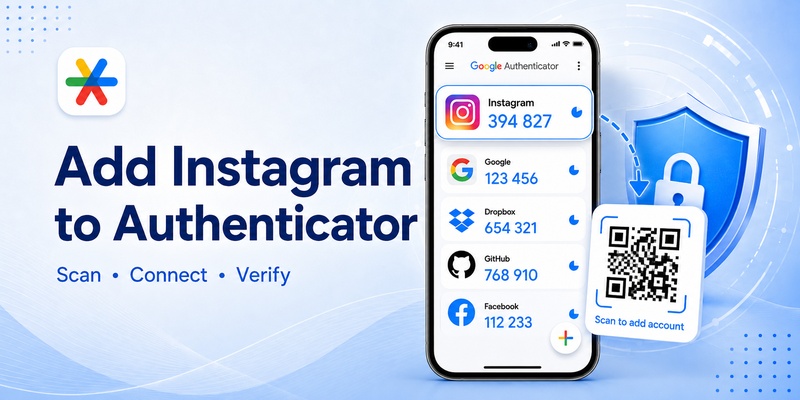
The phrase add instagram to google authenticator refers to creating an Instagram entry inside Google Authenticator that can generate valid Instagram login codes.
Start from Instagram, not from a random code
A common mistake is opening Google Authenticator first and expecting it to discover Instagram automatically.
It does not.
The connection begins inside Instagram’s two-factor authentication settings.
Instagram provides the information required to pair the account with the authentication application.
Once that information is transferred into Google Authenticator, a new entry can appear in the application.
Confirm the account label
After adding the account, make sure the new entry clearly corresponds to your Instagram profile.
If you have multiple Instagram accounts, you may eventually have multiple authenticator entries.
Organizing them correctly becomes important because every account can generate a different code.
A google authenticator code for instagram for one profile should not be assumed to work for another profile.
Complete Instagram verification
After adding the entry to Google Authenticator, Instagram normally requires a verification code to confirm that the authentication app was connected successfully.
Open google authenticator for instagram, locate the Instagram entry, and enter the currently displayed number into Instagram.
Once accepted, the setup is complete.
5. How to Get a Google Authenticator Code for Instagram
After google authenticator for instagram has been configured, getting a login code takes only a few seconds.
Open Google Authenticator
Launch the Google Authenticator application.
Find the Instagram account that matches the profile you are trying to access.
The number displayed beside that account is the current google authenticator code for instagram.
You do not normally need to request that code by SMS or press a “send code” button.
Use the current code
Authenticator codes are temporary.
If the code is nearly at the end of its current cycle, wait for a new one before entering it.
The normal process is:
- Open Google Authenticator.
- Find Instagram.
- Read the current code.
- Return to Instagram.
- Enter the code.
- Continue the login.
A google authenticator code Instagram search usually refers to this temporary verification number.
Make sure you select the correct Instagram account
If several Instagram profiles are connected to Google Authenticator, look carefully at the labels.
Do not simply copy the first code displayed.
Each configured Instagram account can have a separate Authenticator setup, so google authenticator for instagram should always be matched with the exact Instagram profile requesting verification.
6. How to Use the Code When Logging Into Instagram
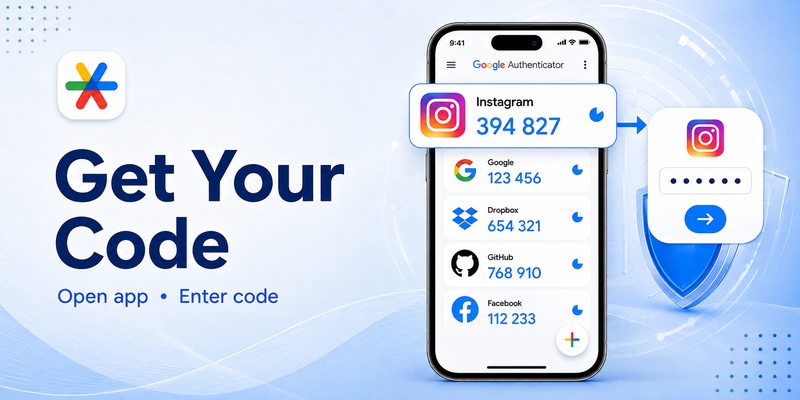
After setup, google authenticator for instagram becomes part of the normal sign-in process whenever Instagram requests two-factor authentication.
Enter your Instagram password first
Start by entering your normal Instagram login credentials.
If Instagram recognizes that 2FA is enabled, it can then request an additional login code.
Open Google Authenticator and find the Instagram entry.
Enter the temporary code
Read the current code and enter it into the Instagram verification field.
Submit the verification request before the code changes.
If the number expires before Instagram processes it, simply return to google authenticator for instagram and use the next code.
Never use a code from another account
You may have Google, Dropbox, Instagram, Facebook, or other services inside the same authenticator app.
Each entry is independent.
The fact that another account currently displays a six-digit number does not mean that number can be used for Instagram.
Always use the Instagram-specific entry created when you configured google authenticator for instagram.
🗺️ Browse How-To Guides: Chrome Google Authenticator: Setup, Extensions & Security Tips
7. What to Do If the Instagram Authenticator Code Does Not Work
Occasionally, google authenticator for instagram displays a code but Instagram rejects it.
This does not automatically mean the account has been compromised.
Check the account entry
First, confirm that you are using the code for the correct Instagram account.
This becomes especially important when you manage several profiles.
Wait for a new code
If the current number is close to changing, wait for the next google authenticator for instagram code and enter it immediately.
Temporary codes only remain valid for a limited period.
Check your phone’s time
Authenticator-generated codes rely on accurate device time.
If your phone’s date or time is significantly incorrect, generated codes may not match what the service expects.
Use your device’s automatic date and time settings when possible.
Confirm that Instagram still uses the same setup
If you recently disabled and re-enabled Instagram 2FA, an older entry in Google Authenticator may no longer match the current Instagram authentication configuration.
In that case, the old entry can continue generating numbers even though Instagram no longer accepts them.
Reconfigure google authenticator for instagram through Instagram’s current two-factor authentication settings rather than repeatedly attempting rejected codes.
8. How to Move Instagram Google Authenticator to a New Phone
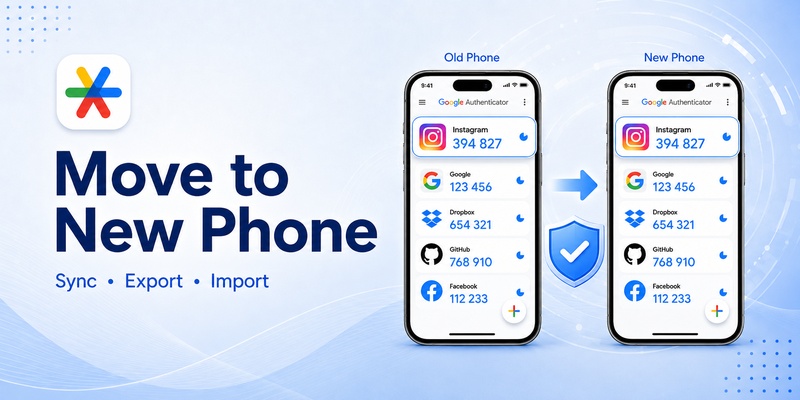
The query instagram google authenticator new phone is especially important because changing devices can cause access problems if authentication data is not transferred first.
Do not erase the old phone until the new device can successfully generate the Instagram code.
Option 1: Use Google Authenticator synchronization
Google Authenticator supports signing in with a Google Account so Authenticator codes can be synchronized across devices. Google’s current support documentation describes signing into Authenticator on the new device and also provides a manual transfer option.
After installing Google Authenticator on the new phone, check whether your Instagram entry appears.
If it does, test google authenticator for instagram before wiping the old device.
Option 2: Transfer accounts manually
Google also supports account transfer using QR codes.
On the old device:
- Open Google Authenticator.
- Open Transfer accounts.
- Choose Export accounts.
- Select the accounts to move.
- Generate the transfer QR code.
On the new device:
- Install Google Authenticator.
- Open Transfer accounts.
- Choose Import accounts.
- Scan the QR code from the old device.
Google documents this export-and-import process for moving Authenticator codes between devices.
After the transfer, confirm that google authenticator for instagram produces a working login code before deleting anything from your old phone.
9. How to Recover Instagram If You Lose Authenticator Access
Losing the phone containing google authenticator for instagram can become a serious issue if you have no backup verification method.
That is why recovery preparation should be completed while you still have access.
Use Instagram backup codes
Instagram supports backup codes as an additional two-factor authentication recovery method.
Instagram’s current help documentation allows users to access Two-factor authentication, select the relevant account, open Additional methods, and manage Backup codes.
Store these codes securely.
Do not keep your only copy exclusively on the same phone running google authenticator for instagram.
Try another available verification method
Depending on your account configuration, Instagram may offer another verification route.
Use only official Instagram recovery or authentication methods.
Avoid websites claiming they can generate an Instagram Authenticator code for you.
Reconfigure Authenticator after recovery
Once you regain access to Instagram, review the account’s two-factor authentication settings.
If the original google authenticator for instagram configuration can no longer be used, connect the replacement phone and verify the new setup.
Generate new backup codes if necessary.
💡 Discover Helpful Guides: Google Authenticator OpenVPN: Setup 2FA with PAM A-Z
10. How to Use Google Authenticator for Instagram Safely
Setting up google authenticator for instagram improves login protection, but the authentication setup itself also needs to be protected.
Never share your current code
A temporary Instagram Authenticator code should be treated as sensitive login information.
Do not send it to someone claiming they need the code to verify your identity.
A legitimate code is meant to be entered into the Instagram login or security process that you initiated.
Protect the phone containing Authenticator
Use a strong screen lock, Face ID, fingerprint authentication, or another secure device-lock method.
Google Authenticator also supports a Privacy Screen feature on supported devices, which can require biometric or device verification before Authenticator is opened.
Protecting your phone also helps protect access to google authenticator for instagram.
Keep recovery codes separately
Store Instagram backup codes somewhere secure and separate from the Authenticator phone.
If your phone is lost, stolen, or damaged, those codes may provide an alternative route into the Instagram account. Instagram provides controls for generating new backup codes when required.
Verify your setup before changing devices
Whenever you buy a new phone, transfer and test google authenticator for instagram before wiping the old device.
Confirm that:
- The Instagram entry appears.
- The new phone generates a code.
- Instagram accepts the code.
- Backup codes remain available.
- Your recovery email and other security details are current.
Final takeaway
Google authenticator for instagram is designed to add an additional verification layer to your Instagram account.
The setup process starts inside Instagram: enable two-factor authentication, choose an authentication application, connect Google Authenticator, and confirm the first generated code. Instagram officially supports Google Authenticator as one of the third-party apps that can provide login codes.
After setup, using google authenticator for instagram is straightforward. Enter your Instagram password, open Google Authenticator when prompted, locate the correct Instagram entry, and enter the current temporary code.
The most important preparation happens before something goes wrong. Save backup codes, protect your phone, and transfer Authenticator data before replacing a device.
If a code stops working, check that you selected the correct Instagram account, wait for a fresh code, verify your device time, and confirm that Instagram’s current 2FA configuration still matches the entry stored in Google Authenticator.
Used correctly, google authenticator for instagram provides a simple way to add another barrier between your Instagram account and anyone who obtains your password.
Download Authenticator App
Secure your accounts with fast, reliable two-factor authentication. Download now and protect your login in seconds.
