Authenticator ℠ App Authenticator ℠ App by Begamob

Apple Authenticator: Complete Guide to 2FA, Verification Codes & Apple Devices

If you search for apple authenticator, you may expect to find a standalone application with a name similar to Google Authenticator or Microsoft Authenticator. Apple’s current security system works differently.

Apple does not currently offer a standalone app officially named “Apple Authenticator.” Instead, authentication is divided between several built-in Apple technologies. For third-party websites and applications that support time-based verification codes, Apple’s Passwords app can generate and store verification codes. For Apple’s own Apple Account security, Apple uses two-factor authentication based primarily on trusted devices, trusted phone numbers, account passwords, and six-digit verification codes.

Starting with iOS 18, iPadOS 18, macOS Sequoia, and visionOS 2, Apple introduced the dedicated Passwords app for managing passwords, passkeys, Wi-Fi credentials, and verification codes. Apple says Passwords can configure automatic verification codes for websites and apps that support two-factor authentication, eliminating the need for a separate authenticator application in many situations.

This makes apple authenticator an understandable search phrase even though it is not an official Apple product name. For practical purposes, users asking for an Apple authentication solution are usually looking for one of two things:

  • A way to generate authenticator codes for third-party accounts.
  • A way to secure or verify their Apple Account.

Those systems are related but not identical.

There is another terminology change worth knowing. Apple has renamed “Apple ID” to Apple Account. The account itself and its login credentials did not fundamentally change because of the rename; Apple states that users can continue signing in with the same email address or phone number and password.

This guide explains exactly what apple authenticator means today, how Apple’s built-in verification codes work, how Apple Account two-factor authentication differs from traditional TOTP apps, how Apple Watch and Apple TV fit into the system, and when Google or Microsoft Authenticator may still be a better choice.

1. What Is Apple Authenticator?

Apple Authenticator is not an official app name

The first thing to understand about apple authenticator is that Apple does not market a standalone authentication app under that exact name.

Instead, Apple has integrated authentication features directly into its operating systems and Passwords app.

For third-party accounts, Apple’s built-in system behaves similarly to a traditional Authenticator App. A compatible website can show you a QR code or setup key, and Apple’s Passwords app can store the authentication secret and generate one-time verification codes when you log in. Apple documents this process directly in its iPhone user guide.

For example, suppose a website offers:

“Enable two-factor authentication with an authenticator app.”

You can open the website’s security settings, display its QR code, scan it with your iPhone, associate it with the correct account in Passwords, and then use the generated verification code during future logins.

That is the closest built-in equivalent to an apple authenticator for TOTP-based accounts.

Apple Account authentication works differently

Apple’s own account authentication does not normally require you to add your Apple Account to the verification-code section of Passwords.

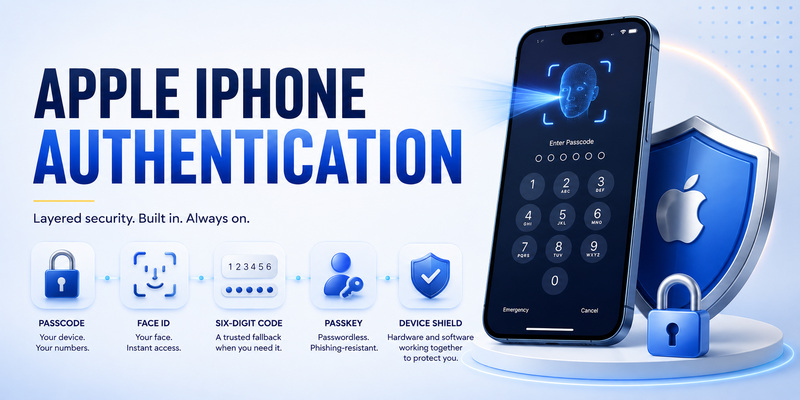
With Apple Account two-factor authentication, Apple asks for your account password plus a six-digit verification code when you sign in on a new device or browser. That code can automatically appear on a trusted Apple device or be sent to a trusted phone number.

Therefore, it is useful to separate two concepts:

Third-party website authentication: Passwords can generate authenticator codes.

Apple Account authentication: Apple uses trusted devices and phone numbers.

When someone searches for apple authenticator, either of these may be what they actually need.

2. Does Apple Have an Authenticator App?

Apple Authenticator: Complete Guide to 2FA, Verification Codes & Apple Devices
Does Apple Have an Authenticator App?

The short answer

People frequently search does apple have an authenticator app because Android and iPhone users are familiar with products such as Google Authenticator.

Apple’s answer is effectively built into the operating system rather than packaged as a standalone application named Apple Authenticator.

The Passwords app can manage verification codes alongside passwords and passkeys. Apple explicitly states that Passwords can set up and store automatic verification codes for services offering two-factor or multifactor authentication.

As a result, an iPhone user who needs an apple authenticator for a normal website may not need to download another app.

What Apple Passwords includes

Apple Passwords currently brings together:

  • Passwords
  • Passkeys
  • Verification codes
  • Wi-Fi passwords
  • Security alerts for potentially weak credentials

The app works with iCloud Keychain to make supported credentials available across approved Apple devices.

Verification codes are particularly relevant to the apple authenticator concept.

When a compatible website requests a one-time code, iPhone can automatically suggest the stored code above the keyboard. If that suggestion does not appear, you can open Passwords, select the account, copy the verification code, and paste it manually.

This makes the workflow more integrated than opening one app to copy a code and then manually switching back to the website.

Apple Account 2FA is separate

If the question does apple have an authenticator app refers specifically to signing into iCloud or an Apple Account, you generally do not need to configure a TOTP entry.

Apple Account verification codes are automatically supplied by Apple’s trusted-device system or sent to a trusted phone number.

That distinction prevents a common mistake: trying to search Passwords for an Apple Account TOTP code when Apple is actually expecting a code from a trusted device.

Download Authenticator App

Secure your accounts with fast, reliable two-factor authentication. Download now and protect your login in seconds.

Download Now

3. How Apple Passwords Generates Verification Codes

Standard authenticator codes

The built-in apple authenticator functionality in Passwords works with websites and apps that provide a compatible authenticator-app setup.

A service normally provides either:

  1. A QR code.
  2. A manual setup key.

Apple supports both methods.

If the QR code is displayed on another screen, such as a computer or iPad, your iPhone can scan it. After scanning, iOS lets you associate the authentication setup with the relevant login stored in Passwords.

A verification code then appears below the account’s username and password fields.

If the service provides a setup key instead, you can open Passwords, select the account, choose the verification-code setup option, and enter the key manually.

Why this feels different from traditional authenticators

A traditional authenticator often presents a list like:

Email account — 123456
Social account — 834221
Cloud account — 728193

Apple Passwords instead connects the verification code directly to the saved login.

This lets apple authenticator functionality participate in AutoFill.

When a website requests the authentication code, the iPhone can suggest it automatically. Apple says verification codes can be filled without forcing the user to leave the website or app being accessed.

Synchronization across Apple devices

When iCloud Keychain is enabled, Passwords can synchronize supported credential information across approved Apple devices. Apple recommends keeping devices updated to the latest software to take advantage of the current Passwords features.

For someone who uses an iPhone, iPad, and Mac, this integrated model is one of the biggest advantages of using the built-in apple authenticator approach rather than maintaining a completely independent authentication database.

However, cross-platform needs may lead to different decisions, which we will cover later.

4. How to Set Up Apple Authenticator Codes on iPhone

Apple Authenticator: Complete Guide to 2FA, Verification Codes & Apple Devices
How to Set Up Apple Authenticator Codes on iPhone

Method 1: Scan the QR code

To configure apple authenticator verification codes for a third-party website:

  1. Open the website or app whose account you want to secure.
  2. Open its account or security settings.
  3. Choose two-factor authentication.
  4. Select the option to use an authenticator application.
  5. Display the QR code.
  6. Scan the QR code using your iPhone.
  7. Select the corresponding account in Passwords.
  8. Confirm the verification code with the website.

Apple’s documentation explains that after scanning a compatible authenticator QR code, the verification code can appear under the saved username and password in Passwords.

You can then enter the generated code on the original website to complete enrollment.

Method 2: Use a setup key

Some websites show a secret setup key as an alternative to QR scanning.

To configure the apple authenticator manually:

  1. Copy the setup key from the website.
  2. Open Passwords on your iPhone.
  3. Select All.
  4. Open the appropriate account.
  5. Choose Edit.
  6. Select Set Up Code.
  7. Choose the setup-key option.
  8. Paste or enter the key.
  9. Return to the website.
  10. Enter the generated code to confirm setup.

Apple documents this setup-key workflow as an alternative when QR scanning is unavailable.

QR code shown on the same iPhone

If a website displays its QR code directly on the iPhone, you do not necessarily need a second device.

Apple says you can touch and hold a compatible QR code and choose the option to add verification information to Passwords.

Once configured, your apple authenticator code becomes part of that login entry.

Test before relying on it

Before signing out of the website, verify that the code works.

It is also wise to save any backup or recovery codes provided by the website. Those recovery codes are controlled by the third-party service, not Apple Passwords.

If the apple authenticator entry were ever unavailable, those service-specific recovery options may help you regain access.

5. Apple Account Two-Factor Authentication Explained

Apple Account versus authenticator codes

Searches such as secondary authentication apple id often mix Apple’s account-security system with conventional authenticator apps.

Apple ID is now called Apple Account. Apple’s current two-factor authentication system normally verifies a new sign-in using:

  • The Apple Account password.
  • A six-digit verification code.

That six-digit code appears on a trusted device or can be sent to a trusted phone number.

It is therefore different from storing your Apple Account inside an apple authenticator TOTP list.

What is a trusted device?

Apple defines a trusted device as an iPhone, iPad, Apple Watch, Apple Vision Pro, or Mac that has already signed into the Apple Account using two-factor authentication.

Trusted devices can help verify your identity by displaying Apple verification codes when you attempt to sign in somewhere else.

Suppose you sign into iCloud on a new Mac.

Your trusted iPhone may display a sign-in notification.

You review the request, choose Allow if it is yours, and Apple displays the verification code.

You then enter that code on the Mac.

This is Apple’s own account-authentication system and does not require a separate apple authenticator application.

Trusted phone numbers

Apple requires at least one trusted phone number for two-factor authentication. A trusted number can receive a verification code through a text message or phone call when necessary.

Apple also recommends considering an additional trusted number, particularly if your iPhone is your only trusted device and also your only way to access the registered number.

This provides another recovery path if the main iPhone is lost or damaged.

Download Authenticator App

Secure your accounts with fast, reliable two-factor authentication. Download now and protect your login in seconds.

Download Now

6. How to Get Apple Verification Codes

Apple Authenticator: Complete Guide to 2FA, Verification Codes & Apple Devices
How to Get Apple Verification Codes

Automatic verification prompt

With Apple Account two-factor authentication enabled, a sign-in on a new device can automatically trigger an alert on trusted devices.

Apple’s process is:

  1. Begin signing into the Apple Account.
  2. Find the notification on a trusted device.
  3. Review the request.
  4. Choose Allow.
  5. View the six-digit verification code.
  6. Enter that code on the device where the login began.

Apple notes that the notification may include an approximate sign-in location based on the new device’s IP address, so that location may not always match your exact physical location.

This trusted-device process is another reason apple authenticator should not be understood only as a traditional TOTP generator.

Requesting a code through a phone number

If you cannot access a trusted device, the verification screen can provide an option such as “Didn’t Get a Code?” or “Can’t get to your devices?”

You can then request that Apple send a verification code to a trusted phone number.

The message or automated phone call contains the code required for the current sign-in.

Generate a code manually on Apple devices

Apple devices can also generate a verification code from account security settings.

For example, on supported Apple Watch versions, users can open Apple Account settings, choose Two-Factor Authentication, and select Get Verification Code.

This means Apple’s account-verification system remains available even though there is no standalone apple authenticator app.

7. Apple Watch Authenticator and Trusted Device Verification

Can Apple Watch display Apple verification codes?

The phrase apple watch authenticator can refer to several different ideas.

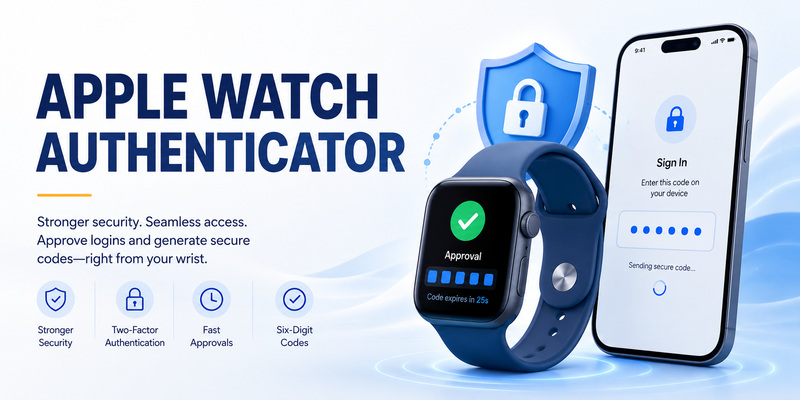
For Apple Account two-factor authentication, Apple Watch can serve as a trusted device. Apple’s current support documentation lists Apple Watch alongside iPhone, iPad, Apple Vision Pro, and Mac as devices capable of helping verify identity.

Apple also states that Apple Watch running watchOS 6 or later can automatically display an Apple Account verification code.

Therefore, if you start signing into your Apple Account on another device, your Apple Watch may display the authorization notification and code.

Manually getting a code from Apple Watch

Current watchOS documentation also allows the user to generate a verification code manually.

Open the relevant Apple Account settings on the watch, access Two-Factor Authentication, and choose Get Verification Code.

This makes the watch a useful companion to the apple authenticator ecosystem.

Is Apple Watch a full TOTP authenticator?

Do not assume that Apple Watch’s role in Apple Account verification is identical to the verification-code storage available in Passwords on iPhone and Mac.

Apple’s current Passwords documentation specifically provides automatic verification-code setup instructions for iPhone, iPad, Mac, and Apple Vision Pro.

So when discussing an apple watch authenticator, it is safest to distinguish Apple Account trusted-device verification from third-party TOTP management.

8. Apple TV Two-Factor Authentication

Apple Authenticator: Complete Guide to 2FA, Verification Codes & Apple Devices
Apple TV Two-Factor Authentication

Signing into Apple TV

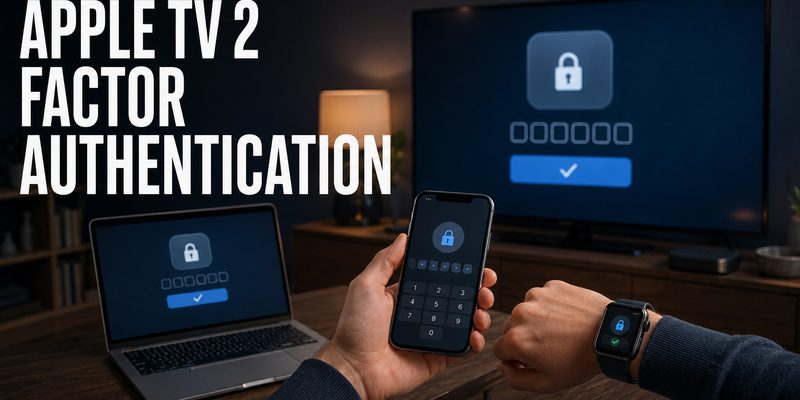
The keyword apple tv 2 factor authentication usually relates to signing an Apple Account into Apple TV 4K, Apple TV HD, or the Apple TV app on another streaming device.

Current Apple TV hardware supports two main account sign-in approaches:

  • Use Another Apple Device.
  • Sign in manually.

If you sign in manually and two-factor authentication is required, Apple can ask you to enter the six-digit verification code sent to a trusted device or phone number.

You do not normally open an apple authenticator code list on Apple TV.

The verification code belongs to the Apple Account trusted-device system.

Use Another Apple Device

On Apple TV 4K or Apple TV HD:

  1. Open Settings.
  2. Go to Users and Accounts.
  3. Choose a suggested user or Add New User.
  4. Select Use Another Apple Device when available.
  5. Bring a signed-in iPhone or iPad nearby.
  6. Follow the prompts on both devices.

Apple notes that compatible software and Bluetooth are required for the nearby-device workflow.

Smart TVs and streaming devices

The Apple TV app on supported smart TVs and other streaming devices can also offer QR-code login.

Apple’s current documentation says users can enter their Apple Account information or scan a QR code displayed by the Apple TV app and use their phone to sign in.

Again, this is related to Apple Account authentication rather than the third-party TOTP side of apple authenticator.

9. How to Change Apple Two-Factor Authentication Settings

Managing trusted phone numbers

People searching changing two factor authentication apple are often trying to replace an old telephone number.

On an iPhone or iPad:

  1. Open Settings.
  2. Tap your name.
  3. Open Sign-In & Security.
  4. Select Two-Factor Authentication.
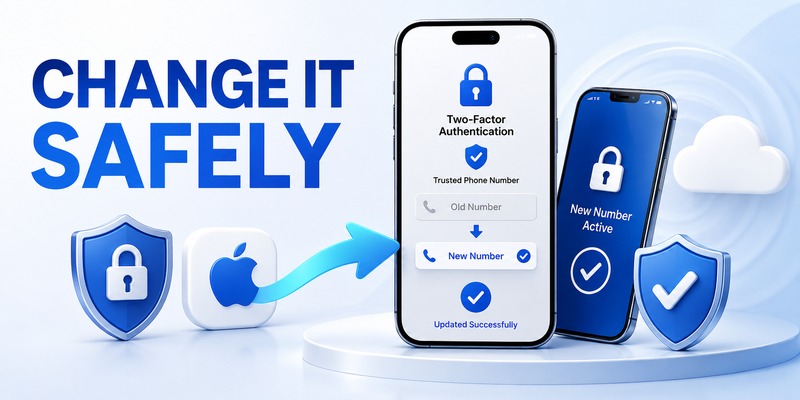
  5. Add or remove trusted phone numbers as appropriate.

Apple provides similar controls on Mac and through the Apple Account website.

Before deleting an old trusted number, it is wise to make sure another accessible trusted phone number is already registered.

Your apple authenticator verification codes for third-party services are separate from these Apple Account trusted numbers.

Can Apple Account 2FA be disabled?

For most established Apple Accounts that use modern two-factor authentication, the answer is generally no.

Apple says that if an Apple Account was created with two-factor authentication, this protection cannot be removed. If two-factor authentication was enabled recently, there may be a two-week period in which account security can be lowered again.

Therefore, users should not assume that Apple Account two-factor authentication works like a website where a simple toggle can always turn off an apple authenticator.

Removing a trusted device

If you sell or stop using an iPhone, iPad, Apple Watch, Mac, or another trusted Apple device, review the Apple Account device list.

Removing a trusted device prevents it from continuing to receive Apple Account verification codes. Apple’s documentation also notes that removing a device blocks its Apple Account access until it is authenticated and added again.

10. Microsoft Authenticator and Google Authenticator on Apple Devices

Apple Authenticator: Complete Guide to 2FA, Verification Codes & Apple Devices
Microsoft Authenticator and Google Authenticator on Apple Devices

Microsoft Authenticator on iPhone

The keyword microsoft authenticator apple usually means using Microsoft’s authentication application on an iPhone or another supported Apple platform.

Microsoft Authenticator remains available from Apple’s App Store and is published by Microsoft Corporation. The application supports MFA authentication requests and time-based one-time passwords for compatible accounts.

A Microsoft-heavy user may prefer it over Apple’s built-in apple authenticator workflow, particularly when a workplace explicitly requires Microsoft Authenticator for Microsoft work or school accounts.

This is important because organizational authentication can include requirements beyond a generic TOTP code.

Google Authenticator on iPhone

google authenticator for apple is also available on iPhone.

Google’s official documentation says Google Authenticator can generate one-time verification codes for websites and applications supporting authenticator-based two-step verification. Codes can be generated without an internet or cellular connection.

Google also provides an official iPhone/iPad installation and setup flow for Google Authenticator.

For an iPhone user, the choice is therefore not between “authenticator support” and “no authenticator support.”

You can choose:

  • Apple Passwords verification codes.
  • Microsoft Authenticator.
  • Google Authenticator.
  • Another reputable authenticator that supports the required protocol.

Why multiple options exist

The built-in apple authenticator experience is convenient, but account ecosystems matter.

A company may require Microsoft Authenticator.

A Google-centric user may prefer Google Authenticator.

An Apple-centric personal user may prefer Passwords because verification codes and credentials are integrated together.

The right choice depends on the authentication system required by the account being protected.

11. Apple Authenticator vs Third-Party Authenticator Apps

Apple Passwords advantages

The primary advantage of using apple authenticator functionality through Passwords is integration.

Passwords already stores compatible account credentials. A verification code can be connected to the same entry, synchronized using Apple’s credential infrastructure, and automatically suggested during login.

You may not need to:

  1. Open another application.
  2. Find the account.
  3. Memorize the code.
  4. Switch back to the browser.
  5. Enter the code manually.

That reduces friction.

When third-party apps make sense

An independent Authenticator App may be preferable when:

  • Your organization mandates one.
  • You regularly use non-Apple devices.
  • You want a separate authentication store.
  • You need features specific to a particular identity provider.

For example, Microsoft Authenticator supports Microsoft’s MFA workflow on iPhone, while Google Authenticator supports standard verification-code generation and Google Account synchronization.

Security versus convenience

One consideration with an integrated apple authenticator setup is that passwords and verification codes may be part of the same Apple credential environment.

Some users prefer that integration because it simplifies sign-in and synchronizes credentials.

Others deliberately keep passwords and TOTP codes in separate systems.

There is no single configuration that fits every threat model. The important part is using two-factor authentication correctly, protecting your trusted devices, and maintaining recovery methods.

12. How to Fix Apple Authentication and CarPlay Problems

Apple Authenticator: Complete Guide to 2FA, Verification Codes & Apple Devices
How to Fix Apple Authentication and CarPlay Problems

Authentication versus CarPlay connection problems

The search phrase apple device authentication failed carplay can be misleading because Apple does not describe every CarPlay connection problem as an Apple Account authenticator failure.

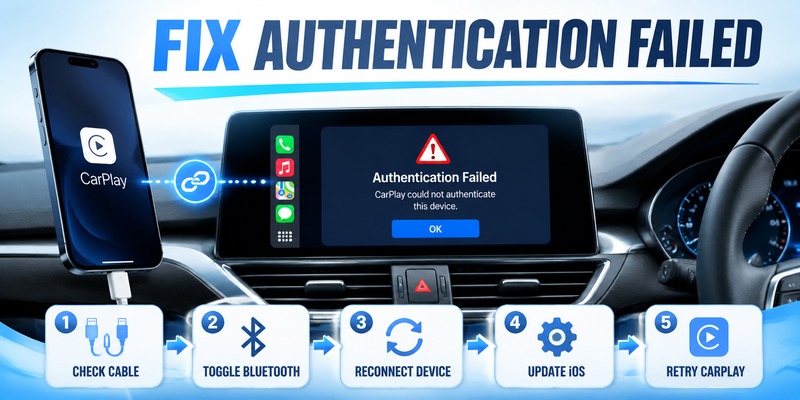
If CarPlay fails to connect, Apple’s official troubleshooting focuses first on device compatibility, iOS updates, USB or wireless connectivity, Siri, CarPlay permissions, and vehicle firmware.

Therefore, do not immediately reset your apple authenticator or Apple Account because a car displays an authentication-related message.

Official CarPlay troubleshooting steps

Apple recommends checking the following when CarPlay does not behave correctly:

  1. Confirm the vehicle supports CarPlay.
  2. Update the iPhone to the latest supported iOS version.
  3. Check the USB cable and USB port for wired CarPlay.
  4. Confirm Bluetooth and Wi-Fi are enabled for wireless CarPlay.
  5. Make sure Auto-Join is enabled for the CarPlay Wi-Fi network.
  6. Restart the iPhone and vehicle.
  7. Make sure Siri is enabled.
  8. Check Screen Time restrictions.
  9. Forget the car under Settings > General > CarPlay.
  10. Set up CarPlay again.
  11. Confirm the vehicle’s infotainment firmware is current.

These steps address the CarPlay connection itself rather than the apple authenticator system.

Check whether the problem is really Apple Account authentication

If the error occurs while an Apple service inside the vehicle is asking you to sign into your Apple Account, then trusted-device verification may become relevant.

In that case:

  • Confirm your Apple Account password.
  • Check your trusted devices for an approval prompt.
  • Request a verification code if necessary.
  • Verify trusted phone numbers.

Separating account authentication from CarPlay connectivity prevents unnecessary security resets.

13. Federated Authentication for Apple Business

Apple Business authentication

The keyword federated authentication apple business manager refers to organizational identity management rather than the personal apple authenticator features discussed earlier.

There has also been a naming change: Apple’s current documentation now refers to the platform as Apple Business, incorporating capabilities previously associated with Apple Business Manager.

Apple Business can use federated authentication with:

  • Google Workspace.
  • Microsoft Entra ID.
  • An identity provider supporting appropriate OIDC or SCIM configurations.

Only one federation connection can be linked at a time.

How federation works

With federated authentication configured, Managed Apple Accounts can use an organization’s existing identity infrastructure.

Apple explains that users can then sign into assigned Apple devices using their existing organizational username—generally an email address—and password.

This is fundamentally different from setting up an apple authenticator code.

Federation answers questions such as:

“Which company identity verifies this employee?”

An authenticator code answers:

“What second authentication factor proves that this login belongs to the user?”

The two technologies can be part of the same overall identity architecture but solve different problems.

Microsoft Entra ID federation

Apple Business currently supports Microsoft Entra ID through OpenID Connect. Apple documents specific requirements around administrators, usernames, verified domains, and federation configuration.

Organizations should therefore follow the current Apple Business deployment documentation instead of trying to configure enterprise authentication through a personal apple authenticator workflow.

14. Security Tips for Apple Authenticator and Apple Account

Protect the trusted device itself

An apple authenticator system is only as useful as the security around the device storing or displaying authentication information.

Apple recommends protecting trusted devices with a passcode or Mac login password and using Face ID, Touch ID, or Optic ID where supported.

This adds another barrier between someone who physically obtains the device and the credentials stored on it.

Keep at least one additional recovery route

Apple requires at least one trusted phone number but recommends considering additional numbers that you can access.

That advice is particularly important if one iPhone is simultaneously:

  • Your only trusted Apple device.
  • Your only trusted phone number.
  • Your password manager.
  • Your apple authenticator device.

If that phone disappears, recovery becomes more complicated.

Never approve unexplained sign-in requests

A trusted-device notification should correspond to a sign-in you recognize.

If your iPhone, Apple Watch, iPad, or Mac suddenly asks you to approve a new Apple Account sign-in that you did not initiate, do not approve it.

Apple says the trusted-device notification may show approximate location information associated with the request.

The location is not necessarily precise, but an unexpected authentication request itself deserves attention.

Maintain third-party recovery codes

When you enable apple authenticator codes for another website, check whether that service offers recovery codes.

Store them safely.

The recovery system for a third-party account belongs to that service, not Apple.

Deleting an authentication entry without having another login method could make account recovery difficult.

15. Which Authenticator Solution Is Best for Apple Users?

Best option for Apple-only users

People searching best authenticator app for apple often expect a single winner, but the best solution depends on where the accounts are used.

For someone deeply invested in the Apple ecosystem, Passwords provides a compelling built-in apple authenticator experience.

Verification codes can live alongside passwords and passkeys, sync through supported Apple credential services, and appear automatically during compatible login flows.

That makes it convenient for users who primarily use:

  • iPhone
  • iPad
  • Mac
  • Apple Vision Pro

Best option for Microsoft environments

If an employer, school, or Microsoft cloud environment explicitly requires Microsoft Authenticator, use Microsoft Authenticator.

The official iOS application supports MFA approval and time-based OTP functionality and can manage Microsoft personal, work, and school identities.

In that scenario, replacing the organization’s required method with apple authenticator codes may not satisfy the authentication policy.

Best option for Google-oriented or cross-platform use

Google Authenticator remains available for iPhone and iPad and supports one-time verification codes for compatible accounts. Google’s current implementation can synchronize authenticator codes with a Google Account when that functionality is used.

Users who frequently switch between ecosystems may prefer that approach to keeping authentication exclusively within Apple’s Passwords environment.

Think in terms of requirements, not brands

The most useful rule is:

Use the authentication method that the service supports and that fits your recovery needs.

If a website accepts standard TOTP, apple authenticator functionality in Passwords may be enough.

If a company requires Microsoft Authenticator, use Microsoft Authenticator.

If you prefer Google Authenticator’s workflow, it is available on iOS.

If the account is your Apple Account, use Apple’s native trusted-device and trusted-number 2FA system rather than attempting to create an Apple Account TOTP entry.

16. Final Thoughts

The term apple authenticator is useful for describing Apple’s authentication capabilities, but understanding what is actually happening behind the phrase prevents a lot of confusion.

Apple does not currently provide a standalone application officially named Apple Authenticator.

Instead, modern Apple devices include two important authentication systems.

The first is the Passwords app. Passwords can store verification codes for third-party websites and applications that support authenticator-based two-factor authentication. Users can configure these codes by scanning a QR code or entering a setup key. iPhone can then automatically suggest the appropriate verification code during login.

For many users, this is effectively the built-in apple authenticator.

The second system protects the Apple Account itself.

Apple Account—formerly Apple ID—uses Apple’s trusted-device architecture. When signing into a new device or browser, you may need your password and a six-digit verification code that appears on a trusted device or is sent to a trusted phone number.

This distinction is critical.

Do not expect the Apple Account verification code to behave exactly like the TOTP code for a third-party website.

Apple Watch can act as a trusted device and can display Apple Account verification codes. Apple TV can request an Apple Account verification code during manual sign-in. iPhone, iPad, Mac, and other trusted devices all participate in Apple’s broader authentication system.

At the same time, third-party options remain valuable.

Microsoft Authenticator is available on Apple devices and is particularly relevant for Microsoft-based work or school environments. Google Authenticator is also available for iPhone and supports standard verification codes.

So the question is not simply, “Should I use apple authenticator or another authenticator?”

The better question is, “Which authentication method does this account require, and which recovery model works best for me?”

For Apple Account security, use Apple’s built-in two-factor authentication, trusted devices, and trusted phone numbers.

For third-party TOTP accounts, the apple authenticator functionality in Passwords can provide a highly integrated solution.

For organizational or cross-platform requirements, Microsoft Authenticator, Google Authenticator, or another supported authentication solution may make more sense.

Whichever approach you choose, protect your devices with a strong passcode, keep trusted phone numbers current, maintain recovery options, review unexpected sign-in requests carefully, and never approve an authentication prompt you did not initiate.

Used correctly, apple authenticator capabilities provide Apple users with a convenient way to combine passwords, passkeys, verification codes, trusted devices, and two-factor authentication into a much stronger account-security workflow.

Download Authenticator App

Secure your accounts with fast, reliable two-factor authentication. Download now and protect your login in seconds.

Download Now