
2FA Authenticator Instagram: Complete Setup, Login, Recovery, and Troubleshooting Guide
Published August 24, 2026
A 2FA authenticator for Instagram adds an extra layer of security by requiring a temporary verification code in addition to your password when you log in. Setting it up correctly can help protect your account from unauthorized access, but losing your authenticator device or encountering an invalid code can make login difficult. This guide covers how to set up Instagram 2FA with an authenticator app, use backup codes, handle common login errors, and recover access when your usual verification method is unavailable.
1. What Is 2FA Authenticator Instagram?
2fa authenticator instagram is a security method that requires more than your Instagram password before someone can access your account. After you enter your username and password, Instagram asks for a temporary verification code generated by an authenticator app on your phone.
This additional step is important because passwords can be guessed, reused, leaked, or stolen through phishing. A strong password is still necessary, but it is no longer enough by itself for an account that contains personal messages, business contacts, content, payment information, or years of photos and videos.
With 2fa authenticator instagram, the verification code usually changes every 30 seconds. The code is created on your device and works even when your phone has no mobile signal. That makes app-based authentication more reliable than waiting for a text message in many situations.
Instagram may offer multiple two-factor authentication methods, such as text-message codes, WhatsApp verification in supported locations, security keys, or codes from an authenticator app. The best option depends on your account, device, and recovery plan. However, an authenticator app is often a strong everyday choice because it provides fast codes without depending entirely on your SIM card.
The main goal of 2fa authenticator instagram is simple: make it much harder for an attacker to enter your account, even if they know your password.
Download Authenticator App
Secure your accounts with fast, reliable two-factor authentication. Download now and protect your login in seconds.
2. Why an Authenticator App Is Better Than SMS for Instagram
Many people begin with SMS verification because it is easy to understand. Instagram sends a code to your phone number, and you enter that code after typing your password. While SMS is better than having no two-factor authentication, an authenticator app often offers stronger and more consistent protection.
A text message can be delayed, blocked while traveling, or exposed to SIM-swap attacks. A SIM swap happens when an attacker convinces a mobile provider to transfer your phone number to a different SIM card. If they control your number, they may receive password-reset messages and SMS verification codes.
An app-based 2fa authenticator instagram setup avoids many of these risks. The rotating code is generated from a secret key stored in your authenticator app rather than delivered through your mobile network.
Benefits of using an authenticator app include:
- It generates codes offline.
- It does not rely on your phone number.
- It works when you are abroad without roaming.
- It can protect multiple accounts in one place.
- It reduces dependence on SMS delivery.
- It gives you a clear, repeatable login process.
That said, authentication security is not only about choosing a method. You also need a protected phone, saved backup codes, and a secure email address. If your Instagram email is weak or unsecured, an attacker may still attempt to reset your password.
For most personal, creator, and business accounts, 2fa authenticator instagram is a practical security upgrade that is worth setting up before an emergency happens.
 Discover Helpful Guides: 2FA Authenticator App: Complete Guide to Setup, Use, Download, and Secure Your Accounts
3. How 2FA Authenticator Instagram Works
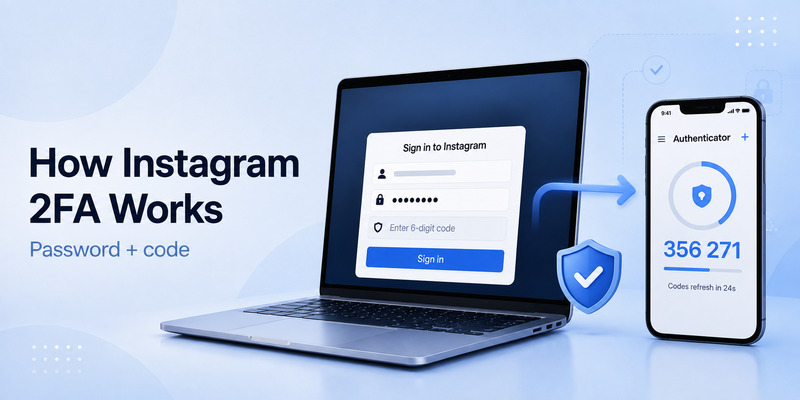
The technical process behind 2fa authenticator instagram is based on time-based one-time passwords, usually called TOTP. You do not need to understand the mathematics to use it safely, but knowing the basic workflow helps prevent setup mistakes.
When you choose an authenticator app in Instagram’s security settings, Instagram displays a QR code or a manual setup key. That QR code contains a secret that links Instagram to your authenticator app.
You scan the QR code with the app. The app then uses the secret key and the current time to create a short temporary code. Instagram creates the same expected code on its side. If your code matches, Instagram confirms that you have access to the authenticator app connected to your account.
Here is a simple 2fa authentication example:
- You enter your Instagram username and password.
- Instagram asks for a six-digit verification code.
- You open your authenticator app.
- You find the Instagram entry and read the current code.
- You enter the code before it refreshes.
- Instagram approves the login.
This process makes password theft less useful to criminals. A phishing page may capture your password, but an attacker still needs the temporary code. Be careful, though: sophisticated phishing pages can ask for a code in real time. Always check the website address and never enter codes into suspicious links.
A reliable 2fa authenticator instagram setup gives you a second barrier, but your own habits still matter. Protect your device, avoid fake login pages, and never share a verification code with another person.
Discover Helpful Guides: 2FA Authenticator App: Complete Guide to Setup, Use, Download, and Secure Your Accounts
4. What You Need Before Setting Up Instagram 2FA
Before you enable 2fa on instagram, take a few minutes to prepare. This lowers the risk of locking yourself out later, especially when you replace your phone or lose access to your device.
First, make sure you know your current Instagram password. If you are not certain, reset it while you are already signed in and can access your email securely. Use a unique password that you do not reuse on Facebook, email, shopping sites, or other social platforms.
Second, choose your authenticator app. Popular options include Google Authenticator, Microsoft Authenticator, 1Password, and other reputable TOTP apps. The best choice is one that you understand and can recover safely if you change devices.
Third, verify that your Instagram email address and phone number are current. These recovery channels may be crucial if you cannot access your authenticator codes. Use an email account with its own two-factor authentication enabled.
Finally, plan where you will store backup codes. Backup codes are emergency codes that can let you sign in if your phone is unavailable. Save them in a password manager, encrypted document vault, or another secure location that you can access without the same phone.
Avoid storing the QR code as a plain screenshot in your photo library. Anyone who obtains that QR code could potentially add your Instagram account to their own authenticator app. Treat the QR code like a password.
A prepared 2fa authenticator instagram setup is far safer than rushing through the process after you have been locked out.
 Explore More Useful Guides: Discord 2FA Code: Setup, Backup Codes, Errors, and Account Recovery Guide
5. How to Enable an Authenticator App on Instagram
The exact labels in Instagram may change slightly across app versions, but the setup flow generally follows the same path. Start while you are already signed in to the Instagram account you want to protect.
Open Instagram and go to your profile. Open the menu, then look for Settings, Accounts Center, Password and Security, or Two-Factor Authentication. Select the Instagram account if you manage more than one profile.
Next, choose an authentication method. Select an authenticator app when Instagram presents the available options. The app may explain that you need to install an authenticator app if you do not already have one.
Instagram will then show a QR code or provide a setup key. Open your chosen authenticator app and select Add Account, Add Code, or the plus icon. Choose the option to scan a QR code. Point your camera at the code displayed by Instagram.
Your app should create a new Instagram entry with a rotating six-digit code. Enter that code into Instagram to confirm the setup. Once Instagram accepts it, your 2fa authenticator instagram connection is active.
After confirmation, Instagram may display recovery codes. Save them immediately. Do not assume you will come back later; many people skip this step and regret it after a lost phone or damaged device.
To confirm that the setup works, sign out in a separate browser session or check your Security settings. You should see that app-based two-factor authentication is enabled.
6. How to Scan the Instagram QR Code
The instagram 2fa qr code is the bridge between your Instagram account and your authenticator app. It should be treated as sensitive information because it contains the secret needed to generate future login codes.
When Instagram displays the QR code, keep the screen private. Do not share it in screenshots, screen recordings, chat messages, or support tickets. Real Instagram support representatives should never need your QR code or active verification code.
To scan it, open the authenticator app on your phone and choose the option to add a new account. Select Scan QR Code. Your phone may ask for camera permission; allow access only if you are using a trusted app you installed from the official App Store or Google Play.
If scanning does not work, Instagram may provide a manual setup key. Select Enter Setup Key in your authenticator app and type the key exactly as shown. Give the account an easy name, such as “Instagram – Personal” or “Instagram – Business,” so you do not enter a code from the wrong account later.
A 2fa authenticator qr code is normally used once during setup. After the authenticator entry has been created, you should close the QR-code screen and complete verification immediately.
If you accidentally expose the QR code before completing setup, cancel the setup process if possible and generate a new secret. This may feel inconvenient, but it is safer than relying on a code that another person may have copied.
Discover Helpful Guides: 2FA Authenticator Chrome: How to Set Up Secure Two-Factor Authentication in Your Browser
7. How to Use an Instagram Authenticator Code at Login
Once app authentication is active, a 2fa instagram login usually follows a predictable pattern. Enter your username, email, or phone number, then enter your password. Instagram will ask for a verification code before granting access.
Open your authenticator app and find the Instagram account entry. You will see a code, often six digits, and a countdown indicator showing how long the code remains valid. Enter the code promptly and carefully.
An authenticator 2fa code is temporary, so a code may fail if it changes while you are typing. If that happens, wait for the next code, then enter the new one. Do not repeatedly submit an old code.
If Instagram asks whether to trust the device, make that decision carefully. Trust your own personal phone or computer only when it is protected with a screen lock and not shared with others. Do not trust a public computer, borrowed device, or work machine that other people can access.
A successful 2fa authenticator instagram login should feel quick. In normal use, you open the app, copy or read the code, and complete the sign-in. If the process becomes confusing, check that you are using the correct Instagram entry. Users who manage multiple profiles often have several nearly identical code entries.
Never send a 2fa instagram code to someone who contacts you through direct message, email, text message, or a fake support page. Instagram security codes are for you to enter during your own sign-in process—not for anyone else to request.
8. How to Save Instagram Backup Codes Safely
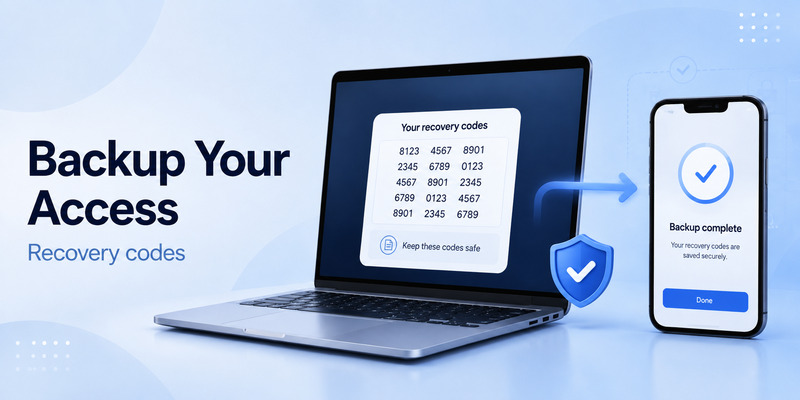
Backup codes are one of the most important parts of 2fa authenticator instagram security. They are single-use emergency codes that can help you regain access if your phone is lost, your authenticator app is deleted, or your device stops working.
After you activate two-factor authentication, Instagram may show a set of recovery codes. Save each code in a secure location immediately. You can usually generate new backup codes later from the security settings, but it is safer not to depend on memory.
Good storage options include:
- A trusted password manager with a strong master password
- An encrypted note or document vault
- A printed copy stored in a secure physical location
- A protected recovery folder separate from your phone
- A trusted business security record for company-owned accounts
Avoid saving recovery codes in an unprotected Notes app, a screenshot folder, or a public cloud document. Also avoid sending them to yourself through an unsecured chat app.
Each code normally works once. If you use one, remove it from your stored list or clearly mark it as used. If you suspect that someone has seen your backup codes, sign in, generate a new set, and update your secure record.
The best 2fa authenticator instagram recovery plan combines backup codes, a secure email address, current phone details, and an authenticator app that can be restored safely to a new device.
Explore More Useful Guides: 2FA Authenticator Free: How to Choose and Use a Free Authenticator App Safely
9. What to Do If You Lose Your Authenticator App
Losing an authenticator app does not always mean losing your Instagram account. The recovery process depends on what access you still have.
First, try a backup code. If you saved one during setup, enter it when Instagram asks for your verification code. Once you are signed in, update your two-factor authentication settings and connect a new authenticator app.
Second, check whether your authenticator app supports encrypted backup or device transfer. Some apps can restore your entries on a replacement phone after you sign in to the app or complete a secure migration process. Do not assume backup exists; confirm it before you erase your old phone.
Third, try another enabled verification method. If you also configured SMS, WhatsApp, a security key, or an approved device, Instagram may let you use that method instead.
If you have no codes, no backup, and no other authentication method, use Instagram’s official account-recovery flow. Follow the on-screen prompts carefully and provide accurate account information. Recovery may take time, especially if Instagram needs to verify account ownership.
This is why 2fa authenticator instagram should be configured with recovery in mind. Do not wait until you lose your phone to learn whether your codes are backed up.
For creators and businesses, add recovery planning to your account-management process. Keep ownership details, account email access, backup codes, and device access documented securely.
Explore More Useful Guides: How to Use 2FA Authenticator: A Complete Step-by-Step Guide for Better Account Security
10. How to Fix Instagram 2FA Code Problems
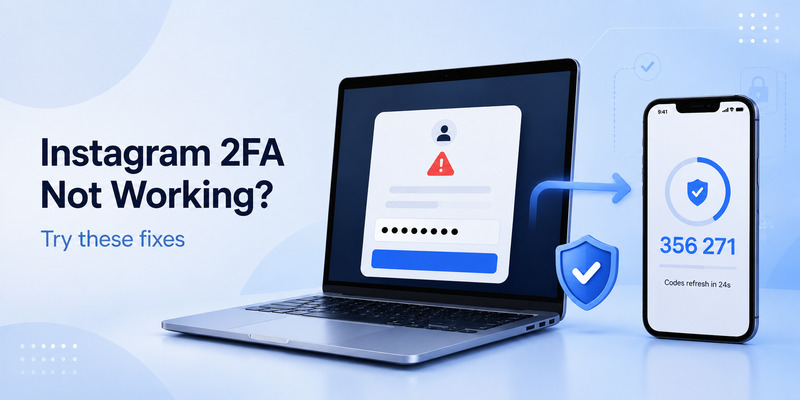
The phrase 2 factor authentication instagram not working can describe several different issues: a rejected code, a missing code, an app that was reset, or a login request that does not reach your device. Start with the simplest checks before changing your settings.
If your current code is rejected, wait for a new code and try again. Make sure you are using the entry for the correct Instagram account. A common mistake is choosing a code for another profile with a similar name.
Next, check your phone’s time settings. Authenticator apps depend on accurate time. Set your device to update date and time automatically, then reopen the app. An incorrect device clock can cause every rotating code to be out of sync.
If you copied the code, make sure no extra spaces were included. If you typed it manually, check each number. A code may expire during entry, so use a fresh one.
If you cannot find the Instagram entry in your app, do not immediately disable or uninstall the app. Look for a backup, old phone, synced device, or recovery-code record first. Deleting the app can make recovery harder.
For persistent 2fa authenticator instagram errors, use the “Try another way” option on the Instagram login screen if available. Use a backup code or another previously configured method. Once you regain access, remove old authentication methods and set up the app again carefully.
Explore More Useful Guides: 2FA Authenticator APK: Safe Download, Installation, and Setup Guide for Android
11. How to Protect an Instagram Business or Creator Account
A business or creator profile may be more valuable to attackers than a casual personal account. It can hold an audience, advertising access, brand deals, customer conversations, and connected Meta tools. That makes 2fa authenticator instagram an essential operational control, not just a personal privacy feature.
Start by identifying who truly needs access. Do not share one password with a social-media team. Use role-based access through appropriate business tools when available, and remove former employees, agencies, freelancers, or collaborators as soon as their work ends.
Use a dedicated email address for business account recovery, and protect that email with strong two-factor authentication. If the email inbox is compromised, an attacker may be able to reset Instagram credentials regardless of your other precautions.
Also create a documented recovery process. It should include:
- Where backup codes are stored
- Which team members have approved access
- How to contact the account owner
- What to do after a lost phone
- How to remove access from a departing team member
- How to identify phishing attempts
A strong 2fa authenticator instagram setup should never depend on a single employee’s personal device without a recovery plan. The account owner needs secure access to recovery information, while each team member should have only the level of access necessary for their work.
12. Authenticator App vs SMS vs WhatsApp Verification
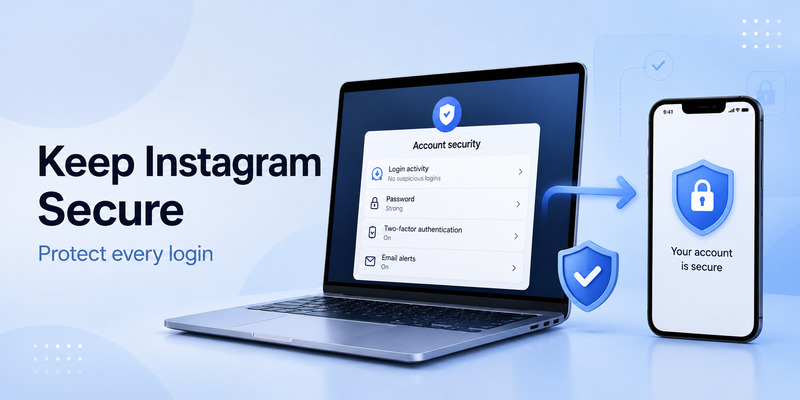
Instagram security methods each have different strengths. An authenticator App is usually a strong default because it generates codes locally and does not rely on text-message delivery.
Authenticator apps are ideal for people who travel, use multiple accounts, or want less exposure to SIM-swap attacks. They work offline and can be quick to use after initial setup.
SMS is easy to understand and may be useful as a backup method. However, it depends on your mobile number, signal, and carrier security. If you change your number or lose SIM access, SMS verification can become difficult.
WhatsApp verification may be available in some regions and can be convenient for users who already protect their WhatsApp account. Still, it should not replace a proper recovery plan.
For the most important accounts, use more than one recovery option when Instagram allows it. The goal is not to create unnecessary complexity. It is to ensure you have a safe alternative if one method fails.
The phrase 2fa authentication instagram covers the overall security approach, while your authenticator app is one specific method within it. The smartest configuration is the one you can secure, understand, and recover.
Explore More Useful Guides: 2FA Code KuCoin: Setup, Find, Fix, and Recover Your Google Verification Code
13. Instagram 2FA Security Mistakes to Avoid
Even a strong 2fa authenticator instagram setup can fail if basic security habits are ignored. Many account takeovers happen because users are tricked, not because the authenticator technology itself is broken.
Do not share login codes. A legitimate platform does not need you to send it a current code through direct message, text, or email. Anyone asking for your code is likely attempting to access your account.
Do not scan QR codes from random websites. Only scan a QR code displayed inside Instagram’s official security setup flow. A fake QR code can connect your authenticator app to the wrong service or expose you to a phishing attempt.
Do not rely on a single phone without backup codes. If that phone is stolen, dropped in water, or reset, you may lose access at the worst possible moment.
Do not reuse Instagram passwords. Use a password manager to create a long, unique password. If another website is breached, reused passwords can lead attackers directly to your social accounts.
Do not confuse unrelated services. Questions such as can i use google authenticator for facebook or how do i get an authenticator code for facebook refer to a different account setup. A single authenticator app can store codes for many platforms, but every account needs its own separate QR code or secret key.
Finally, be cautious with terms such as x 2fa and x 2fa code. They relate to the X platform, not Instagram. Do not enter Instagram codes into another service or assume that codes can be reused across platforms.
14. Frequently Asked Questions
How do I get an authenticator code for Instagram?
To answer how to get authenticator code for instagram, open Instagram’s two-factor authentication settings, select an authenticator app, scan the QR code with a trusted app, and enter the first generated code to confirm setup. After that, the app creates new codes automatically.
Can I use Google Authenticator for Instagram?
Yes. Google Authenticator can generate standard time-based codes for Instagram when you scan Instagram’s setup QR code. Other compatible authenticator apps can also work. The important point is to protect your app and save Instagram backup codes.
Why is my Instagram code not working?
A rejected code may be expired, entered incorrectly, linked to another Instagram account, or affected by incorrect phone time. Wait for a new code, confirm automatic date and time settings, and use a backup code or alternative method if available.
What should I do if I lost my phone?
Try a saved backup code, another approved authentication method, or your authenticator app’s secure backup and transfer feature. If none works, use Instagram’s official recovery process and protect your account again after you regain access.
Does Instagram use a six-digit code?
Usually, yes. A discord 6 digit code is not relevant here, but Instagram authenticator codes are also commonly six digits. Always use the code displayed for your Instagram entry, not a code generated for another account.
Can I disable two-factor authentication?
You can usually manage or disable it in Instagram’s security settings, but disabling it reduces account protection. Instead of turning it off because of a device change, set up the new app and confirm that recovery codes are available first.
Final Thoughts
2fa authenticator instagram is one of the most effective ways to protect your account from password theft, phishing attempts, and unauthorized logins. It adds only a few seconds to the sign-in process but can prevent a much larger problem later.
Set up a trusted authenticator app, scan the QR code securely, verify the first code, and save your backup codes before leaving the settings screen. Keep your Instagram password unique, secure your recovery email, and review your authentication methods whenever you change phones or team members.
The best 2fa authenticator instagram strategy is not the most complicated one. It is the one you can use confidently, recover safely, and maintain over time.
Download Authenticator App
Secure your accounts with fast, reliable two-factor authentication. Download now and protect your login in seconds.
