
Facebook Authenticator QR Code: Where to Find, Scan, and Fix It
Published September 15, 2026
By the Authenticator App Team
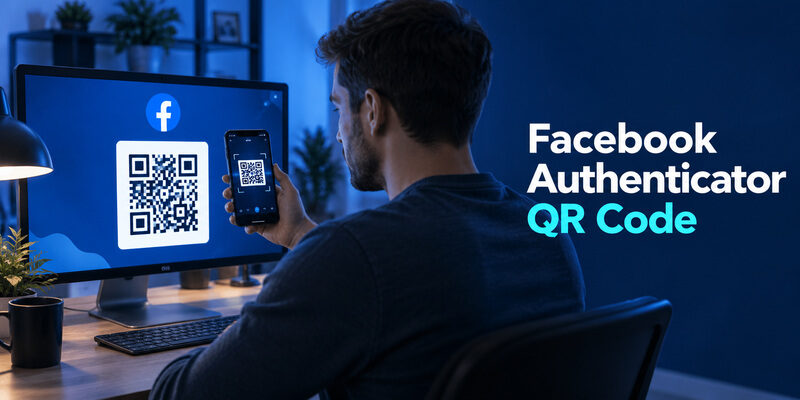
Find your Facebook authenticator QR code in the authentication-app setup flow inside Facebook’s two-factor authentication settings. The code belongs to a specific enrollment, so it must come from your signed-in account rather than an image search, a QR generator, or another person’s setup screen.
If Facebook is already asking for a login code and you cannot reach security settings, you may need an existing authenticator entry or account recovery instead of a new QR.
This guide separates those situations and explains scanning from a computer, entering a key on the same phone, checking a failed scan, and completing verification. Keep the QR and any equivalent setup key private: they contain information that can reproduce the account’s verification codes, not merely a link to your public profile.
Find the Facebook Authenticator QR Code in Setup
Open Security for the Correct Account
Start in a Facebook session you control. Open the account’s security area and locate two-factor authentication, then choose the authentication-app method offered for the intended account. Facebook’s indexed official help describes Accounts Center and Password and security; current labels can vary as Meta changes its account-management interface.
Check the selected identity before continuing. If you manage several accounts, the facebook authenticator qr code must belong to the one you intend to protect. A code generated during another account’s setup will create an entry for that other enrollment even if you rename it afterward.
Look for Enrollment, Not Ordinary Login
The setup screen provides the secret the authenticator needs. A normal login screen usually expects output from an app that was enrolled earlier. If you are at a prompt asking for a verification code, repeatedly opening a blank authenticator cannot produce the missing setup information.
Before searching for the facebook authenticator qr code again, decide whether you are enabling an app for the first time, changing a method while signed in, or recovering lost access. These are separate routes. Choose the route that matches what you can currently access, and keep any working session open while you investigate. Do not delete a useful existing token simply because a new setup screen looks different from an older tutorial.
💡 Discover Helpful Guides
Facebook Authenticator: Complete Setup, QR Code & 2FA Troubleshooting Guide
Identify the QR Before You Scan It
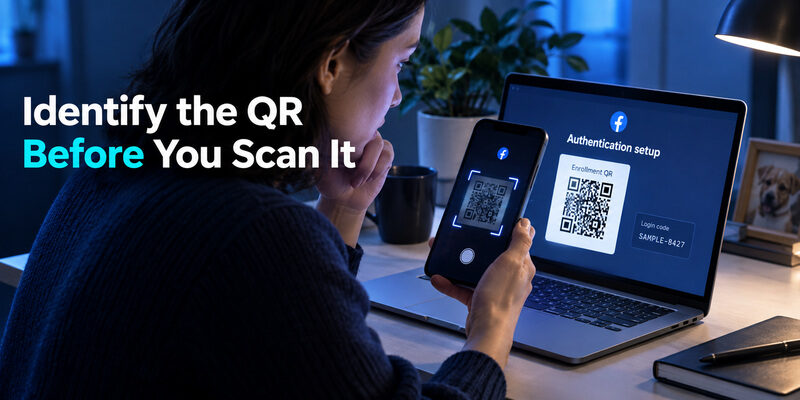
Context is especially important when a tutorial shows several QR images on one page. A store-download code might install the app, while a later account-specific code enrolls it. Scanning the first successfully does not mean the Facebook account is protected. Return to your own security session for the private enrollment step, even when the tutorial’s pictures look convincing.
Enrollment QR Versus Public Facebook QR
A QR code is a way to encode information, not a guarantee of its purpose. A code advertising a Facebook page or group can simply open a public destination. That image does not contain the secret needed to configure two-factor authentication for your personal account.
The phrase facebook authenticator barcode usually refers to the QR in authentication setup. Confirm its context: you initiated enrollment, selected the relevant account, and Facebook is asking you to add an authentication app. Do not infer the purpose from the presence of a Facebook logo beside the pattern.
Setup Secret Versus Rotating Login Code
The facebook authenticator qr code supplies enrollment information. The changing digits shown later in the authenticator are verification output. One is used to configure the app; the other is entered into a login or confirmation form. Treating them as interchangeable can send you back through setup unnecessarily.
| Item on screen | What it is for | Where it belongs |
|---|---|---|
| Authentication setup QR | Add the account secret | Authenticator’s enrollment scanner |
| Manual setup key | Alternative enrollment input | App’s setup-key field |
| Current app-generated code | Verify possession of the enrolled factor | Facebook’s requested code field |
| Public page or group QR | Open a destination | Ordinary camera or link reader |
If you cannot establish which item you have, return to the authenticated setup screen. That is a better source of certainty than decoding a downloaded image whose origin or purpose is unclear.
How to Scan the Facebook Authenticator QR Code
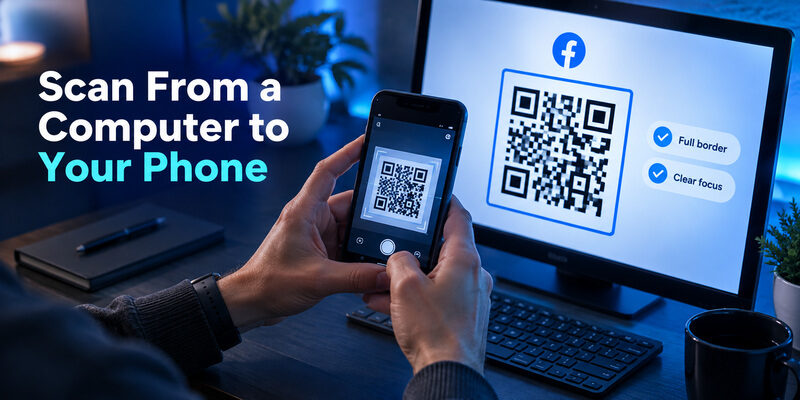
Use a stable surface for the computer so the displayed pattern stays still while the camera focuses. If the facebook authenticator qr code is very small, adjust the page view without cutting off its border. Avoid photographing the screen and scanning a compressed copy as the first solution; the original display gives the scanner a cleaner image to read.
Prepare a Readable Screen
Display the facebook authenticator qr code fully on your computer, then open the account-addition scanner inside your chosen authenticator. Keep the whole pattern visible, including its clear border. Avoid a view where a pop-up, zoom setting, or browser panel cuts off part of the image.
Hold the phone steadily at a comfortable distance and allow the camera to focus. Moving extremely close can make the pattern harder to read. If glare obscures it, adjust the screen or your position instead of repeatedly tapping the same unreadable area.
Use the Scanner Inside the Authenticator
An ordinary camera app may interpret a QR differently from an authenticator’s enrollment scanner. Use the tool designed to add an account to the authenticator you selected. If it asks for camera permission at that point, the purpose should match the scanning action you initiated.
After scanning the facebook authenticator qr code, look for the new account entry. Check its label and whether it begins generating codes. Do not close Facebook’s setup page yet: the app still needs to prove that it imported the correct secret by supplying a code Facebook accepts.
When helping someone across a video call, avoid asking them to screen-share the QR. You can explain where to tap without seeing the secret. The scan should occur privately between the account owner’s setup session and the device they intend to use for authentication.
💡 Discover Helpful Guides
Facebook Authenticator App Download: Safe Setup Guide for iPhone & Android
Use a Setup Key on the Same Phone
Switch to the Manual Entry Route When Offered
When Facebook and the authenticator are on one phone, pointing the phone’s camera at its own screen is not practical. Use the manual setup key if the enrollment flow offers one. Add it through the authenticator’s account-creation option rather than pasting it into a field intended for a six-digit login code.
The manual alternative and the facebook authenticator qr code represent the same enrollment when they are shown together by the service. You do not need a third-party QR generator to convert one into the other. Working directly with the supplied key avoids an unnecessary external copy of sensitive information.
Check Characters and Account Type Carefully
Copy the full key exactly and use the account type requested by the service and app. Watch for accidental spaces introduced by selecting text around the key. Do not substitute the current six-digit code for the longer enrollment secret just because both appear during setup.
Keep the Facebook setup screen available while you add the entry and return to verify it. If you are interrupted, check whether you resumed the same enrollment or started a different one. An entry created from an earlier facebook authenticator qr code may not match a newly generated setup.
Avoid sending the key to yourself through a chat solely to move it between apps. Use the direct input route offered on the device, and review any saved copies before you finish. Convenience should not leave the enrollment secret scattered across messages and screenshots.
Complete the Verification After Scanning
Submit a Fresh Code From the New Entry
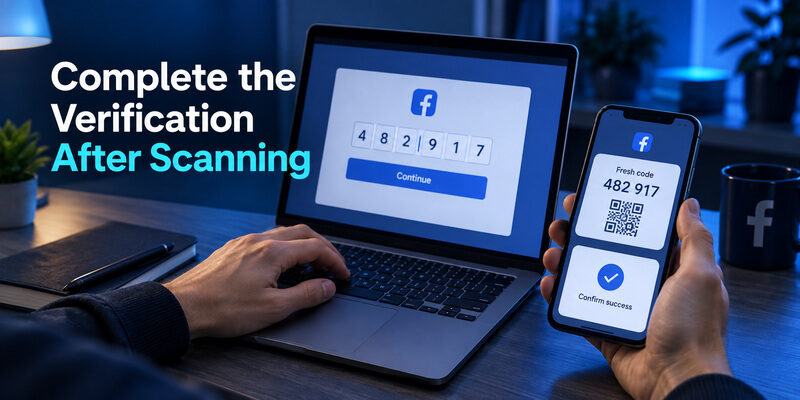
Once the entry is added, return to Facebook and enter its current verification code. Wait for an explicit success indication in the enrollment flow. A correctly rendered account card or a moving countdown is not enough: the service must accept the code generated from the secret you imported.
If the number is nearly expired, wait for the next one instead of racing. Prepare the input field before copying, and preserve any leading zero. These small actions are particularly useful when switching between apps takes several seconds.
Verify Which Entry Succeeded
If you scanned the facebook authenticator qr code more than once, the app may contain duplicates. Identify the entry used for the accepted confirmation before removing anything. Similar labels can conceal different secrets when multiple enrollment attempts were involved.
Record the account label in a way that remains recognizable later. You do not need to place private recovery information in the label. A short description distinguishing personal and other accounts can prevent future selection errors without exposing sensitive material whenever you open the app.
Successful use of a facebook authenticator qr code ends with confirmed enrollment, not with a camera animation. Keep that distinction in mind if a guide jumps directly from scanning to closing the browser. Finish the verification, review the recovery options offered by Facebook, and retain your existing session until you are satisfied that the new method is usable.
Fix a QR That Will Not Scan
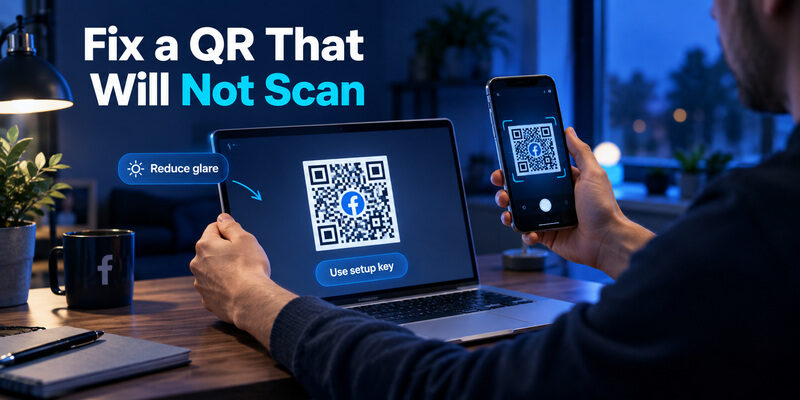
Change one variable at a time. Try a different distance, then address glare, then check the app’s scanner. If every change is made together, you may solve the scan without understanding the cause and repeat the same problem during a future transfer. Keep the current setup available while testing these simple display and permission changes.
Check the Image and Camera First
If the facebook authenticator qr code is visible but unreadable, test the display conditions before changing account settings. Show the complete image, reduce glare, let the camera focus, and make sure the authenticator has permission to use the camera. These checks address the scan without discarding the secret.
If the app reports an unsupported format, confirm that you are scanning the authentication enrollment QR rather than a public profile code, a login shortcut, or an export created by another app. The fact that two patterns are square does not mean they use the same data format.
Use Manual Entry Before Restarting Everything
Where a setup key is available, manual entry can bypass a camera problem. If that route produces a code Facebook accepts, the issue was in scanning rather than in account enrollment. Do not keep generating new QR codes after the setup has already succeeded.
| Symptom | Check | Useful next step |
|---|---|---|
| Camera cannot focus | Distance, glare, full border | Reposition phone and screen |
| Scanner does not open | App camera permission | Review the requested permission |
| Format rejected | Purpose of the QR | Return to authentication setup |
| Scan succeeds, code fails | Account, time, current enrollment | Test a fresh code from the intended entry |
If you restart enrollment, treat the newest facebook authenticator qr code as a distinct setup attempt. Keep track of which entry came from it. Repeated scans without that distinction can create a confusing list that makes a simple verification failure harder to solve.
Handle a Missing QR After Setup or Phone Loss
If You Still Have Account Access
An authenticator setup QR is not necessarily a permanent item shown on every future login. If the account is already enrolled, use the existing app entry for ordinary verification. To change the arrangement, follow the method-management options currently available in Facebook’s security settings.
Do not assume the old facebook authenticator qr code must be retrievable. You may instead have a supported app transfer, a saved setup key, or an authorized re-enrollment flow. Choose the route documented for your current app and account rather than expecting every service to preserve the original setup screen indefinitely.
If You Are Already Locked Out
When you cannot reach settings and no app entry remains, focus on recovery. Look for a previously saved recovery code, another configured method, or Facebook’s own account-recovery flow. Available choices may differ, so follow what is offered for the specific account.
A search for facebook authenticator qr cannot recreate a secret that you no longer possess. Neither a profile URL nor a screenshot of a login prompt contains the missing enrollment material. Avoid services claiming to generate a working QR from your account name.
Keep any signed-in device available while you investigate. Even when it does not allow an immediate security change, it can preserve useful context for the legitimate recovery process. Do not erase the original phone, clear all sessions, or delete remaining entries as a first response to uncertainty about where the QR is stored.
Keep the Enrollment Secret Private
Review Copies and Recordings
If the facebook authenticator qr code appeared during a recorded screen-sharing session, consider the recording and its audience when assessing exposure. Closing the live window does not remove the saved recording. Review the account’s supported replacement process privately, and verify the replacement before removing the working entry. The relevant question is who could obtain the secret, not whether the picture still appears on your own screen.
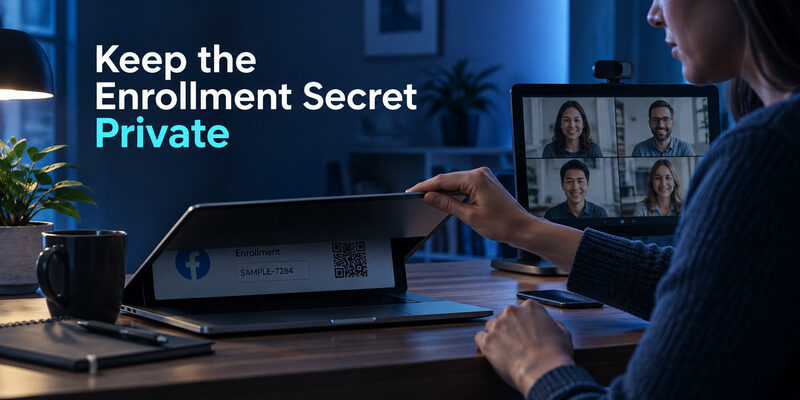
Treat a facebook authenticator qr code as sensitive even though it looks like an ordinary image. Someone who obtains the underlying secret may be able to generate corresponding codes. The printed pattern should not appear in a public tutorial screenshot, a support ticket, or a shared photo album.
If you believe the secret was exposed, use the account’s authorized security settings to replace the affected registration when you can do so safely. Deleting a screenshot from one location does not revoke copies already obtained elsewhere. Preserve a working access route while making the change, then confirm the replacement before retiring the old entry.
Get Help Without Sharing the Secret
can be evaluated as another OTP manager if your present scanner or interface is unsuitable. Check its documented setup-key or QR support for the installed version and test enrollment with Facebook. Changing software does not make an exposed secret private again; the account registration itself must be addressed.
If you need to explain a failed scan, describe the message and the stage where it occurs. You can show a cropped interface with the entire secret removed, but never assume blurring only part of the QR is sufficient. The practical goal is to get help without sharing the material used to create future codes. Keeping the facebook authenticator qr code private is part of setup, not an optional cleanup task after the account is enabled.
Final Thoughts
The guide to explains the wider enrollment sequence if you need to check what happens before and after the scan.
The facebook authenticator qr code belongs to Facebook’s authentication-app enrollment flow. Start from your own signed-in account, choose the correct identity, and use the QR or equivalent setup key directly in a compatible authenticator. A public Facebook QR, an old export, and a current login code all serve different purposes.
For a computer-to-phone setup, use the authenticator’s scanner and show the entire pattern clearly. For a same-phone setup, prefer the supplied manual-key route when available. In either case, return to Facebook and verify a fresh generated code before considering enrollment complete.
If scanning fails, distinguish a camera problem from an incorrect QR type or a verification problem. If the secret is missing after phone loss, investigate recovery or a documented transfer instead of looking for a universal generator. A new app cannot reconstruct the required enrollment data from the account’s name.
Keep the facebook authenticator qr code and any manual key private, label the successful entry clearly, and prepare recovery while access is available. These checks give you a usable result rather than simply a successful scan. When you revisit the setup later, you should know which account the entry protects, how to use its code, and what route remains if the primary device stops working.
Download Authenticator App
Secure your accounts with fast, reliable two-factor authentication. Download now and protect your login in seconds.
