
Facebook Authenticator App Download: Safe Setup Guide for iPhone & Android
Published September 15, 2026
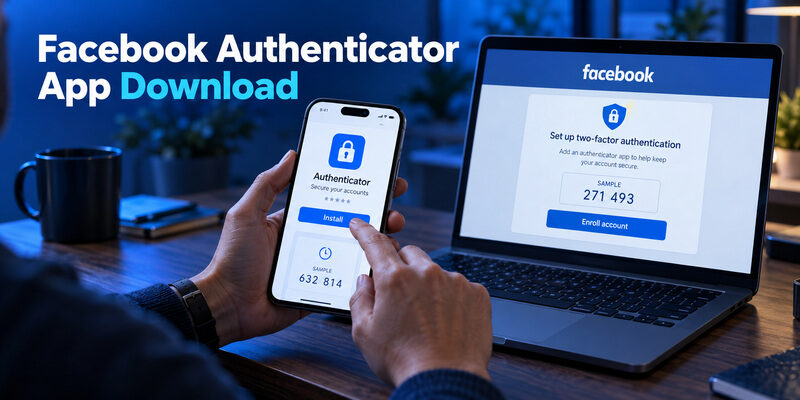
Download a compatible third-party authenticator from its verified store listing, then enroll it in Facebook’s two-factor authentication settings. Facebook’s official help describes using an authentication app made by another provider; a search result labeled Facebook authenticator is not automatically a Meta product.
A facebook gives you the software that can hold an enrolled code entry. It does not enable account protection by itself, retrieve a lost secret, or remove an existing login challenge.
Choose the app and its source first, check device compatibility, and complete Facebook’s confirmation afterward. This guide explains those decisions, compares practical app options, and helps you distinguish installation trouble from a missing-account problem so you can avoid downloading several products without solving the original task.
Compare Facebook Authenticator App Options Before Committing
There is no single authenticator app that is automatically best for every Facebook user. Google Authenticator, Microsoft Authenticator, and Authenticator App by Begamob can all be considered for compatible authentication-app enrollment, but they differ in interface, transfer options, backup approach, device protection, and the ecosystems they are designed around.
Before moving an existing Facebook registration, spend a few minutes testing the app itself. Make sure the account name is easy to recognize, codes are readable at a glance, and you understand what will happen if you replace or lose your phone.
The best facebook authenticator app download is not necessarily the one with the longest feature list. It is the one you can use accurately today and recover confidently later.
Google Authenticator: Best for a Simple, Well-Documented Default
Google Authenticator is probably the easiest default recommendation for users who want a familiar authenticator without tying themselves to Facebook or Microsoft.
Its biggest advantage is that Google now provides two distinct ways to manage authenticator codes. You can sign in with a Google Account and synchronize supported Authenticator codes across devices, or use the app without a Google Account and keep the codes locally. Google also documents a manual export/import workflow for transferring accounts between phones.
That flexibility is particularly useful if you expect to replace your phone regularly.
For example, a user who enables synchronization can sign in to the appropriate Google Account on a new device and have synchronized codes become available there. A user who prefers local storage can instead perform a manual QR-based transfer while the old phone is still available.
Google Authenticator also includes Privacy Screen, which can require device verification such as a PIN, pattern, or biometric prompt before the app opens.
For Facebook users, the experience is straightforward: obtain the enrollment QR or setup information from Facebook, add it to Google Authenticator, and submit the generated code back to Facebook.
Where Google Authenticator stands out: its recovery and transfer choices are clearly documented, and the interface is focused primarily on authenticator codes rather than a broader identity-management ecosystem.
The main trade-off is that synchronization introduces another account that must itself remain recoverable. If your codes are synced through a Google Account, protecting and maintaining access to that account becomes part of your overall recovery plan. Google also notes that deleting a synchronized authenticator entry can remove it from the other devices where those codes are synchronized.
Best for: users who want a straightforward authenticator with optional account sync, manual transfer, and clear documentation.
Microsoft Authenticator: Best for Users Already in the Microsoft Ecosystem
Microsoft Authenticator is a broader authentication product.
Microsoft officially documents support for non-Microsoft accounts, including Facebook, Google, Amazon, and Instagram, using QR-based two-step verification. Its support documentation specifically provides a Facebook enrollment workflow.
That makes it a practical choice if you already use Microsoft Authenticator for Microsoft accounts, work accounts, or other services and would rather keep your Facebook TOTP entry in the same application.
The distinction is important, however: Facebook does not receive the same Microsoft-specific capabilities that Microsoft accounts may receive.
Features such as passwordless Microsoft sign-in and certain push-approval workflows belong to Microsoft’s own identity ecosystem. Microsoft states that push notifications do not work for third-party accounts such as Facebook and Google. For Facebook, Microsoft Authenticator essentially acts as the code generator associated with the QR enrollment you configure through Facebook.
This means Microsoft Authenticator can be feature-rich overall while the Facebook experience itself remains relatively simple.
For someone already managing work, Microsoft, and third-party OTP accounts inside the same app, that is often an advantage rather than a problem. You do not need a separate authenticator just for Facebook.
On the other hand, users who only want a lightweight app for a few TOTP codes may find some of Microsoft’s broader account terminology unnecessary.
Best for: users who already rely on Microsoft Authenticator and want to add Facebook alongside their other accounts.
Authenticator App by Begamob: Best for Users Who Want a Different OTP Experience
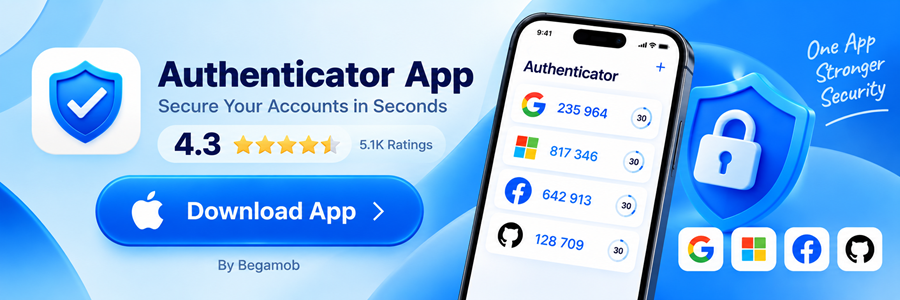
Authenticator App by Begamob is another option for users who want to manage Facebook and other compatible OTP/2FA accounts through a dedicated authenticator interface.
Begamob’s official product information describes support for generating OTP and 2FA codes for services including Facebook, Google, Microsoft, GitHub, and other compatible online accounts. The service also highlights biometric access protection, synchronization and backup, and multi-device support.
For Facebook, the enrollment principle remains exactly the same as with Google or Microsoft Authenticator.
Facebook generates the private enrollment information. You add that enrollment to Authenticator App by Begamob, then return to Facebook and submit a fresh generated code. Using Begamob does not change Facebook’s security requirements or bypass its verification process.
Where Begamob differentiates itself is mainly in the user experience surrounding those codes.
The official site emphasizes an intuitive interface, biometric protection through options such as Face ID or Touch ID on supported Apple devices, encrypted backup, and access across multiple supported devices.
That can be particularly useful for people who manage many 2FA accounts and care about how quickly they can recognize and access the correct entry.
Instead of viewing Begamob simply as “another code generator,” it makes more sense to evaluate it around three practical questions:
Does its interface make your accounts easier to organize? Does its device-protection model fit the devices you use? And do you understand how its backup and recovery workflow operates before you depend on it for an important Facebook account?
Begamob’s current App Store listing identifies BEGAMOB GLOBAL LIMITED as the developer and describes the app as a standards-based TOTP authenticator with in-app purchases.
That last point matters when comparing downloads: users should evaluate not only functionality but also pricing and subscription expectations. Google Authenticator and Microsoft Authenticator may be the simpler starting point for users whose primary concern is obtaining a basic authenticator without evaluating premium functionality, while Begamob may appeal more to users who value its interface and additional app-management features.
Best for: users who want an alternative OTP-focused interface, biometric access controls, and additional backup or multi-device options and are comfortable reviewing the app’s available free and premium features.
Google Authenticator vs Microsoft Authenticator vs Begamob
| Factor | Google Authenticator | Microsoft Authenticator | Authenticator App by Begamob |
|---|---|---|---|
| Facebook TOTP use | Suitable for compatible Facebook enrollment | Microsoft explicitly documents Facebook support | Designed for compatible OTP/2FA services including Facebook |
| Main strength | Simple authentication plus flexible transfer options | Combines Microsoft and third-party accounts | Alternative OTP-focused interface and account-management experience |
| Account sync / backup | Optional Google Account synchronization plus manual transfer | Recovery behavior depends on account and platform configuration | Begamob describes encrypted backup and sync |
| Manual transfer | Documented export/import workflow | Follow Microsoft’s supported backup/recovery process | Check the workflow available in the installed version |
| Local app protection | Privacy Screen using device verification | Device and app security features vary by platform/account | Biometric protection is highlighted by Begamob |
| Multi-service use | Yes | Yes | Yes |
| Best ecosystem fit | Google/general-purpose users | Microsoft users and organizations | Users wanting an alternative dedicated authenticator experience |
| Learning curve | Low | Moderate because several account types coexist | Designed around a straightforward OTP interface |
| Cost consideration | Basic authenticator use without a paid subscription | Basic authenticator use without a paid subscription | Free download with optional in-app purchases |
| Best for | Most users wanting a simple default | Existing Microsoft Authenticator users | Users prioritizing interface, biometric access, and additional management options |
Which One Should You Download for Facebook?
For most users who simply need a reliable facebook authenticator app download, Google Authenticator is the easiest general-purpose starting point. Its optional sync, local-only mode, manual transfer process, and Privacy Screen are well documented.
Microsoft Authenticator makes more sense if you already use Microsoft’s ecosystem. It can keep Facebook alongside Microsoft and other third-party accounts, but you should remember that Microsoft’s passwordless and push-approval features do not automatically extend to Facebook.
Authenticator App by Begamob is worth considering if you want a different OTP management experience, particularly if interface organization, biometric access, backup, or supported multi-device use matter to you.
There is also no SEO-friendly reason to pretend one of these products is universally superior.
A user with five codes who wants the simplest possible setup may prefer Google Authenticator. Someone who already manages Microsoft work and personal accounts may reasonably stay with Microsoft Authenticator. A person who manages many OTP accounts and prefers Begamob’s interface and protection features may find Authenticator App by Begamob more convenient.
The important factor is recoverability.
Before moving a live Facebook registration, understand how the selected app handles device replacement, synchronization, backup, or export. Keep the current working authenticator available until Facebook accepts a code from the new setup.
Switching applications merely because another product has more features can create more risk than value if the original registration is deleted before the replacement is verified.
For that reason, choose the authenticator that fits your normal routine, confirm the enrollment with Facebook, and make sure you know how you would recover access before considering the facebook authenticator app download process complete.
Choose a Verified Facebook Authenticator App Download
Keep the product’s name and developer together when comparing results. Two listings can have similar titles but different publishers, supported features, and recovery arrangements. Inspect the actual listing before installing.
Identify the Product and Its Developer
Start with the authenticator provider’s own site or the store listing reached through that provider’s official navigation. Read the developer information and product description. A familiar icon, a high search position, or Facebook in the title does not establish who created the software.
For a download, the relevant capability is support for the authentication-app enrollment offered by Facebook. Do not choose a generic QR reader, a password-reset utility, or an app promising to recover an account from a username. Those are different claims and do not replace a valid authenticator registration.
Keep the Download Separate From Facebook Credentials
You should not have to send your Facebook password or an existing verification code to a stranger to obtain the app. Installation through a store may involve your store account, but that is separate from Facebook’s later security setup. Read each prompt in its actual context.
| Result you find | What to verify | Appropriate use |
|---|---|---|
| Official authenticator listing | Developer and supported features | Install the chosen product |
| Public QR reader | Whether it supports authentication enrollment | Do not assume it generates login codes |
| Account-unlock service | Unsupported recovery claims | Use Facebook’s legitimate recovery instead |
Treat a facebook authenticator app download as a source-verification decision before it becomes a setup decision. This short pause helps prevent confusion between obtaining legitimate software and giving someone access to an account you intended to protect.
Check the Device You Will Actually Use
Review iPhone Compatibility
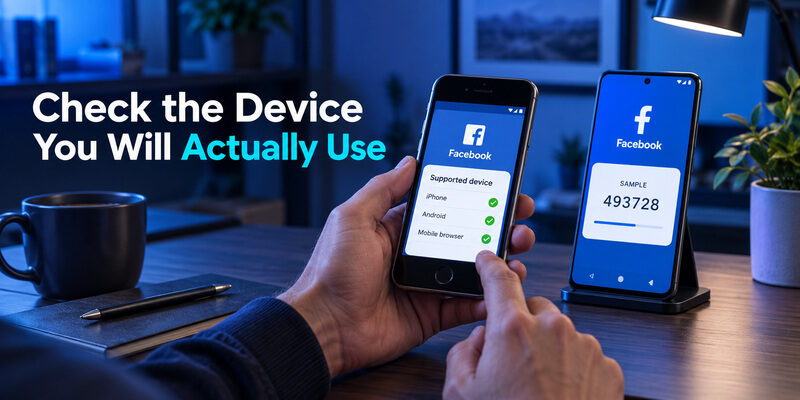
On iPhone, read the current listing’s supported devices and operating-system requirements. Do not assume an app runs on every Apple device because its description mentions iOS. The device you use daily should be able to open the app reliably and receive supported updates.
Before completing a facebook authenticator app download on an older phone, check the store’s compatibility message. If the current version is unsupported, an old screenshot or article cannot override that limit. Choose a supported route rather than relying on an unexplained installation workaround.
Review Android Compatibility
On Android, use the verified listing or official route for the selected product and inspect any device requirements. Avoid treating a redistributed APK as equivalent to the provider’s own installation channel. Source, update path, and device support all matter when the software will hold account secrets.
Check that the phone is one you control and expect to keep available. A borrowed device may be useful for reading instructions, but it is a poor permanent location for a private Facebook token. If you are setting up someone else’s phone, let the account owner handle the sensitive enrollment themselves.
The best time to resolve these questions is before a facebook authenticator app download is linked to a live account. A supported installation on the right device is easier to maintain than a hurried setup whose compatibility or ownership becomes a problem during the next login.
💡 Discover Helpful Guides
Facebook Authenticator: Complete Setup, QR Code & 2FA Troubleshooting Guide
Install the App and Recognize the Empty Starting State
Install the selected product through its verified route and open it. An empty list of accounts is normal before enrollment. The authenticator does not know your Facebook secret merely because Facebook is already installed on the phone or because you use the same email address in both places.
A facebook authenticator app download may include an onboarding flow about device protection, synchronization, or optional product features. Read those choices individually. Creating an account with the authenticator provider is not the same as registering Facebook as a protected service, and a synchronization choice can affect how entries are restored later.
Do not scan a QR from an unrelated tutorial to populate the empty list. The required enrollment information must come from your own Facebook security flow. A sample code in a help article may explain the interface but cannot protect your account.
If you already use another authenticator and are switching products, preserve the existing entry until the new arrangement is verified. A fresh installation does not automatically import its secrets. Identify whether you will use a supported transfer or an authorized method change through Facebook before removing anything.
The installation phase of a facebook authenticator app download ends when the chosen app opens correctly on the intended device. Account enrollment is the next phase. Keeping those milestones separate helps you recognize progress and avoids reinstalling software that is functioning normally simply because its account list is still empty.
Enroll Facebook After the Download
Open the Authentication-App Setup
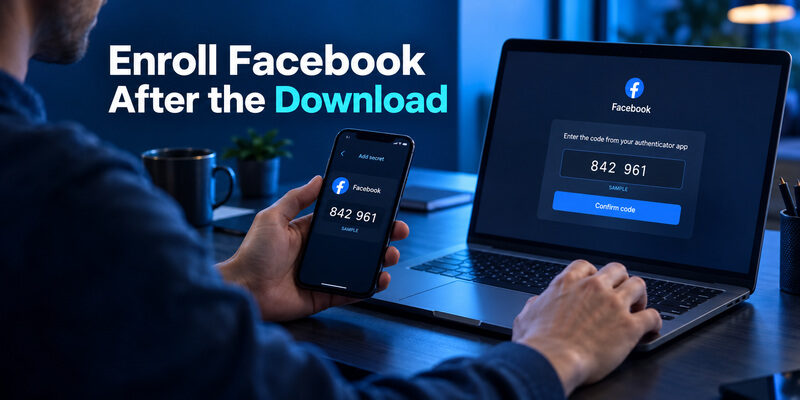
From a Facebook session you control, locate the account-security area and its two-factor authentication settings. Indexed Facebook Help Center instructions refer to Accounts Center and Password and security, though some account interfaces use different labels. Select the correct Facebook identity and the authentication-app method offered there.
The account supplies the enrollment QR or setup key. Use that information in the authenticator’s add-account flow. If you have a computer and phone, scan the QR from the other screen. If you are using one phone, enter the manual key when that route is offered.
Confirm a Code With Facebook
Return to Facebook and submit a fresh generated code from the new entry. Wait for confirmation before closing the setup. A facebook authenticator app download becomes a usable Facebook factor only after the service accepts the enrollment, not merely when a timer appears in the app.
Keep the setup key and QR private. They are sensitive material that can reproduce codes, so avoid sending them through chat or uploading them to an online decoder. If the entry cannot be added, investigate the scanner or key input before restarting the whole account setup.
After confirmation, review recovery options and clearly label the successful entry. These steps connect the facebook authenticator app download to a complete account workflow: verified software, the right secret, an accepted code, and a way to handle device loss. Skipping the last two steps leaves important uncertainty even when installation itself went smoothly.
Review Permissions and Backup Choices
Match Permissions to the Feature You Use
Camera permission has a clear purpose when you choose to scan an enrollment QR. A device-lock or biometric prompt can protect access to the app when supported. Evaluate each request against the action you initiated rather than granting broad permissions automatically during onboarding.
If a facebook authenticator app download leads to a request for unrelated remote access or a demand to reveal an existing secret to another person, stop and verify the source. The software’s role is to manage enrolled codes, not to give an unknown helper control of your account.
Understand What a Backup Choice Stores
Check the selected app’s current documentation for synchronization, export, and recovery. Products differ, and a phone’s general backup service does not establish exactly what an authenticator will restore. Find out what account or file you would need on a replacement device.
Keep recovery access independent enough to survive loss of the primary phone. If the backup account requires a code available only in the app you are trying to restore, you may have a circular dependency. Resolve that privately while your devices and account access are available.
Before treating a facebook authenticator app download as finished, review where the entry’s recovery material will live. A quick installation can be useful, but the long-term value depends on your ability to keep and restore the registration, not simply on how fast the first account card appears.
Know the Offline Limits
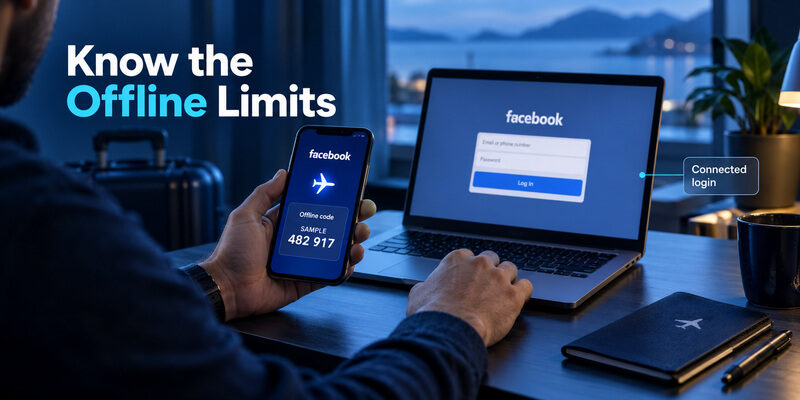
An enrolled time-based authenticator generates codes from its stored secret and the device’s clock. Google’s official Authenticator guidance describes generating codes without internet or mobile service. That can be useful when the phone holding the authenticator is offline, but it does not make Facebook itself available without a connection.
For a facebook authenticator app download intended for travel, separate these two devices and actions. Your phone may generate the code offline while a connected laptop submits it to Facebook. The account session still needs to communicate with the service, and synchronization or restoration may have their own connection requirements.
An offline code also needs an accurate clock and a current registration. If the phone’s time is wrong or the entry was replaced on Facebook, the app can display numbers that are rejected. Offline generation is a capability, not evidence that every visible entry remains valid.
Do not confuse a notification-based approval with an offline app code. Different authentication methods use different interactions, even when one application supports several methods. Read what Facebook is requesting and use the enrolled method that matches it.
The useful expectation after a facebook authenticator app download is specific: a properly enrolled code entry can support the relevant verification flow. It cannot restore a missing secret, load Facebook without connectivity, or remove a service-side account restriction. Understanding those limits prevents the download from being treated as a solution to unrelated access problems.
Resolve an Empty List or Rejected Code
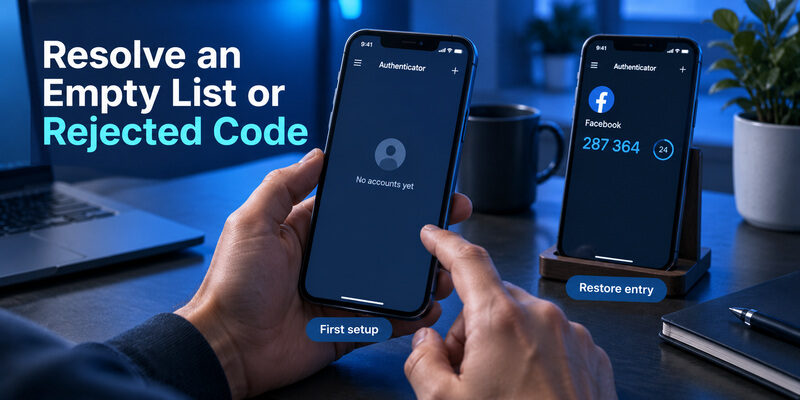
Empty List After a New Installation
If this is your first setup, add the secret from Facebook’s authenticated enrollment flow. If this is a replacement phone, investigate the original app’s supported restore or transfer process. Another facebook authenticator app download does not supply information that was never saved or transferred.
Entry Present but Code Rejected
Check the account label, use a fresh value, and verify the phone’s clock. If the entry came from an earlier registration, it may no longer match Facebook’s current method. Keep potentially useful entries while you determine which setup was confirmed.
For a facebook authenticator app download made during an existing lockout, use the account’s offered recovery options rather than trying to generate a new token from the username. A saved recovery code, another configured method, or the service’s recovery process may be relevant. The available route depends on what was prepared and what the account currently offers.
Avoid asking an unknown person to complete the setup remotely with your credentials. You can describe the error and the stage at which it occurs without revealing a secret, a live code, or unused recovery material. If access returns, review why the entry was missing or rejected before changing products. A more understandable setup and a tested recovery route can address the cause more effectively than another installation of the same software.
Download Questions Worth Checking
Check these distinctions before installation.
Do I Need an App Published by Facebook?
No. Facebook’s official guidance describes using a third-party authentication app. Verify the actual developer and compatibility of the product you choose. Facebook in an app’s title does not establish Meta ownership or prove that it can restore a lost account.
Will the Download Automatically Enable Two-Factor Authentication?
No. After a facebook authenticator app download, you still need to add the account’s enrollment information and confirm a code with Facebook. An empty list is normal before setup, and a visible token is not sufficient unless the service accepted enrollment.
Can I Use an App I Already Installed?
Yes, if it supports the authentication-app method offered by Facebook. Check its documentation and add Facebook as a separate entry. You do not need a different app for every service, but each protected account needs its own valid enrollment information.
Does Reinstalling Bring Back Lost Codes?
No, not by itself. Restoration depends on a supported backup, synchronization, transfer, or saved secret. If none is available, use Facebook’s legitimate recovery options. Reinstallation can remove local data, so preserve a working entry while investigating.
Should I Pay for an App to Unlock Facebook?
No app purchase can guarantee that outcome. A product may charge for its features, but account recovery remains governed by Facebook and the methods available to your account. Evaluate software for supported code management rather than promises to remove verification requirements.
Final Thoughts
Keep the verified installation source available for future updates and device changes.
A facebook authenticator app download should start with a verified product source and end with confirmed account enrollment. Install the chosen app on a supported device, add the secret supplied by your own Facebook security flow, and submit a fresh code before relying on the method.
Compare apps around concrete needs: readable entries, supported devices, and a recovery route you can actually use. Google Authenticator, , and Authenticator App offer options to evaluate, but their backup behavior and account features should not be assumed identical. Keep an existing working setup while testing a replacement.
If the app opens to an empty list, distinguish first-time enrollment from restoration after a phone change. If codes are rejected, check the current entry and timing before deleting data. A new download cannot recreate an unavailable secret or remove Facebook’s service-side checks.
Finish the facebook authenticator app download workflow by saving recovery material privately and confirming how you would use it without the primary phone. Those steps make the result useful beyond the first login. The goal is not to collect authenticator apps; it is to maintain one clear, verified arrangement for accessing the right Facebook account when the expected verification is requested.
Download Authenticator App
Secure your accounts with fast, reliable two-factor authentication. Download now and protect your login in seconds.
