
Facebook Authenticator: Complete Setup, QR Code & 2FA Troubleshooting Guide
Published August 10, 2026 · Updated September 16, 2026
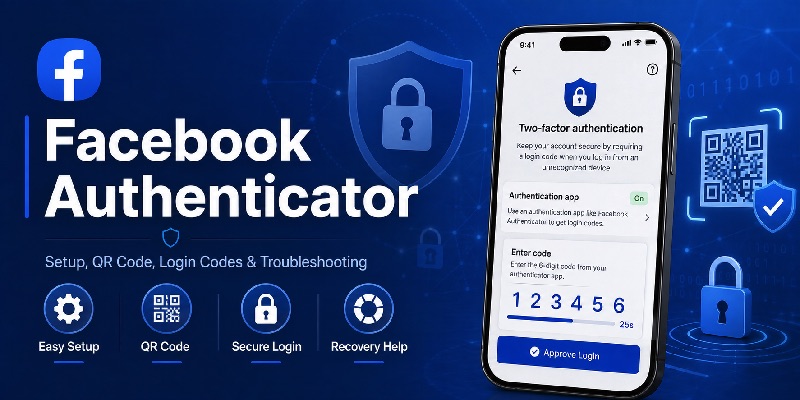
Protecting a Facebook account involves more than choosing a difficult password. If someone obtains or guesses your password, an additional authentication method can make it harder for that person to complete the login. This is where facebook authenticator becomes useful.
There is one important point to understand before you start: Facebook does not currently require a separate official application called “Facebook Authenticator.” Instead, Meta lets Facebook users connect a compatible third-party authentication app to their account. The authentication application generates security codes that Facebook can request when a login needs additional verification. Meta specifically lists a third-party authentication app as one of its supported two-factor authentication methods.
That means people searching for facebook authenticator app, facebook authenticator app download, or what is facebook authenticator app are usually looking for instructions on how to connect an authenticator such as Google Authenticator, Duo Mobile, Microsoft Authenticator, or another compatible application to Facebook.
Once configured, facebook authenticator becomes part of Facebook’s two-factor authentication process. After entering the correct account password, Facebook can ask you for a security code generated by your authentication application. Meta also supports other security methods, including SMS codes and compatible security keys.
The setup itself is relatively simple, but problems often arise later. Users may lose their old phone, delete the authentication application, scan the wrong QR code, enter an expired code, or find that facebook authenticator codes are suddenly rejected.
This guide explains the full process, including setup, QR codes, login codes, recovery options, changing phones, and troubleshooting.
1. What Is Facebook Authenticator?
Facebook uses third-party authentication apps
If you are searching what is facebook authenticator app, the most important thing to know is that “Facebook Authenticator” is not currently the name of a dedicated authentication application published by Meta for normal Facebook 2FA.
Facebook instead supports third-party authentication applications.
Meta explains that an authentication app can generate login codes that help Facebook confirm your identity when you log in.
In practical terms, facebook authenticator describes the connection between your Facebook account and whichever compatible authenticator you have chosen.
The process normally works like this:
- You enable two-factor authentication in Facebook.
- You choose Authentication app as the security method.
- Facebook provides setup information.
- You add that information to your authentication application.
- The app begins generating security codes.
- Facebook asks for one of those codes when additional verification is required.
Once this relationship has been established, your facebook authenticator app and Facebook both know the information needed to verify the temporary login code.
Why use Facebook Authenticator?
Two-factor authentication adds another security step after your password.
Meta states that when 2FA is enabled, Facebook can ask for a security code or confirmation when someone attempts to log in from a browser or mobile device that Facebook does not recognize.
This means a password by itself may not be sufficient to complete the sign-in.
A facebook authenticator is therefore useful because possession of the registered authentication method becomes another part of the login process.
It is especially worth considering if your Facebook account:
- Manages Pages.
- Has advertising access.
- Contains years of personal data.
- Is connected to business assets.
- Uses Messenger extensively.
- Is connected to other Meta accounts.
However, facebook authenticator is most effective when you also prepare account-recovery methods in advance.
💡 Discover Helpful Guides: Facebook Authenticator App Download: Safe Setup Guide for iPhone & Android
2. Does Facebook Have Its Own Authenticator App?
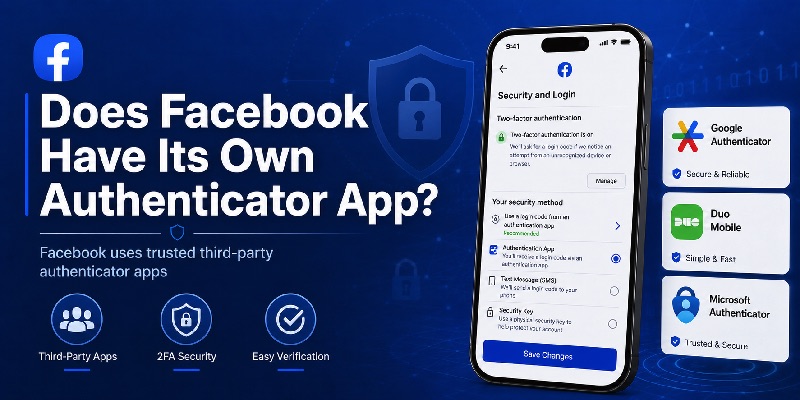
There is no separate Facebook Authenticator download
A common misconception is that users should search an app store for a dedicated facebook authenticator app.
Meta’s current instructions say to install a third-party authentication app and connect that application to Facebook.
Therefore, when completing a facebook authenticator app download, you should choose a reputable compatible authentication application rather than searching for an unofficial application that happens to call itself “Facebook Authenticator.”
Examples referenced in Meta’s own Help Center include applications such as Google Authenticator and Duo Mobile. When troubleshooting a lost authentication method, Meta also mentions setting up another authentication application.
Other compatible TOTP applications may also work.
Why does Facebook use third-party apps?
This approach is common across online services.
Rather than requiring one authenticator application for every website, a single Authenticator App can hold authentication entries for multiple services.
For example, the same authentication application may contain entries for:
- Cloud storage
- Gaming services
- Social media
- Developer platforms
Each account remains a separate entry.
Your facebook authenticator code is therefore not automatically the same as a code for another account, even when both codes appear inside the same application.
Avoid unofficial “Facebook Authenticator” applications
If you search an app store for facebook authenticator, multiple unrelated applications may appear.
Do not assume that an application is published by Meta because “Facebook” or “authenticator” appears in its title or description.
Instead:
- Begin from Facebook’s 2FA settings.
- Choose Authentication app.
- Use a reputable authenticator.
- Verify the authenticator’s developer.
- Scan the setup information supplied by Facebook itself.
This reduces the chance of giving sensitive authentication information to an unknown application.
📘 Find the Right Guide: Facebook Authenticator QR Code: Where to Find, Scan, and Fix It
3. How Facebook Authenticator and 2FA Work
Facebook offers multiple security methods
Facebook currently supports three major methods when configuring two-factor authentication:
- A compatible security key.
- Login codes from a third-party authentication application.
- SMS security codes.
Choosing an authentication application creates the facebook authenticator workflow covered in this guide.
Once enabled, Facebook can request a security code when a login is coming from a device or browser that is not already recognized or when another security check is required.
What happens during login?
Imagine that you have already enabled facebook authenticator.
You open Facebook on a new browser and enter your email address and password.
Instead of opening the account immediately, Facebook may ask for an authentication code.
You then:
- Open your authenticator application.
- Find the Facebook entry.
- Read the current code.
- Enter that code on Facebook.
- Submit it before it expires.
Facebook verifies the code and allows the login when authentication succeeds.
Meta confirms that security codes from a third-party app associated with your Facebook account can be used for two-factor authentication login.
Trusted devices can reduce repeated code requests
After successfully authenticating a device, Facebook can offer to remember or save that browser or device.
Meta notes that a saved browser may not require a security code every time you return. Meta also warns users not to save a browser when using a public computer that other people can access.
This means facebook authenticator may appear more frequently on a new device than on your personal phone or computer.
Do not automatically interpret the absence of a code request as evidence that 2FA has stopped working.
📖 Read More Guides: Facebook Authenticator Code Not Working: Causes and Fixes
4. Facebook Authenticator App Download: What Should You Install?
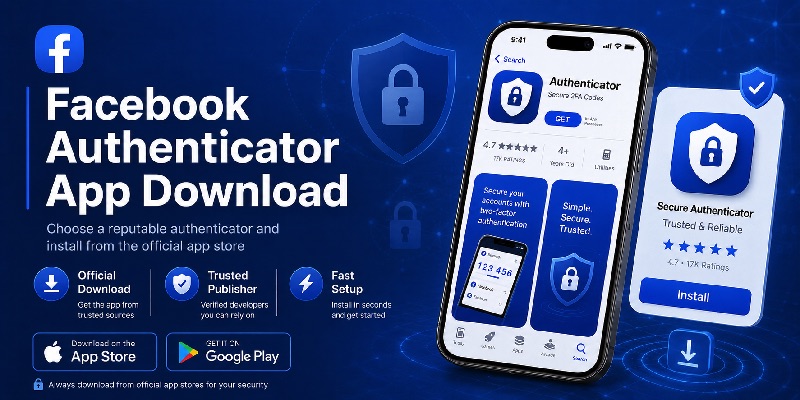
You need a compatible third-party app
For a facebook authenticator app download, choose an established authentication application that supports Facebook’s authentication setup.
Meta’s Help Center specifically refers to third-party authentication apps and gives examples such as Google Authenticator and Duo Mobile.
The installation process generally looks like this:
- Open your phone’s official app store.
- Search for your chosen authenticator.
- Verify the developer.
- Install the app.
- Open Facebook.
- Begin 2FA setup.
- Connect Facebook to the authenticator.
The facebook authenticator relationship does not exist until you complete the setup inside Facebook.
Simply downloading an authentication application does not protect your Facebook account.
Android users
On Android, install your selected authenticator through a trusted distribution source, normally Google Play.
Once installed, leave the app available and open Facebook’s security settings.
You will later use the authenticator to scan or enter Facebook’s setup information.
Avoid downloading modified authentication APKs from unknown sites. Your facebook authenticator contains credentials that can participate in account access, so the source of the software matters.
iPhone users
On iPhone, use Apple’s App Store to obtain the authenticator required for your setup.
Modern iPhones also offer built-in verification-code functionality through Apple’s password-management system for compatible TOTP services, although Facebook’s Help Center specifically describes using a third-party authentication app for its authentication-app option.
If your goal is the simplest Meta-documented workflow, use a recognized compatible authentication application.
After your facebook authenticator app download, return to Facebook and complete enrollment rather than expecting the app to automatically find your Facebook account.
5. How to Set Up Facebook Authenticator Step by Step
Open Facebook’s two-factor authentication settings
For users searching how to set up facebook authenticator, Facebook currently places two-factor authentication inside Accounts Center.
On the Facebook desktop experience, Meta’s documented route is generally:
- Open your profile menu.
- Choose Settings & privacy.
- Open Settings.
- Open Accounts Center.
- Select Password and security.
- Choose Two-factor authentication.
- Select the Facebook account you want to protect.
- Choose the authentication method.
- Select Authentication app.
- Follow Facebook’s setup instructions.
The exact interface can vary somewhat between desktop, Android, iPhone, Facebook Lite, and different Accounts Center versions.
Connect the authentication app
Once Authentication app is selected, Facebook provides the information needed to connect your authenticator.
Open your chosen authentication application and select its option for adding an account.
Depending on the app, you may see:
- Scan QR code.
- Add account.
- Enter setup key.
- Add authentication code.
Use the information supplied by Facebook.
Once linked, the new facebook authenticator entry should begin generating codes.
Confirm the initial code
Facebook will normally ask you to provide a code generated by the authentication application to confirm that setup succeeded.
Open the facebook authenticator entry, read the current code, and enter it into Facebook.
Do not close the setup flow until Facebook confirms that two-factor authentication is active.
After setup, it is a good idea to log out and perform a controlled test on a device you can recover easily.
This verifies that you know:
- Where the Facebook entry is located.
- How to read the code.
- How the login process appears.
- What recovery methods are available.
Download Authenticator App
Secure your accounts with fast, reliable two-factor authentication. Download now and protect your login in seconds.
💡 Discover Helpful Guides: How to Set Up Facebook Authenticator: Step-by-Step 2FA Guide
6. How to Find and Scan the Facebook Authenticator QR Code
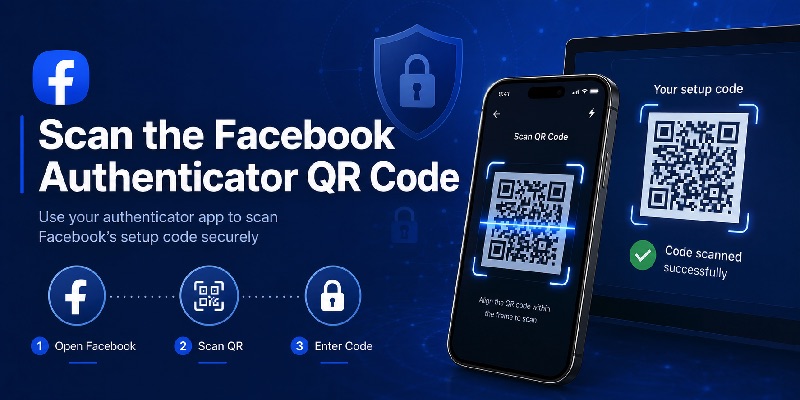
Where does the QR code come from?
The facebook authenticator qr code should come from Facebook’s own two-factor authentication setup process.
Do not search Google Images or another website for a generic Facebook QR code.
Authentication setup information is linked to your account.
To reach the setup flow:
- Open Facebook Settings.
- Go to Accounts Center.
- Select Password and security.
- Choose Two-factor authentication.
- Select your Facebook account.
- Choose Authentication app.
- Continue through the setup instructions.
When the appropriate setup information appears, use your authentication application’s scanner.
Scan from another screen
The easiest way to use a facebook authenticator qr code is often to display Facebook’s setup page on a computer while using your phone as the authentication device.
On the phone:
- Open the authenticator.
- Select Add account.
- Choose Scan QR code.
- Point the camera at the Facebook QR code.
- Wait for the Facebook entry to appear.
- Enter the generated code back into Facebook.
Your phone may ask for camera permission before scanning.
Treat the QR code as sensitive
An authentication setup QR code should not be treated like an ordinary promotional QR code.
Do not publish screenshots of your facebook authenticator enrollment screen.
Do not send the QR setup information to strangers or people claiming they need it to “verify” your Facebook account.
The safest practice is to generate the setup information directly inside Facebook and scan it immediately with the authenticator you control.
7. How to Use Facebook Authenticator Codes to Log In
Enter the generated security code
After facebook authenticator has been activated, Facebook can request a security code during certain sign-ins.
Meta lists a security code from a third-party authentication application associated with your Facebook account as one supported way to complete two-factor authentication.
When Facebook requests one:
- Keep the Facebook login page open.
- Open your authenticator application.
- Select Facebook.
- Read the current security code.
- Return to Facebook.
- Enter the code.
- Submit the login.
Make sure you are using the Facebook entry if your authenticator contains several accounts.
Other ways Facebook can verify a login
Your facebook authenticator is not necessarily your only possible verification method.
Meta states that Facebook may also support:
- SMS security codes.
- A security key.
- Approval from a device Facebook already recognizes.
- Recovery codes.
Which options appear depends on what you configured before losing access.
This is why recovery planning should happen immediately after facebook authenticator setup rather than after the phone is lost.
🗺️ Browse How-To Guides: What Is Facebook Authenticator App? A Clear Guide
8. Facebook Authenticator Code Not Working: Common Causes
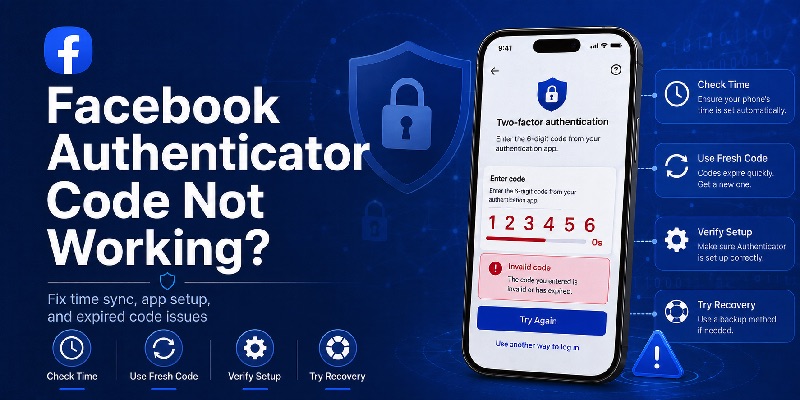
First confirm you are using the right code
For facebook authenticator code not working, start with the simplest possibility.
If your authenticator contains multiple entries, verify that the code you copied belongs to Facebook.
It is surprisingly easy to copy a code from another social account, email address, or cloud service.
Wait for the current code to refresh if necessary and try again.
Do not enter old screenshots of previous facebook authenticator codes.
Check your phone’s time
Most authentication applications rely on time-based verification codes.
If the device’s clock is significantly incorrect, the authentication code and Facebook’s expected value may not match.
Enable automatic date and time on your phone, restart the authentication application, wait for a new code, and retry.
Avoid immediately deleting the facebook authenticator entry because re-enrollment may be harder if you are already locked out.
Did you replace your phone?
A facebook authenticator code not working problem often appears after a phone migration.
Installing the same authentication application on another phone does not always automatically recreate the Facebook authentication secret.
Whether the account transfers depends on the authenticator application’s own synchronization or migration system.
If the Facebook entry was not properly transferred, the new app may not have the credential Facebook expects.
If you can still access Facebook from another recognized device, Meta says you can add another authentication app after regaining account access.
Facebook still rejects the code
If the code remains unusable, try a legitimate alternative method rather than repeatedly guessing.
Meta’s troubleshooting guidance says users may be able to:
- Approve the login from another device or browser where they are already signed in.
- Use previously saved recovery codes.
- Add a different authentication application once access is restored.
- Use Facebook’s identity-confirmation process if normal alternatives fail.
If you cannot log in, Facebook’s documented troubleshooting route includes choosing Need another way to authenticate?, selecting Other Options, and then using Get more help when available.
9. How to Recover Facebook When You Lose Your Authenticator
Check another logged-in device first
Losing access to facebook authenticator does not always mean losing the Facebook account.
If Facebook is still open on another phone, tablet, browser, or computer, do not immediately log out.
Meta states that an already recognized device may allow you to approve another login.
Once safely inside the account, review:
Accounts Center → Password and security → Two-factor authentication.
You may be able to register a different authentication application or another security method.
Use recovery codes
If you generated recovery codes earlier, one of them can replace your normal facebook authenticator code during login.
Facebook currently allows users with 2FA enabled to obtain 10 recovery login codes. Each recovery code can be used once.
This is one of the best reasons to save recovery codes immediately after enabling authentication.
Use Facebook’s recovery process
If you have:
- No authenticator access.
- No usable recovery code.
- No recognized logged-in device.
- No working alternative method,
use Facebook’s official recovery flow.
Meta instructs users who cannot complete two-factor authentication to continue the sign-in process, choose the alternative authentication/help options presented, and follow the identity-confirmation instructions.
Do not pay strangers who claim they can bypass facebook authenticator or remove Facebook 2FA.
Use Meta’s official account recovery process.
10. How to Generate and Save Facebook Recovery Codes
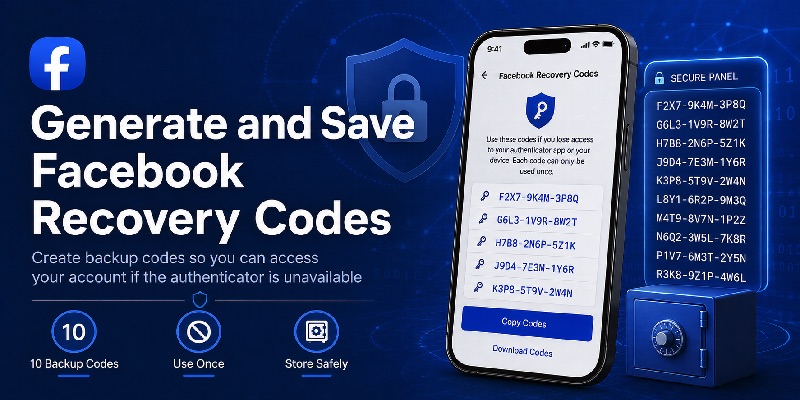
Facebook gives you 10 recovery codes
Facebook’s recovery-code feature is one of the most important companion tools for facebook authenticator.
Meta says users who have enabled two-factor authentication can generate 10 recovery login codes for situations in which their phone is unavailable. Each one can be used only once.
On Facebook’s desktop interface, Meta currently documents a route similar to:
- Open your profile menu.
- Choose Settings & privacy.
- Open Settings.
- Open Accounts Center.
- Choose Password and security.
- Select Two-factor authentication.
- Select your Facebook account.
- Find Additional methods.
- Choose Recovery codes.
- Select Get new codes.
Where should recovery codes be stored?
Do not store your only recovery copy somewhere that disappears with the same phone containing facebook authenticator.
Possible approaches include:
- A secure password manager.
- A protected offline record.
- A securely stored printed copy.
Do not post recovery codes in chats or screenshots that other people can access.
Each code effectively provides another way to satisfy Facebook’s 2FA login requirement.
Generate new codes when necessary
If you use all recovery codes or believe they have been exposed, Meta allows you to generate a new set.
Once new codes are created, update whichever secure location you use to store them.
Recovery preparation turns facebook authenticator from a single point of dependency into part of a broader account-recovery system.
11. How to Move Facebook Authenticator to a New Phone
Migration depends partly on your authenticator
Facebook provides the connection to your authentication app, while the application’s developer controls its own backup, synchronization, and device-transfer features.
Therefore, moving facebook authenticator to a new phone can vary depending on which authenticator you chose.
The safest approach is:
- Keep the old phone.
- Keep Facebook logged in on a trusted device.
- Transfer or restore your authenticator.
- Confirm that the Facebook entry appears.
- Test a login.
- Only then erase the old phone.
Re-register the authentication app when required
If the chosen authenticator does not transfer the Facebook account automatically, use a logged-in Facebook session to register the new authentication application.
Meta’s troubleshooting guidance says a user who has regained access can add a different authentication app.
Do not remove the working old facebook authenticator before confirming that the replacement works.
Save recovery codes before changing phones
Before replacing a device, create or verify your Facebook recovery codes.
If migration fails, a recovery code can provide an alternative login route while you reconfigure facebook authenticator.
This simple preparation is much easier than attempting account recovery after the old phone has already been erased.
12. How to Change or Remove Your Facebook Authentication App
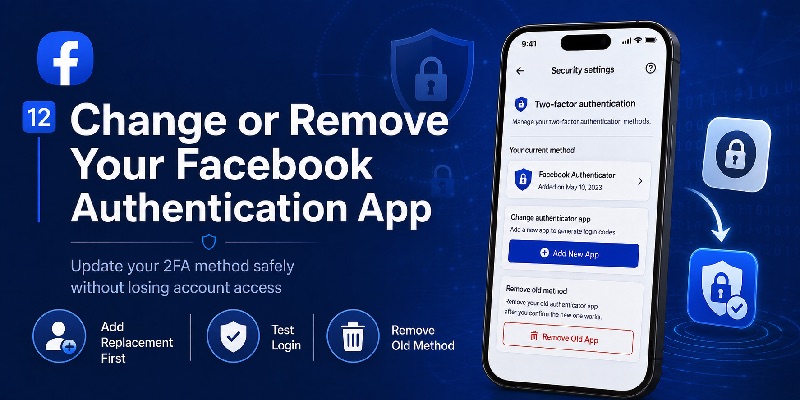
Add a replacement before removing the old method
If you want to switch facebook authenticator applications, add and test the replacement method before relying on it.
After successfully logging in, Facebook’s troubleshooting documentation says users can configure another authentication app.
Keep at least one reliable way to complete 2FA while changing settings.
Managing Facebook two-factor authentication
Meta currently places Facebook’s 2FA management in:
Accounts Center → Password and security → Two-factor authentication.
From there, select the Facebook account you want to update and review the authentication methods attached to it.
The available interface may change over time, but Accounts Center is the current central location documented by Meta.
Do not disable security just because an app has a problem
If facebook authenticator stops working, replacing the authentication app or using a backup method is often preferable to turning off 2FA altogether.
Meta provides multiple authentication options, including authentication applications, SMS, security keys, and recovery codes.
Maintaining at least one reliable secondary authentication method helps protect the account.
13. Facebook Authenticator Security Tips
Never send anyone your current code
A facebook authenticator code is meant to prove that you control the registered authentication method.
Do not send it to someone claiming to be:
- Facebook support.
- An advertiser.
- A Page administrator.
- A buyer or seller.
- A friend who “needs to verify your account.”
- Someone offering account recovery.
Enter authentication codes only when you intentionally started a Facebook login.
Review unexpected authentication requests
If Facebook asks you to confirm a login that you did not initiate, do not approve it simply to clear the notification.
An unexpected request can indicate that someone else is attempting to access the account.
Review account security instead.
Secure the phone
Protect the device containing facebook authenticator with:
- A strong device passcode.
- Face or fingerprint authentication where appropriate.
- Updated operating-system software.
- Screen-lock protection.
An authenticator is a second factor partly because possession of the device matters.
Keep recovery information separate
Your phone should not be your only security and recovery resource.
Keep Facebook recovery codes somewhere secure outside the device.
Meta’s ability to provide 10 one-time recovery codes makes this relatively easy.
Review trusted devices
When Facebook offers to save a browser, use that option only on devices you control.
Meta specifically advises against saving a browser on public computers that other people can access.
This maintains the usefulness of facebook authenticator on unfamiliar devices without weakening security on shared hardware.
14. Facebook Authenticator vs SMS Authentication
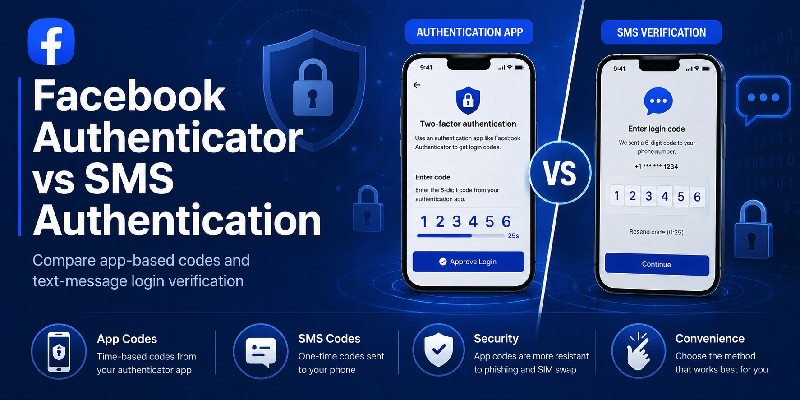
Both are supported
Facebook currently supports authentication-app codes and SMS as separate 2FA methods.
With SMS, Facebook sends a six-digit security code to the registered mobile phone when appropriate.
With facebook authenticator, the code comes from the authentication application connected to the Facebook account.
Authentication app advantages
A compatible authentication application can generate login codes without depending on an SMS arriving at the correct moment.
It also lets you keep multiple compatible account entries inside one authentication application.
For users who regularly use 2FA across multiple websites, facebook authenticator can therefore fit naturally into an existing security workflow.
SMS can still be useful as a backup
SMS may still be valuable as another available authentication method when correctly configured.
Meta recommends having additional security options in case the primary method becomes unavailable.
Rather than thinking in terms of “authenticator versus everything else,” the more useful approach is to make sure you have a secure primary method plus a reliable recovery path.
15. Common Facebook Authenticator Questions and Problems
Why does Facebook keep asking for a code?
Facebook may ask for facebook authenticator verification when a sign-in occurs from a browser or device that is not recognized.
Meta explains that two-factor authentication provides an additional security check when someone attempts to log in from an unfamiliar browser or mobile device.
A personal device can sometimes be saved as recognized after successful authentication.
Why did Facebook stop asking for my authenticator code?
If you previously marked the browser as trusted or Facebook recognizes the device, it may not request a code every time.
This does not automatically mean that facebook authenticator has been disabled.
Check Accounts Center → Password and security → Two-factor authentication if you want to verify your current security methods.
Can I use another authentication app?
Yes. Facebook’s authentication method is designed around compatible third-party apps rather than one mandatory Facebook application.
If you want to change applications, make sure you have account access and recovery methods available before changing your facebook authenticator configuration.
Can I log in if I lose my phone?
Possibly, depending on what you configured beforehand.
Facebook currently supports recovery possibilities including:
- Recovery codes.
- An already recognized device.
- Other registered security methods.
- Facebook’s identity-recovery workflow.
This is why saving recovery codes is essential.
How many Facebook recovery codes are there?
Meta currently provides 10 recovery login codes after 2FA is enabled. Each code can be used once, and a new set can be generated if needed.
Should I download an app called Facebook Authenticator?
Not simply because it has that name.
Meta’s documentation instructs Facebook users to use a third-party authentication application.
Choose a reputable authenticator from an official app store and connect it through Facebook’s own two-factor authentication settings.
16. Final Thoughts
facebook authenticator is best understood as Facebook’s support for third-party authentication applications rather than as a standalone official app called Facebook Authenticator.
Meta currently supports authentication-app login codes as one of three main two-factor authentication methods, alongside SMS and compatible security keys.
To configure facebook authenticator, begin inside Facebook rather than inside the authentication app.
Go to Accounts Center, open Password and security, choose Two-factor authentication, select your Facebook account, and choose Authentication app. Facebook then provides the information needed to connect a compatible authenticator.
After enrollment, the authentication application generates the security codes Facebook can request during login.
If you are looking for a facebook authenticator app download, use a reputable third-party authenticator from an official store. Do not assume that an application called “Facebook Authenticator” is an official Meta product.
When using a facebook authenticator qr code, generate it from your own Facebook two-factor authentication setup and treat that enrollment information as sensitive.
If you encounter facebook authenticator code not working, do not immediately delete the authentication entry. Confirm that you selected the correct Facebook account, check the phone’s date and time, wait for a fresh code, and determine whether your authenticator was correctly transferred if you recently changed devices.
If normal codes are unavailable, Facebook provides other recovery possibilities. Meta says users can use an already recognized device, previously saved recovery codes, another configured method, or Facebook’s account-recovery workflow depending on what is available.
One of the most valuable steps after enabling facebook authenticator is generating Facebook recovery codes. Meta currently provides 10 one-time recovery codes, and users can request a new set when necessary.
Store those codes somewhere secure and separate from your phone.
Before moving facebook authenticator to another device, keep the old phone and a logged-in Facebook session available until the new configuration has been tested. Different authenticator applications use different synchronization and migration systems, so installing the same app on a new phone does not always guarantee that every authentication entry is automatically present.
Finally, remember that two-factor authentication cannot protect an account if you willingly give the authentication code to someone else.
Treat facebook authenticator codes, QR enrollment information, recovery codes, passwords, and trusted devices as sensitive security credentials.
Used together with a unique password, recovery methods, careful device management, and attention to unusual login requests, facebook authenticator can provide a practical additional layer of protection for your Facebook account without forcing you to rely entirely on your password.
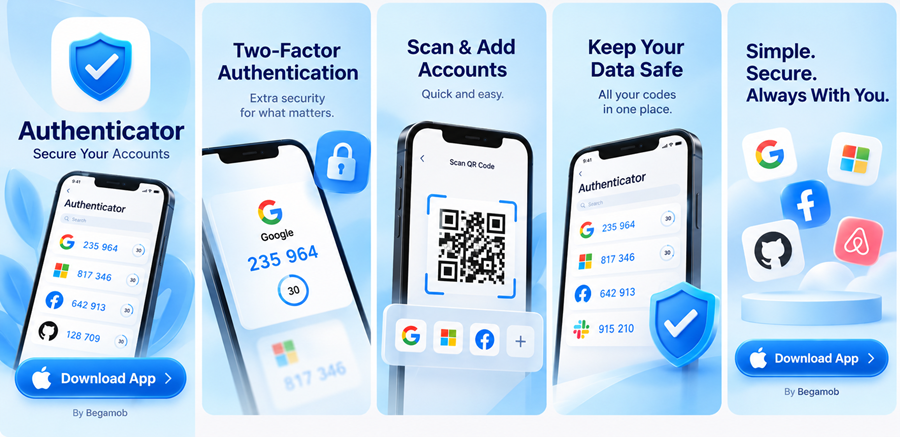
Download Authenticator App
Secure your accounts with fast, reliable two-factor authentication. Download now and protect your login in seconds.
