Facebook Authenticator Code Not Working: Causes and Fixes
Published September 15, 2026
By the Authenticator App Team
Check the selected Facebook entry, use a fresh code, and correct your phone’s time before changing the authenticator setup. If the entry is missing entirely, use a documented restore or an existing Facebook recovery method instead.
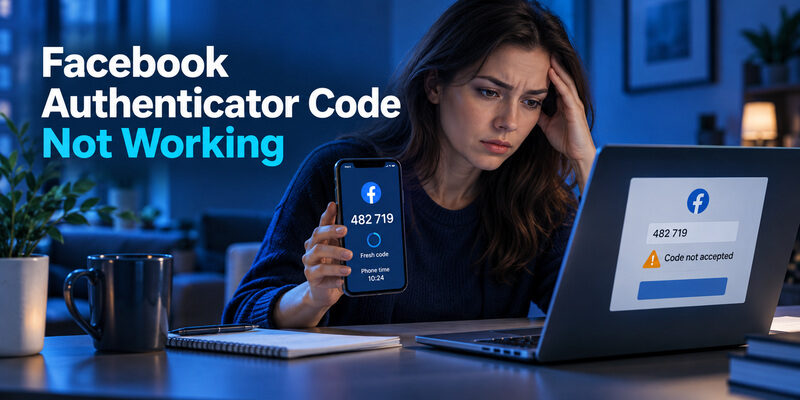
A facebook authenticator code not working can mean several different things: the code expired, the wrong account is selected, an old registration remains in the app, or the original secret never reached a replacement phone. Reinstalling the app does not address all of those causes and can remove useful local data.
Work through the checks below in order, preserve any working Facebook session, and note the exact message shown. The goal is to identify the failed stage before making a change that could make recovery harder.
Facebook Authenticator Code Not Working: First Checks
Start by distinguishing a visible error from an expectation that a code should arrive. A facebook authenticator code not working is different from a missing text message: an enrolled authenticator generates its own output, so requesting another SMS does not refresh that app entry.
Confirm the Account and Requested Method
Read the account label in the authenticator and the method requested by Facebook. A code for a Google account, a different Facebook identity, or an email verification cannot answer an authenticator challenge for this account. If you have several similar entries, do not choose only by icon.
Wait for a New Code
If the countdown is almost finished, wait for the next value. Prepare the Facebook input field first, then copy the new code without changing digits or dropping a leading zero. This is a simple check that preserves the current setup.
Keep the Existing Entry
Do not delete the token or clear the authenticator’s data while investigating. A facebook authenticator code not working is not proof that the stored secret is useless. You may still need it after correcting the phone’s clock or selecting the proper login flow.
| What you see | First area to check | Avoid doing immediately |
|---|---|---|
| Codes visible but rejected | Entry, timing, current registration | Deleting all Facebook entries |
| No Facebook entry | Restore or transfer | Reinstalling repeatedly |
| Different security challenge | Requested method | Pasting an unrelated code |
| Account restriction message | Facebook account process | Assuming the code app can remove it |
If Facebook displays a temporary limit, follow the message instead of submitting more guesses. The useful next action depends on the failure you can observe. Keep a short record of that stage so subsequent checks do not repeatedly revisit a part of the process that already works.
Correct Time Without Following an Obsolete Menu

Check the Phone’s System Clock
Time-based codes depend on the device’s clock. Check the date and time in the phone’s system settings and use the appropriate automatic setting when available. A phone that looks only slightly wrong can still generate a value outside the period the service expects.
For facebook authenticator code not working after travel or a device reset, verify the actual clock rather than only the displayed city or time-zone label. Do not manually move the time forward and backward until a random attempt happens to succeed. Establish an accurate clock first.
Use the Instructions for Your Installed App
Google Account Help notes that newer Google Authenticator versions use the operating system’s time rather than an in-app time-correction setting. An old tutorial directing you to a missing correction menu can waste time without addressing the current behavior.
After correcting the clock, reopen the authenticator and test a fresh code from the intended entry. Keep the same Facebook session when possible so you are not also changing browsers, accounts, and security methods during the test. Changing one variable gives the result a clearer meaning.
If accurate time does not resolve a facebook authenticator code not working, move to the registration checks. A correct clock cannot fix an entry created from a different account’s secret or an obsolete enrollment. The clock check rules out one cause; it does not certify the rest of the setup.
Check for Duplicate or Old Facebook Authenticator Entries
Look for Entries Created During Repeated Setup
Several scans during an interrupted setup can leave several entries with nearly identical names. Check which enrollment each belongs to before testing or removing anything. The newest-looking label is not necessarily the one Facebook currently accepts, especially if a later setup was never confirmed.
Separate Personal and Other Accounts
If multiple Facebook identities appear in your authenticator, confirm the one selected in the browser. A facebook authenticator code not working may simply be a mismatch between the account you are viewing and the account whose code you copied.
Account for a Recent Security Change
An old token can keep generating codes after the service has registered a replacement secret. The numbers look normal because code generation happens locally. Their appearance does not prove that Facebook still associates that secret with the account.
Use the history you can establish: did this entry work yesterday, did the problem start after a phone transfer, and was enrollment confirmed? Those questions are more useful than changing the app’s display name. Renaming a token does not change its secret or the service’s registered method.
Treat facebook authenticator not working reports carefully when all you know is that an entry exists. Record which one succeeds before cleaning up duplicates. If none works, retain the entries while you investigate account access and recovery; deleting them first removes information without creating a replacement method.
Handle a New Phone With No Working Entry
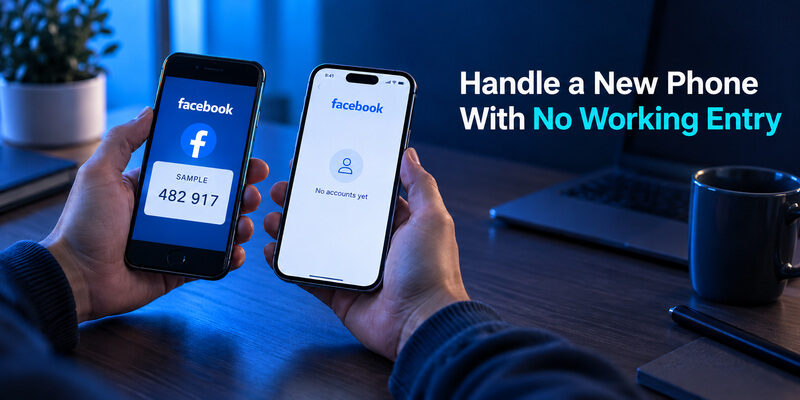
When describing a facebook authenticator code not working after migration, include whether the original phone still has the entry. That detail immediately changes the available troubleshooting route.
A replacement phone may restore the authenticator application without restoring its account secrets. That distinction explains many facebook authenticator new phone problems. Seeing the same icon on the home screen does not establish that the registered Facebook entry was transferred.
If the old phone still works, use the authenticator’s documented transfer or synchronization route. Check the destination for the correct account and verify an accepted code before erasing the original. Do not assume that every product can read another product’s export QR format.
If you are researching how to transfer facebook authenticator to new phone, first identify the app you actually used. The transfer instructions belong to that app. Facebook is the protected account, while Google Authenticator, , or another product holds its entry. Confusing those roles can send you looking for a transfer control in the wrong place.
For a facebook authenticator code not working on the destination, compare the situation with the old device without exposing secrets. Does the original still produce an accepted code? Does the new app contain the expected entry? Did you restore the intended backup account? Those observations help distinguish a transfer problem from a Facebook account problem.
Keep the old device available until the replacement is verified. If it is already gone, move to the recovery options you previously configured rather than repeatedly reinstalling software that has no source for the missing secret.
Use a Recovery Method You Already Prepared
A facebook authenticator code not working can be particularly confusing when recovery codes are stored without account labels. Identify the account each saved set belongs to before using it, and keep unrelated recovery material separate. Do not assume all saved numeric codes belong to Facebook.
Check Saved Recovery Codes
Facebook has a recovery-code feature for two-factor authentication. If you saved codes earlier, follow the recovery option offered by the current login flow. Keep the code private and record its use in your own secure storage so you do not later mistake it for an unused one.
Check Other Configured Methods
Look for another verification method that was already registered and is actually offered to this account. Its availability depends on the account and situation. Do not assume that adding a new phone number somewhere else will immediately make it a usable Facebook recovery factor.
| Available resource | What it may help with | Important limit |
|---|---|---|
| Saved Facebook recovery code | Alternate two-factor verification | Must belong to the account and remain usable |
| Existing supported method | Another offered verification route | Must already be configured and accessible |
| Authenticator backup or transfer | Restore the code entry | Requires the relevant secret or backup access |
| Familiar signed-in device | Continue legitimate account management | May still require additional verification |
When a facebook authenticator code not working blocks a login, a prepared alternative can prevent an unnecessary reset. Use only the route displayed in the legitimate Facebook flow, and avoid sending recovery material to someone claiming to activate it for you.
If none of these resources exists, acknowledge that the task has changed. You are no longer fixing the timing of an available code; you are seeking authorized recovery of account access. That distinction keeps troubleshooting focused and prevents repeated attempts at a solution whose required input is missing.
Preserve a Session That Still Works
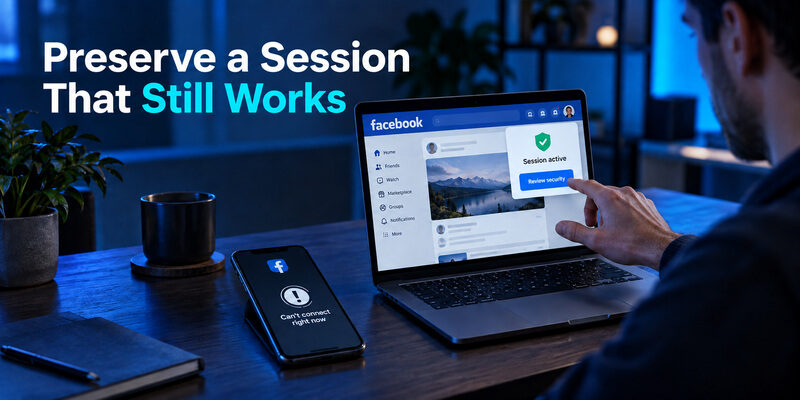
Before treating a facebook authenticator code not working as a reason to reset the browser, check whether that browser is your only remaining authenticated device. Preserve useful access.
If you can still open Facebook on another device, keep that session available while investigating the problem. Do not immediately sign out everywhere, clear every browser, or reset the only phone that contains relevant account information. A working session can help you inspect the account’s current settings or reach its legitimate support options.
This does not guarantee that security changes will be permitted without another challenge. Facebook may request verification when you try to change a factor even though the feed is accessible. Read that request carefully and use the methods available to you rather than assuming the open session is a bypass.
For a facebook authenticator lost phone situation, separate immediate account protection from device cleanup. If you suspect theft or compromise, follow Facebook’s account-security process and the device provider’s recovery guidance. Avoid deleting potentially useful data simply to make the list of devices look tidy.
Write down non-sensitive observations: which device remains signed in, whether the account details look familiar, and which verification options are offered. These details can support a clearer next step without revealing codes. A facebook authenticator code not working should prompt a structured access check, not a series of unrelated resets performed in frustration. Keep the routes that remain usable until you know what must be changed and can verify the replacement.
Re-enroll Only When Account Access Allows It
A report of facebook authenticator code not working after replacement should identify whether Facebook confirmed the new enrollment. Without that confirmation, the replacement may still be unfinished.
Confirm You Can Complete the Current Check
If you can reach the relevant security settings and complete the required verification, use Facebook’s authorized process to replace or manage the authenticator. Do not remove the current method first and hope a new app will fill the gap afterward.
Add the New Enrollment Information
Use the QR or setup key supplied by the current account flow. Import it into the intended app and submit a fresh generated code to Facebook. Only the service’s confirmation establishes that the replacement is registered successfully.
Retire the Obsolete Entry Carefully
After confirmation, identify the entry that belongs to the new registration. Keep required recovery material, then remove obsolete local entries without disturbing other accounts. A facebook authenticator code not working from the old entry after replacement is expected; the important result is whether the new entry succeeds.
Searches for how to remove facebook authenticator often arise from frustration during a lockout. Removing a local entry is not the same as disabling the method on Facebook, and it does not remove a login challenge. Treat account security and local app organization as separate actions.
If your question is how to add facebook authenticator to new phone while the original remains usable, first consider a supported transfer. Re-enrollment is one possible route when authorized, but it should not be chosen casually when a documented transfer already solves the device-change problem. Keep the action proportional to the issue you have identified.
Download Authenticator App
Secure your accounts with fast, reliable two-factor authentication. Download now and protect your login in seconds.
Recognize When Facebook Recovery Is Required
Missing Secret and No Alternate Method
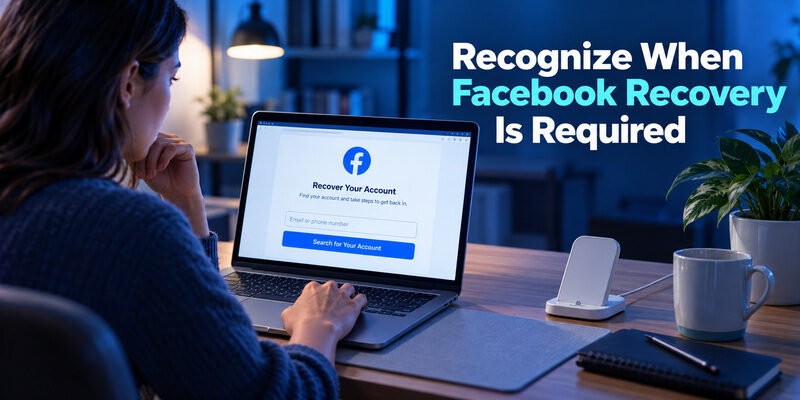
If the app entry is gone, the original phone is unavailable, and no prepared method works, use Facebook’s own recovery flow. Follow the options offered to the account, preferably from a device you have used with it before when that is available. Recovery choices and timing can differ.
Unexpected Account Changes
If unfamiliar contact details or security methods appear, treat that as an account-security issue rather than a routine code-expiration problem. Meta’s account-support guidance describes recovery routes for lost access and compromised accounts. Use those legitimate channels instead of trusting messages from people offering paid shortcuts.
Being locked out of facebook authenticator does not mean that a new app can identify the old secret from your email address. A lost scenario needs a usable restore or account recovery. Avoid uploading an ID, a recovery code, or a password to a site merely because it claims to be an unlock service.
For a facebook authenticator code not working during recovery, read what kind of code the current step requests. A recovery message, an app code, and a password-reset code may appear in different parts of the process. Use each only where requested, keep the latest relevant instructions together, and do not assume that repeating the initial login screen will advance a recovery process already in progress.
Choose a More Usable App After Access Returns
Use the cause of the facebook authenticator code not working as the decision criterion. Better labels, clearer timing, and reliable restoration solve different problems and deserve separate attention.
Once access is restored, review why the problem happened. If the issue was a wrong account label, improve the labels. If the original phone was lost, improve recovery preparation. If the selected app’s interface or transfer workflow does not fit your needs, evaluate a replacement deliberately.
is another OTP manager to consider for a supported Facebook enrollment. Its homepage describes code generation and biometric protection. Check the installed version’s compatibility and recovery options before moving your registration. It cannot solve a facebook authenticator code not working by bypassing Facebook’s checks or reconstructing an unavailable secret.
Keep the successful recovery route until the new arrangement has been tested. Avoid changing the password, recovery email, phone, and authenticator all at once unless the account’s security situation requires those actions. When changes are necessary, record their order privately and verify the result at each stage.
A facebook authenticator code not working should leave you with a clearer routine afterward: recognize the correct entry, know the requested method, and understand how to restore access without the primary phone. App choice can support that routine, but it cannot replace the account-specific setup. Address the cause you actually found rather than assuming that every future problem can be prevented by installing a different product.
Frequently Asked Questions
Why is my Facebook authenticator code not working?
A facebook authenticator code not working can be caused by an expired code, incorrect phone time, the wrong Facebook entry, an outdated authenticator registration, or an incomplete transfer to a new phone. Start by checking the account label, enabling automatic date and time, and entering a fresh code before changing your 2FA setup.
How do I fix Facebook Authenticator after changing phones?
If your old phone is still available, use the transfer, synchronization, or backup process supported by your authenticator app. Verify that the new phone generates a code Facebook accepts before erasing the old device. If the original entry was never transferred or backed up, you may need another configured verification method or Facebook’s recovery process.
Why does Facebook reject my authenticator code even though the app shows one?
An authenticator can continue generating valid-looking codes even when its stored secret no longer matches Facebook’s current registration. This can happen after re-enrollment, repeated setup attempts, or account changes. Check for duplicate or obsolete Facebook entries and confirm which one belongs to the currently enrolled 2FA method.
Can reinstalling my authenticator app fix Facebook verification codes?
Usually not by itself. Reinstalling the app does not automatically restore the secret associated with your Facebook account and may remove local authenticator data. First determine whether the problem is incorrect timing, the wrong account entry, a failed phone transfer, or a missing registration before reinstalling anything.
What should I do if I lost my Facebook authenticator and cannot log in?
Use a recovery method that was already configured, such as a saved Facebook recovery code, another available verification method, a restored authenticator backup, or a device that is still signed in. If none of those are available, follow Facebook’s official account-recovery process. Installing a new authenticator app cannot recreate a secret that was never transferred or saved.
Final Thoughts
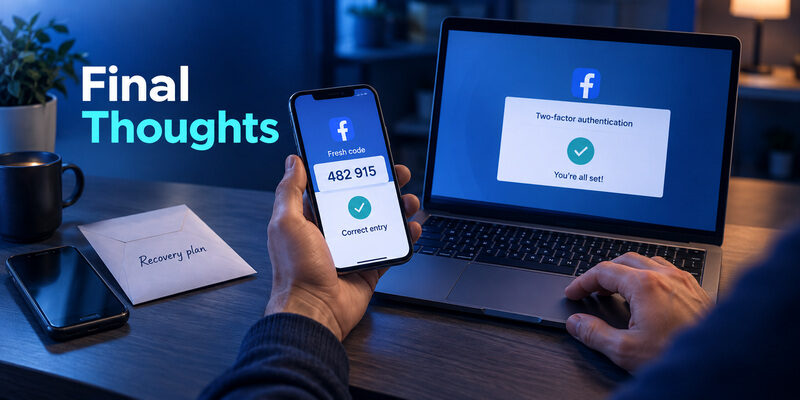
For a facebook authenticator code not working, begin with checks that preserve access: the correct account entry, a fresh code, and an accurate phone clock. Then investigate duplicate tokens, an unfinished enrollment, or a transfer that did not include the secret. Avoid deleting the only entry before you know whether it can still be used.
If the code is missing rather than rejected, look for a documented app restore, a saved recovery code, or another method already configured for Facebook. Keep any signed-in device available while you inspect the legitimate options. A replacement phone and a fresh installation do not automatically recreate the original registration.
Use re-enrollment only through Facebook’s authorized security flow, and finish verification before retiring an old method. If no working route remains, follow account recovery without expecting guaranteed timing or a shortcut from a third-party app. Keep codes and setup secrets private throughout the process.
Resolving a facebook authenticator code not working is most useful when you also understand the cause. Once access returns, check the labels, the transfer method, and the recovery plan that failed or was missing. That makes the next phone change or unexpected login easier to handle without repeating the same sequence of uncertain resets.