Microsoft Authenticator: Complete Setup, Login, Backup & Troubleshooting Guide
Passwords alone are becoming an increasingly inconvenient way to protect online accounts. A password can be forgotten, reused across multiple websites, exposed in a data breach, or entered into a fake login page. Authentication apps provide an additional way to confirm that the person attempting to sign in actually has access to a trusted device.
Microsoft Authenticator is Microsoft’s mobile authentication app for personal Microsoft accounts, work or school accounts, and many third-party services that support standard authenticator codes. It can be used for multifactor authentication, one-time verification codes, approval notifications, and supported passwordless authentication methods. Microsoft officially provides the app for Android and iOS.
For a new user, however, authentication terminology can quickly become confusing. What is an OTP? Where does the QR code come from? Can the app run on Windows? What happens when you buy a new phone? Why does the app sometimes ask you to approve a login instead of showing a code?
This guide explains Microsoft Authenticator from beginning to end. It covers downloading and configuring the app, connecting accounts, scanning QR codes, using authentication codes, signing in without a traditional password, transferring accounts to another phone, restoring backups, solving common errors, and removing the app safely.
One important change should also be understood before beginning. Microsoft discontinued password autofill inside Authenticator in 2025. Saved passwords are now managed through Microsoft Edge and Microsoft Password Manager rather than through the Authenticator app itself. Authentication functions such as account verification, OTP codes, push approvals, and supported passwordless features remain separate from the retired autofill function.
1. What Is Microsoft Authenticator and How Does It Work?
A mobile authentication app
Microsoft Authenticator is a free mobile app designed to help users verify their identity when accessing online accounts. Microsoft describes it as an app that can authenticate personal, work, and school accounts and support both multifactor and passwordless sign-in experiences.
Instead of relying exclusively on a password, an account can ask for another form of verification. Depending on how the account is configured, the app may display a temporary code, send an approval request, or use device security such as a PIN or biometric check as part of a passwordless flow.
This is the basic idea behind microsoft multi factor authentication. Rather than proving identity using only one credential, the account requires an additional authentication method. If an attacker learns a password but does not have access to the registered authentication method, gaining access becomes more difficult.
For Microsoft Entra work and school accounts, administrators can configure Authenticator as an authentication method for MFA, push notifications, passwordless phone sign-in, or supported passkey scenarios. The exact options a user sees therefore depend partly on organizational policy.
OTP codes versus push approvals
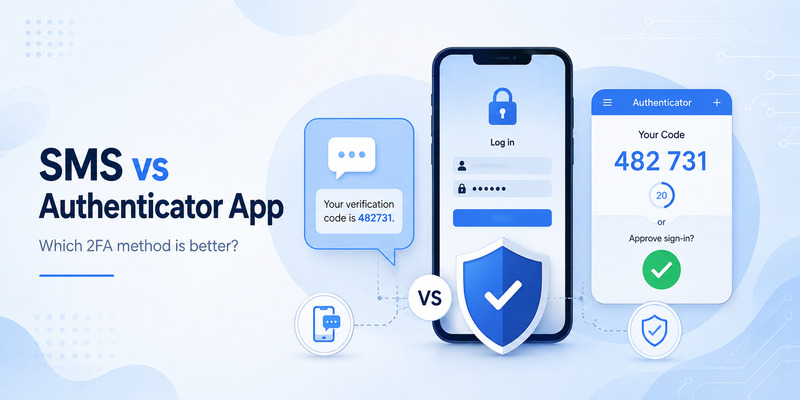
One common function is microsoft authenticator otp. OTP means one-time password. For accounts using time-based codes, Authenticator generates a code that changes periodically. Microsoft documentation notes that supported one-time password codes refresh every 30 seconds.
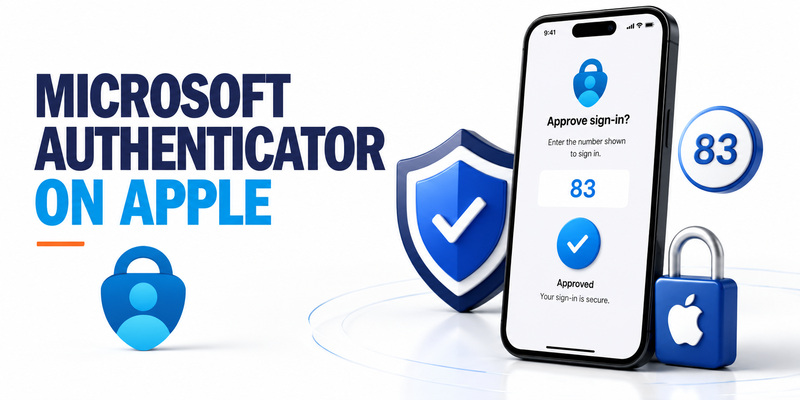
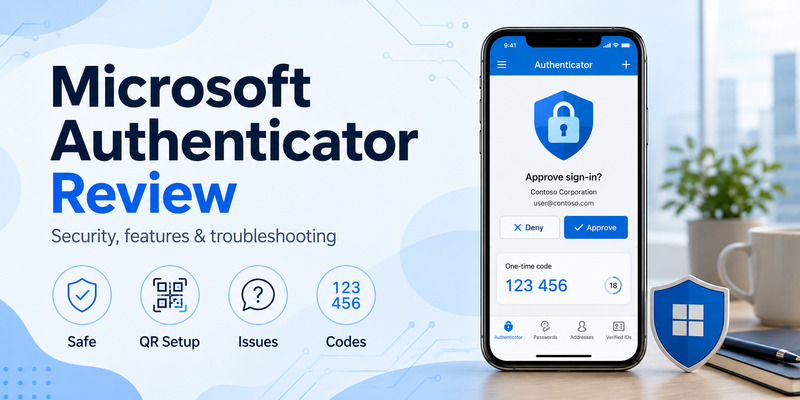
Another method is push approval. Instead of copying a code, the sign-in page sends an authentication request to the registered phone. The user reviews the request and approves or rejects it.
These two experiences should not be confused. An account configured for an OTP may primarily show a rotating code, while a Microsoft work or school account can be configured to use push notifications instead.
That difference also explains why two users can install the same Microsoft Authenticator app and see different behavior.
2. Why Use Microsoft Authenticator for Account Security?

Adding another layer beyond a password
People searching why use microsoft authenticator are usually deciding whether an authentication app is worth the additional setup.
The main benefit is that authentication no longer depends entirely on knowing a password. With two-step verification, a person attempting to access an account may need both the primary account credential and access to another registered method. Microsoft explains that this makes it more difficult for another person to sign in even if they obtain the password.
The app is particularly convenient for people already using Outlook, Microsoft 365, OneDrive, Teams, Azure-related services, or a work or school Microsoft account. However, Microsoft Authenticator is not limited to Microsoft websites. It can also store standard authenticator codes for supported third-party accounts.
Microsoft’s own support documentation includes examples involving services such as Facebook, Google, and Amazon.
Is Microsoft Authenticator free?
A frequent question is is microsoft authenticator free?
Yes. Microsoft describes Authenticator as a free application. The official mobile application can be installed on supported Android and iOS devices without purchasing the Authenticator app itself.
An organization may separately use paid Microsoft services or Microsoft Entra capabilities, but that does not turn the Authenticator mobile application into a paid download.
Another advantage is flexibility. Depending on the account, Microsoft Authenticator can provide:
- Rotating verification codes
- Push authentication
- Multifactor authentication
- Passwordless sign-in
- Support for third-party OTP accounts
- Backup and recovery of supported account information
Microsoft’s current Entra documentation also supports passkeys in Authenticator for applicable environments.
The correct authentication method ultimately depends on the website, account type, device, and—in business environments—the policies configured by an administrator.
3. How to Download Microsoft Authenticator on iPhone and Android
Microsoft Authenticator for iPhone and iOS
For microsoft authenticator for iphone ios, use Apple’s official App Store and confirm that the application is published by Microsoft Corporation.
The basic process for how to download microsoft authenticator app on iPhone is straightforward:
- Open the App Store on the iPhone.
- Search for Microsoft Authenticator.
- Verify that Microsoft is listed as the developer.
- Install the application.
- Open Authenticator and follow the setup prompts.
- Allow required permissions when they are needed for functions such as QR-code scanning or notifications.
Microsoft’s official download page directs iOS users to the mobile version of the app.
After completing the microsoft authenticator download, do not immediately remove your existing authentication method if you are transferring from another phone. First make sure the new device is successfully registered and capable of approving a test login.
Microsoft Authenticator on Android
For microsoft authenticator app android or microsoft authenticator app for android, the safest standard method is to use the official Google Play listing provided by Microsoft.
Search for Microsoft Authenticator, verify the publisher, install the app, and keep it updated. Microsoft states that Authenticator versions more than one year old are no longer supported, which makes regular updates important when troubleshooting unexpected behavior.
Some users search for microsoft authenticator apk download because they want an installation package instead of using an app store. For most Android users, the official store route is preferable because it reduces the risk of installing a modified or outdated package.
Users in regions where Google Play services are not normally available should follow Microsoft’s region-specific download instructions instead of downloading an APK from an unknown third-party website.
Once the app is installed, the next step is not simply opening it—it is registering each account that you want Authenticator to protect.
[tvr_cta text=”Download TV Remote APP” url=”https://remotetv.begamob.com/dowload-appstore/?utm_source=Post&utm_campaign=SEO&utm_content=https://authenticator-app.begamob.com/microsoft-authenticator/” style=”solid”]
4. Can You Use Microsoft Authenticator on PC, Windows, or Mac?

Microsoft Authenticator for Windows and PC
Search terms such as microsoft authenticator for pc windows, microsoft authenticator download pc, microsoft authenticator download windows, and download microsoft authenticator for laptop are extremely common.
However, Microsoft currently states that Authenticator itself is not available as a PC application. It is designed as a smartphone authenticator and is officially offered for iOS and Android.
That means there is no official Microsoft Authenticator desktop program to install on Windows simply to reproduce the mobile interface.
You can still use your Windows computer with Authenticator. The normal arrangement is:
- Start a sign-in or account setup process on the Windows PC.
- A QR code, number, or verification request appears on the computer.
- Open Microsoft Authenticator on the phone.
- Scan the QR code or approve the sign-in.
- Continue working on the PC.
Therefore, a search for microsoft authenticator for pc windows should generally be interpreted as “How do I use Authenticator when signing in on my Windows PC?” rather than “Where is the Windows Authenticator application?”
What about Mac?
The same principle applies to microsoft authenticator for mac and microsoft authenticator download mac.
Microsoft’s download documentation explicitly says that Authenticator is not available for PC or Mac.
Mac users can still open a Microsoft, work, school, or third-party account in a browser and use the Authenticator app installed on an iPhone or Android phone to complete verification.
Be careful with results advertising a desktop microsoft authenticator extension. Microsoft does not list an official browser extension as the desktop version of Authenticator. Other extensions using words such as “Authenticator” may be separate third-party products.
If the goal is to use Microsoft Authenticator with a laptop, install the official app on the phone and use that phone to verify sign-ins initiated on the laptop.
5. Microsoft Authenticator Setup: Step-by-Step Guide
Preparing the account
A successful microsoft authenticator setup involves two sides: the Authenticator app on the phone and the security settings of the account being connected.
Simply installing the application does not automatically protect every Microsoft account on the device.
For a typical account:
- Install and open Microsoft Authenticator.
- Open the security or sign-in settings for the account you want to protect.
- Choose to add an authenticator app or another sign-in method.
- A QR code is usually presented.
- In Authenticator, select Add account.
- Choose the appropriate account type.
- Scan the displayed QR code.
- Complete the verification test requested by the service.
Microsoft’s account-addition instructions follow this general flow for Microsoft and supported third-party services.
Choosing the correct account type
When setting up Microsoft Authenticator, you may see options such as:
- Personal account
- Work or school account
- Other account
Use the Microsoft-specific options when connecting the corresponding Microsoft identity. For a compatible third-party service that supplies a standard authentication QR code, choose Other account.
This distinction matters because Microsoft accounts may support functions beyond simple rotating codes, including notifications or passwordless methods.
If you are adding a workplace identity, the organization may require extra steps. An administrator can control which Microsoft Entra authentication methods are available, so a feature described in a general tutorial may not appear in every corporate environment.
After adding the account, test Microsoft Authenticator before closing the setup page. If a website provides recovery codes during enrollment, save those codes according to the service’s instructions. A recovery option can become valuable if the phone is later lost or unavailable.
6. How to Use QR Codes, OTP, and Verification Codes

QR code for Microsoft Authenticator
A qr code for microsoft authenticator is essentially a convenient way for a website or account system to provide the information the app needs to establish an authenticator relationship.
The QR code normally appears on the website whose account you are configuring—not randomly inside the Authenticator app.
To use it:
- Open the security settings for the account.
- Enable two-factor or authenticator-app verification.
- Wait for the website to display its QR code.
- Open Microsoft Authenticator.
- Select Add account.
- Choose the relevant account type.
- Scan the QR code.
- Confirm setup using the code or authentication request shown afterward.
Microsoft also documents manual setup for some situations where the camera or QR scan cannot be used.
Never treat a random QR code received in an unexpected message as an authentication setup request. Start enrollment from the official account security settings yourself.
Microsoft Authenticator verification codes
A microsoft authenticator verification code may appear as a rotating one-time code associated with an account.
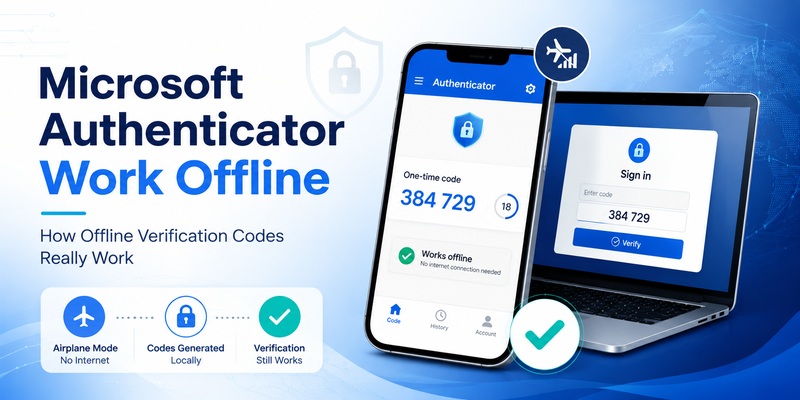
For supported OTP accounts, the code refreshes periodically. Microsoft’s documentation states that these time-based codes refresh every 30 seconds.
When using microsoft authenticator otp, enter the current code before it expires. If only a few seconds remain, it can be easier to wait for the next code rather than rushing to enter the current one.
The app can generate OTP codes without requiring you to manually request a new SMS message each time. However, push-based approvals are different: they depend on communication between the account service and the registered device.
This difference becomes especially important when diagnosing a microsoft authenticator app not showing code problem. A Microsoft account configured for push authentication may not behave identically to an “Other account” configured specifically for a standard TOTP code.
7. Microsoft Authenticator Login and Passwordless Sign-In
Signing in with the app
A typical microsoft authenticator login starts somewhere outside the app. You might be signing into Outlook on a computer, opening a work portal, or accessing another protected Microsoft service.
Depending on account configuration, the sign-in process may:
- Ask for an OTP code.
- Send an approval notification.
- Ask you to match or enter a displayed number.
- Use a passwordless authentication method.
With Microsoft Authenticator, you should approve only requests that correspond to a login you intentionally started.
If microsoft authenticator keeps asking for approval when you are not trying to sign in, do not repeatedly approve the prompts simply to make them disappear. Reject an unexpected request and review the security of the associated account. An unsolicited approval prompt may represent an authentication attempt that you did not initiate.
Microsoft Authenticator passwordless sign-in
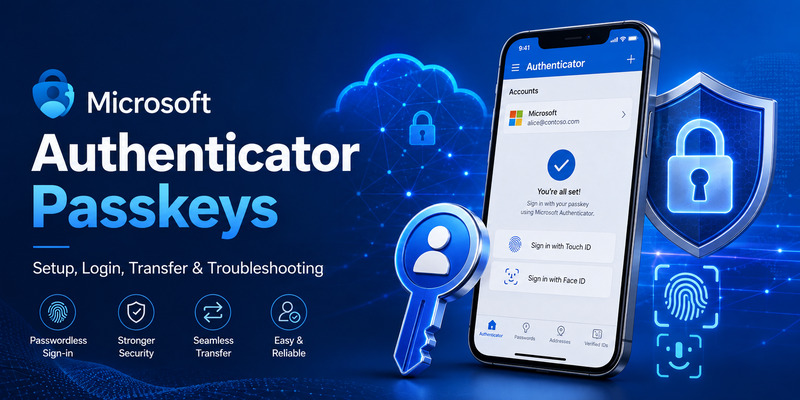
microsoft authenticator passwordless sign-in allows supported Microsoft accounts or Microsoft Entra environments to authenticate without relying on the traditional password at that point in the sign-in flow.
Microsoft explains that Authenticator can use device-bound key-based authentication together with the phone’s PIN or biometric security for passwordless phone sign-in. For work or school accounts, the organization’s administrator must allow the relevant authentication method.
Microsoft also supports passwordless personal Microsoft account options, including Authenticator and other supported methods.
Passwordless does not mean “no security.” It means the authentication system relies on another configured credential rather than a memorized account password.
This is also separate from the password autofill feature that previously existed inside Authenticator. Autofill was discontinued in 2025, while authentication and supported passwordless functions remain part of the app.
8. How to Add Facebook and Other Accounts

How to add Facebook to Microsoft Authenticator
Because Authenticator supports standard third-party OTP accounts, many users ask how to add facebook to microsoft authenticator.
Microsoft’s own documentation includes a Facebook setup example. The general process is:
- Open Facebook’s account security settings.
- Enable two-factor authentication.
- Choose an authentication app as the verification method.
- Facebook displays a QR code.
- Open Microsoft Authenticator.
- Select Add account.
- Choose Other account.
- Scan Facebook’s QR code.
- Enter the verification code generated by Authenticator back into Facebook to confirm setup.
Microsoft documents the Other account option specifically for services such as Facebook and Google, while Meta confirms that compatible third-party authentication apps can be used to generate Facebook login codes.
Once configured, the Facebook account should appear separately in Microsoft Authenticator.
Adding other websites
The same model can work with many websites that support time-based authenticator apps.
When asking how to use microsoft authenticator with a third-party site, look for security settings containing terms such as two-factor authentication, two-step verification, authentication app, authenticator app, or TOTP.
Choose the authentication-app option, then scan the QR code using Microsoft Authenticator.
Do not assume every QR code uses the same protocol. Always begin from the security settings of the service being connected.
It is also useful to keep recovery methods for important accounts. For example, a website may provide recovery codes after two-factor authentication is enabled. Those are controlled by that website rather than by Microsoft Authenticator, so losing the app and losing the website’s recovery options can create a much harder account-recovery situation.
9. Microsoft Authenticator Backup, Recovery, and Changing Phones
Microsoft Authenticator backup
Planning microsoft authenticator backup before changing devices is much easier than trying to recover everything after the old phone has already been erased.
On Android, Microsoft allows users to enable Cloud Backup and associate the backup with a personal Microsoft account. On iOS, Authenticator backup uses Apple’s iCloud-related services together with the Authenticator backup process.
A particularly important limitation is that Microsoft only supports restoring Authenticator backups to the same device type. An iOS backup cannot be restored onto Android, and an Android backup cannot simply be restored onto iOS.
The type of information restored also varies.
For third-party OTP accounts, supported codes can be restored. For work or school accounts, Microsoft states that only the account name is backed up and users must sign in again after restoration. A personal Microsoft account configured for passwordless sign-in may also require signing in again.
Microsoft Authenticator change phone
For microsoft authenticator change phone, the safest workflow is to prepare the old phone before removing it:
- Update Microsoft Authenticator.
- Confirm that backup is enabled.
- Verify that the expected backup exists.
- Install Authenticator on the new phone.
- Choose Restore from backup or Begin recovery before adding accounts manually.
- Sign into the recovery account used for the backup.
- Reauthenticate accounts marked as requiring action.
- Test important accounts.
- Only then remove the old authentication method.
Microsoft specifically instructs users to select Restore from backup or Begin recovery before signing into the app when performing recovery.
Microsoft Authenticator recovery
During microsoft authenticator recovery, some restored entries may display a message such as “Sign in to restore your account” or indicate that further action is required.
That does not necessarily mean the backup failed. Microsoft explains that certain account types require additional verification after restoration.
If you switch from iPhone to Android or vice versa, plan to register affected accounts again because cross-platform backup restoration is not supported.
For a work or school account, contact the organization’s IT administrator if you no longer have a usable authentication method. Corporate policies can restrict what users are permitted to reset themselves.
10. Why Microsoft Authenticator Is Not Working and How to Fix It

Start with basic checks
Users searching why is my microsoft authenticator not working are often dealing with one of several very different problems: no notification, an invalid OTP, a QR-code error, a lost registration, an outdated application, or a network issue.
Microsoft recommends starting with several basic checks:
- Update Authenticator.
- Check the phone’s internet connection.
- Make sure Airplane mode is off.
- Verify that notifications are enabled.
- Confirm the phone’s date and time are correct.
- Check battery optimization if notifications are delayed.
- Test without a VPN if appropriate.
- Keep related work-device security apps updated.
Microsoft notes that Authenticator versions more than 12 months old are not supported.
Microsoft Authenticator code not working
For microsoft authenticator code not working, first verify that you are reading the code from the correct account entry.
Because OTP codes are time based, incorrect phone time can also cause authentication problems. Microsoft recommends configuring the device’s clock correctly and notes that Authenticator relies on accurate device time.
If a code is about to expire, wait for the next one and enter it promptly.
Do not repeatedly remove and recreate every account as the first troubleshooting step. Removal can make recovery more complicated, particularly if Authenticator is your only registered verification method.
Microsoft Authenticator app not showing code
A microsoft authenticator app not showing code issue may occur when the account is not configured for the type of OTP flow you expected.
Check whether:
- You selected the correct account.
- The account was successfully enrolled.
- The website originally provided an authenticator-app QR code.
- Authenticator is fully updated.
- The account expects a push approval instead of a manually entered OTP.
If necessary, revisit the account’s security settings and confirm which authentication method is registered.
Unable to add an account
For microsoft authenticator unable to add the account, update the app before scanning the QR code again. Microsoft currently requires the latest Authenticator version for adding an account.
For Android work or school accounts, push notifications, Google Play Services, device registration, encryption, organizational compliance, or administrator policies can also affect enrollment.
If a personal account continues to fail after standard troubleshooting, use Microsoft’s support process. For a managed work or school account, contact the organization’s IT administrator because the enrollment requirement may be policy related.
11. How to Remove, Reset, or Disable Microsoft Authenticator
Microsoft Authenticator remove account
For microsoft authenticator remove account, open Authenticator, select the account, open its settings, and choose Remove account.
Microsoft warns that once an account is removed from the app, that device can no longer be used to verify sign-in for the removed entry.
Before removing an account, make sure another working authentication method is available.
This is especially important when moving to a new phone. Do not remove the old Authenticator registration just because the new app has been installed. Verify that the new phone can actually complete authentication first.
Microsoft Authenticator reset
A complete microsoft authenticator reset is more significant than removing one account.
On Android, Microsoft documents clearing the app’s data as a way to remove all accounts. Microsoft emphasizes that this cannot be undone and that the device will no longer be able to verify sign-ins for those accounts.
Therefore, a full reset should not be treated as a casual troubleshooting shortcut.
Make sure backups and alternative sign-in methods exist before deleting app data or reinstalling the application.
How to disable Microsoft Authenticator
People asking how to disable microsoft authenticator may mean one of two things:
- Remove an account from the mobile app.
- Stop using Authenticator as a registered authentication method for the account itself.
Those are not always the same action.
For a personal Microsoft account, registered verification methods can be managed through the account’s advanced security options. Microsoft also documents removing old Authenticator verification from the appropriate account security area. Work or school accounts can have different controls because the organization may manage permitted authentication methods.
Always register another usable sign-in method before disabling the only authentication method you can access.
12. Microsoft Authenticator vs Okta vs Authy

Microsoft Authenticator vs Okta
A microsoft authenticator vs okta comparison depends heavily on what you are actually comparing.
Microsoft Authenticator is a mobile authentication application closely integrated with Microsoft accounts and Microsoft Entra environments.
Okta Verify is part of Okta’s identity ecosystem. Okta documents support for verification methods including TOTP and push authentication, and it also provides capabilities such as Okta FastPass in supported environments.
Therefore, choosing between them is often determined by the organization’s identity platform rather than by a consumer downloading two apps and selecting whichever looks better.
If your employer uses Microsoft Entra and tells you to register Microsoft Authenticator, use the method required by that organization. If your employer relies on Okta and requires Okta Verify, the configuration is controlled by the Okta environment.
Microsoft Authenticator vs Authy
The microsoft authenticator vs authy comparison is different because both can be encountered as applications for managing authenticator codes.
Authy provides backup and multi-device features for supported 2FA tokens. Twilio’s documentation describes its Multi-Device function as a way to synchronize Authy across multiple trusted devices and device types when those features are enabled.
Microsoft Authenticator has its own backup system, but Microsoft only supports backup restoration between the same mobile platform type—iOS to iOS or Android to Android.
At the same time, Authenticator has particularly deep integration with Microsoft’s account and Entra authentication ecosystem, including push authentication and supported passwordless methods.
There is no universal winner for every user. The best option depends on which services need authentication, whether an employer mandates a particular application, which recovery model you prefer, and which features the account provider actually supports.
[tvr_cta text=”Download TV Remote APP” url=”https://remotetv.begamob.com/dowload-appstore/?utm_source=Post&utm_campaign=SEO&utm_content=https://authenticator-app.begamob.com/microsoft-authenticator/” style=”solid”]
13. Microsoft Authenticator Account Management and Security Tips
Managing multiple accounts
microsoft authenticator account management becomes more important as you add personal, work, school, and third-party accounts to the same app.
A good habit is to keep account names recognizable. When several entries belong to similar email addresses or services, selecting the wrong OTP can lead you to think the code has stopped working when the actual problem is simply that you copied a code from the wrong account.
Also review the app after leaving an organization or closing an online account. Old inactive entries can make the account list harder to understand.
Microsoft notes that Authenticator can sometimes display inactive account tiles related to applications using Authenticator for single sign-on support, and those inactive entries may not require action.
Keep recovery options current
Do not treat Microsoft Authenticator as the only thing standing between you and permanent account loss.
For important accounts:
- Keep recovery information current.
- Store service-provided recovery codes safely.
- Enable Authenticator backup when appropriate.
- Verify a new phone before wiping the old phone.
- Remove old device registrations after migration is complete.
- Keep the operating system and Authenticator updated.
For work or school accounts, remember that restoring a backup does not fully restore the authentication state. Microsoft states that these entries require signing in again.
Review unexpected approval requests
If Microsoft Authenticator sends an approval request that you did not initiate, reject it.
Do not approve a notification simply because it repeatedly appears. An authentication prompt should correspond to a sign-in that you recognize.
If unexpected requests continue, review the account’s security activity and credentials and follow the account provider’s security process.
Finally, remember that Authenticator’s role has evolved. Password autofill is no longer part of the app after Microsoft’s 2025 transition. Password management and autofill have moved toward Microsoft Edge and Microsoft Password Manager, while Authenticator remains focused on authentication capabilities such as verification, MFA, OTP, and supported passwordless credentials.
Final Thoughts
Microsoft Authenticator is more than a simple six-digit code generator. Depending on the account being protected, it can support OTP codes, push verification, multifactor authentication, passwordless authentication, passkeys in supported Microsoft environments, and authentication for compatible third-party services.
For new users, the most important step is understanding that the app must be connected to each account before it can authenticate that account. A website or Microsoft security page normally provides the QR code or enrollment flow, and Microsoft Authenticator then becomes one of the registered methods used to verify future sign-ins.
Installation is also simpler than many search results make it appear. The official app is designed for iOS and Android. There is currently no official Microsoft Authenticator application for Windows PC or Mac, so searches for PC, Windows, laptop, Mac, or browser-extension versions should not lead you to install unrelated software claiming to be Microsoft’s desktop Authenticator.
The most important operational habit is preparing for device changes before they happen. Enable backup where appropriate, maintain recovery methods, and verify a replacement device before removing the old one. Remember that backups are platform-specific and that some Microsoft work, school, and passwordless accounts require reauthentication after restoration.
When problems occur, start with simple checks rather than immediately resetting everything. Update the application, check network access and notifications, verify automatic date and time, confirm the correct account is selected, and determine whether the account expects a code or push approval. Microsoft specifically recommends these types of checks for common Authenticator problems.
Used correctly, Microsoft Authenticator provides a practical way to add stronger authentication to Microsoft identities and many other online accounts while reducing reliance on a password as the only proof of identity.
[tvr_cta text=”Download TV Remote APP” url=”https://remotetv.begamob.com/dowload-appstore/?utm_source=Post&utm_campaign=SEO&utm_content=https://authenticator-app.begamob.com/microsoft-authenticator/” style=”solid”]