
Microsoft Authenticator Passkeys: Setup, Login, Phone Transfer, and Troubleshooting Guide
Passwords have been the standard way to access online accounts for decades. However, they are also one of the most frequently exploited elements of digital security. Phishing attacks, password reuse, credential stuffing, weak passwords, and stolen databases can all put traditional login credentials at risk.
Passkeys are designed to provide a more secure and convenient alternative. Within Microsoft’s ecosystem, microsoft authenticator passkeys are becoming an increasingly important part of the company’s passwordless authentication strategy.
Instead of asking you to remember and type a password, a passkey uses cryptographic credentials stored on a trusted device or credential manager. You normally unlock the passkey with a fingerprint, facial recognition, device PIN, or another secure device authentication method.
For Microsoft users, microsoft authenticator passkeys can be particularly useful for protecting work and school accounts connected to Microsoft Entra ID. Microsoft also supports passkeys for personal Microsoft accounts through compatible devices and credential managers.
Understanding how microsoft authenticator passkeys work can help you avoid confusion between passkeys, two-factor authentication, passwordless sign-in, one-time passwords, and the password-management features that Microsoft Authenticator previously offered.
This guide explains how to set up and use passkeys, how to move Authenticator when changing phones, what to do when authentication fails, and where to get official support.
1. What Are Microsoft Authenticator Passkeys?
microsoft authenticator passkeys are cryptographic credentials that can be used to verify your identity without requiring you to enter a traditional account password during supported sign-in processes.
A passkey consists of a cryptographic key pair. The service you are signing in to stores a public key, while the private key remains securely stored on your device or within your passkey provider.
When you attempt to sign in, your device uses the private key to prove that you own the correct credential. The private key itself is not transmitted to the website.
This architecture is one of the reasons microsoft authenticator passkeys can provide stronger protection against common phishing techniques.
Instead of asking you to type a reusable secret into a webpage, the authentication process is linked to the legitimate service for which the passkey was originally created.
Another major advantage is convenience. Users no longer need to create, remember, and manually type complex passwords every time they access an account.
Depending on your Microsoft account type and device configuration, a passkey may be stored in Microsoft Authenticator, Microsoft Password Manager, Windows, a smartphone, a hardware security key, or another compatible credential manager.
This distinction is important. The phrase microsoft authenticator passkeys does not mean every Microsoft passkey is automatically stored inside Microsoft Authenticator.
For Microsoft Entra ID work and school accounts, Microsoft Authenticator can act as a passkey provider when the feature has been enabled by an organization’s administrator.
For personal Microsoft accounts, other passkey storage options may be available depending on the operating system, browser, and credential manager being used.
Download Authenticator App
Secure your accounts with fast, reliable two-factor authentication. Download now and protect your login in seconds.
 Explore Guides: Microsoft Authenticator Review: Security, Features, Cost, Issues, Codes, and Real-World Use
2. How Do Passkeys Work and Are They Safer Than Passwords?
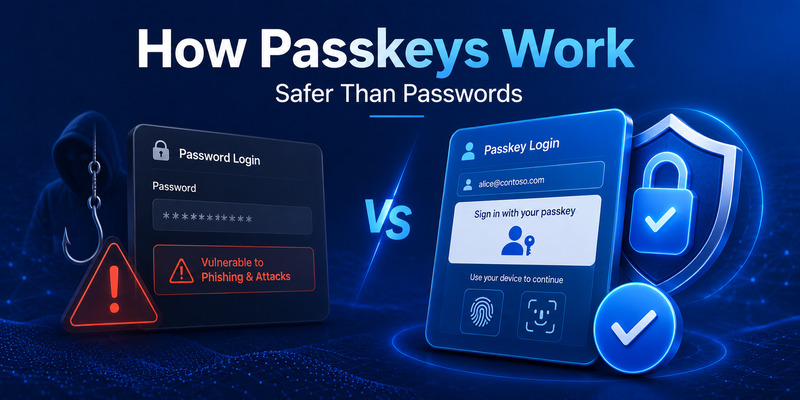
The security model behind microsoft authenticator passkeys is very different from the traditional username-and-password model.
With passwords, both the user and the service rely on a shared secret. Even when a website stores passwords securely in hashed form, users can still be tricked into revealing the original password through phishing.
Passkeys avoid this shared-secret model.
The website stores a public key. Your device securely stores the corresponding private key. During login, the service sends a cryptographic challenge, and your device signs that challenge using the private key.
The service can then verify the response using the public key.
This means the private credential behind microsoft authenticator passkeys does not need to be sent across the internet.
Passkeys can also provide stronger phishing resistance because they are associated with the service or domain for which they were created. A fake website cannot simply collect a passkey in the same way it might collect a password typed into a fraudulent login page.
Device security provides another protection layer.
To use microsoft authenticator passkeys, you may be required to unlock your device using:
- Fingerprint recognition
- Facial recognition
- Device PIN
- Screen lock
- Another approved local authentication method
As a result, someone who physically obtains your phone may still be unable to use the passkey without unlocking the device.
However, passkeys do not eliminate the need for good security habits. Users should still protect their phones, keep operating systems updated, maintain recovery methods, and immediately respond if a device is lost or stolen.
3. How to Set Up Microsoft Authenticator Passkeys
The exact procedure for configuring microsoft authenticator passkeys depends on whether you use a personal Microsoft account or an organizational Microsoft Entra ID account.
For a personal Microsoft account, you can generally begin from your Microsoft account security settings.
A typical setup process may include:
- Sign in to your Microsoft account.
- Open the security section.
- Go to advanced security or sign-in options.
- Choose the option to add a new verification or sign-in method.
- Select the available passkey option.
- Choose where you want the passkey to be stored.
- Confirm your identity.
- Use your device PIN, fingerprint, or facial recognition to finish registration.
When configuring microsoft authenticator passkeys on a mobile device, you may also see a QR code if the setup is being initiated from another device.
For example, you might start registration on a Windows computer and then scan a QR code with your smartphone.
Some cross-device passkey processes require Bluetooth to confirm that the two devices are physically close to each other.
For Microsoft Entra accounts, the process may be different.
Your organization’s administrator usually needs to enable Passkey (FIDO2) authentication before users can register microsoft authenticator passkeys.
Depending on company policy, an administrator can determine:
- Which users can register passkeys
- Which passkey providers are allowed
- Whether Microsoft Authenticator can store the credential
- Which authentication strengths are required
- Whether Temporary Access Pass is required during enrollment
On iOS or Android, users may also need to configure Microsoft Authenticator as an approved passkey provider through the phone’s operating-system settings.
If the option does not appear, check whether the account is eligible before repeatedly reinstalling the application.
 Discover Helpful Guides: Microsoft Authenticator: Complete Setup, Login, Backup & Troubleshooting Guide
4. How to Sign In to Microsoft With a Passkey
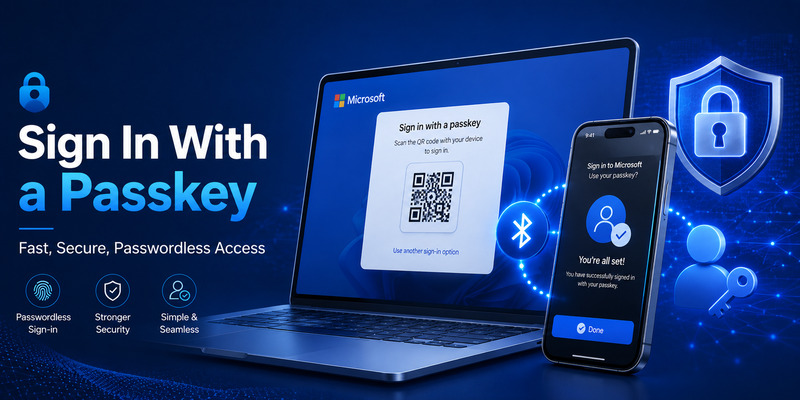
People searching for login microsoft passkey usually want to know how to access their Microsoft account without typing a password.
After microsoft authenticator passkeys have been successfully registered, supported Microsoft sign-in pages may display an option such as “Sign in with a passkey.”
Select that option and follow the instructions on your device.
If the passkey is stored on the device currently being used, you may simply be asked to authenticate using your fingerprint, face, or PIN.
The process can be extremely fast because there is no password to remember or type.
If your microsoft authenticator passkeys are stored on your smartphone but you are signing in from a computer, Microsoft may offer cross-device authentication.
In this situation, a QR code can appear on your computer screen. You scan the code using your phone and approve the sign-in through the appropriate passkey provider.
Bluetooth may be used to confirm physical proximity between the devices. Both devices also generally require internet connectivity.
This provides an important security benefit because simply forwarding or copying a QR code remotely may not be enough to complete authentication.
If several passkey providers are installed on your device, make sure you select the provider where the correct passkey is actually stored.
5. Microsoft Authenticator Passwordless vs. Passkeys
The phrase microsoft authenticator passwordless refers broadly to Microsoft sign-in methods that allow users to authenticate without entering a traditional password.
Passkeys are one form of passwordless authentication, but passwordless authentication is not limited to passkeys.
Microsoft has supported several passwordless methods over the years, including:
- Microsoft Authenticator sign-in approval
- Windows Hello
- Hardware security keys
- Passkeys
- Device-based authentication methods
Before microsoft authenticator passkeys became widely available, Microsoft Authenticator already allowed users to sign in by responding to notifications on their smartphones.
The user could approve the login after confirming a number or completing another verification step.
Passkeys use a different underlying technology.
Rather than simply approving an authentication notification, microsoft authenticator passkeys rely on cryptographic credentials based on passkey and FIDO standards.
This gives passkeys strong phishing-resistant properties.
You should also avoid confusing passkeys with the six-digit codes generated by an authenticator app.
A time-based one-time password, commonly called TOTP, produces a temporary numerical code that changes periodically.
A passkey does not work by displaying a rotating six-digit code. Instead, the device uses a cryptographic private key to complete authentication.
 Read More Guides: Microsoft Authenticator for Business: Complete Guide to Security, Cost, Setup, and Employee Use
6. Microsoft Authenticator Passkeys for Work and School Accounts
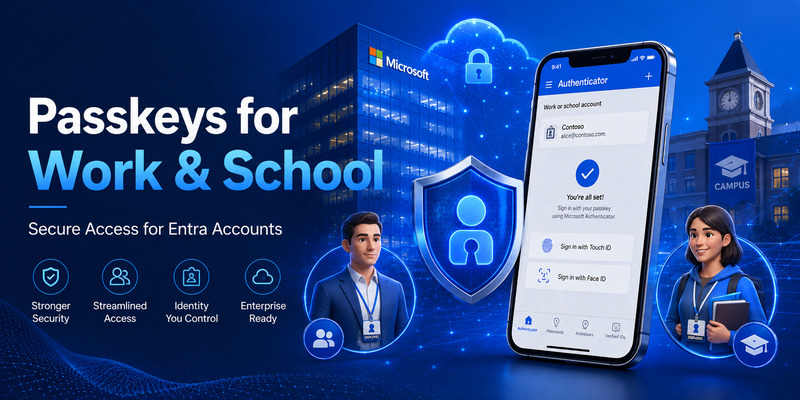
One of the most significant use cases for microsoft authenticator passkeys is Microsoft Entra ID.
Organizations using Microsoft Entra can allow employees, contractors, students, or other users to authenticate with passkeys stored through Microsoft Authenticator.
Users searching for microsoft authenticator app passkeys are therefore often dealing with a company or school account rather than a personal Microsoft account.
Administrators can enable Passkey (FIDO2) authentication policies and control which users are eligible.
Once the relevant policies are active, users may be able to open their account security information, add a new sign-in method, and register microsoft authenticator passkeys.
In certain configurations, passkeys can also be created directly through Microsoft Authenticator.
However, organizational policies can significantly change the registration process.
For example, your company may require:
- Existing multifactor authentication
- Temporary Access Pass
- Managed devices
- Specific operating-system versions
- Approved passkey providers
- Particular authentication strength policies
If microsoft authenticator passkeys are missing from your account, the problem may not be your smartphone.
Your IT administrator may not have enabled the feature for your user group.
In this situation, contacting your organization’s help desk is generally more effective than deleting the app, clearing data, or repeatedly attempting registration.
Users should also avoid disabling Authenticator as a passkey provider if their Entra passkey depends on it.
7. How to Transfer Microsoft Authenticator to a New Phone
Changing smartphones is one of the most common concerns for Microsoft Authenticator users.
Searches such as microsoft authenticator to new phone, can i transfer microsoft authenticator to new phone, and export microsoft authenticator to new phone usually come from users who are worried about losing account access.
Microsoft Authenticator includes backup and recovery functionality for supported account information.
Before changing phones, open Microsoft Authenticator on your existing device and verify that backup is enabled.
The exact backup method differs between Android and iOS.
One important limitation is that Microsoft Authenticator backups are generally designed to be restored within the same mobile platform.
Moving from Android to another Android device is different from moving from Android to iPhone. Likewise, an iOS backup is not necessarily transferable directly to Android.
After installing Authenticator on your new phone, select the recovery or restore option instead of immediately creating an entirely new configuration.
Sign in using the recovery account associated with your backup.
Some restored accounts may still require additional verification.
The situation becomes especially important when dealing with microsoft authenticator passkeys.
Passkeys are not always transferred using the same process as ordinary Authenticator account entries or TOTP configurations.
If the passkey is bound to the old device, you may need to create a new passkey on the replacement phone.
Therefore, before wiping, selling, trading in, or factory-resetting your old phone, confirm that microsoft authenticator passkeys work correctly on the new device.
You should ideally maintain at least one alternative account recovery method until the migration is completely finished.
If your passkeys are stored in a credential manager that supports secure synchronization, they may become available after you sign in to the same credential manager on your new phone.
Always verify where the passkey is actually stored before deleting the old device.
 Find the Right Guide: Microsoft Authenticator Reset: Safe Step-by-Step Guide for Beginner
8. Does Microsoft Authenticator Password Manager Still Work?
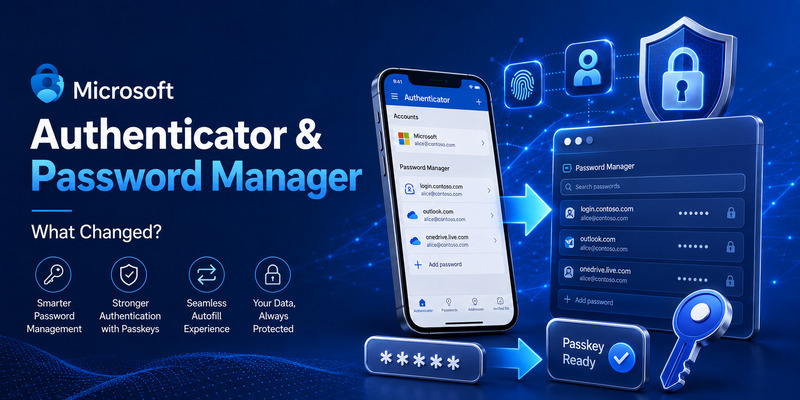
The phrase microsoft authenticator password manager can be confusing because Microsoft Authenticator previously included password storage and autofill functionality.
Microsoft has since changed this functionality.
Password autofill within Microsoft Authenticator was discontinued during 2025. The application is no longer intended to function as the general password-management and autofill product that it once was.
Microsoft has shifted password-management functionality toward Microsoft Edge and Microsoft Password Manager.
This change does not mean microsoft authenticator passkeys have been discontinued.
Authenticator continues to serve important authentication roles, including MFA, account verification, passwordless authentication, and supported Entra passkey scenarios.
The key distinction is where credentials are now managed.
Microsoft Authenticator primarily focuses on authentication.
Microsoft Password Manager and Microsoft Edge are used for Microsoft password-management functionality and can also participate in passkey storage depending on the user’s configuration.
This distinction is particularly important when troubleshooting microsoft authenticator passkeys.
If you created a passkey through Microsoft Password Manager, looking for it inside Authenticator may not help.
Similarly, an Entra passkey stored through Authenticator may need to remain associated with the Authenticator passkey provider.
9. Common Microsoft Authenticator Issues and How to Fix Them
Users may experience different microsoft authenticator issues, ranging from missing notifications to problems registering or using a passkey.
One common problem is not receiving a push notification.
Start by checking whether notifications are enabled for Microsoft Authenticator in your phone’s operating-system settings.
Also check your internet connection.
Battery optimization can sometimes restrict background activity on mobile devices. Make sure the operating system is not preventing Authenticator from receiving notifications.
If microsoft authenticator passkeys do not appear during sign-in, check where the passkey was originally stored.
A passkey saved in one credential manager may not automatically appear through another provider.
If the problem occurs during cross-device authentication, confirm that Bluetooth is enabled and that the computer and smartphone are physically close.
Both devices should also have working internet connections.
Another common problem occurs after changing the device PIN, biometric settings, security configuration, or smartphone itself.
Depending on how microsoft authenticator passkeys were created and stored, you may need to register a new passkey.
Work and school accounts introduce additional possibilities.
If your company controls authentication through Microsoft Entra ID, administrator policies may prevent passkey registration even when your smartphone fully supports it.
In this situation, contact your organization’s IT team.
Before reinstalling Authenticator, make sure you have backup authentication options. Removing the application without preparation could make account recovery more difficult.
Find the Right Guide: Microsoft Authenticator Download PC: Safe Options Guide
10. Why Is Microsoft Authenticator Asking for Authentication?
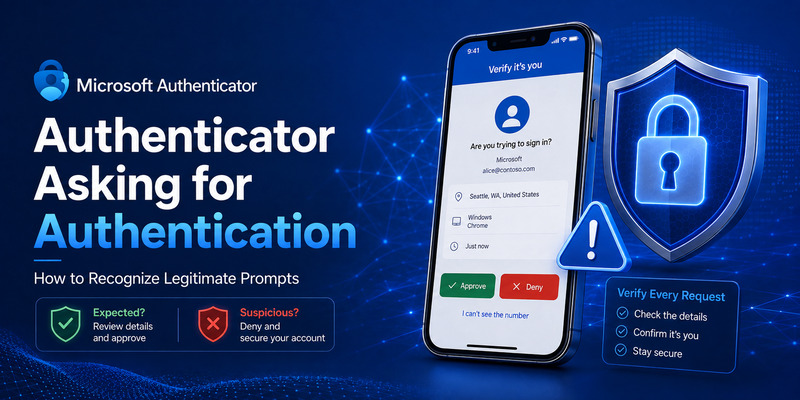
The search phrase my microsoft authenticator app is asking for authentication often appears when a user receives a verification request they did not expect.
A request may be legitimate if you just:
- Signed in to your Microsoft account
- Added a security method
- Registered a new device
- Created a passkey
- Accessed a protected company resource
- Changed your account security settings
If the request appears while you are actively setting up microsoft authenticator passkeys, review the information displayed and confirm that it matches the action you initiated.
However, unexpected authentication requests should be treated carefully.
If you are not trying to sign in, do not approve the request simply to stop the notification.
An attacker who already knows your username and password may repeatedly trigger authentication requests in an attempt to convince you to approve one.
If you receive unexplained requests, review recent sign-in activity and security settings.
For work accounts, notify your IT or security department if suspicious authentication prompts continue.
11. How to Contact Microsoft Authenticator Customer Service
When troubleshooting does not solve the problem, users may search for microsoft authenticator customer service, microsoft authenticator contact, or a microsoft authenticator phone number.
The safest approach is to begin with Microsoft’s official support channels.
Microsoft provides support pages, troubleshooting articles, account recovery tools, and the Get Help experience.
For personal account sign-in problems, Microsoft’s account recovery and sign-in assistance tools can help identify common problems.
For difficulties involving microsoft authenticator passkeys on a work or school account, your organization’s IT administrator may be the most important support contact.
This is because Microsoft Entra authentication policies are controlled at the organizational level.
Microsoft support cannot necessarily override your employer’s authentication configuration.
Be cautious about telephone numbers found on unofficial websites.
Scammers sometimes create pages that appear to offer Microsoft technical support and display third-party phone numbers.
Whenever possible, start from Microsoft’s official website or the official Get Help application.
Never provide a passkey, password, recovery code, one-time authentication code, or remote device access to someone whose identity you cannot verify.
12. Is Microsoft Authenticator Free?
Users frequently ask is microsoft authenticator free when deciding whether to install the application.
Microsoft Authenticator itself is available as a free authentication application for supported mobile platforms.
You do not normally need to purchase Microsoft 365 simply to install Authenticator and use supported basic authentication features.
However, there is an important distinction between the cost of the application and the enterprise services connected to it.
A business may use Microsoft Entra features, Conditional Access, authentication policies, or other enterprise security capabilities that are associated with organizational licensing.
This does not mean individual users must purchase the Authenticator application.
The availability of microsoft authenticator passkeys may also depend on account type, device compatibility, operating-system support, and organizational policies.
Therefore, if passkey functionality is not visible, purchasing another Microsoft subscription is not necessarily the solution.
13. Security Best Practices for Microsoft Authenticator Passkeys
Using microsoft authenticator passkeys can significantly improve account security, but the technology works best when combined with responsible device management.
First, protect your phone with a strong screen lock.
Because passkeys often rely on device authentication, leaving your phone without a secure PIN, fingerprint, or biometric lock weakens your overall security.
Second, keep your operating system and Microsoft Authenticator updated.
Updates can include security improvements, compatibility changes, and support for newer authentication capabilities.
Third, maintain backup account recovery methods.
Even if microsoft authenticator passkeys become your preferred login method, having a second trusted recovery option can be valuable when a device is lost, damaged, or replaced.
Fourth, understand where your passkeys are stored.
Some passkeys may be stored directly on a device. Others may be stored through Microsoft Password Manager or another credential manager.
An Entra passkey may rely specifically on Microsoft Authenticator.
Knowing the storage location makes moving to a new phone much easier.
Fifth, verify microsoft authenticator passkeys on your replacement phone before erasing the previous device.
A common mistake is factory-resetting the old phone immediately after purchasing a new one.
Instead, test your important accounts first.
Sixth, reject unexpected authentication prompts.
No legitimate authentication system requires you to approve a login that you did not initiate.
Finally, review your security methods periodically.
Remove old phones and passkeys that are no longer needed, particularly after replacing devices.
This helps ensure that your Microsoft account does not retain unnecessary credentials associated with hardware you no longer control.
14. Frequently Asked Questions
Can I use Microsoft Authenticator passkeys on multiple devices?
It depends on how the passkey is stored.
Some passkeys stored in credential managers can synchronize across supported devices. Other passkeys may remain tied to a specific device or provider.
Cross-device authentication can also allow you to use a phone-based passkey while signing in from a computer.
With microsoft authenticator passkeys, always check whether the credential belongs to Authenticator itself or another credential manager.
Can passkeys completely replace my password?
Passkeys are designed as a replacement for passwords, but not every website, application, and legacy system supports them yet.
Microsoft accounts can support several passwordless methods, while some older services may continue to require traditional credentials.
As adoption expands, users will likely rely less on passwords.
Does deleting Microsoft Authenticator delete my passkeys?
The answer depends on the passkey provider.
If your microsoft authenticator passkeys are Entra passkeys managed through Authenticator, removing the app or disabling Authenticator as a passkey provider may affect your ability to use them.
Passkeys stored through another credential manager may be handled differently.
Before deleting Authenticator, verify the storage location of each critical passkey and ensure that another authentication method is available.
Will my passkeys automatically transfer to my new phone?
Not always.
Passkeys synchronized through a supported credential manager may become available on a new device after you sign in to the same service.
Device-bound passkeys may need to be recreated.
When moving microsoft authenticator passkeys, test the new device before removing access from the old device.
Does Microsoft Authenticator still save passwords?
Microsoft Authenticator no longer provides the same password autofill experience it offered previously.
Microsoft shifted password-management functionality to Microsoft Edge and Microsoft Password Manager during 2025.
Authenticator remains focused on authentication, including MFA and supported passwordless and passkey scenarios.
Is a passkey the same as a six-digit Authenticator code?
No.
A six-digit Authenticator code is normally a time-based one-time password.
A passkey uses public-key cryptography and does not require you to type a rotating code.
Therefore, microsoft authenticator passkeys and TOTP codes are different authentication technologies even though they may both be associated with the same application.
Why can’t I see the passkey option on my work account?
Your organization may not have enabled Passkey (FIDO2) authentication for your account.
Microsoft Entra administrators can control which users and groups are allowed to register passkeys.
If microsoft authenticator passkeys are unavailable even though your phone supports them, contact your company’s IT administrator and ask whether Authenticator passkeys have been enabled for your account.
What happens if I lose my phone?
If your passkey is tied to the lost phone, use another registered sign-in or recovery method.
After regaining access, remove the old passkey and register a new credential on your replacement device.
If you use synchronized passkeys, the recovery process may depend on your credential manager.
Do not assume that losing a phone automatically compromises microsoft authenticator passkeys, because an attacker would generally also need to unlock the device.
However, you should still remove lost devices from your account as quickly as possible.
Download Authenticator App
Secure your accounts with fast, reliable two-factor authentication. Download now and protect your login in seconds.
