
Microsoft Authenticator for Business: Complete Guide to Security, Cost, Setup, and Employee Use
As businesses rely more heavily on cloud services, remote access, and digital collaboration, protecting employee accounts has become a critical priority. Microsoft Authenticator for business provides organizations with a practical way to strengthen sign-in security through multi-factor authentication, number matching, verification codes, and passwordless access. But how does Microsoft Authenticator work, is it free, what can your company see when you use it on a personal phone, and is it mandatory for employees?
This guide explains how Microsoft Authenticator works in a business environment, its requirements and costs, privacy considerations, available authentication options, setup best practices, and how it compares with other authenticator app solutions.
1. What Is Microsoft Authenticator for Business?
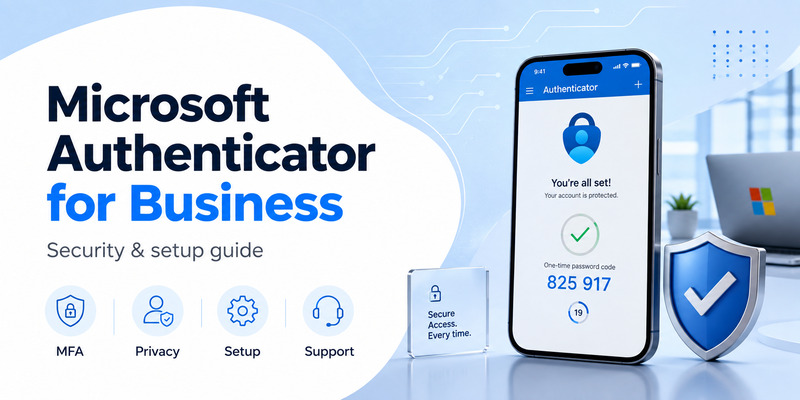
Microsoft Authenticator for business is Microsoft’s mobile authentication solution used to help employees verify their identity when they access company accounts, cloud services, and protected applications. In a typical organization, the app is connected to a work or school account in Microsoft Entra ID and can be used for multifactor authentication, passwordless sign-in, one-time passwords, number matching, and other identity verification flows. Microsoft also supports personal Microsoft accounts and compatible third-party accounts in the same application.
For companies already using Microsoft 365, Microsoft Entra ID, Azure, or other Microsoft cloud services, Microsoft Authenticator for business often becomes part of the identity layer rather than a standalone security product. The employee begins a sign-in, Microsoft Entra evaluates the request, and the user is asked to complete an approved authentication method. Depending on the organization’s policy, that method may be a push approval in Authenticator, a passkey, a one-time code, or another method allowed by IT.
If you are searching for what Microsoft Authenticator is, the simplest Microsoft Authenticator explained answer is this: it proves that the person signing in has access to a trusted device or credential in addition to knowing an account name and, in some cases, a password. That additional proof is why Microsoft Authenticator for business is commonly used as part of MFA and passwordless strategies.
Download Authenticator App
Secure your accounts with fast, reliable two-factor authentication. Download now and protect your login in seconds.
2. How Does Microsoft Authenticator Work in a Business Environment?
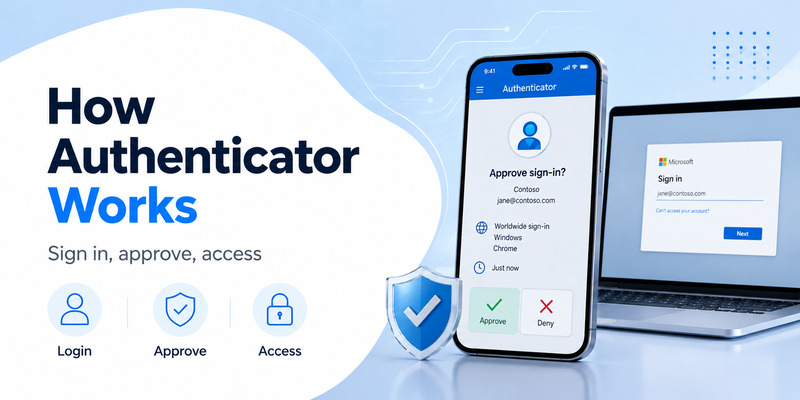
A common question is how does Microsoft Authenticator work when an employee signs in to a business system. The process starts with the identity provider. An employee might open a Microsoft 365 service, Azure-connected resource, or another application integrated with Microsoft Entra. After the initial sign-in step, the organization’s identity policies determine whether additional verification is required.
When Microsoft Authenticator for business is registered for that user, the sign-in service can send a request to the user’s device. The user opens Authenticator, reviews the prompt, and may be asked to enter or match a number shown on the sign-in screen. Once the correct response is approved, the sign-in can continue. Microsoft documents number matching as part of its modern Authenticator sign-in experience.
This is the practical answer to how Microsoft Authenticator works: the phone does not independently decide whether a user gets access. The app participates in an authentication flow controlled by Microsoft Entra and the organization’s settings. The business can use security defaults for basic MFA or Conditional Access for more granular rules, such as requiring stronger authentication when a user is remote, using a personal device, or accessing a sensitive application.
Microsoft Authenticator for business can also support passwordless phone sign-in in supported configurations. Instead of typing a password every time, the user can approve a sign-in from the registered device. In newer Microsoft Entra environments, organizations may also use passkeys and other phishing-resistant methods alongside or instead of traditional push MFA.
3. What Is Microsoft Authenticator Used For at Work?
The phrase Microsoft Authenticator used for covers several business scenarios. The most familiar is MFA: a user enters a password and then completes an additional check on a trusted device. However, Microsoft Authenticator for business can do more than provide a second factor.
Organizations may use Microsoft Authenticator for business to approve sign-in notifications, complete number matching, generate time-based one-time passwords, support passwordless phone sign-in, register certain passkey experiences, and help users recover access when another authentication path is available. Work or school accounts can also be tied to device registration scenarios that support single sign-on and Conditional Access.
Microsoft Authenticator for work is especially useful when a company wants employees to authenticate from laptops, desktops, and mobile devices without relying only on SMS. Microsoft Authenticator for business can be part of a broader identity program that also includes Windows Hello for Business, security keys, passkeys, Temporary Access Pass, certificate-based authentication, or other methods.
The important point is that Microsoft Authenticator for business is not a replacement for all identity security controls. Microsoft Authenticator for business is one authentication method inside a larger access system. Strong business deployments combine it with account lifecycle management, least-privilege access, device security, Conditional Access, monitoring, and recovery planning.
4. Microsoft Authenticator Requirements for Business Deployment
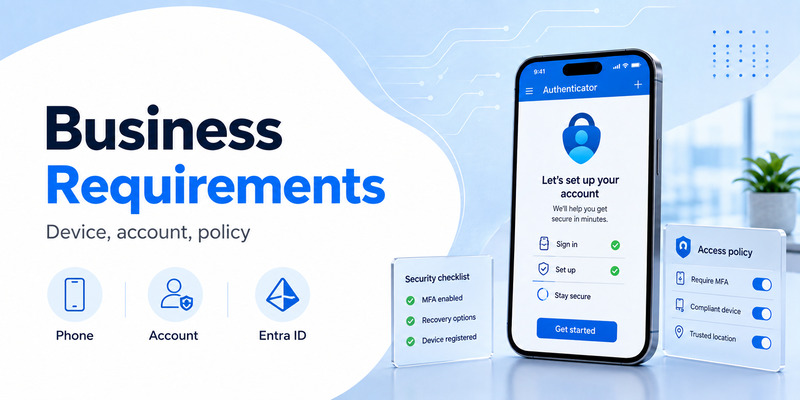
Microsoft Authenticator requirements depend on the feature an organization plans to use. At a basic level, users need a supported mobile device, a current version of Microsoft Authenticator, a work or school account that allows the method, and a registration process that links the user’s account to the device. Microsoft now requires the latest Authenticator version to add an account, and current support guidance also notes jailbreak and root detection for work or school Entra credentials beginning in 2026.
For business deployments, administrators also need to configure authentication methods in Microsoft Entra appropriately. A basic tenant can use security defaults, while organizations that need Conditional Access and more granular policy controls generally require Microsoft Entra ID P1 or licensing that includes it. Risk-based Conditional Access capabilities require higher-tier licensing such as Entra ID P2.
Before rollout, IT should define which users are targeted, what fallback methods are allowed, how users will register, and what happens if a phone is lost. A Microsoft Authenticator business account should never be deployed without a recovery plan. Employees should know how to replace a device, how to report a suspicious prompt, and how to contact the company’s help desk before they are locked out.
5. Cost and Licensing for Microsoft Authenticator
Many buyers ask is Microsoft Authenticator free. The Microsoft Authenticator mobile application itself is free to download and use, and Microsoft describes it as a free app for personal, work, school, and other supported accounts. That means there is no separate app-store purchase price just to install Microsoft Authenticator for business on an employee’s phone.
The more important question is how much does Microsoft Authenticator cost in a business environment. Microsoft Authenticator cost is usually tied to the identity and security capabilities around the app rather than to the app itself. Microsoft states that basic multifactor authentication features are available to Microsoft 365 and Microsoft Entra ID users at no extra cost through options such as security defaults. More advanced controls, including Conditional Access, require appropriate Microsoft Entra licensing.
So, is Microsoft Authenticator free to use for a business? Microsoft Authenticator for business is free as an app, but the organization may already be paying for Microsoft 365 Business Premium, Microsoft 365 E3 or E5, Microsoft Entra ID P1 or P2, or another plan that provides the policy features the company wants. Microsoft 365 Business Premium includes Entra ID P1, while higher enterprise packages may include P1 or P2 depending on the plan.
This distinction matters when budgeting for enterprise authentication. A company should not compare the zero-dollar app price with the full cost of an enterprise identity program. Licensing, help-desk operations, device management, migration work, training, and security governance can all contribute to the total cost.
6. Microsoft Authenticator for Work on Personal Phones: Privacy and Visibility
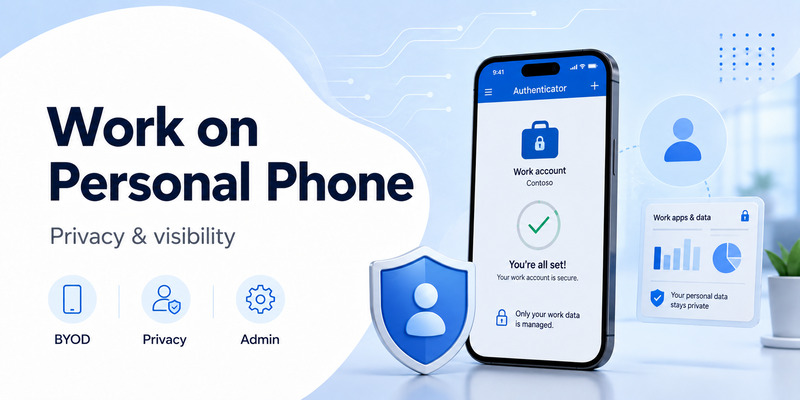
One of the most sensitive employee questions is Microsoft Authenticator what can my company see. The answer depends on whether the phone is only using Microsoft Authenticator for business or is also registered, enrolled, or managed by other Microsoft services such as Intune.
Microsoft Authenticator for business itself is not the same as full mobile device management. Microsoft’s Authenticator documentation says that when an organization requires location as part of a policy, the app can use GPS information to determine the user’s country. Microsoft states that the country can be reported to the IT administrator, while the actual GPS coordinates are not stored on Microsoft servers. This feature is used when an admin has configured a location-based requirement.
The situation changes if a personal device is separately enrolled in Microsoft Intune or otherwise managed. Microsoft’s Intune privacy documentation explains that organizations can view certain device details but cannot see personal email or text messages, photos, or similar personal content simply because the device is enrolled. Device management is therefore a separate consideration from Microsoft Authenticator for business.
For employees concerned about Microsoft Authenticator app for work on personal phone, the best practice is to ask IT what exactly is being required: Authenticator registration only, Microsoft Entra device registration, an Intune app protection policy, or full device enrollment. These are different controls with different visibility and management implications.
7. Microsoft Authenticator Options for Businesses
Microsoft Authenticator options should be considered as part of a portfolio of authentication methods rather than as a single all-or-nothing decision. Microsoft Entra supports multiple verification methods, including Microsoft Authenticator, passkeys, Windows Hello for Business, security keys, certificate-based authentication, Temporary Access Pass, OATH tokens, SMS, and voice in supported configurations.
For business use, IT can choose push-based MFA, passwordless phone sign-in, one-time password codes, or passkey-related experiences depending on licensing, platform support, and security policy. For many organizations, Microsoft Authenticator for business offers a practical balance between user convenience and centralized identity control. Administrators can also determine which groups can use particular methods.
8. Is Microsoft Authenticator Mandatory for Employees?
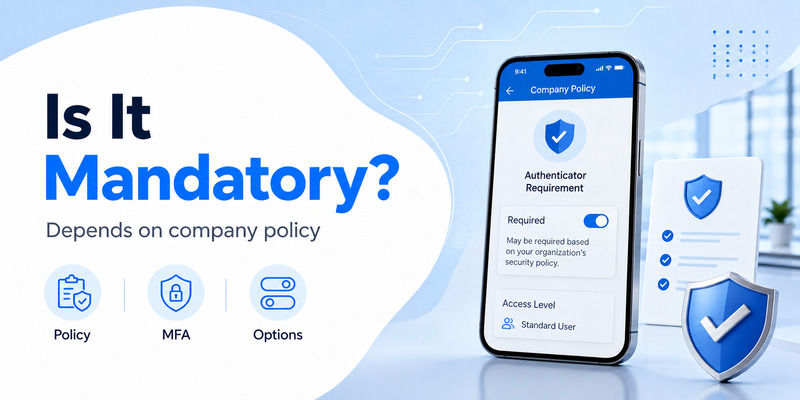
Is Microsoft Authenticator mandatory? Microsoft does not make the same authentication method mandatory for every organization in every scenario. Whether an employee must use Microsoft Authenticator for business depends on the company’s tenant configuration, security defaults, Conditional Access policies, authentication method policies, and any alternative methods allowed by administrators.
In some Microsoft Entra environments, security defaults can require users to register and use MFA, and the mobile Microsoft Authenticator experience may be the primary prompt method. In more advanced deployments, administrators can allow or require other methods. Therefore, an employee who sees a registration prompt should not assume the app is globally mandatory; it may be mandatory under that employer’s policy.
For rollouts, organizations should communicate the requirement before enforcement. Employees need to know the deadline, supported devices, privacy implications, available alternatives, and the support path for exceptions. This is especially important when the company expects staff to use a personal phone.
9. Is Microsoft Authenticator Good for Business Security?
Is Microsoft Authenticator good for a business? For organizations in the Microsoft ecosystem, Microsoft Authenticator for business can be a strong component of an identity security strategy because it integrates directly with Microsoft Entra authentication, Microsoft 365 sign-in, security defaults, and Conditional Access.
Microsoft Authenticator for business improves on password-only access by requiring a second proof or by enabling passwordless experiences. Number matching also adds context to a push approval. Organizations can combine Authenticator with sign-in risk, device state, location, and application sensitivity when they use appropriate Conditional Access capabilities.
A realistic answer is that the product is good when it is deployed as part of layered security, not when it is the only control. Companies should use device locks, modern authentication, least privilege, risk monitoring, backup methods, and clear incident-response procedures alongside it.
10. Business Account Setup and Rollout Best Practices
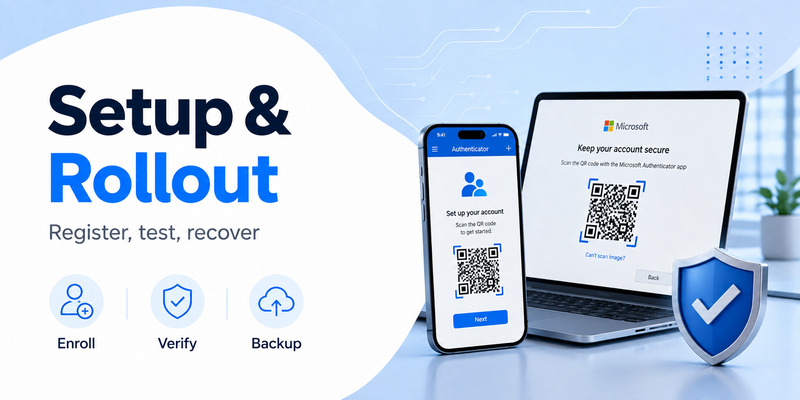
A successful Authenticator project starts with planning rather than a surprise registration prompt. IT should first identify the target user groups, the authentication methods those users already have, and the applications that will require MFA. A pilot group can then test registration, sign-in, recovery, help-desk procedures, and device replacement.
For a work or school account, users commonly register Microsoft Authenticator from the Security info experience. The user signs in, chooses to add Microsoft Authenticator, follows the on-screen instructions, and completes a verification test. Organizations can also run registration campaigns to encourage users to set up modern methods.
The rollout should explain how Authenticator behaves during normal sign-in. Employees using Microsoft Authenticator for business should know that they must approve only requests they initiated, check number matching carefully, and deny unexpected prompts. Microsoft warns users not to approve unexpected authentication requests.
Backup and recovery deserve equal attention. For Microsoft Authenticator for business, Microsoft’s current backup guidance states that work or school accounts restore only the account name and require the user to sign in again. A replacement phone may therefore need reauthentication or re-registration. Employees should not erase an old device until important business accounts have been tested on the new one.
11. Support, Troubleshooting, and Contact Options
People often search for a Microsoft Authenticator contact number when a sign-in fails. Microsoft does not present a single universal Authenticator-specific phone number for every user and country. Official support routes vary by account type, region, and organization, so users should begin with Microsoft Support or their organization’s IT team rather than relying on phone numbers found on third-party websites.
For Microsoft Authenticator customer support, Microsoft’s troubleshooting guidance directs personal-account users toward Microsoft Support, while work or school account users are generally told to contact their IT administrator when registration or sign-in problems remain unresolved. This is important because company administrators control authentication methods and can often see whether a work account is blocked by policy.
Common business deployment problems include missing notifications, incorrect time settings, network problems, outdated app versions, account registration issues, device changes, and policies that restrict sign-in. Microsoft recommends keeping the app and device current and checking connectivity and notifications before removing accounts.
Employees using Microsoft Authenticator for business should be cautious when seeking help. Microsoft warns users not to share verification codes with people contacting them by phone or message, and unexpected sign-in requests should not be approved. Businesses should train employees to use internal support channels for Microsoft Authenticator for business issues, especially when a lost phone or suspicious prompt is involved.
12. Microsoft Authenticator vs Google Authenticator for Business
A comparison with Google Authenticator often begins with google authenticator for business cost. Google Authenticator is distributed through official mobile app stores and its Google Play listing presents it as an installable app without a listed purchase price. However, the real Microsoft Authenticator for business decision is not just the app-store price. The better choice depends on the identity platform, policy controls, deployment model, and user experience.
Microsoft Authenticator for business has a major advantage for organizations that already depend on Microsoft Entra ID and Microsoft 365 because it integrates with Microsoft’s push approvals, number matching, passwordless phone sign-in, and Entra policy framework. Google Authenticator is designed to generate one-time verification codes for compatible services.
For a Microsoft-centric company, Authenticator usually offers deeper integration with Microsoft Entra than a generic TOTP-only workflow because it supports Microsoft-specific approval and passwordless scenarios. Organizations should still evaluate phishing resistance, recovery, device management, help-desk support, cross-platform needs, and user accessibility before standardizing on any one method.
13. Microsoft Authenticator for Business FAQ
Is the mobile app free for business users?
Yes, the Microsoft Authenticator mobile application is free. Microsoft Authenticator for business can be used with basic MFA features available through Microsoft Entra ID and Microsoft 365 environments, but advanced controls such as Conditional Access depend on the organization’s licensing.
How does Microsoft Authenticator work for employees?
Microsoft Authenticator for business is registered to an employee’s work or school account. During a sign-in, Microsoft Entra can request additional verification. The user then approves the request, completes number matching, uses a one-time code, or follows another supported flow.
What can my company see if I use Authenticator on my personal phone?
Microsoft Authenticator for business is not automatically equivalent to full device management. Authenticator can share limited information required for authentication and, if an admin has configured location-based policy, the user’s country can be reported. If the device is separately enrolled in Intune, the company may see additional device-management information, but Microsoft states that personal content such as texts, emails, and photos is not visible merely because of Intune enrollment.
Is Microsoft Authenticator required for every Microsoft 365 user?
Not universally. Microsoft Authenticator for business may be required by an employer’s security defaults or Conditional Access configuration, while another organization may allow different methods such as security keys, passkeys, SMS, or other approved options.
Can a business use Authenticator without paying extra?
Basic MFA can be available at no extra cost in supported Microsoft 365 and Microsoft Entra environments. Microsoft Authenticator for business itself is free, but advanced identity controls may require Entra ID P1, P2, or a Microsoft 365 plan that includes those capabilities.
Is Microsoft Authenticator better than SMS?
For many organizations, Microsoft Authenticator for business offers capabilities beyond SMS, including number matching and passwordless sign-in, while Microsoft Entra also supports phishing-resistant methods such as passkeys, FIDO2 security keys, and Windows Hello for Business.
What happens if an employee loses the phone?
For Microsoft Authenticator for business, the employee should contact IT and use an approved recovery method. Microsoft Authenticator for business can be restored in some scenarios, but work or school accounts may require reauthentication or re-registration on the replacement device.
Should a company allow Authenticator on personal phones?
It can be appropriate, but the organization should create a clear BYOD policy. Microsoft Authenticator for business on personal devices works best when employees understand privacy boundaries, device security requirements, recovery procedures, and whether additional tools such as Intune are also required.
Conclusion
Microsoft Authenticator for business is a practical identity tool for organizations that want to move beyond password-only access. It can support MFA, number matching, one-time codes, passwordless phone sign-in, and integration with Microsoft Entra policies. The mobile application itself is free, while advanced policy and risk controls depend on the organization’s Microsoft licensing.
The best Microsoft Authenticator for business deployment is not simply “install the app on every phone.” Businesses should define authentication policies, test requirements, communicate privacy expectations, provide alternatives where appropriate, and prepare recovery procedures before enforcement.
For employees, the most important habits are simple: approve only sign-ins you initiated, protect the phone with a strong device lock, keep Authenticator updated, and contact trusted internal support if a prompt looks suspicious. For administrators, Microsoft Authenticator for business is most effective when it is combined with appropriate access policies, strong recovery methods, user education, and a broader move toward phishing-resistant authentication.
Download Authenticator App
Secure your accounts with fast, reliable two-factor authentication. Download now and protect your login in seconds.
