
Microsoft Authenticator Reset: Safe Step-by-Step Guide for Beginner
A microsoft authenticator reset can mean replacing one TOTP secret, re-registering push on a new phone, asking an administrator to reset MFA, restoring a backup, or reinstalling an app that will not start. These actions have different consequences and should not be treated as one universal reset button.
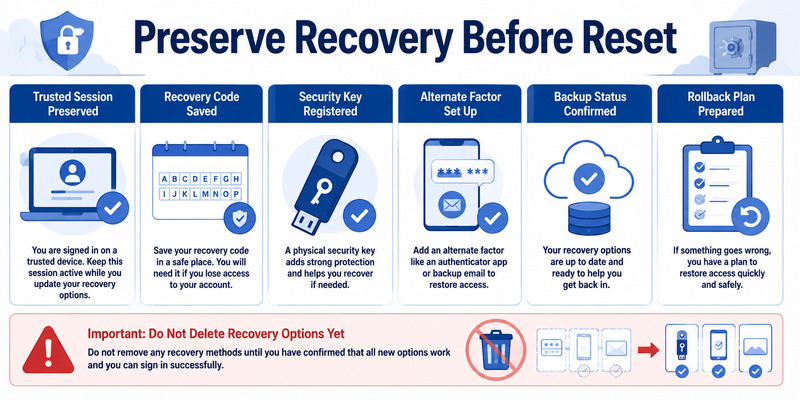
Preserve a recovery code, security key, alternate factor, trusted session, backup, second device, or administrator-assisted method before deleting any credential. Resetting the only working factor can create a full lockout.
This guide explains how to select the smallest safe reset, validate the replacement, handle managed accounts, recover from mistakes, and remove obsolete registrations.
1. Decide What Kind of Authenticator Reset You Need
Describe the target and desired result
Record the provider, full username, tenant, current phone, credential type, symptom, and intended outcome. A rejected code, missing push, lost phone, app crash, and policy block belong to different layers.
For microsoft authenticator reset, decide whether you need to replace one local tile, revoke a server method, enroll a replacement phone, restore a backup, reset organization MFA, or repair the entire app installation.
Choose the smallest reset scope
| Symptom or goal | Correct reset scope | Avoid |
|---|---|---|
| One account code fails | Re-enroll that provider method | Clearing all app data |
| Push goes to old phone | Add new phone, remove old server record | Deleting only local tile |
| New phone after restore | Complete Action required | Assuming names equal credentials |
| Work account blocked | Administrator-assisted MFA reset | Repeated self-service deletion |
| App crashes for every account | Back up, then repair or reinstall | Uninstalling without recovery |
| Lost phone | Revoke device and re-enroll | Waiting while access remains exposed |
Start with a controlled sign-in through the provider’s official page. Close duplicate windows and record the exact error. If only one identity fails, keep the reset scoped to that provider rather than touching every account.
This classification prevents a microsoft authenticator reset from destroying healthy credentials while leaving the actual server, policy, or session problem unchanged.
🧭 Explore Guides: How to Use Microsoft Authenticator: Complete Guide
2. Preserve Recovery Before Any Reset
Test an independent fallback
Use a recovery code, security key, alternate authenticator, passkey, recovery email or phone, trusted session, second device, or administrator-assisted method. Perform a signed-out test when safe; a method listed in settings may be outdated.
Before microsoft authenticator reset, keep working browsers, desktops, password managers, and administrative sessions signed in. These sessions can add a replacement method or issue new recovery codes.
Protect account and backup access
Verify Authenticator backup status and access to its recovery identity. Microsoft supports backup restore only within the same device type. Work, school, and passwordless entries can restore only account names and still require re-registration.
Save provider recovery codes securely outside the phone. Do not place passwords, codes, QR secrets, or manual TOTP keys in ordinary notes, screenshots, email, or chat.
If theft or compromise is possible, review recent activity, security methods, registered devices, and active sessions. Change the password and revoke suspicious access from a known-clean device before routine reset work.
A safe microsoft authenticator reset has a tested rollback path. If no fallback or trusted session survives, stop and use the provider’s or organization’s official recovery process.
Create a reset worksheet with provider, username, reset scope, fallback tested, backup state, trusted session, and rollback owner. Exclude codes and secrets. This prevents the same phone or recovery account from silently becoming the only path for every service.
Download Authenticator App
Secure your accounts with fast, reliable two-factor authentication. Download now and protect your login in seconds.
3. Reset One Account Registration Safely
Replace the provider-side credential
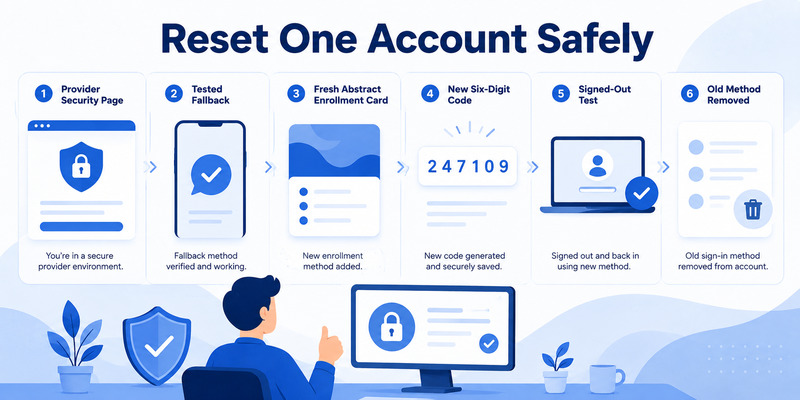
Sign in to the provider’s official security page and add a new authenticator method if multiple methods are supported. Generate a fresh QR or manual key and scan it directly with Authenticator. Complete the first server verification.
When microsoft authenticator reset targets a stale TOTP, automatic phone time and a correct tile should be checked first. Re-enrollment is appropriate only when the phone’s secret no longer matches the provider or the method needs planned rotation.
Test and remove the old method
Open a private browser and perform a separate signed-out login with the new credential. Test an independent fallback, set the new method as preferred where appropriate, and remove the obsolete server registration.
Only after provider validation should you delete the old local tile. Removing the phone entry first can erase the secret while the provider still expects it. The microsoft authenticator remove account guide explains local versus server deletion.
If setup rejects the first code, enable automatic time, wait for a fresh value, confirm the QR session is current, and ensure no second browser window invalidated it. Cancel and start one clean setup rather than creating many uncertain tiles.
Document the new registration date without secrets. A one-account microsoft authenticator reset is complete when normal login and fallback pass and the old credential no longer authorizes access.
4. Reset Authenticator After Changing Phones
Restore or re-enroll according to platform
For Android-to-Android or iPhone-to-iPhone, restore a compatible Authenticator backup using the correct recovery identity. Resolve every Action required account. For Android-to-iPhone or the reverse, re-enroll each provider manually.
If microsoft authenticator reset follows a phone change, keep the old phone until the replacement and fallback work. A visible restored account name does not prove that push, passwordless, TOTP, or organization policy is active.
Move server registrations in order
Add the replacement phone, complete provider verification, test a signed-out login, test fallback, set the new method, remove the old phone’s security method, revoke old sessions, and finally erase the retired device.
Push and TOTP must be tested separately. Restore may recover a rotating code while push remains registered to the previous phone. Passwordless phone sign-in can also require device-specific setup.
If the old phone is lost, use remote lock or erase where appropriate and revoke its provider registrations promptly. Change passwords and review activity when compromise is plausible.
Follow the microsoft authenticator change phone procedure for full migration detail. A new-phone microsoft authenticator reset must leave no dependency on the retired device.
After removing the old phone, wait for a fresh signed-out test and review recent activity. Confirm push reaches only the intended replacement and the old device name is absent from security methods. Keep the migration record until those server-side checks pass.
5. Reset Work or School MFA with Administrator Help
Use the organization’s support channel
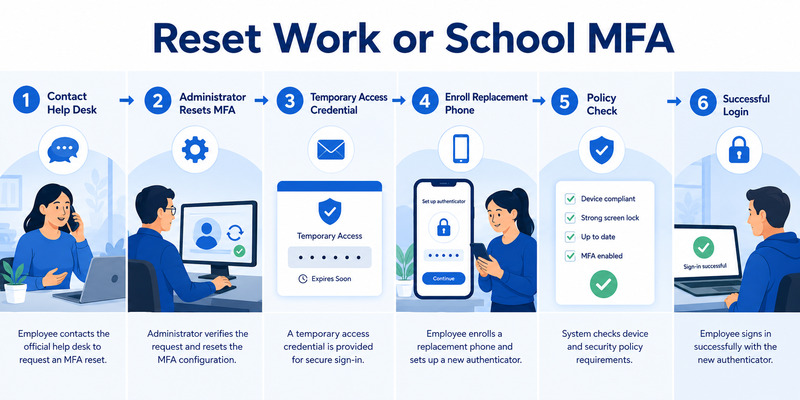
For a Microsoft Entra account, contact the employer or school’s published help desk. Provide username, tenant, timestamp, phone OS, Authenticator version, device name, exact error, and surviving access. Never send passwords, live codes, QR images, or recovery codes.
A managed microsoft authenticator reset may require the administrator to remove authentication methods, require MFA re-registration, reset passwordless phone sign-in, delete a lost device record, or issue a Temporary Access Pass where configured.
Complete Security info enrollment
After authorization, open the organization’s approved Security info page, add Authenticator on the current phone, scan the fresh QR, and complete the test request. Register passwordless or device compliance separately when required.
Conditional Access, authentication methods policy, authentication strength, risk, location, and Intune compliance may affect the result. Reinstalling Authenticator cannot bypass these controls. Preserve the error and timestamp so administrators can inspect sign-in logs.
Guest accounts can require reset and re-registration in each host tenant even when the same email appears. Label each tenant clearly and test its applications.
The reset mfa microsoft authenticator workflow ends when the new method works, relevant policy passes, old methods and lost devices are removed, and the user retains an approved fallback.
Administrators should record the method reset and the sign-in log that confirms completion. Users should verify both a routine application and one policy-sensitive resource. This closes microsoft authenticator reset with evidence across the phone, identity, and access-policy layers.
🗺️ Browse How-To Guides: Microsoft Authenticator: Complete Setup, Login, Backup & Troubleshooting Guide
6. Fix an App That Needs Local Reset or Reinstallation
Try non-destructive repairs first
Update Authenticator and the phone operating system. Restart the phone, confirm automatic date and time, free storage, network access, notification permissions, background operation, and App Lock. Test one account after each meaningful change.
If microsoft authenticator reset is considered because of a black screen, freeze, or crash affecting every account, capture the app version, OS, time, storage, profile, and exact behavior. Use official support or the organization’s help desk for managed devices.
Back up before reinstalling
Verify cloud backup and recovery-account access. Inventory every provider and confirm independent recovery. Remember that a same-platform restore may not recreate work, school, passwordless, or organization-bound credentials without additional sign-in.
Only then uninstall and reinstall from the official app store. Start recovery before manually adding duplicates. Resolve incomplete entries and test each provider. Do not assume a successful app launch means authentication works.
If the phone is rooted, jailbroken, unsupported, or noncompliant, a reinstall may not solve managed-account restrictions. Use a supported device and organization process.
A full local microsoft authenticator reset is the last resort because it affects every stored account. Complete it with provider-by-provider validation and clean server registrations.
After reinstalling, compare the restored list with the pre-reset inventory. Mark each entry as working code, Action required, missing, duplicate, or policy blocked. Resolve the list one provider at a time and do not erase the source phone until every critical row is closed.
7. Recover When Reset Causes Lockout
Use provider recovery authority
If a reset deleted the only local secret, Authenticator cannot reconstruct a third-party TOTP credential from the account name. Use the original provider’s recovery code, security key, alternate factor, trusted session, recovery email or phone, or formal identity verification.
After a failed microsoft authenticator reset, start with email and password-manager accounts because they unlock other recovery flows. Use official addresses from a known-clean device and avoid paid recovery services requesting credentials or remote access.
Escalate managed identities
For work or school accounts, an authorized administrator may reset methods or issue a temporary enrollment credential. Microsoft consumer support cannot override another organization’s tenant policy.
Once access returns, enroll a fresh authenticator credential, verify it server-side, test a signed-out login, generate new recovery codes, remove obsolete methods, and review active sessions and account activity.
If an incorrect reset occurred during suspected compromise, change the password, revoke sessions, review recovery details and application consent, and notify security. Restoring access alone may leave an attacker active.
Close recovery with a documented cause and verified fallback. The microsoft authenticator recovery guide covers full lost-access workflows following a damaging microsoft authenticator reset.
If the reset occurred during a security incident, perform a second review after access stabilizes. Check recovery details, inbox forwarding, application consent, API tokens, devices, and recent activity. A successful microsoft authenticator reset repairs the factor but does not automatically revoke every previously issued session.
🗺️ Browse How-To Guides: Microsoft Authenticator App Not Showing Code: How to Fix It
8. Secure and Verify the New Authentication Setup
Run acceptance tests
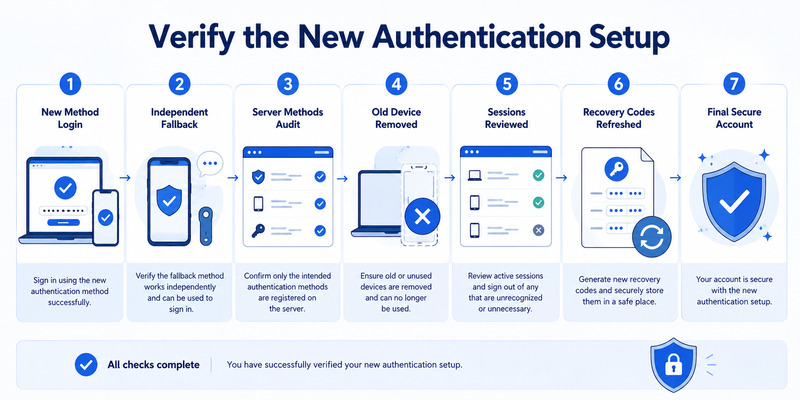
Use a private browser to test the new TOTP, push, number matching, or passwordless method through the provider’s official page. Then test an independent fallback that does not depend on the same phone.
The microsoft authenticator reset record should capture provider, username, method, test time, result, old method removed, sessions reviewed, and recovery refreshed—without live codes, QR secrets, or passwords.
Harden the recovered design
| Control | Purpose | Verification |
|---|---|---|
| Security key or passkey | Independent phishing-resistant factor | Signed-out login succeeds |
| Recovery codes | Offline emergency access | Stored securely and dated |
| Authenticator backup | Same-platform recovery | Correct recovery identity and status |
| Device lock and encryption | Protect local credentials | Security settings reviewed |
| Server method audit | Remove stale registrations | Only intended devices remain |
Update the phone, enable App Lock and remote-protection features, remove old device records, and monitor recent activity. Deny unexpected approval requests and respond as a security incident.
Schedule a small recovery drill after major device or policy changes. A reset is not successful merely because one login worked; the setup must remain recoverable and free of stale access.
When these checks pass, microsoft authenticator reset has produced a clean, tested authentication state rather than a temporary workaround.
Store the acceptance record without sensitive values and schedule a recovery drill after major device or organization changes. The drill should prove that another factor works even if Authenticator and its phone are simultaneously unavailable.
9. Frequently Asked Questions
Is there one reset button for Microsoft Authenticator?
No. Reset may mean re-enrolling one provider, restoring backup, moving a phone, resetting organization MFA, or reinstalling the whole app. Choose the smallest scope that matches the failure.
Will reinstalling Authenticator reset every account?
It can remove local credentials. Verify a compatible backup and independent provider recovery first. Work, school, and passwordless entries may still require re-registration after restore.
How do I reset Authenticator on a new phone?
Restore a same-platform backup or re-enroll each provider. Complete Action required entries, test the replacement and fallback, then remove the old phone’s server registrations.
Can changing my password reset Authenticator?
No. A password change may contain compromise but does not recreate TOTP secrets or device-bound credentials. Provider-side re-enrollment or backup restore is still required.
Who resets MFA for a work or school account?
The organization’s authorized administrator. They may remove methods, require re-registration, issue a Temporary Access Pass, or resolve policy and device problems through official processes.
What if reset locked me out?
Use provider recovery codes, security keys, alternate factors, trusted sessions, account recovery, or administrator help. Do not share passwords or live verification codes with anyone offering informal recovery.
After access returns, replace the deleted credential, revoke obsolete sessions and devices, generate fresh recovery codes, and perform both a normal login and a fallback test. Record the cause so the same reset mistake is not repeated.
🗺️ Browse How-To Guides: Microsoft Authenticator Recovery: Regain Access Safely
10. Final Thoughts
A safe microsoft authenticator reset begins by selecting the correct scope. One stale account should not trigger deletion of every healthy credential, and a server-policy problem will not be fixed by reinstalling the app.
Preserve trusted sessions and test independent recovery before changing methods. Replace credentials through the provider, verify a signed-out login, and remove obsolete records only afterward.
Phone changes require restore or re-enrollment plus separate tests for TOTP, push, passwordless, and fallback. Managed accounts require organization support and policy-aware registration.
If a reset causes lockout, recover through the account owner: Microsoft for personal accounts, the organization for managed identities, or the original provider for third-party TOTP.
For compatible services, evaluate a trustworthy Authenticator App by publisher, secure storage, backup, recovery, export controls, and standards support. Complete microsoft authenticator reset with provider-verified access, clean server methods, reviewed sessions, and a fallback that does not depend on one phone.
Finish by reviewing the account inventory and deleting only obsolete records. Confirm that every important provider has a current method, a tested independent fallback, and a known recovery owner. When the replacement setup remains stable after a signed-out retest, the microsoft authenticator reset is complete and verified.
Download Authenticator App
Secure your accounts with fast, reliable two-factor authentication. Download now and protect your login in seconds.
