
How to Use Microsoft Authenticator: Complete Guide
Learning how to use microsoft authenticator starts with recognizing that the app supports several different authentication flows. It can approve Microsoft sign-ins, match a number displayed on another device, generate standard TOTP verification codes, and participate in supported passwordless or passkey experiences.
The app can protect personal Microsoft accounts, work or school identities managed by Microsoft Entra, and third-party services that accept authenticator codes. Each account is enrolled through its own official security page. Merely installing the app does not activate two-factor authentication. A short how to use microsoft authenticator checklist should name the provider and account type.
This guide covers secure installation, account enrollment, daily approvals, verification codes, passkeys, backup, migration, and recovery. Preserve every working method until the new setup passes both a real login and a fallback test. Review how to use microsoft authenticator before retiring any old phone.
1. How to Use Microsoft Authenticator Features
Identify the requested authentication method
A Microsoft push notification asks the registered phone to approve a login. Number matching displays a number in the browser and asks the phone owner to enter or confirm it. TOTP shows a six-digit value that changes about every 30 seconds. A passkey uses a device-bound or synchronized credential unlocked by a face, fingerprint, PIN, or security key.
These methods are not interchangeable. A page requesting a current six-digit code will not accept the phone PIN or number-matching value. A Windows or Mac lock screen normally uses its own local sign-in method rather than the mobile app. Read the prompt before choosing a tile or troubleshooting.
Understand personal, work, and other accounts
Personal Microsoft accounts can support verification, passwordless sign-in, and passkeys. Work or school accounts follow organization policy and may require device registration or compliance. Other account is for third-party TOTP services such as compatible social, shopping, developer, and productivity platforms.
When learning how to use microsoft authenticator, remember that the provider controls server-side enrollment and recovery. Deleting a tile from the phone does not necessarily disable two-factor authentication at the service. Conversely, an entry appearing in the app does not prove the provider finished registration.
The correct workflow is provider security page, unique QR or credential flow, mobile registration, server-side verification, and a clean login test. This sequence makes the app a tested factor instead of an unverified list of account names. Keep that how to use microsoft authenticator sequence in the account inventory.
Download Authenticator App
Secure your accounts with fast, reliable two-factor authentication. Download now and protect your login in seconds.
2. Install and Secure the Mobile App
Download the official listing
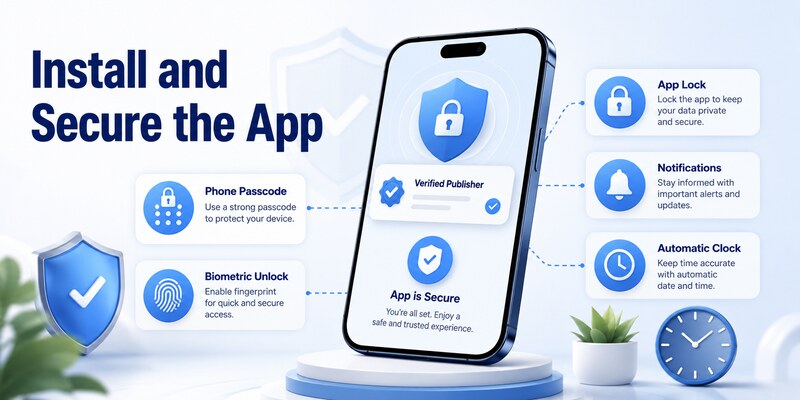
Install Microsoft Authenticator from the Apple App Store or Google Play and verify Microsoft Corporation as the publisher. Microsoft does not provide an official PC or Mac desktop version. Avoid APK mirrors, configuration profiles, copied icons, browser extensions, and unofficial installers.
Keep the phone operating system and Authenticator updated. Microsoft does not support app versions more than one year old. Set automatic date and time because TOTP depends on clock accuracy. Enable notifications for push approvals and allow camera access only when scanning QR codes.
Protect the credential store
Use a strong device passcode and trusted biometrics. Review App Lock so opening Authenticator or approving a sign-in requires local authentication. Limit notification previews when account details should not appear on the lock screen.
Before you use microsoft authenticator, generate provider recovery codes and store them separately. Register another factor such as a security key, second device, recovery email, or approved phone method where available. Work users should record the help-desk reset process.
Do not store enrollment QR screenshots. A QR or manual key can contain the secret used to create future valid codes. If exposed, replace the server-side authenticator method rather than only deleting the picture. This secret-handling rule is central to how to use microsoft authenticator safely.
🧭 Explore Guides: Microsoft Authenticator Extension: Safe Browser Guide
3. Add Personal Microsoft Accounts
Start from Microsoft account security
On a computer or second device, go directly to account.microsoft.com/security and sign in. Manage the ways you sign in and add Microsoft Authenticator. Continue until Microsoft displays the enrollment QR or account-specific instructions.
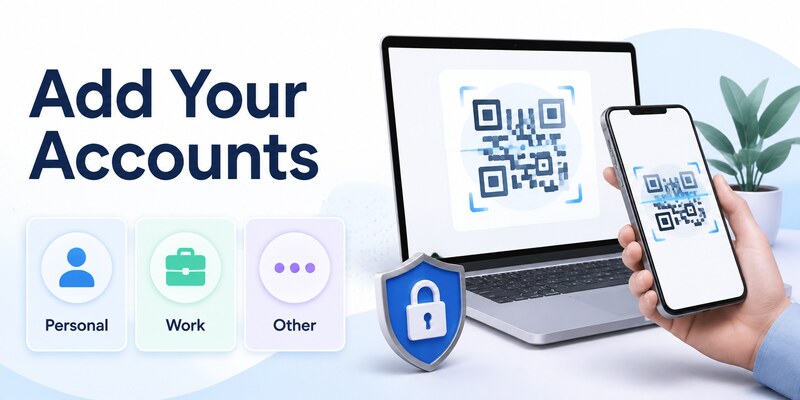
On the phone, tap plus, choose Personal account, and scan the QR. If Microsoft offers an approved sign-in flow instead, follow it without sending credentials to another site. Return to the browser and complete the test request.
Test verification and passwordless access
Open a private browser window and sign in again. Confirm the expected phone receives the request, compare the displayed number, and approve only the action you initiated. Then review whether Authenticator is registered as verification, passwordless, passkey, or another method.
Adding the app does not always remove the password or enable every feature. Passwordless sign-in must be activated through Microsoft’s supported account flow, and passkeys have their own creation and storage choices. Record exactly what was enabled.
A dependable how to use microsoft authenticator process preserves recovery email, codes, security keys, and other approved methods until testing is complete. Remove obsolete factors only after the new method and fallback work from a signed-out state. Record the successful how to use microsoft authenticator test date.
💡 Discover Helpful Guides: Microsoft Authenticator Passwordless Sign-In: Complete Guide
4. Add Work, School, and Third-Party Accounts
Enroll an organizational identity
Visit mysignins.microsoft.com/security-info with the work or school account. Choose Add sign-in method and Microsoft Authenticator. On the phone, tap plus, select Work or school account, scan the QR, and finish the browser’s test approval.
An organization can require a Temporary Access Pass, number matching, device registration, a managed profile, compliance, location rules, or a particular authentication strength. Follow employer instructions. Reinstalling the app cannot override Microsoft Entra policy.
Add a standard TOTP service
At the third-party provider, open official security settings, enable two-step verification, and select Authenticator app. In Authenticator, choose Other account, scan the QR, and enter the current value back into the provider’s page. Save the provider’s recovery codes.
| Account type | App choice | Typical result |
|---|---|---|
| Personal Microsoft | Personal account | Push, verification, passwordless, or passkey |
| Microsoft 365 organization | Work or school account | Tenant-controlled MFA and sign-in |
| Third-party service | Other account | Rotating TOTP code |
| Imported or restored entry | Follow action-required label | May need sign-in or re-registration |
Users asking can i use microsoft authenticator for multiple accounts can generally add several supported identities. Label similar accounts clearly, avoid duplicate obsolete entries, and test each provider independently. Backup and recovery behavior can differ even when all tiles appear in one app. Review how to use microsoft authenticator for each account type separately.
5. Approve Notifications and Number Matching
Match the prompt to the login
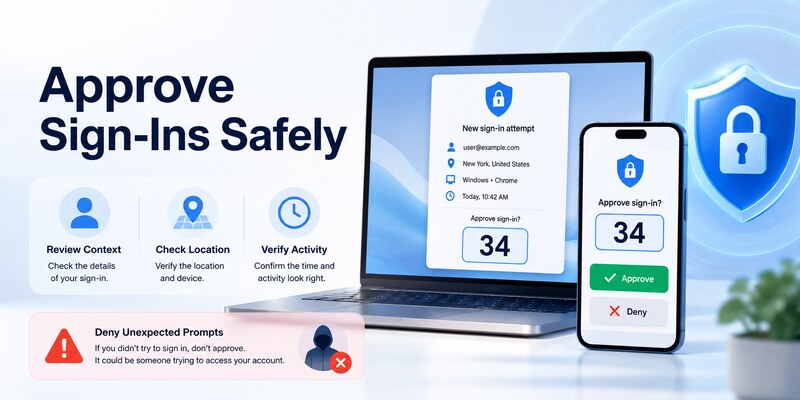
Start the sign-in yourself. When the phone receives a request, check the account, application, number, location context, and timing. Enter the number shown on the trusted browser only into the expected phone prompt. Complete the local biometric or PIN check.
Never approve an unexpected request to make notifications stop. Number matching connects two screens but does not make an unsolicited login safe. Deny the prompt, review account activity, remove unfamiliar sessions, and change an exposed password from a trusted device.
Fix delayed notifications safely
Open Authenticator directly because a pending request may exist without a banner. Verify phone internet access, notification permission, Focus or Do Not Disturb, background activity, battery restrictions, and current app version. Cancel duplicate browser requests and try one clean login.
When microsoft authenticator wants me to use microsoft authenticator, the sign-in may be presenting a circular-looking flow. On another already signed-in device, open Security info and add an alternate permitted method or re-register Authenticator. Work users may need a Temporary Access Pass or administrator reset.
Daily using microsoft authenticator app should be deliberate: one initiated sign-in, one matching request, one approval. Treat a different application name, country, or unexplained request as a security signal. This is the everyday core of how to use microsoft authenticator.
6. Use Verification Codes and Passkeys
Enter a rotating code correctly
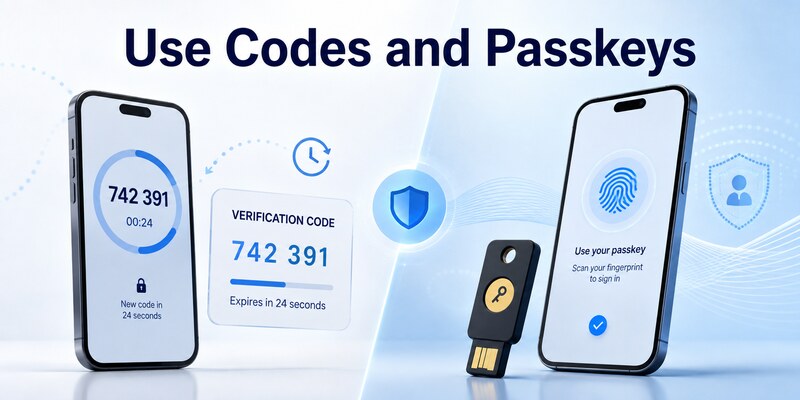
Select the correct account tile and enter its current six-digit value before the timer expires. If only a few seconds remain, wait for a fresh code. Keep automatic time enabled and distinguish similar account labels. TOTP can generate offline after enrollment.
The browser or service still needs a valid session to check the code. Do not share a current value with a caller, support agent, or message sender. Legitimate enrollment asks you to enter the code directly into the provider’s official page.
Understand passkey choices
Supported Microsoft personal and work or school accounts can use passkeys. A passkey may be stored on the phone, in a synchronized credential manager, on Windows through Windows Hello, or on a physical security key, depending on the service and policy.
Creating or using a mobile passkey may display a QR on another device and require Bluetooth proximity. That QR interaction differs from ordinary TOTP enrollment. Read whether the screen says create a passkey, use a passkey, or set up an authenticator app.
Learning how to use microsoft authenticator app includes knowing which credential is active. Document passkey storage and recovery separately from TOTP and push registration. Do not assume Authenticator cloud backup restores every passwordless or passkey credential. Add this distinction to any how to use microsoft authenticator checklist.
💡 Discover Helpful Guides: Microsoft Authenticator Passwordless Sign-In: Complete Guide
7. Configure Backup and Move Phones
Enable the correct cloud backup
On Android, review Cloud backup in Authenticator Settings and use the designated personal Microsoft recovery account. On iPhone, follow Microsoft’s current iCloud requirements, including the relevant iCloud settings. Protect both recovery accounts strongly.
Backup only restores within the same device family: Android to Android or iOS to iOS. It is not a universal copy. Third-party TOTP may return working, while work, school, passwordless, and some Microsoft entries can require sign-in or fresh registration.
Migrate without losing access
Keep the old phone, confirm backup, and preserve independent recovery codes. Install the official app on the replacement, choose recovery before adding unrelated accounts, and complete every action-required entry. Test a push, code, and fallback for critical identities.
| Migration step | Success evidence | Do not do yet |
|---|---|---|
| Confirm backup | Current backup status | Reset old phone |
| Restore entries | Expected account list | Assume every credential works |
| Re-register actions | No action-required label | Remove old server method |
| Test sign-ins | Push and codes accepted | Trade in device |
| Review security | New phone registered | Keep stale lost-device sessions |
The safe how to use microsoft authenticator migration ends only after real logins work. Then remove the old phone from security pages, revoke stale sessions, generate fresh recovery codes when appropriate, and securely erase the retired device. Re-test how to use microsoft authenticator after the erase.
8. Troubleshoot Sign-In and Recovery
Diagnose the layer that failed
A local App Lock issue, missing push, rejected TOTP, blocked tenant policy, and locked provider account have different fixes. First identify the account type, prompt wording, device, app version, time, and error code without exposing secrets.
For TOTP, check automatic time and the correct tile. For push, check network and notifications. For work policy, contact the administrator. For a third-party account, use that provider’s recovery system; Microsoft cannot reset another company’s identity.
Preserve credentials during repair
Do not clear app storage or uninstall first. Confirm backup and alternate access because deleting data can remove local credentials. If the original phone is lost, use a recovery code, security key, recognized session, alternate method, or administrator-assisted reset.
If a QR secret was shared, remove the authenticator method at the provider and enroll a new credential. Changing the password alone may not invalidate a copied TOTP secret. Review sessions and activity for unauthorized access.
When troubleshooting how to use microsoft authenticator, keep every working path until the replacement passes. A controlled recovery avoids turning one delivery problem into several account lockouts. Document the final fix and the updated how to use microsoft authenticator procedure for the next phone or policy change.
💡 Discover Helpful Guides: Microsoft Authenticator: Complete Setup, Login, Backup & Troubleshooting Guide
9. Frequently Asked Questions
Is Microsoft Authenticator free?
Yes. Microsoft offers the iOS and Android app without a purchase price. Connected Microsoft 365 or identity services can have separate licensing, but the mobile app itself is free.
Can Microsoft Authenticator hold multiple accounts?
Yes. It can contain multiple personal Microsoft, work or school, and third-party TOTP entries. Organization policy and specific credential types can impose limits. Label entries and test backup for each account.
Do verification codes work offline?
Standard enrolled TOTP values can generate without internet access. Push notifications, approvals, registration, backup, restore, and policy checks require connectivity. Accurate phone time remains essential.
Why am I asked to approve a login I did not start?
It may be an unauthorized attempt using a known password. Deny it, review account activity, change the password from a trusted device, remove suspicious sessions, and notify the organization when the account is managed.
Can I use Authenticator on a PC or Mac?
Microsoft does not offer an official Authenticator desktop app. Use the mobile app to approve online sign-ins started on a computer. Use Windows Hello, Touch ID, passkeys, or security keys for their supported local and web scenarios.
Can Android backup restore to iPhone?
No. Microsoft supports backup and restore only within the same device type. Cross-platform migration requires service-by-service re-enrollment while recovery and the original device remain available.
10. Final Thoughts
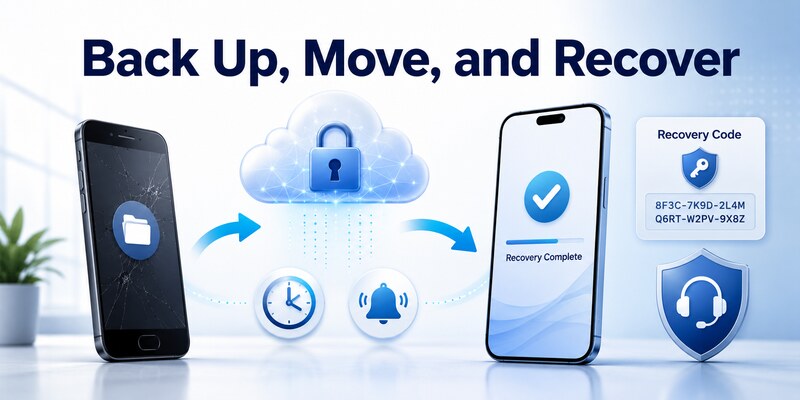
The practical answer to how to use microsoft authenticator is to install the official mobile app, secure the phone, start enrollment from each provider’s trusted security page, verify the credential, and test both login and recovery. Repeat the how to use microsoft authenticator review after any major account change.
Read every prompt. Push approval, number matching, TOTP, passwordless sign-in, passkeys, and local device unlock solve different problems. Choosing the correct method prevents rejected codes and unsafe approval habits. Practice how to use microsoft authenticator with a low-risk test login first.
Protect enrollment QR codes and manual secrets. Deny unexpected requests, restrict notification previews, keep automatic time enabled, and update the app. For managed accounts, follow the organization’s policy and reset process.
Schedule a periodic security review. Confirm that account labels remain clear, recovery codes are available, trusted devices are still owned, and unused sessions or methods have been removed. A brief quarterly check catches stale registrations before an emergency. It also gives the owner a safe opportunity to practice a fallback without disabling the primary factor.
Keep the review record free of secrets. Note only the account, registered device, tested fallback, and review date; never copy current codes or enrollment keys into the checklist.
Cloud backup reduces migration effort but cannot reactivate every credential or cross platform families. Keep the original phone until the replacement works, preserve independent recovery, and remove obsolete devices only afterward. That migration discipline completes how to use microsoft authenticator responsibly.
For compatible third-party accounts, compare a reputable Authenticator App by publisher, encryption, backup, export, and recovery. Revisit how to use microsoft authenticator whenever the phone, provider settings, or organization security policy changes.
Download Authenticator App
Secure your accounts with fast, reliable two-factor authentication. Download now and protect your login in seconds.
