
Microsoft Authenticator Extension: Safe Browser Guide
People searching for a microsoft authenticator extension often want verification codes or approvals inside Chrome, Edge, Firefox, or Safari. Microsoft Authenticator, however, is an iOS and Android mobile app. Microsoft does not provide a current official browser add-on that duplicates its mobile authenticator credential store.
Microsoft previously offered an Autofill extension for Chrome, but Microsoft says it was retired on December 14, 2024. Authenticator’s mobile autofill was then discontinued in 2025, and saved passwords moved to Microsoft Edge. Those password-management changes are separate from multifactor authentication, number matching, TOTP, and passkeys.
This guide explains the supported phone-and-browser workflow, how to evaluate third-party add-ons, safe account enrollment, browser-session protection, and troubleshooting. The goal is convenience without placing the password and its second factor in an unverified extension.
1. Does a Microsoft Authenticator Extension Exist?
Check Microsoft’s current product boundaries
Microsoft’s official Authenticator downloads are for iOS and Android. The mobile app receives Microsoft approval notifications, supports number matching, generates standard TOTP values, and participates in supported passwordless or passkey flows. A browser can start those sign-ins, but it does not need an Authenticator add-on to communicate with Microsoft’s identity service.
The old Microsoft Autofill Chrome extension was a password-autofill product, not a desktop copy of the Authenticator mobile credential store. Microsoft retired that extension in December 2024. By mid-August 2025, Authenticator autofill had also ended, while passwords and addresses synchronized to the Microsoft account remained available through Edge. That timeline should appear in every microsoft authenticator extension migration note.
Recognize third-party store results
Searching for microsoft authenticator extension can return independently developed TOTP extensions with similar names, blue icons, or descriptions. A listing in the Chrome Web Store or Edge Add-ons catalog does not mean Microsoft published, audited, or supports it. Check the exact developer, privacy policy, permissions, support history, and update record.
Avoid any extension that claims to be Microsoft Authenticator while using an unrelated publisher. Do not import enrollment secrets merely to test it. Once a TOTP secret is exposed, the extension can generate the same future codes as the phone until the provider replaces that credential.
The supported default is simple: keep Microsoft Authenticator on a physical phone and let the browser display the login, number, or enrollment QR. This microsoft authenticator extension alternative preserves device separation and official support.
Download Authenticator App
Secure your accounts with fast, reliable two-factor authentication. Download now and protect your login in seconds.
2. Authentication Versus Browser Autofill
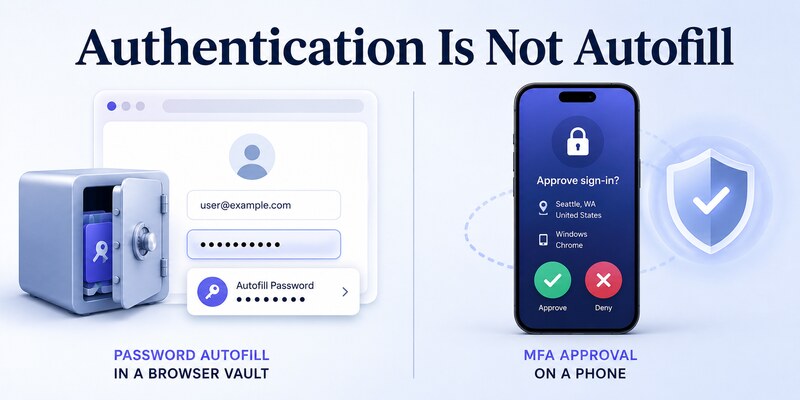
Separate MFA from password management
Authentication apps store or use factors that prove identity. Password managers save, generate, and fill passwords. Some products combine both features, but the underlying credentials and recovery models remain distinct. A password autofill extension does not automatically approve a Microsoft number-matching request or become a registered TOTP method.
Microsoft ended Authenticator autofill in 2025. Passwords and addresses synchronized with a Microsoft account can be managed in Edge. Payment information from Authenticator was not transferred in the same way. Older tutorials showing password import or mobile autofill are therefore outdated.
Choose the tool for the actual prompt
| Browser request | Appropriate supported response | Where it happens |
|---|---|---|
| Enter saved username and password | Browser or password manager | Browser credential vault |
| Approve Microsoft sign-in | Authenticator notification and number match | Registered phone |
| Enter six-digit TOTP | Current code from registered authenticator | Phone |
| Use a passkey | Device, phone, credential manager, or security key | Selected passkey provider |
| Recover a locked account | Recovery code or alternate factor | Separately stored method |
A microsoft authenticator browser extension would place the second factor in the same browser environment that often handles the password. That arrangement can reduce separation if the browser profile or computer is compromised. Convenience should be evaluated against the threat model, not assumed to improve security.
Use Edge password features when the goal is Microsoft-synchronized password access. Use the mobile app when a registered Authenticator factor is requested. Clear naming prevents retired autofill guidance from being mistaken for a current microsoft authenticator extension. Check the named prompt before changing any microsoft authenticator extension setting.
💡 Discover Helpful Guides: Microsoft Authenticator: Complete Setup, Login, Backup & Troubleshooting Guide
3. Use the Supported Phone-and-Browser Flow
Enroll from an official security page
Sign in to the account provider’s official security settings in the browser and select its authenticator-app method. The provider displays a unique QR code. Open Microsoft Authenticator on the phone, choose the appropriate account type, and scan the image. Return to the browser and complete the verification test.
Do not right-click the QR and pass it to an extension. Do not upload it to a web decoder or keep a screenshot in browser downloads. The QR can encode the secret that produces future valid codes. If it is exposed, cancel the setup or replace the registered authenticator immediately.
Approve browser logins deliberately
When a browser sign-in triggers number matching, compare the browser number with the request on the phone. Check the account, service, and context, then approve only if you initiated it. Deny unsolicited prompts and investigate repeated requests as possible MFA fatigue.
The phone-and-browser design works in Chrome, Edge, Safari, Firefox, and other standards-compliant browsers without a microsoft authenticator extension. The identity provider handles the server-side transaction; the phone supplies the registered response.
For TOTP, enter the current value from the correct mobile tile. Codes can generate offline after enrollment, but the browser still needs a working session and connectivity to validate them. A clean supported flow is more dependable than an unverified microsoft authenticator extension for chrome.
💡 Discover Helpful Guides: Microsoft Authenticator Passwordless Sign-In: Complete Guide
4. Enroll Personal Microsoft Accounts
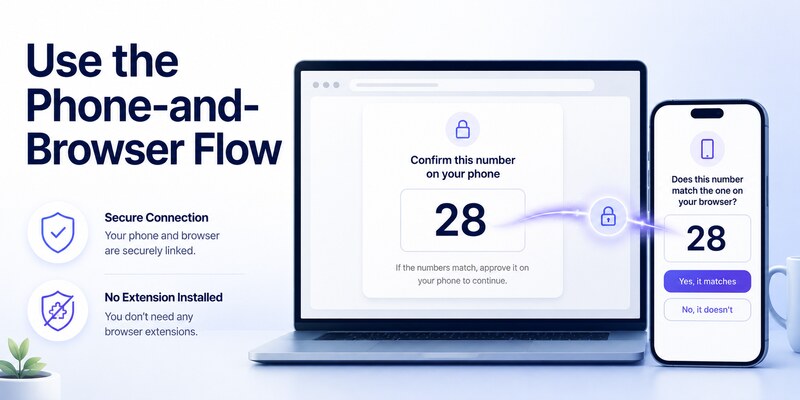
Add Authenticator from Microsoft security
Go directly to account.microsoft.com/security, manage sign-in methods, and add Authenticator. Continue until Microsoft shows the QR. In the mobile app, choose Personal account and scan it. Complete the browser test, including number matching when presented.
Open a private browser window and perform a fresh login. A visible tile on the phone does not prove server-side enrollment succeeded. Confirm that the expected device receives the prompt and the browser completes the transaction before removing any older factor.
Preserve independent recovery
Review recovery email, phone, passkeys, security keys, and recovery codes. Store a recovery code outside the browser profile and registered phone. Do not depend on a single synchronized Microsoft account to recover both the password manager and the authentication factor.
Personal accounts can use verification, two-step verification, supported passwordless sign-in, and passkeys. These are separately registered methods. A microsoft authenticator extension is not required to use them in a browser, and installing a similarly named add-on does not register it with Microsoft.
On shared computers, use private browsing, avoid saving credentials, sign out completely, and review recent activity. The phone approval can be valid while the resulting browser session remains exposed. Secure session handling completes the microsoft authenticator extension alternative workflow.
5. Register Work or School Accounts
Follow Microsoft Security info
Open mysignins.microsoft.com/security-info with the organizational identity. Select Add sign-in method and Microsoft Authenticator. Scan the QR with the Work or school account option on the registered phone and complete the test request.
An employer may issue a Temporary Access Pass or require number matching, device compliance, a managed browser, platform single sign-on, or a specific authentication strength. Follow organization instructions. A consumer microsoft authenticator chrome extension cannot bypass tenant policy.
Respect managed-browser controls
Companies may deploy approved extensions for single sign-on, web filtering, data loss prevention, certificates, or device trust. Those tools serve documented enterprise roles and do not necessarily store Authenticator TOTP secrets. Verify their publisher and installation source with the help desk.
Do not install a personal microsoft authenticator browser extension into a managed profile without approval. It may violate policy, expose secrets to browser synchronization, or cause support ambiguity. Work and school credentials can also require re-registration after phone restore even when the account name returns.
Record the help-desk reset process before changing devices. Deny unexpected company prompts and report them with the time and named application. Authentication security depends on deliberate approval and recoverable enrollment, not on keeping every microsoft authenticator extension factor inside the browser.
💡 Discover Helpful Guides: Microsoft Authenticator: Complete Setup, Login, Backup & Troubleshooting Guide
6. Evaluate Third-Party Authenticator Extensions
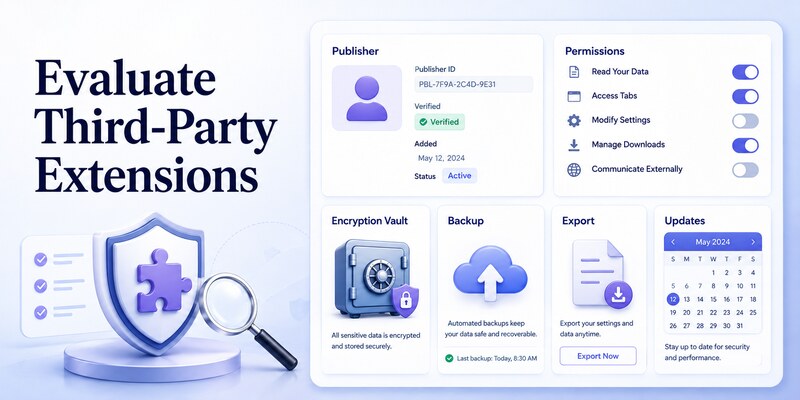
Assess publisher, code, and permissions
Some third-party browser authenticators legitimately generate standard TOTP codes, but they are separate products. Check whether the publisher is identifiable, the source is reviewable, security documentation is current, and updates are maintained. Read the privacy policy and independent security findings where available.
Review requested permissions. A code generator should justify access to every website, browsing history, clipboard, downloads, or external native applications. Broad permissions increase what a compromised extension could observe. Browser sync may also copy secrets to more devices than intended.
Analyze storage and recovery
Ask whether secrets are encrypted at rest, what protects the vault, whether backups are end-to-end encrypted, and how export works. Confirm what happens after browser-profile deletion, account compromise, computer theft, or publisher shutdown. Test recovery with a low-risk account before considering broader use.
| Evaluation area | Safer evidence | Warning sign |
|---|---|---|
| Publisher | Verifiable organization and support | Name imitates Microsoft |
| Permissions | Narrow, explained access | Read and change all site data without need |
| Storage | Documented strong encryption | Plain browser local storage |
| Backup | Encrypted, testable recovery | Secret cloud sync with vague controls |
| Export | User-controlled secure format | No exit path or raw secret leakage |
| Updates | Recent security maintenance | Abandoned release history |
Never assume a store rating turns a third-party tool into the official microsoft authenticator extension. For high-value Microsoft or company accounts, the supported phone app, passkey, or hardware security key normally provides clearer accountability and stronger separation. Reassess any microsoft authenticator extension after a publisher or ownership change.
7. Protect Browser Sessions and Recovery
Harden the browser environment
Keep the operating system and browser updated, remove unused extensions, and review extension permissions periodically. Use separate browser profiles for personal and work identities. Lock the computer when unattended and enable disk encryption and endpoint protection appropriate to the device.
An extension with access to all pages can observe sensitive content even if it does not store TOTP. Minimize the add-on set and install only from official catalogs linked by trusted publishers. Browser synchronization should be protected with strong account recovery and multifactor authentication.
Keep recovery outside one failure domain
Store recovery codes separately from the phone and browser profile. Register a security key or another approved method for important accounts. Test the fallback before travel, device replacement, or removing the current authenticator.
If the password, TOTP secret, and recovery codes all live in one microsoft authenticator browser environment, compromise or profile loss can affect everything at once. Separate storage reduces correlated failure. Document which device holds each factor and who can reset organizational access.
After approving on an unfamiliar computer, sign out, clear the session where appropriate, and revoke it from account activity if uncertain. The absence of a microsoft authenticator extension does not weaken the login; careful phone approval and browser-session hygiene strengthen it. Test this microsoft authenticator extension alternative before travel.
8. Troubleshoot Extension and Sign-In Problems
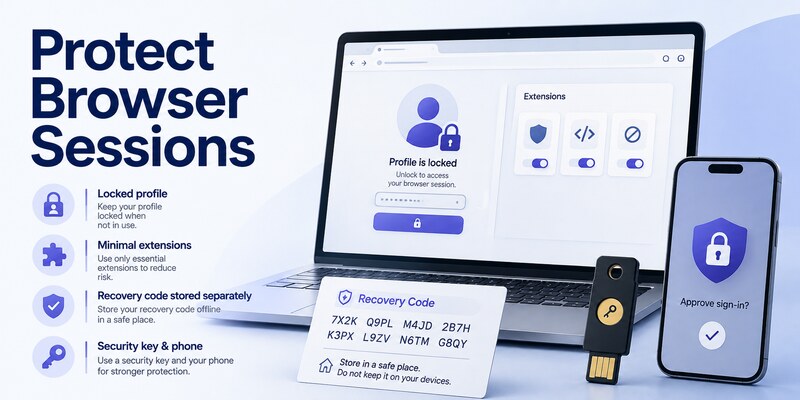
Fix supported mobile approval issues
If the phone prompt does not arrive, check connectivity, notification permission, App Lock, battery restrictions, automatic time, and current Authenticator version. Open the app directly and cancel duplicate browser requests before trying once more.
For rejected TOTP, select the correct account and wait for a fresh value. For work accounts, record the error code and contact the administrator when Conditional Access, device compliance, or method policy blocks sign-in. Reinstalling an extension cannot change server-side policy.
Respond to a suspicious or broken add-on
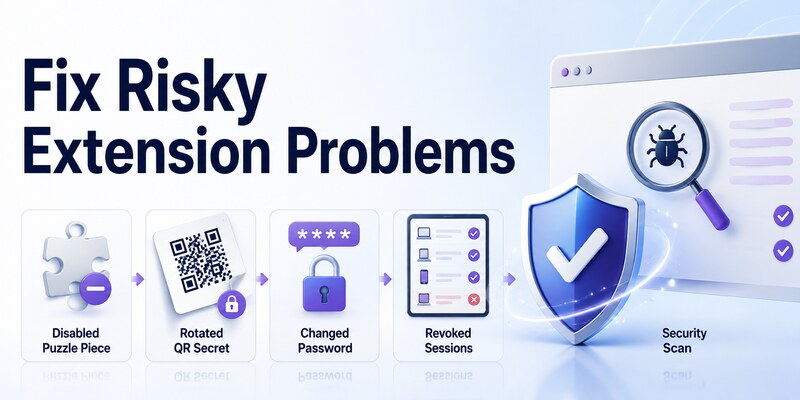
Disable the add-on and preserve its name, publisher, version, permissions, and installation source. From a known-clean device, change exposed passwords, review sign-in history, revoke unfamiliar sessions, and replace every authenticator credential imported into the extension.
Do not merely delete the microsoft authenticator extension lookalike and assume the secrets became safe. TOTP credentials remain valid on the provider until removed and enrolled again. Scan the computer with reputable security tools and review the rest of the browser extensions.
If an old Microsoft Autofill tutorial no longer works, use current Edge password-management guidance rather than hunting for archived packages. Microsoft retired the Chrome Autofill extension and Authenticator autofill. Authentication approvals still use the supported mobile app, not a replacement microsoft authenticator extension.
💡 Discover Helpful Guides: Microsoft Authenticator Passwordless Sign-In: Complete Guide
9. Frequently Asked Questions
Is there an official Microsoft Authenticator Chrome extension?
Microsoft does not provide a current Chrome extension that duplicates the mobile Authenticator app. The separate Microsoft Autofill Chrome extension was retired on December 14, 2024. Use the iOS or Android Authenticator app for supported approvals and codes.
Can Microsoft Authenticator work with Chrome?
Yes. Chrome can start the sign-in and display a QR code, number match, or verification-code field. The registered phone scans or responds. No Authenticator browser extension is required.
Why are my Authenticator passwords missing?
Microsoft discontinued Authenticator autofill in 2025. Passwords and addresses synchronized to the Microsoft account remain available through Microsoft Edge according to Microsoft’s migration guidance. This change does not remove enrolled MFA credentials.
Are third-party authenticator extensions safe?
Safety varies by publisher, code quality, permissions, encryption, backup, and maintenance. A store listing or similar name is not Microsoft endorsement. Use a low-risk test account, keep recovery, and replace secrets after suspected exposure.
Does keeping TOTP in the browser weaken two-factor security?
It can reduce device separation because the browser environment may contain both the password and code secret. Risk depends on the threat model and controls. A phone or hardware key usually isolates the additional factor more clearly.
What should I do after importing secrets into a suspicious extension?
From a clean device, visit each provider’s security settings, remove the exposed authenticator method, issue a new one, and test it. Change affected passwords, revoke unknown sessions, remove the extension, and scan the computer.
10. Final Thoughts
The current safe answer to microsoft authenticator extension searches is that Microsoft Authenticator remains a mobile app, not an official browser TOTP add-on. Chrome, Edge, Safari, and Firefox can all use the supported phone-and-browser sign-in flow without installing one.
Do not confuse the retired Microsoft Autofill Chrome extension with multifactor authentication. Microsoft retired that extension in 2024 and ended Authenticator autofill in 2025. Use Edge for Microsoft-synchronized password access and the mobile app for registered Authenticator actions.
Enroll only from trusted account security pages. Keep QR secrets off browser extensions, screenshots, online decoders, and chat. Verify every registration with a clean login and preserve an independent recovery route before removing older methods.
Third-party TOTP extensions are separate products. Evaluate publisher identity, permissions, encryption, backup, export, and maintenance. For Microsoft and managed accounts, use official mobile Authenticator, passkeys, or approved security keys unless organizational policy says otherwise.
For compatible third-party services, compare a reputable Authenticator App by platform support, encryption, recovery, and export. Revisit the microsoft authenticator extension decision whenever browser permissions, synchronization, devices, or company security requirements change. Record the final microsoft authenticator extension policy for every managed browser profile.
Download Authenticator App
Secure your accounts with fast, reliable two-factor authentication. Download now and protect your login in seconds.
