
Microsoft Authenticator Passwordless Sign-In: Complete Guide
Passwords have protected online accounts for decades, but they also create a persistent security problem. People reuse them, choose predictable combinations, store them insecurely, or accidentally give them to phishing websites. Microsoft has therefore expanded its identity platform around sign-in methods that reduce or completely remove dependence on traditional passwords.
One of the most practical options is microsoft authenticator passwordless sign-in. Instead of typing a password every time you access a supported Microsoft account, you can confirm the login from a trusted mobile device and authenticate yourself with a PIN, fingerprint, or facial recognition.
Microsoft currently describes Authenticator as an app that can support passwordless sign-in, multifactor authentication, verification codes, and other identity workflows. For Microsoft Entra accounts, passwordless phone sign-in uses a device-bound credential and local device verification rather than requiring the user to submit a password during each authentication attempt.
This guide explains what microsoft authenticator passwordless sign-in is, how it works for personal and organizational accounts, how to configure it correctly, and what to do when passwordless authentication fails.
1. What Is Microsoft Authenticator Passwordless Sign-In?
A sign-in method that replaces the traditional password
Microsoft authenticator passwordless sign-in allows a user to authenticate to a supported Microsoft account without entering the account password during the normal sign-in process.
Instead, Microsoft relies on a registered device and a cryptographic credential associated with that device. The user then proves possession of the device and verifies their identity locally using a PIN or biometric method.
Microsoft explains that Authenticator passwordless phone sign-in for Microsoft Entra uses key-based authentication. The credential is tied to the device, while the phone’s PIN or biometric verification helps confirm that the person approving the request is the legitimate device user.
This approach is part of the broader microsoft passwordless authentication strategy. The objective is not simply to make login faster. Removing routine password entry can also reduce several common attack paths associated with stolen, guessed, reused, or phished passwords.
When microsoft authenticator passwordless sign-in is configured correctly, the phone effectively becomes an important part of the authentication process.
Passwordless does not mean “no authentication”
The word passwordless sometimes creates confusion. It does not mean anyone can open an account without proving their identity.
With passwordless authentication microsoft technologies, authentication still happens. What changes is the credential being used.
Instead of:
Username → Password → Sign in
the flow can become:
Username → Authentication request → Trusted device → PIN or biometric → Sign in
Microsoft Authenticator can therefore become the mechanism through which the user proves possession of a registered device.
Microsoft Support describes Authenticator as capable of signing users in without a password using methods such as fingerprint recognition, facial recognition, or a PIN.
For users who repeatedly access Microsoft 365, Outlook, Azure-related resources, or work applications, microsoft authenticator passwordless sign-in can make authentication more convenient while reducing reliance on memorized credentials.
Download Authenticator App
Secure your accounts with fast, reliable two-factor authentication. Download now and protect your login in seconds.
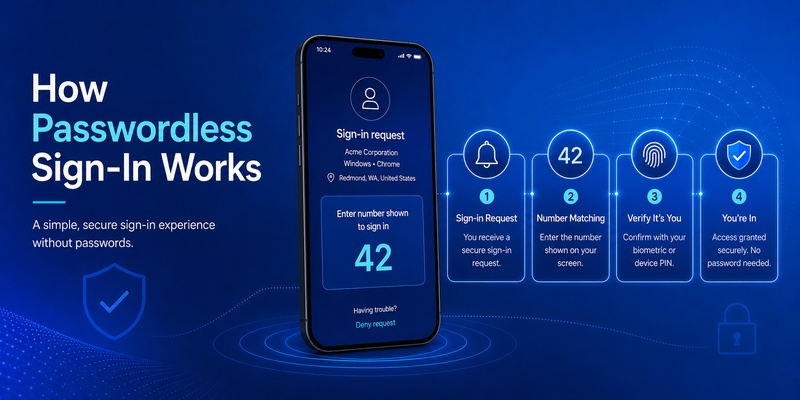
2. How Microsoft Authenticator Passwordless Sign-In Works
Device-bound authentication
The foundation of microsoft authenticator passwordless sign-in is the relationship between the account and a trusted registered device.
For Microsoft Entra accounts, Microsoft states that Authenticator uses key-based authentication and creates a credential tied to the device.
That difference matters.
With a conventional password, the user knows a secret and sends proof of that secret during authentication. Attackers may attempt to obtain that secret through phishing, credential stuffing, password spraying, malware, or social engineering.
With microsoft authenticator passwordless, the authentication process depends more heavily on possession of the enrolled device and the user’s ability to unlock or authorize authentication on it.
A remote attacker who merely learns an old password therefore does not automatically possess the device-bound credential required by the passwordless flow.
Number matching and approval
A typical microsoft authenticator passwordless sign-in flow begins when you enter your account identifier on a Microsoft sign-in screen.
Microsoft can then display a number on the device or browser where the login is being attempted. A corresponding request appears in Microsoft Authenticator.
For Microsoft Entra passwordless phone sign-in, Microsoft documents a flow in which the user enters or selects the number shown on the sign-in screen, approves the request, and completes local verification using a PIN or biometric.
Conceptually, the process looks like this:
- Enter your Microsoft account or organizational username.
- Choose the Authenticator-based sign-in method when necessary.
- Receive the authentication request on your registered phone.
- Match the number displayed during the login.
- Approve the request.
- Complete fingerprint, facial recognition, or device PIN verification.
- Access the account.
This is why passwordless sign in microsoft authenticator is different from simply tapping “Allow” on an arbitrary notification. The sign-in request is connected to an authentication session and requires interaction with the registered device.
🛠️ Learn with Step-by-Step Guides: Microsoft Authenticator: Complete Setup, Login, Backup & Troubleshooting Guide
3. Passwordless Sign-In vs Passwords, MFA, and Passkeys
Passwordless and MFA are related but not identical
Traditional multifactor authentication commonly begins with a password and then requires another factor, such as a notification, verification code, security key, or biometric.
Microsoft authenticator passwordless sign-in, by contrast, is designed so the password itself does not need to be submitted during the normal passwordless authentication flow.
Microsoft Authenticator supports multiple authentication scenarios. Microsoft currently documents support for passwordless sign-in as well as MFA through notifications and verification codes.
That means seeing Microsoft Authenticator on your phone does not automatically mean you are using a fully passwordless configuration.
You could be using:
- Password + Authenticator notification
- Password + one-time verification code
- Authenticator as a passwordless phone-sign-in credential
- A passkey or another supported authentication method
Understanding this distinction helps when diagnosing microsoft passwordless sign in problems.
Passwordless sign-in and passkeys
Microsoft’s identity ecosystem now includes several passwordless methods, including Authenticator passwordless phone sign-in, Windows Hello, security keys, and passkeys in supported environments. Microsoft also documents Authenticator as supporting passkeys alongside passwordless sign-in and MFA.
These technologies share a common objective: reduce dependence on reusable passwords.
However, they should not automatically be treated as interchangeable.
Microsoft authenticator passwordless sign-in specifically refers here to the Authenticator-based phone-sign-in experience. A passkey may use a different credential model and user flow depending on the platform and account configuration.
What happened to Microsoft Authenticator password storage?
Users searching for microsoft authenticator password manager may encounter old tutorials showing Authenticator storing and autofilling passwords.
That information is outdated.
Microsoft states that Authenticator autofill stopped functioning beginning in July 2025 and that passwords became inaccessible in Authenticator from August 2025.
Therefore, microsoft authenticator passwordless sign-in should not be confused with password management.
Passwordless authentication is about proving your identity without entering a traditional password. Password management is about storing, generating, or autofilling passwords. They are separate functions.
📖 Explore Articles: Why Doesn’t Microsoft Authenticator Work? Fix Guide
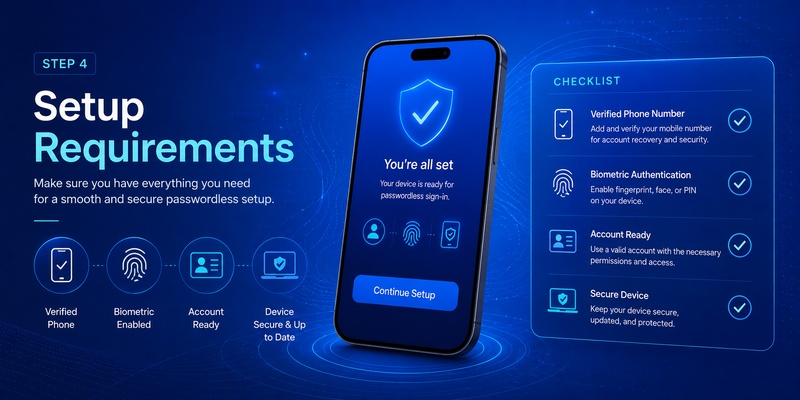
4. Requirements Before Setting Up Passwordless Sign-In
Prepare the account and mobile device
Before configuring microsoft authenticator passwordless sign-in, make sure you have a compatible mobile device and the official Microsoft Authenticator application installed.
Microsoft Authenticator is available for supported iOS and Android devices. Microsoft also allows multiple supported accounts to be registered in Authenticator, including personal Microsoft accounts and work or school accounts.
Your phone should also have a secure screen-lock mechanism.
Depending on the device, this could include:
- Fingerprint recognition
- Face recognition
- Device PIN
- Another operating-system-supported lock method
Because the phone participates directly in authentication, protecting the phone itself becomes an essential part of protecting microsoft authenticator passwordless sign-in.
Personal and organizational accounts have different controls
The setup process depends on whether you are configuring a personal Microsoft account or a Microsoft Entra work or school account.
For personal accounts, the owner generally controls account security settings.
For organizational accounts, passwordless microsoft authenticator availability can depend on policies configured by the organization’s identity administrator.
Microsoft Entra administrators can manage Microsoft Authenticator through the Authentication Methods policy. Microsoft documents configurations that allow Authenticator push MFA, passwordless phone sign-in, or both depending on the authentication mode assigned to users or groups.
Therefore, if microsoft authenticator passwordless sign-in does not appear on a company account, the problem may not be with your phone.
Your organization may simply not have enabled the authentication method for your account.
5. How to Enable Passwordless Sign-In for a Personal Microsoft Account
Add Microsoft Authenticator first
To enable passwordless sign in with microsoft authenticator, start by installing the official Authenticator application and adding your Microsoft account.
Microsoft Support documents Authenticator as supporting personal Microsoft accounts as well as work and school accounts.
When adding an account, carefully follow Microsoft’s verification instructions rather than scanning QR codes or approving requests sent by unknown third parties.
Once Authenticator is properly linked, review the security options available for your Microsoft account.
Microsoft’s current passwordless guidance states that once a password is removed from a personal Microsoft account, the account must use a passwordless method such as Microsoft Authenticator, Windows Hello, a physical security key, supported Outlook authentication, or verification codes.
The exact interface can change over time, so use the options displayed in your current Microsoft account security settings rather than relying on screenshots from old tutorials.
Turning the account passwordless
A microsoft passwordless account no longer depends on a traditional reusable password as its normal sign-in credential.
After the account is prepared and Authenticator is registered, enable the passwordless option presented in Microsoft account security settings and complete Microsoft’s confirmation process.
Do not remove your password until you are certain that your alternative authentication and account recovery methods are working correctly.
Once enabled, microsoft authenticator passwordless sign-in can be used when Microsoft offers Authenticator as the authentication method.
Microsoft’s passwordless account documentation confirms that Authenticator is one of the methods users can rely on after removing their Microsoft account password.
Keep recovery information current as well. Losing access to a registered device without having another valid recovery method can make account recovery significantly more inconvenient.
🗺️ Browse How-To Guides: Microsoft Account App: Setup, Security & Sign-In Guide
6. How Organizations Enable Passwordless Sign-In with Microsoft Entra ID
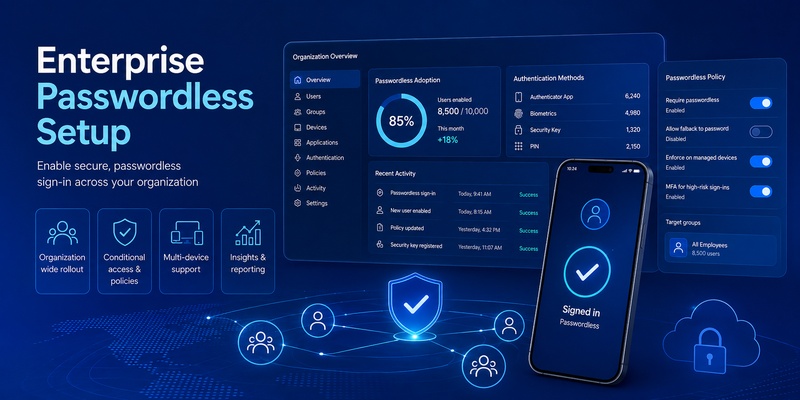
Administrator configuration comes first
For an organization, microsoft authenticator passwordless sign-in usually involves both an administrator configuration stage and a user enrollment stage.
Microsoft Entra administrators can manage Authenticator through:
Entra ID → Authentication methods → Policies
Microsoft documents the Microsoft Authenticator authentication method policy as controlling traditional push MFA and passwordless phone-sign-in capabilities.
Organizations can determine which users or groups receive access.
This means microsoft passwordless authentication can be rolled out gradually rather than being enabled for every employee simultaneously.
Administrators may begin with IT users or a pilot group, validate registration and recovery procedures, train support teams, and then expand availability.
User registration and phone sign-in
After the organization permits the method, users must register Authenticator correctly.
Microsoft documents multiple enrollment paths. Existing users who have already registered Microsoft Authenticator for MFA may be able to open their account in Authenticator and select the option to set up passwordless sign-in requests.
Organizations can also use Temporary Access Pass during passwordless onboarding. Microsoft’s documented direct registration process allows a work or school user to sign in to Authenticator using a Temporary Access Pass and then continue setting up phone sign-in.
After enrollment, microsoft authenticator passwordless sign-in becomes available only when the necessary tenant policy and user registration conditions have been satisfied.
This distinction explains why copying setup instructions from a personal account often fails for a corporate account.
The company controls part of the authentication configuration.
7. How to Sign In Without a Password Day to Day
Starting the passwordless request
After microsoft authenticator passwordless sign-in is configured, the everyday experience is relatively simple.
Go to the Microsoft service or organizational application you want to access and enter your username when requested.
Microsoft Support notes that users who have enabled passwordless, two-step verification, or MFA can choose an Authenticator-based approval method from the available sign-in options.
Depending on the application and identity configuration, you may see an option such as sending a notification or approving a request in Microsoft Authenticator.
If the desired method does not appear immediately, look for an option similar to “Other ways to sign in.”
The passwordless microsoft experience may differ slightly among Microsoft services, browsers, and organizational environments, but the essential principle remains the same: the registered device becomes part of the authentication process.
Approve only requests you initiated
When a microsoft authenticator passwordless sign-in notification arrives, never approve it automatically.
First ask:
Did I just attempt to sign in?
Does the application shown in the request make sense?
Does the number on the login screen correspond with the Authenticator request?
If the answer is no, reject the attempt.
Microsoft Entra can provide additional context in Authenticator notifications, including information about the application requesting authentication and an approximate location based on the originating IP address.
Context should be treated as an additional clue, not an excuse to ignore suspicious behavior.
A good habit is simple: if you did not start the login, do not approve the authentication request.
🧭 Explore Guides: Microsoft Authenticator App Android: Setup & Security Guide
8. Security Benefits and Risks of Passwordless Authentication
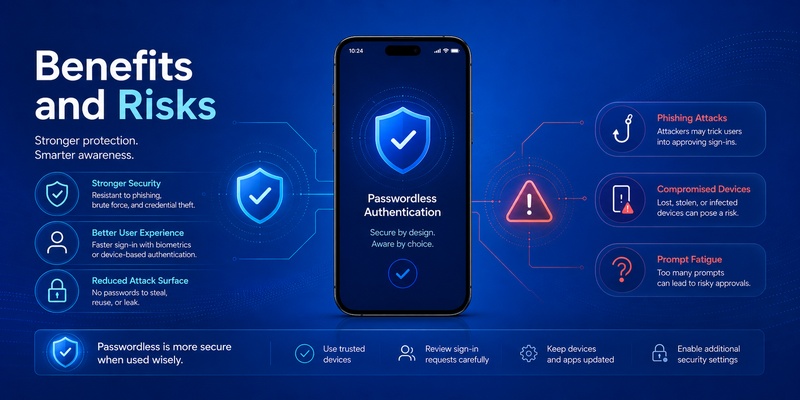
Why removing passwords can reduce common attacks
The central security advantage of microsoft authenticator passwordless sign-in is that users no longer need to repeatedly enter a reusable password during the passwordless flow.
That matters because passwords can be copied.
A user may unknowingly enter a password into a fraudulent website that closely imitates a Microsoft login page. Password databases can also be exposed, and reused passwords can allow credentials stolen from one service to threaten another.
With microsoft passwordless, authentication shifts toward registered devices, cryptographic credentials, biometrics, PINs, security keys, or similar methods.
A stolen password by itself therefore becomes less useful when the account no longer depends on that password for normal authentication.
For Microsoft Entra phone sign-in, Authenticator uses a credential tied to the registered device.
Passwordless does not eliminate every security risk
Despite the benefits, microsoft authenticator passwordless sign-in is not a reason to stop following security best practices.
Your phone becomes more important.
If someone gains control of an unlocked device and can satisfy its local authentication requirements, the account could be placed at risk.
Social engineering remains another concern. Attackers may attempt to convince users to approve authentication prompts or manipulate them into changing security information.
Protect the phone with:
- Strong device locking
- Biometrics where appropriate
- Current operating-system updates
- Remote-device protection
- Secure recovery information
- Careful review of authentication prompts
For work or school credentials, Microsoft announced additional protection beginning in February 2026 that prevents Authenticator Entra credentials from functioning on jailbroken or rooted devices.
The broader lesson is that microsoft authenticator passwordless sign-in improves the authentication model, but device security and user judgment remain essential.
9. Troubleshooting Microsoft Authenticator Passwordless Sign-In
Passwordless setup option is missing
If microsoft authenticator passwordless sign-in is unavailable, first identify your account type.
With a work or school account, your administrator may not have enabled passwordless phone sign-in for your user or group.
Microsoft specifically notes that users cannot enable phone sign-in inside Authenticator when organizational policy restricts the method.
Contact your IT administrator before repeatedly reinstalling the application.
For a personal account, confirm that Microsoft Authenticator has been properly added to your account and that your security configuration includes valid passwordless methods.
Notifications are not arriving
A microsoft authenticator passwordless sign-in request depends on the phone being able to receive and process the relevant authentication notification.
Check:
- Internet connectivity.
- Authenticator notification permissions.
- Background restrictions on the application.
- Correct date and time settings.
- Whether the correct account is registered.
- Whether your device has recently been restored or replaced.
- Whether organizational security policies have changed.
Do not confuse push notifications with one-time codes. Microsoft notes that Authenticator verification codes can work without an internet connection, whereas push-based authentication requires connectivity for the request to reach the device.
New phone or device changes
Moving to a new phone can disrupt microsoft authenticator passwordless sign-in if the new device has not been properly registered.
Do not assume that copying application data automatically recreates every authentication credential.
After changing phones, verify each important account individually and follow the Microsoft registration process when a new device needs to become the trusted authentication device.
Microsoft’s troubleshooting guidance also notes that certain phone-sign-in problems can require users to unlock the device with Face ID or fingerprint after a restart and then try enabling passwordless again.
For organizational accounts, you may need to remove an obsolete authentication method from Security info or ask IT to help with registration.
10. Best Practices for Using Microsoft Authenticator Passwordless Sign-In
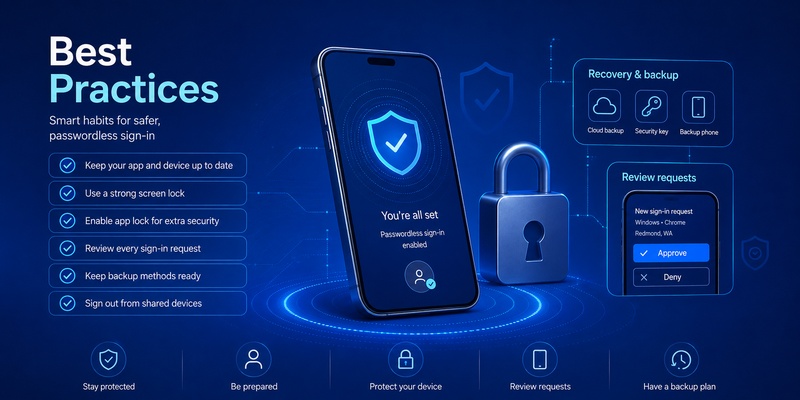
Build a recovery plan before you need one
The best time to think about recovery is before losing your phone.
If microsoft authenticator passwordless sign-in becomes your primary login method, review every recovery option associated with the account.
Depending on the account type and policies available to you, alternatives may include another registered authentication method, Windows Hello, a security key, recovery contact information, verification codes, or administrator-assisted recovery.
Microsoft’s personal-account passwordless guidance explicitly lists several alternative passwordless methods that may be used after the traditional password has been removed.
Do not create a configuration in which one damaged or lost phone becomes your only practical route back into a critical account.
For business deployments, administrators should also establish onboarding, device replacement, lost-device, and account-recovery procedures before expanding microsoft authenticator passwordless sign-in across the organization.
Keep authentication separate from password storage
Another important best practice is to understand what the current authenticator app is actually designed to do.
Microsoft Authenticator remains relevant for authentication, passwordless sign-in, MFA, verification codes, and supported identity functions. However, its historical password-storage and autofill functionality has been retired.
Therefore, do not choose Authenticator today because an old article describes it as a password vault.
Use microsoft authenticator passwordless sign-in because you want an authentication method that reduces dependence on traditional passwords.
Review every authentication request
Whether you use passwordless microsoft authenticator for one account or several, maintain one simple rule:
Never approve a request you did not initiate.
Number matching, local biometric verification, and device-bound credentials make the authentication process stronger, but user approval still matters.
If a notification appears unexpectedly, deny it and investigate the account.
Keep the registered device protected
Your phone should have a strong PIN and supported biometric protection. Avoid rooting or jailbreaking a device used for sensitive organizational authentication.
Install operating-system and Authenticator updates from official sources.
If a phone is lost, stolen, replaced, or permanently retired, review the associated Microsoft account security information and remove obsolete authentication registrations where appropriate.
This keeps microsoft authenticator passwordless sign-in associated with devices you actually control.
Frequently Asked Questions
Is Microsoft Authenticator passwordless sign-in the same as MFA?
No. Microsoft authenticator passwordless sign-in and MFA can both use the Microsoft Authenticator application, but the authentication flows are different.
Traditional MFA may require a password followed by an Authenticator approval or verification code. Passwordless phone sign-in is designed to authenticate the user without requiring the traditional password during that flow.
Microsoft documents Authenticator as supporting both passwordless phone sign-in and MFA.
Can I use Microsoft Authenticator without typing a password every time?
Yes, when your account and authentication policies support microsoft authenticator passwordless sign-in and registration has been completed correctly.
For Microsoft Entra accounts, Microsoft specifically supports signing in without a password through Authenticator passwordless phone sign-in.
Personal Microsoft accounts can also be configured to use passwordless authentication methods.
Can I use passwordless sign-in on multiple Microsoft accounts?
Microsoft states that users with multiple Microsoft Entra accounts can add those accounts to Authenticator and use passwordless phone sign-in for multiple supported accounts from the same device.
Each account still needs the appropriate registration and policy configuration.
Does Microsoft Authenticator still save passwords?
No. Old guides about password saving in Authenticator are outdated. Microsoft ended Authenticator autofill beginning in July 2025, and stored passwords became inaccessible through Authenticator from August 2025.
This change does not mean microsoft authenticator passwordless sign-in has disappeared. Authentication and password storage are separate capabilities.
Is passwordless authentication safer than using only a password?
A well-configured passwordless system can reduce risks associated with reusable passwords because users no longer need to repeatedly type a shared secret that can be guessed, reused, stolen, or entered into a phishing website.
However, security still depends on protecting the authentication device, maintaining secure recovery methods, and rejecting suspicious requests.
What should I do if I lose the phone used for passwordless sign-in?
Use another recovery or authentication method registered with the account. For a work or school account, your administrator may need to help reset or replace the authentication method.
After recovering access, remove obsolete device registrations and enroll the replacement device correctly before depending on microsoft authenticator passwordless sign-in again.
Conclusion
Microsoft authenticator passwordless sign-in changes the role of the traditional password in Microsoft authentication. Instead of repeatedly typing a reusable secret, users can authenticate through a registered phone, device-bound credentials, approval requests, and local verification such as biometrics or a PIN.
For personal users, adopting a microsoft passwordless account can simplify routine sign-ins while reducing dependence on memorized credentials. For businesses, Microsoft Entra provides administrative policies that allow organizations to control which groups can use Authenticator passwordless phone sign-in.
The most important step is configuring the system correctly. Register Authenticator through official Microsoft workflows, protect the mobile device, establish backup authentication methods, and review every sign-in request before approving it.
Used this way, microsoft authenticator passwordless sign-in is more than a convenience feature. It represents a broader transition away from reusable passwords and toward authentication based on trusted devices, cryptographic credentials, and stronger verification of the person actually attempting to access the account.
Download Authenticator App
Secure your accounts with fast, reliable two-factor authentication. Download now and protect your login in seconds.
