
Microsoft Authenticator App Android: Setup & Security Guide
Protecting an online account with only a password is becoming less effective as phishing, password reuse, and credential theft continue to create security risks. Microsoft authenticator app android provides another way to verify identity by combining a smartphone with multi-factor authentication, verification codes, passwordless sign-in, and supported passkey technology.
The official Microsoft Authenticator application is available through Google Play and is published by Microsoft Corporation. Microsoft describes the app as a tool for secure sign-ins using multi-factor authentication or passwordless authentication for personal, work, school, and supported third-party accounts.
For Android users, microsoft authenticator app android can handle several authentication scenarios from a single mobile device. A user may approve a sign-in notification, generate a time-based one-time password, register a work account, or use supported passwordless methods.
This guide explains how microsoft authenticator app android works, how to install and configure it correctly, how backup and phone migration work, and what to do when common authentication problems appear.
1. What Is Microsoft Authenticator App Android?
An authentication tool for Android phones
Microsoft authenticator app android is Microsoft’s mobile authentication application designed to help users verify their identity when signing in to supported services.
Microsoft states that Authenticator can be used with Microsoft personal accounts, work or school accounts, and other compatible accounts. It supports multi-factor authentication, verification codes, passwordless sign-in, and passkeys in supported Microsoft Entra scenarios.
Instead of depending entirely on a password, the app can provide another authentication step. For example, after entering account credentials, a user may receive a request on the Android phone and approve or deny it.
Why use an authenticator?
The purpose of microsoft authenticator app android is to make unauthorized account access more difficult.
With password-only security, anyone who obtains the password may be able to attempt a login. With MFA enabled, another form of verification is required.
The Google Play description explains that Microsoft Authenticator can either send a notification for approval or generate a one-time password. Its OTP codes use a 30-second timer and can be generated without requiring a network connection.
This combination makes the application useful for both everyday Microsoft accounts and organizational environments.
Download Authenticator App
Secure your accounts with fast, reliable two-factor authentication. Download now and protect your login in seconds.
 Discover Helpful Guides: Microsoft Multi Factor Authentication: Complete MFA Guide
2. What Can Microsoft Authenticator Do on Android?
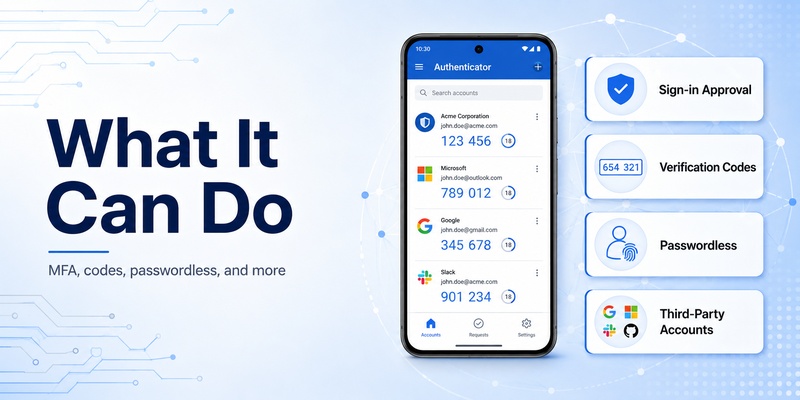
MFA notifications and verification codes
The most familiar use of microsoft authenticator app android is multi-factor authentication.
Microsoft documents several supported authentication options:
- MFA approval notifications
- OATH verification codes
- Passwordless sign-in
- Passkeys
- Self-service password reset verification
- Microsoft personal, work, and school account authentication
When MFA uses a push notification, microsoft authenticator app android receives a sign-in request. The user reviews the request and either verifies or denies it. Microsoft recommends denying requests that were not initiated by the user.
One-time passwords
Microsoft Authenticator can also generate time-based OTP codes.
According to its Google Play listing, these codes change approximately every 30 seconds and do not require the Android phone to have an active network connection while generating the code.
This means microsoft authenticator android can continue generating registered TOTP codes even when mobile data or Wi-Fi is temporarily unavailable.
Users should still protect their Android device carefully because anyone who gains access to both the device and the relevant account credentials could create additional security risks
💡 Discover Helpful Guides: Microsoft Authenticator for iPhone iOS: Complete Guide 2026
3. How to Install Microsoft Authenticator on Android
Download the official application
To install microsoft authenticator app android, open Google Play and search for Microsoft Authenticator.
Verify that Microsoft Corporation is shown as the publisher. The official Google Play listing describes the application as Microsoft Authenticator and presents MFA and passwordless sign-in as its main functions.
Avoid installing an unrelated authenticator app simply because it has a similar name or icon.
After installation:
- Open Microsoft Authenticator.
- Review the introductory screens.
- Allow permissions only when required for the feature you are using.
- Add your first account.
- Complete registration through the service you want to protect.
Permissions on Android
Some features of microsoft authenticator app android require Android permissions.
For example, Microsoft states that the camera permission is used to scan QR codes when adding work, school, or non-Microsoft accounts. Location may be requested when an organization has a policy requiring location information before granting access to resources.
Not every user needs every permission. The requirements depend on the authentication scenario and organizational policy.
 Learn with Step-by-Step Guides: Microsoft Authenticator: Complete Setup, Login, Backup & Troubleshooting Guide
4. How to Set Up Microsoft Authenticator on Android
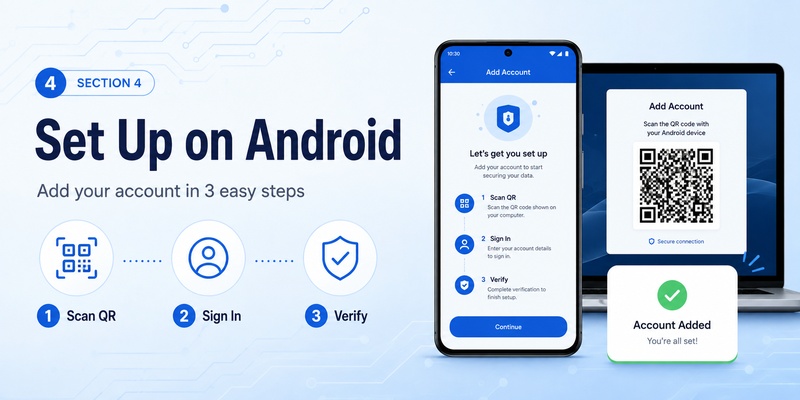
Adding a Microsoft account
Setting up microsoft authenticator app android begins in the security settings of the account you want to protect.
A typical Microsoft MFA enrollment looks like this:
- Sign in to your Microsoft account or work security portal.
- Open security or authentication settings.
- Select Microsoft Authenticator as an authentication method.
- Open Authenticator on the Android phone.
- Add the appropriate account type.
- Scan the QR code shown by the website.
- Complete the verification request.
- Confirm the method is registered.
Microsoft’s Google Play listing confirms that the camera is used for QR-code enrollment.
Work and school accounts
An android microsoft authenticator app setup may be different when the device is connected to an organization.
Microsoft notes that a work or school organization can require device registration before allowing access to protected files, email, applications, or other corporate resources.
After microsoft authenticator app android is registered, the account may use MFA notifications, verification codes, passwordless authentication, or another method selected by the administrator.
Do not remove an existing authentication method until the new Android setup has successfully completed at least one sign-in.
📘 Find the Right Guide: Microsoft Authenticator Desktop: Complete PC & Mac Guide
5. How MFA and Verification Codes Work
Authentication notifications
During a typical MFA sign-in, microsoft authenticator app android receives an authentication request after the user starts logging in.
Microsoft Authenticator can present the request on the mobile device so the user can verify or deny the attempt.
Some Microsoft authentication flows also use number matching. Instead of approving an unexplained notification, the user must interact with information displayed during the active login.
Always confirm that the request corresponds to a sign-in you personally initiated.
Repeated unexpected requests should not be approved.
Verification codes
Another common microsoft authenticator app android workflow uses a one-time code instead of a push notification.
Microsoft documents Authenticator as a software token capable of generating OATH verification codes. The user enters the displayed code into the sign-in interface as an additional form of authentication.
The Google Play listing states that its time-based codes refresh every 30 seconds.
Because these codes are temporary, users should enter the current code rather than saving or reusing an older value.
📖 Explore Articles: Microsoft Authenticator for iPhone iOS: Complete Guide 2026
6. Passwordless Sign-In and Passkeys on Android
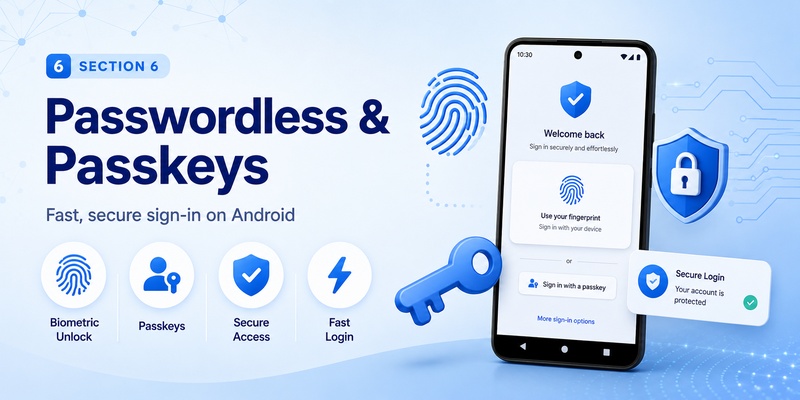
Passwordless Microsoft sign-in
Microsoft authenticator app android can do more than traditional two-factor authentication.
Microsoft supports passwordless sign-in through Authenticator. In an eligible workflow, the user begins with the account identity and completes authentication on the phone instead of entering the conventional account password.
The Android device’s biometric authentication or PIN can form part of the security process.
Passwordless authentication reduces dependence on passwords that users might otherwise reuse, forget, or accidentally expose.
Passkeys in Microsoft Authenticator
Microsoft also supports device-bound passkeys through microsoft authenticator app android for eligible Microsoft Entra accounts.
Microsoft states that Authenticator passkeys can provide phishing-resistant authentication. On Android, the passkey is created using a Secure Element when supported, with the Trusted Execution Environment used as a fallback on compatible devices.
Passkey requirements should not be confused with the requirements for basic Authenticator functionality.
Microsoft’s current support documentation says passkeys in Microsoft Authenticator require Android 14 or newer. Organizations must also support and enable passkeys for applicable work or school accounts.
Therefore, an older phone may still have a different microsoft authenticator app android experience even when certain newer passkey features are unavailable.
💡 Discover Helpful Guides: Microsoft Authenticator Extension: Safe Browser Guide
7. Using Microsoft Authenticator With Third-Party Accounts
Microsoft Authenticator is not limited to Microsoft
A major benefit of microsoft authenticator app android is that compatible non-Microsoft accounts can also use it as a TOTP generator.
Microsoft’s Google Play description explicitly mentions that multiple accounts can be added, including non-Microsoft accounts.
The setup process generally starts from the third-party website rather than from Microsoft Authenticator itself.
The service generates a QR code or secret during its two-factor authentication enrollment. You scan the QR code with microsoft authenticator app android, and the application begins displaying rotating codes for that account.
Keep each account registration separate
Adding one service does not automatically protect every account on the Android phone.
Each website must have two-factor authentication enabled separately.
For example, setting up a Microsoft account in microsoft authenticator app android does not automatically activate MFA for unrelated websites.
Users should also save recovery codes offered by individual services in a secure location. Those recovery codes can be essential if the phone is lost before an Authenticator backup can be restored.
📘 Find the Right Guide: SMS vs Authenticator App: Which Is More Secure for Two-Factor Authentication?
8. How to Back Up Microsoft Authenticator on Android
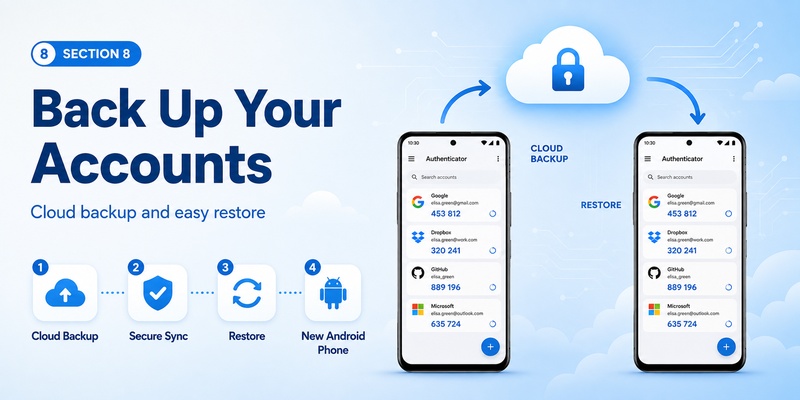
Enable cloud backup
Backing up microsoft authenticator app android is particularly important before replacing or resetting a phone.
Microsoft’s current Android backup instructions are:
- Open Microsoft Authenticator.
- Open the menu and choose Settings.
- Turn on Cloud Backup.
- Select a personal Microsoft account to store the backup.
- Confirm the backup configuration.
This makes it easier to recover supported account information later.
What the backup actually contains
A microsoft authenticator app android backup does not mean every authentication credential will automatically work on the new device.
Microsoft explains that for Microsoft personal accounts using only one-time password codes, those OTP credentials can be available after restoration. Third-party OTP accounts can also have their code information restored.
However, Microsoft personal accounts using passwordless sign-in restore only the account name and require the user to sign in again.
Work and school accounts behave similarly: Microsoft states that only the account name is backed up, and reauthentication is required after restoration.
This distinction is essential when planning a phone replacement.
💡 Discover Helpful Guides: Microsoft Authenticator Desktop: Complete PC & Mac Guide
9. Moving Microsoft Authenticator to a New Android Phone
Restore before wiping your old phone
When moving microsoft authenticator app android to another Android device, install Authenticator on the new phone and choose the restore option using the Microsoft account associated with the previous backup.
Microsoft only supports backup restoration between the same device type. An Android backup cannot be restored onto iOS, and an iOS backup cannot be restored onto Android.
Therefore, Android-to-Android migration is the appropriate path for an existing Android cloud backup.
Test every important account
After restoring microsoft authenticator app android, do not immediately erase the old phone.
Test important accounts individually:
- Microsoft personal account
- Microsoft 365 account
- Work or school account
- Third-party OTP accounts
- Administrative accounts
- Frequently used cloud services
Some registrations will require a new login or re-registration.
Microsoft also warns that authentication notifications may continue going to an old phone if that device still has an active Authenticator registration.
Remove old devices from account security settings after confirming that the new phone works correctly.
10. Common Microsoft Authenticator Android Problems
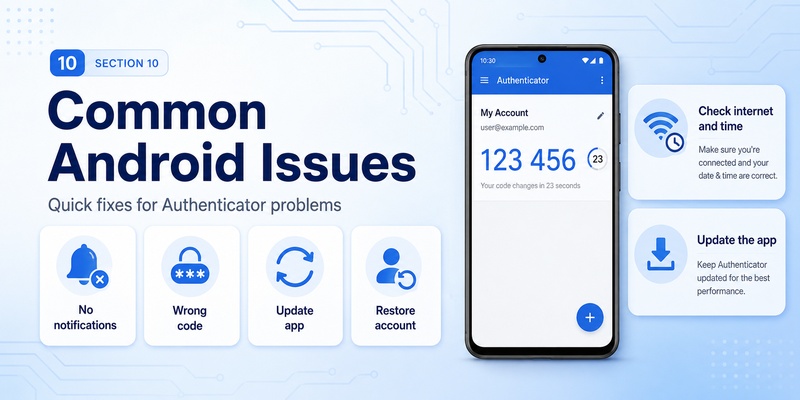
No authentication notification arrives
A common microsoft authenticator app android problem is a missing sign-in notification.
First check:
- Internet connectivity
- Android notification permissions
- Battery optimization settings
- Whether the correct account is registered
- Whether the old phone is still registered
- Whether Authenticator is updated
Microsoft specifically notes that a push request may be delivered to an older device where Authenticator was previously active.
In that case, remove outdated device registrations or use another available verification method before enrolling the new device.
Verification code is rejected
If microsoft authenticator app android displays an OTP but the service rejects it, make sure you selected the correct account.
Because TOTP codes are time-based, accurate device time is important.
Wait for a new code if the current one is close to expiring and enter it promptly.
Microsoft states that Authenticator OTP values use a 30-second timer.
Problems on rooted Android devices
Security policies around rooted devices have become stricter.
Microsoft states that beginning in February 2026, jailbreak/root detection is being introduced for work and school Microsoft Entra credentials in Authenticator. Entra credentials are prevented from functioning on rooted or jailbroken devices under this security change.
For organizational accounts, microsoft authenticator app android should therefore be used on a device that meets the organization’s security requirements.
🧭 Explore Guides: How to Remove Account from Authenticator App
11. Security Best Practices for Android Users
Protect the Android device itself
Microsoft authenticator app android is part of your account security, which means the phone also needs adequate protection.
Use:
- A strong device PIN
- Fingerprint or face authentication when appropriate
- Automatic screen locking
- Current Android security updates
- Current Microsoft Authenticator updates
- Secure recovery methods
Microsoft recommends keeping Authenticator updated because unsupported or outdated versions may eventually be prevented from completing authentication.
Never approve unknown requests
Treat every microsoft authenticator app android notification as a security decision.
Do not press Verify or Approve simply because a notification appears.
If you were not signing in, deny the request and review the account’s security activity.
The same rule applies when another person asks you to provide an OTP code over chat, phone, email, or another communication channel.
Maintain backup and recovery options
Turn on cloud backup before you actually need it.
A well-prepared microsoft authenticator app android installation should also have recovery options for critical services so that losing the phone does not permanently lock you out.
Review device registrations after changing phones and remove devices you no longer own.
12. Frequently Asked Questions
Is Microsoft Authenticator available on Android?
Yes. Microsoft authenticator app android is officially available through Google Play and is published by Microsoft Corporation. Microsoft describes the app as supporting MFA, passwordless authentication, Microsoft accounts, and compatible third-party accounts.
Is Microsoft Authenticator free?
Yes. Microsoft describes Authenticator as a free application.
Does Microsoft Authenticator require internet?
Not for generating existing time-based OTP codes.
Microsoft states that its OTP codes can be generated without a network connection. Push notifications and account-registration processes, however, generally require network access.
Does Microsoft Authenticator work with non-Microsoft accounts?
Yes. Microsoft authenticator app android can generate compatible TOTP codes for third-party services after those services have been registered with the application.
Can I use multiple accounts?
Yes. Microsoft states that multiple accounts can be added to Authenticator.
Each account remains a separate authentication entry.
Can Authenticator use passkeys on Android?
Yes, in supported Microsoft Entra scenarios.
Current Microsoft guidance states that passkeys in Microsoft Authenticator require Android 14 or newer. Work or school organizations must also permit the authentication method.
Can Android Authenticator backup be restored to an iPhone?
No. Microsoft states that backup and restore work only between the same device platform type.
Android backups restore to Android; iOS backups restore to iOS.
Why does my work account need to sign in again after restore?
Because work and school Authenticator backups contain the account name rather than a fully transferable authentication credential.
Microsoft requires these accounts to authenticate again after restoration.
Should I uninstall Authenticator from my old Android phone immediately?
No. First verify that microsoft authenticator app android on your new phone can successfully authenticate every important account.
After confirming the migration, remove obsolete device registrations and erase the old device before selling or giving it away.
13. Conclusion
Microsoft authenticator app android provides Android users with several ways to strengthen account security without relying exclusively on passwords. It can approve MFA requests, generate time-based verification codes, support passwordless Microsoft sign-in, and provide passkey authentication in compatible environments.
For basic setup, users should download the official application from Google Play, register each account through the appropriate security settings, complete a test login, and protect the Android phone itself with a PIN or biometric lock.
Backup also deserves attention. Microsoft authenticator app android supports cloud backup through a personal Microsoft account, but restored work, school, and passwordless accounts may require new authentication before they become fully operational. Android backups cannot be transferred directly to iOS.
Users adopting newer security options should also understand that features can have different device requirements. Microsoft currently states that Authenticator-based passkeys require Android 14 or newer, while availability can also depend on organizational policy.
Whether microsoft authenticator app android is being used for a personal Microsoft account, a Microsoft 365 work environment, or third-party TOTP services, the same principles apply: verify only sign-ins you recognize, keep the application updated, maintain recovery options, and remove obsolete device registrations.
Used correctly, microsoft authenticator app android becomes more than a simple code generator. It serves as a central authentication layer for MFA, passwordless access, verification codes, and modern account-security workflows on Android.
Download Authenticator App
Secure your accounts with fast, reliable two-factor authentication. Download now and protect your login in seconds.
