
Microsoft Authenticator for iPhone iOS: Complete Guide 2026
Using an iPhone as an authentication device is a practical way to add another security layer to personal, work, and school accounts. Microsoft authenticator for iphone ios allows users to approve Microsoft sign-in requests, generate time-based verification codes, use supported passwordless authentication methods, and manage authentication credentials from one mobile application.
Microsoft Authenticator remains available for iPhone through Apple’s App Store. The current U.S. App Store listing describes support for MFA notifications, one-time passwords, passwordless authentication, and multiple account types. As of August 2026, the U.S. listing requires iOS 17.0 or later.
However, some features and requirements have changed significantly over the last few years. Password autofill in Authenticator was discontinued in 2025, Apple Watch cannot currently act as a Microsoft Authenticator security device, and moving to a new iPhone requires more than simply installing the app again.
This guide explains how microsoft authenticator for iphone ios works today, how to install and configure it correctly, what to expect when replacing an iPhone, and how to solve common authentication problems.
1. What Is Microsoft Authenticator for iPhone iOS?
Microsoft authenticator for iphone ios is Microsoft’s mobile authentication application for Apple’s iPhone platform. It can serve as an additional authentication factor when signing in to Microsoft accounts, Microsoft 365 services, work or school accounts, and compatible third-party websites.
What the app can do
The microsoft authenticator app iphone can generate time-based one-time passwords and receive authentication notifications for supported Microsoft accounts. Microsoft’s current App Store description states that users can either approve a notification or enter an OTP generated by the application during MFA sign-in. OTP codes refresh every 30 seconds.
Depending on account configuration, microsoft authenticator for iphone ios can support:
- Multi-factor authentication
- Two-factor authentication
- Push sign-in requests
- Time-based one-time passwords
- Passwordless Microsoft account sign-in
- Work or school account authentication
- Supported passkey scenarios
- Third-party TOTP accounts
Microsoft’s support documentation also explains that Authenticator can protect access to the app through App Lock, requiring a device PIN or biometric before users access sensitive information or approve authentication requests.
Microsoft and third-party accounts
Microsoft authenticator iphone is not limited to Microsoft accounts.
The app can generate compatible TOTP codes for third-party services as well. However, push notifications are different. Microsoft’s FAQ states that Authenticator notifications are available for Microsoft personal accounts and supported work or school accounts, while third-party accounts do not use Microsoft’s push-notification mechanism.
Therefore, when using microsoft authenticator for iphone ios, users should distinguish between Microsoft push authentication and ordinary TOTP codes generated for another service.
🛠️ Learn with Step-by-Step Guides: Microsoft Authenticator: Complete Setup, Login, Backup & Troubleshooting Guide
2. Microsoft Authenticator iOS Requirements and Compatibility
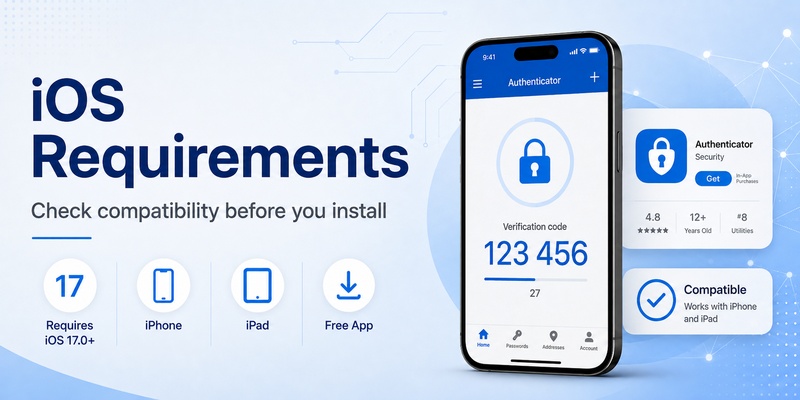
Compatibility deserves special attention because older tutorials may provide requirements that are no longer current.
What is the current minimum iOS version?
For users searching for microsoft authenticator minimum ios version, the current U.S. App Store listing is the most relevant reference. As of August 13, 2026, Microsoft Authenticator requires iOS 17.0 or later on iPhone. The same listing requires iPadOS 17.0 or later on iPad.
That means a current installation of microsoft authenticator for iphone ios may not be available on an iPhone that cannot run iOS 17.
App Store requirements can change as Microsoft releases newer versions, so users should check the compatibility section of their local App Store listing before assuming an older iOS release remains supported.
What about iOS 16?
Searches for ios 16 microsoft authenticator and microsoft authenticator ios 16 still appear because older App Store listings and previous Authenticator releases supported iOS 16.
Current U.S. App Store information, however, lists iOS 17.0 as the minimum requirement.
Therefore, an old article describing microsoft authenticator for iphone ios as compatible with iOS 16 should not automatically be treated as current installation guidance.
If your iPhone is still running iOS 16, first check whether it supports an update to iOS 17 or later. If the device cannot update, verify the options available for your specific account before removing any existing authentication method.
Supported Apple devices
The current App Store listing shows Microsoft Authenticator for iPhone, iPad, and Apple Vision.
The microsoft authenticator ios experience is nevertheless primarily centered around the registered mobile device used to receive authentication requests or generate codes.
💡 Discover Helpful Guides: Microsoft Multi Factor Authentication: Complete MFA Guide
3. How to Install Microsoft Authenticator on iPhone
Installing microsoft authenticator for iphone ios is straightforward, but users should make sure they are downloading Microsoft’s official application rather than a similarly named third-party authenticator.
Download from the App Store
Open the App Store and search for Microsoft Authenticator. The official listing identifies Microsoft Corporation as the developer.
People sometimes search apple store microsoft authenticator, but the official marketplace name is Apple’s App Store.
Before installing microsoft authenticator app ios, confirm:
- The developer is Microsoft Corporation.
- Your iPhone meets the current iOS requirement.
- You have access to the account you want to protect.
- You have another recovery method available where possible.
The current application is listed as free on Apple’s U.S. App Store.
Open the app before enrollment
Once microsoft authenticator for iphone ios is installed, open it and follow the initial permission and security prompts.
Do not assume installing the application automatically activates 2FA. An account must still be registered with the app through that account’s security or authentication settings.
For a work or school account, the organization may require Microsoft Authenticator as part of its own access policy. Microsoft notes that organizations can require device registration when users access protected organizational resources.
Download Authenticator App
Secure your accounts with fast, reliable two-factor authentication. Download now and protect your login in seconds.
4. How to Set Up Microsoft Authenticator on iPhone
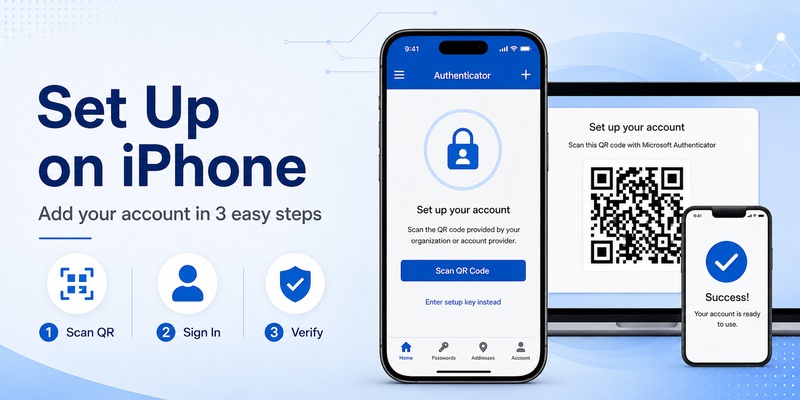
The exact setup process varies depending on whether you are adding a personal Microsoft account, work or school account, or third-party TOTP account.
Adding a Microsoft account
A common microsoft authenticator for iphone ios setup involves opening the app, adding an account, and completing the authentication enrollment process.
For Microsoft accounts, the service may guide you through registration using account credentials, a QR code, or another secure enrollment method. After registration, the iPhone can receive supported sign-in requests or generate authentication codes.
When using iphone microsoft authenticator, always complete the verification test presented during setup. Successful enrollment should be confirmed before you remove an older authentication method.
Adding a work or school account
Businesses using Microsoft Entra or Microsoft 365 may have their own registration requirements.
Your administrator may determine which authentication methods are available and whether push notifications can be used. Microsoft specifically notes that organizations can control whether one-click Authenticator notifications are available for work or school accounts.
Therefore, two people using microsoft authenticator for iphone ios may see different setup screens even if they have the same iPhone model.
Adding a third-party account
For compatible services, choose the appropriate account option and scan the QR code provided by the website during its 2FA setup.
After registration, the authenticator app generates a time-sensitive code. Microsoft states that verification codes change every 30 seconds, reducing the usefulness of an old code that has already expired.
Never scan an authentication QR code provided by someone through an unexpected email or message.
5. Using Microsoft Authenticator for MFA and 2FA
Once enrollment is complete, microsoft authenticator for iphone ios can participate in several sign-in experiences.
Approving a Microsoft sign-in
For a supported Microsoft account, a login may trigger a notification on the iPhone.
The user opens Authenticator, checks the request, and follows the verification instructions. Microsoft recommends using device security such as PIN or biometrics with App Lock, which can require verification before a sign-in request is approved.
Never approve an unexpected ios microsoft authenticator notification. If a request appears while you are not signing in, deny it and review the account’s security activity.
Entering an OTP code
Another microsoft authenticator for iphone ios workflow uses a rotating numeric verification code.
According to Microsoft, Authenticator’s OTP changes every 30 seconds. The code does not need to be memorized and is designed to be entered only during the relevant authentication attempt.
This approach is common when the protected service does not support Microsoft’s push-notification system.
Passwordless and passkey scenarios
Microsoft also supports passwordless and passkey-based authentication scenarios on iOS. Microsoft documentation published in July 2026 provides specific instructions for signing in to Microsoft Entra ID with a passkey stored through Authenticator on iOS.
As a result, microsoft authenticator for iphone ios should not be viewed as only a six-digit-code generator.
📖 Explore Articles: QR Code for Microsoft Authenticator: Setup Guide
6. Microsoft Authenticator and Apple Passwords
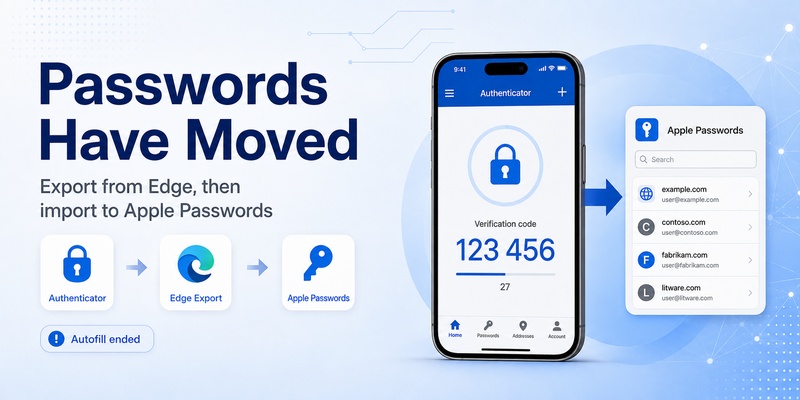
One area where older information is especially misleading is password management.
Authenticator autofill has ended
Anyone searching microsoft authenticator to apple passwords should first understand that Microsoft’s password-autofill feature in Authenticator has been discontinued.
Microsoft states that:
- Adding or importing new passwords into Authenticator stopped in June 2025.
- Authenticator autofill stopped in July 2025.
- Saved personal information became inaccessible in Authenticator by mid-August 2025.
- Passwords synced to a Microsoft account remain accessible through Microsoft Edge.
Therefore, microsoft authenticator for iphone ios should now be treated primarily as an authentication application rather than Microsoft’s main password-autofill application.
Moving passwords toward Apple Passwords
If passwords previously associated with Microsoft Authenticator were synced to your Microsoft account, Microsoft instructs users to access them through Edge. Microsoft also explains that users who prefer another password manager, including iCloud Keychain, can export saved passwords from Edge and import the resulting CSV into another provider.
Apple supports importing password data from a compatible CSV or ZIP file on iPhone through Settings > Apps > Safari > Import. Apple warns users to delete the imported file afterward because exported password files can contain sensitive information in readable form.
So a practical microsoft authenticator to apple passwords migration path is:
- Access synced Microsoft passwords through Edge.
- Export them securely.
- Import the supported file into Apple’s password system.
- Verify that important credentials appear correctly.
- Delete the unencrypted export file.
This password migration is separate from transferring MFA accounts stored in microsoft authenticator for iphone ios.
7. Moving Microsoft Authenticator to a New iPhone
A phone replacement is one of the most important situations to plan for.
Simply installing microsoft authenticator for iphone ios on a new iPhone does not necessarily reproduce every authentication relationship from the previous device.
Back up before changing phones
For users searching new iphone microsoft authenticator, Microsoft currently instructs iOS users to enable the necessary iCloud services for Authenticator backup.
Microsoft’s backup documentation says iOS users should enable iCloud Drive, iCloud Keychain, iCloud Backup, and allow Authenticator in the Saved to iCloud list. Microsoft also recommends Authenticator version 6.8.33 or later for its documented recovery workflow.
Backups are platform-specific: an Authenticator backup created on iOS can be restored to iOS, not Android.
Not every account restores identically
This is a critical limitation of microsoft authenticator for iphone ios backup.
Microsoft explains that ordinary TOTP accounts can restore their verification-code information. However, Microsoft personal accounts configured for passwordless sign-in may restore only the account name and require a new sign-in. Work or school accounts similarly restore only the account name and require the user to sign in again.
Therefore, after restoring new iphone microsoft authenticator, test every important account before wiping the old phone.
Remove the old device correctly
Adding Authenticator to a new iPhone does not automatically remove authentication registration from the old phone.
Microsoft says users should both remove the app from the old device and unregister that device from the relevant Microsoft or organizational security settings when appropriate.
This is especially important if the old iPhone will be sold, recycled, or given to another person.
💡 Discover Helpful Guides: Microsoft Authenticator Keeps Asking for Approval: Causes and Fixes
8. Does Microsoft Authenticator Work on Apple Watch?
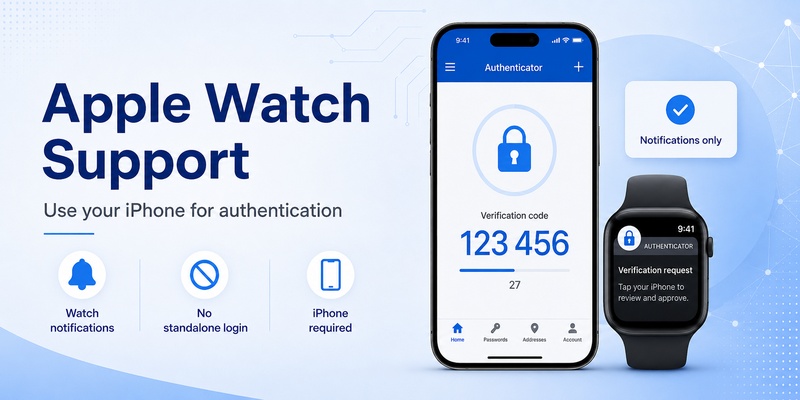
Search results and older articles can make wearable support confusing.
Current Apple Watch support
For anyone searching microsoft authenticator on apple watch, Microsoft’s current answer is no: Apple Watch and Android wearable devices are incompatible with Authenticator’s security features.
That means microsoft authenticator for apple watch should not be treated as a standalone authentication application capable of replacing the registered iPhone.
Microsoft does state that Authenticator notifications can be mirrored from the phone to a wearable device.
What mirrored notifications mean
A mirrored notification is not equivalent to running the complete microsoft authenticator for iphone ios security workflow directly on the watch.
The iPhone remains the primary device for Authenticator security features.
Users should therefore avoid tutorials claiming that an Apple Watch can independently serve as a fully supported Microsoft Authenticator device unless Microsoft officially changes its compatibility guidance in the future.
9. How to Fix Microsoft Authenticator Loop on iPhone
An authentication loop can occur when the sign-in process repeatedly redirects between an application, browser, and Microsoft Authenticator without allowing the user to complete verification.
Check the basic iPhone configuration
For a microsoft authenticator loop iphone issue, first confirm:
- iOS is updated.
- Microsoft Authenticator is updated.
- Notifications are enabled.
- Date and time are correct.
- The iPhone has a stable connection.
- VPN interference has been ruled out where relevant.
Microsoft’s Authenticator troubleshooting guidance recommends keeping the device and security applications updated, checking notification settings and device date/time, and temporarily disconnecting a VPN when diagnosing certain Authenticator problems.
A loop after changing iPhones
A microsoft authenticator loop iphone problem can be particularly confusing after a device replacement.
If the account is still expecting approval from an old registration, restoring the account name onto the new iPhone may not be enough. Microsoft documentation confirms that work or school accounts and passwordless Microsoft accounts may need users to sign in again after restoration.
If another authentication method is offered, use it to sign in and register microsoft authenticator for iphone ios on the new phone properly.
For a managed work or school account, an administrator may need to reset or update your authentication methods when you no longer have access to the previously registered device.
Avoid deleting a working configuration too early
Do not immediately delete microsoft authenticator for iphone ios from the old phone while troubleshooting a new device.
First make sure the new device can successfully:
- Generate required codes.
- Receive expected authentication requests.
- Complete Microsoft 365 or account sign-in.
- Access important work or school services.
Only then should the old registration be removed.
📖 Explore Articles: Why Doesn’t Microsoft Authenticator Work? Fix Guide
10. Common Microsoft Authenticator iPhone Problems
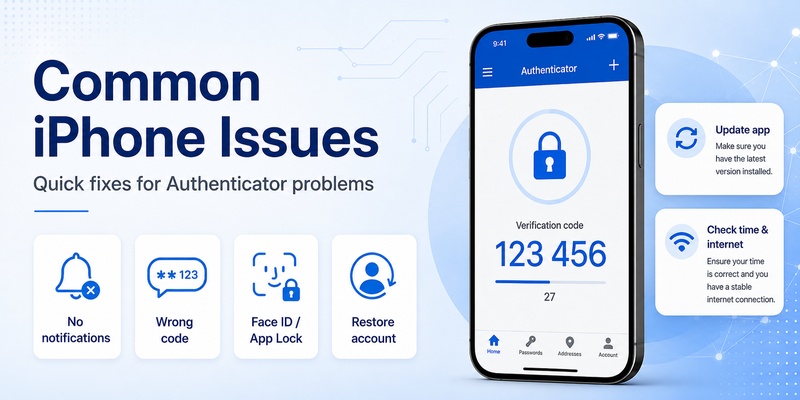
Most issues with microsoft authenticator for iphone ios fall into a few predictable categories.
Notifications are not appearing
Microsoft recommends checking notification permissions and ensuring the device is updated. For work or school accounts, administrators may also control whether notification-based authentication is allowed.
Remember that push notifications do not work for ordinary third-party Authenticator accounts in the same way they work for Microsoft accounts.
The six-digit code is not accepted
Make sure the code belongs to the correct account and that the iPhone’s date and time are accurate.
Authenticator codes change every 30 seconds, so a code entered after its timer expires will no longer be the current code.
When using microsoft authenticator for iphone ios, avoid copying a code and waiting too long before submitting it.
Authenticator is asking for Face ID or a PIN
This can be normal if App Lock is enabled.
Microsoft explains that App Lock can require a device PIN or biometric when opening Authenticator and when approving authentication notifications.
This additional check helps prevent another person holding an unlocked or compromised device from casually approving a sign-in request.
Restored accounts require sign-in again
This is also expected for some account types.
A restored work or school account may display its account name but still require reauthentication. Passwordless Microsoft accounts can behave similarly because the full passwordless credential is not simply restored from the backup.
💡 Discover Helpful Guides: Google Authenticator for PC Free Download: Full Guide For Everyone
11. Security Best Practices for Microsoft Authenticator on iOS
Installing microsoft authenticator for iphone ios improves account security only when the iPhone itself is also protected.
Protect the device
Use a strong iPhone passcode and enable biometric protection where appropriate.
Microsoft’s App Lock feature can use the device PIN or biometric before granting access to Authenticator and before approving authentication prompts.
Do not share verification codes or approve a request simply because someone claims to be Microsoft support.
Keep a recovery path
Before changing devices, make sure Authenticator backup and relevant iCloud services are correctly configured. Microsoft’s current iOS backup procedure relies on iCloud services and supports recovery only between devices of the same platform type.
A well-prepared microsoft authenticator for iphone ios setup should also have an alternative account-recovery method wherever the service allows one.
Review old devices
When an iPhone is retired, remove its authentication relationship from the account.
Deleting the app alone may not remove the old device registration. Microsoft specifically advises users to unregister old devices through their account security or organizational security settings.
Keep Authenticator current
Because compatibility and authentication capabilities evolve, keep microsoft authenticator for iphone ios updated through the App Store.
This is particularly important now that current U.S. App Store compatibility has moved to iOS 17.0 or later.
12. Frequently Asked Questions
Is Microsoft Authenticator available for iPhone?
Yes. Microsoft authenticator for iphone ios is currently available from Apple’s App Store and is published by Microsoft Corporation.
What iOS version does Microsoft Authenticator require?
As of August 13, 2026, the U.S. App Store listing requires iOS 17.0 or later for iPhone.
Users researching microsoft authenticator minimum ios version should check their local App Store listing because application requirements can change over time.
Does Microsoft Authenticator still work on iOS 16?
Older versions and some historical listings supported iOS 16, which explains searches for ios 16 microsoft authenticator.
However, the current U.S. App Store listing requires iOS 17.0 or later.
Can Microsoft Authenticator work without internet?
The OTP portion of microsoft authenticator for iphone ios can generate time-based codes without requiring a network connection. Microsoft’s App Store description specifically states that OTP generation does not require network connectivity.
Push sign-in requests, however, rely on connectivity to receive the authentication request.
Can I use Microsoft Authenticator on Apple Watch?
Not as a fully supported authentication device. Microsoft currently says Apple Watch is incompatible with Authenticator’s security features, although phone notifications can be mirrored to a wearable.
Can Microsoft Authenticator save passwords on iPhone?
Authenticator’s password autofill functionality was discontinued in 2025. Saved passwords synchronized to a Microsoft account remain accessible through Microsoft Edge.
Therefore, modern microsoft authenticator for iphone ios usage should focus on authentication rather than password autofill.
How do I move Microsoft Authenticator to a new iPhone?
Enable the required iCloud services and Authenticator backup before moving devices. Restore the backup on the new iPhone, then sign in again to accounts that require re-registration.
Do not wipe the old device until the new microsoft authenticator for iphone ios installation has been tested.
Why does Microsoft Authenticator keep opening repeatedly?
A sign-in loop can result from an incomplete registration, old device credentials, notification problems, connectivity issues, or a work or school authentication configuration that still expects another registered method.
Update the device and app, verify notifications and date/time, test without a VPN if applicable, and re-register the account when necessary.
Is Microsoft Authenticator only for Microsoft accounts?
No. Microsoft authenticator for iphone ios can generate compatible TOTP codes for supported third-party accounts. Microsoft push notifications, however, are limited to supported Microsoft personal, work, and school account scenarios.
13. Conclusion
Microsoft authenticator for iphone ios remains an important security tool for iPhone users who need multi-factor authentication, two-factor verification, one-time passwords, passwordless Microsoft sign-in, or supported passkey capabilities.
The application has evolved considerably. Users following older tutorials should be especially careful about compatibility, Apple Watch support, password management, and device migration.
As of August 2026, the U.S. App Store requires iOS 17.0 or later for the current Microsoft Authenticator release. Apple Watch cannot currently operate as a supported Authenticator security device, although notifications can be mirrored from an iPhone. Password autofill inside Authenticator was discontinued in 2025, with Microsoft directing users toward Edge for passwords synced to their Microsoft accounts.
For anyone switching phones, the safest approach is to prepare the Authenticator iCloud backup before retiring the old device, restore the backup to the new iPhone, reauthenticate work, school, or passwordless accounts where required, and test every critical sign-in before removing the old registration.
When configured correctly, microsoft authenticator for iphone ios provides a convenient authentication layer while keeping verification codes and account approvals close at hand. Combining it with a protected iPhone, current software, verified recovery options, and careful handling of unexpected sign-in requests creates a stronger overall account-security setup.
Download Authenticator App
Secure your accounts with fast, reliable two-factor authentication. Download now and protect your login in seconds.
