
Microsoft Authenticator Keeps Asking for Approval: Causes and Fixes
When microsoft authenticator keeps asking for approval, do not approve requests merely to silence them. Repeated prompts can come from an application retrying an expired session, an old device registration, a password change, organization policy, or an attacker who already knows the password.
The safe response begins by separating a sign-in you initiated from an unsolicited request. Deny anything unexpected, review account activity, and secure the password before attempting routine notification fixes.
This guide provides a controlled process for personal Microsoft accounts and Microsoft Entra work or school identities. It explains notification loops, device records, reauthentication, push fatigue, recovery, and when an administrator must intervene.
1. Identify Why Approval Requests Repeat
Separate retries from new sign-ins
A website, desktop client, phone mail app, VPN, or background service can retry authentication after a token expires. One interrupted login may therefore create several Authenticator prompts. Close all duplicate sign-in windows and end the requesting application before testing again.
If microsoft authenticator keeps asking for approval while you are actively signing in, compare the application, account, time, and number shown. Approve only the single request that matches the browser or app action you just started. Let older prompts expire or deny them.
Consider the main causes
Repeated approval can also result from a changed password, revoked session, conditional access rule, device-compliance requirement, stale Authenticator registration, disabled notifications, network delay, or an unauthorized password attempt. The exact pattern helps distinguish them.
| Pattern | Likely cause | Safe first action |
|---|---|---|
| Prompt follows one sign-in | Normal retry or duplicate window | Close duplicates and restart once |
| Prompts arrive with no user action | Unauthorized sign-in attempt | Deny, secure account, review activity |
| One app asks every launch | Expired or corrupted app session | Sign out of that app and reauthenticate |
| Old phone and new phone both prompt | Stale device registration | Test new phone, then remove old method |
| Prompt repeats after approval | Policy, compliance, or token issue | Record error and contact administrator |
Avoid deleting accounts or reinstalling Authenticator during diagnosis. Those actions can remove the one working factor and make recovery harder. First preserve a separate sign-in method and capture the time, account, app, and error.
This evidence turns microsoft authenticator keeps asking for approval from a vague complaint into a traceable event with a likely initiator.
Download Authenticator App
Secure your accounts with fast, reliable two-factor authentication. Download now and protect your login in seconds.
2. Stop Suspicious Prompts Immediately
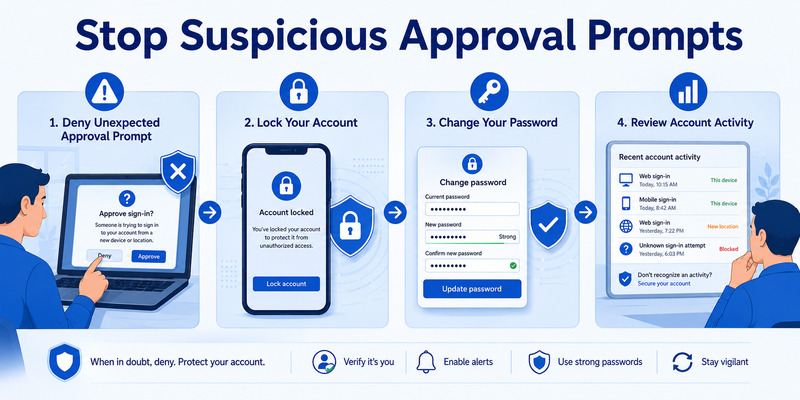
Deny requests you did not initiate
An unexpected approval request should be treated as a security signal. Select Deny, report fraud when that option appears, and do not enter a number supplied by a caller or message. Microsoft support and workplace help desks do not need you to approve an unrequested login. This is the first rule whenever microsoft authenticator keeps asking for approval unexpectedly.
When microsoft authenticator keeps asking for approval without a sign-in you recognize, assume someone may possess the password. Attackers use repeated notifications to exhaust or confuse a person into approving one. Silence is safer than approval, but account containment is still required.
Contain the account from a trusted device
Open the provider’s security page by typing the official address or using a saved bookmark. Change the password to a unique value, revoke unfamiliar sessions, review recent activity, and remove unknown security information. For a work or school identity, notify the security or help-desk team with the prompt time and location.
Do not rely on a password change alone if an attacker may already hold an active session. Use the provider’s sign-out-everywhere or session-revocation control when available. Check inbox rules, forwarding, registered devices, application consent, and recovery methods on high-value accounts.
Keep screenshots only if they do not expose codes or sensitive data. A concise incident record should include date, approximate time, account, displayed location, application, and whether any request was approved. If you accidentally approved one, state that clearly so responders can prioritize session revocation.
In an incident ticket, use microsoft authenticator keeps asking for approval alongside the exact username and timestamps so security staff can correlate the correct sign-in records.
 Explore Guides: Microsoft Authenticator Extension: Safe Browser Guide
3. Match Requests to Your Own Sign-Ins
Use number matching deliberately
For supported Microsoft sign-ins, the browser displays a number and Authenticator asks you to enter or select the same number. This connects the phone response to the session. Compare the number before unlocking or approving; never use a number provided by another person.
If microsoft authenticator keeps asking for approval, cancel every open request and start one clean sign-in. Use a private browser window if necessary, enter the account once, and wait for one prompt. Matching a single transaction removes ambiguity created by expired requests.
Verify context without overtrusting it
Authenticator may show the application name and approximate location. Location can be imprecise because it reflects network routing, VPN egress, or mobile carrier infrastructure. Treat it as context, not proof. The decisive question is whether you initiated the specific sign-in at that time.
The account identity also matters. People with personal, work, client, and test accounts can approve the wrong tenant when labels look similar. Expand the prompt and compare the full username or organization. If the browser offers another sign-in method, use a verified security key, passkey, code, or recovery route to regain control.
After one successful approval, close the browser and repeat a signed-out test. A prompt that appears only during those controlled tests is probably legitimate. A prompt that continues after every window is closed points to another client, stale registration, policy, or malicious activity.
The controlled test is the quickest way to decide whether microsoft authenticator keeps asking for approval describes duplicate user sessions or truly unsolicited traffic.
 Discover Helpful Guides: Microsoft Authenticator Passwordless Sign-In: Complete Guide
4. Fix Notification and Network Loops
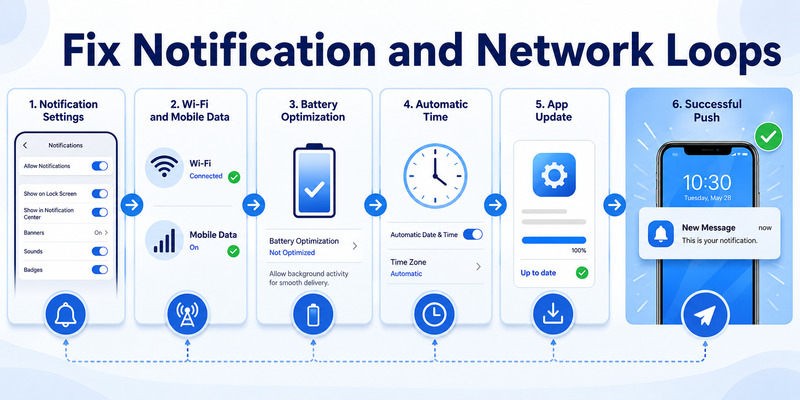
Refresh the supported app environment
Update Microsoft Authenticator and the phone operating system. Microsoft advises using a current Authenticator version, enabling notifications, keeping date and time correct, and checking connectivity. On Android, battery optimization can delay push delivery; on either platform, quiet modes can hide alerts.
If microsoft authenticator keeps asking for approval because earlier pushes arrive late, switch once between Wi-Fi and mobile data, disable airplane mode, and temporarily disconnect a VPN to test. Open Authenticator directly and let pending requests settle. Then restart the phone and make one controlled login.
Check notification permissions safely
Confirm operating-system notification permission, Authenticator’s in-app notification settings, sound or vibration preferences, background data, and battery access. Do not disable all security notifications as a permanent fix. That masks attacks and prevents legitimate approvals.
Late notifications and duplicate requests are different from repeated server challenges. If the browser repeatedly returns to the approval page after the phone says Approved, record the browser error and sign out of the affected application. Clear only that application’s account session or site cookies, then authenticate once.
Avoid clearing Authenticator storage, uninstalling, or removing the account until an independent factor is tested. These destructive steps do not repair a server-side loop and may delete local TOTP entries. For general app setup, consult the microsoft authenticator setup workflow before re-registration.
If delayed delivery is why microsoft authenticator keeps asking for approval, fixing background access and connectivity should restore one timely prompt per sign-in.
5. Remove Old Device Registrations Safely
Inventory phone and server records
Replacing or restoring a phone can leave the old Authenticator credential registered. The account may send prompts to both devices or prefer a record that no longer works. Compare the phones listed in the account’s security information with the devices you actually possess.
When microsoft authenticator keeps asking for approval after a phone change, do not delete both records together. Keep a verified recovery method, test the new phone with a signed-out login, and identify the old entry by device name and registration date. Remove only the stale server-side method.
Retire the old phone in order
Use this sequence: add or restore the replacement phone, complete any action-required re-registration, test approval, test a fallback, remove the old security method, revoke old sessions, and finally erase the retired device. The microsoft authenticator for iphone ios guide covers platform-specific preparation for iPhone users.
Deleting a tile inside the mobile app is not always the same as unregistering the method from the provider. Conversely, removing the provider method can leave a harmless stale tile on the phone. Server security information is authoritative for where approval requests are sent.
Managed devices may also appear in Microsoft Entra, Intune, or another mobile-device platform. Users may lack permission to delete those objects. Record the device name and registration identifiers, then ask the administrator to remove only the obsolete record after the replacement passes policy checks.
Clean server records usually resolve the post-migration case where microsoft authenticator keeps asking for approval on more than one phone.
Discover Helpful Guides: Microsoft Authenticator Passwordless Sign-In: Complete Guide
6. Repair Work or School Account Registration
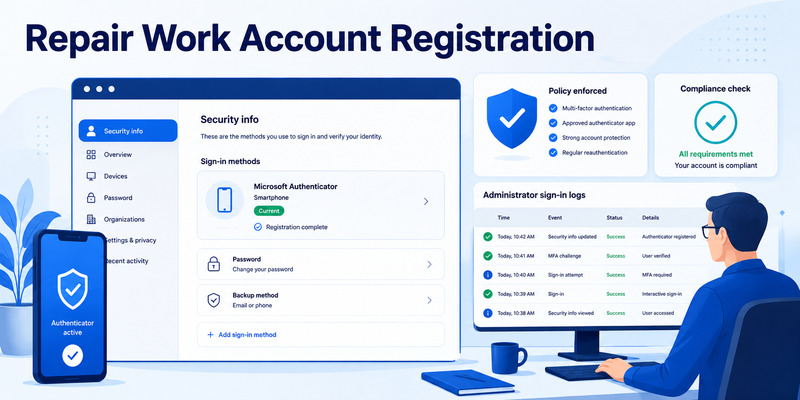
Inspect security information
For a Microsoft Entra identity, open the organization’s approved Security info page and review Microsoft Authenticator methods. Confirm that the current phone is registered for the intended mode: push MFA, passwordless phone sign-in, or both, depending on policy.
If microsoft authenticator keeps asking for approval but the browser never completes, the registration can be partially valid: the phone receives a push, yet the service rejects the response because device binding, compliance, tenant, or authentication-strength requirements do not match.
Re-register with administrative support
Before re-registering, secure another factor or have the help desk issue a Temporary Access Pass when the organization supports it. Remove the broken method through Security info, add Authenticator again using the official QR flow, complete the test approval, and verify a private-window login.
Do not scan another employee’s QR or share a registration image. Each QR contains a credential tied to one identity. Do not let a caller guide you through approving prompts; independently contact the published help-desk channel.
If re-registration is blocked, send the administrator the exact error, timestamp, username, tenant, device OS, Authenticator version, network type, and whether Company Portal reports compliance. Administrators can inspect sign-in logs, authentication details, conditional access results, risk detections, and device records more reliably than repeated client resets.
Those logs reveal whether microsoft authenticator keeps asking for approval because the first factor succeeded while a later device or policy requirement failed.
7. Handle Policy and Application Reauthentication
Find the client causing the loop
Close desktop Outlook, Teams, VPN, remote desktop, command-line tools, development clients, and mobile mail one at a time. Watch whether prompts stop. Reopen the suspected client, sign out of only the affected account, update it, and complete one fresh authentication.
When microsoft authenticator keeps asking for approval at a predictable interval, the client may be unable to store or refresh its token. Privacy tools, damaged cookies, device clock errors, unsupported embedded browsers, or broker issues can cause repeated challenges. Test an updated supported browser before changing MFA.
Respect organization policy
Conditional Access can require MFA more often for risky sign-ins, unmanaged devices, sensitive applications, new locations, or expired sign-in frequency. Device compliance may require Company Portal, encryption, screen lock, or a healthy OS. Users cannot fix those requirements by approving faster.
| Evidence | Likely owner | Next step |
|---|---|---|
| Only one application loops | Application or local session | Update, sign out, clear that app session |
| All browsers loop on one device | Device or broker state | Check time, updates, registration, compliance |
| All devices loop for one account | Identity policy or risk | Review sign-in logs and security information |
| Many users affected simultaneously | Service or policy change | Administrator checks health and recent changes |
An administrator should correlate the time with sign-in logs and identify which policy granted, interrupted, or blocked access. A clear policy result is more useful than reinstalling Authenticator. Preserve the working factor until the root cause is known.
When policy explains why microsoft authenticator keeps asking for approval, remediation belongs in session, device, or access configuration—not in repeated approvals.
Discover Helpful Guides: Microsoft Authenticator: Complete Setup, Login, Backup & Troubleshooting Guide
8. Prevent MFA Fatigue Attacks
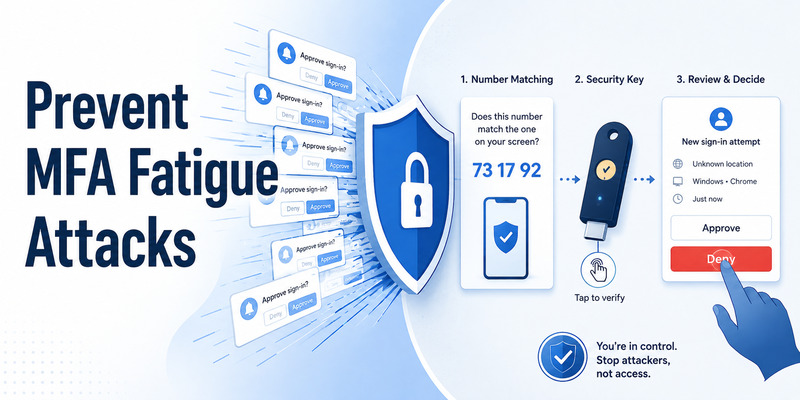
Make denial the default for surprises
Train yourself and team members to approve only a sign-in they started. Number matching improves context, but it does not help if a person accepts a number dictated by an attacker. Report suspicious prompts through the app or organization process and contact security independently.
If microsoft authenticator keeps asking for approval, never choose Approve to make notifications disappear. Put the phone in a temporary quiet mode only after denying requests and beginning account containment. Permanent notification disabling sacrifices both detection and access.
Strengthen the authentication design
Prefer phishing-resistant passkeys or FIDO2 security keys for administrators and high-value accounts. Use unique passwords, block legacy authentication, apply risk-based controls, and maintain at least two independent recovery methods. Organizations should monitor repeated denials and bursty MFA attempts.
Remove former employees, abandoned applications, obsolete devices, and unused authenticator registrations promptly. Review sign-in frequency so sensitive access is protected without training users to approve incessantly. A predictable prompt experience makes anomalies easier to recognize.
Run a recovery drill after changes. Confirm that a lost phone can be revoked, a backup factor can sign in, a new device can be enrolled, and administrators can inspect the event. Prevention combines human judgment, stronger credentials, clean registrations, and observable policies.
Monitoring also lets teams detect when microsoft authenticator keeps asking for approval affects one targeted user or signals a broader automated attack.
9. Frequently Asked Questions
Why am I receiving approval requests when I am not signing in?
Someone may be attempting to use your password, or an existing application may be retrying a session. Deny the request, change the password from a trusted device, revoke unfamiliar sessions, review activity, and notify your organization when applicable.
Should I approve a prompt just to stop it?
No. If microsoft authenticator keeps asking for approval, approving an unrecognized request may give an attacker access. Deny it and secure the account. Only approve a request that matches a sign-in you personally initiated.
Why does Authenticator ask again after I approved?
The original request may have expired, another window may have created a duplicate, the application may not store its token, or policy may require a different condition. Close duplicate sessions, start one clean login, and record the final error.
Can I turn off Authenticator notifications?
You can control notifications at the phone level, but disabling them is not a good solution to repeated prompts. It hides suspicious activity and prevents legitimate push approvals. Fix the initiating account, application, registration, or policy instead.
Why do both my old and new phones get prompts?
Both devices may remain registered as authentication methods. Test the new phone and a fallback first, then remove the obsolete device from the provider’s security information. Do not erase the old phone until recovery is proven.
When should I contact my IT administrator?
Contact IT for work or school accounts when prompts persist after a controlled sign-in, re-registration is blocked, device compliance fails, an unexpected request appears, or an approval completes on the phone but access remains denied. Include microsoft authenticator keeps asking for approval in the ticket summary so the symptom is immediately clear.
10. Final Thoughts
When microsoft authenticator keeps asking for approval, the priority is to determine whether the prompt is expected. Deny surprises, protect the account, and preserve evidence before adjusting notification settings or registrations.
For prompts tied to your own sign-in, close duplicate windows and create one clean transaction. Update the app and operating system, verify network and notification settings, correct device time, and reauthenticate only the client causing the loop.
After a phone migration, test the current device and fallback before removing old security information. For managed identities, let administrators inspect sign-in logs, policy results, compliance, and device objects before destructive resets.
Repeated approval is both an operational problem and a potential attack indicator. Strong habits—unique passwords, number matching, phishing-resistant credentials, clean device records, and independent recovery—reduce both risks.
For compatible accounts, a well-reviewed Authenticator App should offer trustworthy publishing, secure storage, clear enrollment, and dependable recovery. If microsoft authenticator keeps asking for approval, fix the source rather than training yourself to accept the noise.
Finish by running one signed-out test and reviewing the resulting account activity. Confirm that only the current device receives one prompt, the requested application is correct, and the session completes without another challenge. Document the change and retain a separate recovery factor. When microsoft authenticator keeps asking for approval no longer reproduces under that controlled test, the repair is complete; if it does reproduce, escalate with exact timestamps rather than experimenting with destructive resets.
Download Authenticator App
Secure your accounts with fast, reliable two-factor authentication. Download now and protect your login in seconds.
