
Microsoft Authenticator Setup: How to Install, Add Accounts, and Secure Sign-In
A correct microsoft authenticator setup gives you a more secure way to verify account access without relying only on a traditional password. Microsoft Authenticator can be used with personal Microsoft accounts, work or school accounts, and many third-party services that support time-based verification codes. Depending on the account, it can support approval notifications, one-time codes, multi-factor authentication, or passwordless sign-in.
The exact setup process depends on what type of account you are adding. A personal Microsoft account is usually configured through the Microsoft account Security page. A work or school account commonly uses the Security info page provided through Microsoft Entra. Other services normally provide their own QR code that you scan with the authenticator app.
This guide explains how to set up microsoft authenticator from beginning to end. It covers installation, QR-code enrollment, MFA registration, phone sign-in, important settings, testing, backup, and common setup errors. If your goal is simply to get authentication working correctly without getting lost in unrelated Microsoft security features, the following microsoft authenticator setup steps provide a practical path.
1. What Is Microsoft Authenticator Setup?
What the setup process actually does
A microsoft authenticator setup connects your mobile device with an account so the device can participate in future sign-in verification. Microsoft describes Authenticator as an app that can be used to verify sign-ins, participate in two-step or multi-factor authentication, and support passwordless authentication for compatible accounts.
During microsoft authenticator setup, the account and your phone establish the information required for authentication. Depending on the account type, this may involve scanning a QR code, signing directly into the account from Authenticator, registering the device, or approving an initial verification request.
This explains why simply installing the application is not enough. You must still add account to microsoft authenticator before the app can generate relevant codes or receive eligible Microsoft sign-in requests.
For Microsoft accounts, Authenticator can operate in several ways. It may be added as a verification option, used as part of two-step authentication, or used as a passwordless sign-in method. Microsoft also supports work and school accounts when the organization has enabled the appropriate authentication methods.
MFA, codes, and notifications are different
Not every microsoft authenticator setup produces the same sign-in experience.
With some Microsoft accounts, you may receive a push notification asking you to approve a sign-in. Microsoft notes that notifications are available for personal Microsoft accounts and eligible work or school accounts, although administrators can control availability for organizational accounts. Third-party accounts such as Google or Facebook do not use Microsoft Authenticator push notifications and instead typically rely on verification codes.
An mfa setup microsoft authenticator process for a company account may therefore look different from adding a normal website account.
Understanding that distinction before starting prevents one of the most common sources of confusion: expecting every account in Microsoft Authenticator to display the same options.
Download Authenticator App
Secure your accounts with fast, reliable two-factor authentication. Download now and protect your login in seconds.
2. What You Need Before Microsoft Authenticator Setup
Install and prepare the phone
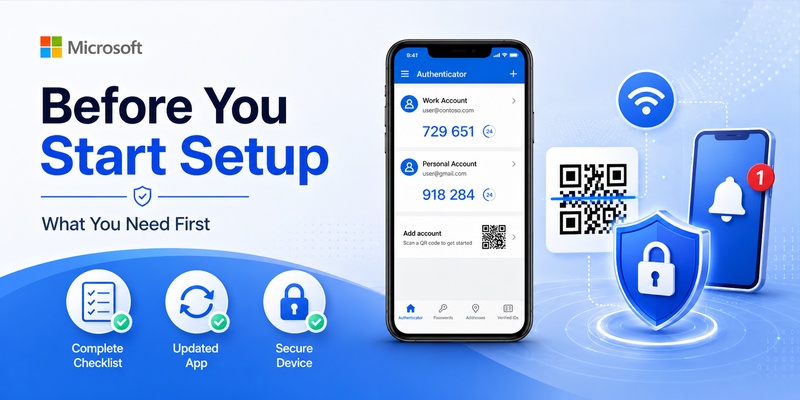
Before beginning microsoft authenticator setup, install the latest available version of Microsoft Authenticator on your supported mobile device. Microsoft currently states that the latest version is required when adding an account.
You should also make sure that your device can connect to the internet, especially when registering Microsoft accounts that require notifications. On Android work or school configurations, Microsoft notes that push notifications must be enabled and that Google Play Services and the Google Play Store may be required for the relevant notification functionality.
A device PIN, fingerprint, Face ID, or another supported screen-lock mechanism is also useful because organizational authentication policies may require device security before passwordless authentication can be activated.
For a smooth microsoft authenticator setup, have both your phone and a second screen available. A computer is particularly convenient because the computer can display the QR code while the phone scans it.
Know which account you are configuring
Before you set up microsoft authenticator, identify whether the account is:
- A personal Microsoft account
- A work or school Microsoft account
- A non-Microsoft account
This matters because each path starts differently.
Personal Microsoft accounts can be managed through Microsoft account security options. Work and school accounts generally use the organization’s Security info page. Third-party accounts begin from the security settings of the third-party service.
If you are completing setup mfa microsoft authenticator because your employer has requested it, your organization may determine which authentication methods you are allowed to use. Microsoft states that users can select only from methods supported by their organization.
Do not remove an existing authentication method before confirming that the new microsoft authenticator setup works. Keeping another recovery or verification option available can make troubleshooting much easier.
🧭 Explore Guides: Is Microsoft Authenticator Free to Use? Everything You Need to Know
3. How to Set Up Microsoft Authenticator for a Personal Account
Add Authenticator as a verification method
For users wondering how to set up microsoft authenticator app with a personal Microsoft account, the process begins in your account’s security settings.
Microsoft’s current workflow is to sign in to the Microsoft account Security page, open the section for managing sign-in methods, select the option to add a new way to sign in or verify, and choose an authenticator application. The site then provides the information required to connect the phone.
Open Microsoft Authenticator on the phone and select the option to add an account. Choose Personal account and scan the QR code shown on the other screen.
That QR code is important because it links the correct account configuration with the application. Once scanned, complete any verification prompt that appears.
This basic microsoft authenticator setup establishes Authenticator as an available verification method for the personal account.
If your camera cannot scan the QR code, Microsoft also provides a manual-code workflow from the setup screen.
Turn on two-step verification if needed
Adding Authenticator and enabling two-step verification are related but not identical actions.
If you want every qualifying sign-in to use stronger verification, return to your Microsoft account security options and locate two-step verification. Follow the on-screen instructions to activate it. Microsoft may provide another QR code during this process.
After completing microsoft authenticator setup, perform a test sign-in before closing the security settings page.
This is especially important if you searched for microsoft authenticator how to set up because you are replacing another verification application. Do not assume the new configuration works simply because the account appears inside Authenticator.
Complete one real sign-in, confirm the request on the phone, and verify that the website accepts it.
4. How to Set Up Microsoft Authenticator MFA for Work or School
Register through Security info
A company or university account normally follows a slightly different microsoft authenticator setup.
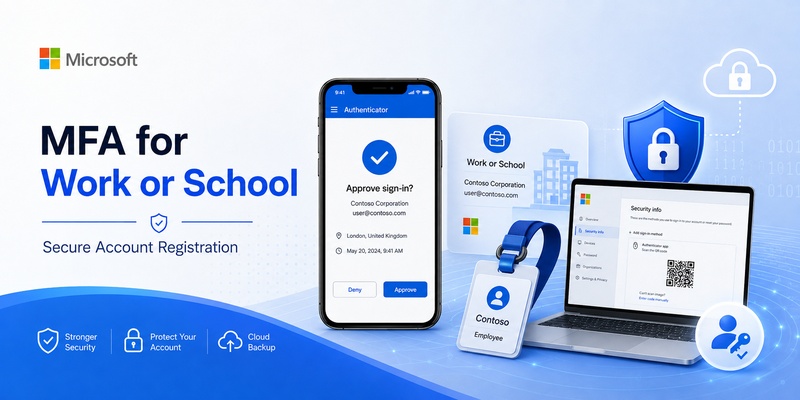
For a standard microsoft authenticator mfa setup, Microsoft directs work and school users to the Security info area. Sign in with your organizational account and choose Add sign-in method. Select Microsoft Authenticator if it is available.
Continue until the browser displays a QR code.
On your phone:
- Open Microsoft Authenticator.
- Select Add account.
- Choose Work or school account.
- Select Scan a QR Code.
- Scan the code displayed on your computer.
- Finish the verification prompts.
This is the most common mfa setup microsoft authenticator workflow for Microsoft 365 and Microsoft Entra environments.
Your organization controls which authentication methods are available, so the options you see may differ from those shown for another company.
Complete registration and verify the account
After scanning the QR code, do not immediately leave the page. A microsoft authenticator setup for work or school often includes an additional test or registration step.
Depending on organizational policy, you may receive an approval request or another prompt confirming that Microsoft can communicate with the Authenticator installation.
If the account appears in the application but verification does not finish in the browser, your setup mfa microsoft authenticator process may still be incomplete.
Microsoft also notes that eligible users may be able to proceed through device registration for passwordless phone sign-in and Microsoft Entra multi-factor authentication when their administrator allows it.
Organizations can enforce their own MFA policies, so contact your IT administrator if Microsoft Authenticator is not listed among permitted methods.
Microsoft recommends maintaining multiple sign-in methods for work or school accounts, helping reduce the risk of being locked out if the phone becomes unavailable.
💡 Discover Helpful Guides: Microsoft Authenticator Passwordless Sign-In: Complete Guide
5. How to Add Other Accounts to Microsoft Authenticator
Enable two-factor authentication on the website first
A microsoft authenticator setup is not limited to Microsoft services.
Authenticator can also store verification information for compatible third-party services. Microsoft lists examples including Amazon, Facebook, Instagram, and Google.
However, you normally start on the website you want to protect—not inside Microsoft Authenticator.
Sign in to that service, find its security or two-factor authentication settings, and enable authentication using an authentication application. The service should then display a QR code or setup information.
Only after that should you open Authenticator.
This order is important. If you open the application first and try to enable microsoft authenticator without obtaining setup information from the website, Authenticator has nothing to connect to.
Scan the QR code
Once the third-party website shows its QR code, open Microsoft Authenticator and choose the add-account option.
Select Other account and scan the QR code.
Microsoft’s instructions for third-party accounts follow this same general process: enable two-step verification on the account, open Authenticator, choose Other account, and scan the QR code displayed by the service.
After successful microsoft authenticator setup, Authenticator should begin displaying a changing verification code for that account.
The website commonly asks you to enter the current code to confirm that registration succeeded.
Remember that third-party accounts generally use codes rather than Microsoft push approvals. Microsoft specifically states that Authenticator notifications do not work for third-party accounts such as Google or Facebook.
6. How to Enable Phone Sign-In and Passwordless Access
Phone sign-in is different from standard MFA
Some users complete microsoft authenticator setup because they specifically want to sign in without entering a password.
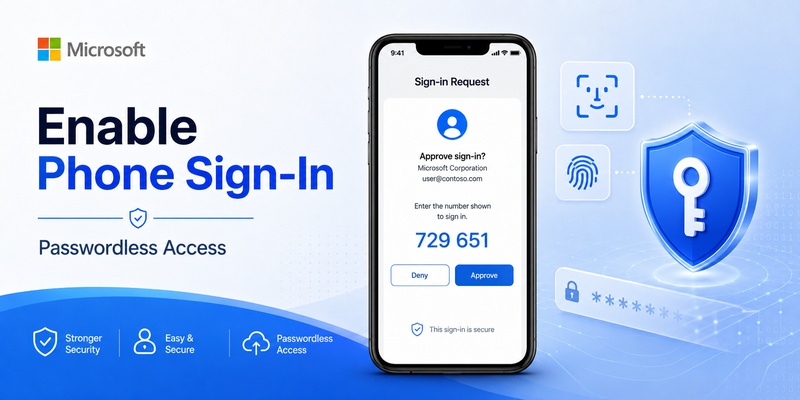
Passwordless sign-in should not be confused with simply adding Authenticator for verification. Standard MFA may still begin with a password and then require another factor. Passwordless authentication uses an alternative authentication method instead of the traditional password.
For a personal Microsoft account, Microsoft provides a Passwordless account option within the account’s additional security settings. Authenticator must first be installed and connected to the account. The user then turns on the passwordless option and approves the request in Authenticator.
Therefore, users searching for enable phone sign in microsoft authenticator should first verify that their basic microsoft authenticator setup is already functional.
Enable passwordless authentication carefully
To enable microsoft authenticator for passwordless use on a personal Microsoft account, complete the standard account registration first.
Then open your Microsoft account security options, locate the Passwordless account setting, select Turn on, complete the verification prompts, and approve the request sent to Authenticator.
For organizational accounts, phone sign-in availability depends on administrator configuration. Microsoft states that eligible work or school users may be offered device registration for passwordless phone sign-in if their administrator permits it.
After enabling passwordless authentication, test it before depending on it as your primary method.
A successful microsoft authenticator setup should let you select Authenticator during sign-in and complete the requested approval or number-matching flow where applicable.
7. Microsoft Authenticator Settings to Review After Setup
Check notifications and device security
After completing microsoft authenticator setup, spend a few minutes reviewing your phone and application settings.
The most important microsoft authenticator settings depend on how you use the application. If your Microsoft account relies on approval notifications, make sure operating-system notifications for Authenticator are enabled.
Microsoft recommends checking notification permissions and network connectivity when Authenticator fails to receive sign-in alerts.
You should also keep a secure screen lock enabled. Work and school passwordless configurations may depend on a PIN or biometric protection.
For Android work profiles, security settings inside the work profile may be separate from those used by the personal profile. Microsoft specifically notes that biometrics in a regular profile do not necessarily carry over to a work profile.
These checks make your microsoft authenticator setup more reliable during day-to-day use.
Configure backup where appropriate
Backup is also worth reviewing after you set up microsoft authenticator app.
Microsoft provides account-backup functionality, but restoration behavior differs depending on account type and operating system. Microsoft states that backup and restoration are limited to the same device platform: an iOS backup cannot be restored directly to Android, and vice versa.
On Android, Cloud Backup can be enabled from Authenticator settings and associated with a personal Microsoft recovery account. On iOS, Microsoft’s current process relies on the appropriate iCloud configuration.
Importantly, work and school accounts may still require you to sign in again after restoration. Passwordless credentials may also require re-registration.
Backup therefore helps, but it is not a substitute for keeping alternative recovery methods available after microsoft authenticator setup.
💡 Discover Helpful Guides: Microsoft Account App: Setup, Security & Sign-In Guide
8. How to Test Your Microsoft Authenticator Setup
Perform a real sign-in
Never consider microsoft authenticator setup complete until you test it.
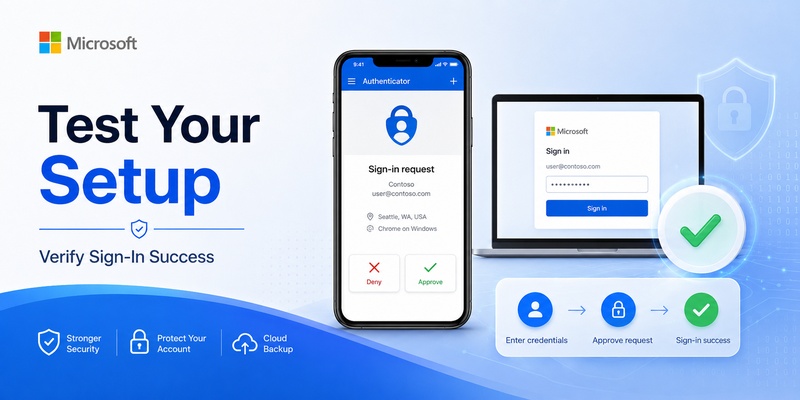
Open a private browser window or use another trusted device and sign in to the account you just configured.
When Authenticator is available as a sign-in method, Microsoft may display a Send notification option or allow you to select another way to sign in and approve a request using Microsoft Authenticator. Some sign-ins also display a number that must be matched in the app.
Open the notification, unlock Authenticator if requested, and complete the approval.
For third-party code-based accounts, initiate a login on that service and enter the current one-time code displayed in Authenticator.
A successful sign-in confirms that your microsoft authenticator setup is working beyond simply displaying an account name inside the application.
Confirm alternative sign-in methods
Testing should also include recovery planning.
For work and school environments, Microsoft recommends associating multiple authentication methods with the account because losing access to the phone can otherwise make recovery more difficult.
After completing how to set up microsoft authenticator, inspect the security information registered with your account. Make sure any phone number, email address, security key, recovery method, or other approved authentication option is still current.
Do not intentionally remove a functioning backup method merely because Authenticator works.
A reliable microsoft authenticator setup should improve account security without creating a single point of failure.
9. Common Microsoft Authenticator Setup Problems
QR code will not scan
One common microsoft authenticator setup issue is a QR code that does not scan.
First, confirm that you selected the correct account category in Authenticator. A Microsoft personal account, a work or school account, and an Other account follow different enrollment paths.
Next, make sure Authenticator has permission to use the phone camera.
If scanning is still impossible, Microsoft’s setup pages may provide a manual-code option. For personal accounts, Microsoft specifically provides an alternative for users who cannot scan the barcode. Work and school enrollment can also offer manual entry depending on the setup flow.
Do not scan a screenshot or QR code from an unrelated account. Generate the enrollment information directly from the account you are configuring.
If the QR code came from an old microsoft authenticator setup session, generate a fresh configuration rather than repeatedly attempting an expired or invalid enrollment.
Notifications or account registration fail
Another frequent problem occurs when the account is visible but approval notifications never arrive.
Check your internet connection and phone notification permissions first. Microsoft recommends enabling push notifications and confirming network connectivity when notification-related setup errors occur.
Android work or school users should also verify that required Google Play components are available and active.
For passwordless organizational accounts, Microsoft suggests checking Authenticator’s Device Registration area and confirming that the account is properly registered when troubleshooting passwordless configuration.
If your employer controls authentication policies and the microsoft authenticator setup still fails after basic troubleshooting, contact the organization’s IT administrator rather than repeatedly deleting and re-adding the account.
💡 Discover Helpful Guides: Microsoft Authenticator Desktop: Complete PC & Mac Guide
10. Security Best Practices After Setup
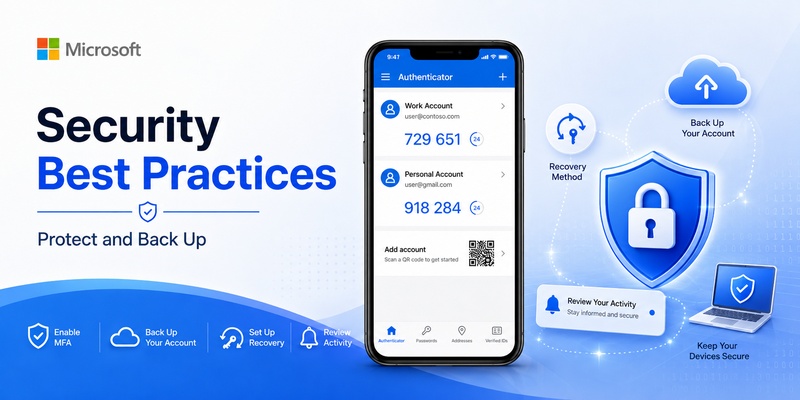
Keep more than one recovery method
A good microsoft authenticator setup is only one part of maintaining reliable account access.
Whenever your account allows it, keep another secure recovery or authentication method available. This becomes especially important if your phone is lost, damaged, replaced, or reset.
Microsoft explicitly recommends multiple sign-in methods for work and school accounts using two-step verification.
Do not store recovery information in an insecure location simply for convenience. Instead, review your registered methods periodically and remove devices that you no longer own.
When switching phones, remember that installing Authenticator on a new phone does not automatically mean that every credential has been fully transferred or re-registered. Microsoft notes that some restored account types require users to sign in again.
Verify the new microsoft authenticator setup before wiping your previous device whenever possible.
Treat approval requests as security prompts
Once microsoft authenticator setup is complete, do not automatically approve every notification you receive.
An unexpected approval request can indicate that someone is attempting to access your account. Read the prompt and make sure the sign-in corresponds to an action you actually initiated.
Microsoft’s current Authenticator sign-in process may require users to enter or match a number shown on the sign-in screen before approving the request.
Keep Authenticator updated and maintain the security of the phone itself.
Microsoft also states that work and school Entra credentials in Authenticator are prevented from functioning on jailbroken or rooted devices as part of security protections introduced in 2026.
Ultimately, the strongest microsoft authenticator setup combines correct enrollment, secure device access, sensible recovery options, and careful approval behavior.
11. Microsoft Authenticator Setup FAQ
How do I set up Microsoft Authenticator for the first time?
If you are searching for how to set up microsoft authenticator, start by installing Microsoft Authenticator on your phone. Next, open the security settings for the account you want to protect.
For a personal Microsoft account, add Authenticator through Microsoft’s account security options. For a work or school account, use Security info and select Microsoft Authenticator as an available sign-in method. For another website, enable two-factor authentication on that website first.
When a QR code appears, open Authenticator, select Add account, choose the correct account type, and scan it.
Complete any verification step shown afterward.
That basic sequence completes the typical microsoft authenticator setup. Microsoft officially supports adding personal, work or school, and compatible third-party accounts to Authenticator.
Can I set up Microsoft Authenticator without a QR code?
In some situations, yes.
Microsoft provides manual setup options when a QR code cannot be scanned during certain enrollment processes. For example, personal-account registration can provide a manual code that you enter in Authenticator instead.
However, the account service must provide the required setup information. You cannot simply invent a manual key inside the application.
For the easiest microsoft authenticator setup, displaying the QR code on a computer and scanning it with your phone is generally the most straightforward workflow.
Can I add multiple accounts?
Yes. Microsoft Authenticator supports multiple Microsoft and non-Microsoft accounts.
To add account to microsoft authenticator, open the application, choose the add-account option, select the appropriate account category, and complete its registration process.
You can therefore use the same application for a personal Microsoft account, a company Microsoft 365 account, and supported third-party accounts.
Each account remains independently configured even though they appear in the same application.
Is Microsoft Authenticator setup the same as MFA setup?
Not necessarily.
A microsoft authenticator setup simply means connecting Authenticator with an account. The account can then use Authenticator in different ways.
An mfa setup microsoft authenticator specifically involves using Authenticator as part of a multi-factor authentication process.
Microsoft also supports two-step verification and passwordless authentication, depending on account type and organizational settings.
Therefore, microsoft authenticator mfa setup is one use of Authenticator rather than the only possible setup.
Why can’t I receive Microsoft Authenticator notifications?
First, check internet access and operating-system notification permissions.
Microsoft recommends confirming that push notifications are enabled and that the device has network connectivity when Authenticator notifications fail.
Also remember that third-party accounts do not receive Microsoft Authenticator approval notifications. Microsoft states that push notifications apply to Microsoft personal accounts and supported work or school accounts, not services such as Google or Facebook.
If a company account still cannot receive notifications after your microsoft authenticator setup, your organization’s administrator may have restricted that authentication method.
How do I enable phone sign-in?
Users looking for enable phone sign in microsoft authenticator should first complete normal account registration.
For personal Microsoft accounts, you can then open Microsoft’s additional security options and enable the Passwordless account feature. Follow the verification steps and approve the request in Authenticator.
For work or school accounts, phone sign-in availability depends on the organization’s policy.
Do not enable passwordless access until the normal microsoft authenticator setup has been tested successfully.
What should I do after setting up Microsoft Authenticator?
After you set up microsoft authenticator, complete at least one test sign-in.
Next, review notification permissions, backup options, recovery methods, and registered devices. Make sure you still have another legitimate way to access the account if your phone becomes unavailable.
If you change devices later, confirm that your accounts are functional on the new phone before removing the old configuration.
A successful microsoft authenticator setup is not simply an account appearing on the Authenticator home screen. The real goal is ensuring that verification works reliably when you actually need to sign in.
Conclusion
The complete microsoft authenticator setup process is straightforward once you separate personal Microsoft accounts, work or school accounts, and third-party accounts.
For a personal account, configure Authenticator through Microsoft account security settings. For an organizational account, use the Security info page and follow your administrator’s permitted authentication methods. For other websites, enable two-factor authentication on the service first and then scan its QR code with Authenticator.
After registration, test the account, review microsoft authenticator settings, enable notifications where required, configure appropriate backup options, and retain another recovery method.
If you want MFA, complete the relevant mfa setup microsoft authenticator workflow. If you want passwordless access, first ensure the standard configuration works and then activate phone or passwordless sign-in where supported.
Following these steps gives you a complete microsoft authenticator setup that is easier to manage, easier to troubleshoot, and ready for everyday account verification.
Download Authenticator App
Secure your accounts with fast, reliable two-factor authentication. Download now and protect your login in seconds.
