
Microsoft Account App: Setup, Security & Sign-In Guide
If you search for the microsoft account app, you may encounter several different Microsoft products, old tutorials, account-management pages, and authentication instructions. That can make a relatively simple task surprisingly confusing.
The most important point is that the old Microsoft Account mobile application is no longer the main product Microsoft uses for account verification. Microsoft introduced Microsoft Authenticator as the replacement for the older Microsoft Account app and other Microsoft authentication applications. Today, Microsoft describes Authenticator as its mobile application for signing in to personal Microsoft accounts, work or school accounts, and other supported accounts.
At the same time, most profile, billing, privacy, subscription, device, and security controls are managed from the Microsoft account dashboard rather than from one standalone microsoft account app.
This guide explains what the term means today, where to find account settings, how Authenticator connects to your Microsoft account, how QR codes and app passwords work, and what to do if you cannot access Authenticator.
1. What Is the Microsoft Account App Today?
The original Microsoft Account app has changed
Users asking what is microsoft account app are often referring to an older Microsoft mobile application that was used to approve sign-in requests.
Microsoft later consolidated its authentication products into Microsoft Authenticator. Microsoft’s own historical documentation states that Authenticator replaced the Microsoft Account app along with other consumer and enterprise authentication applications.
Therefore, the phrase microsoft account app should not automatically be interpreted as the name of a separate current application.
If your objective is to:
- Approve a Microsoft sign-in
- Generate verification codes
- Configure two-step verification
- Use passwordless authentication
- Add a personal, work, or school account
Microsoft Authenticator is generally the relevant mobile application.
Microsoft currently describes Authenticator as a free mobile app that can help users sign in without a password and can be used with personal Microsoft accounts, work or school accounts, and supported third-party accounts.
What is the Microsoft Account app versus the account dashboard?
Another common search is what is the microsoft account app, but many account-management functions are actually located on the web.
The Microsoft account dashboard is the central place for managing personal information, security, subscriptions, order history, payments, devices, privacy, and related services.
This distinction makes the modern microsoft account app ecosystem easier to understand:
Your account dashboard manages the account itself, while Microsoft Authenticator handles many authentication and verification tasks.
Download Authenticator App
Secure your accounts with fast, reliable two-factor authentication. Download now and protect your login in seconds.
2. What Can You Manage with a Microsoft Account?
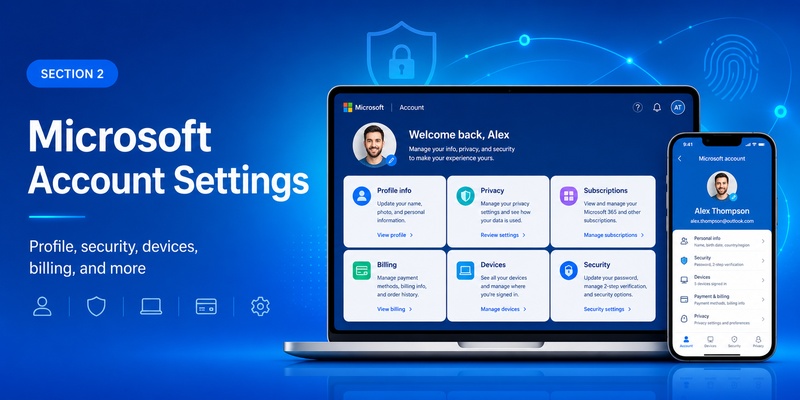
Microsoft account settings and personal data
Your microsoft account settings cover much more than login security.
Microsoft lists several major sections within the account dashboard, including Your info, Privacy, Security, Rewards, Payment & billing, Services & subscriptions, and Devices.
From these areas, you may be able to:
- Change profile details
- Update security methods
- Review subscriptions
- Manage payment options
- View purchase history
- Check connected devices
- Review privacy controls
- Change sign-in preferences
This means you generally do not need a dedicated microsoft account application simply to change account details.
Microsoft describes the account dashboard as the location where users can update passwords and personal information, manage privacy and security settings, review storage, and monitor devices.
Where Microsoft account information is stored
When people refer to microsoft account information, they may mean their name, email aliases, phone number, profile image, billing data, subscriptions, devices, or sign-in methods.
The dashboard’s Your info area provides profile-related controls, while Security manages passwords and identity verification. Microsoft also provides separate privacy controls for account-associated data.
For this reason, opening the microsoft account app is not always the correct first step.
If you want to change account details rather than approve a login, the Microsoft account dashboard is usually more relevant.
💡 Discover Helpful Guides: Microsoft Multi Factor Authentication: Complete MFA Guide
3. How Microsoft Authenticator Works with Your Microsoft Account
Authentication rather than general account management
The modern microsoft account app experience is closely tied to Microsoft Authenticator because Authenticator provides identity verification.
Microsoft says Authenticator can be configured in several ways. It can verify a sign-in, participate in two-step verification, or become a passwordless sign-in method.
For example, you may sign in to Outlook, OneDrive, Microsoft 365, or another Microsoft service on a computer. Instead of relying only on your password, Microsoft may request additional verification through Authenticator.
This creates two separate layers:
The Microsoft account identifies you and stores your account services.
The microsoft account authenticator app helps prove that the person attempting to sign in is actually you.
Passwordless sign-in
Microsoft also supports passwordless authentication for eligible Microsoft accounts.
After passwordless authentication is configured, users may sign in using methods such as Microsoft Authenticator, Windows Hello, supported security keys, or other available verification methods rather than a traditional account password.
This is one reason the microsoft account app is frequently associated with security even though it is not where every account setting is managed.
Authenticator should be viewed primarily as an identity and sign-in tool rather than a complete replacement for the Microsoft account dashboard.
💡 Discover Helpful Guides: Microsoft Authenticator vs Authy: Which One Should You Use?
4. How to Add a Microsoft Account to Microsoft Authenticator
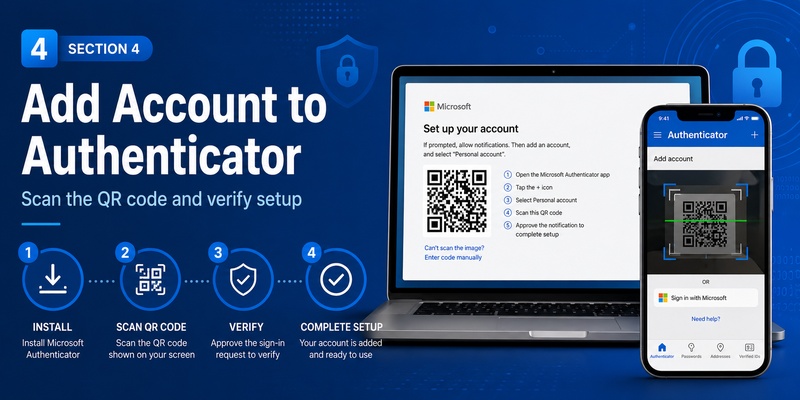
Prepare your account first
Users searching how to add microsoft account to authenticator app can complete the process from Microsoft’s security settings.
Microsoft’s current instructions begin by signing in to the Security section of the Microsoft account and selecting the option for managing sign-in methods. Users can then add a new way to sign in or verify and choose an application-based option.
Before beginning, install the latest official Microsoft Authenticator application on your phone.
A typical setup flow is:
- Sign in to Microsoft account Security.
- Open the options for managing sign-in methods.
- Choose to add a new verification method.
- Select an authentication application.
- Open Microsoft Authenticator on your phone.
- Add a personal account.
- Scan the QR code displayed by Microsoft.
- Complete the verification request.
Microsoft also allows manual entry when scanning the QR code is unavailable.
Setting Authenticator as a regular verification method
If your search is how to set up authenticator app for microsoft account, decide whether you want occasional verification, two-step verification, or passwordless sign-in.
These options are related but not identical.
Two-step verification means another verification step is required during sign-in. Passwordless authentication removes the traditional password from supported account sign-ins and uses another approved method instead.
Once configured, your microsoft account app workflow becomes much simpler: begin the sign-in on the device you want to use and complete the identity check using your registered authentication method.
🛠️ Learn with Step-by-Step Guides: Microsoft Authenticator: Complete Setup, Login, Backup & Troubleshooting Guide
5. Microsoft Account QR Codes and Two-Step Verification
What the QR code actually does
A microsoft account qr code is commonly shown while configuring Microsoft Authenticator.
The QR code is not simply a shortcut to your profile. It is part of connecting Authenticator with your account.
Microsoft states that during two-step verification setup, a QR code is provided for scanning with the device on which Authenticator is being configured. This helps confirm possession of that device.
When setting up the microsoft account app authentication workflow, keep the setup page open until registration is complete.
Do not take a screenshot of a sensitive setup QR code and share it with other people.
How to scan the code
Microsoft instructs personal account users to open Authenticator, add a personal account, and select the QR scanning option. If the phone camera cannot scan the code, Microsoft provides a manual setup method.
Once the account has been connected, Authenticator can begin generating or receiving the appropriate verification information.
The microsoft account app experience may then include approval requests, verification codes, or passwordless authentication depending on how the account is configured.
QR setup is usually needed when connecting the account. It is not something you need to scan every time you log in.
📖 Read More Guides: Microsoft Authenticator Login: Step-by-Step Login Guide
6. Microsoft Account App Passwords Explained
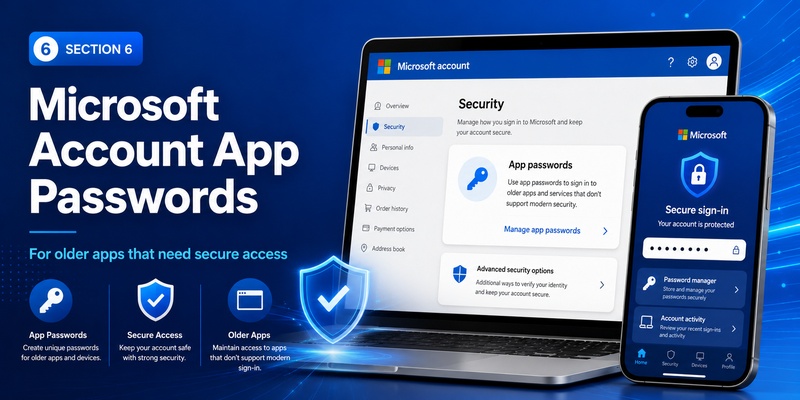
App passwords are not your normal password
The term microsoft account app password can easily be misunderstood.
An app password is a randomly generated password intended for certain older applications or devices that cannot support two-step verification.
Microsoft says app passwords are only needed when two-step verification is enabled and the device or application does not support the newer authentication process.
This feature is different from your normal account password and is also different from the microsoft account app itself.
Examples may include older software or legacy devices that cannot display modern MFA prompts.
Creating app passwords
Microsoft instructs personal account users who require microsoft account app passwords to open Advanced security options and locate the App passwords section. A generated password can then be entered into the older application instead of the normal Microsoft account password.
Do not create app passwords unnecessarily.
Modern applications capable of supporting Microsoft identity authentication should generally use modern sign-in methods rather than an app password.
For work or school environments, app-password availability can depend on organizational policies. Microsoft notes that administrators may control whether the option is available through the Security info experience.
Therefore, the microsoft account app should not be confused with a mechanism for generating permanent replacement passwords for every application.
💡 Discover Helpful Guides: Microsoft Multi Factor Authentication: Complete MFA Guide
7. How to Sign In Without Microsoft Authenticator
Use another registered authentication method
A frequent concern is how to sign into microsoft account without authenticator app, particularly after losing a phone or replacing a device.
Microsoft states that if a user temporarily cannot access Authenticator, other authentication methods configured for the account may still be available.
Depending on the account, these can include:
- Windows Hello
- A security key
- Another registered verification method
- Recovery or security information
- Other options presented on the sign-in page
Microsoft is also changing the role of SMS for personal Microsoft accounts and has stated that it is beginning to phase SMS out as an authentication and account-recovery method.
Therefore, maintaining more than one current recovery method is important.
What to do after losing your phone
Searches such as how to get into my microsoft account without authenticator app or how to login microsoft account without authenticator app often indicate that the registered phone is unavailable.
Start the normal Microsoft sign-in process and look for alternative verification options.
If none of your available security methods can be accessed, use Microsoft’s official sign-in assistance and account-recovery processes rather than repeatedly trying random verification methods. Microsoft provides a sign-in helper for account access problems.
Once access is restored, update the microsoft account app security configuration and remove outdated authentication methods.
📘 Find the Right Guide: Microsoft Authenticator Change Phone: Safe Transfer Guide
8. How to Remove an Account from Microsoft Authenticator
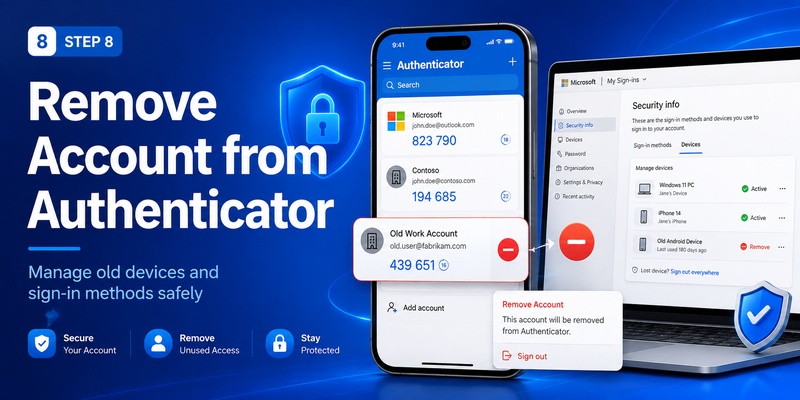
Removing an account from the phone
Users asking how to remove account from microsoft authenticator app should understand the security impact before proceeding.
Microsoft warns that after an account is removed from Authenticator, that device can no longer be used to verify sign-ins for the removed account.
Therefore, before selecting remove account from microsoft authenticator app, confirm that another working sign-in or recovery method has already been configured.
This is especially important if you use the microsoft account app authentication workflow as your primary way to access Outlook, OneDrive, Microsoft 365, or other important services.
Removing an entry from the phone is not always the same as completely unregistering the old device from your account’s security configuration.
Removing an old authentication device
Microsoft’s Authenticator FAQ explains that personal account users can manage old authentication devices from their account security and two-step verification settings. Work or school accounts can require different organizational portals or administrator-managed processes.
If you are changing phones, first make sure the new device works correctly.
Test a sign-in using the new setup before removing the old device.
A careful transition prevents the microsoft account app security process from accidentally locking you out of your own account.
📖 Explore Articles: Microsoft Authenticator Download Mac: Safe Best Options
9. Managing Microsoft Accounts in Teams and Windows
Removing an account from Microsoft Teams
The keyword remove account from microsoft teams desktop app is related to Microsoft accounts but involves a different process from Authenticator.
Microsoft says that on Windows, macOS, and the web, users can sign out of Teams from their profile menu. Signing out removes Teams-associated account information from that app until the account is used to sign in again, but it does not necessarily remove access from other applications on the device.
Windows can share accounts between applications, which means removing an account at the operating-system level can affect more than Teams.
This is why the microsoft account app and Teams should not be treated as the same account-management layer.
Managing an account in Windows
Windows includes its own account controls.
Microsoft documents account-management options under Settings > Accounts, where accounts can be added or removed from a device. Removing a user account from Windows does not automatically delete the underlying Microsoft account.
Work or school accounts can also have organizational management requirements.
Before removing one, check whether it provides access to company email, Microsoft 365, Teams, OneDrive, or managed applications.
The safest approach is to identify what you want to remove: the microsoft account app authentication method, the account from Teams, the account from Windows, or the Microsoft account itself.
They are different actions with different consequences.
📖 Read More Guides: SMS vs Authenticator App: Which Is More Secure for Two-Factor Authentication?
10. Microsoft Account App Security Best Practices
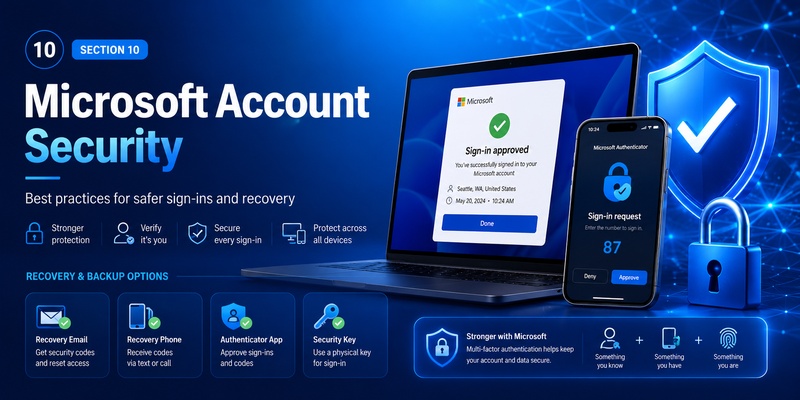
Keep more than one recovery route
A secure microsoft account app setup should protect the account without making recovery impossible.
Microsoft allows users to manage verification methods from their account’s security area.
Review these methods periodically, especially after:
- Replacing a phone
- Changing a phone number
- Changing an email address
- Losing a security key
- Leaving an employer or school
- Removing Authenticator
- Enabling passwordless authentication
Do not wait until you are locked out before checking whether your security information is current.
Never approve unexpected prompts
If the microsoft account app authentication process sends an approval request you did not initiate, do not approve it.
Authentication prompts are designed to confirm a sign-in attempt. An unexpected request may indicate that someone else is trying to access the account.
Also avoid installing unofficial applications that imitate Microsoft Authenticator.
Microsoft provides the official Authenticator application for supported mobile platforms and describes it as the current authentication application for Microsoft personal, work, and school accounts.
Keep the authenticator app updated, protect your phone with a PIN or biometrics, and regularly review account security.
These basic steps make the microsoft account app sign-in process significantly safer.
📖 Explore Articles: How to Remove Account from Authenticator App
11. Microsoft Account App FAQ
Can I download the Microsoft Account app?
Users searching download microsoft account app should be aware that the older Microsoft Account app was replaced by Microsoft Authenticator.
Microsoft currently directs users who need its authentication application to Microsoft Authenticator for iOS or Android.
Therefore, if you see an old microsoft account app download tutorial, check its publication date before following it.
For current account authentication, install Microsoft Authenticator from an official app store.
Is Microsoft Authenticator free?
Yes. Microsoft describes Authenticator as a free application for signing in to personal Microsoft accounts, work or school accounts, and supported other accounts.
There is no requirement to purchase a separate microsoft account app simply to configure standard Authenticator-based verification.
Can I manage subscriptions from Microsoft Authenticator?
Microsoft Authenticator is primarily an authentication tool.
Subscription, payment, device, privacy, and profile management are handled through the Microsoft account dashboard and related Microsoft services.
So if you need to modify a Microsoft 365 subscription, billing method, or profile information, the account dashboard is usually more appropriate than the microsoft account app authentication interface.
Do I need Authenticator to use a Microsoft account?
Not every Microsoft account must use Authenticator in exactly the same way.
Available verification methods depend on your security configuration, whether two-step verification or passwordless authentication is enabled, and whether the account is personal or organization-managed.
However, Microsoft Authenticator is one of Microsoft’s primary methods for stronger account verification.
Can I use the same Authenticator for multiple accounts?
Yes. Microsoft says Authenticator can contain personal Microsoft accounts, work or school accounts, and supported non-Microsoft accounts.
This allows one microsoft account app authentication environment to support several identities while keeping the accounts separate.
12. Final Thoughts
The phrase microsoft account app can be confusing because it combines terminology from an older Microsoft application with today’s Microsoft account and Authenticator ecosystem.
The old Microsoft Account authentication application was replaced by Microsoft Authenticator. Today, Authenticator handles functions such as sign-in verification, two-step verification, codes, and passwordless authentication, while the Microsoft account dashboard remains the main location for managing profile information, security settings, subscriptions, payments, privacy, and devices.
If your goal is to secure your account, install Microsoft Authenticator from an official source and connect it through Microsoft’s Security settings.
If you need profile or billing changes, open the Microsoft account dashboard instead.
If you cannot access Authenticator, check for another registered sign-in method or use Microsoft’s account sign-in assistance rather than trying to bypass the security system.
App passwords should also be used only when they are genuinely required by older devices or software that cannot support modern two-step verification.
Understanding these distinctions makes the microsoft account app much easier to navigate. Instead of searching for one application that controls everything, think of the Microsoft account dashboard as the management center and Microsoft Authenticator as the mobile security component that helps confirm your identity when you sign in.
Download Authenticator App
Secure your accounts with fast, reliable two-factor authentication. Download now and protect your login in seconds.
