
Microsoft Authenticator Change Phone: Safe Transfer Guide
A safe microsoft authenticator change phone process preserves access until every important account works on the replacement device. Cloud restore can recover some data on the same mobile platform, but work or school accounts, passwordless credentials, and certain Microsoft registrations may still require sign-in or re-enrollment.
Do not erase, trade in, or factory-reset the old phone at the beginning. Keep it powered, connected, updated, and available until the new phone passes real sign-in tests and an independent recovery method also works. This guide covers Android-to-Android, iPhone-to-iPhone, cross-platform moves, accounts marked Action required, lost-phone recovery, testing, and secure retirement.
1. Choose the Correct Phone Migration Path
Identify the old and new platforms
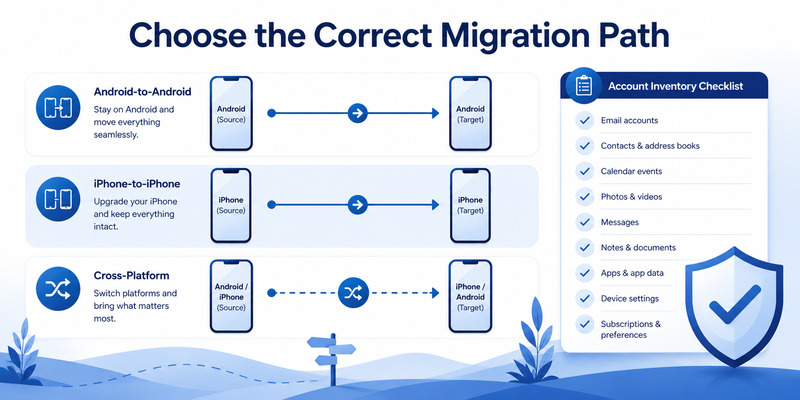
Microsoft’s supported cloud backup and restore works within the same device type: Android backup restores to Android, and iOS backup restores to iOS. An Android-to-iPhone or iPhone-to-Android move requires account-by-account enrollment rather than a direct cloud restore.
Start the microsoft authenticator change phone plan by recording the old platform, new platform, backup state, recovery account, and whether the old phone still works. These facts determine whether you can restore first or must re-register each service.
Classify the account credentials
Authenticator can hold third-party TOTP codes, personal Microsoft accounts, work or school identities, passwordless phone sign-in, and other provider-specific registrations. Backup behavior differs. A restored account label is not proof that its authentication credential transferred.
| Account or move | Expected migration | Required follow-up |
|---|---|---|
| Third-party TOTP, same platform | Often restores with code | Test provider login |
| Personal Microsoft TOTP | Code may restore | Test code and recovery |
| Microsoft passwordless identity | Name may restore | Sign in and re-register |
| Work or school account | Name may restore | Complete Action required |
| Android to iPhone or reverse | No cross-platform restore | Re-enroll each account |
Create an inventory with provider, username, credential type, recovery code location, alternate factor, and migration result. Similar labels can hide separate tenants or client accounts. A structured list prevents one overlooked identity from becoming a lockout after the old phone is gone.
The safest microsoft authenticator move to new phone workflow is a controlled credential migration, not a simple app copy. Treat each provider’s security page as authoritative.
Download Authenticator App
Secure your accounts with fast, reliable two-factor authentication. Download now and protect your login in seconds.
2. Prepare the Old Phone and Recovery Methods
Update and secure both phones
Install current operating-system updates and the latest Authenticator version. Confirm automatic date, time, and time zone. Connect both devices to a trusted network, charge them, and protect them with strong device locks and biometrics where appropriate.
Before the microsoft authenticator change phone process, open Authenticator on the old device and verify that the expected accounts are visible. Do not capture screenshots containing live codes or QR secrets. Record only provider names, usernames, and credential types.
Create independent recovery routes
For every critical account, obtain provider recovery codes, register a security key, confirm a recovery email or phone, or preserve a trusted browser session. Work users should know the published help-desk route and whether an administrator can issue a Temporary Access Pass or reset MFA.
Test at least one fallback that does not depend on Authenticator, the old phone, or the same cloud account. A backup stored only on the device being replaced is not independent recovery. Keep recovery codes encrypted or physically secured and never send them through ordinary chat.
Review recent account activity before migration. If an unfamiliar device, sign-in, forwarding rule, consent grant, or security method appears, contain the account first. Moving a compromised registration can preserve an attacker’s access instead of solving it.
Only after recovery is proven should you begin microsoft authenticator change phone actions. This preparation provides a safe exit if restore, QR enrollment, passwordless setup, or organizational policy fails.
💡 Discover Helpful Guides: Microsoft Authenticator: Complete Setup, Login, Backup & Troubleshooting Guide
3. Back Up Authenticator on Android or iPhone
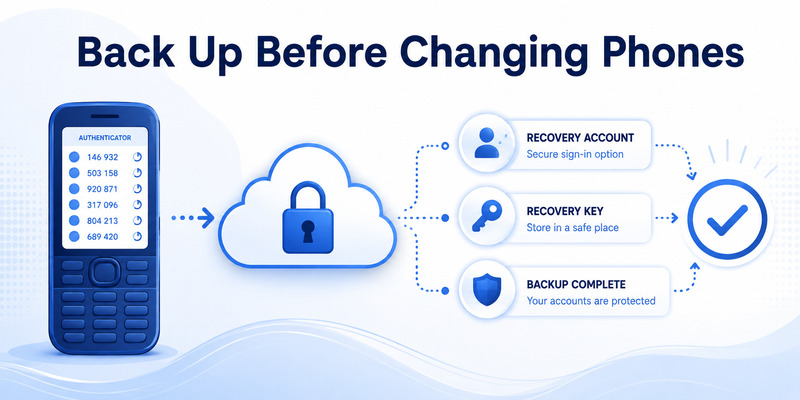
Configure Android Cloud Backup
On the old Android device, open Authenticator settings and enable Cloud Backup. Select the personal Microsoft account that will act as the recovery account and verify that the backup completes. Remember which account you selected; restore depends on access to it.
For microsoft authenticator change phone on Android, the recovery account protects the backup entry point. Strengthen that account with its own independent recovery and never assume the work account being migrated can also recover the backup.
Configure iCloud requirements on iPhone
On iPhone, follow Microsoft’s current iCloud requirements for Authenticator, including iCloud Drive, iCloud Keychain, iCloud Backup, and Authenticator access in the saved-to-iCloud list. Update Authenticator and open it at least once before switching devices.
Confirm that the correct Apple and Microsoft recovery identities are available. If either password or trusted-device path is uncertain, resolve it while the old iPhone still works. The microsoft authenticator for iphone ios guide provides additional iOS preparation.
Cloud backup does not turn every credential into a portable secret. Microsoft states that work or school account names are backed up, while users must sign in again after restore. Passwordless personal accounts can also require reauthentication. Document these expected exceptions before relying on the backup.
After enabling backup, make one small account change only if safe, wait for synchronization, and verify backup status again. That check reduces the chance that an old backup snapshot drives the microsoft authenticator change phone migration.
4. Restore to the Same Mobile Platform
Start recovery on the new phone
Install the official Microsoft Authenticator from the platform app store. Choose the recovery or restore option before manually adding duplicate accounts. Sign in with the same Android recovery account or satisfy the required iCloud identities and settings on iPhone.
During microsoft authenticator change phone, let restore complete before judging missing entries. Keep the app open, allow required network access, and confirm device time. Do not approve unexpected sign-ins that appear during this period.
Resolve every Action required entry
A third-party TOTP account may immediately display a working rotating code. A work, school, or passwordless account may show Action required. Open the entry, sign in through the official flow, complete additional verification, and follow provider or organization instructions.
Do not mistake a restored name for a restored push credential. Test a signed-out login and confirm the new phone receives the intended number-matching or approval request. If the old phone still receives it, the server may retain the old registration or use it as the default method. Provider-side verification is mandatory in every microsoft authenticator change phone plan.
Avoid deleting duplicates solely by appearance. Compare username, tenant, code behavior, and registration date at the provider’s security page. Remove a stale tile only after the corresponding server method is understood and the new one succeeds.
A same-platform microsoft authenticator change phone is complete only when restored codes validate, action-required accounts are reactivated, push reaches the replacement phone, and a fallback also succeeds.
💡 Discover Helpful Guides: Microsoft Authenticator Passwordless Sign-In: Complete Guide
5. Move Between Android and iPhone
Re-enroll services one at a time
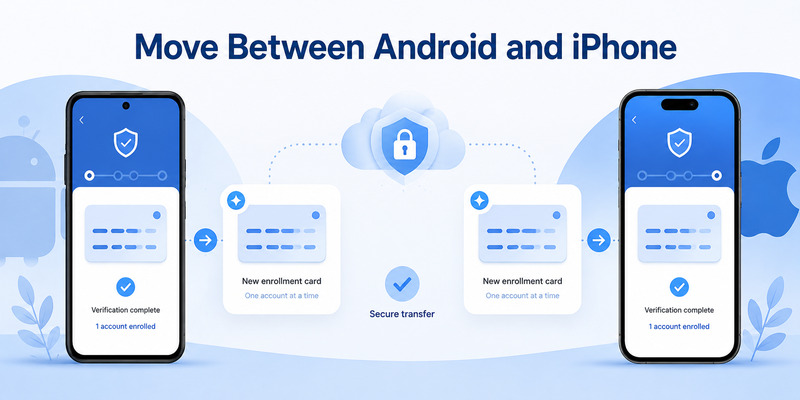
Microsoft does not support restoring an iOS backup to Android or an Android backup to iOS. Keep the old phone and an authenticated computer session. Open each provider’s security settings, add a new authenticator method, and scan the newly issued QR with the replacement phone.
For cross-platform microsoft authenticator change phone, never reuse a screenshot of an old enrollment QR. Generate a new credential from the provider. Verify the first code or approval before removing any older method. This service-by-service sequence is how to set up microsoft authenticator on new phone when platform restore is unavailable.
Preserve order and rollback
Begin with a low-risk account to validate the new app and phone. Continue to email, password manager, cloud storage, financial, developer, social, and administrative identities only after the workflow is familiar. High-value accounts should have a security key or recovery code available during the move.
Use a migration table with status values: pending, added, verified, fallback tested, old method removed, old sessions revoked. Stop immediately if a provider offers only “replace” and no independent factor exists. Obtain recovery before proceeding.
Some services allow multiple authenticator credentials; others replace the original when a new QR is confirmed. Read the provider’s screen carefully. Do not scan one QR into multiple personal devices unless the provider explicitly supports that design and every device can be governed.
This manual method takes longer, but it gives a clean credential boundary. A cross-platform microsoft authenticator change phone should finish with newly issued secrets rather than informal secret copying.
💡 Discover Helpful Guides: Microsoft Authenticator: Complete Setup, Login, Backup & Troubleshooting Guide
6. Re-register Microsoft Work and School Accounts
Add the replacement through Security info
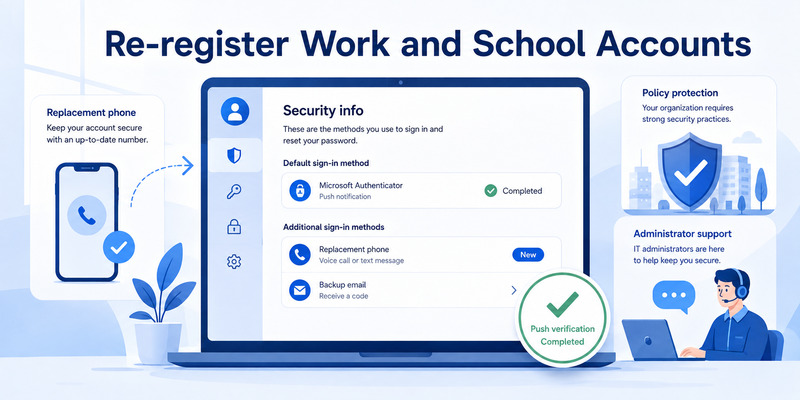
Sign in to the organization’s approved Security info page from a trusted computer. Choose Add sign-in method, select Authenticator app, and follow the QR setup. In the new app, choose Work or school account and scan the QR shown for your identity.
Complete the test request so the server verifies the microsoft authenticator change phone registration. If policy supports passwordless phone sign-in, enable it separately and complete device registration. Push MFA and passwordless are related but not identical credentials.
Work with policy and administrators
Conditional Access, authentication strength, Intune compliance, device registration, location controls, or tenant restrictions can block self-service enrollment. Do not repeatedly delete and add the account. Capture the exact error, timestamp, username, tenant, phone OS, app version, and network.
An administrator can review sign-in logs, reset authentication methods, require MFA re-registration, or issue a Temporary Access Pass where configured. Use the published help-desk channel rather than a caller who asks you to approve a prompt or share a code.
Guest accounts may need separate re-registration in each tenant even when they show the same email. Test each organization explicitly. A primary home-tenant login does not prove that client or partner tenant credentials work.
After microsoft authenticator change phone succeeds for managed accounts, verify normal approval, a sensitive application, and the recovery process. Ask the administrator to remove obsolete device objects only after the replacement meets compliance.
📘 Find the Right Guide: Microsoft Authenticator Keeps Asking for Approval: Causes and Fixes
7. Test Every Account Before Retiring the Old Phone
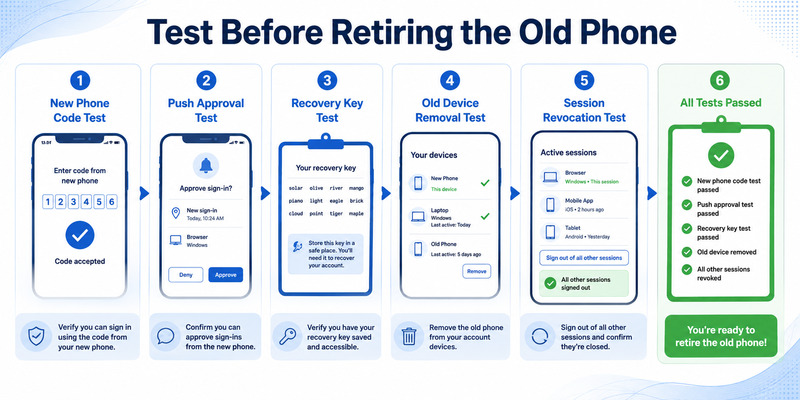
Run a signed-out acceptance test
For each inventory row, open a private browser, type the provider’s official address, sign in, and use the new phone. Verify rotating codes, number matching, push approval, or passwordless sign-in as applicable. Then test one independent fallback.
The microsoft authenticator change phone acceptance test should record time, result, and which device received the prompt. If a code fails, enable automatic time, wait for a fresh value, and verify the correct tile. If push goes to the old phone, inspect server security information.
Remove the old method in a safe sequence
After success, set the new method as default when appropriate, remove the old Authenticator registration, revoke obsolete sessions, and review registered devices. Only then remove stale tiles from the old app or factory-reset the old phone.
| Test | Pass condition | If it fails |
|---|---|---|
| New-phone code | Provider accepts fresh value | Check time, tile, enrollment |
| New-phone push | Only intended request arrives | Review device registrations |
| Passwordless sign-in | Number and account match | Re-enable credential or policy |
| Recovery method | Works without either phone | Replace recovery before retirement |
| Old-device removal | Old phone receives no prompt | Remove remaining server record |
Monitor account activity after retirement. An approval request on the erased or disconnected phone can indicate an old registration, while unexpected requests on the new phone may indicate password compromise.
Keep the migration inventory without live secrets. A documented microsoft authenticator change phone process becomes a reusable recovery record for the next replacement, loss, or organizational audit.
8. Recover Without the Old Phone or a Backup
Use provider recovery, not guesswork
If the old phone is lost, broken, or erased and no usable backup exists, Authenticator cannot recreate a provider’s secret by knowing the account name. Use a recovery code, security key, alternate factor, trusted session, recovery email or phone, or formal provider recovery.
For microsoft authenticator change phone without the old device, begin with the email account and password manager that unlock other recoveries. Use known-clean devices and official addresses. Avoid paid “recovery” services that request passwords, QR codes, or live verification values.
Escalate managed identities correctly
For work or school accounts, contact the organization. An authorized administrator may reset MFA, remove the lost device, or provide a temporary enrollment credential. Microsoft consumer support cannot bypass a separate organization’s identity policy. In this situation, the microsoft authenticator change phone request must be validated through the employer or school.
Once access returns, revoke the missing phone, sign out other sessions, change the password if theft or compromise is possible, and inspect recent activity. Add the new phone, test it, and create fresh recovery codes. Do not leave the emergency fallback as the permanent daily method.
For third-party TOTP services without any recovery route, follow the provider’s identity-verification process. Proof requirements and response times vary. This is why migration preparation must include independent recovery before device loss.
Finish the emergency microsoft authenticator change phone procedure with two tested factors on separate failure paths. A replacement phone plus recovery codes or a hardware key provides stronger resilience than another phone-only dependency.
📘 Find the Right Guide: Microsoft Authenticator Verification Code: How It Works and How to Use It
9. Frequently Asked Questions
Does Microsoft Authenticator transfer automatically to a new phone?
Not completely. Same-platform backup can restore certain accounts, but work or school identities and passwordless credentials may require sign-in or re-registration. Cross-platform moves require manual service-by-service enrollment.
Can I restore an Android backup to an iPhone?
No. Microsoft states that backup and restore are limited to the same device type. For Android-to-iPhone or iPhone-to-Android, add a new authenticator method at each provider and verify it before removing the old one.
Why does a restored account say Action required?
The backup may have restored only the account name, not the device-bound push or passwordless credential. Open the entry, sign in, complete additional verification, and test a real login on the new phone.
Should I delete Authenticator from the old phone first?
No. A safe microsoft authenticator change phone sequence keeps the old phone until the replacement and an independent fallback work. Remove the old server registration before erasing or trading in the device.
Can I transfer Authenticator without a backup?
Yes, if the old phone or another factor still lets you enter each provider’s security settings. Add the replacement as a new authenticator method. Without any access route, use the provider’s or organization’s recovery process.
Why are codes present but push notifications go to the old phone?
TOTP codes and push registration are different. Restore may recover code-generating data while the provider still associates push with the old device. Re-register push on the new phone and remove the stale server method.
10. Final Thoughts
A reliable microsoft authenticator change phone process starts with an account inventory and independent recovery. Keep the old phone until every new credential is tested. A restored label alone is not evidence of working authentication.
Use cloud backup for same-platform moves, while expecting action-required accounts to need sign-in. For Android–iPhone changes, issue a fresh authenticator credential at each provider rather than trying to copy an incompatible backup.
Work and school identities often need Security info enrollment, policy checks, or administrator help. Preserve exact errors and timestamps instead of repeatedly deleting registrations. Test guest tenants separately.
Retire the old phone only after the new phone succeeds, fallback works, stale methods and sessions are removed, and activity is reviewed. This order keeps the migration reversible until the last safe moment.
Complete a final acceptance record for every provider: new-phone method tested, alternate recovery tested, old device removed, sessions reviewed, and recovery codes refreshed. Store the record without codes or QR secrets. This checklist proves the microsoft authenticator change phone migration is complete and gives you a clean starting point for future recovery.
Continue watching account activity for several days. Unexpected approvals, a prompt still arriving on the retired device, or a restored entry that suddenly shows Action required deserves immediate review. Correct the provider registration while trusted sessions and recovery methods are still available.
For compatible services, assess a trusted Authenticator App by publisher, encrypted storage, backup transparency, export policy, and recovery design. A disciplined microsoft authenticator change phone workflow protects both availability and account security.
Protect your accounts with fast, secure two-factor authentication. Generate verification codes, manage multiple accounts, and keep your sign-ins protected wherever you go.
Download Authenticator App Now
Download Authenticator App
Secure your accounts with fast, reliable two-factor authentication. Download now and protect your login in seconds.
