
Microsoft Authenticator Verification Code: How It Works and How to Use It
A microsoft authenticator verification code is usually a six-digit time-based one-time password generated for an enrolled account. It changes about every 30 seconds and is validated by the service that issued the enrollment secret. After registration, standard TOTP generation can work without internet access.
The phrase verification code can also appear near Microsoft push approval, number matching, email or SMS codes, recovery codes, and passkeys. These methods are not interchangeable. The prompt and account tile determine which response is valid.
This guide explains enrollment, code entry, offline use, phishing protection, backup, migration, and troubleshooting. Keep current recovery methods until the authenticator code completes both a real sign-in and a fallback test.
1. Microsoft Authenticator Verification Code Types
Identify standard TOTP
TOTP combines a secret enrolled from the provider with the current time to create a short-lived value. Microsoft Authenticator displays the value beside the account label and a countdown indicator. The provider independently computes the expected result and accepts the match.
A standard microsoft authenticator verification code is different from the phone’s unlock PIN. It is also different from a password, provider recovery code, SMS message, email code, or number displayed for push matching. Enter only the method named on the trusted sign-in page.
Understand Microsoft account variations
Personal Microsoft and work or school accounts can support push approvals, passwordless sign-in, passkeys, and verification codes depending on registration and policy. A third-party TOTP account normally shows only rotating codes. An organization can disable TOTP while allowing other Authenticator functions.
| Prompt wording | Likely method | User action |
|---|---|---|
| Enter a verification code | TOTP or provider-sent code | Use the specifically named source |
| Approve sign-in | Push notification | Review and approve on registered phone |
| Enter the number shown | Number matching | Type browser number into phone prompt |
| Use a recovery code | Provider fallback | Enter one stored single-use code |
| Use a passkey | Cryptographic credential | Unlock selected device or key |
Before troubleshooting, record the exact prompt and account type. Confusing a microsoft authenticator verification code with number matching is a common reason a valid-looking number fails.
Download Authenticator App
Secure your accounts with fast, reliable two-factor authentication. Download now and protect your login in seconds.
2. Enroll an Account for Codes
Start from the provider’s security page
Sign in to the account provider’s official security settings and add an Authenticator app or two-step verification method. The provider displays a unique QR code or manual key. Open Microsoft Authenticator, choose the appropriate account type, and scan or enter the secret.
Use Personal account for a personal Microsoft identity, Work or school account for an organizational Microsoft identity, and Other account for standard third-party TOTP. Follow the provider’s instructions when the flow differs.
Complete server-side verification
The new tile will display a microsoft authenticator verification code. Enter the current value back into the provider’s setup page before the timer expires. The provider must confirm it before enrollment is complete. A visible tile alone does not prove registration.
Do not screenshot the QR or store the manual secret in an unprotected note. Anyone with that secret can generate the same future codes. If exposure is possible, cancel enrollment or replace the authenticator method at the provider.
Save provider recovery codes and test a private-browser login before removing any older factor. A clean test confirms the secret, clock, account label, and server record agree. This enrollment discipline makes every verification code microsoft authenticator displays dependable.
💡 Discover Helpful Guides: How to Use Microsoft Authenticator: Complete Guide
3. Find and Enter the Current Code
Select the correct account tile
Open Authenticator and locate the provider and account identity shown by the login page. Similar email addresses and duplicate entries can make the wrong tile look plausible. Rename entries carefully so personal, work, client, and test accounts remain distinct.
Tap or expand the tile when needed to reveal the value. Type the microsoft authenticator verification code directly into the provider’s official page. Do not paste it into chat, read it to a caller, or enter it on a page opened from an unsolicited message.
Respect the countdown
If only a few seconds remain, wait for the next value. Enter all six digits, including a leading zero. Submit once and let the server respond. Rapid repeated attempts can trigger rate limits and make diagnosis harder.
Confirm automatic date and time on the phone. TOTP servers tolerate only a small difference, so manual clock drift can invalidate every value even when the enrollment secret is correct. Restarting the phone can refresh time synchronization.
After success, close sensitive screens and sign out of borrowed devices. The microsoft authenticator verification code protects the initial login, while the resulting session may remain active until explicitly closed or revoked.
For shared or similarly named identities, compare the full username and provider icon before typing. The safest routine is prompt, account label, countdown, then submission. That small pause prevents a valid microsoft authenticator verification code from reaching the wrong account form and avoids unnecessary lockouts. For the wider sign-in sequence, follow this how to use microsoft authenticator guide.
🧭 Explore Guides: Microsoft Authenticator Extension: Safe Browser Guide
4. Use Codes Offline and Across Devices
Know what works without internet
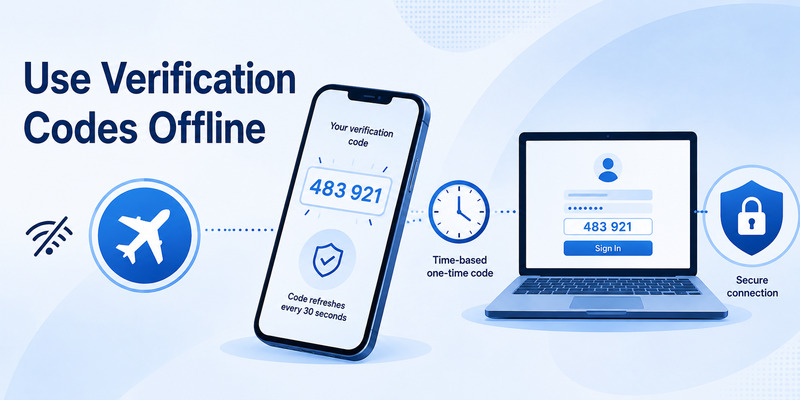
Microsoft states that standard verification-code generation does not require internet or mobile data after enrollment. The phone uses the stored secret and current time. This is helpful during poor cellular service, travel, or a temporary Wi-Fi outage.
The website or application still needs access to its server to validate the code. Enrollment, cloud backup, restore, push notifications, and approval responses also require connectivity. Offline TOTP should not be confused with offline account access.
Plan multiple-device use carefully
Some providers allow more than one authenticator credential or permit the same enrollment secret to be scanned by multiple devices during initial setup. Others support only one active authentication-app method. Use provider documentation rather than copying secrets informally.
Multiple devices can improve availability, but every copy increases the number of places holding the credential. Protect each phone, document ownership, and remove lost devices. Do not assume cloud backup creates a second active device automatically.
A microsoft authenticator verification code can be generated on an enrolled phone while the sign-in occurs on a computer, tablet, or another phone. Device separation is useful because compromising the browser does not automatically reveal the stored TOTP secret.
For shared team access, use enterprise identity and approved shared-account controls instead of circulating QR images. Each person should have accountable access and a recoverable factor.
📖 Read More Guides: Microsoft Authenticator: Complete Setup, Login, Backup & Troubleshooting Guide
5. Distinguish Codes from Number Matching
Recognize push approval
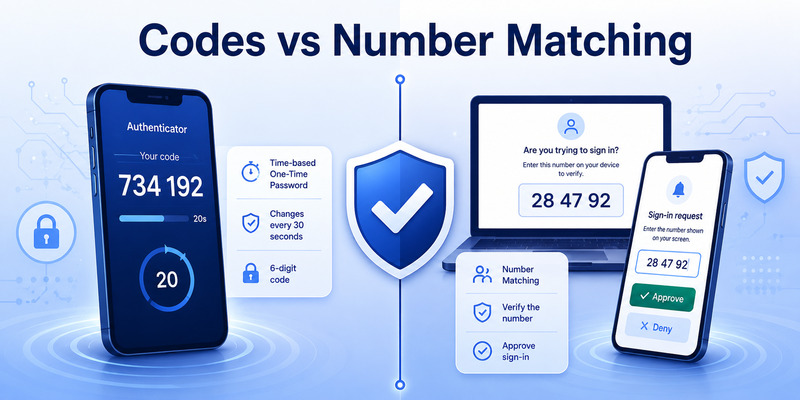
Microsoft push begins when a supported login sends a request to the registered phone. Number matching shows a short number in the browser and asks the user to enter or confirm it in Authenticator. The phone may then require a biometric or device PIN.
That displayed number is not the rotating microsoft authenticator verification code. It is bound to one sign-in request and cannot replace TOTP on a page asking for six digits. Likewise, a TOTP tile will not approve a push request by itself.
Choose another sign-in method correctly
Microsoft login pages may offer “Use a verification code” or “Sign in another way.” Select it only when a valid TOTP method is registered and permitted. Organization authentication-strength policy may require push, passkey, security key, or another factor instead.
When microsoft authenticator use a verification code appears, read which account and method the page expects. Open the matching tile, not the notification request. Cancel duplicate login attempts so several push numbers do not obscure the intended flow.
| Feature | TOTP code | Number matching |
|---|---|---|
| Appearance | Usually six rotating digits | Short number tied to one prompt |
| Internet on phone | Not required after enrollment | Required |
| Valid duration | Time window | Single sign-in transaction |
| User action | Type code into service | Enter or confirm number on phone |
| Main risk | Phishing and secret theft | Approval fatigue and context mismatch |
6. Protect Codes from Phishing
Treat every current value as sensitive
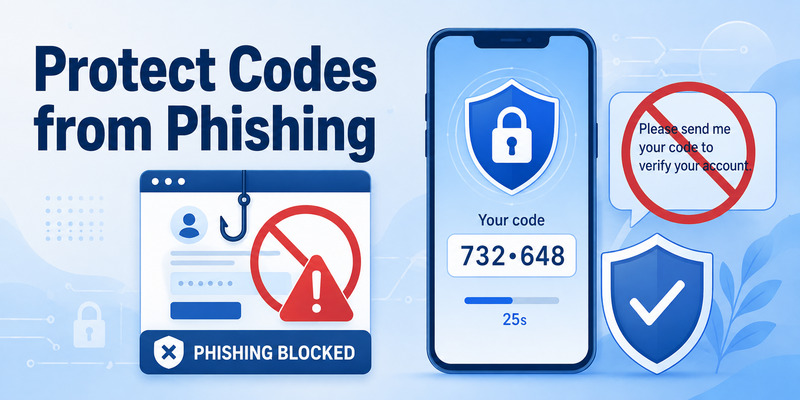
A live TOTP can authorize a login before it expires. Never share it with a caller, “support agent,” coworker, friend, or message sender. Legitimate support can help reset a method but should not ask for a current code or enrollment secret.
Check the domain before entering a microsoft authenticator verification code. Phishing pages can relay a password and TOTP to the real service in real time. Prefer passkeys or FIDO security keys for phishing resistance when the provider supports them.
Respond to suspicious requests
If a code was entered on a fake site, change the password from a known-clean device, revoke unfamiliar sessions, review activity, and contact the organization when managed. The TOTP secret may not be exposed by one submitted value, but an attacker may already have created a session.
If the QR or manual key was shared, replace the authenticator method server-side. Password change alone may not invalidate a copied TOTP secret. Remove the old enrollment, issue a new secret, verify it, and generate fresh recovery codes.
Protect the phone with a strong lock, App Lock, encryption, and current updates. Restrict screen sharing and screenshots during enrollment. These controls protect the long-lived secret behind each microsoft authenticator verification code.
🗺️ Browse How-To Guides: Microsoft Authenticator for PC Windows: Full Setup Guide From A-Z
7. Back Up and Move Code Accounts
Enable supported cloud backup
On Android, follow Authenticator Cloud backup and use the designated personal Microsoft recovery account. On iPhone, follow Microsoft’s current iCloud requirements. Protect the recovery account and confirm backup status before replacing or resetting the phone.
Backup behavior varies by account. Some third-party TOTP entries can restore with functioning codes. Work, school, passwordless, or Microsoft-specific credentials may return with an action-required label and need re-registration. Keep provider recovery codes.
Migrate and test every account
Restore works only within the same device type: Android to Android or iOS to iOS. Cross-platform moves require service-by-service enrollment. Keep the old phone until the replacement produces a microsoft authenticator verification code that every important provider accepts.
Test one real login per account, then remove the old device or credential through the provider’s security page. Revoke stale sessions and securely erase the retired phone only afterward. A restored account name is not proof that the credential works.
Document which accounts required re-registration and where recovery is stored. This inventory prevents a future phone failure from turning code access into guesswork. Never export secrets through an unverified tool just to accelerate migration.
After migration, sign out of one low-risk session and complete a real login with the replacement phone. Then repeat the test for critical identities. A restored microsoft authenticator verification code should be treated as unverified until the provider accepts it. This staged check finds incomplete restores without risking every active session at once.
8. Troubleshoot Rejected or Missing Codes
Fix the most common causes
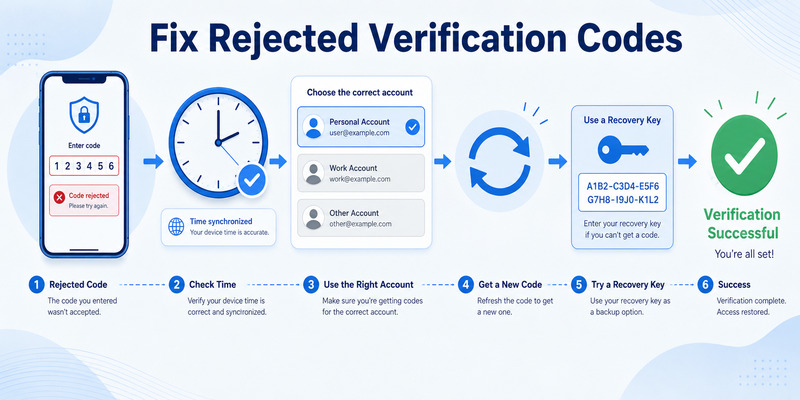
Enable automatic date, time, and time zone. Select the correct account entry, wait for a fresh value, and type every digit. Confirm the provider is asking for TOTP rather than SMS, email, recovery code, or number matching.
Duplicate tiles often represent an old and new enrollment. Test the entry created by the latest successful provider setup. Remove obsolete entries only after the correct one passes. Do not clear app storage as a casual fix.
Recover when the tile is unavailable
Use a provider recovery code, security key, alternate factor, trusted session, SMS when configured, or organization-assisted reset. Microsoft cannot recover a third-party identity merely because Authenticator generated its code.
If a work account says the method is blocked, location restricted, or authentication strength insufficient, contact the administrator. Reinstalling Authenticator cannot override policy. Capture the error without showing secrets.
When the microsoft authenticator verification code still fails, remove and re-enroll the method only while another access route works. Issue a fresh QR, verify the first value, test a signed-out login, and update recovery records. Controlled re-enrollment is safer than repeated destructive attempts.
Check whether the provider recently rotated or removed the authenticator registration. A phone can keep displaying a mathematically valid microsoft authenticator verification code for an old secret after the server replaces it. In that case, clock changes will not help; remove the stale tile only after the new method works. If the account setup itself is uncertain, rebuild it with the microsoft authenticator setup checklist.
Document the final cause and remedy, especially on managed accounts. Record whether the issue was time drift, wrong tile, stale enrollment, policy, connectivity, or user choice. That note makes the next microsoft authenticator verification code failure faster to isolate and discourages unsafe trial-and-error resets.
💡 Discover Helpful Guides: Microsoft Authenticator vs Authy: Which One Should You Use?
9. Frequently Asked Questions
Where do I find the verification code?
Open Microsoft Authenticator and select the tile matching the account requested by the provider. A standard TOTP entry shows a changing six-digit value and countdown. Some Microsoft accounts instead present push or passwordless options.
Does the code require internet access?
An already enrolled standard TOTP value can generate offline. Push approvals, backup, restore, enrollment, and policy checks require internet. The online service also needs connectivity to validate the code.
Why does a correct code keep failing?
The phone clock may be wrong, the code may expire during entry, the wrong tile may be selected, or the provider may expect another method. Enable automatic time, wait for a fresh value, and check the prompt.
Is number matching the same as a verification code?
No. Number matching links a push request to one sign-in and requires phone connectivity. TOTP is a rotating value computed from a stored secret and time. Use the method named by the login page.
Can someone use a code after it changes?
Normally the provider accepts only the current time window with limited clock tolerance. However, a phisher can relay a live code immediately. Never share or enter one on an untrusted page.
Closing a suspicious page is not enough if a value was already submitted. Change the password where relevant, revoke active sessions, review recent activity, and replace the authenticator enrollment if the QR secret might also have been exposed. Treat a relayed microsoft authenticator verification code as an account incident, not simply an expired number.
What should I do after losing the phone?
Use a recovery code, alternate factor, security key, trusted session, or administrator reset. Remove the lost device or credential, enroll a replacement, test it, and create new recovery codes.
10. Final Thoughts
A microsoft authenticator verification code is a short-lived TOTP value created from an enrolled secret and accurate time. Use it only for the account and official prompt that requests it. Do not confuse it with push number matching, recovery codes, SMS, or a device PIN.
Enroll through the provider’s trusted security page, scan the unique QR inside the official mobile app, and complete server-side verification. Test a signed-out login and keep an independent recovery route before removing old methods.
Offline generation is useful, but backup, restore, approvals, and policy checks still need connectivity. Keep the phone updated, locked, correctly timed, and backed up. Test every restored account before erasing the original device.
Never disclose a current value or enrollment secret. Prefer passkeys or security keys when phishing resistance is important. If a QR secret is exposed, replace the server-side method and issue fresh recovery codes.
For compatible accounts, compare a reputable Authenticator App by publisher trust, encryption, backup, export, and recovery. Review each microsoft authenticator verification code enrollment after device changes, suspicious activity, or provider security updates.
The dependable habit is simple: verify the site, verify the identity, use the newest value, and preserve a separate recovery method. A microsoft authenticator verification code is effective because it is brief and temporary, but account safety still depends on deliberate enrollment, careful prompt review, and tested recovery.
Download Authenticator App
Secure your accounts with fast, reliable two-factor authentication. Download now and protect your login in seconds.
