
Microsoft Authenticator for PC Windows: Full Setup Guide From A-Z
If you are searching for microsoft authenticator for pc windows, you are probably trying to secure a Windows computer, approve Microsoft 365 sign-ins, access a work account, or find a Microsoft Authenticator desktop download.
There is one important fact to understand before starting: Microsoft Authenticator is currently a mobile app. Microsoft explicitly states that Authenticator is not available for PC or Mac and provides official downloads for iOS and Android instead. That does not mean you cannot use microsoft authenticator for pc windows. In normal use, the Windows computer is the device where you initiate a sign-in, while your smartphone running Microsoft Authenticator acts as the trusted authentication device.
For example, you might open Microsoft 365 on your Windows 11 PC, enter your email address, and then receive an Authenticator approval request on your phone. You confirm the request, and the Windows browser finishes signing you in.
For direct Windows device authentication, Microsoft provides technologies such as Windows Hello, Windows Hello for Business, passkeys, PINs, facial recognition, and fingerprint authentication rather than a standalone Microsoft Authenticator desktop program. Windows Hello for Business uses device-bound credentials and can satisfy multifactor authentication requirements in supported enterprise configurations.
This guide explains the correct way to set up and use microsoft authenticator for pc windows, including Windows 11, personal accounts, business accounts, QR-code registration, troubleshooting, MFA, and secure alternatives to installing questionable desktop versions.
1. Is Microsoft Authenticator Available for PC Windows?
The first question most users have is simple: can you download Microsoft Authenticator directly onto Windows?
There is no official Windows desktop Authenticator app
Microsoft currently describes Authenticator as a mobile application and states that it is not available for desktop computers or Macs. Official installation options are provided for Android and iOS.
Therefore, if you search for a microsoft authenticator app for windows, you should not expect an official .exe installer or traditional Microsoft Store desktop application that works like the Android or iPhone version.
The same applies if you search for a microsoft authenticator app for pc or microsoft authenticator app for windows 11. The normal Microsoft-supported setup still involves installing Authenticator on your smartphone.
This distinction is essential when researching microsoft authenticator for pc windows because many users assume the words “for PC” mean the authentication app itself must run on Windows.
It does not.
What “Authenticator for PC” really means
In practice, microsoft authenticator for pc windows usually means using Microsoft Authenticator to approve authentication requests that originate on a Windows computer.
Your setup looks like this:
Windows PC → Microsoft sign-in page → authentication request → Authenticator on phone → approval → Windows session continues
Microsoft Authenticator supports MFA notifications, verification codes, passwordless authentication, and passkey-related authentication scenarios depending on account type and configuration.
So while there is no native microsoft authenticator on pc application, Authenticator is still highly relevant to securing Windows-based Microsoft account activity.
Download Authenticator App
Secure your accounts with fast, reliable two-factor authentication. Download now and protect your login in seconds.
2. How Microsoft Authenticator for PC Windows Actually Works
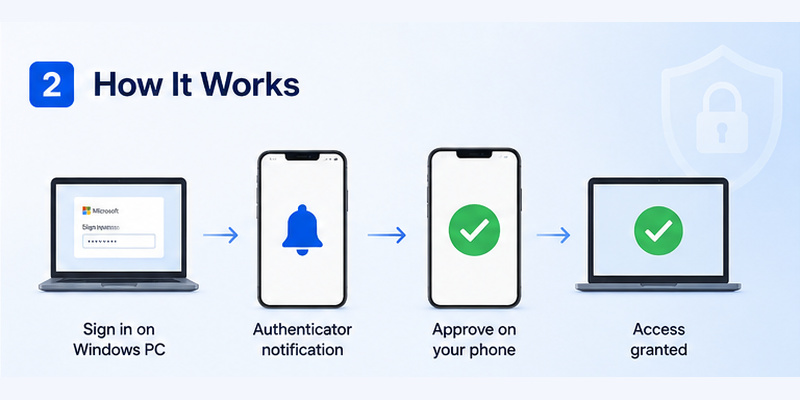
To use microsoft authenticator for pc windows correctly, it helps to separate the computer from the authentication device.
Your PC starts the login
Imagine you are using Windows 11 and open Outlook, Microsoft 365, OneDrive, Azure, Teams, or a company web application.
You enter your Microsoft account or work account.
If the account requires MFA, the service can request a second authentication factor. Microsoft Authenticator may then receive a notification on your registered mobile device. Microsoft documents Authenticator as a supported option for passwordless authentication, MFA notifications, and verification codes.
This is the core workflow behind microsoft authenticator for pc windows.
The computer starts the authentication request; your smartphone verifies it.
Your phone becomes the separate verification device
Keeping Authenticator on another device provides an important separation between the session requesting access and the authentication factor used to verify the session.
When a supported Microsoft sign-in uses Authenticator notifications, you may be asked to perform number matching. The PC displays a number, and you confirm the corresponding number through Authenticator.
This means you do not need microsoft authenticator for windows installed locally to approve an account on your Windows machine.
Instead, you need:
- A Windows PC or laptop.
- A Microsoft, work, or school account.
- A compatible smartphone.
- Microsoft Authenticator installed on that phone.
- The account registered in Authenticator.
- Internet access when using push approval.
Once those pieces are configured, microsoft authenticator for pc windows can protect sign-ins across browsers and Microsoft services running on your computer.
🧭 Explore Guides: Is Microsoft Authenticator Free to Use? Everything You Need to Know
3. How to Set Up Microsoft Authenticator for a Windows PC
The easiest way to understand microsoft authenticator for pc windows is to perform the setup using both devices at the same time.
Keep your Windows computer open in front of you and have your phone nearby.
Step 1: Install Authenticator on your phone
Download the official Authenticator App from the appropriate mobile app store.
Microsoft’s official download documentation currently points users to the iOS and Android versions and explicitly notes that PC and Mac versions are unavailable.
Open the app after installation.
Avoid downloading unofficial packages advertised as a Microsoft Authenticator Windows executable merely because you want microsoft authenticator for pc windows.
Step 2: Begin account registration on the PC
For a Microsoft personal account, sign in to your Microsoft account and open the relevant security settings.
For a work or school account, your organization may send you through its Security Info registration process.
During setup, you may be asked to add Microsoft Authenticator as a sign-in method.
For supported QR-code setups, the computer displays a QR code while Authenticator on the phone scans it. Microsoft’s account-addition instructions document QR-code registration as a standard way to associate an account with Authenticator.
Step 3: Scan the QR code
In Authenticator:
- Open the app.
- Select the option to add an account.
- Choose the correct account type.
- Select the QR-code scanning option.
- Point the phone camera at the QR code displayed on the Windows PC.
- Complete the verification request.
After registration finishes, test microsoft authenticator for pc windows by signing in from your PC again.
If the account asks for verification and the request successfully appears on your phone, the setup is working.
💡 Discover Helpful Guides: Microsoft Authenticator Passwordless Sign-In: Complete Guide
4. How to Add a Personal Microsoft Account
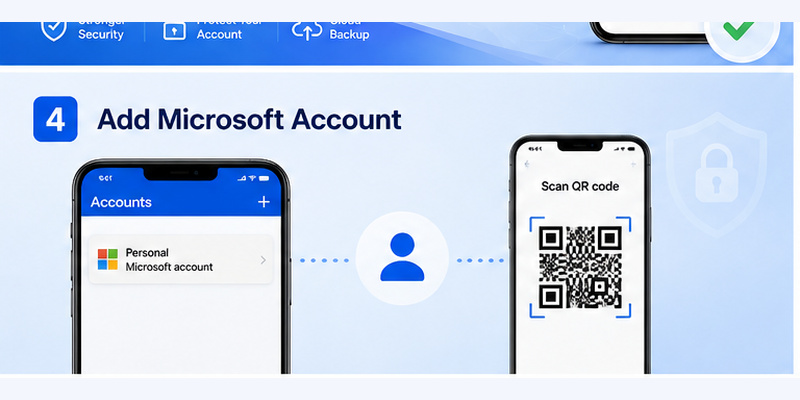
Personal Microsoft accounts can also use microsoft authenticator for pc windows when signing in to services associated with Microsoft.
Add your Microsoft account to Authenticator
Microsoft explains that Authenticator can be used with personal Microsoft accounts as well as work, school, and other accounts.
Open Authenticator on your smartphone and select the option to add an account.
Choose a personal Microsoft account and follow the requested sign-in steps.
After your account is registered, a future microsoft authenticator for pc windows session may ask you to confirm your identity through the phone.
For example:
- Open your Microsoft account on the Windows PC.
- Enter your account information.
- Choose Authenticator if prompted for verification.
- Check your phone.
- Review the sign-in request.
- Complete number matching when required.
- Approve only if you initiated the sign-in.
Microsoft’s current sign-in guidance describes using Authenticator for situations involving two-step verification, MFA, passwordless accounts, and account access.
Test the setup before you need it
A common mistake is configuring microsoft authenticator for pc windows and then assuming everything is ready without testing it.
Sign out of a noncritical Microsoft session and perform a fresh login.
Check that the phone receives the expected request and that you can complete authentication.
It is also wise to review alternative account recovery methods before losing access to the phone.
A working microsoft authenticator for pc windows configuration should make sign-in easier and safer rather than leave you dependent on a device you have never tested.
💡 Discover Helpful Guides: Microsoft Account App: Setup, Security & Sign-In Guide
5. How to Set Up a Work or School Account on Windows 11
Business users are one of the largest groups searching for microsoft authenticator for pc windows because Microsoft Entra environments frequently use MFA.
Start from your organization’s Security Info setup
Work and school environments may allow Microsoft Authenticator as one of several authentication methods.
Microsoft documentation shows that Authenticator can provide notification-based MFA and verification codes for Microsoft Entra accounts. Administrators can control which authentication methods are available to users.
Your organization may direct you to register through Security Info.
On the Windows computer:
- Sign in using your work or school account.
- Open the organization’s security information settings.
- Choose to add a sign-in method.
- Select Microsoft Authenticator if available.
- Continue until a QR code appears.
- Open Authenticator on your smartphone.
- Add a work or school account.
- Scan the QR code.
- Complete the test approval.
This configuration lets microsoft authenticator for pc windows protect cloud applications accessed from Windows.
Why your company setup may look different
Not every business uses the same authentication configuration.
An administrator can define authentication methods, access policies, device requirements, and passwordless options in Microsoft Entra environments.
As a result, one employee using microsoft authenticator for pc windows may see a push notification while another receives a different authentication option.
If your organization requires device compliance or company-managed applications, Authenticator troubleshooting can also involve the organization’s management configuration. Microsoft’s Authenticator troubleshooting guidance specifically notes that work or school users may need to check the Company Portal app and device compliance.
💡 Discover Helpful Guides: Microsoft Authenticator Desktop: Complete PC & Mac Guide
6. How to Use Microsoft Authenticator When Signing In on a PC
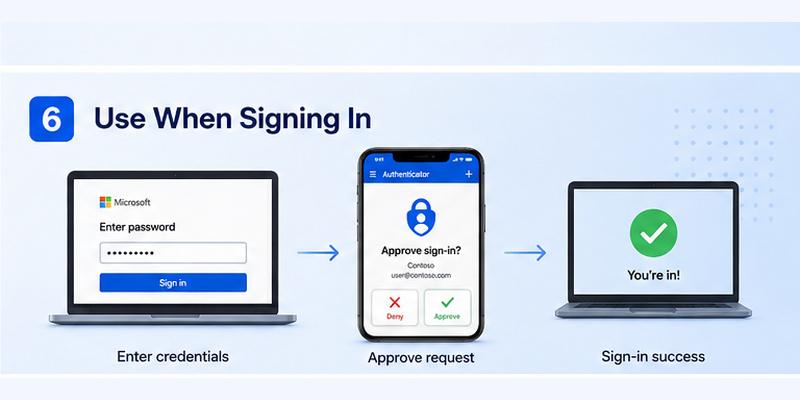
Once setup is complete, daily microsoft authenticator for pc windows use is straightforward.
Sign in from the Windows browser or application
Start on your PC.
Open the Microsoft service you need and enter your account details.
If Authenticator verification is required, the PC may display a message telling you to check Authenticator.
Open the application on your phone.
During a number-matching authentication flow, compare the number displayed on the Windows screen with the prompt in Authenticator and complete the requested confirmation. Microsoft’s current Authenticator sign-in documentation includes number matching in its approval process.
Once approved, the Windows session continues.
This is the normal way microsoft authenticator for pc windows should work.
Use verification codes when the account supports them
Authenticator can also generate verification codes for supported accounts. Microsoft identifies verification codes as one of Authenticator’s authentication capabilities.
If the login page offers a code-based method:
- Open Authenticator.
- Select the relevant account.
- Find the current verification code.
- Enter it on the PC.
- Submit the form.
Do not confuse this with installing microsoft authenticator on laptop hardware itself.
The laptop displays the login page, while the mobile device still provides the authentication value.
This two-device workflow is the intended use case for microsoft authenticator for pc windows.
7. Microsoft Authenticator and Windows 11 Login Explained
The keyword microsoft authenticator windows 11 login often reflects a different question: can Microsoft Authenticator approve the actual Windows lock-screen login every time you start the PC?
The answer requires an important distinction.
Authenticator MFA is not the standard Windows lock-screen method
Microsoft Authenticator can authenticate Microsoft account and Microsoft Entra activity, but Microsoft provides Windows Hello as the native Windows authentication technology for signing into Windows devices.
Microsoft describes Windows Hello as authentication technology that allows users to sign in to Windows devices using biometrics or a PIN.
Therefore, microsoft authenticator for pc windows should not be treated as a replacement lock-screen app that you install on Windows 11.
Likewise, searching for microsoft mfa for windows login does not necessarily mean that Windows will ask for a six-digit Authenticator TOTP code after your Windows password every time the computer starts.
Windows Hello performs a different role
Windows Hello can use:
- A Windows Hello PIN.
- Facial recognition on compatible hardware.
- Fingerprint recognition on compatible hardware.
For enterprise environments, Windows Hello for Business uses device-bound credentials. Microsoft’s documentation states that Windows Hello for Business keys can meet Microsoft Entra MFA requirements, reducing the need for repeated MFA prompts after the credential has been provisioned.
In other words, microsoft authenticator for pc windows can be involved while initially verifying identity or accessing protected Microsoft services, while Windows Hello handles the native Windows sign-in experience.
8. How to Use Windows Hello Instead of an Authenticator Desktop App
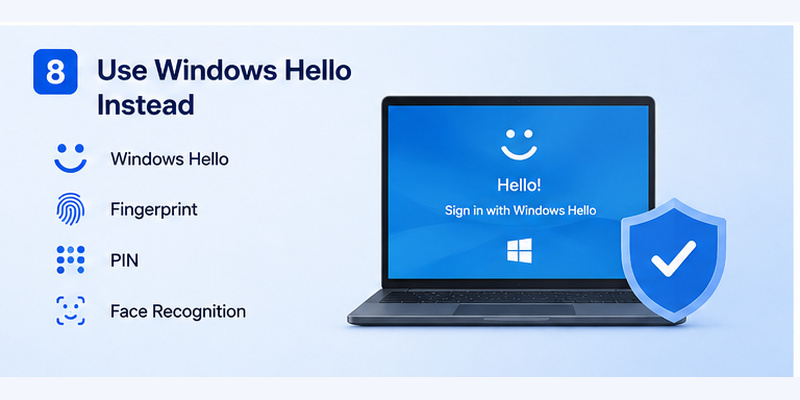
If your real goal is secure Windows 11 access rather than approving websites, Windows Hello is usually more relevant than looking for a nonexistent microsoft authenticator app for windows 11.
Set up Windows Hello
On a compatible Windows 11 PC, open:
Settings → Accounts → Sign-in options
You can then review the Windows Hello methods offered by your machine.
The options may include PIN, facial recognition, or fingerprint authentication depending on hardware and configuration.
Microsoft positions Windows Hello as a passwordless authentication technology for signing into Windows devices.
This is an important complement to microsoft authenticator for pc windows.
Authenticator protects supported account authentication scenarios, while Windows Hello provides the native device sign-in credential.
Why Windows Hello can be stronger than repeatedly entering passwords
Windows Hello credentials are associated with the Windows device instead of simply sending a reusable password for every authentication. In business environments, Windows Hello for Business uses key-based authentication and can provide multifactor characteristics through a device-bound credential combined with a PIN or biometric gesture.
Therefore, someone searching for a microsoft authenticator app for pc solely because they want a safer Windows login should consider configuring Windows Hello first.
You can still keep microsoft authenticator for pc windows available on your phone for Microsoft 365, cloud applications, account verification, and other MFA requests.
The two technologies are complementary rather than interchangeable.
9. How to Fix Microsoft Authenticator Problems on Windows
Most problems with microsoft authenticator for pc windows fall into a few predictable categories.
Problem 1: No Authenticator notification appears
If the Windows sign-in page tells you to approve a request but your phone shows nothing:
- Unlock the phone.
- Open Authenticator manually.
- Check that the correct account is present.
- Confirm the phone has internet access.
- Verify notification permissions.
- Update Authenticator through the phone’s official app store.
- Retry the sign-in once.
Microsoft recommends checking that Authenticator opens correctly, confirming that the account is listed, updating the application, and reviewing work-device compliance when applicable.
Do not keep launching dozens of microsoft authenticator for pc windows attempts at once because multiple simultaneous prompts can make it harder to identify the correct request.
Problem 2: You cannot scan the QR code
Make sure you are scanning the QR code inside Microsoft Authenticator, rather than simply photographing it with an unrelated camera application.
Microsoft’s account-addition instructions use QR codes to connect supported accounts with Authenticator.
If the code has expired, return to the setup page on Windows and generate a fresh registration flow.
Problem 3: You changed phones
If you replaced the phone containing Authenticator, you may need to restore supported account information or re-register authentication methods.
Avoid deleting the old device configuration until microsoft authenticator for pc windows works successfully with the replacement phone.
10. How to Use Microsoft Authenticator Safely on a Laptop
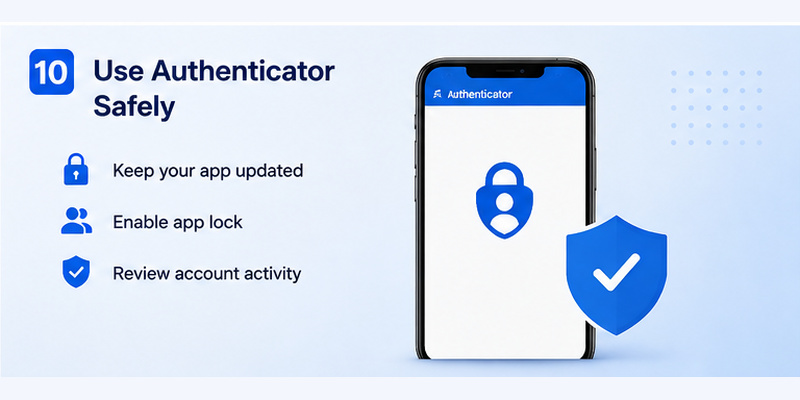
The process for microsoft authenticator for laptop is essentially the same as using a desktop Windows PC.
You do not need a special laptop edition.
Laptop on the left, phone on the right
When setting up microsoft authenticator on laptop, keep your smartphone beside the laptop.
Display the registration QR code on the laptop, then scan it using Authenticator on your mobile phone.
After setup, sign-ins initiated on the laptop can trigger the phone-based authentication flow.
The same approach applies to microsoft authenticator app for laptop searches: Microsoft does not provide a separate laptop installation of Authenticator; the official application remains mobile-only.
Be careful on public Wi-Fi and shared PCs
The presence of Authenticator does not mean every computer is trustworthy.
When using microsoft authenticator for pc windows on a borrowed or shared Windows machine:
- Verify the Microsoft sign-in domain and application.
- Avoid saving credentials unnecessarily.
- Do not mark an unknown computer as permanently trusted.
- Sign out when finished.
- Approve only requests you initiated.
Microsoft account settings support the concept of trusted devices and identity verification, so users should be deliberate about where they choose to remain signed in.
Your Authenticator approval verifies your identity; it does not automatically make the Windows machine itself safe.
11. Best Alternatives to Running Authenticator Directly on Windows
Because no official native microsoft authenticator for pc application exists, users often search for emulators, unofficial desktop packages, or copied mobile versions.
For a security application, that approach introduces unnecessary risk.
Option 1: Use the official mobile Authenticator
The safest and most straightforward setup for microsoft authenticator for pc windows is the official one:
Windows PC + official Authenticator on Android or iPhone.
Microsoft explicitly supports those mobile platforms and does not offer PC or Mac Authenticator versions.
This is the best option when your goal is Microsoft account MFA, Microsoft 365 authentication, work-account verification, or passwordless Authenticator sign-in.
Option 2: Use Windows Hello
For signing into the Windows device itself, configure Windows Hello.
Microsoft’s current Windows security documentation describes Windows Hello and Windows Hello for Business as Windows authentication technologies using PIN or biometrics and device-bound credentials.
That makes Windows Hello a much better answer to device-login intent than trying to force microsoft authenticator for pc windows into the role of a desktop lock-screen program.
Option 3: Use other approved authentication methods
Organizations can support several authentication methods depending on policy.
Microsoft Entra environments may use Authenticator, passkeys, Windows Hello for Business, FIDO2 security keys, certificates, and other configured methods.
If your employer has specific requirements, use only the methods approved by its administrator.
12. Microsoft Authenticator for PC Windows FAQ
Can I download Microsoft Authenticator directly on Windows 11?
No official Windows desktop version is currently provided. Microsoft states that Authenticator is a mobile app and is not available for PC or Mac.
For microsoft authenticator for pc windows, install Authenticator on an Android phone or iPhone and use it to approve authentication requests initiated from Windows.
Is Microsoft Authenticator in the Microsoft Store?
Do not assume that a similarly named desktop program is Microsoft’s official Authenticator. Microsoft’s official Authenticator download information currently directs users to mobile installation and states that PC and Mac are unsupported.
For microsoft authenticator for pc windows, follow Microsoft’s mobile setup.
Can I use Microsoft Authenticator on my Windows laptop?
Yes, you can use Authenticator with a Windows laptop, but the Authenticator application itself normally remains on your smartphone.
Initiate the login on the laptop and approve it on the phone.
That is the correct interpretation of microsoft authenticator for pc windows and microsoft authenticator on laptop.
How do I scan the Microsoft Authenticator QR code on a PC?
Display the QR code on the PC during account-registration setup.
Then open Microsoft Authenticator on your phone, add the appropriate account, choose the QR-code scanning workflow, and point your phone’s camera at the computer screen. QR-code registration is documented by Microsoft as a supported account setup method.
Once registration finishes, test microsoft authenticator for pc windows with a fresh login.
Can Microsoft Authenticator unlock my Windows 11 PC?
Microsoft Authenticator is not the standard native Windows 11 lock-screen authentication application.
For Windows device authentication, Microsoft provides Windows Hello technologies such as PIN, fingerprint, and facial recognition where supported.
Authenticator may still participate in account verification, application MFA, or provisioning scenarios associated with your Windows environment.
Is Windows Hello the same as Microsoft Authenticator?
No.
Windows Hello is designed for Windows device authentication, while Microsoft Authenticator is a mobile authentication application supporting account verification, MFA, verification codes, passwordless sign-in, and related authentication methods.
A strong Windows setup can use both technologies.
For example, Windows Hello can secure local device access while microsoft authenticator for pc windows protects Microsoft 365 and other account sign-ins.
Why is my PC asking me to approve a sign-in on my phone?
That is a normal MFA flow when Authenticator has been registered as an authentication method.
The Windows computer initiates the authentication, and Authenticator provides the additional verification through the registered mobile device.
Always verify that you actually started the microsoft authenticator for pc windows request before approving it.
Should I approve an Authenticator notification I did not request?
No.
Only approve authentication requests that correspond to a sign-in you personally initiated.
An unexpected prompt should be treated cautiously. Do not approve random requests just to remove the notification.
Can I use Microsoft Authenticator for multiple Windows computers?
Yes. Authenticator is associated with your supported accounts and authentication registrations rather than being limited to one Windows browser session.
Once properly configured, you may use microsoft authenticator for pc windows when signing into supported Microsoft services from different computers, subject to account and organizational security policies. Microsoft Authenticator supports personal, work, and school Microsoft accounts.
Do I need Authenticator every time I start Windows 11?
Not necessarily.
Normal Windows device sign-in can use Windows Hello or another configured Windows credential. Authenticator may appear when a Microsoft account, Microsoft Entra service, protected application, security-sensitive operation, or organizational policy requires additional verification.
Therefore, microsoft authenticator for pc windows should not be confused with a mandatory code you enter every time the Windows lock screen appears.
What should I do if Microsoft Authenticator stops working with my PC?
First determine whether the problem is on the Windows login page or on your mobile Authenticator.
Check:
- Phone internet access.
- Authenticator notification permissions.
- App updates.
- Whether the correct account appears in Authenticator.
- Whether the Windows login session is still active.
- Whether another sign-in method is available.
- Work-device compliance if the PC is managed by an organization.
Microsoft’s troubleshooting guidance recommends checking application responsiveness, account presence, updates, and organizational device compliance.
Then retry microsoft authenticator for pc windows using one clean login session.
Conclusion
The most important thing to understand about microsoft authenticator for pc windows is that Microsoft Authenticator does not currently have an official Windows desktop version. Microsoft provides Authenticator as a mobile app for iOS and Android, while the Windows PC is typically the device that initiates the authentication request.
To set it up correctly, install Authenticator on your phone, start account registration from your Microsoft or work account on the PC, scan the QR code with the mobile app, and complete the verification test.
After that, microsoft authenticator for pc windows can be used whenever a supported Microsoft service on your Windows computer requests MFA or another Authenticator-based verification.
For the actual Windows 11 lock screen, use the authentication technologies designed for Windows, especially Windows Hello. Windows Hello supports PIN and biometric authentication, while Windows Hello for Business can provide device-bound credentials that satisfy Microsoft Entra MFA requirements in supported business configurations.
This combination gives you the cleanest setup: use Windows Hello to secure the PC itself and microsoft authenticator for pc windows to secure Microsoft account and cloud-service authentication.
Most importantly, avoid unofficial Authenticator desktop downloads simply because they appear to match the keyword microsoft authenticator for pc windows. The supported approach is simpler: keep Authenticator on your trusted mobile device and use it as the verification layer for sign-ins initiated from your Windows computer.
Download Authenticator App
Secure your accounts with fast, reliable two-factor authentication. Download now and protect your login in seconds.
