
How to Remove Account from Authenticator App: Microsoft, Google, iPhone & Android Guide
Knowing how to remove account from authenticator app is important when you change phones, leave a company, stop using an online service, accidentally add the same account twice, or simply want to clean up old verification codes.
The process looks simple, but there is one security detail that many users miss: deleting an entry from the mobile app and removing Authenticator as a sign-in method from the actual online account are not always the same action.
For Microsoft Authenticator, Microsoft currently instructs users who want to remove a local account to open that account in Authenticator, tap its Settings gear, and choose Remove account. Microsoft warns that once it is removed, that device can no longer be used to verify sign-in for that entry.
However, learning how to remove account from authenticator app should also include cleaning up the account’s online security settings when necessary. Microsoft specifically notes that adding Authenticator to a new device does not automatically unregister an old device, and simply deleting the app from an old phone may not be enough.
Google Authenticator behaves differently. Google currently allows users to remove individual verification-code entries by swiping right on a code and confirming deletion. If codes are synchronized to a Google Account, deleting the entry also removes it from other devices where those codes are synchronized.
This guide explains how to remove account from authenticator app safely across Microsoft Authenticator and Google Authenticator, on both iPhone and Android, without accidentally locking yourself out.
1. What Happens When You Remove an Account From an Authenticator App?
Before following how to remove account from authenticator app, understand exactly what you are deleting.
An authenticator application can contain several types of authentication information:
- Microsoft personal accounts
- Microsoft work or school accounts
- Third-party TOTP accounts
- Google Authenticator verification-code entries
- Passwordless Microsoft sign-in registrations
- Device registrations controlled by an organization
Deleting a local entry generally removes the authentication credentials stored in that app on that device.
Microsoft states that account data added to Authenticator is stored on the device and can be removed by removing the account.
That does not necessarily mean the website has stopped expecting two-factor authentication.
For example, suppose you add Amazon to an authenticator application and later delete the Amazon code from your phone. Amazon may still require the authenticator code the next time you sign in.
If you no longer have the secret or recovery method, you could lock yourself out.
Therefore, the safest approach to how to remove account from authenticator app is:
- Confirm that you can still sign in to the service.
- Add another authentication method if needed.
- Remove or replace Authenticator in the service’s security settings.
- Only then delete the local app entry.
Microsoft makes a similar recommendation for Microsoft account security information: add new security information before removing old information when replacement is necessary.
So if you’re asking How do I remove something from the Authenticator app?, first decide whether you want to remove only the phone entry or completely disconnect Authenticator from the account.
That distinction prevents most lockouts.
Download Authenticator App
Secure your accounts with fast, reliable two-factor authentication. Download now and protect your login in seconds.
💡 Discover Helpful Guides: Microsoft Authenticator Passwordless Sign-In: Complete Guide
2. How to Remove an Account From Microsoft Authenticator
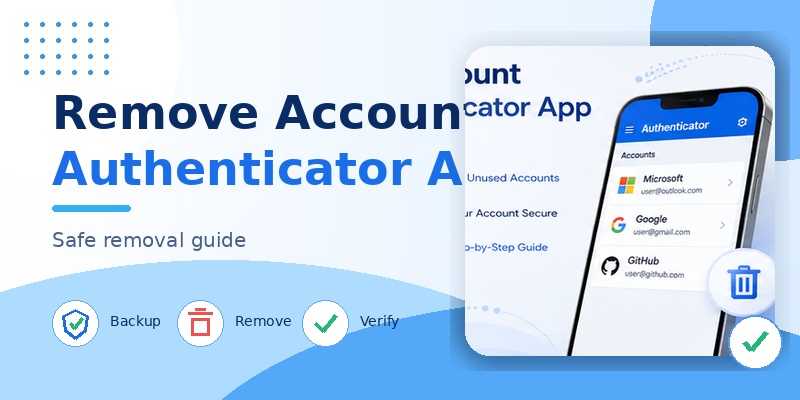
For users researching how to remove account from authenticator app, Microsoft Authenticator has a direct removal option.
Microsoft’s current official process is:
- Open Microsoft Authenticator.
- Select the account you want to remove.
- Open the Settings gear for that account.
- Tap Remove account.
- Confirm the removal if prompted.
Microsoft warns that after the account is removed, the device can no longer be used to verify sign-ins for that account.
Example: Removing an Old Work Account
Imagine you previously worked for Company A. Your Authenticator still displays:
You now work somewhere else and the old account is no longer needed.
To follow how to remove account from authenticator app, open that Company A account, access its settings, and remove it.
If the organization still manages the device or account, additional cleanup may be necessary. Microsoft says work or school organizations can require device registration and Conditional Access, and unregistering the device can affect access to organizational resources.
Removing All Accounts
If you want to completely clear Microsoft Authenticator, Microsoft provides operating-system-level methods.
On Android, Microsoft currently instructs users to open device Settings, locate Authenticator under Apps, open Storage or Storage & cache, and clear the application’s data.
On iOS, Microsoft’s current instructions say to open Settings, go to General > Storage, select Authenticator, and use Offload App for the documented account-removal/reset workflow. Microsoft emphasizes that removing all accounts is not reversible and the device will no longer verify those sign-ins.
Do not use the full-reset method when you only need to learn how to remove account from authenticator app for one unused account.
🧭 Explore Guides: Microsoft Authenticator Extension: Safe Browser Guide
3. How to Remove an Account From Authenticator on iPhone
Users searching Remove account from Authenticator app iPhone usually fall into one of two categories: Microsoft Authenticator users or Google Authenticator users.
For Microsoft Authenticator, the normal how to remove account from authenticator app process on iPhone is:
- Open Microsoft Authenticator.
- Tap the account.
- Open the account settings.
- Tap Remove account.
- Confirm.
Microsoft’s current support documentation uses the same basic account-removal flow for Authenticator.
If you are asking How do I remove an account from the Authenticator app on iOS?, do not immediately uninstall the application.
Uninstalling or resetting the application can affect every account stored on that device.
Example: Duplicate Account
Suppose your iPhone shows:
twice.
One entry works and the other generates old or unusable codes.
Before deleting either entry:
- Sign in using the working code.
- Verify which Authenticator registration is current.
- Remove the obsolete entry.
- Test authentication again.
This is the safest way to use how to remove account from authenticator app when duplicate entries exist.
💡 Discover Helpful Guides: Microsoft Authenticator Passwordless Sign-In: Complete Guide
If You Want to Clear Everything
Microsoft’s current iOS reset instructions direct users through iPhone Settings > General > Storage > Authenticator and the documented Offload App process. Microsoft warns that all account credentials are removed and the action cannot be undone.
A full reset is therefore a last resort, not the first step in how to remove account from authenticator app.
4. How to Remove an Account From Microsoft Authenticator on Android
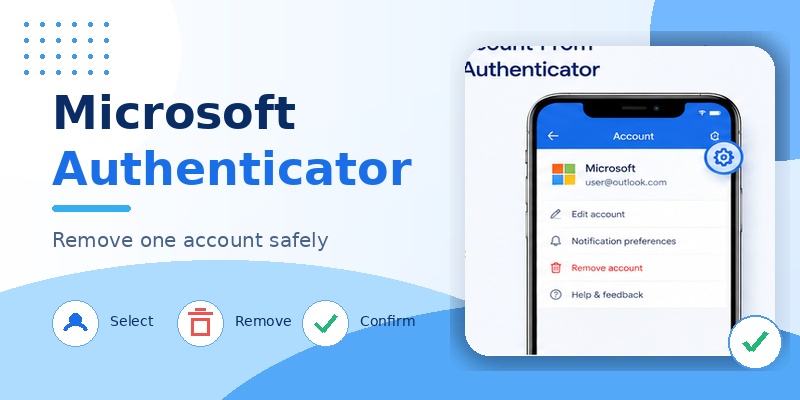
The Remove account from Microsoft Authenticator Android process is usually almost identical to iOS.
Open Authenticator, choose the account, open its Settings gear, and tap Remove account.
This is the recommended approach if you need how to remove account from authenticator app for only one account.
Clear All Microsoft Authenticator Accounts on Android
If you want to remove everything:
- Open Android Settings.
- Select Apps.
- Choose Authenticator.
- Open Storage or Storage & cache.
- Tap Clear data.
- Confirm.
Microsoft says this removes all Authenticator accounts stored in the app and cannot be undone.
Be especially careful with work accounts.
Some work or school registrations may involve Android system account settings, a Company Portal application, device management, or organizational registration outside Authenticator itself. Microsoft explicitly notes that device registration can occur outside Authenticator, including Android account settings or Company Portal.
That means clearing app data is not always the complete how to remove account from authenticator app solution for an organization-managed device.
If the company still appears under Android work profiles or device-management settings, contact your IT administrator before removing management components.
5. Why Is the Remove Account Option Missing in Microsoft Authenticator?
One of the most frustrating searches is Why is the “remove account” button missing in Microsoft Authenticator?
Normally, Microsoft says a removable Authenticator account should provide a Settings gear followed by Remove account.
If that option is not visible, several scenarios are possible.
You Are Looking at the Wrong Screen
Open the individual account first. The Remove option may be inside the account-specific settings rather than the main application settings.
The Account Is Connected to Device Registration
A work or school account may be tied to organizational device registration.
Microsoft says organizations can require device registration to access protected resources. Authenticator can also interact with registrations created outside the application.
The Account Is Organization-Managed
Your organization’s authentication policies can determine which methods are available. Microsoft says users who cannot access a registered verification method may need their administrator’s help restoring access.
Your Application Is Out of Date
Update Microsoft Authenticator from the official application store and reopen it before assuming the feature is missing.
When users report Remove account missing From Microsoft Authenticator, avoid clearing application data immediately. First confirm that you have another authentication method.
If you Can t remove account from Microsoft Authenticator, the safer escalation sequence is:
- Check account-specific settings.
- Update Authenticator.
- Verify whether the account is personal or work/school.
- Review the account’s online Security Info.
- Contact your organization’s IT administrator if the device is managed.
This is a safer interpretation of how to remove account from authenticator app than repeatedly reinstalling the software.
💡 Discover Helpful Guides: Microsoft Authenticator: Complete Setup, Login, Backup & Troubleshooting Guide
6. How to Remove Authenticator From Your Microsoft Account Completely
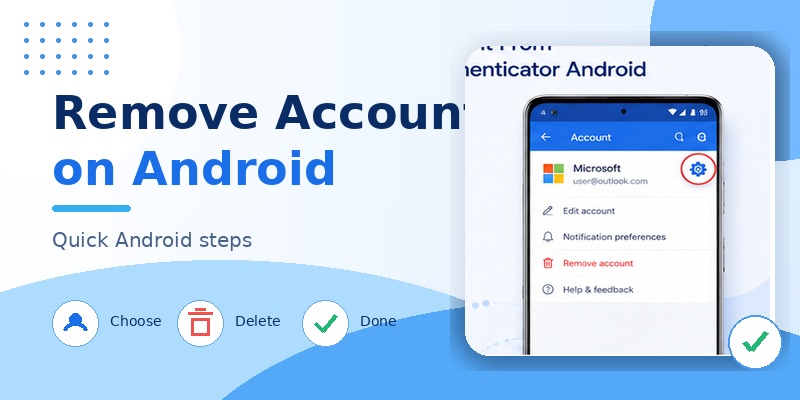
Deleting the phone entry is only half of how to remove account from authenticator app when your goal is to stop using Microsoft Authenticator entirely.
For a personal Microsoft account, Microsoft currently says you can remove a sign-in verification method through Advanced security options.
The documented process is to sign in, expand the verification option, select Remove, and confirm. Microsoft recommends adding replacement security information first.
This is different from deleting the local Authenticator entry.
Two Separate Actions
Think about how to remove account from authenticator app in two layers:
Phone layer: Delete the Authenticator entry.
Account layer: Remove Authenticator from Microsoft’s security methods.
If you only complete the first layer, Microsoft’s servers may still have the old device registered for authentication.
Microsoft explicitly states that installing Authenticator on a new device does not automatically remove the old device. Even deleting the app from the previous phone is not sufficient in every situation; users should also unregister the old authentication device from their Microsoft or organizational account.
Remove Authenticator From Microsoft Account Without Logging In
The phrase Remove Authenticator from Microsoft account without logging in describes a difficult situation.
In general, security methods are protected account settings, so Microsoft requires you to prove ownership before modifying them. If you cannot sign in using Authenticator, use another available verification method or Microsoft’s sign-in recovery process.
Microsoft says its support representatives cannot simply access and change protected account details or issue password-reset links on a user’s behalf.
For a work or school account, contact the organization’s IT administrator when no alternative verification method is available.
This is why you should establish a backup method before completing how to remove account from authenticator app.
💡 Discover Helpful Guides: Microsoft Authenticator Passkeys: Setup, Login, Phone Transfer, and Troubleshooting Guide
7. How to Remove an Account From Google Authenticator
Can I remove an account from Google Authenticator? Yes.
Google’s current instructions describe individual verification codes rather than treating every entry as a traditional signed-in account.
On Android, Google says to swipe right on an Authenticator code to reveal the delete option, then confirm deletion.
On iPhone and iPad, Google provides the same current instruction: swipe right on a code to display the delete option, then confirm.
Therefore, the Google version of how to remove account from authenticator app is:
- Open Google Authenticator.
- Locate the code.
- Swipe right.
- Choose Delete.
- Confirm.
What If Google Authenticator Sync Is Enabled?
Google allows users to synchronize Authenticator codes with a Google Account.
If the code is synchronized, Google says deleting it removes that code from other devices where the Authenticator codes are synced.
That is important when learning how to remove account from authenticator app on a new phone.
Removing a synchronized entry is not necessarily a device-only change.
Does Deleting the Code Disable MFA?
Do not assume so.
If a third-party website still expects a TOTP code, removing its code generator from Google Authenticator can leave you unable to sign in.
Disable or replace the authentication method on the website first.
So the safe Google how to remove account from authenticator app workflow remains: verify access, change the website’s MFA settings, then remove the local code.
8. How to Remove an Email Address or Old Account Safely

Users often ask How to remove an email address from Authenticator app because they see an old email address that no longer belongs there.
First identify what the email represents.
It may be:
- A Microsoft personal account
- A work or school account
- A label associated with a TOTP code
- A Google Authenticator code
- An account synchronized through another service
The correct how to remove account from authenticator app procedure depends on that type.
Example: Old Work Email
Suppose Authenticator shows:
Do not simply delete it if that account still provides access to company systems.
Verify with IT that the account has been deactivated or that another authentication method exists.
Microsoft allows work or school users to manage registered devices and, where permitted, disable devices they no longer own. Microsoft warns that disabling an organizational device can remove its ability to authenticate to protected resources.
Example: Old Personal Microsoft Account
If the old address is a Microsoft account you still use, first log in and review its security information.
Remove or replace the Authenticator verification method online, then complete how to remove account from authenticator app locally.
Example: Old Third-Party TOTP Code
For Amazon, Facebook, GitHub, or another service, sign in to that service’s security settings first.
Disable or migrate authenticator-based MFA, save recovery codes if available, and then delete the old entry.
That is the safest interpretation of How to delete in Authenticator.
💡 Discover Helpful Guides: SMS vs Authenticator App: Which Is More Secure for Two-Factor Authentication?
9. What to Do When You Cannot Remove an Authenticator Account
If how to remove account from authenticator app is not working as expected, do not start by wiping the entire application.
Troubleshoot methodically.
Confirm You Selected the Actual Account
Open the account card rather than the application’s global settings.
Microsoft’s current removal instructions specifically require selecting the account and then opening its Settings gear.
Update the App
Install the latest Authenticator version from Google Play or Apple’s App Store.
Check Whether It Is a Work Profile
An organization-managed account may also exist in Company Portal, Android’s work-profile settings, or Microsoft device registration.
Microsoft confirms that device registration can exist outside the Authenticator interface.
Add Another MFA Method
Before trying destructive steps, create a fallback.
Microsoft recommends adding replacement security information before removing old security methods.
Remove the Verification Method Online
If the local account remains connected to the Microsoft account, sign in to the appropriate Microsoft Security or Security Info page and remove the old verification method.
Contact IT
For work and school accounts, administrators may control which verification methods users can manage.
Clear the App Only as a Last Resort
Microsoft documents clearing all Authenticator data on Android and its iOS reset workflow, but warns that doing so removes every account.
Therefore, when how to remove account from authenticator app fails for one account, clearing all application data should be your last action rather than your first.
10. Frequently Asked Questions and Final Security Checklist

How Do I Remove One Account From Microsoft Authenticator?
Open the account, select its Settings gear, and tap Remove account. Microsoft says the device will no longer be able to verify sign-in for that removed account.
How Do I Remove an Account From Authenticator on iPhone?
For Microsoft Authenticator, open the individual account and use Remove account. For Google Authenticator, swipe right on the verification code and choose Delete.
How Do I Remove an Account From Authenticator on Android?
For Microsoft Authenticator, select the account, open Settings, and tap Remove account. For Google Authenticator, swipe right on the code and confirm deletion.
Why Does Removing the App Not Stop Authentication Requests?
Because the online account may still have that device or Authenticator registration stored as a verification method. Microsoft says deleting the old app alone may not unregister the old device.
Can I Remove Microsoft Authenticator Without Accessing My Account?
If you only want to delete the local app entry, you can remove it from the phone. If you want Microsoft to stop recognizing Authenticator as a security method, you normally need authenticated access to the account or an administrator/recovery process.
How to Login Authenticator App?
For Microsoft Authenticator, you normally add a Microsoft personal, work/school, or third-party account and then use it for sign-in verification. Microsoft says Authenticator must already be added as a sign-in method before it can approve or verify sign-in.
Will Deleting Google Authenticator Codes Delete My Google Account?
No. Google says deleting Authenticator codes or the Google Authenticator service does not delete the entire Google Account.
What About an Authenticator TV App?
An Authenticator TV app is unrelated to normal Microsoft or Google MFA removal. Security authenticator apps are designed primarily for supported mobile authentication workflows, so do not install a television-focused application expecting it to manage Microsoft Authenticator credentials.
Final Checklist
Before completing how to remove account from authenticator app, confirm that you have another way to sign in.
Verify that the account password works, save available recovery codes, add a backup authentication method, remove the Authenticator method from the service when appropriate, and only then remove the local app entry.
For Microsoft Authenticator, remember that how to remove account from authenticator app and unregistering the authentication method online can be two separate operations.
For Google Authenticator, remember that synchronized codes can disappear from multiple devices when deleted.
If the removal option is missing, do not wipe every account unless you have confirmed that your recovery methods work.
The safest how to remove account from authenticator app process is therefore simple: secure another sign-in method first, remove the old authentication registration second, delete the local code or account third, and perform one final login test.
Following that order lets you clean up old accounts without turning a routine authenticator change into an account-recovery problem.
Download Authenticator App
Secure your accounts with fast, reliable two-factor authentication. Download now and protect your login in seconds.
