
Microsoft Multi Factor Authentication: Complete MFA Guide
Online accounts contain increasingly valuable information, from personal email and cloud files to business documents and administrative systems. A password alone is therefore no longer a strong enough security boundary for many users and organizations. Microsoft multi factor authentication adds another verification layer so that knowing or stealing a password is not normally enough to complete a sign-in.
For Microsoft accounts and Microsoft Entra environments, MFA can involve the Microsoft Authenticator mobile application, verification codes, notifications, passkeys, security keys, biometrics, or other authentication methods depending on account type and administrator policy. Microsoft Authenticator itself supports MFA notifications and verification codes, as well as passwordless and passkey-based sign-in scenarios.
This guide explains how microsoft multi factor authentication works, how Microsoft Authenticator fits into the process, how MFA differs from traditional 2FA, and what users should know when configuring authentication for personal or organizational accounts.
1. What Is Microsoft Multi Factor Authentication?
Microsoft multi factor authentication is an authentication approach that requires more than a password before access to an account or protected resource is granted. Instead of relying exclusively on something a user knows, the authentication process can combine different categories of evidence.
Authentication factors explained
Authentication factors are commonly grouped into categories such as:
- Something you know, such as a password or PIN.
- Something you have, such as a registered smartphone or hardware security key.
- Something you are, such as a fingerprint or facial biometric.
With microsoft multi factor authentication, a sign-in can require evidence from multiple factors rather than depending entirely on a password.
For example, a user might enter a Microsoft account password and then approve a request in Microsoft Authenticator. Another deployment might use a passkey protected by a device PIN or biometric. The exact experience depends on the account, authentication method, security policy, and organization configuration. Microsoft documents passkeys, Microsoft Authenticator, FIDO2 security keys, Windows Hello for Business, software OATH tokens, and other methods within its authentication ecosystem.
Why Microsoft MFA matters
Passwords can be exposed through phishing, credential reuse, malware, data breaches, or social engineering. Microsoft multi factor authentication reduces the usefulness of a stolen password because another authentication step is required.
This is why organizations frequently deploy microsoft multi factor authentication mfa for Microsoft 365, Microsoft Entra ID, administrative portals, cloud applications, and remote-access workflows.
MFA does not make an account impossible to compromise, but it significantly changes the attacker’s task. Instead of simply obtaining a password, the attacker must also defeat or obtain another authentication factor.
🗺️ Browse How-To Guides: Microsoft Authenticator: Complete Setup, Login, Backup & Troubleshooting Guide
2. How Microsoft Multi Factor Authentication Works
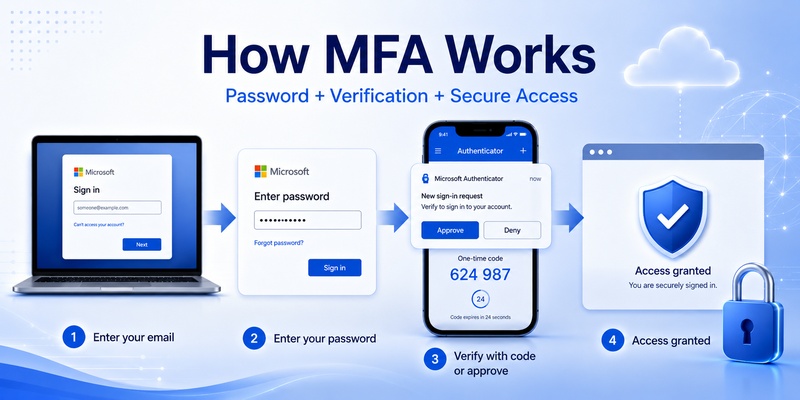
The basic idea behind microsoft multi factor authentication is straightforward: a sign-in request must satisfy the authentication requirements assigned to the account or resource.
A typical MFA sign-in
A conventional microsoft multi factor authentication flow may look like this:
- The user opens a Microsoft service.
- The user enters account credentials.
- Microsoft determines whether additional authentication is required.
- The user completes the requested authentication method.
- Access is granted when the required checks succeed.
The second step does not always have to be a six-digit code. Depending on configuration, users may approve an Authenticator notification, perform number matching, use a passkey, insert a FIDO2 security key, or complete another supported method. Microsoft Authenticator supports both notification-based MFA and verification codes.
MFA is more than entering a code
Many people associate mfa authentication microsoft with typing a one-time password after entering their regular password. That remains a familiar workflow, but modern Microsoft authentication provides additional options.
For example, Authenticator notification flows can require number matching. During such a sign-in, the login screen displays a number and the user must select or enter the corresponding number in Microsoft Authenticator. Microsoft describes number matching as a security improvement over traditional approval-only push notifications.
As a result, microsoft multi factor authentication should be understood as a security framework rather than a single verification-code feature.
🛠️ Learn with Step-by-Step Guides: SMS vs Authenticator App: Which Is More Secure for Two-Factor Authentication?
3. Microsoft MFA vs. Two-Factor Authentication
The terms MFA and 2FA are frequently used as if they mean exactly the same thing. They are closely related, but their meanings are slightly different.
What is Microsoft two-factor authentication?
Microsoft two factor authentication generally describes an authentication process involving two factors.
For example:
- Password + Authenticator approval
- Password + one-time verification code
- Password + hardware security key
Users searching for microsoft 2fa authenticator, microsoft authenticator 2fa, or 2fa microsoft authenticator are usually trying to configure Microsoft Authenticator as the second part of their account verification process.
What is MFA?
Multi-factor authentication is the broader term. Microsoft multi factor authentication means the authentication process requires multiple factors and is not conceptually limited to exactly two steps.
In everyday account setup, the user experience may still involve only two visible actions. This is why documentation, account interfaces, and search queries may alternate between MFA, two-step verification, and 2FA.
A user searching for microsoft authenticator 2 factor authentication may therefore be looking for essentially the same practical security outcome as someone searching for microsoft authenticator mfa.
The important point is not the wording. The security objective of microsoft multi factor authentication is to prevent a password from being the only evidence protecting access.
Download Authenticator App
Secure your accounts with fast, reliable two-factor authentication. Download now and protect your login in seconds.
4. How to Set Up Microsoft Multi Factor Authentication
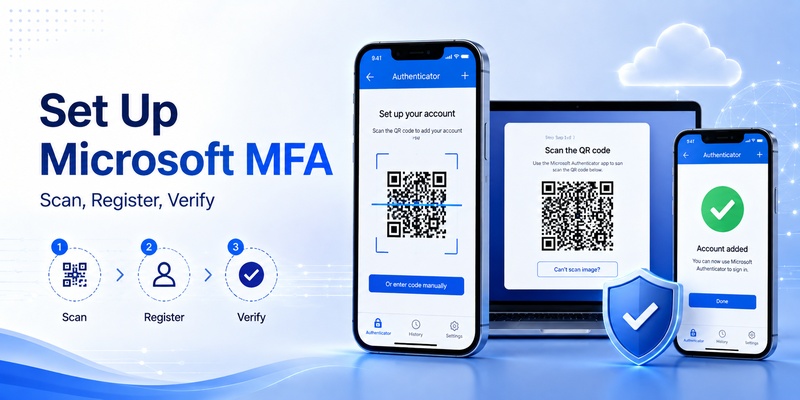
The exact configuration process varies between personal Microsoft accounts and work or school accounts managed through Microsoft Entra ID. Organizational policies can also control which methods are available.
Prepare Microsoft Authenticator
For a common mobile-based setup, users first install the official Microsoft Authenticator application on a supported mobile device.
The microsoft mfa app can then be connected to an account through the security-information or authentication setup process. Depending on the account type, the setup interface may display a QR code that the user scans with Microsoft Authenticator.
A typical microsoft multi factor authentication enrollment flow includes:
- Open the security or authentication settings for the account.
- Choose to add an authentication method.
- Select Microsoft Authenticator when available.
- Open Authenticator on the mobile device.
- Add the appropriate account type.
- Scan the QR code displayed during setup.
- Complete the verification test.
- Confirm that the method has been successfully registered.
Microsoft’s Authenticator documentation confirms support for notification-based MFA and verification-code authentication.
Test MFA after registration
After setting up microsoft multi factor authentication, users should verify that the new method works before relying on it.
Sign out of the account and perform a new sign-in. If prompted, complete the Authenticator request or verification method. The goal is to ensure that the device has been registered correctly and that the user understands the verification flow.
For organizational accounts, administrators may provide additional recovery methods or registration requirements. Do not remove an existing working method until the replacement method has been successfully tested.
🛠️ Learn with Step-by-Step Guides: Microsoft Authenticator Passkeys: Setup, Login, Phone Transfer, and Troubleshooting Guide
5. Using Microsoft Authenticator for MFA
Microsoft Authenticator is one of the most recognizable components of microsoft multi factor authentication, but its capabilities extend beyond basic six-digit codes.
Microsoft states that Authenticator supports passkeys, passwordless sign-in, MFA notifications, and verification codes.
Push-based verification
In a notification-based mfa microsoft authenticator configuration, a sign-in request appears on the registered mobile device.
The user should review the request carefully before approving it. Depending on the flow, additional information or number matching may be presented.
Users should never approve an unexpected authentication request simply to make repeated notifications disappear. An unsolicited request may mean that someone else is attempting to access the account.
Time-based verification codes
Microsoft Authenticator can also generate time-based one-time passwords for compatible services. This is the workflow many users associate with a traditional 2fa microsoft authenticator app.
A rotating code is displayed for the account, and the user enters it into the service requesting verification.
This method is useful when a service supports standard authenticator-generated codes rather than Microsoft-specific push authentication.
One app, multiple account scenarios
A single authenticator app can contain multiple registered account entries. However, each service or account generally needs to be enrolled through its own security settings.
Setting up microsoft multi factor authentication for one Microsoft account does not automatically activate MFA for every other account shown on the device.
Each registration should therefore be treated as a separate security relationship.
6. Verification Codes, Push Notifications, and Number Matching
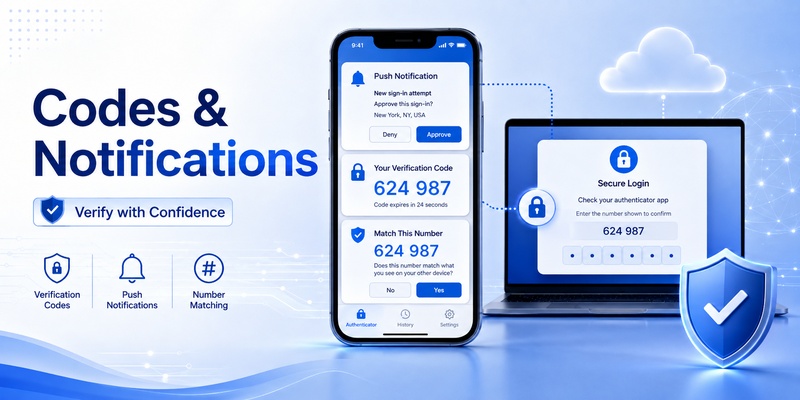
Not every microsoft multi factor authentication prompt looks the same. Understanding the main verification methods helps users identify what action is expected.
Verification codes
A verification-code workflow normally displays a rotating numeric code in Microsoft Authenticator. The user enters that code into the website or application requesting authentication.
These codes are time-sensitive and should not be shared with another person. Anyone requesting an MFA code through email, chat, or a phone call should be treated with caution.
Push notifications
A push-based microsoft multi factor authentication request appears directly in Microsoft Authenticator.
Older push models could rely heavily on simple approve/deny interactions. Number matching improves this interaction by connecting the request visible on the sign-in screen with the approval taking place on the registered device. Microsoft specifically describes number matching as an important security enhancement for Authenticator MFA notifications.
Number matching
With number matching, the sign-in interface displays a number. The user then responds to the Authenticator prompt using that number.
This makes accidental approval more difficult because the user must actively connect the Authenticator request with the sign-in being performed.
For this reason, users configuring microsoft multi factor authentication should pay attention to the information shown in Authenticator rather than automatically approving every notification.
7. What Is Phishing-Resistant MFA?
Traditional MFA is substantially stronger than password-only authentication, but not every MFA method provides the same resistance to phishing.
Microsoft currently recommends phishing-resistant methods such as passkeys/FIDO2, FIDO2 security keys, Windows Hello for Business, and certificate-based authentication for stronger sign-in protection.
🛠️ Learn with Step-by-Step Guides: Microsoft Authenticator vs Google Authenticator: Which Is Better in 2026?
Why ordinary OTP codes can still be phished
Suppose an attacker creates a convincing fake login page. A victim might enter a password and then enter a one-time verification code into the same malicious page.
If the attacker can relay the information rapidly to the legitimate service, a conventional MFA code may still be abused.
Therefore, microsoft multi factor authentication is stronger than password-only authentication, but organizations protecting high-value resources may want methods specifically designed to resist phishing.
Passkeys and Authenticator
Searches for phishing resistant mfa microsoft authenticator increasingly relate to passkeys rather than conventional Authenticator approval or OTP codes.
Microsoft documents passkeys in Microsoft Authenticator as a phishing-resistant authentication option. Passkeys use FIDO2-based authentication and can be protected by the user’s device biometric or PIN.
This distinction matters: simply using Microsoft Authenticator does not mean every authentication method inside the application has identical phishing resistance.
Organizations planning microsoft multi factor authentication should therefore evaluate the actual authentication method, not only the name of the application being used.
📖 Explore Articles: QR Code for Microsoft Authenticator: Setup Guide
8. How to Use a 2FA Key in Microsoft Authenticator
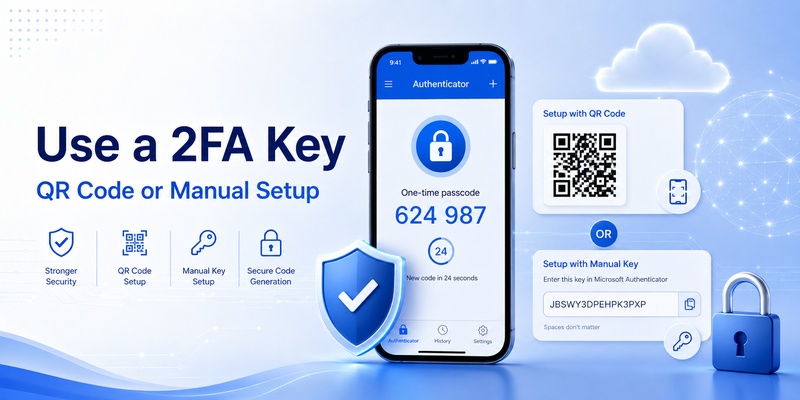
Search queries such as 2fa key microsoft authenticator often refer to the secret setup key supplied by a website when enabling TOTP authentication.
This secret is different from the six-digit code generated afterward.
Where does the key come from?
The website or service being protected typically creates the TOTP secret during enrollment. It may display:
- A QR code
- A manual setup key
- Both options
Microsoft Authenticator then stores the account configuration and generates rotating verification codes from the registered secret.
If you are wondering where to put 2fa key in microsoft authenticator, first confirm that the service is offering a standard TOTP manual setup key. The available manual-entry workflow can depend on the type of account being added and the setup method offered by the service. Microsoft guidance distinguishes manual TOTP enrollment from other Authenticator registration processes.
QR code versus manual key
Scanning a QR code is generally easier because the necessary configuration is encoded in the QR image.
When manual entry is supported, the user enters the account information and secret supplied by the service.
After enrollment, Authenticator generates a verification code. The service normally asks the user to enter one generated code to confirm that the registration succeeded.
The original secret used for microsoft multi factor authentication enrollment should be handled carefully because someone who obtains a reusable TOTP secret may be able to recreate the same code generator elsewhere.
9. Common Microsoft MFA Problems and Solutions
Even a properly designed microsoft multi factor authentication deployment can create access problems when devices are replaced, enrollment is incomplete, or users misunderstand the verification prompt.
Authenticator is not showing the account
If an expected account is missing, verify that the account was actually registered in Microsoft Authenticator.
Simply installing the application does not automatically connect existing accounts.
Return to the account’s security settings and review the available authentication methods. If necessary and permitted, enroll Microsoft Authenticator again.
No verification code appears
Not every microsoft multi factor authentication account uses rotating verification codes.
Some Microsoft configurations use push notifications, number matching, passwordless authentication, or passkeys instead.
Therefore, the absence of a six-digit code does not automatically mean the application is malfunctioning.
Notifications do not arrive
Check whether:
- The phone has internet access.
- Notifications are allowed for Microsoft Authenticator.
- The correct account is registered.
- The device date and time are correct.
- The organization still permits the configured authentication method.
If another registered method is available, it can be used to regain access while troubleshooting.
A new phone cannot approve sign-ins
Moving to a new phone can require re-registration. Users should make sure they have a working recovery or alternative authentication method before wiping or giving away the old device.
For managed accounts, the organization’s IT administrator may need to reset the authentication registration.
A good microsoft multi factor authentication strategy includes account recovery planning before a device is lost, damaged, or replaced.
💡 Discover Helpful Guides: Microsoft Authenticator Keeps Asking for Approval: Causes and Fixes
10. Best Practices for Microsoft Multi Factor Authentication
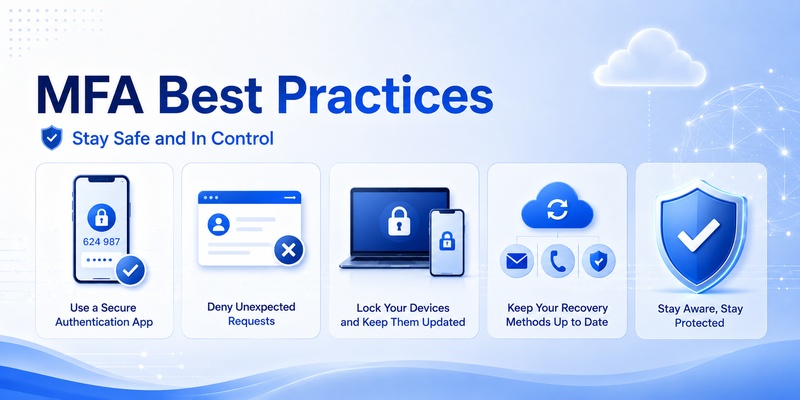
Enabling MFA is only the first part of securing an account. How the authentication method is used also matters.
Never approve unexpected requests
One of the simplest microsoft multi factor authentication rules is to approve only requests you initiated.
If an Authenticator notification appears when you are not trying to sign in, deny it. Repeated unexpected prompts may indicate that another person knows the password or is actively attempting authentication.
Protect the registered phone
A phone used for microsoft multi factor authentication becomes part of the account’s security boundary.
Protect it with:
- A strong device PIN or passcode
- Biometric unlocking when appropriate
- Automatic screen locking
- Current operating-system updates
- Secure device-recovery features
If the phone is lost, remove or replace its authentication registration as soon as possible.
Maintain recovery options
Users should avoid depending on a single device without understanding the account-recovery process.
For business deployments, administrators should establish documented recovery procedures so employees can regain access securely without bypassing MFA controls.
Prefer stronger authentication where appropriate
For higher-risk accounts, consider phishing-resistant approaches rather than relying only on SMS or transferable one-time codes.
Microsoft recommends phishing-resistant methods including passkeys and FIDO2 security keys for stronger authentication scenarios.
As security requirements mature, microsoft multi factor authentication can therefore evolve from basic second-factor verification toward stronger passwordless and phishing-resistant authentication.
📘 Find the Right Guide: Microsoft Authenticator App Not Showing Code: How to Fix It
11. Microsoft MFA for Organizations and Microsoft Entra ID
For organizations, microsoft multi factor authentication is not simply a setting on an individual phone. It can be part of a broader identity and access-management strategy.
Authentication methods
Microsoft Entra ID supports multiple authentication methods that can be used for primary authentication, MFA, passwordless authentication, or account recovery depending on the specific method. Microsoft documents options including Authenticator, passkeys, FIDO2 security keys, Windows Hello for Business, software OATH tokens, Temporary Access Pass, and certificate-based authentication.
Administrators can therefore design microsoft multi factor authentication around the organization’s risk profile rather than forcing every user into an identical method.
Conditional Access
Organizations may combine authentication requirements with Conditional Access policies.
For example, stronger authentication can be required when users access sensitive applications or resources. Microsoft also documents authentication-strength policies that can enforce phishing-resistant methods such as passkeys for selected scenarios.
This makes microsoft multi factor authentication useful as part of a broader Zero Trust approach: access is evaluated according to identity and policy requirements rather than assuming that possession of a password is sufficient.
Plan before deployment
Before rolling MFA out broadly, organizations should consider:
- Which users require MFA
- Which authentication methods are allowed
- Recovery procedures
- Device replacement
- Contractor and guest access
- Administrative accounts
- Help-desk workflows
- Phishing-resistant authentication for sensitive roles
A structured deployment reduces support problems and improves adoption.
The goal of microsoft multi factor authentication should be stronger security without creating unnecessary confusion for users.
12. Frequently Asked Questions About Microsoft MFA
Is Microsoft Authenticator the same as MFA?
No. Microsoft Authenticator is an application that can participate in microsoft multi factor authentication, but MFA is the broader authentication concept.
Authenticator supports MFA notifications and verification codes as well as passwordless and passkey capabilities.
A deployment may also use authentication methods other than Microsoft Authenticator.
Does Microsoft MFA always use a six-digit code?
No. Microsoft multi factor authentication may use a verification code, an Authenticator notification, number matching, a passkey, a security key, or another method allowed by the account and organization.
Therefore, users searching for microsoft authenticator 2fa should not assume that every Microsoft account will display the same code-based workflow.
What is the difference between MFA and 2FA?
2FA normally refers specifically to two authentication factors. MFA is the broader category involving multiple factors.
In many practical Microsoft sign-in scenarios, the terms overlap because a user enters a password and completes one additional factor.
Is there a Microsoft Authenticator app for computers?
The primary Microsoft Authenticator experience is associated with supported mobile devices. A phrase such as authenticator app 2fa microsoft store can therefore create confusion if the user expects a conventional desktop Authenticator workflow.
For Microsoft environments, users should follow the authentication setup method presented by their account or organization rather than downloading an unrelated application simply because it appears in a software store.
Can Microsoft Authenticator generate codes for other websites?
Microsoft Authenticator can generate verification codes for compatible accounts that use supported time-based one-time-password enrollment.
Each service must first be configured through that service’s own 2FA settings. Adding one account to Authenticator does not automatically secure other accounts.
Can I use a manual 2FA key instead of a QR code?
In compatible TOTP scenarios, a service may provide a manual secret key as an alternative to scanning its QR code.
However, not every Microsoft Authenticator enrollment uses a TOTP secret. Microsoft work or school account registration may instead use a Microsoft-specific QR enrollment process, notification registration, passkey, or another method.
Is Microsoft Authenticator MFA phishing-resistant?
It depends on the authentication method.
Traditional verification codes and conventional push MFA do not provide the same phishing resistance as FIDO2-based credentials. Microsoft identifies passkeys in Microsoft Authenticator as a phishing-resistant authentication option.
Therefore, microsoft multi factor authentication using an Authenticator passkey should not be confused with ordinary OTP-based Authenticator verification.
Is MFA worth using for a personal Microsoft account?
For most users, adding another authentication factor offers significantly better protection than depending entirely on a password.
Even a strong password can potentially be exposed through phishing, credential theft, or reuse. Microsoft multi factor authentication adds another requirement before a sign-in can be completed.
13. Conclusion
Microsoft multi factor authentication is one of the most important layers users and organizations can add to Microsoft account security. Instead of treating a password as sufficient proof of identity, MFA introduces another authentication requirement and makes stolen credentials less useful on their own.
Microsoft Authenticator provides several ways to participate in this process. Depending on the account and configuration, users may encounter verification codes, push notifications, number matching, passwordless sign-in, or passkeys. Microsoft also recommends phishing-resistant authentication methods such as FIDO2-based passkeys and security keys for stronger protection.
For personal users, successful microsoft multi factor authentication begins with registering the correct account, understanding authentication prompts, protecting the registered device, and maintaining a recovery method.
For businesses, MFA should be treated as part of a larger identity strategy involving authentication policies, recovery procedures, Conditional Access, and stronger methods for sensitive users.
Whether someone searches for 2fa microsoft authenticator, microsoft authenticator mfa, or simply wants a safer Microsoft sign-in, the fundamental objective is the same: do not let a password remain the only barrier protecting an important account.
When deployed correctly, microsoft multi factor authentication creates a much stronger foundation for protecting Microsoft accounts, Microsoft 365 resources, cloud applications, and organizational identities.
Download Authenticator App
Secure your accounts with fast, reliable two-factor authentication. Download now and protect your login in seconds.
