
Microsoft Authenticator App Not Showing Code: How to Fix It
If the microsoft authenticator app not showing code problem appears, first determine whether that account is supposed to display a rotating TOTP value. Some Microsoft identities are configured for push approval or passwordless sign-in and may not show the six-digit code a third-party TOTP account displays.
A missing tile, incomplete restore, wrong app profile, deleted enrollment, or stale server registration can create a different symptom. Avoid uninstalling or clearing app data until another recovery method is proven.
This guide moves from safe identification through device checks, restore, re-enrollment, organizational policy, and account protection.
1. Confirm Whether the Account Should Display a Code
Identify the method requested by the provider
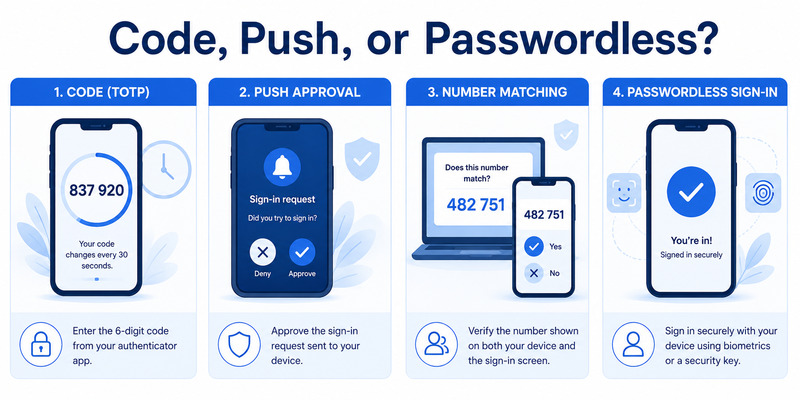
Read the login page exactly. “Enter a code from your authenticator app” normally refers to a rotating TOTP value. “Approve sign-in,” “Enter the number shown,” “Use a passkey,” or “Check your phone” refers to a different authentication method.
When diagnosing microsoft authenticator app not showing code, record the provider, full username, account type, and prompt wording. A valid Authenticator setup can show no code because the service registered only push or passwordless access.
Compare the expected account behavior
Third-party accounts added through “Other account” typically display a six-digit value and countdown. Microsoft personal, work, or school entries can offer verification code, push, passwordless, or combinations controlled by provider settings and organization policy.
| What you see | Likely credential | Correct action |
|---|---|---|
| Six digits with countdown | TOTP | Enter fresh value at provider |
| Approval request | Push MFA | Review context and approve or deny |
| Number-matching screen | Push with context | Match browser number on phone |
| Action required | Restored name, incomplete credential | Sign in or re-register |
| No account tile | Missing local enrollment | Recover access and add method again |
Do not type a push number into a TOTP field or expect a recovery code to appear in Authenticator. Use the provider’s method chooser when available. If only one method is offered and it does not match the app, recovery or administrator help is required.
The initial classification prevents the microsoft authenticator app not showing code symptom from being “fixed” by destructive steps that cannot create a method the server never registered.
Download Authenticator App
Secure your accounts with fast, reliable two-factor authentication. Download now and protect your login in seconds.
2. Find the Correct Account Tile and Profile
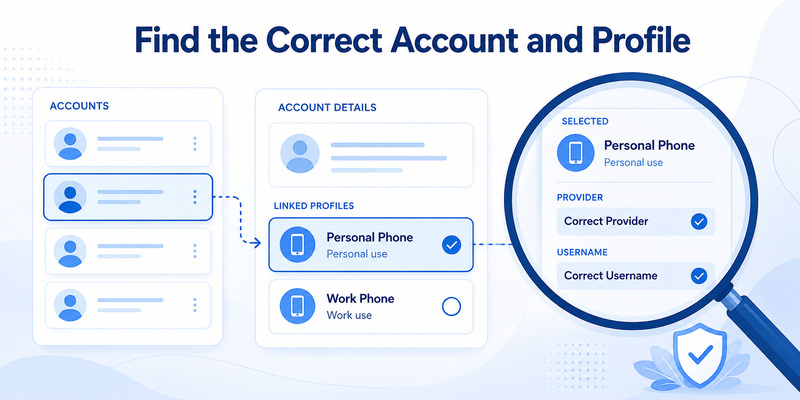
Check every account identity
Open Authenticator and inspect the complete account list. Similar email addresses, guest tenants, duplicate registrations, and renamed tiles can make the expected code seem missing. Expand the entry and compare provider, username, and organization with the login page.
If microsoft authenticator app not showing code affects only one identity, other functioning accounts show that the app itself is probably healthy. Search for the exact username rather than relying on the logo or first line of a label.
Inspect phone profiles and app instances
On managed Android devices, Authenticator may exist in a personal profile and a work profile. Some phones support app cloning, secure folders, or separate user spaces. The credential remains inside the instance where it was enrolled.
Check whether you opened Authenticator from the correct profile. Look for profile badges and ask the organization whether the app must run inside or outside its managed container. Do not copy secrets between profiles without policy approval.
On iPhone, confirm that you installed the official app under the expected Apple account and did not confuse it with a similarly named authenticator. Use the platform app store history and publisher details. The microsoft authenticator for iphone ios guide covers iOS-specific setup.
Document duplicates before removing them. Test the tile that matches the most recent successful enrollment. Deleting an entry from the phone does not necessarily remove the provider’s registered method and can turn microsoft authenticator app not showing code into a full lockout.
💡 Discover Helpful Guides: Microsoft Authenticator Passwordless Sign-In: Complete Guide
3. Distinguish Codes from Push and Passwordless Sign-In
Recognize push and number matching
Push MFA sends a transaction to the phone over the network. Number matching asks you to reproduce the number displayed by the sign-in page. Neither is the rotating TOTP code shown next to a standard third-party account.
When microsoft authenticator app not showing code appears during a Microsoft sign-in, select “Sign in another way” or “Use a verification code” only if that method is registered. Otherwise, initiate one clean push request and compare the account and number.
Understand passwordless credentials
Passwordless phone sign-in uses a device-bound cryptographic credential protected by the phone lock. A passwordless tile can prompt for number matching, biometric confirmation, or device PIN without exposing a reusable six-digit value.
Passkeys and security keys also do not produce TOTP in Authenticator. They use cryptographic challenge-response. The absence of a code can therefore be an intentional security design rather than a malfunction.
Do not approve an unexpected push while investigating. If a request arrives without a sign-in you started, deny it, change the account password from a trusted device, revoke unfamiliar sessions, and review activity. A missing code and an unsolicited approval may be separate events.
For a broader walkthrough of these sign-in modes, consult how to use microsoft authenticator. Correct method identification resolves many microsoft authenticator app not showing code reports without modifying the account.
4. Fix App, Time, and Display Problems
Refresh the supported environment
Update Microsoft Authenticator and the phone operating system. Restart the app and phone, enable automatic date, time, and time zone, and confirm sufficient storage. Microsoft recommends a current app version and correct device time for reliable authentication.
For microsoft authenticator app not showing code, switch once between Wi-Fi and mobile data if account details or restore state fail to load. TOTP generation itself can work offline after enrollment, but account setup, recovery, push, and certain policy checks need connectivity.
Avoid destructive local resets
Do not clear Authenticator storage, offload app data, uninstall, or remove the account as a first step. Locally stored TOTP credentials may be deleted. A later reinstall can show an empty app unless a compatible backup exists.
Check App Lock and unlock Authenticator fully. Confirm the account tile is not collapsed, hidden below a long list, or located in another app profile. Increase display size only temporarily if interface controls are clipped, and return it to the preferred setting after testing.
If codes appear but fail, the issue is no longer missing display. Wait for a fresh value, select the correct tile, include leading zeroes, and confirm automatic time. A stale or mismatched server secret requires re-enrollment rather than repeated code entry.
Record the app version, phone OS, account type, and exact visible state. This evidence separates microsoft authenticator app not showing code from expired code, rejected code, notification, or policy problems.
5. Restore Missing Codes After a Phone Change
Use only a compatible backup
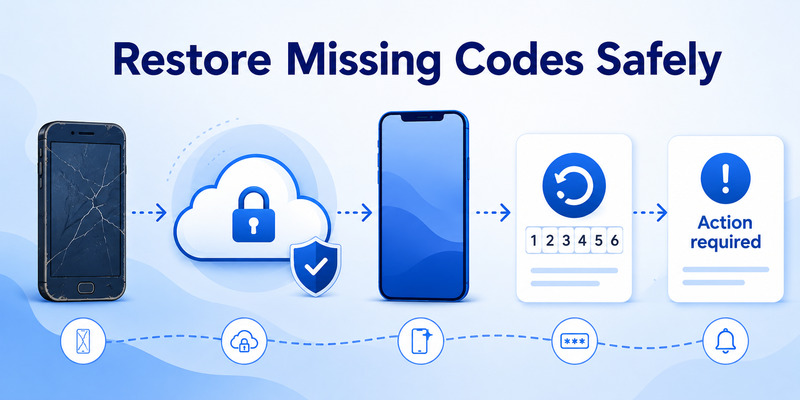
Microsoft supports backup and restore within the same device type: Android to Android or iOS to iOS. Install the official app on the replacement device and use the recovery flow with the same backup identity. Cross-platform restores are not supported.
If microsoft authenticator app not showing code begins after migration, confirm which recovery account or iCloud configuration created the backup. Restoring from the wrong identity can produce an empty or older account list.
Resolve partial restores
Microsoft says third-party TOTP and certain personal Microsoft codes may be available after restore, while work or school accounts and passwordless credentials can restore only the account name. Those entries need sign-in or re-registration and may display Action required.
Keep the old phone until every provider accepts a code or approval from the new one. Compare the restored list with a safe account inventory. Do not erase the old device merely because account names appear on the replacement.
For Android-to-iPhone or iPhone-to-Android, use each provider’s security settings to issue a fresh authenticator enrollment. Scan the new QR directly with the replacement device and verify it before removing the old method. Never reuse an enrollment screenshot.
Follow the microsoft authenticator change phone sequence for platform details. A controlled restore or re-enrollment turns microsoft authenticator app not showing code into a verifiable migration checklist.
6. Re-enroll an Account Without Losing Access
Preserve a fallback first
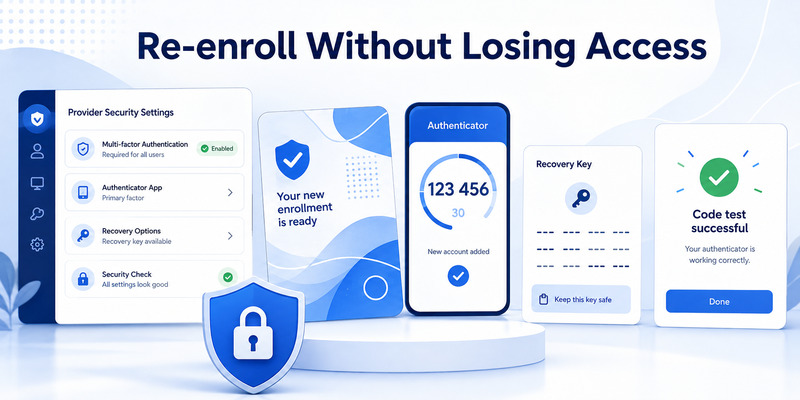
Before removing anything, prove a recovery code, security key, alternate factor, trusted session, recovery email or phone, or administrator-assisted method. If no fallback works, stop and use formal account recovery. Do not gamble the only remaining session.
For microsoft authenticator app not showing code, sign in to the provider’s official security page, add a new authenticator-app method, and let the provider issue a new QR or manual key. Complete the first code verification before considering enrollment successful.
Replace the stale credential in order
Add the new method, test a signed-out login, test the fallback, set the preferred method, remove the old registration, revoke obsolete sessions, and then remove stale tiles. This order keeps the change reversible.
If the provider replaces rather than adds a TOTP method, confirm that fallback recovery works immediately before proceeding. Store newly issued recovery codes securely and invalidate the old set where the provider rotates them.
Never scan another person’s QR or share your QR by message. Anyone with the enrollment secret can generate future codes. If a QR was exposed, cancel that enrollment and issue another one server-side.
After testing, confirm the tile shows the intended provider and username and that a fresh value is accepted. The microsoft authenticator app not showing code issue is resolved only when the provider—not just the app—validates the new credential.
🧭 Explore Guides: Microsoft Authenticator Extension: Safe Browser Guide
7. Troubleshoot Work or School Account Restrictions
Review Security info and policy
Use the organization’s approved Security info portal and inspect the registered methods. A work or school tile can exist without displaying a usable code because the tenant allows only push, passwordless, passkey, or a required authentication strength.
If microsoft authenticator app not showing code affects a managed identity, do not assume TOTP is permitted. Conditional Access, device compliance, location policy, authentication methods policy, or enrollment restrictions can determine the available experience.
Escalate with useful evidence
Capture the exact prompt, timestamp, username, tenant, phone OS, Authenticator version, device compliance state, and network. Do not include live codes, passwords, backup codes, or QR secrets. Contact the published help desk independently.
An administrator can inspect sign-in logs and authentication details, remove a stale registration, require MFA re-registration, or issue a Temporary Access Pass where enabled. Reinstalling the app cannot override tenant policy.
Guest identities may require separate enrollment in each organization. The same email can appear under multiple tenants, each with its own security method and policy. Test each tile against the correct tenant sign-in page.
If an administrator confirms TOTP should be available, re-register through the official QR flow while another method works. If policy intentionally requires push or phishing-resistant authentication, the proper fix for microsoft authenticator app not showing code is to use that approved method rather than force a code.
💡 Discover Helpful Guides: Microsoft Authenticator Passwordless Sign-In: Complete Guide
8. Protect the Account When a Code Disappears
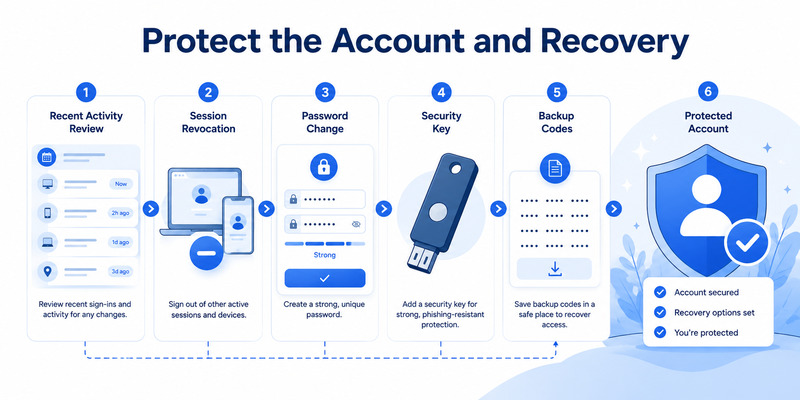
Treat unexplained changes as security signals
A code usually does not vanish because someone knows the password; the secret is stored locally. However, a missing tile combined with changed security information, unfamiliar sessions, unexpected push requests, or recovery-email changes can indicate account compromise or device tampering.
When microsoft authenticator app not showing code appears unexpectedly, review provider security information and recent activity from a trusted device. Change the password, revoke unknown sessions, and remove unauthorized methods when evidence suggests compromise.
Improve resilience after recovery
Keep at least two independent factors, such as Authenticator plus a hardware security key or protected recovery codes. Avoid making the same phone, phone number, and cloud account the only paths back into every service.
Enable supported backup and regularly verify its recovery identity. Maintain an account inventory without secrets. Test a small number of high-value recovery routes periodically and after phone, policy, or organization changes.
Protect the device with encryption, strong screen lock, current updates, App Lock, and remote-locate or erase features. Restrict screenshots and screen sharing while Authenticator is open. Remove obsolete devices and registrations promptly.
These controls do more than solve microsoft authenticator app not showing code. They make a lost phone, failed restore, accidental deletion, or enforced re-registration a controlled recovery event instead of an emergency lockout.
9. Frequently Asked Questions
Why does my Microsoft account show approval but no code?
It may be enrolled for push or passwordless sign-in rather than TOTP. Use the method requested by the official login page. Select another method only if a verification-code credential is already registered.
Why did codes disappear after installing Authenticator on a new phone?
App installation alone does not copy credentials. Restore from a compatible same-platform backup or re-enroll each provider. Work, school, and passwordless accounts often need additional sign-in after restore.
Can I get a deleted code back?
Not from the account name alone. Restore a usable backup or use another provider recovery method to issue a fresh authenticator credential. Microsoft cannot recreate a third-party service’s secret without that service.
Should I reinstall the app when no code appears?
Not until a backup or independent recovery method is proven. Reinstalling can erase local credentials and worsen microsoft authenticator app not showing code. Check account type, tile, profile, restore state, and policy first.
Why does the tile say Action required?
Restore may have recovered only the account name. Open the tile, sign in, complete required verification, and test a real login. A work or school account may require administrator or policy approval.
Can the code work without internet?
Standard TOTP can generate offline after successful enrollment because it uses the stored secret and time. The provider still needs connectivity to validate it, and setup, restore, backup, and push require network access.
10. Final Thoughts
The microsoft authenticator app not showing code symptom has several causes: the account may use push or passwordless, the expected tile may be in another profile, restore may be incomplete, or the TOTP credential may be missing.
Identify the provider’s requested method before changing anything. Update the environment, verify time, inspect every account and profile, and preserve a fallback. Do not clear data or uninstall casually.
After a phone change, use same-platform restore or service-by-service re-enrollment. Treat Action required as an incomplete credential, and test the provider login before deleting the old device or tile.
Managed accounts depend on organization policy. Provide exact evidence to the administrator and use the approved authentication method. A code cannot be forced when the tenant intentionally requires another credential.
For compatible services, compare a reputable Authenticator App by publisher, encrypted storage, backup behavior, export policy, and recovery. Resolve microsoft authenticator app not showing code through verified provider-side access, then strengthen recovery so the next device problem is routine.
Protect your accounts with fast, secure two-factor authentication. Generate verification codes, manage multiple accounts, and keep your sign-ins protected wherever you go.
Download Authenticator App Now
Download Authenticator App
Secure your accounts with fast, reliable two-factor authentication. Download now and protect your login in seconds.
