
Microsoft 2FA Authenticator: Complete Setup, Recovery, and Troubleshooting Guide
Microsoft 2FA Authenticator helps protect your account with an extra verification layer beyond passwords. In this guide, you’ll learn how to set it up, manage sign-ins, recover access when something goes wrong, and troubleshoot common authentication issues step by step.
What Is Microsoft 2FA Authenticator?
Microsoft 2FA Authenticator is a mobile authentication solution that helps protect Microsoft accounts, work or school accounts, and many third-party services with an additional verification step.
Instead of relying only on a password, two-factor authentication asks users to prove their identity through another method. That second method can include an approval notification, a temporary verification code, or another supported authentication option.
Microsoft Authenticator is currently available for Android and iOS. Microsoft states that the official Authenticator app is designed for smartphones rather than PCs or Macs.
For users who enable 2fa microsoft, the app can provide several sign-in methods depending on the account and organization. These include push notifications, time-based one-time passwords, passwordless authentication, and supported passkey experiences.
The traditional microsoft 2fa authenticator workflow is easy to understand. A user enters a username and password, Microsoft requests an additional verification step, and the user either approves a notification or enters a temporary code from the app.
That second step means knowing the password alone may no longer be enough to access the account.
Microsoft Authenticator is also not limited exclusively to Microsoft services. The app can store compatible TOTP accounts from services such as Google and other websites that support standard authenticator applications. Microsoft specifically documents adding other accounts by scanning their authentication QR codes.
For this reason, a microsoft authenticator app for 2fa can become a central place for managing verification codes across several online accounts.
How Does Microsoft 2FA Authenticator Work?
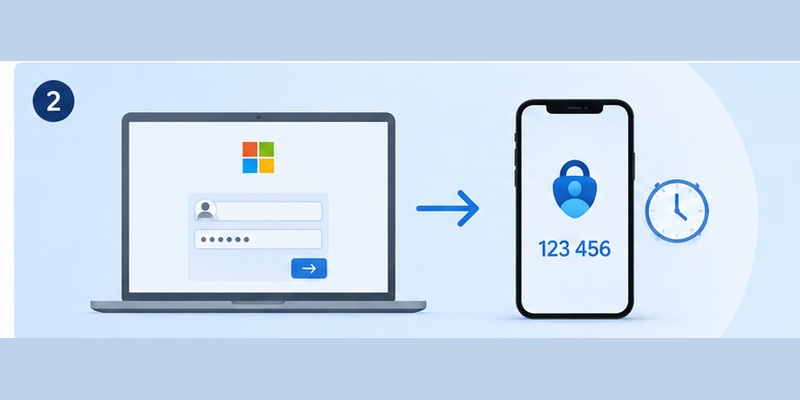
A typical microsoft 2fa authenticator configuration uses either push authentication or a time-based verification code.
With push authentication, you attempt to sign in and receive a request on your registered phone. You review the request and approve it when you recognize the login.
Microsoft Authenticator can also generate OATH verification codes. Microsoft Entra documentation describes Authenticator as a software OATH token capable of generating temporary codes even when the device does not have connectivity.
This makes microsoft authenticator for 2fa useful when you cannot reliably receive text messages or when mobile reception is poor.
A TOTP configuration begins with a secret shared between the service and the authenticator. That secret is commonly transferred by scanning a QR code during setup.
The app then combines the secret with the current time to calculate a temporary verification code. A new code appears periodically, so users cannot simply keep one code indefinitely.
When a website asks for your authentication code, open microsoft 2fa authenticator, find the correct account, and enter the active code.
Push authentication works differently because the app communicates with Microsoft to receive the sign-in request. Consequently, troubleshooting push notifications may require checking internet connectivity and notification permissions, while ordinary TOTP generation can continue without a network connection.
Download Authenticator App
Secure your accounts with fast, reliable two-factor authentication. Download now and protect your login in seconds.
How to Set Up Microsoft Authenticator with a QR Code
The microsoft authenticator qr code is one of the easiest ways to connect an account to Authenticator.
For a personal Microsoft account, sign in to the Security section of your Microsoft account and open the options for managing how you sign in. Microsoft currently instructs users to add a new sign-in or verification method and choose to use an app.
The general setup process is:
- Install Microsoft Authenticator from the official app store.
- Open your Microsoft account security settings.
- Add an authenticator application as a verification method.
- Display the QR code on your computer.
- Open microsoft 2fa authenticator on your phone.
- Tap the option to add an account.
- Choose the appropriate account type.
- Scan the displayed QR code.
- Complete Microsoft’s verification step.
- Test the new authentication method.
For a personal Microsoft account, Microsoft provides an option to scan the code after selecting a personal account in Authenticator. If your camera cannot scan it, Microsoft also provides a manual-code setup path.
Work and school accounts follow a similar process, although the available authentication options may be controlled by the organization’s Microsoft Entra administrator.
Treat the microsoft authenticator qr code as sensitive information during setup. It represents information that can be used to configure an authentication generator for the account. Avoid sharing screenshots of setup QR codes or leaving them publicly accessible.
After configuring microsoft 2fa authenticator, complete a test login before closing your security settings. This lets you confirm the new authentication method works before you depend on it.
💡 Discover Helpful Guides: 2FA Authenticator App: Complete Guide to Setup, Use, Download, and Secure Your Accounts
Why Use Microsoft 2FA Authenticator?
Passwords are important, but passwords can be stolen through phishing, exposed through compromised services, reused across accounts, or accidentally shared.
Microsoft 2FA Authenticator adds another barrier between an attacker and your account.
Imagine that someone discovers your Microsoft account password. If you have configured 2fa microsoft account protection, the password may not be sufficient to complete the login because Microsoft can request a second verification method.
Another benefit is convenience.
Instead of waiting for an SMS message every time you sign in, microsoft 2fa authenticator can generate temporary codes directly on your device. Supported Microsoft accounts may also allow you to approve authentication requests through notifications.
Microsoft Authenticator also supports more than traditional OTP authentication. Microsoft documents support for MFA notifications, verification codes, passwordless sign-in, and passkeys in applicable Microsoft Entra environments.
This makes 2fa microsoft authenticator useful for people who want one app capable of supporting several Microsoft authentication experiences.
For businesses, administrators can also manage which authentication methods employees are permitted to use.
For individuals, the main advantage remains simple: microsoft 2fa authenticator reduces dependence on a password as the only barrier protecting an account.
Microsoft Authenticator for Personal vs Work or School Accounts
Although the same application is used, microsoft 2fa authenticator can behave differently depending on whether you are protecting a personal Microsoft account or a work or school account.
A personal account is typically managed through Microsoft’s consumer account security settings. Users generally control their own authentication methods.
A work or school account may be managed through Microsoft Entra ID. In this situation, an organization’s administrator can determine which authentication methods are available.
For example, an employee may be required to use Microsoft Authenticator notifications, while another organization may allow software TOTP applications.
Microsoft’s current Entra documentation distinguishes Microsoft Authenticator OTP from third-party software OATH tokens, meaning administrators can control the availability of these methods separately.
This distinction becomes important when users ask why microsoft 2fa authenticator works differently across two accounts on the same phone.
It may not be an app problem. One account may simply be governed by different security policies.
For work accounts, always follow the authentication options presented by your organization. If you cannot add an account or an expected option is missing, your IT administrator may need to confirm what is permitted.
💡 Discover Helpful Guides: 2FA Authenticator Chrome: How to Set Up Secure Two-Factor Authentication in Your Browser
How to Move Microsoft Authenticator to a New Phone
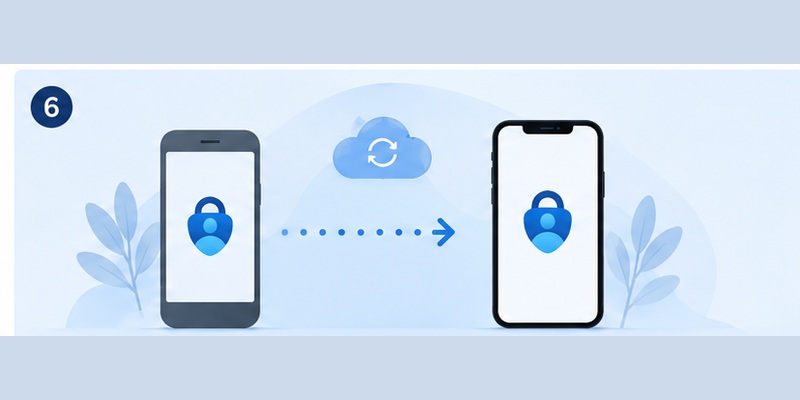
Searching for microsoft authenticator to new phone instructions is common because changing devices can affect authentication access.
The safest approach is to prepare before removing or wiping your old phone.
Microsoft Authenticator supports backup and recovery, but there is an important limitation: Microsoft states that backup and restore operate between the same device type. An iOS backup cannot be restored to Android, and an Android backup cannot be restored to iOS.
Before changing phones:
- Open microsoft 2fa authenticator on your old device.
- Confirm that backup is enabled.
- Make sure your recovery account is correct.
- Keep the old phone available until the migration is complete.
- Install Authenticator on the new phone.
- Use the restore or recovery option.
- Complete any required sign-ins.
- Test important accounts.
- Remove the old device only after testing.
Microsoft also notes that different account types restore differently.
For Microsoft personal accounts that use one-time-password codes, those password codes can be available after restoration. For work or school accounts, Microsoft says only the account name is backed up and users need to sign in again to complete restoration.
Moving microsoft 2fa authenticator is therefore not always identical to copying every account exactly as it appeared on the previous device.
Do not erase your old phone immediately after installing Authenticator on the new one.
Microsoft’s Authenticator FAQ also warns that authentication notifications can sometimes continue going to the old device if it remains the registered destination.
Test each important account first.
📘 Explore More Useful Guides: 2FA Authenticator Free: How to Choose and Use a Free Authenticator App Safely
How to Fix Common Microsoft Authenticator Issues
Most microsoft authenticator issues fall into a few categories: notifications, connectivity, device settings, outdated software, incorrect time, or account registration.
If you are searching my microsoft authenticator is not working, start with the simplest checks.
1. Update Microsoft Authenticator
Use the latest available version of microsoft 2fa authenticator.
Microsoft currently states that it does not support Authenticator versions more than 12 months old, so running an outdated version can cause authentication problems.
2. Check your internet connection
Push authentication requires connectivity.
Try changing from Wi-Fi to mobile data or vice versa. Make sure airplane mode is disabled.
3. Check notifications
If approval prompts never appear, verify that Microsoft Authenticator has permission to send notifications.
Battery optimization or background restrictions can sometimes interfere with notifications as well.
4. Set date and time automatically
Time matters for authentication.
Microsoft recommends checking that the phone’s date and time are correct. If authentication requests constantly appear expired, switching the device clock to automatic time can solve the problem.
5. Check the old phone
If you recently changed devices, a notification might still be going to your previous phone.
Microsoft specifically identifies this scenario as a potential reason users do not receive the expected authentication request on their new device.
6. Re-register the affected account
If only one account fails while other accounts work normally, you may need to remove and re-add the affected authentication method.
Be careful before deleting an account from microsoft 2fa authenticator. Confirm that you have another way to sign in before removing anything.
For company accounts, contact your IT administrator if re-registration is required.
📘 Explore More Useful Guides: How to Use 2FA Authenticator: A Complete Step-by-Step Guide for Better Account Security
Microsoft Authenticator 6-Digit vs 8-Digit Codes
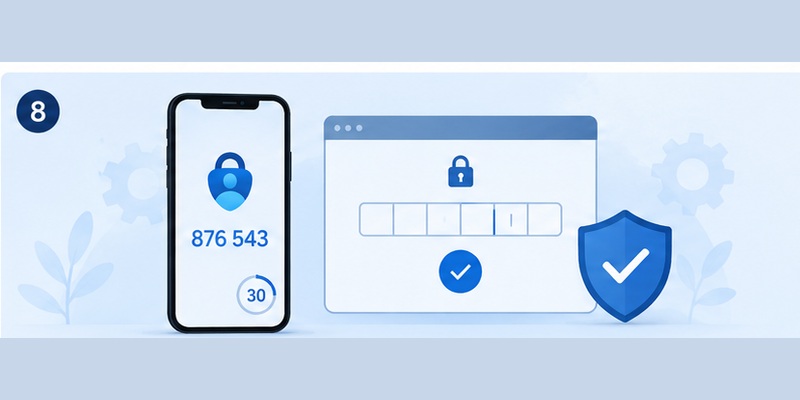
A common search is microsoft authenticator 6 digit code instead of 8.
Seeing a six-digit code in an authenticator does not necessarily mean something is wrong.
Microsoft Authenticator can generate OATH time-based verification codes, and Microsoft Entra uses OATH TOTP as a supported authentication method. Microsoft documentation describes these software OATH tokens as codes generated by Microsoft Authenticator or compatible third-party applications.
If microsoft 2fa authenticator displays a six-digit temporary code but a Microsoft page asks you for a different type or length of code, first confirm that the page is asking for an authenticator code.
Microsoft uses different verification mechanisms in different workflows.
For example, an email verification code, recovery code, device code, sign-in confirmation, and TOTP authentication code are not necessarily interchangeable.
Do not attempt to turn a six-digit Authenticator code into an eight-digit code by adding numbers.
Instead:
- Confirm which verification method the page requests.
- Select another sign-in method if available.
- Make sure you are viewing the correct account in Authenticator.
- Check whether the service expects an Authenticator-generated TOTP.
- Restart the setup process if the account was linked incorrectly.
The important rule is to use the code generated for the authentication method currently requested rather than assuming every Microsoft security code has the same format.
Can You Use Google Authenticator Instead?
Another common question is can i use google authenticator instead of microsoft authenticator.
In some cases, yes.
Microsoft Entra supports standard software OATH TOTP applications in addition to Microsoft Authenticator. Microsoft documentation explicitly states that third-party applications using OATH TOTP can generate compatible codes.
For a personal Microsoft account, the setup interface can also provide an option to configure a different authenticator application.
However, there is an important limitation.
A third-party TOTP application does not necessarily reproduce every feature available through microsoft 2fa authenticator.
Standard TOTP applications primarily generate temporary verification codes. Features such as Microsoft push approvals, organization-specific device registration, passwordless authentication, or certain passkey workflows can require Microsoft’s application.
For work or school accounts, administrators can separately control Microsoft Authenticator and third-party OATH applications.
Therefore, whether you can replace microsoft 2fa authenticator depends on the account and authentication policy.
If you only need a standard TOTP code and the service allows third-party authenticators, another compatible app may work. If your organization specifically requires Microsoft Authenticator, use the authentication method provided by your administrator.
Microsoft Authenticator and Microsoft Edge Add-ons

Users searching for authenticator 2fa client microsoft edge addons may expect Microsoft’s official Authenticator to operate as a browser extension.
That is not how the official Microsoft Authenticator application is currently distributed.
Microsoft states that Authenticator is designed for smartphones and is available for Android and iOS rather than PC or Mac.
Therefore, a browser extension with “Authenticator,” “2FA,” or similar wording in its name should not automatically be assumed to be Microsoft’s official microsoft 2fa authenticator application.
Browser-based TOTP extensions exist from different developers, but they have different security models and data-handling practices.
Before storing authentication secrets inside any browser extension, verify:
- Who developed the extension
- What permissions it requests
- How authentication secrets are stored
- Whether it supports encryption
- Whether it synchronizes data
- Whether the source and update history are trustworthy
For Microsoft accounts, using the official microsoft 2fa authenticator mobile app avoids confusion between Microsoft’s product and unrelated browser extensions.
Backup, Recovery, and Export Options
Backup should be configured before you lose access to your phone.
Some users search for microsoft authenticator export 2fa expecting a simple file containing every account secret.
Microsoft’s official migration workflow centers on Authenticator backup and recovery rather than treating account migration as an unrestricted plain-text export of all authentication secrets.
On Android, Microsoft allows Authenticator users to enable cloud backup and select a personal Microsoft account where the backup is stored. On iOS, Microsoft documents an iCloud-based backup process.
To restore microsoft 2fa authenticator, install the app on the replacement device and choose the backup recovery option before completing normal account sign-ins.
If you are asking how do i recover my microsoft authenticator account, remember that restoring the app does not necessarily complete every account automatically.
Microsoft personal OTP accounts may restore their one-time-password capability, while work and school accounts generally require users to sign in again.
This makes preparation important.
Before replacing a device:
- Enable Authenticator backup.
- Verify the recovery account.
- Keep backup sign-in methods updated.
- Save service-specific recovery codes when offered.
- Confirm access on the new device.
- Remove the old authentication registration afterward.
A reliable recovery strategy makes microsoft 2fa authenticator more practical without weakening the security benefits of two-factor authentication.
📘 Explore More Useful Guides: 2FA Authenticator APK: Safe Download, Installation, and Setup Guide for Android
Security Best Practices for Microsoft 2FA Authenticator
Using microsoft 2fa authenticator is only part of a secure account strategy.
Protect the phone containing the app with a strong device PIN, biometric lock, or another reliable screen-lock method.
Keep both the operating system and Authenticator updated.
Never approve an authentication request simply because it appears on your phone.
An unexpected authentication notification may indicate that someone else is trying to access your account. If you did not initiate the sign-in, deny the request.
Avoid sharing screenshots that display authentication setup QR codes.
If you configure microsoft 2fa authenticator for several accounts, give each entry a clear account name so that you do not accidentally enter a code from the wrong account.
Also keep at least one safe recovery path for important accounts.
That might include recovery codes, a secondary authentication method, an additional registered security key, or another method supported by the service.
For work accounts, follow company policies rather than attempting to bypass a required authentication method.
A general authenticator App is useful for standard OTP authentication, but Microsoft Authenticator can provide additional Microsoft-specific capabilities. Choose the authentication method that matches the service and security requirements of the account.
Finally, remove old devices after moving successfully to a replacement phone. Leaving outdated authentication registrations active can create confusion and unnecessary access paths.
Frequently Asked Questions
Is Microsoft 2FA Authenticator free?
Microsoft Authenticator can be downloaded as a mobile authentication application for Android and iOS. It is used to support Microsoft account authentication and compatible third-party accounts.
Does Microsoft Authenticator work without internet?
TOTP verification codes can be generated locally. Microsoft Entra documentation notes that Authenticator can generate OATH codes even when the device has no connectivity. Push approval requests, however, require network communication.
Can Microsoft Authenticator protect non-Microsoft accounts?
Yes. Microsoft 2FA Authenticator can store compatible third-party accounts that use standard authenticator/TOTP setup.
Microsoft provides instructions for adding other accounts by scanning their QR codes.
What happens if I lose my phone?
Use backup and recovery if you configured them beforehand. You may also need an alternative authentication method or the account provider’s recovery process.
For work or school accounts, contact your organization’s IT administrator if you cannot regain access.
Can I restore an Android Authenticator backup to an iPhone?
No. Microsoft’s current documentation states that Authenticator backup and restore work only between the same device type. Android backups cannot be restored to iOS, and iOS backups cannot be restored to Android.
Why is Microsoft Authenticator not sending notifications?
Check connectivity, notification permissions, battery optimization, app updates, device date and time, and whether notifications are still being sent to an old phone.
These are among Microsoft’s recommended troubleshooting steps.
Should I delete Authenticator from my old phone immediately?
No.
First verify that microsoft 2fa authenticator works correctly on the new device and that you can access important accounts. Only then should you remove old registrations or wipe the previous device.
Can I use several accounts in Microsoft Authenticator?
Yes. Microsoft Authenticator can manage multiple supported accounts, including Microsoft personal accounts, work or school accounts, and compatible third-party services.
Is Microsoft Authenticator better than SMS?
Authenticator-based authentication reduces dependence on SMS and gives users access to app-generated OTP, push authentication, and other supported Microsoft authentication methods.
Which option is available depends on the account and organization.
Does Microsoft 2FA Authenticator work in Microsoft Edge?
You can use Microsoft Edge to sign in to an account that then requests authentication through Authenticator on your phone. However, Microsoft’s official Authenticator itself is a mobile app rather than an official Edge desktop version.
Final Thoughts
Microsoft 2FA Authenticator provides a practical way to add another layer of protection to Microsoft accounts, work or school accounts, and many compatible third-party services.
Its most familiar function is generating temporary authentication codes, but the application can also support Microsoft push notifications, passwordless experiences, and other authentication methods where available.
Setting up microsoft 2fa authenticator is usually straightforward: install the app, open the account’s security settings, display the setup QR code, scan it, and verify the connection.
The areas that deserve the most attention are recovery and device migration.
Before replacing your phone, enable backup, verify your recovery account, keep the old device available, and test authentication thoroughly on the replacement device. Remember that Microsoft currently limits backup restoration to the same device platform.
If microsoft 2fa authenticator stops working, check app updates, connectivity, notifications, battery settings, device time, and old device registrations before removing the account.
Most importantly, treat the authenticator as part of your account security rather than simply another app. Protect your device, never approve unexpected login requests, keep recovery methods secure, and verify authentication prompts before acting on them.
Used correctly, microsoft 2fa authenticator can make everyday account protection significantly easier while reducing the risk of relying on a password alone.
Download Authenticator App
Secure your accounts with fast, reliable two-factor authentication. Download now and protect your login in seconds.
