
2FA Authenticator Chrome: How to Set Up Secure Two-Factor Authentication in Your Browser
Online accounts contain more sensitive information than ever, from private conversations and cloud documents to financial records and work credentials. Passwords alone are no longer enough to protect many of these accounts. That is why two-factor authentication has become an important part of everyday online security.
For users who spend most of their time on a desktop computer, 2fa authenticator chrome can make the verification process faster and more convenient. Instead of reaching for a phone every time a website requests a temporary security code, a compatible browser authenticator may allow you to generate the required one-time password directly from Chrome.
However, convenience should never come at the cost of security. A 2fa authenticator chrome solution stores or processes authentication secrets that can provide access to important accounts. Choosing the right tool, protecting your browser profile, and keeping backup methods available are therefore essential.
This guide explains how 2fa authenticator chrome works, how to set it up, when a browser extension makes sense, how it differs from mobile authenticator apps, and what to do when verification codes stop working.
1. What Is a Chrome 2FA Authenticator?
Two-factor authentication, commonly shortened to 2FA, requires two forms of verification before an account can be accessed. The first factor is usually something you know, such as your password. The second factor can be something you possess, such as your phone, security key, or authenticator.
A 2fa authenticator chrome tool brings part of this second-factor process into the Chrome browser. In many cases, it functions as a 2fa authenticator browser extension that generates time-based one-time passwords, often called TOTP codes.
These codes normally change every 30 seconds. When a website asks for your verification code, you open the extension, find the corresponding account, and enter the temporary number.
A typical 2fa authentication example looks like this:
- You enter your email address and password.
- The website requests an authentication code.
- Your authenticator generates a temporary six-digit code.
- You enter the code.
- The website confirms both factors and allows access.
This workflow means that stealing your password alone may not be enough for an attacker to enter your account.
People searching for a chrome 2fa authenticator are often looking for a way to make this workflow easier on a desktop computer. A browser-based tool can reduce the need to switch continuously between a computer and smartphone.
However, a 2fa authenticator chrome extension should be treated as security-sensitive software. If both your password and authentication secrets are available inside the same compromised browser environment, some of the separation normally provided by two different devices may be reduced.
For that reason, 2fa authenticator chrome is often best suited to users who understand the convenience-versus-security trade-off and protect their Chrome profile carefully.
Download Authenticator App
Secure your accounts with fast, reliable two-factor authentication. Download now and protect your login in seconds.
2. How Two-Factor Authentication Works in Chrome
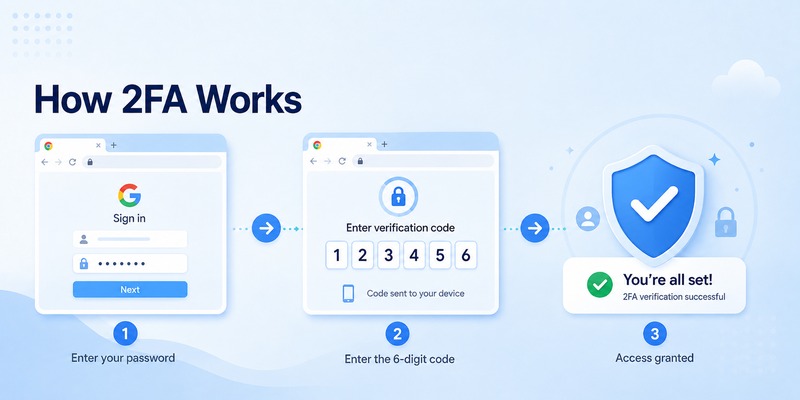
Most authenticator apps and browser tools rely on the TOTP standard. When you enable two-factor authentication for a website, the service creates a secret key. That secret is commonly displayed as a QR code.
Your authenticator stores the secret and combines it with the current time to calculate a temporary verification code. The website performs the same calculation. If your code matches the website’s expected value, authentication succeeds.
A 2fa authenticator chrome tool follows essentially the same principle.
When setting up an account, the website may give you:
- A QR code
- A manual setup key
- Recovery codes
- A confirmation field for your first generated code
After importing the setup key, your 2fa authenticator chrome tool begins generating codes.
The advantage is speed. If you are already working in Chrome, you can access the code without unlocking another device.
This is one reason searches for 2fa auth chrome and browser-based authentication tools have become common among desktop users.
However, the temporary code itself is not the most important piece of information. The original authentication secret is much more sensitive. Anyone who obtains that secret may be able to generate future codes.
Therefore, when evaluating a 2fa authenticator chrome solution, pay attention to how secrets are stored, whether the extension encrypts them, whether synchronization is optional, and what permissions the extension requests.
A well-designed 2fa authenticator extension for chrome should not require unnecessary access to every website you visit. Always review requested permissions before installation.
Google also recommends installing only Chrome extensions you trust because extensions may request access to browser information and site data.
3. How to Choose a Secure 2FA Authenticator Extension for Chrome
Not every authenticator extension provides the same level of privacy or security.
Before installing any 2fa authenticator chrome option, review the developer, permissions, privacy practices, update history, and available security features.
Start with the extension’s permissions. An authenticator normally needs to store account information and display generated codes, but extensive access to browsing history or unrelated website information deserves closer examination.
Next, consider local protection.
A good 2fa authenticator chrome tool may provide features such as:
- Local encryption
- Password or PIN protection
- Automatic locking
- Secure export options
- Backup support
- TOTP compatibility
- Clear recovery instructions
If you search for a 2fa authenticator chrome extension, avoid choosing purely on the number of features. Security software should come from a source you trust, and its permissions should match its actual purpose.
The same principle applies when searching for an authenticator 2fa client chrome extension. Similar names do not guarantee similar security practices.
You should also decide whether synchronization is necessary. Sync can make authentication codes easier to recover across devices, but it also changes where your authentication data exists.
Users who want stronger separation may prefer keeping important 2FA accounts on a dedicated mobile authenticator App or physical security key while using Chrome authentication only for lower-risk services.
A 2fa authenticator extension for chrome can still be extremely convenient for development platforms, productivity tools, social accounts, and services you frequently access from a desktop.
The key is to avoid treating every 2fa authenticator chrome product as interchangeable. Authentication data is highly sensitive, so choosing a trusted tool matters more than choosing the extension with the most attractive interface.
4. How to Set Up a Chrome Authenticator Step by Step
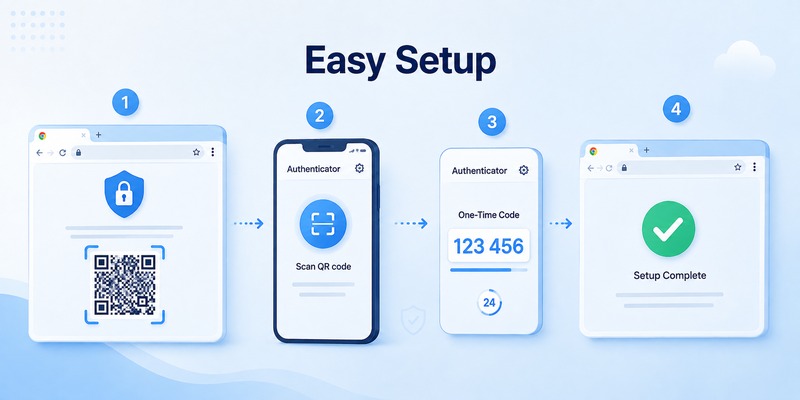
Setting up 2fa authenticator chrome usually takes only a few minutes.
First, install the authenticator you have chosen from a trusted source. Review its developer information and requested permissions before selecting Add to Chrome.
Once installed, pin the extension to the Chrome toolbar if you want quick access.
Next, open the security settings of the account you want to protect. Look for terms such as:
- Two-Factor Authentication
- Two-Step Verification
- Authentication App
- Authenticator
- MFA
- Security Verification
Select the option to use an authenticator app.
The website will usually display a QR code. Depending on your 2fa authenticator chrome extension, you may be able to scan or import the QR code directly. Some tools instead require you to copy the setup key manually.
After adding the account, the authenticator should display a temporary code.
Enter that code on the website to confirm setup.
This basic process answers much of the search intent behind how to use google authenticator 2fa, although Google Authenticator itself is primarily a mobile app rather than Google’s official Chrome authenticator extension. Google states that its Authenticator app generates one-time verification codes for services supporting authenticator-based 2-Step Verification.
After confirming your account, save the recovery codes provided by the website.
Do not store your only recovery copy beside your password and authentication secret.
Once setup is complete, test your 2fa authenticator chrome configuration by signing out and logging back in.
You should be asked for your password followed by the temporary verification code.
When setting up several accounts, rename entries clearly. An authenticator 2fa client chrome tool can quickly become confusing if multiple accounts use similar email addresses or service names.
A properly organized 2fa authenticator chrome setup makes everyday verification significantly faster while reducing the chance of entering codes for the wrong account.
💡 Discover Helpful Guides: Apple Authenticator: Complete Guide to 2FA, Verification Codes & Apple Devices
5. Using Two-Factor Authentication on a Chromebook
Chromebook users can also benefit from authenticator-based security.
The phrase 2fa chromebook can refer to two slightly different situations: protecting the Google Account used to access a Chromebook or generating authenticator codes while browsing on ChromeOS.
For your Google Account, you can enable Google’s 2-Step Verification and select from supported verification methods. Google explains that 2-Step Verification adds another security step when signing in and can work alongside options such as prompts, authenticator codes, security keys, and passkeys.
For third-party websites, a compatible 2fa authenticator chrome extension may work similarly on ChromeOS and desktop Chrome, provided Chrome extensions are supported on the device and your organization has not disabled them.
This can be useful for students, remote workers, developers, and professionals who primarily work from Chromebooks.
For example, you might use 2fa authenticator chrome to access:
- Project management platforms
- Email accounts
- Developer services
- Cloud dashboards
- Social networks
- Productivity applications
If your Chromebook belongs to a school or employer, administrators may restrict extensions. Chrome’s documentation notes that organizations can prevent users from installing certain extensions.
For managed environments, an mfa chrome extension should therefore be selected according to company security policies rather than installed independently.
A personal 2fa authenticator chrome setup may prioritize convenience, while an enterprise device may require stronger authentication controls such as hardware security keys or centrally managed identity systems.
6. Chrome Authenticator vs Google Authenticator
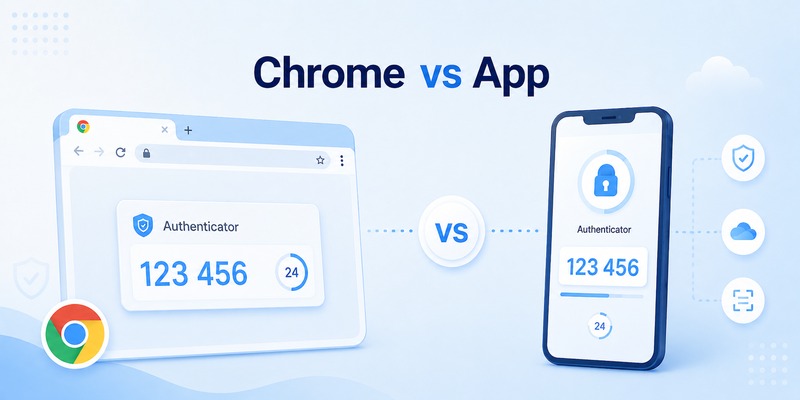
A common misunderstanding is that Google Authenticator and a Chrome authenticator extension are the same product.
They are not necessarily the same.
Google Authenticator is Google’s authenticator application for generating one-time verification codes. Google’s current documentation describes the app for mobile platforms and explains that it can generate codes even without internet or mobile service.
A 2fa authenticator chrome extension is typically a separate browser-based product.
If you search for 2fa code google authenticator, you are generally looking for the temporary TOTP code generated from an account’s authentication secret.
Both mobile authenticators and browser authenticators may support the same TOTP standard, but where the secret is stored makes an important difference.
With Google Authenticator on your phone, your password may be entered on your computer while your authentication code comes from another device.
With 2fa authenticator chrome, both activities can potentially take place on the same computer.
That makes Chrome authentication extremely convenient, but users handling highly sensitive accounts may prefer the stronger separation offered by a phone, security key, or passkey.
An authenticator App is especially useful when you regularly sign in across different computers because your codes remain available on your mobile device.
On the other hand, 2fa authenticator chrome can be ideal when most authentication occurs on a trusted desktop and fast access is more important.
There is no single correct choice for every account.
You might keep banking, administrator, and primary email accounts on a separate device while using 2fa authenticator chrome for lower-risk productivity accounts. This hybrid approach offers convenience without placing every authentication secret in one environment.
💡 Discover Helpful Guides: Microsoft Authenticator Apple Guide for iPhone
7. How to Use Google Authenticator for Facebook
Users frequently ask, can i use google authenticator for facebook?
Yes. Facebook supports third-party authentication apps for two-factor authentication, including Google Authenticator. Meta’s help documentation explains that users can choose an authentication app and enter the code generated by that app to complete setup.
If your question is how do i use google authenticator for facebook, the process begins inside Facebook’s security settings.
Go to your Accounts Center and find Password and security. Select Two-factor authentication, choose the Facebook account you want to protect, and select Authentication app.
Facebook will provide setup information that you add to Google Authenticator.
The app generates a temporary code. Enter that code into Facebook to confirm activation.
After setup, Facebook may request the code when it detects a login from an unfamiliar browser or device.
Users searching use google authenticator for facebook should also save Facebook’s recovery options. Losing access to the authenticator without a backup can make account recovery more difficult.
Where does 2fa authenticator chrome fit into this process?
If a compatible browser authenticator supports the same TOTP configuration, some users may prefer managing codes on their desktop. However, authentication secrets should only be imported into tools you trust.
For a social account that contains private messages, business pages, payment details, or advertising access, maintaining a separate authentication device can provide additional protection.
A 2fa authenticator chrome workflow is convenient, while a mobile authenticator gives you greater separation between your password entry and your verification device.
If you decide to use 2fa authenticator chrome for Facebook or other social platforms, protect the Chrome profile itself with strong device security and never share authentication exports or setup keys.
8. Using MFA in Chrome for Work and Multiple Accounts
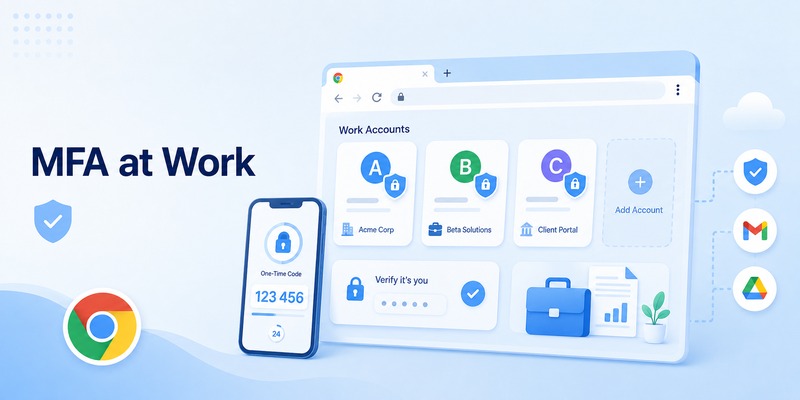
Two-factor authentication and multi-factor authentication are closely related concepts.
2FA specifically requires two authentication factors, while MFA can involve two or more factors. In practice, people often use the terms interchangeably when describing workplace login systems.
Searches for mfa chrome commonly come from users who need faster access to business services through their browser.
A 2fa authenticator chrome extension can simplify workflows when an employee signs into several dashboards during the day. Instead of repeatedly retrieving a phone, temporary codes can be available directly from the browser.
This convenience is especially noticeable for:
- Developers managing multiple environments
- Support teams using several service accounts
- Marketing teams accessing advertising platforms
- Remote workers using cloud applications
- IT administrators managing internal systems
However, workplace security policies should always take priority.
An organization may prohibit storing MFA secrets inside browser extensions or require approved tools only.
Before installing an mfa chrome extension, check whether your company provides an approved authenticator, password manager, passkey solution, or hardware security key.
If a browser authenticator is allowed, organize accounts carefully.
For example:
Company – Admin
Company – Analytics
Company – Support
Personal – Email
Personal – Social
Clear naming makes a 2fa authenticator chrome setup much easier to manage.
You should also remove codes for accounts you no longer use. Old authentication secrets provide no benefit and increase unnecessary exposure.
For teams managing important infrastructure, 2fa authenticator chrome should generally complement a wider security strategy rather than become the only defensive layer. Device encryption, strong passwords, access controls, phishing awareness, backups, and security keys all remain important.
📘 Find the Right Guide: Apple TV 2 Factor Authentication: How to Fix Authentication Required on Apple TV
9. Troubleshooting 2FA Codes That Are Not Working
Authenticator codes occasionally fail even when your password is correct.
If your 2fa authenticator chrome code is rejected, do not immediately disable two-factor authentication. Several common problems can usually be fixed quickly.
Check the current code
TOTP codes expire rapidly. If only a few seconds remain, wait for the next code before submitting it.
Check your device time
Time-based authentication depends on accurate system time. Make sure your computer’s date, time, and time zone are correct and preferably configured automatically.
Verify the account
If you manage many accounts in 2fa authenticator chrome, confirm that you are using the code associated with the correct email address and website.
Check whether 2FA was reset
Changing security settings may invalidate the authentication secret stored in an extension. If the website has issued a new QR code, remove the old authenticator entry and configure the new one.
People searching 2 step verification google authenticator not working may have a similar problem with their mobile authenticator. Google’s documentation notes that current Google Authenticator versions use the operating system’s time settings, making accurate device time important for time-based codes.
Try a recovery method
If the code still does not work, use an official recovery method such as a backup code, recognized device, security key, or account recovery process.
Never send your QR code, authentication secret, backup codes, or generated codes to someone claiming to provide technical support.
If an extension repeatedly produces incorrect codes, export or back up legitimate accounts safely before reinstalling or replacing the 2fa authenticator chrome tool.
A reliable 2fa authenticator chrome configuration should generate codes consistently once account secrets and system time are correct.
📘 Find the Right Guide:2FA Authenticator App: Complete Guide to Setup, Use, Download, and Secure Your Accounts
10. Security Best Practices and FAQs

A browser authenticator can make two-factor authentication easier, but the security of the system depends heavily on how you use it.
Start by protecting your computer.
Use a strong device password, automatic screen locking, operating-system updates, browser updates, and disk encryption when available.
Protect your Chrome profile as carefully as you protect your authentication app.
If your 2fa authenticator chrome extension provides a lock password or encryption option, enable it.
Avoid installing unnecessary browser extensions. Every additional extension increases the amount of software running inside your browser environment.
Most importantly, keep recovery options outside your primary authentication setup.
Is a browser authenticator safe?
A trusted 2fa authenticator browser extension can provide a useful additional security layer compared with password-only authentication. However, storing your password workflow and authentication secrets on the same computer provides less physical separation than using another device.
For highly sensitive accounts, consider a mobile authenticator, passkey, or hardware security key.
Is there an official Google Authenticator Chrome extension?
Google’s Authenticator documentation focuses on its mobile application for generating verification codes. A product advertised as a 2fa authenticator chrome extension should therefore not automatically be assumed to be an official Google product. Always verify the developer before installation.
Can Chrome generate 2FA codes automatically?
Chrome itself should not be assumed to generate every TOTP authentication code automatically. A compatible third-party authenticator extension or another authentication solution is typically required.
If you use a 2fa authenticator chrome product, check exactly what information it stores and what permissions it receives.
Can I use the same authenticator for many accounts?
Yes. TOTP authenticators can generally store multiple account entries.
That makes 2fa authenticator chrome useful for users who regularly manage several services from a desktop computer.
Create clear names for each account so that similar entries do not become confused.
What should I do before changing authenticators?
Before replacing an authenticator, make sure you have at least one working recovery method.
Depending on the service, this might include:
- Recovery codes
- Another authentication app
- A security key
- A recognized device
- Backup authentication methods
Do not delete your existing authenticator until the new method has been tested successfully.
Should I keep my 2FA codes in the same browser as my passwords?
It depends on your security model.
Keeping everything together is convenient, but separating passwords and authentication factors can provide better protection if one environment becomes compromised.
For important accounts, keeping the second factor on another device is usually worth considering.
For less sensitive services, 2fa authenticator chrome may provide a practical balance between protection and everyday usability.
What is the difference between 2FA and MFA?
Two-factor authentication uses exactly two authentication factors. Multi-factor authentication is a broader term that can involve two or more.
Therefore, searches for mfa chrome and browser 2FA tools often describe very similar user needs.
Does a Chrome authenticator work without internet?
TOTP generation itself can work without contacting the website because codes are calculated using a shared secret and the current time. Whether a specific extension requires internet access for synchronization, backups, or other features depends on that product.
Can I use a browser authenticator and mobile authenticator together?
Some services allow multiple authentication methods, while others replace the previous authenticator when you create a new secret.
Never assume both copies will continue working. Test your configuration before removing an existing method.
Conclusion
Two-factor authentication is one of the simplest ways to improve account security beyond a password alone. For people who spend much of their day working in Chrome, 2fa authenticator chrome can make the process significantly faster by keeping temporary authentication codes within easy reach.
The most important decision is not simply whether to use browser authentication, but how securely it is implemented.
Choose trusted software, review extension permissions, protect authentication secrets, keep recovery codes, maintain accurate device time, and separate your most sensitive accounts when stronger protection is required.
Used carefully, 2fa authenticator chrome can provide a practical combination of security and convenience for everyday browsing, cloud services, social accounts, Chromebook workflows, and professional tools.
Download Authenticator App
Secure your accounts with fast, reliable two-factor authentication. Download now and protect your login in seconds.
