
How to Use 2FA Authenticator: A Complete Step-by-Step Guide for Better Account Security
Protecting an online account with only a password is no longer enough for many users. Passwords can be exposed through phishing attacks, reused across websites, leaked in data breaches, or guessed by attackers. Two-factor authentication adds another security checkpoint, making it significantly harder for someone to access your account even if they know your password.
Understanding how to use 2fa authenticator technology is therefore useful for anyone who manages email, social media, financial services, cloud accounts, work tools, or other important online services.
An authenticator app normally generates a temporary verification code on your phone. When you sign in, you enter your password first and then provide this code. Because the code changes frequently, someone who steals only your password normally cannot complete the login.
Learning how to use 2fa authenticator apps may seem technical at first, but setup usually takes only a few steps: enable two-factor authentication, scan a QR code, save your recovery information, and enter the temporary code generated by the app.
This guide explains the entire process, including how authenticator codes work, how to connect an account, how to use popular authenticator apps, and what to do when a verification code fails.
What Is 2FA Authentication and Why Should You Use It?
If you are researching what is 2fa authentication, the basic idea is simple: two-factor authentication requires two separate forms of verification before granting access to an account.
The first factor is usually something you know, such as your password. The second factor may be something you have, such as your smartphone running an authenticator app.
For example, suppose someone obtains your email password through a phishing website. Without 2FA, that password might be enough to access the account. With 2FA enabled, the attacker may also need the temporary code generated on your device.
That is the main reason learning how to use 2fa authenticator apps can improve account security.
A common 2fa authentication example looks like this:
- You enter your username and password.
- The website verifies the password.
- The website requests a six-digit authentication code.
- You open your authenticator app.
- You enter the currently displayed code.
- The website verifies the code and allows access.
This combination of authenticator 2fa and password provides an additional layer of protection compared with password-only login.
Authenticator-based verification can also be preferable to SMS in situations where users want to avoid depending on cellular reception or text messages. Most authenticator apps can generate codes even when the phone has no mobile data connection.
If you want to learn how to use 2fa authenticator correctly, however, remember that enabling it is only part of the process. You should also securely store backup codes and understand how account recovery works.
Download Authenticator App
Secure your accounts with fast, reliable two-factor authentication. Download now and protect your login in seconds.
How Does a 2FA Authenticator Work?
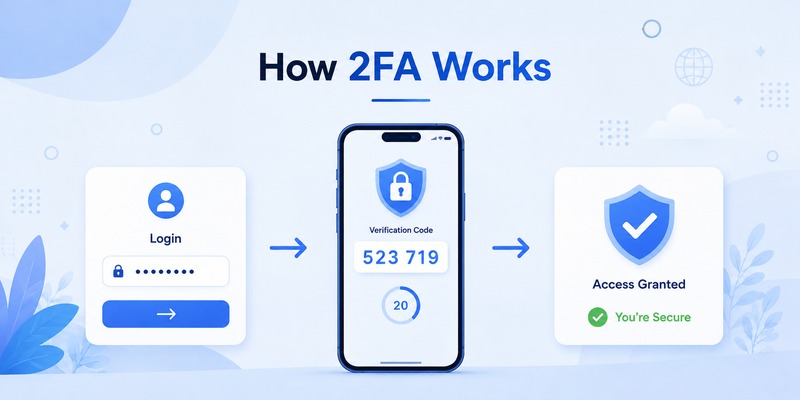
To understand how 2fa authentication works, it helps to know what happens during setup.
When you enable authenticator-based two-factor authentication, the service creates a secret key associated with your account. That secret is usually displayed as a QR code and sometimes as a text string.
Your authenticator app stores the same secret.
The app combines that secret with the current time to calculate a temporary one-time password, commonly called a TOTP. The service performs a similar calculation on its side. If the code you enter matches the expected value, your second factor is accepted.
This explains why the code displayed in an authenticator app normally changes every 30 seconds.
A basic 2fa code example might look like:
482 193
A few seconds later, the app might display:
751 604
The exact numbers are constantly changing.
When learning how to use 2fa authenticator, it is important to understand that the temporary number itself is not the most sensitive part of the setup. The secret used to generate future codes is much more important.
This secret may appear as a 2fa authenticator key when manual setup is available. Anyone who obtains that key could potentially generate valid codes, so it should not be casually shared or stored in an insecure location.
Because both the website and your authenticator know the secret, your phone does not normally need to contact the website each time a code is generated.
This also means you can often use an authenticator App while your device is offline.
How to Use 2FA Authenticator: Step-by-Step Setup
The exact interface varies between services, but the overall process for how to use 2fa authenticator is similar across most websites and apps.
First, download a reputable authenticator application. Popular options include Google Authenticator, Microsoft Authenticator, 2FAS, and other established authenticator applications.
Next, sign in to the account you want to protect and open its Security, Login, Privacy, or Account Settings section.
Look for an option called Two-Factor Authentication, Two-Step Verification, Multi-Factor Authentication, 2FA, or MFA.
Select the option to use an authenticator application rather than SMS when the service gives you a choice.
The website will normally display a QR code.
Open your authenticator app and choose the option to add a new account. Depending on the application, the button may appear as a plus icon, Add Account, Scan QR Code, or a similar command.
Scan the QR code displayed by the website.
Your authenticator should immediately create a new entry and begin displaying temporary verification codes.
Return to the website and enter the current code from the authenticator.
Once the website confirms it, 2FA is enabled.
That is the fundamental process behind how to use 2fa authenticator apps.
To activate 2fa via authenticator app safely, do not close the setup screen until you have completed verification. If the website provides recovery codes, download or copy them and store them somewhere secure.
Recovery codes are particularly important because losing your phone could otherwise make accessing the account much more difficult.
Users wondering how to get 2fa authentication code after setup simply need to open the authenticator application and find the entry corresponding to the account they are signing into.
How to Scan a 2FA Authenticator QR Code
QR-based setup is one of the easiest parts of learning how to use 2fa authenticator applications.
After choosing authenticator-based 2FA in your account security settings, the website normally presents a square QR image. This 2fa authenticator qr code contains the information your app needs to configure code generation.
Open the authenticator app and select the option to add an account.
Choose Scan QR Code.
Allow camera access if your device asks for permission.
Point your phone camera at the QR code displayed on your computer or another device.
The account should appear in your authenticator almost immediately.
If you are setting up 2FA entirely on one smartphone, scanning a QR code shown on the same screen can be more difficult. Some services provide a manual setup key as an alternative.
Select the manual-entry option inside the authenticator and type the secret exactly as provided.
After adding the account, look for the six-digit code and enter it into the website to confirm setup.
One important rule when learning how to use 2fa authenticator is to treat setup QR codes as sensitive information.
Do not post screenshots of them online. Do not send them through unsecured messaging services. Do not leave the setup page open on a shared computer.
Someone who captures the original QR information could potentially add your account to another authenticator and generate the same temporary codes.
Once setup is confirmed, leave the security page and test your login if possible.
How to Enter and Use a 2FA Authentication Code

Once setup is complete, everyday use is straightforward.
Suppose you sign in from a new computer.
Enter your username or email address.
Enter your password.
The service then displays a verification screen requesting a security code.
Open the authenticator app on your phone.
Find the correct account.
Enter the six-digit code currently displayed.
That is the core workflow for how to use 2fa authenticator during a normal login.
Because codes expire quickly, enter the number before the countdown ends. If it changes while you are typing, use the newly generated code.
Users sometimes search for an authenticator 2fa code because they expect the website itself to send one. With authenticator-based authentication, however, the code is usually generated directly inside the authenticator application rather than delivered by email or text message.
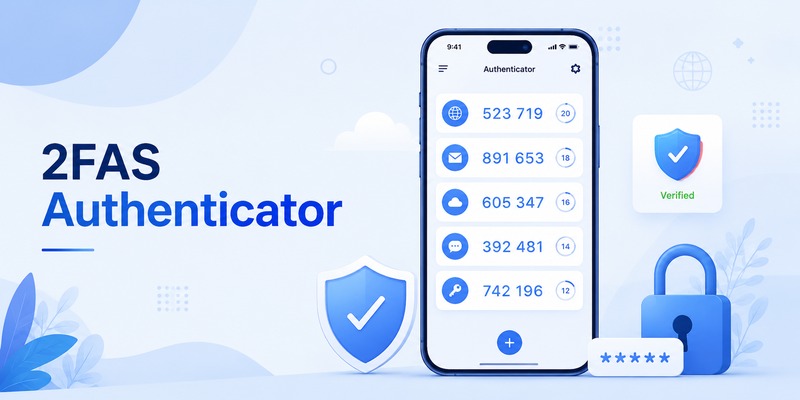
For instance, a 2fa code google authenticator entry may show a six-digit number with a circular countdown indicator beside it. When the timer ends, Google Authenticator generates another code automatically.
The principle is similar across most authenticator applications.
Once you understand this process, how to use 2fa authenticator becomes very simple: password first, temporary authenticator code second.
You normally do not need to copy any secret keys during regular logins. Those are used primarily during initial setup or account migration.
How to Use 2FA Authenticator With Popular Accounts
The exact security menus vary by platform, but the basic method for how to use 2fa authenticator remains consistent.
Users searching for how to use two factor authentication on facebook should begin in Facebook’s account security settings and locate the two-factor authentication controls.
Choose an authentication app when offered.
Facebook will display setup information that can be scanned by your authenticator.
Add the account, enter the generated code back into Facebook, and complete the confirmation process.
Afterward, Facebook may request an authenticator code when it detects a login requiring additional verification.
The process for how to use two factor authentication on instagram is similar.
Open Instagram’s account security or two-factor authentication settings, select an authentication app, connect the account to your authenticator, and verify the temporary code.
Make sure you also review the backup or recovery methods Instagram provides.
Gmail and Google Account
People researching how to use 2 factor authentication gmail are actually configuring two-step verification for their Google Account.
After enabling two-step verification, choose the authenticator option where available, scan the displayed code, and verify the generated number.
Once configured, learning how to use 2fa authenticator for Gmail is no different from using it elsewhere: sign in with your password and provide the authenticator code when requested.
X and Other Platforms
Some users encounter searches such as x 2fa code when signing into X or configuring additional account protection. Where authenticator-based authentication is supported, the same principle applies: connect the account using its security settings and enter the temporary code generated by your authenticator.
Menu names can change, so rely on the platform’s current Security or Authentication section rather than expecting every service to use exactly the same labels.
How to Use Google Authenticator and Microsoft Authenticator

Two common questions are how to use google authenticator 2fa and how to configure Microsoft’s authenticator application.
Google Authenticator follows the standard TOTP process.
Open the app and add an account by scanning the QR code supplied by the website you want to secure. Once added, Google Authenticator displays a rotating verification code.
When the website requests two-factor verification, open Google Authenticator and enter the code corresponding to that account.
Understanding how to use 2fa authenticator with Google Authenticator therefore requires no special workflow beyond the standard setup process.
Microsoft Authenticator can also generate verification codes for many services.
To set up 2fa microsoft authenticator, install the application, choose the appropriate account type or QR-code option, and scan the setup QR code provided by the service.
For some Microsoft accounts or workplace environments, Microsoft Authenticator may also support push-based approval, passwordless login, or additional organization-specific verification methods.
If your organization uses MFA, the workflow for how to use mfa authenticator app may therefore vary slightly. You might receive a notification asking you to approve or deny a sign-in instead of manually entering a six-digit code.
Regardless of the interface, how to use 2fa authenticator still follows the same security idea: authentication requires another proof in addition to your password.
Never approve a sign-in notification you did not initiate.
Unexpected approval prompts can indicate that someone else is attempting to access your account.
How to Use 2FAS Authenticator
2FAS is another authenticator application designed for managing two-factor authentication codes.
People searching for how to use 2fas authenticator can follow the standard setup workflow used by most TOTP apps.
Install 2FAS on your phone.
Open the security settings of the account you want to protect.
Enable two-factor authentication and choose an authenticator application.
When a QR code appears, open 2FAS and add a new service.
Scan the QR code.
2FAS should create an entry containing a temporary code.
Enter that code into the website to complete activation.
This is also essentially the answer to how to use 2fas authenticator app for everyday sign-ins.
When a website requests a verification code, open 2FAS, locate the correct account, and enter the temporary number.
Users learning how to use 2fa authenticator should avoid assuming that an account is permanently linked to one particular brand of authenticator. Many websites use standard TOTP technology, meaning several compatible authenticator apps can generate the required codes after proper setup.
However, switching authenticator apps should be done carefully.
Do not delete the old authenticator entry until you have confirmed that the new application works. If necessary, disable and re-enable authenticator-based 2FA through the account’s official security settings.
What to Do If Your 2FA Code Does Not Work
Even after you understand how to use 2fa authenticator, you may occasionally encounter an invalid-code message.
The first thing to check is the timer.
Authenticator codes are temporary. If a code is almost expired, wait for the next one and enter it immediately.
Next, make sure you are using the correct account entry.
Someone with several Google, Microsoft, Facebook, or work accounts may have multiple similar entries inside the authenticator.
Another common issue is incorrect device time.
TOTP authentication depends on time synchronization. If your phone’s clock is significantly incorrect, the generated code may not match the server’s expected value.
Enable automatic date and time synchronization on your device and try again.
You should also make sure you have not accidentally scanned an old setup QR code.
If you disabled and re-enabled 2FA, a previously saved authenticator entry may no longer be valid. Delete the outdated entry only after confirming which configuration is active.
When troubleshooting how to use 2fa authenticator, avoid repeatedly guessing codes or changing settings without understanding which account entry belongs to which service.
If no code works, use an official recovery option such as:
- Backup codes
- A trusted device
- An alternative verification method
- Account recovery
- The service’s official support process
Never give your authenticator code to someone claiming they need it to fix your account.
A genuine support process should not require you to tell another person the temporary code currently protecting your login.
How to Recover Your Account If You Lose Your Authenticator
Account recovery is one of the most important topics to understand when learning how to use 2fa authenticator safely.
Your authenticator improves security, but losing access to it can create problems if you have no alternative recovery method.
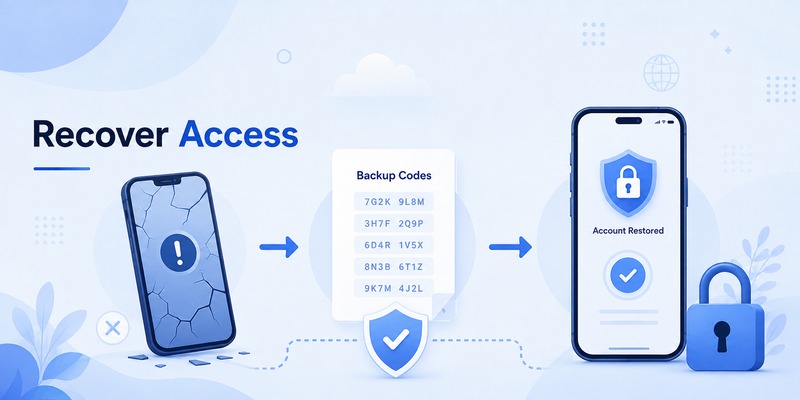
During initial setup, many services provide one-time backup codes. Store these somewhere separate from your phone.
For example, you might keep them in a secure password manager or another protected location that you can access if your phone is lost.
Some authenticator applications also provide backup or synchronization features. Review exactly how your chosen app handles transfers, backups, and account restoration before depending on those features.
If you still have access to your old phone when switching devices, migrate your authenticator accounts before wiping the device.
After the transfer, test important accounts on the new phone.
If the old phone has already been lost, start with the service’s official account recovery workflow.
You may be able to verify your identity using a trusted device, backup code, security key, recovery email, or another previously configured method.
Knowing how to use 2fa authenticator therefore includes planning for both normal logins and emergencies.
Do not treat recovery codes as unimportant simply because you do not need them today. They can become critical if your phone is damaged, stolen, reset, or replaced.
Best Practices for Using 2FA Authenticator Securely
Once you understand how to use 2fa authenticator, a few security habits can make the protection significantly stronger.
First, secure the device running your authenticator with a strong PIN, password, fingerprint, or face authentication.
Second, protect your email account carefully. Email is often used to recover other online accounts, making it one of the most important accounts to secure with 2FA.
Third, save recovery codes before you need them.
Fourth, never share temporary authentication codes.
Attackers sometimes create fake login pages that request both your password and your current 2FA code. A temporary authenticator code can still be stolen through phishing if you enter it into a malicious website.
Always verify the website address before entering sensitive information.
Another useful habit when learning how to use 2fa authenticator is keeping account names organized inside the app. If you maintain multiple accounts for the same service, use clear labels so you do not accidentally use the wrong code.
Avoid photographing QR codes or storing setup secrets in an unprotected photo gallery.
Remember that a 2fa authenticator key can be more sensitive than an individual six-digit code because it may allow future codes to be generated.
You should also periodically review the security settings of important accounts.
Remove unknown devices, check recent login activity, update weak passwords, and verify that your recovery information is still current.
Finally, 2FA should complement good password security rather than replace it.
Use unique passwords for important accounts and consider a reputable password manager instead of reusing the same password everywhere.
Frequently Asked Questions About 2FA Authenticator
How do I use a 2FA authenticator for the first time?
To learn how to use 2fa authenticator for the first time, install an authenticator app, enable two-factor authentication in the account you want to protect, scan the setup QR code, and enter the temporary code displayed by the app.
Once verification succeeds, save your recovery codes.
Where do I find my 2FA code?
Open the authenticator application connected to the account.
The current six-digit number displayed beside the account is typically the code you need. This is the simplest answer for users searching how to get 2fa authentication code after setup.
Does the authenticator need internet access?
Many TOTP authenticator apps do not require internet access to generate normal verification codes because the codes are calculated locally using a secret and the current time.
Some additional features, such as cloud backup or push approval, may require connectivity.
Why does my 2FA code keep changing?
Changing codes are an intentional security feature.
Most TOTP codes remain valid for a short window before the application calculates a new one. Once you understand how to use 2fa authenticator, the rotating timer becomes part of the normal login process.
Can I use one authenticator for several accounts?
Yes. A single authenticator application can generally hold entries for multiple compatible services.
You might have separate codes for Google, Microsoft, Instagram, Facebook, cloud services, and work accounts within the same app.
Can I use the same 2FA code twice?
Normally, you should use the currently displayed code when prompted. Because authenticator codes are time-based and short-lived, an older code will quickly become invalid.
Is an authenticator safer than a password alone?
Yes, because an attacker who obtains only your password still needs the second authentication factor.
However, understanding how to use 2fa authenticator safely also means protecting yourself against phishing and securing your recovery methods.
Can someone steal an authenticator code?
Yes.
A phishing website can trick someone into entering a valid temporary code. Malware or an attacker who compromises your device may also create security risks.
Never share verification codes with another person.
What happens if I uninstall my authenticator app?
Uninstalling the application does not automatically disable two-factor authentication on your online accounts.
If your authenticator data is not backed up or transferred, you could lose access to the codes required for login.
Always prepare a recovery or migration method before deleting the app.
Should I keep my backup codes?
Absolutely.
Backup codes are designed for situations where you cannot access your regular authentication method. Store them securely and separately from the device running your authenticator.
Final Thoughts
Learning how to use 2fa authenticator is one of the simplest ways to add an important extra layer of protection to online accounts.
The setup process usually takes only a few minutes. Enable two-factor authentication in the account’s security settings, select an authenticator application, scan the QR code, enter the generated verification code, and securely store any recovery information.
After setup, how to use 2fa authenticator becomes part of a simple login routine: enter your password, open the authenticator, and provide the temporary code when requested.
The most important step is not merely activating 2FA but using it responsibly. Protect your authenticator device, never share verification codes, keep recovery codes secure, and remain alert to phishing attempts.
Whether you use Google Authenticator, Microsoft Authenticator, 2FAS, or another compatible solution, the core principle remains the same.
Once you understand how to use 2fa authenticator, you can apply that knowledge across many different online services and make unauthorized account access considerably more difficult.
Download Authenticator App
Secure your accounts with fast, reliable two-factor authentication. Download now and protect your login in seconds.
