
Microsoft Authenticator OTP: Setup, Codes & Troubleshooting
A microsoft authenticator otp is a temporary verification code generated by Microsoft Authenticator and used as an additional security step when signing in to a supported account. Instead of relying only on a password, a service can require a one-time password that changes automatically and is difficult to reuse after it expires.
Microsoft describes Authenticator as a free application that can be used with personal Microsoft accounts, work or school accounts, and other compatible services. One of its supported sign-in methods is a one-time password code used for two-step verification or multi-factor authentication.
For most users, microsoft authenticator otp appears as a short numerical verification code associated with a particular account inside the application. When a website or organization asks for a verification code, you open Microsoft Authenticator, locate the correct account, and enter its current code.
The system is useful because Microsoft states that verification codes can be generated without an internet connection or mobile data. Push-notification approvals, by contrast, do require connectivity.
However, microsoft authenticator otp can be confusing when an account is configured only for push notifications, when an organization’s authentication policy disables OTP, or when users select the wrong verification method.
This guide focuses specifically on how OTP works in Microsoft Authenticator, how to set it up, how administrators control it, and what to check when a one-time password is missing or rejected.
1. What Is Microsoft Authenticator OTP?
A microsoft authenticator otp is a one-time password generated inside Microsoft Authenticator for an account that has been configured to use verification codes.
Microsoft lists one-time password codes as one of the ways Authenticator can be used for account sign-in. Using such a code adds another verification step beyond the account password.
OTP means one-time password
OTP stands for “one-time password.”
Unlike your normal account password, a microsoft authenticator otp is temporary. The code changes periodically, so you should use the value currently shown in the application rather than saving an old code for later.
Microsoft’s Entra documentation describes the Authenticator app as generating a new OATH verification code every 30 seconds in relevant MFA configurations.
The phrase microsoft authenticator one time password therefore refers to a short-lived security credential rather than your permanent Microsoft password.
Is OTP the same as push approval?
No.
Microsoft Authenticator supports more than one authentication experience.
Depending on the account and organization, you might:
- Enter an OTP code.
- Approve a sign-in notification.
- Use passwordless authentication.
- Verify another sign-in method.
Microsoft explains that verification codes can work without connectivity, while responding to sign-in notifications requires internet access.
That distinction matters because otp microsoft authenticator should not be confused with simply tapping Approve on a push notification.
Download Authenticator App
Secure your accounts with fast, reliable two-factor authentication. Download now and protect your login in seconds.
2. How Does Microsoft Authenticator OTP Work?
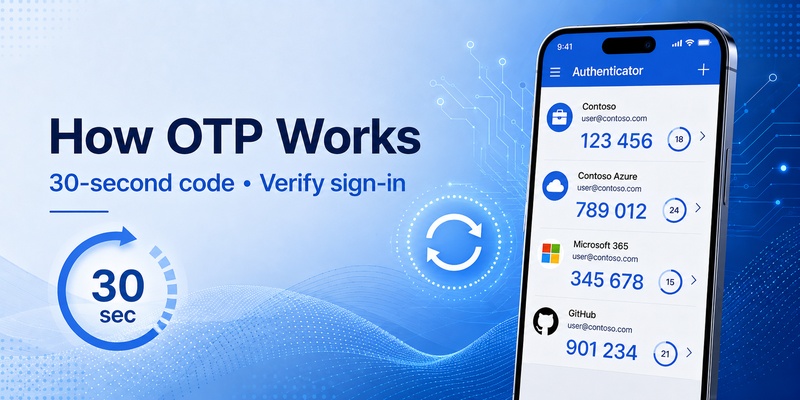
After an account is properly configured, microsoft authenticator otp can generate a temporary code based on the authentication information registered for that account.
The code changes automatically
You do not normally request a new SMS every time you need a microsoft authenticator otp.
Instead, the Authenticator application continuously displays the current verification value.
Microsoft documents OATH verification codes in Authenticator as refreshing periodically, with relevant Microsoft Entra documentation specifying a new code every 30 seconds.
A typical sign-in looks like this:
- Open the website or application.
- Enter your normal account credentials.
- Choose or receive a request for a verification code.
- Open Microsoft Authenticator.
- Locate the correct account.
- Enter the current microsoft authenticator otp.
- Complete sign-in.
Each account has its own code
Microsoft Authenticator can manage multiple accounts, including Microsoft personal accounts, work or school accounts, and compatible non-Microsoft accounts such as Amazon, Facebook, Instagram, and Google.
Therefore, the one time password code microsoft authenticator displays for one account is not automatically valid for another.
If you have several entries in the application, always verify the account name before copying the code.
Why the code expires
Short-lived verification codes reduce the usefulness of a code that has been seen or copied by someone else.
Once a displayed microsoft authenticator otp expires, a new code replaces it.
That does not mean your account setup has changed. It is normal behavior for time-based authentication.
🛠️ Learn with Step-by-Step Guides: Microsoft Authenticator: Complete Setup, Login, Backup & Troubleshooting Guide
3. How to Set Up Microsoft Authenticator OTP
Before microsoft authenticator otp can work, the account must be registered with Microsoft Authenticator or another compatible authentication configuration.
Microsoft’s current support guidance describes adding personal, work or school, and non-Microsoft accounts to the application.
Install Microsoft Authenticator
Download the official Microsoft Authenticator application for your supported mobile device.
Microsoft currently describes Authenticator as a free application for signing in to personal, work, school, and other accounts.
Open the authenticator app and prepare to add the account you want to protect.
Start from the account security settings
For many services, setup begins on the website rather than inside Authenticator.
Look for settings such as:
- Security
- Two-step verification
- Multi-factor authentication
- Two-factor authentication
- Authenticator app
- Verification code
The service may provide a QR code.
Use Microsoft Authenticator to scan that QR code and complete the registration process.
Confirm the first code
After adding the account, the service may ask you to enter a microsoft authenticator otp to verify that the configuration works.
Find the new account entry, read the current code, and enter it on the setup page.
Do not assume that seeing an account inside Authenticator means setup is complete. Finish any verification step required by the service.
For work or school accounts, your organization’s Microsoft Entra authentication policy can also determine which methods you are permitted to use.
💡 Discover Helpful Guides: Microsoft Multi Factor Authentication: Complete MFA Guide
4. How to Find a One-Time Password Code
Once registration is complete, finding a microsoft authenticator otp is normally simple.
Open the correct account entry
Launch Microsoft Authenticator and locate the account requested by the login page.
Depending on how that account was configured, you may see a section identified as a one-time password or verification code.
The microsoft authenticator one time password code is the temporary number associated with that entry.
Use the current value
If the code is about to refresh, consider waiting for the next microsoft authenticator otp before entering it.
This gives you more time to switch back to the sign-in screen and submit the number.
Do not save an old OTP in a note and expect it to continue working later.
Make sure the login screen actually wants OTP
A common source of confusion is entering an OTP into a prompt that is asking for something else.
Microsoft Authenticator can support push approvals, passwordless authentication, and one-time password codes.
Read the prompt carefully.
If it asks for a verification code from your app, use the current microsoft authenticator otp.
If it asks you to approve a notification, complete the notification-based flow instead.
5. How to Use Microsoft Authenticator OTP to Sign In
Using microsoft authenticator otp during login usually happens after the normal credential step.
Enter your username and password
Begin by signing in normally.
If the account has MFA or two-step verification configured, the service may then ask you for another form of authentication.
Select the verification-code option when available.
Open Microsoft Authenticator
Locate the appropriate account in the application and read the active microsoft authenticator otp.
Enter that code exactly as shown.
Microsoft’s support documentation explains that Authenticator can be used during two-step verification or multi-factor authentication and that users may enter a code shown in the application during sign-in.
Never use a code from another account
If Authenticator contains multiple accounts, each may display its own OTP.
The one time password code microsoft authenticator generates for your work account should not be assumed to work for a personal account, even if both appear in the same app.
Check:
- Account name
- Username or email
- Organization
- Service requesting verification
Only then enter the microsoft authenticator otp.
🗺️ Browse How-To Guides: Microsoft Authenticator: Complete Setup, Login, Backup & Troubleshooting Guide
6. What Does “Allow Use of Microsoft Authenticator OTP” Mean?
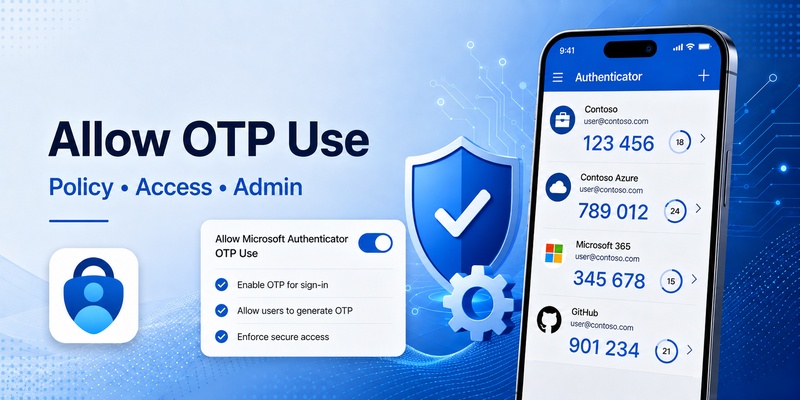
The phrase allow use of microsoft authenticator otp is mainly relevant to administrators managing authentication methods in Microsoft Entra ID.
It is not simply a switch inside the normal consumer Authenticator interface.
An organization can control OTP availability
Microsoft’s Entra documentation includes a Microsoft Authenticator policy control called “Allow use of Microsoft Authenticator OTP.” Microsoft explains that OTP use from Microsoft Authenticator is governed through this setting in the Microsoft Authenticator section of the Authentication methods policy.
If an organization is migrating from legacy MFA policies and previously allowed verification codes from mobile apps or hardware tokens, Microsoft instructs administrators to set allow use of microsoft authenticator otp to Yes when configuring the newer policy.
Push notifications and OTP are different controls
An organization may allow Microsoft Authenticator for push or passwordless sign-in while handling OTP availability separately.
This means an employee can have Microsoft Authenticator installed and registered but still not see or be allowed to use the specific microsoft authenticator otp method expected in another environment.
Administrators should review the Authentication methods policy rather than assuming every Authenticator registration automatically permits every authentication mode.
Third-party OATH apps are also separate
Microsoft’s documentation distinguishes OTP generated by Microsoft Authenticator from third-party software OATH tokens and hardware OATH tokens.
Therefore, allow use of microsoft authenticator otp should not be interpreted as automatically enabling every third-party authenticator application.
🛠️ Learn with Step-by-Step Guides: SMS vs Authenticator App: Which Is More Secure for Two-Factor Authentication?
7. Why Is Microsoft Authenticator OTP Not Showing?
Sometimes users expect a microsoft authenticator otp but only see a push-notification option or another account experience.
There are several possible explanations.
The account may not be configured for OTP
Microsoft Authenticator supports multiple sign-in methods.
If the account was registered only for notification-based or passwordless authentication, the interface may not provide the OTP you expected.
For managed accounts, the organization’s authentication policy can determine whether OTP from Microsoft Authenticator is permitted.
The account may need to be registered again
If the configuration was interrupted, deleted, or changed, the old account entry may not contain the correct OTP configuration.
Use the official account security setup process again instead of trying random codes.
For work and school accounts, contact your organization’s IT administrator if you cannot complete the registration yourself.
You may be looking at the wrong account
If you manage several entries, make sure the account requesting verification matches the entry you are viewing.
Microsoft Authenticator supports many accounts simultaneously.
A missing microsoft authenticator otp may simply mean the relevant account is not the one currently open.
🛠️ Learn with Step-by-Step Guides: Microsoft Authenticator Passkeys: Setup, Login, Phone Transfer, and Troubleshooting Guide
8. How to Fix a Microsoft Authenticator OTP That Does Not Work
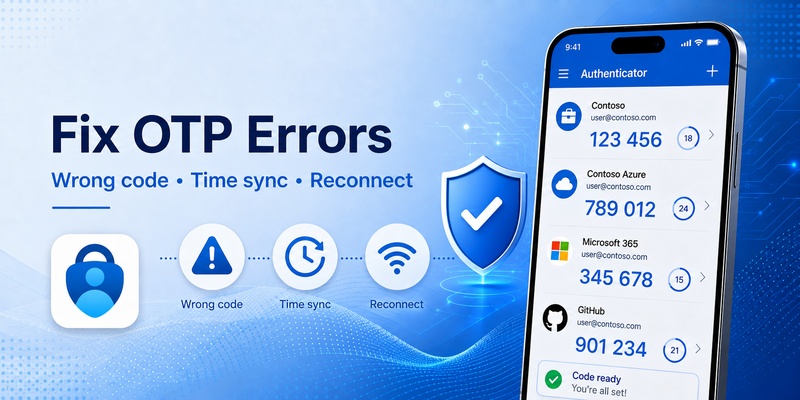
If a microsoft authenticator otp appears but is repeatedly rejected, check the basics before resetting the entire account.
Confirm the correct account
Compare the account identifier in Authenticator with the account you are trying to access.
Do not enter a code from a similarly named work, personal, or test account.
Use a fresh OTP
Because the code changes periodically, avoid entering a number that is close to expiration.
Wait for the next microsoft authenticator otp, enter it promptly, and submit it.
Check whether the service wants a different authentication method
Not every numeric prompt expects Authenticator OTP.
Microsoft accounts can use multiple verification methods, and some sign-in processes may ask for a push approval, security information, or another code type.
Read the wording of the sign-in page carefully.
Reconfigure the account if necessary
If every new microsoft authenticator otp is rejected and you know the correct account is selected, the Authenticator registration may no longer match what the service expects.
For a personal service, disable and reconfigure its authenticator method only after confirming you have another recovery method.
For a managed Microsoft work or school account, ask the administrator to review your MFA registration and authentication-method policy.
🛠️ Learn with Step-by-Step Guides: Microsoft Authenticator vs Google Authenticator: Which Is Better in 2026?
9. Can Microsoft Authenticator OTP Work Offline?
Yes. One of the practical advantages of microsoft authenticator otp is that verification codes do not require an active internet or mobile-data connection.
Microsoft explicitly states that verification codes do not require internet access or phone service to sign in.
OTP and push behave differently
This distinction is important.
For microsoft authenticator otp:
- The code can be displayed without internet access.
- Mobile data is not required just to generate the code.
- You can read the current number while offline.
For sign-in notifications:
- The device needs internet access to receive the notification.
- Connectivity is also required to send your approval response.
This makes microsoft authenticator one time password useful when mobile reception is weak or when you do not want to depend on SMS delivery.
Of course, the website or computer you are signing into may still require its own internet connection.
The offline capability applies specifically to generating the microsoft authenticator otp inside the app.
📖 Explore Articles: QR Code for Microsoft Authenticator: Setup Guide
10. How to Use Microsoft Authenticator OTP Safely
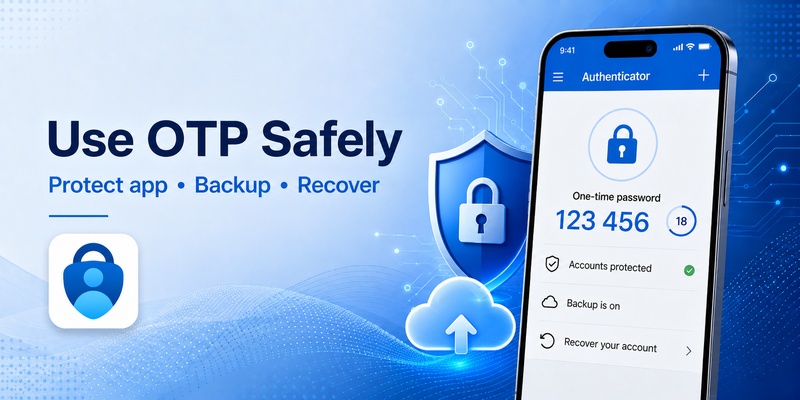
A microsoft authenticator otp strengthens account security, but it still needs to be handled carefully.
Never share an active code
Treat every current OTP like sensitive login information.
If someone asks you to send them your microsoft authenticator otp by email, chat, or phone, do not assume the request is legitimate.
Authentication codes are intended for the sign-in process you initiated.
Protect Microsoft Authenticator
Microsoft provides App Lock functionality that can require your device PIN or biometric verification when opening Authenticator. Microsoft’s current FAQ explains that App Lock helps protect one-time verification codes, app information, and settings.
Use a strong device lock and keep your phone under your control.
Prepare for a new phone
Microsoft Authenticator supports account backup and recovery, although what can be restored depends on the account type and configuration. Microsoft states that accounts using only one-time password codes can have those password codes available after supported restoration.
Before replacing or resetting a device:
- Review Authenticator backup settings.
- Make sure important accounts have recovery options.
- Keep the old phone until the new setup works.
- Test the new microsoft authenticator otp.
- Only then erase the old device.
Final takeaway
Microsoft authenticator otp is a practical form of two-step or multi-factor authentication that generates temporary one-time password codes inside Microsoft Authenticator.
The code changes periodically, can work without cellular or internet connectivity, and can be used with Microsoft and compatible non-Microsoft accounts.
For personal users, the key steps are straightforward: configure an account with the authenticator app, open the correct account when verification is requested, and enter the current microsoft authenticator otp.
For organizations, administrators also need to understand the allow use of microsoft authenticator otp control. Microsoft’s Entra authentication-method policy separates Microsoft Authenticator OTP from third-party software OATH tokens and other authentication methods.
If a microsoft authenticator otp is missing, confirm that the account was actually registered for OTP and that your organization’s policy allows the method. If a code appears but fails, verify the account, use a fresh code, and check that the sign-in page really expects an OTP rather than another verification method.
Used correctly, microsoft authenticator otp provides a simple additional security layer without requiring SMS delivery, while still fitting into broader MFA and passwordless authentication strategies.
Download Authenticator App
Secure your accounts with fast, reliable two-factor authentication. Download now and protect your login in seconds.
