
QR Code for Microsoft Authenticator: Setup Guide
If you are trying to connect Microsoft Authenticator to an account, one of the first things you are likely to encounter is a qr code for microsoft authenticator. The code normally appears on the security page of the account or service you are configuring and transfers the information Authenticator needs to create the correct authentication credential.
The important detail is that there is not one universal qr code for microsoft authenticator that works with every account. A personal Microsoft account generates its own setup information. A work or school account displays a QR code through its Security info enrollment process. Google and other third-party services generate their own QR codes, which Microsoft Authenticator can scan as an Other account. Microsoft currently supports personal Microsoft accounts, work or school accounts, and compatible non-Microsoft accounts in Authenticator.
Another common source of confusion is that Microsoft also displays QR codes for downloading Authenticator from an app store, while passkey workflows can display a QR code for cross-device sign-in. Those codes serve different purposes from the qr code for microsoft authenticator used when enrolling an account.
This guide explains exactly where the setup QR code comes from, how to scan it, what to do if it does not appear, and how to avoid the most common setup mistakes.
1. What Is a QR Code for Microsoft Authenticator?
What information does the QR code contain?
A qr code for microsoft authenticator is a machine-readable representation of authentication setup information. Instead of typing configuration details manually, you point Microsoft Authenticator at the QR image and let the application create the account entry.
In a typical two-factor authentication setup, the QR code represents information tied specifically to the account you are enrolling. After scanning it, Authenticator can generate the verification codes required by that service. Microsoft explains that third-party accounts added this way can display time-based verification codes, which typically change every 30 seconds.
For Microsoft personal, work, or school accounts, the enrollment process may also establish support for notifications and other Microsoft authentication methods.
This means you should never search the web for a random microsoft authenticator qr code image and expect it to configure your account. The correct code must come from the security settings or setup wizard associated with the account you are adding.
Setup QR code vs download QR code
A microsoft qr code can appear in several contexts.
For example, Microsoft’s Authenticator download page currently provides separate QR codes that can open the appropriate app-store download page on iOS or Android. Those QR codes install the application; they do not enroll your Microsoft account.
The qr code for microsoft authenticator discussed in this guide appears after you begin adding Authenticator as a sign-in or two-step verification method.
If you scan a Microsoft download QR code and simply arrive at the App Store or Google Play, nothing is wrong. You have scanned an installation code rather than a qr code to set up microsoft authenticator.
Download Authenticator App
Secure your accounts with fast, reliable two-factor authentication. Download now and protect your login in seconds.
2. How to Get a QR Code for a Personal Microsoft Account
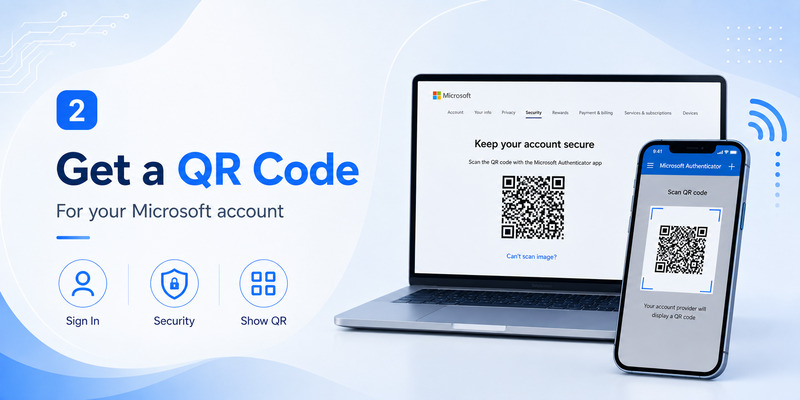
Where the personal-account QR code appears
If you are asking how to get qr code for microsoft authenticator for a personal Microsoft account, begin with your Microsoft account security settings rather than inside Authenticator itself.
Microsoft’s current instructions direct users to the Security section of their Microsoft account, where they can manage sign-in methods. Choose the option to add a new way to sign in or verify and select an authentication application. If Authenticator is already installed, Microsoft provides an option to set up a different Authenticator app; continuing from there displays the setup QR code.
The resulting qr code for microsoft authenticator is connected to the Microsoft account currently signed in to the browser.
On your phone, open Authenticator, select Add, choose Personal account, and use the scanning option.
This is the correct answer to both where to get qr code for microsoft authenticator and microsoft authenticator how to get qr code when you are configuring a personal Microsoft account.
Do not look for the QR code inside the account card
A frequent mistake is to open Authenticator and search through an existing account entry for a permanent microsoft account qr code.
Normally, setup begins on the account’s security webpage. The webpage generates the enrollment information, while the phone scans it.
For personal accounts, Microsoft specifically instructs users to open Authenticator, choose the Personal account option, and tap Scan a QR Code after the code has been displayed on the Microsoft account security page.
Therefore, if you are trying to find qr code for microsoft authenticator, think of the browser as the source and Authenticator as the scanner.
Once the qr code for microsoft authenticator has been scanned and enrollment has been successfully completed, you generally do not need that original setup image for normal daily sign-ins.
🧭 Explore Guides: Is Microsoft Authenticator Free to Use? Everything You Need to Know
3. Where to Get the QR Code for a Work or School Account
Use the Security info setup process
The process is different when the qr code for microsoft authenticator is for a Microsoft 365, company, university, or other Microsoft Entra work or school account.
Microsoft directs work and school users to their Security info page. When Microsoft Authenticator is allowed as a sign-in method, you can select Add sign-in method, choose Microsoft Authenticator, and continue until the browser displays the scanning screen.
If your organization requires authentication registration during sign-in, you may instead see a wizard asking you to keep your account secure. In Microsoft’s current setup sequence, the user installs Authenticator, chooses Work or school account in the application, returns to the computer, and then advances to a Scan the QR code page.
That page contains the correct qr code for microsoft authenticator for the organizational account.
This workflow is what many users mean when they search for microsoft authenticator qr code setup or microsoft authenticator app login qr code.
Your organization can control the available options
Work and school authentication is affected by administrator policy.
Microsoft notes that an organization’s administrator can determine which verification methods users must or may configure. Therefore, your Security info page may not look identical to a screenshot from another organization.
If Microsoft Authenticator is not offered as an available method, repeatedly searching for a hidden qr code for microsoft authenticator will not solve the problem. Your administrator may need to permit that authentication method.
When the option is available, select Microsoft Authenticator, continue through the setup wizard, and leave the QR screen open while you scan it.
After the qr code microsoft authenticator enrollment step, Microsoft normally tests the account by sending a notification. Approve the request before leaving the setup page so that registration can finish successfully.
💡 Discover Helpful Guides: Microsoft Authenticator Passwordless Sign-In: Complete Guide
4. How to Scan a QR Code with Microsoft Authenticator
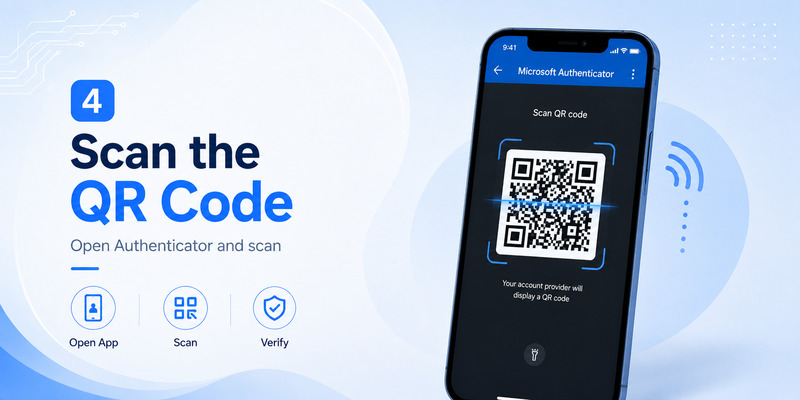
Open the correct scanner
Once the qr code for microsoft authenticator is visible on your computer or another screen, open Microsoft Authenticator on your mobile device.
The precise account category matters.
For a Microsoft personal account, choose Personal account. For an organizational account, choose Work or school account. For a third-party service, choose Other account.
Then select the QR scanning option and point the camera at the code.
Microsoft’s current documentation uses this same general microsoft authenticator scan qr code process when adding supported accounts.
The microsoft authenticator qr code scanner uses the phone camera, so Authenticator needs camera permission. During first-time setup, iOS or Android may display a permission request. Microsoft states that users who deny camera access can still configure some accounts manually instead.
Position the QR code correctly
For the smoothest qr code for microsoft authenticator enrollment, display the QR code on a second device such as a laptop, desktop monitor, or tablet.
Keep the entire square visible in the camera frame. Avoid extreme glare, very low screen brightness, or excessive distance.
You do not normally need to take a photograph first. Open the scanner directly in Authenticator and point it toward the displayed setup image.
After you scan qr code microsoft authenticator, check that the expected account appears in the application. For a code-based third-party account, verify that a changing one-time code appears. For Microsoft work or school enrollment, return to the browser and complete any verification notification Microsoft sends.
A successful scan alone does not always mean the entire qr code for microsoft authenticator setup is finished; complete the browser’s confirmation step as well.
5. Using Microsoft Authenticator QR Codes for Gmail and Other Accounts
Gmail and Google accounts
Microsoft Authenticator is not limited to Microsoft accounts.
Microsoft’s current documentation explicitly states that non-Microsoft accounts such as Google can be added to Authenticator for two-step verification.
If you are looking for a gmail qr code for microsoft authenticator, the QR code comes from your Google Account security setup—not from Microsoft.
The general workflow is to open your Google Account security configuration, set up an authenticator application as an additional verification method, and have Google display the appropriate QR code. Then open Microsoft Authenticator, choose Add account, select Other account, and scan the code.
Microsoft documents this Google setup path and notes that the QR code automatically associates the Google account with the authentication application.
The resulting entry can then produce verification codes inside the Microsoft authenticator app.
Other websites and services
The same concept applies to many compatible services.
A website that supports standard authenticator-based two-factor authentication usually provides its own QR code. That service—not Microsoft—must generate qr code for microsoft authenticator or another compatible authentication application.
Open the service’s Security, Two-Factor Authentication, Two-Step Verification, or MFA area. Choose an authenticator application as the authentication method.
When the QR code appears, open Microsoft Authenticator and choose Other account.
The authenticator app qr code microsoft workflow is therefore based on interoperability: the website generates enrollment information and Microsoft Authenticator reads it.
Do not use your personal qr code for microsoft authenticator generated by Microsoft account security to configure an unrelated website. Each service creates its own account-specific enrollment information.
💡 Discover Helpful Guides: Microsoft Account App: Setup, Security & Sign-In Guide
6. How to Set Up Microsoft Authenticator Without a QR Code
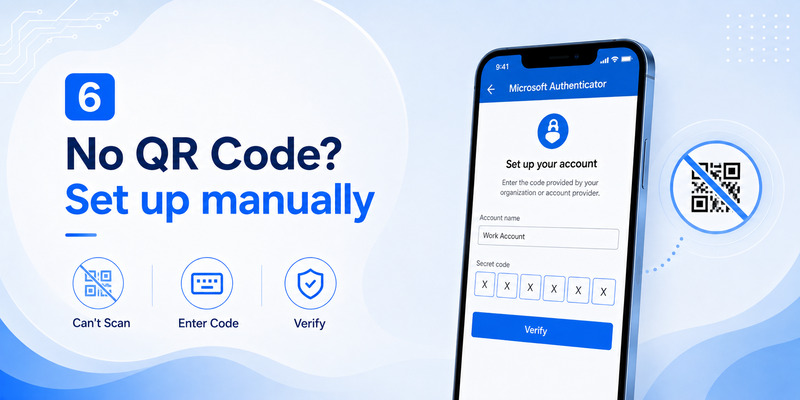
Use manual setup information
A QR scanner is convenient, but microsoft authenticator without qr code setup is possible in supported enrollment flows.
Microsoft’s personal-account instructions state that if you cannot scan the barcode, you can choose the corresponding option on the computer and enter the code manually on the phone.
For a work or school account, Microsoft similarly provides a Can’t scan the QR image option that can display the code and URL required for manual enrollment.
This means a missing camera or damaged camera does not necessarily prevent you from completing a qr code for microsoft authenticator workflow.
Instead of scanning the image, copy the setup details carefully into the manual account-entry fields.
When manual setup is preferable
Manual configuration can help when the qr code for microsoft authenticator is displayed on the same phone on which Authenticator is installed.
Scanning a QR code with the same device that is displaying it is inconvenient. A computer or second screen is usually easier, but manual entry can provide another route when supported.
It is also helpful when the qr code scanner microsoft authenticator cannot focus correctly or camera permissions cannot be granted.
However, only use the manual secret, code, and URL supplied by the actual account provider.
Do not create your own random string or use a generic online QR generator. An Authenticator enrollment credential must correspond to the authentication secret created by the service you are protecting.
Therefore, get qr code for microsoft authenticator from the genuine account security page whenever possible, and use the site’s official manual-entry alternative when scanning is unavailable.
7. Microsoft Sign-In QR Codes vs Authenticator Setup QR Codes
A setup QR code enrolls an account
The qr code for microsoft authenticator used throughout normal Authenticator enrollment connects an account with the application.
You usually scan it once during initial configuration or during re-registration.
After that, ordinary Microsoft Authenticator sign-ins typically involve entering your username and then approving a notification, matching a displayed number, entering a verification code, or using another configured authentication method. Microsoft’s current sign-in documentation describes notification approval and number matching as standard Authenticator sign-in experiences.
Therefore, a qr code to sign into microsoft authenticator is not required every time you open or use the application.
This is an important distinction for users searching for microsoft sign in qr code or microsoft login with qr code.
Passkey sign-in can also display a QR code
Microsoft does support QR codes in certain cross-device passkey workflows.
For example, when creating or using a passkey on an iPhone, iPad, or Android device from another device, Microsoft may display a QR code that you scan with the mobile device. Microsoft’s passkey documentation specifically notes that users can scan this code with the phone camera or a QR scanning option in an authenticator application.
That is different from the qr code for microsoft authenticator used to register Authenticator as an authentication method.
Think of the distinction this way:
Enrollment QR: adds or configures an account in Authenticator.
Passkey QR: participates in a cross-device authentication or passkey workflow.
Download QR: takes you to the Authenticator application in an app store.
Recognizing these categories prevents confusion when you encounter a microsoft sign in qr code on a Microsoft page.
💡 Discover Helpful Guides: Microsoft Authenticator Desktop: Complete PC & Mac Guide
8. Fixing QR Code Already Used, Invalid, or Scanning Errors
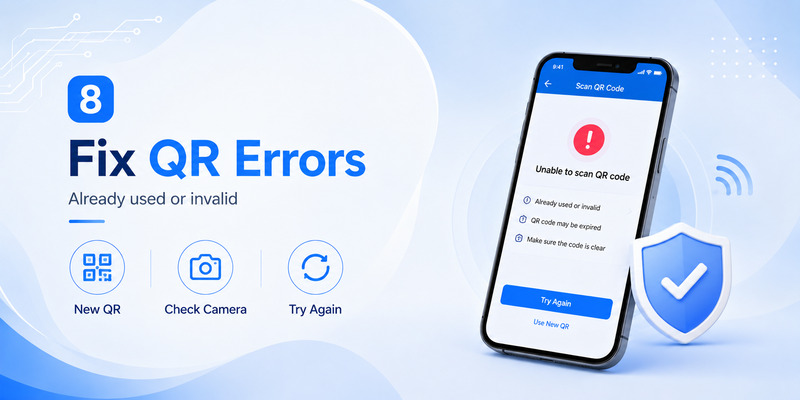
Start a fresh enrollment session
If you encounter a microsoft authenticator qr code already used situation, the safest approach is generally to return to the account’s security configuration and begin a fresh Authenticator registration rather than repeatedly scanning an old screenshot.
A setup qr code for microsoft authenticator is part of an enrollment session. If the account has already been registered, the setup process was abandoned, or authentication information was changed, an older image may no longer represent the enrollment state you need.
For a personal Microsoft account, return to the account security settings and add or configure Authenticator again.
For a work or school account, return to Security info and add Microsoft Authenticator according to your organization’s available methods. Microsoft documents this area as the place to manage organizational authentication registration.
Generate a fresh microsoft authenticator app qr code rather than keeping old setup screenshots.
Fix QR scanning problems
If Authenticator cannot read the qr code for microsoft authenticator, check several basic conditions.
First, verify that camera permission is enabled. Second, ensure the code is fully visible and not blurred. Third, confirm that you selected the correct account type before opening the scanner.
For work and school accounts on Android, Microsoft also advises checking notification permissions, network connectivity, Google Play Services, and Google Play Store availability when account setup or push authentication fails.
If scanning still fails, use the manual setup option when available.
Do not repeatedly scan qr code microsoft authenticator from a cached screenshot if you have already restarted the enrollment process. Display the current code generated by the live security page.
If organizational enrollment continues to fail, Microsoft’s troubleshooting guidance recommends contacting the organization’s IT administrator for work or school accounts.
9. Security Best Practices for Authenticator QR Codes
Treat the setup code as sensitive
A qr code for microsoft authenticator is not decorative content. It represents authentication enrollment information and should be treated as sensitive.
Do not post screenshots of your setup QR code online, send them through public chat rooms, or include them in documentation that other people can access.
When possible, scan the code directly from the legitimate security page and close the page after registration is complete.
The same principle applies to manual enrollment keys. If the site displays a code or secret as an alternative to scanning, do not share it.
After the qr code for microsoft authenticator has been used successfully, test authentication so you know your own device has been registered correctly.
Verify unexpected sign-in requests
Once the qr code for microsoft authenticator setup is complete, be careful with authentication prompts.
Microsoft warns users not to give Authenticator verification codes to callers or other people claiming they need a code to verify your identity.
An unexpected Authenticator notification may indicate that someone else is attempting to access your account.
Only approve requests that correspond to sign-ins you initiated yourself.
For third-party accounts that use changing one-time codes, remember that the code is intended to be entered into the legitimate service’s sign-in page, not read aloud to a stranger.
The value of a qr code for microsoft authenticator setup comes from possession of your registered device, so protect both the enrollment information and the phone that stores the account.
10. QR Code for Microsoft Authenticator FAQ
Where is the QR code for Microsoft Authenticator?
If you are asking where is the qr code for microsoft authenticator, it usually appears on the security webpage of the account you want to configure.
For a personal Microsoft account, open Microsoft account Security settings and add Authenticator as a sign-in or verification method. Microsoft then displays the qr code for microsoft authenticator during enrollment.
For work or school accounts, go through Security info or the security-registration wizard.
For Google or another third-party account, obtain the QR code from that service’s own two-factor authentication settings.
Can I generate my own Microsoft Authenticator QR code?
You should not use an arbitrary QR generator to generate qr code for microsoft authenticator.
The setup information must correspond to a secret created by the account or service you are protecting.
Instead, let Microsoft, Google, or the applicable service generate the enrollment information through its official security settings.
A generic QR image containing your email address is not a valid Authenticator enrollment credential.
Why don’t I see a QR code in Microsoft Authenticator?
The qr code for microsoft authenticator is usually displayed by the account provider’s security webpage, not stored permanently inside the application.
Open the security setup on a computer, request to add an authenticator application, and continue until the account displays the scanning step.
Then use the microsoft authenticator qr code scanner on your phone.
Can I scan a Microsoft Authenticator QR code on the same phone?
It is usually easier to display the qr code for microsoft authenticator on a computer, tablet, or another device and scan it with your phone.
If that is impossible, look for a manual-entry option. Microsoft supports manual configuration in several personal and organizational Authenticator setup flows.
Does Microsoft Authenticator work with Gmail?
Yes. Microsoft documents Google as one of the non-Microsoft account types that can be configured in Authenticator.
The gmail qr code for microsoft authenticator comes from the Google Account authenticator setup process. In Microsoft Authenticator, add it as an Other account and scan the code Google provides.
Do I need a QR code every time I sign in?
No. The normal qr code for microsoft authenticator is primarily an account-enrollment mechanism.
Once Authenticator is configured, Microsoft sign-in can use notifications, number matching, one-time codes, passwordless authentication, or another configured method.
A QR code may appear separately for certain passkey or cross-device sign-in workflows, but that is not the same as the original enrollment QR.
What if my QR code was already used?
Return to your account security settings and start a new Authenticator enrollment.
Generate a fresh qr code for microsoft authenticator instead of relying on an old screenshot. For a company or school account, remove or update the old authentication registration only when you have another valid way to verify your identity, or follow your organization’s IT instructions.
Can I use Microsoft Authenticator without allowing camera access?
Yes, when the account’s setup flow offers manual enrollment.
Microsoft provides manual alternatives for both personal account enrollment and work or school account setup when QR scanning is unavailable.
The camera is therefore convenient but is not always mandatory for setting up the qr code for microsoft authenticator information.
Conclusion
Getting the correct qr code for microsoft authenticator becomes much easier once you understand where the code actually originates.
For a personal Microsoft account, generate it through your Microsoft account security settings. For a company or school account, use Security info or the organization’s authentication-registration wizard. For Gmail and other supported third-party services, generate the code from that service’s own two-factor authentication settings and add it to Microsoft Authenticator as an Other account.
Remember that a download microsoft qr code, an account-enrollment QR code, and a cross-device passkey QR code are not interchangeable.
When you receive the correct qr code for microsoft authenticator, open Authenticator, select the appropriate account type, scan the code, and finish every verification step shown by the website.
If scanning fails, use the official manual-entry option rather than searching for a replacement QR image online. If an old qr code for microsoft authenticator no longer works, begin a fresh enrollment session from the legitimate account security page.
Following that process gives you a reliable qr code for microsoft authenticator setup without confusing installation QR codes, login QR codes, and account-registration credentials.
Download Authenticator App
Secure your accounts with fast, reliable two-factor authentication. Download now and protect your login in seconds.
