
Microsoft Authenticator Login: Step-by-Step Login Guide
Signing in to a Microsoft account can now involve much more than entering an email address and password. For personal Microsoft accounts, Microsoft 365 users, employees, students, and organizations using Microsoft Entra ID, microsoft authenticator login can provide an additional verification layer or even replace the traditional password in supported configurations.
However, the process can become confusing when a notification does not arrive, a number-matching prompt keeps appearing, you switch phones, or your account enters a repeated authentication cycle. Some users also open the Authenticator app expecting a conventional login screen and are unsure why the process looks different from signing into Outlook or Microsoft 365.
This guide explains how microsoft authenticator login works, how to set it up correctly, how to approve legitimate requests, how to handle unexpected prompts, and what to do when Microsoft Authenticator refuses to complete a sign-in.
Microsoft currently supports Authenticator for MFA notifications, verification codes, and passwordless authentication. For work and school accounts, which methods are available can depend on policies configured by the organization’s administrator.
1. What Does Microsoft Authenticator Login Actually Mean?
The phrase microsoft authenticator login can describe several different authentication processes. Understanding the difference is important because troubleshooting depends on what you are actually trying to do.
Logging into an account versus opening Authenticator
Microsoft Authenticator is not simply another website where you enter a username and password every time you open it. Instead, the Authenticator App stores or registers accounts that can then be used to verify access to Microsoft and other supported services.
A typical microsoft authenticator login happens when you start signing into a service such as Microsoft 365, Outlook, OneDrive, Azure, or another protected application. Microsoft then asks you to verify your identity using Authenticator.
Depending on your account configuration, verification may involve:
- Approving a notification.
- Matching or entering a displayed number.
- Entering a time-based verification code.
- Unlocking Authenticator with biometrics.
- Using passwordless phone sign-in.
- Using another authentication method configured for the account.
Microsoft’s current sign-in instructions describe a flow in which a user can select a notification-based Authenticator method, open the app when prompted, match the number shown during sign-in, and approve the request.
Personal accounts and work accounts can behave differently
A microsoft authenticator sign in for a personal Microsoft account may not behave exactly like a work or school account.
Organizations using Microsoft Entra ID can control which authentication methods employees are allowed to use. Administrators may enable Authenticator notifications, passwordless phone sign-in, passkeys, Temporary Access Pass, security keys, or other methods.
Therefore, two people performing a microsoft authenticator login may see different screens even when both use the same app.
Download Authenticator App
Secure your accounts with fast, reliable two-factor authentication. Download now and protect your login in seconds.
2. How to Login to Microsoft Authenticator App
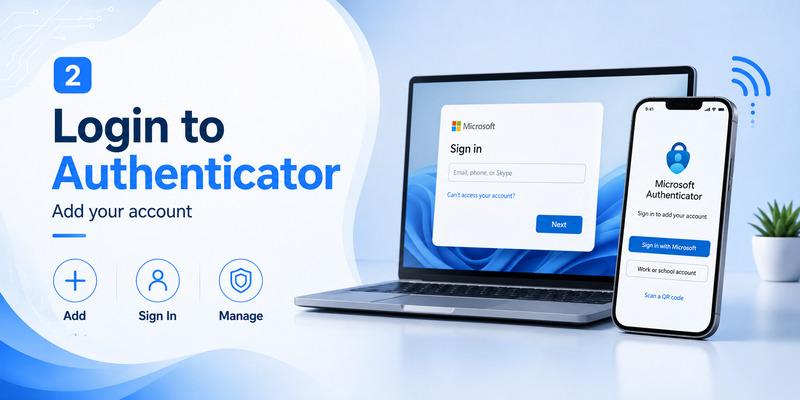
A common search is how to login to microsoft authenticator app, but the process depends on whether you are adding a personal Microsoft account, a work or school account, or another service.
Adding a personal Microsoft account
For a personal account, open Microsoft Authenticator and choose the option to add an account. Select a personal Microsoft account and follow the sign-in prompts.
Microsoft’s documentation states that personal Microsoft accounts can be added by selecting Add Account, choosing Personal Microsoft Account, and signing in with the account credentials.
After registration, future microsoft authenticator login attempts may trigger an approval request on that device.
This is why users asking how to sign into microsoft authenticator app should first determine whether they are adding an account or approving a login for an account that is already registered.
Adding a work or school account
For work and school users, the administrator may instruct you to register through the organization’s Security Info page.
A common setup process is:
- Sign in to your organization’s security information page.
- Choose Add sign-in method.
- Select Microsoft Authenticator.
- Continue until a QR code appears.
- Open Authenticator.
- Select Add account.
- Choose Work or school account.
- Scan the QR code.
- Complete the verification test.
Microsoft also documents a credential-based registration option for some work or school environments, but that capability depends on administrator configuration.
Once registration is complete, microsoft authenticator login becomes one of the methods available for your account.
If you searched how to login to microsoft authenticator, remember that you normally register the account once and then use the application as an authentication method rather than repeatedly signing into the application itself.
💡 Discover Helpful Guides: Microsoft Account App: Setup, Security & Sign-In Guide
3. How Microsoft Authenticator Sign-In Approval Works
One of the most recognizable parts of microsoft authenticator login is the approval notification that appears on your phone.
Approving a normal sign-in request
Suppose you enter your account information on a Microsoft service. The website may tell you to check your Authenticator app.
You may then receive a new sign in request microsoft authenticator notification on your mobile device.
Open the notification or open Authenticator directly. Depending on the flow, Microsoft may show a number on the computer and ask you to select or enter the corresponding number on your phone.
After confirming that the numbers match, approve the request.
Microsoft describes this number-matching process in its Authenticator sign-in documentation, and number matching is used across Authenticator push notification scenarios.
If you are searching approve sign in request microsoft authenticator, the important rule is simple: approve only requests connected to a sign-in you personally initiated.
Why number matching matters
Older authentication experiences sometimes relied heavily on a simple Approve or Deny prompt. Number matching provides additional context by linking the authentication prompt on your phone with the sign-in session displayed on another device.
During a legitimate microsoft authenticator login, confirm that the request makes sense before approving it.
If you are not signing in, do not approve a request merely because the notification appears legitimate.
This applies equally to sign into microsoft authenticator, Microsoft 365 access, Azure services, Outlook accounts, and other Microsoft-protected resources.
💡 Discover Helpful Guides: Microsoft Authenticator Passwordless Sign-In: Complete Guide
4. How to Sign In With Microsoft Authenticator Without a Password
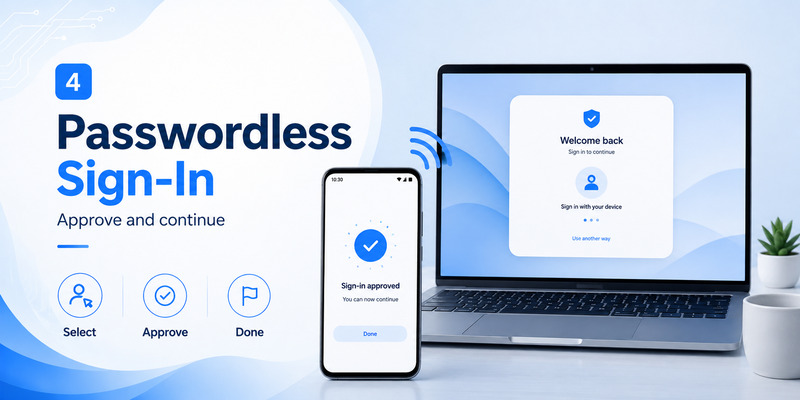
Passwordless authentication is one of the most useful capabilities associated with microsoft authenticator login.
What passwordless sign-in means
With passwordless authentication enabled, the password is no longer necessarily the primary credential used for every sign-in. Microsoft Authenticator can participate in a passwordless authentication flow, while Microsoft also supports phishing-resistant methods such as passkeys and Windows Hello for Business.
A typical sign in with microsoft authenticator flow may ask you to:
- Enter your Microsoft account identifier.
- Select an Authenticator-based sign-in option.
- Check the number displayed on the sign-in page.
- Open Authenticator.
- Confirm the matching number.
- Unlock the phone or app if required.
- Approve the request.
For work or school accounts, administrators decide whether passwordless phone sign-in through Authenticator is enabled for your users or groups.
Why you may still see a password
Not every microsoft authenticator login is passwordless.
If your organization uses Authenticator only as a second factor, you might first enter your password and then complete MFA through the app.
That is still a valid authenticator microsoft login flow. Authenticator is simply providing the additional verification step rather than replacing the password.
If passwordless authentication has not been enabled, repeatedly looking for a passwordless button will not change the organization’s policy. Work and school users may need to contact IT if they believe their available authentication methods are incorrect.
5. How to Fix a Microsoft Authenticator Login Loop
A microsoft login authenticator loop occurs when the login process repeatedly redirects you between a sign-in screen and Authenticator without successfully completing authentication.
For example, you approve the request, return to the browser, and immediately receive another authentication prompt.
Check whether the original request completed
Before troubleshooting the app itself, close duplicate browser tabs or apps attempting to authenticate simultaneously.
If several sessions are trying to perform microsoft authenticator login at the same time, it can become difficult to determine which notification belongs to which session.
Restart with one browser window and one sign-in attempt.
Make sure:
- Your phone has an internet connection.
- Authenticator notifications are enabled.
- The Authenticator app is current.
- Your phone’s date and time are correct.
- The account shown in Authenticator matches the account you are trying to access.
Microsoft lists disabled notifications, connectivity problems, outdated application versions, and account or device conditions among issues that can interfere with authentication.
Work or school login loops
A work account experiencing repeated microsoft authenticator login requests may be affected by organizational policy, device registration, Conditional Access, or an incomplete authentication-method registration.
If the loop continues after basic troubleshooting, open your organization’s security information settings from a device where you still have access and review the registered sign-in methods.
Microsoft allows work and school users to manage available verification methods through Security Info, although the options available are controlled by the organization.
Do not immediately delete the only working authentication method. Removing it before another method is ready could make account recovery harder.
💡 Discover Helpful Guides: Microsoft Authenticator: Complete Setup, Login, Backup & Troubleshooting Guide
6. Microsoft Authenticator Not Letting You Sign In: Common Fixes
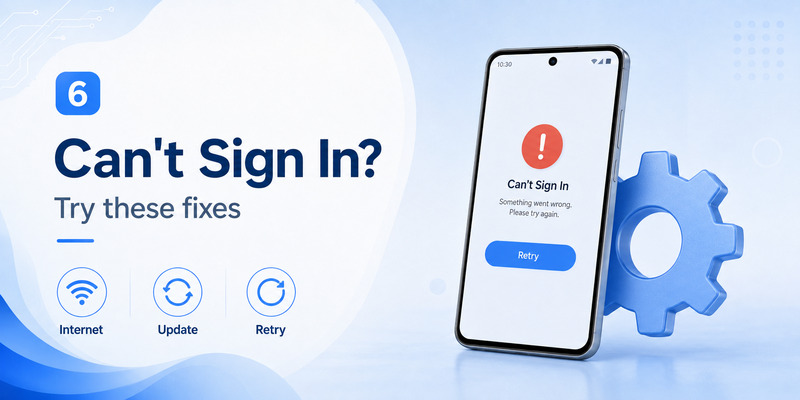
The phrase microsoft authenticator not letting me sign in can describe several unrelated problems, so the error message and stage of authentication matter.
No notification arrives
If a microsoft authenticator login notification never appears, first open Authenticator manually instead of relying only on the push notification.
Then check:
- Internet connectivity.
- Notification permissions.
- Battery-saving restrictions.
- Whether the correct account is registered.
- Whether the app needs updating.
- Whether your device needs to be unlocked.
Microsoft specifically recommends checking notifications and app updates when authentication does not complete normally.
If the website offers a verification code option, Authenticator may also provide a code that can be entered manually depending on the account and method configuration.
Microsoft Authenticator won’t let me sign in
If you are searching microsoft authenticator wont let me sign in, read the message on the Microsoft sign-in page carefully.
A message such as your sign in was blocked microsoft authenticator does not always mean Authenticator itself is broken. The account, device, location, or organizational access policy may be preventing the authentication attempt.
For work accounts, your administrator may need to investigate the account’s sign-in activity or authentication configuration.
For personal accounts, Microsoft’s sign-in helper and security tools may be appropriate if the account itself cannot be accessed.
Avoid uninstalling Authenticator as your first troubleshooting step. If the phone contains your only working authentication registration, removing app data without a backup or alternative method can create a much larger access problem.
7. What to Do About Random or Repeated Sign-In Requests
Unexpected requests are one of the most important microsoft authenticator login issues to treat seriously.
Never approve an unexpected request
If you receive a microsoft authenticator random sign in request when you are not actively signing in, select Deny rather than Approve.
The same rule applies if you keep getting sign in requests microsoft authenticator notifications throughout the day.
An unexpected approval prompt can indicate that someone is attempting to authenticate to the account. Microsoft recommends reviewing recent activity and securing the account if unfamiliar activity appears.
Repeated microsoft authenticator sign in requests should therefore not be treated as harmless phone notifications.
Review your recent account activity
For a personal Microsoft account, review the Recent activity information associated with your account. Microsoft says this page can show when and where the account has been used and lets users identify certain unusual activity as unauthorized.
For work or school accounts, My Sign-ins can show recent sign-in activity, and unfamiliar activity may warrant a password change or contact with your administrator.
If you see unfamiliar microsoft authenticator login attempts, consider:
- Denying all requests you did not initiate.
- Reviewing recent sign-ins.
- Changing a potentially compromised password.
- Checking registered authentication methods.
- Removing devices you no longer trust where appropriate.
- Contacting your organization’s IT department for a work account.
Do not approve a new sign in request microsoft authenticator simply to stop repeated notifications.
🧭 Explore Guides: Is Microsoft Authenticator Free to Use? Everything You Need to Know
8. How to Login to Microsoft Without Authenticator App
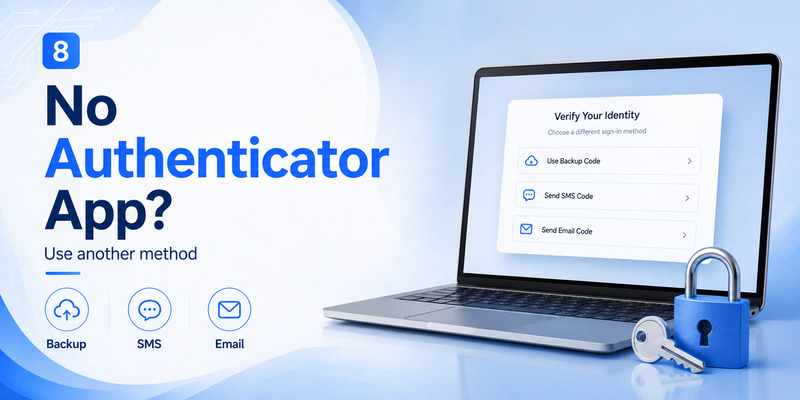
Sometimes Authenticator is unavailable because a phone was lost, replaced, damaged, reset, or left somewhere else.
Users then search how to login to microsoft without authenticator app because the normal microsoft authenticator login cannot be completed.
Use another registered authentication method
On the Microsoft sign-in page, look for options such as other ways to sign in microsoft authenticator or another sign-in method offered by your account.
Microsoft’s current Authenticator instructions explicitly mention selecting another sign-in option when available.
Depending on your account configuration, alternatives might include another authentication app, a security key, a passkey, Windows Hello, another verification method, or an administrator-supported recovery process.
Available choices vary by account type and organization.
Microsoft recommends that work and school users configure multiple authentication methods so losing one device does not leave them without another way to verify identity.
What if Authenticator is your only method?
If microsoft authenticator login is your only registered authentication method and you no longer have access to the registered phone, recovery becomes more difficult.
For a work or school account, contact your organization’s IT or identity administrator. Depending on organizational configuration, an administrator may reset authentication methods or provide an onboarding mechanism such as a Temporary Access Pass. Microsoft documents TAP as a time-limited credential that can help users register strong authentication methods after losing access to an existing one.
For a personal Microsoft account, use Microsoft’s official account recovery and sign-in support process rather than attempting to bypass MFA.
9. How to Re-Login to Microsoft Authenticator After Changing Phones
A new phone is another common source of microsoft authenticator login problems.
Users often expect every account and sign-in capability to transfer automatically, but restoration has limitations.
Restore from an Authenticator backup
If backup was enabled on the previous device, Authenticator provides a restore process.
Microsoft states that backup and restore are limited to the same device platform type: an Authenticator backup created on iOS cannot simply be restored as an Android backup, and vice versa.
When following how to re login microsoft authenticator app instructions, begin the recovery process before manually building an entirely new configuration.
Microsoft’s restore instructions tell users to choose Restore from backup and sign in with the recovery account that was used for backup.
Some accounts must be verified again
Restoring an account name does not necessarily restore every microsoft authenticator login credential in a ready-to-use state.
Microsoft explains that some personal passwordless accounts and work or school accounts require additional sign-in or verification after restoration. For work or school accounts, the account name can be restored while reauthentication is still required.
This explains why users sometimes see an account in the application but cannot immediately use it for microsoft app authenticator login.
Do not erase the old phone until you have verified that the new device can successfully authenticate important accounts.
Ideally, test microsoft authenticator login on the new phone for Microsoft 365, email, cloud storage, work systems, and any other critical services before retiring the old device.
10. Microsoft Authenticator Web Login and Windows Login
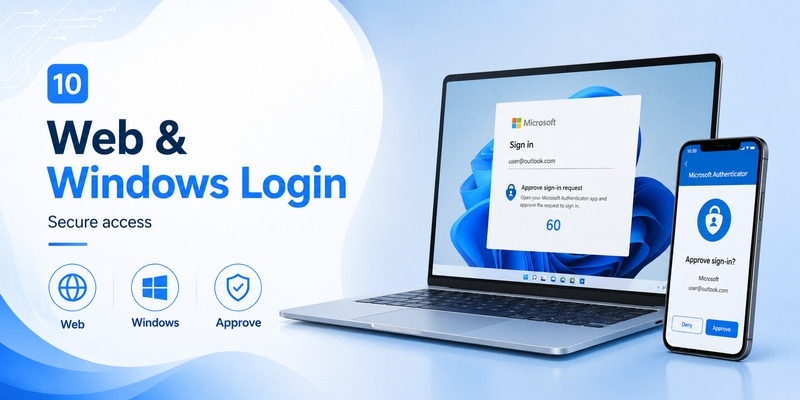
Searches for microsoft authenticator web login or microsoft authenticator login online can create another misunderstanding.
Is there a Microsoft Authenticator website?
Microsoft Authenticator is primarily a mobile authentication application. A web-based Microsoft service may initiate a microsoft authenticator login, but the actual Authenticator approval is normally completed using the registered authentication device.
For example, you might open Microsoft 365 in your browser, enter your account information, and then receive a prompt instructing you to check your phone.
That is effectively a web sign-in using Authenticator, not a browser-based copy of the mobile Authenticator application.
Therefore, login microsoft authenticator should not be interpreted as entering every stored Authenticator account into a generic Authenticator website.
Microsoft Authenticator and Windows
The keyword microsoft mfa windows login can refer to several different environments.
For Microsoft Entra environments, Windows devices can participate in modern authentication using methods such as Windows Hello for Business and FIDO2/passkeys. Microsoft currently recommends phishing-resistant methods such as Windows Hello for Business, passkeys, FIDO2 security keys, and certificate-based authentication for strong sign-in scenarios.
Authenticator may also be involved when Microsoft services running on Windows require MFA.
However, microsoft authenticator login and Windows device authentication are not always the same thing. The exact behavior depends on whether you are signing into Windows itself, accessing a cloud service, or satisfying an organization’s MFA or Conditional Access requirement.
11. Microsoft Authenticator Login Security Best Practices and FAQ
A reliable microsoft authenticator login setup should focus on both convenience and recovery. The objective is not simply to make authentication work today, but to avoid being locked out tomorrow.
Keep more than one recovery path
Where your account allows it, configure an additional sign-in method before you need it.
Microsoft recommends multiple sign-in methods for work and school accounts because two-step verification can leave users unable to sign in if they lose access to their only second factor.
Also keep Authenticator updated, enable backup when appropriate, and periodically review security information associated with important accounts.
Verify every approval request
Before approving microsoft authentication login, confirm that:
- You initiated the sign-in.
- The account is correct.
- The displayed number matches.
- The timing makes sense.
- You recognize the service you are accessing.
If a request is unexpected, deny it.
Why does Microsoft Authenticator keep asking me to sign in?
Repeated prompts can result from multiple active sessions, an application repeatedly requesting authentication, expired sessions, incomplete registration, or organizational security requirements.
If microsoft authenticator login repeatedly returns to the same screen, try signing out of the requesting application, closing duplicate sessions, and starting one clean login.
For a work account, contact IT if the problem continues because account or organizational authentication policy may need to be reviewed.
What is “my sign in Microsoft Authenticator”?
The phrase my sign in microsoft authenticator commonly refers to viewing or completing Microsoft account authentication using Authenticator.
Work and school users can also use Microsoft’s My Sign-ins experience to review recent sign-in activity.
Can I use a verification code instead of approving a notification?
In some configurations, yes. Microsoft Authenticator supports verification codes in addition to notifications and passwordless authentication.
Whether a code can be used for a particular microsoft authenticator login depends on the account and the methods permitted for that sign-in.
Why am I seeing Microsoft Authenticator login attempts that I did not make?
Unexpected microsoft authenticator login attempts may mean someone is attempting to access your account or that another authentication event is triggering the request.
Do not approve it. Review your account activity and secure the account if anything appears unfamiliar. Microsoft specifically recommends reviewing activity and changing security credentials when users believe someone else may have accessed an account.
Does Authenticator automatically approve login requests?
No. You should actively review and approve legitimate microsoft authenticator login requests. Number matching is designed to associate the phone approval with the sign-in session you initiated.
What if I cannot receive Authenticator notifications?
Open the app manually, verify internet connectivity and notification permissions, and make sure the application is updated.
If microsoft authenticator login still fails, use another registered method if one is available rather than repeatedly initiating new requests. Microsoft’s troubleshooting documentation specifically identifies notification and application issues as possible causes of incomplete authentication.
Should I remove and reinstall Microsoft Authenticator?
Not as the first troubleshooting step.
Removing Authenticator data can remove registered accounts from the device. Microsoft notes that signing out of Authenticator effectively requires removing all accounts and warns that clearing application data removes the accounts from that device.
Before reinstalling, confirm that you have a backup or another authentication path.
Can Microsoft Authenticator replace a password?
Yes, for supported account configurations. Authenticator supports passwordless phone sign-in, while Microsoft Entra also supports newer phishing-resistant passwordless methods.
However, not every microsoft authenticator login automatically becomes passwordless. Your account or organization must support and enable the appropriate method.
What is the safest way to use Microsoft Authenticator?
Treat every microsoft authenticator login notification as a security decision rather than a routine popup.
Only approve requests you initiated, verify number matching, keep recovery methods current, protect your phone with a secure lock method, and investigate unfamiliar activity immediately.
For business users, follow your organization’s authentication policies and contact IT when account registration, device replacement, or Conditional Access prevents legitimate authentication.
Conclusion
Microsoft authenticator login can refer to MFA approval, verification-code authentication, passwordless access, account registration, or a recovery flow. The correct process depends on the type of Microsoft account and the security methods enabled for that account.
For a normal sign-in, begin on the Microsoft service you want to access, complete the requested credentials, open Authenticator when prompted, verify the number or request details, and approve only the authentication you initiated.
When microsoft authenticator login fails, avoid immediately deleting the app. Check connectivity, notifications, account registration, application updates, alternative authentication methods, and organizational policies first.
If you receive repeated or random microsoft authenticator login requests, deny them and review your recent account activity. An Authenticator notification is not proof that a request is safe—it is a request for your permission.
Finally, prepare for device loss before it happens. Maintain backup or recovery options and, where possible, register more than one secure authentication method. Doing so makes microsoft authenticator login both more secure and far easier to recover when you change phones, lose a device, or encounter a sign-in problem.
Download Authenticator App
Secure your accounts with fast, reliable two-factor authentication. Download now and protect your login in seconds.
