
Microsoft Authenticator Recovery: Regain Access Safely
Microsoft authenticator recovery is not one universal reset. The correct path depends on whether the old phone still works, a compatible cloud backup exists, another sign-in method is available, the account is personal or organization-managed, and the credential belongs to Microsoft or a third-party provider.
Preserve every remaining session and fallback before removing anything. A recovery code, security key, alternate factor, trusted browser, second registered device, recovery account, or administrator-assisted reset can prevent a temporary problem from becoming a permanent lockout.
This guide covers backup restore, lost-phone recovery, personal Microsoft accounts, work and school identities, third-party TOTP, security cleanup, and acceptance testing.
1. Identify the Recovery Scenario and Account Owner
Record what is still available
Determine whether the old phone is usable, locked, offline, lost, stolen, broken, or erased. Check for a same-platform Authenticator backup, trusted sessions, recovery codes, security keys, alternate email or phone, another registered device, and provider recovery.
For microsoft authenticator recovery, list the provider, full username, account type, tenant, credential method, backup status, and surviving access. Do not record live codes, QR secrets, passwords, or manual TOTP keys.
Identify who controls recovery
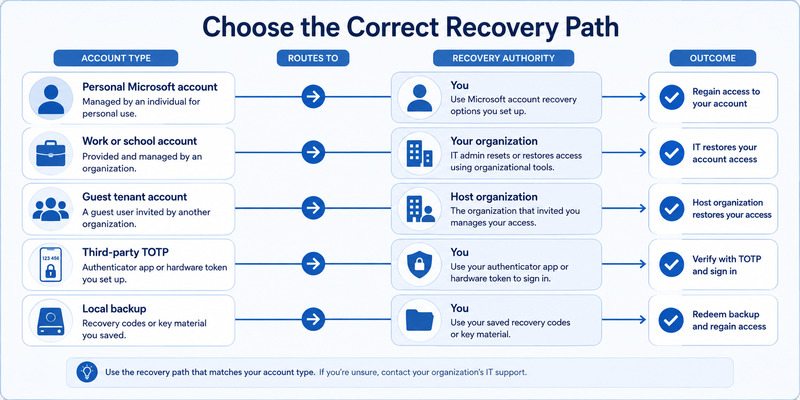
| Account type | Recovery authority | Typical path |
|---|---|---|
| Personal Microsoft account | Microsoft account owner and consumer recovery | Backup restore, alternate method, account recovery |
| Work or school identity | Organization and Microsoft Entra administrator | Security info, MFA reset, Temporary Access Pass |
| Guest tenant account | Host organization plus home identity | Separate tenant registration and help desk |
| Third-party TOTP | Original provider | Recovery code, alternate factor, provider verification |
| Local app data only | Device owner and compatible backup | Same-platform restore if available |
Authenticator cannot recover a third-party service simply because its account name once appeared in the app. The provider owns the server-side secret and recovery policy. Likewise, Microsoft consumer support cannot bypass a separate employer’s tenant controls.
The scenario map gives microsoft authenticator recovery a responsible owner and prevents wasted resets in the wrong system.
Assign a priority to each account. Recover email, password manager, device cloud, and administrative identities before lower-risk services because they unlock other reset channels. This ordering makes microsoft authenticator recovery efficient while reducing the temptation to bypass provider controls.
Download Authenticator App
Secure your accounts with fast, reliable two-factor authentication. Download now and protect your login in seconds.
2. Use Existing Recovery Methods Before Resetting Anything
Preserve trusted sessions
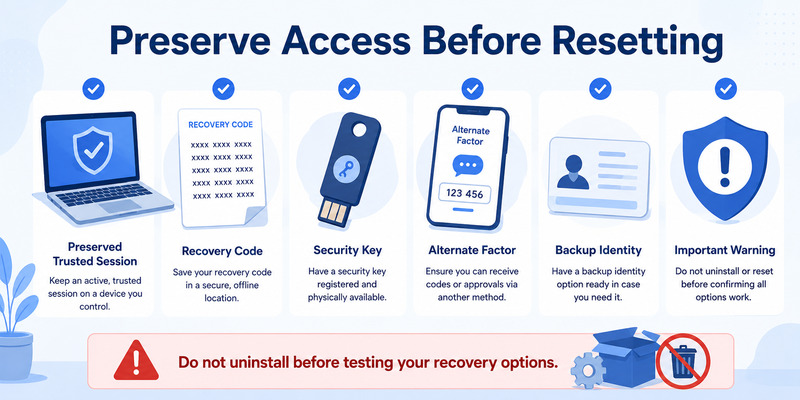
Do not sign out of working browsers, desktops, mail clients, password managers, or administrative portals until recovery is complete. A trusted session may let you add a replacement factor, issue recovery codes, remove a lost phone, or contact support with verified identity.
Before microsoft authenticator recovery, test a provider recovery code, security key, alternate authenticator, recovery email or phone, another registered device, or passkey. Use official pages you type directly or open from a trusted bookmark.
Avoid destructive troubleshooting
Do not uninstall Authenticator, clear storage, delete account tiles, remove server methods, or factory-reset the old phone while it remains the only working factor. These actions can erase TOTP secrets and make cloud restore the only remaining path.
If compromise or theft is possible, balance preservation with containment. From a known-clean device, change the password, revoke suspicious sessions, remove unknown security methods, and report the lost phone to the organization. Keep evidence such as timestamps and device names without capturing secrets.
Save fresh provider recovery codes in an encrypted password manager, secure offline record, or protected physical location. Do not store the only copy inside the missing phone or an account that depends on Authenticator.
Safe microsoft authenticator recovery uses the least destructive working route first, then replaces vulnerable or obsolete credentials after access is stable.
🗺️ Browse How-To Guides: Microsoft Authenticator App Not Showing Code: How to Fix It
3. Restore Accounts from Authenticator Backup
Confirm platform compatibility
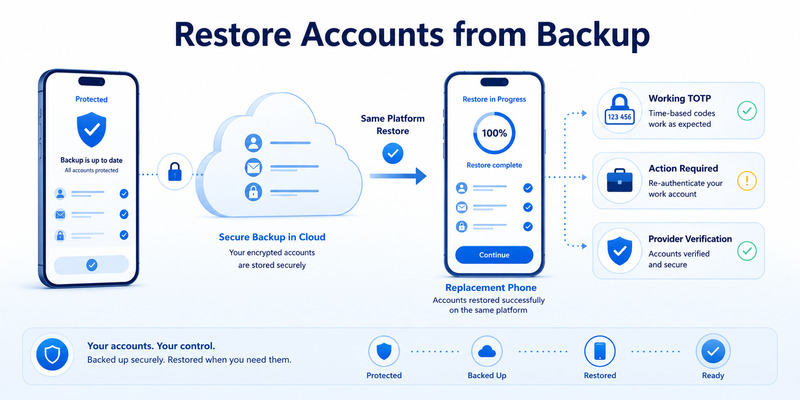
Microsoft supports Authenticator backup and restore only within the same device type: Android to Android or iOS to iOS. Cross-platform migration requires service-by-service re-enrollment rather than direct cloud recovery.
For microsoft authenticator recovery on Android, use the personal Microsoft recovery account associated with Cloud Backup. On iPhone, satisfy Microsoft’s current iCloud requirements and use the expected Apple and Microsoft identities.
Understand partial restore behavior
Third-party TOTP entries and some personal Microsoft code accounts may restore with rotating values. Work or school accounts and passwordless credentials can restore only the account name and display Action required. Open each such entry, sign in, and re-register as instructed.
Do not judge success by the number of visible tiles. Compare the restored list with an account inventory and test one provider at a time in a signed-out browser. Verify code, push, passwordless, and fallback separately.
If the restore is empty or incomplete, confirm the recovery identity, platform, backup age, network, and whether the account existed before the last successful backup. Do not create many duplicate tiles while investigating.
The microsoft authenticator backup guide explains backup setup. Restored microsoft authenticator recovery is complete only after provider validation and server-side registration cleanup.
4. Recover After a Lost, Broken, or Erased Phone
Contain the missing device
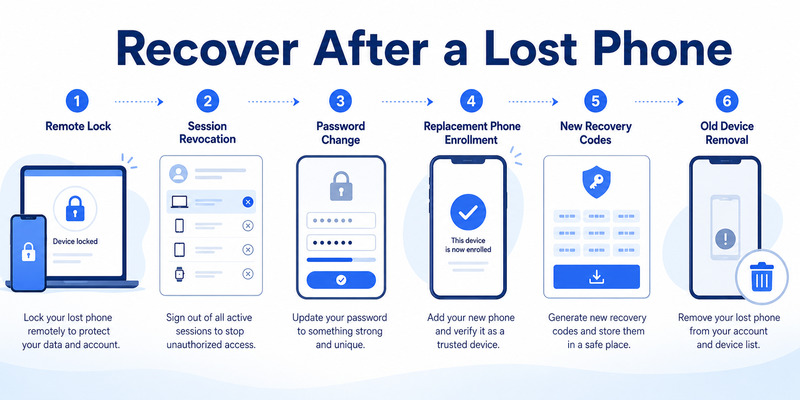
Use device locate, lock, or erase features when available and appropriate. Notify the organization for managed phones. From trusted sessions, remove the lost Authenticator method or device registration only after another access route is available, unless active theft risk demands immediate revocation.
For lost phone microsoft authenticator recovery, change passwords on high-value accounts if the device lock or account exposure is uncertain. Revoke active sessions and review recent activity, recovery details, application consent, and security methods.
Enroll the replacement phone
Restore a compatible backup or use each provider’s alternate method to add a fresh authenticator credential. Scan a newly issued QR directly from the official security page and complete the provider’s verification.
For cross-platform replacement, repeat enrollment service by service. Begin with email and password-manager accounts because they often unlock other recoveries. Then address cloud, financial, developer, social, and administrative identities.
If no alternate method exists, use formal provider identity verification. Avoid paid recovery services or callers that request passwords, live codes, QR secrets, or remote access. Legitimate support should not ask you to approve an unexpected sign-in.
After successful microsoft authenticator recovery, remove the old server registration, revoke stale sessions, issue fresh recovery codes, and confirm the missing phone no longer receives or authorizes requests.
🗺️ Browse How-To Guides: Microsoft Authenticator: Complete Setup, Login, Backup & Troubleshooting Guide
5. Recover Personal Microsoft Accounts
Use Microsoft account recovery options
At the official Microsoft account sign-in page, choose another sign-in method when available. Use a security key, passkey, recovery email or phone, recovery code, trusted session, or Microsoft’s account sign-in helper and recovery process.
For personal microsoft authenticator recovery, distinguish TOTP from push and passwordless phone sign-in. A restored account may display a code while passwordless remains bound to the previous device and needs reactivation.
Repair Security info after access returns
Open the Microsoft account Security area, add the replacement Authenticator method, complete its verification, and test a signed-out login. Set the intended default where applicable, then remove the obsolete phone registration.
Review recent activity, devices, aliases, recovery details, and active sessions. If the account was exposed, change the password and revoke unfamiliar sessions before treating recovery as complete.
If the Authenticator backup recovery account is itself inaccessible, recover that Microsoft identity first. Support documentation notes that Authenticator backup cannot be restored without access to the backup account.
Maintain at least two independent methods after microsoft authenticator recovery. A hardware security key or protected recovery code reduces dependence on the replacement phone and its cloud identity.
Confirm that account recovery details have not changed during the lockout. Review aliases, forwarding rules, application passwords where still relevant, and consented applications. If an attacker altered them, microsoft authenticator recovery must include security cleanup, not merely enrollment of a new phone.
Finish with two tests: a normal signed-out login using the new Authenticator credential and a second login using an independent fallback. Save the result without secrets and record the date the old phone was removed.
🧭 Explore Guides: How to Use Microsoft Authenticator: Complete Guide
6. Recover Work, School, and Guest Accounts
Contact the authorized organization
For a Microsoft Entra identity, use the employer or school’s published help desk. Provide the username, tenant, device name, phone OS, Authenticator version, timestamp, exact error, and whether any session or fallback remains. Do not send passwords, codes, QR images, or recovery secrets.
Managed microsoft authenticator recovery may require an administrator to remove old authentication methods, require MFA re-registration, reset passwordless phone sign-in, remove a lost device, or issue a Temporary Access Pass where configured.
Complete policy-aware re-registration
Use the organization’s Security info page to add Authenticator on the replacement phone. Complete the test approval and any device registration or compliance requirements. Push MFA, passwordless, TOTP, and device compliance can be separate states.
Conditional Access, authentication methods policy, authentication strength, risk, location, and Intune compliance may affect enrollment. Reinstalling Authenticator cannot bypass these controls. Capture the final policy error for the administrator.
Guest accounts can require separate re-registration in every host tenant even when the same email appears. Test each organization explicitly and label its tile clearly.
After microsoft authenticator recovery, administrators should confirm the old method and lost device are inactive while the new phone satisfies policy. Users should test both routine and sensitive applications.
7. Rebuild Third-Party TOTP Accounts
Recover through each provider
Microsoft cannot reset an Amazon, social, financial, developer, gaming, or other provider account merely because Authenticator displayed its code. Use that provider’s recovery codes, alternate factor, trusted session, recovery email or phone, or identity-verification process.
When you recover microsoft authenticator access for third-party TOTP, open the provider’s official security settings, add a new authenticator method, scan the fresh QR, and verify the first code. Do not reuse an old QR screenshot.
Replace secrets safely
Test a separate signed-out login, test fallback, remove the obsolete authenticator secret, revoke stale sessions, and generate fresh recovery codes. If the original QR or manual key may be exposed, replacement is mandatory because it can generate future codes.
Track progress with provider, username, recovered access, new credential tested, fallback tested, old method removed, and sessions reviewed. Never place actual codes or secrets in the inventory.
If a provider offers no self-service recovery and no alternate factor survives, follow its documented support process. Proof standards and response times vary. The app developer cannot bypass another provider’s policy.
Third-party microsoft authenticator recovery is complete only when each original provider accepts a new credential and independent recovery is stored outside the phone.
Where the provider supports multiple authenticator methods, keep the old credential only during the testing window. After the new secret passes, remove the obsolete registration and verify its old code is rejected. This closes microsoft authenticator recovery without leaving an unnecessary credential active.
For financial, developer, or administrative services, review API keys, trusted devices, and application sessions as well. Authentication recovery restores the login factor, but it may not invalidate access tokens issued before the phone was lost.
🧭 Explore Guides: Microsoft Authenticator Remove Account: Safe Guide
8. Secure and Test Every Recovered Account
Run an acceptance test
Open a private browser and sign in from the official provider page. Verify the replacement phone’s TOTP, push, number matching, or passwordless credential. Then use one independent fallback without relying on the same phone.
The microsoft authenticator recovery acceptance record should include provider, username, method, test time, result, old device removed, sessions reviewed, and recovery refreshed. It should never contain a live code, QR, or password.
Harden the recovered setup
| Control | Recovery benefit | Verification |
|---|---|---|
| Security key or passkey | Independent phishing-resistant access | Complete a signed-out login |
| Recovery codes | Offline emergency path | Confirm storage and rotation date |
| Authenticator backup | Faster same-platform restore | Verify recovery identity and status |
| Device lock and encryption | Protect local credentials | Review phone security settings |
| Session and device audit | Remove stale access | Confirm only expected records remain |
Enable current updates, App Lock, remote locate or erase, and automatic time. Protect the backup recovery identity independently. Remove obsolete phones and methods only after the new setup passes.
Monitor activity for unexpected approvals or sign-ins. Deny unsolicited requests and respond as an incident. A recovered account can still be targeted if an attacker knows the password.
Complete microsoft authenticator recovery with documented cause, tested access, independent fallback, clean server records, and a scheduled future recovery review.
9. Frequently Asked Questions
Can Microsoft recover third-party Authenticator accounts?
No. The original provider controls its authentication secret and recovery. Use provider recovery codes, alternate factors, trusted sessions, or formal identity verification to issue a new credential.
Can I recover Authenticator without the old phone?
Yes, through a compatible same-platform backup or provider recovery methods. Work and school accounts may need administrator reset or Temporary Access Pass. Cross-platform moves require fresh enrollment.
What if I am locked out of Authenticator and the account?
Use the provider’s official recovery process. Preserve any trusted session and contact the organization’s help desk for managed identities. Do not pay unknown recovery services or share codes.
Why do restored accounts say Action required?
The backup restored an account name but not the device-bound push, passwordless, or managed credential. Open the entry, sign in, complete policy requirements, and test a real login.
Will changing my password restore Authenticator?
No. A password change may contain account compromise but does not recreate a deleted TOTP secret or move a device-bound credential. Re-enrollment or backup restore is still required.
Should I erase my old phone immediately?
If it is safely in your possession, keep it until the replacement and fallback pass. If it is lost or stolen, use remote protection and revoke its access promptly according to risk and available recovery.
10. Final Thoughts
Microsoft authenticator recovery begins by identifying the account owner, surviving access, backup compatibility, and lost-device risk. Preserve trusted sessions and test fallbacks before deleting any method.
Use same-platform restore when available, but expect work, school, and passwordless credentials to require additional action. Cross-platform changes need provider-by-provider re-enrollment.
Personal Microsoft accounts use Microsoft recovery and Security settings. Managed identities depend on the employer or school, while third-party TOTP must be recovered through the original provider.
After access returns, revoke the lost phone, remove obsolete credentials, review sessions and activity, rotate recovery codes, and add an independent factor. Test every important account in a signed-out browser.
For compatible services, evaluate a trustworthy Authenticator App by publisher, secure storage, backup, recovery, export controls, and standards support. Complete microsoft authenticator recovery with provider-verified access and a recovery design that does not depend on one phone.
Create a final recovery report containing the cause, accounts affected, actions taken, methods replaced, devices revoked, sessions reviewed, and fallbacks tested. Exclude passwords, QR secrets, and codes. The report turns microsoft authenticator recovery into a repeatable plan for the next phone migration, policy change, or incident.
Schedule a lightweight review after several days. Confirm no unexpected approvals appear, the old phone remains inactive, backups show the intended recovery identity, and recovery codes are still securely stored. Recovery is complete when access and security remain stable after the emergency session ends.
Download Authenticator App
Secure your accounts with fast, reliable two-factor authentication. Download now and protect your login in seconds.
