
Microsoft Authenticator Backup: Restore Accounts Safely
A microsoft authenticator backup can reduce the work required after a lost, replaced, or reset phone, but it is not a universal copy of every credential. Third-party TOTP accounts may restore with working codes, while work, school, and passwordless identities can require sign-in or re-registration.
Microsoft supports backup and restore only within the same device type: Android to Android or iOS to iOS. Cross-platform migration needs provider-by-provider enrollment.
This guide explains what backup stores, how to enable it on Android and iPhone, how to restore safely, how to handle Action required, and how to recover when no usable backup exists.
1. Understand What Authenticator Backup Protects
Separate account names from credentials
Microsoft documents different restore behavior by account type. Third-party TOTP accounts and personal Microsoft accounts used only for one-time codes can restore with rotating values. Work or school accounts restore the account name and require sign-in again. Passwordless personal accounts can also need reauthentication.
This distinction is central to microsoft authenticator backup. Seeing an account label after recovery does not prove that push, passwordless, device binding, tenant policy, or provider validation works.
Know the platform boundary
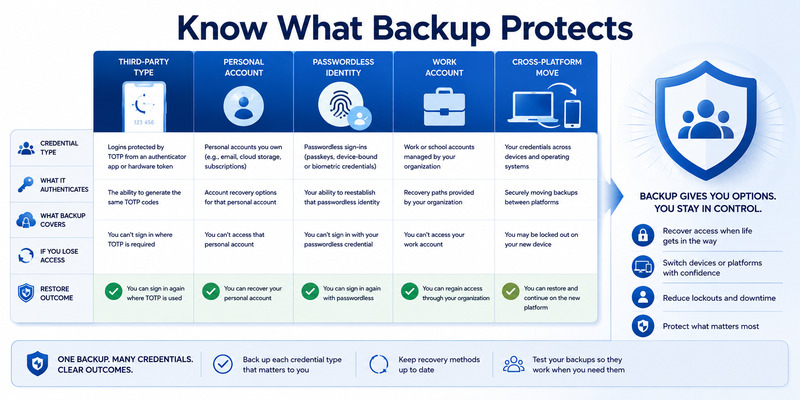
An Android backup restores to Android, and an iOS backup restores to iOS. Microsoft does not provide Android-to-iPhone or iPhone-to-Android cloud restore. For cross-platform moves, add a fresh authenticator method at every provider.
| Credential type | Likely restored state | Required validation |
|---|---|---|
| Third-party TOTP | Account and code | Provider accepts a fresh code |
| Personal Microsoft TOTP | Code may be available | Sign-in and recovery test |
| Personal passwordless | Name may restore | Sign in and enable again |
| Work or school identity | Name may restore | Complete Action required |
| Cross-platform move | No direct restore | Re-enroll each provider |
Backup does not replace provider recovery codes, security keys, recovery emails, or administrator reset. It also does not guarantee that an organization will permit restored credentials. Treat it as one resilience layer in a wider recovery design.
Account owners should also distinguish cloud backup from exported secrets. Authenticator does not provide a generic cross-platform vault file for every credential. That boundary protects credentials but means a microsoft authenticator backup must be paired with provider-controlled recovery.
A practical microsoft authenticator backup inventory records provider, username, method type, backup expectation, fallback, and test result without storing QR secrets or live codes.
Download Authenticator App
Secure your accounts with fast, reliable two-factor authentication. Download now and protect your login in seconds.
2. Prepare a Recovery Account and Fallbacks
Protect the recovery identity
Android Cloud Backup uses a personal Microsoft account as the recovery account. iPhone recovery depends on the required iCloud configuration and Microsoft identity conditions described by current Microsoft instructions. Confirm that you can access these identities without relying only on the Authenticator instance being backed up.
Before enabling microsoft authenticator backup, strengthen the recovery account with a unique password, current recovery details, and an independent factor such as a security key or protected recovery codes. A circular recovery path can fail exactly when the phone is missing.
Build provider-level recovery
For each critical service, save provider recovery codes, register a second factor, confirm recovery email or phone, or preserve a trusted session. Work and school users should know the official help-desk route and whether a Temporary Access Pass or MFA reset is available.
Store recovery codes in an encrypted password manager, secure offline record, or protected physical location. Do not keep the only copy in the phone’s photo gallery, notes, or cloud account that depends on Authenticator.
Review the account list for duplicates, abandoned services, guest tenants, and similar usernames. Clean labels improve restore verification, but do not remove uncertain entries before testing their provider registration.
Finally, review recent account activity. If unfamiliar sign-ins or security methods appear, contain the account first. A microsoft authenticator backup should preserve known-good access, not carry forward confusion during an active incident.
Write down the date of the last verified backup and the recovery-account username. Review that record after password changes, tenant moves, phone replacements, or changes to the recovery identity. This small audit keeps a microsoft authenticator backup from silently depending on an abandoned account.
💡 Discover Helpful Guides: Microsoft Authenticator Passwordless Sign-In: Complete Guide
3. Enable Cloud Backup on Android
Choose the correct recovery account
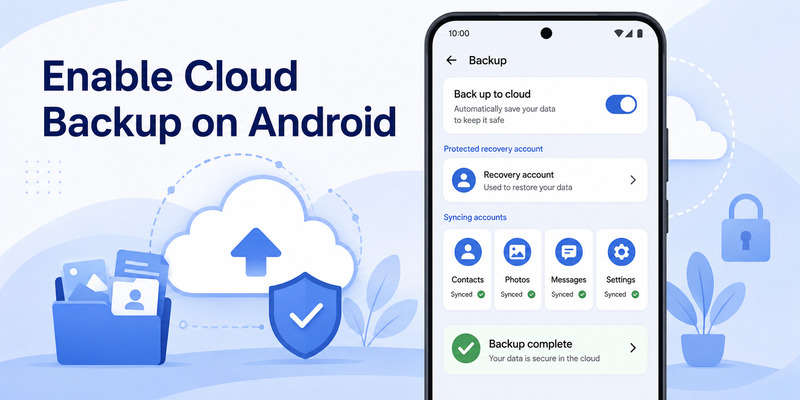
Open Authenticator on the current Android phone, enter Settings, and enable Cloud Backup. Select the personal Microsoft account that will store the backup association. Record its username in your recovery plan without recording its password.
For reliable microsoft authenticator backup, keep the app updated and verify that the phone has network access, correct time, and adequate storage. Confirm that Cloud Backup remains enabled and no error indicates that sign-in is required.
Verify backup status without deleting data
Open the app after important account changes and inspect the backup setting. Microsoft may update interface wording, so rely on the current status shown in the official app and current support documentation.
Do not test backup by clearing app storage or uninstalling on the only working device. That converts a verification exercise into a recovery emergency. Instead, preserve the old phone and perform restore testing on a replacement or spare Android device when policy and provider rules allow.
If the backup uses the wrong recovery account, follow Microsoft’s current process to remove the existing backup and create a new one under the correct identity. Before doing so, confirm all local credentials and independent recovery methods.
The backup and restore microsoft authenticator workflow on Android is successful only after restored entries are provider-tested. A green backup toggle proves cloud configuration, not future access to every service.
🧭 Explore Guides: Microsoft Authenticator Extension: Safe Browser Guide
4. Enable Authenticator Backup on iPhone
Satisfy the current iCloud requirements
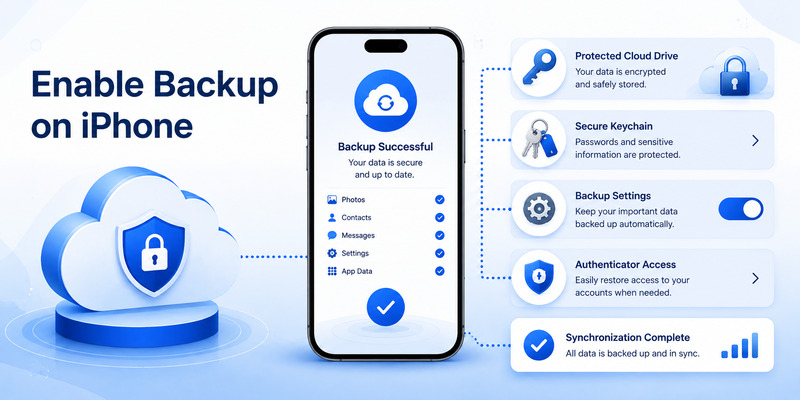
Microsoft’s current iPhone guidance requires the relevant iCloud services for Authenticator backup, including iCloud Drive, iCloud Keychain, iCloud Backup, and Authenticator access in the Saved to iCloud list. Update Authenticator and open it at least once before changing phones.
For microsoft authenticator backup on iPhone, verify the Apple account, Microsoft recovery identity, trusted-device access, and recovery contact information. Resolve any uncertainty while the existing iPhone is still available.
Confirm the app participates in backup
Open iOS settings and confirm Authenticator is allowed in the required iCloud areas described by Microsoft. Then open Authenticator and verify its backup state. Allow synchronization over a trusted connection and do not erase the old device immediately.
An ordinary full-device transfer should not be treated as proof that every authenticator credential works. Device-bound Microsoft and organizational credentials may still require a new sign-in even when the app and account names appear.
If the new iPhone does not present the expected backup, confirm that it uses the same required identities and iCloud configuration. Avoid generating multiple uncertain backups under different accounts; first identify which recovery identity owns the current data.
The microsoft authenticator for iphone ios guide adds platform-specific context. Complete iPhone microsoft authenticator backup preparation before factory reset, trade-in, or device-management retirement.
5. Restore Backup on a Replacement Phone
Start with the recovery option
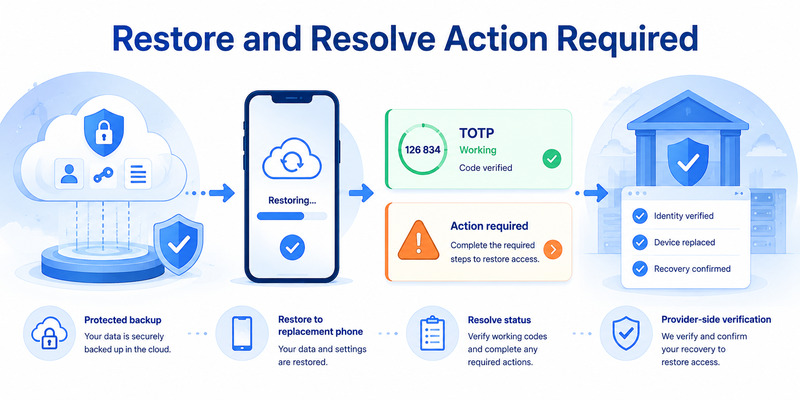
Install the official Microsoft Authenticator from the platform app store. On a same-platform replacement, choose the recovery or restore option before manually creating duplicate entries. Sign in with the recovery account and satisfy the required iCloud configuration on iPhone.
During microsoft authenticator backup restore, keep the app open and connected. Confirm automatic time and let the account list populate. Do not approve unexpected sign-in requests that arrive during setup.
Validate each restored credential
Compare the restored list with your inventory. Open one low-risk provider’s official site in a private browser, sign in, and test the new phone. For TOTP, use a fresh value. For push or passwordless, complete Action required and confirm the request reaches the replacement device.
Do not remove the old phone after the first successful account. Test every critical identity and an independent fallback. Similar account names can hide a missing tenant or a duplicate old secret.
After successful tests, review server-side security information for each high-value account. Confirm which phone receives push, remove the obsolete device only after rollback is no longer needed, and revoke stale sessions. A microsoft authenticator backup restores local data; provider records still control authentication.
If only some accounts restore, note which types are missing. Cross-platform backup, wrong recovery identity, an old backup snapshot, provider restrictions, or credentials that only restore as names are common explanations.
Follow the microsoft authenticator change phone sequence for device retirement. A microsoft authenticator restore backup procedure is complete only after provider validation, fallback testing, stale-method removal, and session review.
6. Resolve Action Required and Missing Accounts
Complete reauthentication
An Action required label usually means the backup restored an account name but not a functioning device-bound credential. Open the entry, sign in through the official flow, complete extra verification, and follow the provider or organization instructions.
If microsoft authenticator backup restores a work or school identity this way, visit the approved Security info page and confirm the new phone registration. Push MFA, passwordless phone sign-in, TOTP, and device compliance may require separate actions.
Re-enroll accounts that did not restore
First prove an alternate method or trusted session. Then open the provider’s official security settings, add an authenticator app, scan the fresh QR on the new phone, and verify the first code. Never reuse or share an old QR screenshot.
For a cross-platform move, repeat this process service by service. Use a checklist with pending, enrolled, verified, fallback tested, old method removed, and sessions revoked. Stop if the provider will replace the only factor and no recovery route works.
If one account is missing while others restored, confirm that it existed before the most recent successful backup. Also check for another app profile, secure folder, guest tenant, or recovery account. Do not delete the old app while investigating.
A repaired microsoft authenticator backup restore should end with the correct username, tenant, current code or approval, provider acceptance, and documented fallback for every account.
💡 Discover Helpful Guides: Microsoft Authenticator Passwordless Sign-In: Complete Guide
7. Test Backup Without Risking Lockout
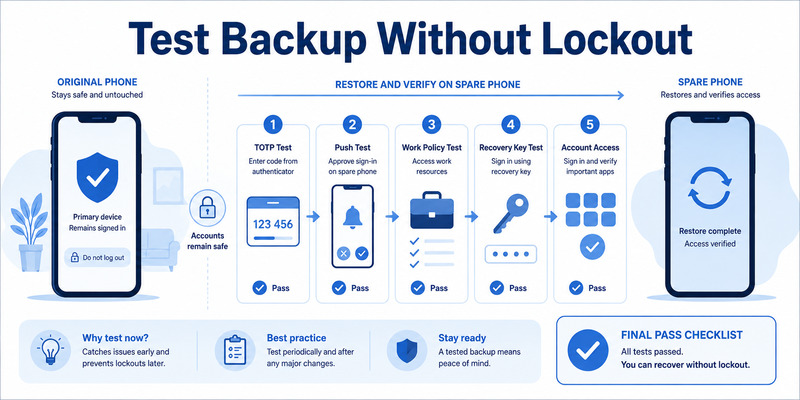
Design a reversible recovery drill
Use a spare or replacement phone of the same platform while preserving the original device. Confirm recovery-account access, install Authenticator, initiate restore, and test one low-risk service first. Do not erase or sign out the source device during the drill.
The microsoft authenticator backup test should verify more than account names. Record whether TOTP works, push reaches the new phone, passwordless needs reactivation, work accounts satisfy policy, and fallback succeeds without either phone.
Apply pass and fail criteria
| Test | Pass condition | Corrective action |
|---|---|---|
| Backup ownership | Correct recovery identity | Recreate backup under intended account |
| TOTP restore | Provider accepts fresh value | Re-enroll with surviving factor |
| Push restore | New phone receives one request | Register new device server-side |
| Work account | Security info and policy pass | Contact administrator with timestamp |
| Independent fallback | Works without restored app | Replace recovery before retirement |
After the drill, decide whether both phones may remain registered under provider policy. If not, retain the active production phone, remove the temporary method, and verify that normal login still works.
Use a pass/fail summary rather than relying on memory. A passing microsoft authenticator backup drill proves recovery-account access, restored credential behavior, provider acceptance, independent fallback, and safe device retirement. Any untested row remains an open recovery risk.
Repeat the drill after major phone-platform, organization, or account-security changes. A backup created years ago under an inaccessible recovery identity is not a dependable plan.
Document results without secrets. A tested microsoft authenticator backup turns recovery assumptions into evidence and reveals which accounts require manual re-enrollment before an emergency.
8. Recover When No Usable Backup Exists
Use provider recovery paths
Without the old phone or a compatible backup, Authenticator cannot reconstruct a third-party TOTP secret from the account name. Use a provider recovery code, security key, alternate factor, trusted session, recovery email or phone, or formal identity-verification process.
If microsoft authenticator backup is unavailable, recover the email account and password manager first because they often unlock other services. Work from a known-clean device and type official addresses directly. Avoid recovery services that request passwords, live codes, or QR secrets.
Escalate organization-managed accounts
For work or school identities, contact the organization. An authorized administrator may remove the lost method, require re-registration, or issue a Temporary Access Pass where supported. Consumer support cannot override another tenant’s policy.
Once access returns, revoke the lost device, review sessions, change passwords where compromise is possible, enroll the replacement phone, and create fresh recovery codes. Add an independent factor before treating the account as recovered.
If the recovery account itself is inaccessible, use Microsoft’s account recovery tools for that identity. Microsoft support documentation notes that Authenticator backup cannot be restored without access to the backup account.
Finish by enabling a new microsoft authenticator backup, recording its recovery identity, and testing it safely. The absence of a backup should become a corrected resilience gap, not a recurring emergency.
🛠️ Learn with Step-by-Step Guides: Microsoft Authenticator App Not Showing Code: How to Fix It
9. Frequently Asked Questions
What does Microsoft Authenticator backup save?
It saves account information and supported credentials, but behavior differs by account type. Third-party TOTP may restore with codes; work, school, and passwordless accounts can restore only names and require sign-in again.
Can I restore an iPhone backup to Android?
No. Microsoft supports backup and restore only within the same device type. Cross-platform moves require fresh enrollment at each provider before the old method is removed.
Are backup codes stored in Authenticator backup?
Provider recovery or backup codes are separate from Authenticator cloud backup. Store them independently in a secure location. Do not assume the app will display or restore them.
Why does a restored account say Action required?
The account name returned, but its push, passwordless, work, or school credential needs reauthentication or registration. Open it, sign in, complete policy requirements, and test a real login.
Can I recover Authenticator without a backup?
Yes, if the provider offers another access route. Use a recovery code, security key, alternate factor, trusted session, or administrator reset, then issue a new authenticator credential.
How often should I test backup?
Test after enabling it and after major phone, recovery-account, or organization changes. Use a reversible drill with the old phone preserved. Never destroy the only working credential merely to test recovery.
10. Final Thoughts
A dependable microsoft authenticator backup begins with correct expectations. It can restore supported account data on the same mobile platform, but device-bound, work, school, and passwordless credentials may still need sign-in or re-registration.
Protect the recovery identity independently, maintain provider recovery methods, and keep an account inventory without secrets. Android and iPhone have different setup requirements, so follow current Microsoft guidance for the source device.
Restore before manually creating duplicates, resolve every Action required label, and test each provider in a signed-out browser. Keep the old phone until the replacement and a fallback both pass.
For cross-platform moves or missing backups, enroll fresh credentials service by service. Administrators must handle tenant policy and managed-account resets through approved channels.
For compatible accounts, compare a reputable Authenticator App by publisher, encryption, backup transparency, export controls, and recovery. A tested microsoft authenticator backup is valuable because it supports—not replaces—a complete recovery plan.
Schedule a lightweight review after major security or device changes. Confirm the recovery identity still works, the backup status is current, important accounts remain present, and provider recovery codes are independently stored. When microsoft authenticator backup is treated as a maintained control rather than a one-time toggle, phone loss becomes a planned restore instead of an improvised emergency.
Protect your accounts with fast, secure two-factor authentication. Generate verification codes, manage multiple accounts, and keep your sign-ins protected wherever you go.
Download Authenticator App Now
Download Authenticator App
Secure your accounts with fast, reliable two-factor authentication. Download now and protect your login in seconds.
