Authenticator ℠ App Authenticator ℠ App by Begamob

Proton Authenticator: Download, Setup & Complete Review Guide

Two-factor authentication has become one of the most practical ways to protect an online account beyond a password. Instead of relying only on something you know, such as a password, a website can ask for a temporary verification code generated by an authenticator application.

For years, many users relied primarily on mobile-only solutions. That approach works, but it can become inconvenient when you frequently use a desktop computer, replace your phone, or want encrypted synchronization between several devices.

Proton authenticator takes a different approach. Released by Proton in 2025, the application provides an open-source two-factor authentication solution with mobile and desktop apps, offline code generation, encrypted synchronization, backups, and import/export functionality. Proton currently offers the application for Windows, macOS, Linux, Android, and iOS. A Proton account is not required for basic use.

This guide explains what proton authenticator does, how to install it, how to add your first account, how to migrate existing tokens, and what you should consider before making it your primary 2FA application.

1. What Is Proton Authenticator?

A dedicated application for 2FA codes

proton authenticator is a two-factor authentication application created by Proton, the company behind services including Proton Mail, Proton VPN, Proton Drive, and Proton Pass.

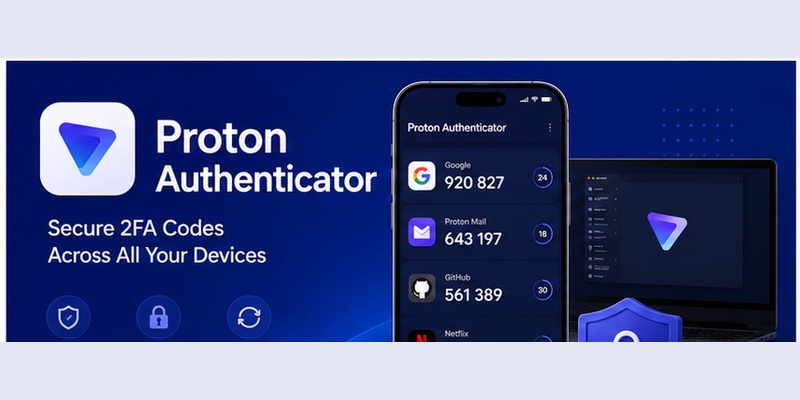
The application stores the secrets used to generate temporary authentication codes. When a compatible website asks you to enter a verification code during login, you open the app, locate the corresponding account, and enter the current code.

These codes commonly use TOTP, or Time-based One-Time Password technology. Because the code changes periodically, knowing your normal account password alone is not enough to complete the login when 2FA is enabled.

The application can generate codes while offline, so an active internet connection is not required every time you need to authenticate. Proton also provides optional encrypted synchronization when you use a Proton account.

Proton Authenticator versus Proton Pass

It is important not to confuse proton authenticator with Proton Pass.

Proton Pass is primarily a password manager. It can store login credentials and can also work with TOTP information in supported configurations.

By contrast, Proton’s dedicated authenticator is designed specifically around managing two-factor authentication codes.

Keeping your password manager and 2FA application separate may appeal to users who prefer compartmentalization. Other users may prefer keeping passwords and TOTP codes together for convenience.

There is no universal answer. The appropriate setup depends on your security model, recovery strategy, and how many devices you use.

Do you need a Proton account?

No.

According to Proton’s current documentation, proton authenticator can be used without creating or signing into a Proton account. If you do sign in, encrypted synchronization becomes available so your codes can be accessed across compatible devices.

This distinction makes the app useful for two very different groups:

  • People who want a local authenticator without account-based synchronization.
  • People who want their codes encrypted and synchronized between several devices.

That flexibility is one of the main design choices behind the application.

2. Why Use Proton Authenticator for Two-Factor Authentication?

Proton Authenticator: Download, Setup & Complete Review Guide
Why Use Proton Authenticator for Two-Factor Authentication?

Desktop access is genuinely useful

A major benefit of proton authenticator is desktop availability.

Many people spend most of their working day on a laptop or desktop computer. If every 2FA login requires finding a phone, unlocking it, opening another application, locating an account, and copying a code, authentication becomes unnecessarily repetitive.

With desktop support, the same type of codes can be available directly on your computer.

Proton officially provides desktop versions for Windows, macOS, and Linux in addition to Android and iOS applications.

For users searching specifically for proton authenticator windows, this is therefore a native supported use case rather than a mobile app being unofficially adapted to a desktop environment.

Encrypted synchronization across devices

Another important feature is synchronization.

When a Proton account is used, Proton states that 2FA codes can be synchronized between devices with end-to-end encryption. The intention is that the sensitive data is encrypted before synchronization so Proton itself cannot read the codes.

This can reduce one of the traditional weaknesses of authenticator apps: device replacement.

With a purely local application, losing a phone can mean losing the stored authentication secrets unless you have already created a backup or saved recovery codes.

A synchronized setup can make recovery considerably more convenient, although users should still maintain independent recovery methods.

Offline operation

Synchronization does not mean you must stay online whenever you authenticate.

proton authenticator can provide your codes offline. Proton lists offline access as part of the application’s feature set on both its launch announcement and current download information.

That matters when:

  • Wi-Fi is unavailable.
  • Mobile data is disabled.
  • You are traveling.
  • A network service is temporarily unavailable.
  • You intentionally prefer to keep an authenticator offline.

No ads or tracking

Proton describes the application as free to use across supported platforms with no advertising or tracking.

For an authentication application, this privacy-focused model is especially relevant because the software manages highly sensitive account-access data.

Download Authenticator App

Secure your accounts with fast, reliable two-factor authentication. Download now and protect your login in seconds.

Download Now

3. Proton Authenticator Download: Supported Devices and Platforms

Which operating systems are supported?

The official proton authenticator download page currently provides options for:

  • Windows
  • macOS
  • Linux
  • Android
  • iOS and iPadOS

The Android application is also available through F-Droid according to Proton’s official download page.

This means users can build a multi-device authentication setup rather than keeping all 2FA codes exclusively on a smartphone.

Download from official sources

When installing an authentication application, avoid downloading installers or APK files from random third-party websites.

An authenticator stores secrets capable of generating valid 2FA codes. Installing a modified or malicious copy can therefore undermine the security benefit that two-factor authentication is supposed to provide.

For a proton authenticator download, use Proton’s official download page or the official application store available on your device.

On Android, that normally means Google Play or the F-Droid option listed by Proton. On Apple devices, use the App Store. Desktop users should start from Proton’s official download page.

Should you create a Proton account immediately?

Not necessarily.

You can first install proton authenticator, add a test account, and understand how the app works before deciding whether encrypted synchronization is useful for you.

If you regularly switch between a phone, laptop, and desktop PC, synchronization may be particularly convenient.

If you intentionally maintain a single offline authentication device, you may prefer local operation combined with carefully stored recovery codes and backups.

Either approach can work when the recovery strategy is planned properly.

4. How to Install Proton Authenticator on Windows

Proton Authenticator: Download, Setup & Complete Review Guide
How to Install Proton Authenticator on Windows

Installing the Windows application

People searching for proton authenticator windows usually want to know whether a PC can act as a normal 2FA device.

Yes. Windows is officially supported. Proton’s current download page describes its Windows application as a desktop app capable of providing 2FA codes and backups directly from a PC.

A typical installation flow is:

  1. Open Proton’s official Authenticator download page.
  2. Select the Windows download option.
  3. Download the official installer.
  4. Run the installer.
  5. Open the application after installation.
  6. Decide whether to use it locally or sign in for synchronization.
  7. Add or import your authentication accounts.

The interface is designed around a list of services and their temporary codes, so you do not need extensive technical knowledge to start using it.

Adding accounts on a PC

On a desktop system, there are several practical ways to move accounts into proton authenticator.

If you already use another authenticator, importing the existing tokens is usually easier than configuring every website again.

Proton currently supports importing data from several authenticator applications, including Google Authenticator, 2FAS, Aegis Authenticator, Bitwarden Authenticator, Ente Auth, LastPass Authenticator, Proton Pass, and Proton’s own authenticator exports.

The exact export method depends on the source application.

Editing entries on Windows

Proton’s support documentation states that Windows users can right-click an existing entry to access editing or deletion options.

This is useful if a service name was imported incorrectly or you want to organize accounts more clearly.

Be cautious when deleting entries. Removing a token from your authenticator does not necessarily disable two-factor authentication on the website itself.

Always confirm that you still have another valid authentication method or recovery code before deleting an important entry.

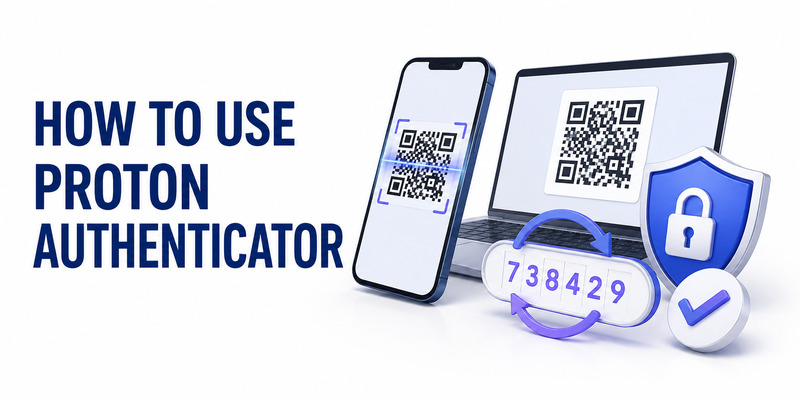
5. How to Use Proton Authenticator Step by Step

Users searching how to use proton authenticator usually need to complete one of two tasks: add a new website or import existing 2FA accounts.

Step 1: Install the application

Start by installing proton authenticator on at least one trusted device.

Open the application and choose whether you want to use it locally or connect it to your Proton account for synchronization.

Before moving important accounts, it is reasonable to test the process with a non-critical service so you understand how scanning, code generation, and recovery work.

Step 2: Enable 2FA on the website

Sign into the website you want to protect.

Navigate to its security settings and look for terms such as:

  • Two-factor authentication
  • Two-step verification
  • Authenticator app
  • TOTP
  • Verification app

Choose the option for an authenticator application.

The service will normally display a QR code or provide a secret key.

Step 3: Add the QR code

Open proton authenticator and add a new account.

On mobile, scan the QR code displayed by the service. Proton’s current import interface can also work with uploaded QR-code images in supported workflows.

Once added, the account should appear with a temporary verification code.

Step 4: Verify the first code

Return to the website and enter the code displayed by the app.

If accepted, two-factor authentication is enabled.

From that point forward, the website may ask for both your password and a current code from proton authenticator when you sign in.

Step 5: Save the recovery codes

This part is extremely important.

Many services provide one-time recovery codes when you activate two-factor authentication.

Store them somewhere secure and separate from the device containing your authenticator.

A recovery code may allow you to access an account if your phone or computer becomes unavailable.

Step 6: Test before signing out everywhere

Do not immediately remove your previous authentication method.

Open a private browsing window or another trusted device and test whether you can successfully log in using proton authenticator.

Only after confirming that your new setup works should you remove obsolete authentication entries.

This approach makes learning how to use proton authenticator significantly safer because you verify the migration before depending on it completely.

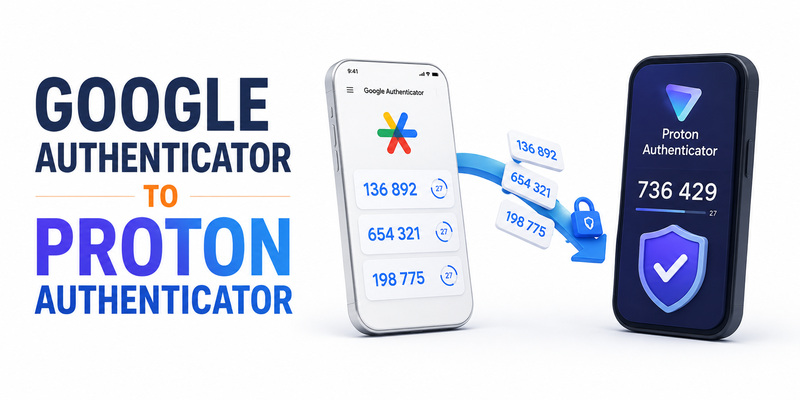
6. How to Move From Google Authenticator to Proton Authenticator

Proton Authenticator: Download, Setup & Complete Review Guide
How to Move From Google Authenticator to Proton Authenticator

Migrating existing accounts is one of the most important use cases.

Proton officially lists Google Authenticator among the applications that can be imported.

Export from Google Authenticator

The general google authenticator to proton authenticator migration process has two stages:

  1. Export your existing codes from Google Authenticator.
  2. Import the exported information into Proton.

Proton’s interface provides provider-specific instructions under its import settings. Its support documentation directs users to Settings → Import, where the current instructions for each supported authenticator are displayed.

Because authentication apps can change their interfaces over time, following the instructions shown in the latest version of the app is preferable to relying on an old screenshot.

Import the exported codes

Once the Google Authenticator export QR code is available, open proton authenticator.

Use the add/import option to scan the QR code or upload the QR image when supported.

Proton also documents CSV-based imports for compatible export formats.

After importing, inspect the account list carefully.

Make sure important services appear correctly before making any changes to the previous authenticator.

Test every important account

The safest way to complete a google authenticator to proton authenticator migration is not simply to assume that a successful import means everything works.

For your most important services:

  1. Log in.
  2. Confirm that the code generated by the new application works.
  3. Check that you still possess the service’s recovery codes.
  4. Only then consider removing the old copy.

If one account fails to migrate correctly, you can normally visit that service’s security settings and reconfigure its authenticator setup directly rather than risking being locked out.

Do not expose migration QR codes

An export QR code may contain information capable of recreating your authentication tokens.

Treat it as sensitive.

Do not upload it to public cloud folders, send it casually through messaging platforms, publish screenshots, or leave exported images stored unnecessarily after migration.

The entire security model depends on keeping the underlying authentication secrets private.

7. Proton Authenticator Security, Privacy, and Open Source Code

End-to-end encrypted synchronization

When synchronization is enabled through a Proton account, proton authenticator uses end-to-end encryption for synchronized 2FA data, according to Proton.

Proton states that data is encrypted on the user’s device so the service cannot read the stored authentication codes.

This design is particularly important for an authenticator because access to the underlying secrets could allow an attacker to generate valid temporary codes.

Local and cloud backup options

Proton also promotes both local and cloud backup options.

Its download documentation emphasizes that users can choose local or cloud backups rather than being tied exclusively to one recovery approach.

A good strategy is still to maintain more than one recovery path.

For example, encrypted synchronization can help when replacing a phone, while separate service recovery codes provide another method if your authenticator account itself becomes inaccessible.

Open-source development

Users researching proton authenticator github are usually interested in transparency rather than simply finding another place to download the software.

Proton describes the application as open source, allowing its code to be inspected rather than requiring users to trust a completely closed implementation.

The official Proton GitHub organization includes the Android Authenticator source repository. Its README identifies the project as the source code for Proton Authenticator’s Android application and publishes it under the GPL-3.0 license.

For technically advanced users, the proton authenticator github repositories can therefore provide additional visibility into development, builds, licensing, and changes.

For normal users, however, downloading the prebuilt official application is considerably easier than compiling software from source.

Why open source matters—but is not magic

Open source improves transparency, but it should not be interpreted as a guarantee that software can never contain bugs.

The more useful way to look at it is that independent researchers and developers have the opportunity to inspect the implementation.

Security ultimately depends on several layers:

  • Application architecture
  • Encryption
  • Operating-system security
  • Device security
  • Recovery procedures
  • User behavior

Even a well-designed Authenticator App cannot protect an account if its recovery credentials or authentication secrets are publicly exposed.

8. Ente Auth vs Proton Authenticator: Which One Should You Choose?

Proton Authenticator: Download, Setup & Complete Review Guide

Another increasingly common comparison is ente auth vs proton authenticator.

Both products are privacy-focused, open-source authenticator applications with multi-device support and end-to-end encrypted synchronization options. However, their feature sets are not identical.

Similarities

Both Ente Auth and proton authenticator support the basic workflow expected from a modern TOTP application.

They provide cross-platform options, encrypted synchronization, import/export functionality, and the ability to use the authenticator without an account in appropriate configurations.

That makes both considerably more flexible than a simple phone-only authenticator.

Where Ente Auth currently offers more organization features

Ente Auth currently documents several advanced organization and usability features, including:

  • Tags
  • Notes
  • Pinned entries
  • Search
  • Display customization
  • Duplicate-code management
  • Trash
  • Sharing
  • Viewing the next code
  • Multiple export formats

Its official documentation also lists web access in addition to mobile and desktop applications.

Those capabilities can be valuable if you manage a very large number of tokens.

Where Proton is appealing

proton authenticator may be especially attractive to users already comfortable with the Proton ecosystem.

It offers native desktop and mobile applications, offline access, optional Proton-account synchronization, import/export tools, and a relatively straightforward authentication-focused experience.

It also does not require a Proton account for basic operation.

Ente Auth vs Proton Authenticator in practice

The practical answer to ente auth vs proton authenticator therefore depends on what you value.

Choose Ente Auth if advanced organization, web access, tags, notes, and mature token-management controls are particularly important to you.

Consider proton authenticator if you want a simple cross-platform 2FA application, already use Proton products, or prefer Proton’s approach to encrypted synchronization and backups.

Neither choice eliminates the need for recovery planning.

The quality of your backup strategy matters at least as much as the brand of authenticator you choose.

9. Proton Authenticator Review: Advantages and Limitations

A useful proton authenticator review should consider both convenience and security rather than simply listing features.

Advantage 1: Real desktop applications

Desktop support is one of the strongest reasons to consider proton authenticator.

Windows, macOS, and Linux are officially listed alongside Android and iOS.

For people who frequently authenticate on a computer, this can remove the repeated need to reach for a phone.

Advantage 2: Optional encrypted synchronization

Users can run the application without an account or use a Proton account for encrypted synchronization.

That provides more flexibility than an authenticator that forces either cloud storage or device-only storage.

Advantage 3: Import and export

The ability to move authentication tokens into and out of an application is extremely important.

Vendor lock-in is particularly undesirable for 2FA because losing access to your authenticator can also affect access to many other services.

proton authenticator supports importing from several popular apps and allows codes to be exported again.

Advantage 4: Open source

The open-source model improves transparency.

The publicly available Android repository, for example, exposes source code, development information, and its GPL-3.0 licensing.

Advantage 5: Free without advertising

Proton currently describes proton authenticator as free across supported platforms without ads or tracking.

That makes it accessible even to users who do not subscribe to other Proton products.

Limitation 1: It is younger than some competitors

The application launched in July 2025, making it younger than several established authenticator alternatives.

That does not automatically make it less secure, but mature competing products may currently provide specialized workflow features developed over a longer period.

Limitation 2: Advanced organization may matter to power users

Users managing dozens or hundreds of tokens may want advanced tools such as extensive tagging, notes, sharing, specialized sorting, or web access.

For example, Ente Auth currently documents a particularly broad set of organization options.

Therefore, the best app depends partly on how complex your authentication library is.

Overall review

For most people, this proton authenticator review is positive.

The combination of cross-platform availability, offline codes, encrypted synchronization, import/export support, backups, and an open-source model addresses many of the frustrations associated with traditional authenticator applications.

The most important question is not whether proton authenticator has the longest feature list.

It is whether its workflow fits your devices and whether you create a reliable recovery strategy.

10. Backups, Sync, Troubleshooting, and Best Practices

Proton Authenticator: Download, Setup & Complete Review Guide
Backups, Sync, Troubleshooting, and Best Practices

Always maintain a recovery path

No authenticator should be the only path into every important account.

When enabling 2FA, save the recovery codes supplied by the website.

Keep them in a secure location separate from your primary authenticator device.

If your phone disappears, your computer fails, or your synchronization account becomes unavailable, those recovery codes may provide an independent way to regain access.

Use synchronization intentionally

If you use several trusted devices, encrypted synchronization can make proton authenticator much easier to manage.

Proton states that users with a Proton account can sync codes across devices with end-to-end encryption.

However, adding more devices also means more devices need to remain secure.

Protect every synchronized device with:

  • A strong screen lock
  • Current operating-system updates
  • Full-device encryption where available
  • Biometrics or a secure PIN
  • Controlled physical access

Proton also supports protecting access to the authenticator with biometric authentication or a PIN.

What if a code does not work?

If a proton authenticator code is rejected, first check the basics.

Verify that:

  1. You selected the correct account.
  2. The service is still configured for the same authenticator secret.
  3. Your device’s date and time are correct.
  4. You entered the code before it expired.
  5. The account was imported successfully.
  6. You did not accidentally duplicate or replace the service’s 2FA configuration.

Time-based codes depend on accurate device time, so major clock errors can prevent valid codes from matching.

What if an import fails?

Proton notes that if an authenticator cannot export its codes, users may need to reconfigure affected services and create new entries directly in proton authenticator.

When doing this, change one account at a time.

Do not delete all old authenticator entries first and attempt to rebuild them afterward.

The safer order is:

  1. Open the service’s security settings.
  2. Confirm you can access the account.
  3. Configure the new authenticator.
  4. Verify the new code.
  5. Store new recovery codes if issued.
  6. Test login again.
  7. Remove obsolete authentication data only after verification.

Back up before replacing a device

Before wiping or selling an old phone, verify that proton authenticator is available on another trusted device or that your backup can actually be restored.

A backup that has never been tested is less useful than it appears.

At minimum, check that another device displays the expected accounts and that several important codes work.

Avoid screenshots of authentication secrets

Do not casually store screenshots of QR setup codes.

A QR code used during 2FA enrollment can contain the secret needed to generate future verification codes.

If someone obtains that secret, they may be able to reproduce the same codes on another authenticator.

The QR code should therefore be treated more like a password than a normal image.

Keep recovery codes separate

If possible, do not store your account password, authenticator secret, and recovery codes in the exact same unprotected location.

Separating recovery methods can reduce the impact of one compromised device or file.

proton authenticator gives you useful backup and synchronization options, but good account security still requires thoughtful recovery planning.

11. Who Should Use Proton Authenticator?

Users with several devices

The application is particularly well suited to someone who regularly switches between a smartphone and computer.

Because proton authenticator supports mobile and desktop systems, you do not have to build your entire 2FA workflow around a single phone.

This can be especially useful for:

  • Remote workers
  • Developers
  • Students using a laptop and phone
  • People with separate personal and work computers
  • Users who frequently replace devices

Privacy-conscious users

People who deliberately choose privacy-oriented applications may also find proton authenticator appealing.

The app is open source, Proton says synchronization uses end-to-end encryption, and the service is currently offered without ads or tracking.

Users migrating away from a phone-only setup

If your current Authenticator App works well but becomes inconvenient whenever your phone is inaccessible, desktop support can be a meaningful improvement.

You do not necessarily need to migrate every account immediately.

Start with a few services, test the workflow, establish backups, and only then migrate the remainder.

People already using Proton

Existing Proton users may find the integration particularly natural.

A Proton account can be used for encrypted synchronization, while users who do not want synchronization can still run proton authenticator without signing in.

This makes adopting it optional rather than forcing users deeper into an account ecosystem simply to generate TOTP codes.

12. Final Thoughts

proton authenticator represents a modern approach to two-factor authentication: mobile and desktop support, offline code generation, optional end-to-end encrypted synchronization, import/export functionality, backups, and open-source development.

It is currently available for Windows, macOS, Linux, Android, and iOS, while basic use does not require a Proton account.

For users coming from Google Authenticator, the built-in import workflow can make migration considerably easier than manually resetting 2FA on every service. Proton officially lists Google Authenticator among its supported import sources.

For users deciding between Ente Auth and proton authenticator, the choice is more nuanced. Ente currently provides an extensive set of management functions including tags, notes, sharing, search, web access, and additional organization controls, while Proton offers a clean cross-platform approach closely aligned with its broader privacy ecosystem.

Whichever application you choose, the authenticator itself is only one part of a reliable security strategy.

Save account recovery codes. Protect every synchronized device. Avoid exposing QR setup codes or exported authentication data. Test your backup before erasing an old device. And never remove a working authentication method until the replacement has been verified.

Used with those practices, proton authenticator can be a practical option for anyone who wants secure two-factor codes without being restricted to a single phone.

Download Authenticator App

Secure your accounts with fast, reliable two-factor authentication. Download now and protect your login in seconds.

Download Now