
Proton Authenticator Download: How to download Step by Step
The official proton authenticator download is available from Proton’s Authenticator download page for Windows, macOS, Linux, iOS, and Android. Proton also lists Apple Watch support in the product family. Use the platform button reached through Proton or the trusted mobile store, not a software mirror, browser extension, or file sent in chat.
The app is free, open source, works offline, and does not require a Proton Account for local use. Signing in is optional and enables end-to-end encrypted synchronization across supported devices. Proton’s current getting-started guide says Windows, Linux, and Android users need a Proton Account when they want sync.
This guide explains source verification, platform choice, installation, local versus synchronized setup, imports, backups, phishing defense, troubleshooting, and safe migration.
1. Find the Official Proton Download Page
Navigate independently
Type Proton’s official domain or follow the Authenticator product page to its download section. The page currently presents mobile apps for iOS and Android plus desktop applications for Windows, macOS, and Linux. Resolve the current platform link from that page instead of reusing an old direct installer URL.
Do not begin proton authenticator download from a sponsored result, shortened link, forum attachment, software catalog, or message from someone helping with a login. An authenticator stores the secrets that generate future codes, making a fake installer especially damaging.
Check the destination
For mobile, confirm the genuine Apple App Store or Google Play interface and publisher. For desktop, confirm Proton’s official download flow and inspect publisher or package-signing information where the operating system displays it. Keep built-in malware and reputation checks enabled.
| Source | Safe choice? | Reason |
|---|---|---|
| Proton Authenticator product/download page | Yes | Official routing point |
| Apple App Store or Google Play linked by Proton | Yes | Trusted mobile distribution |
| Desktop installer obtained through Proton | Yes | Current official package route |
| Third-party download mirror | No | Integrity and update uncertainty |
| Browser extension or web generator | No | Not an official listed app |
Bookmark the official page after verification. This keeps future proton authenticator download updates connected to the publisher rather than search-engine advertising or imitation domains.
Download Authenticator App
Secure your accounts with fast, reliable two-factor authentication. Download now and protect your login in seconds.
2. Choose the Correct Platform

Match the app to the device
Proton’s official page lists Windows, Mac, Linux, iOS, and Android, with additional Apple device support. Choose the native app intended for the operating system. Do not run an Android package on Windows through an unknown emulator when an official Windows application exists.
The proton authenticator windows guide covers PC setup in depth. For other desktops, use the current macOS or Linux button on Proton’s page and follow the platform’s standard installation security prompts.
Decide where codes should live
A phone offers portability and camera-based QR enrollment. A desktop provides convenient access when the phone is unavailable. Several synchronized devices improve resilience, but every endpoint must be locked, updated, and revocable.
| Platform | Practical advantage | Main security check |
|---|---|---|
| Windows | Native PC access and backup | Protected Windows user profile |
| macOS | Apple desktop workflow | FileVault and account lock |
| Linux | Native desktop option | Official package and repository trust |
| iOS | Portable codes and Apple backup options | Device lock and Apple recovery |
| Android | Portable cross-platform access | Device updates and verified store |
No Proton Account is required simply to use the app locally. Account login matters when encrypted cross-device synchronization is desired.
Choosing the platform before proton authenticator download prevents accidental installation of a look-alike and clarifies the backup plan for that device.
🧭 Explore Guides: Proton Authenticator Windows: Setup and Security Guide A-Z
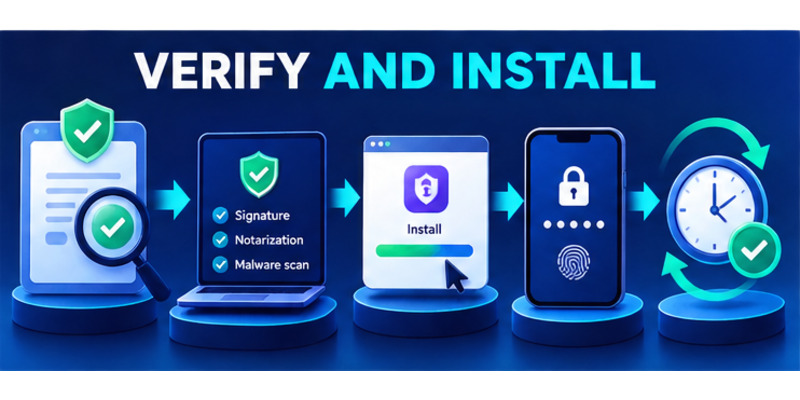
3. Verify and Install the Application
Prepare the operating system
Install security updates, enable device encryption where available, turn on a strong screen lock, and use automatic date and time. TOTP depends on the clock, so incorrect time can make every generated code fail.
Confirm adequate storage and a trusted network. On a shared computer, create a separate operating-system account rather than placing authentication secrets inside a communal profile.
Complete installation safely
For mobile, tap Get or Install in the verified store. For desktop, launch the official package, review the publisher prompt, and follow the platform’s normal installer. Never disable antivirus, SmartScreen, Gatekeeper, or package-signature checks because an unofficial guide requests it.
Use this proton authenticator download checklist:
- Start from Proton’s official page.
- Select the matching operating system.
- Verify store or publisher information.
- Keep security checks enabled.
- Install through the normal platform flow.
- Launch from the trusted app menu.
- Enable application lock if offered.
- Decide on local or synchronized use.
Proton’s public pages do not provide a universal desktop version requirement in the material reviewed here. Let the current official store, package, or installer determine compatibility instead of assuming a minimum version.
A verified installation completes the first half of proton authenticator download; adding, testing, and recovering codes completes the security change.
After the first launch, record the operating system, app version, verified source, installation date, and chosen update channel in a private maintenance note. Do not place passwords or token secrets in that record. Confirm that the application reopens after a restart, the clock remains synchronized, the screen lock works, and another person using the same device cannot open the vault through a shared profile. These checks make proton authenticator download auditable and expose local configuration problems before important accounts depend on it.
📘 Find the Right Guide: How to Use Proton Authenticator: Complete Setup Guide
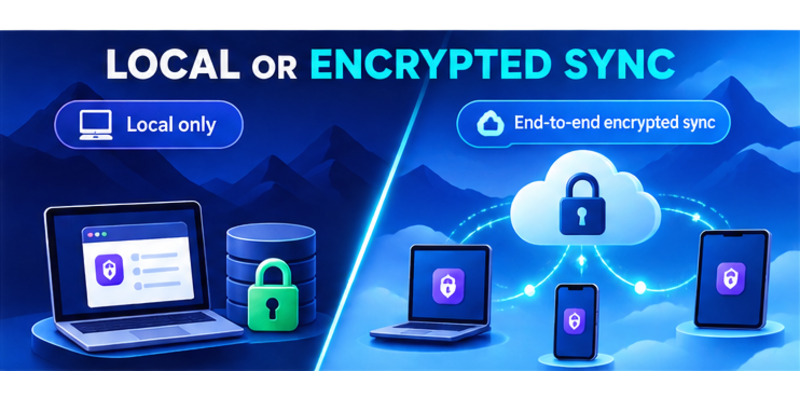
4. Start Local or Encrypted Sync Mode
Use the app without an account
Proton says users can start without account signup, phone number, or email address. Local mode suits people who want offline TOTP and can maintain a secure export or service recovery codes independently.
Local use reduces account dependency but increases device-loss risk. A failed disk or erased phone can remove every stored seed if no backup exists. Create recovery plans before adding important services.
Sign in for synchronized access
Users can sign in to a Proton Account to synchronize codes across supported devices with end-to-end encryption. Proton’s getting-started page specifically says Windows, Linux, and Android need Proton Account login for sync; Apple devices may also use supported Apple backup or synchronization options.
| Mode | Benefit | Responsibility |
|---|---|---|
| Local only | No account; offline access | Secure independent backup |
| Proton Account sync | Multi-device availability | Protect Proton login and recovery |
| Mobile plus desktop | Redundancy if one endpoint fails | Secure both devices |
| Multiple desktops | Convenient workstation access | Revoke retired endpoints |
Protect the Proton Account with a unique password, recovery method, and independent factor. Review signed-in devices after loss or repair.
Making this choice immediately after proton authenticator download prevents an unbacked local vault from being mistaken for a synchronized one.
Document the mode and recovery location so proton authenticator download remains understandable during a future device migration.
🧭 Explore Guides: Proton Authenticator: Download, Setup & Complete Review Guide
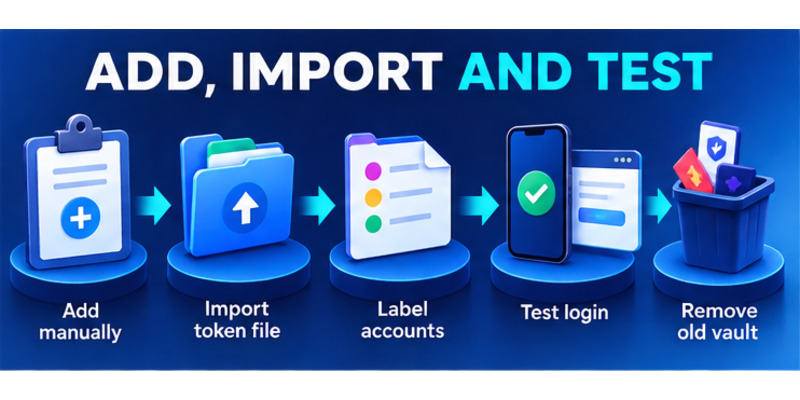
5. Add or Import 2FA Codes
Add the first account
Open the security settings of the service to protect and enable authenticator-based 2FA. The service will display a QR code or manual secret. In the app, choose Create new code or the plus button, scan on mobile or enter the secret manually, add the issuer and account title, then save.
Type the generated code back into the genuine service to confirm enrollment. Save the service’s recovery codes outside the authenticator in an encrypted password manager or secure offline record.
Import an existing vault
Proton currently supports imports from Google Authenticator, 2FAS, Aegis Authenticator, Bitwarden Authenticator, Ente Auth, and LastPass Authenticator, and it supports export from Proton Authenticator. Follow current official instructions because formats can change.
For migration after proton authenticator download:
- Export through the old app’s official process.
- Keep the export encrypted and local.
- Import with Proton’s built-in flow.
- Compare labels and issuers.
- Test several noncritical accounts.
- Verify every important service.
- Remove temporary exports.
- Retire the old app only after success.
Never upload a token file to an online converter. It may contain every long-lived TOTP seed and can silently recreate future codes.
The full proton authenticator overview explains TOTP, Proton Pass differences, and recovery strategy.
Testing makes proton authenticator download operational; seeing imported entries alone does not prove they authenticate correctly.
Use a migration worksheet that lists only service names, account labels, verification status, recovery-code status, and the date tested. Mark each account complete after a signed-out login succeeds. For high-value accounts, also confirm that the service can revoke and re-enroll the factor. Keep the old authenticator active until every row is verified, then remove its entries through the official app process. This controlled approach makes proton authenticator download safer than a one-click import followed by immediate deletion of the original vault.
6. Avoid Fake Installers and Token Theft
Recognize imitation downloads
Attackers can use search ads, cloned Proton pages, fake mobile listings, modded APKs, package mirrors, and browser extensions. Warning signs include a misspelled domain, unverified publisher, unusual archive password, request to disable security, or promise of “premium” code generation.
Proton says the authenticator is free, open source, and has no ads or tracking. A page demanding payment for the base app or showing aggressive advertising conflicts with that description.
Protect seeds, exports, and codes
The enrollment QR, manual secret, and token export can generate future codes. A current TOTP is short-lived but can still be relayed through phishing. Never send any of these to a support impersonator, coworker, trader, or remote technician.
Common threats during proton authenticator download include:
- Direct installer attached to email or chat.
- Fake support asking to import a “repair” file.
- Browser page that claims to display synchronized codes.
- Online converter requesting an export.
- Screen sharing while the vault is open.
- Clipboard-monitoring malware on a desktop.
- QR enrollment captured in a screenshot.
If a suspicious app received credentials or an export, use a clean device to change passwords, replace TOTP secrets at affected services, revoke sessions, and preserve evidence. Deleting the fake app alone does not invalidate copied seeds.
Source verification ensures proton authenticator download strengthens authentication instead of becoming the mechanism that defeats it.
📖 Read More Guides: Google Authenticator to Proton Authenticator: Complete Migration Guide
7. Fix Download and Installation Problems
Diagnose platform and store errors
If the app is unavailable, confirm the selected operating system, store region, device updates, storage, date, network, and official service status. Restart the platform and resolve pending OS updates. Do not bypass an incompatibility message with an unofficial package.
If a desktop download button fails, reopen Proton’s official page, disable only a clearly identified broken content filter for that domain, or try a trusted network. Never accept a replacement installer from a forum post.
Repair startup, sync, and code failures
Update the app and operating system, restart the device, and verify automatic time. If sync does not appear on Windows, Linux, or Android, confirm sign-in to the intended Proton Account and network access. Compare devices only after synchronization completes.
| Problem | First safe action | Avoid |
|---|---|---|
| Platform unsupported | Use current compatible device | Untrusted package |
| Download stalls | Check storage, network, official page | Disabling security globally |
| App will not open | Update OS and app, restart | Cleaner or modded build |
| Sync absent | Verify Proton Account and connectivity | Reimporting repeatedly |
| Code rejected | Automatic time, account label, fresh code | Deleting only copy |
Preserve recovery codes, exports, and a working device before reinstalling or clearing application data. Record the app version, OS, error, time, and actions already tried for Proton Support.
Methodical troubleshooting keeps proton authenticator download within official channels and protects the existing vault while the software problem is diagnosed.
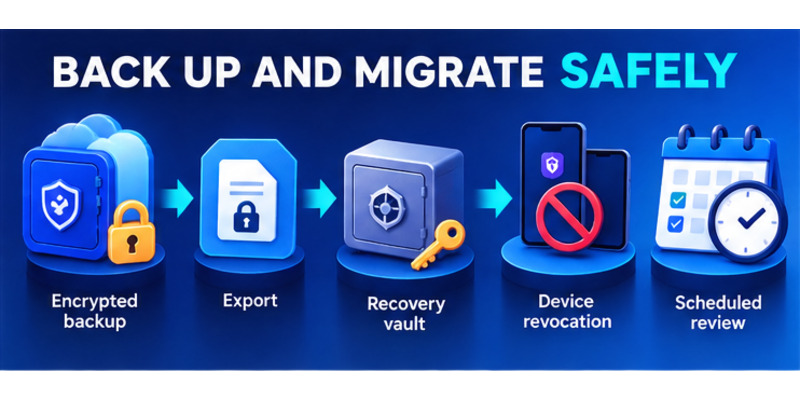
8. Back Up, Update, and Migrate Safely
Create independent recovery paths
Proton supports encrypted backups with a Proton Account or on iOS and allows export to another secure location. Encrypt exports, store them separately, and restrict access. Keep service recovery codes outside the authenticator as an independent fallback.
Test recovery with a noncritical account before trusting it for the whole vault. Confirm a synchronized device can access codes offline, and record the backup date and device inventory without writing secrets in an exposed note.
Maintain and migrate deliberately
Install updates from the same official channel used for proton authenticator download. Review synchronized devices after resale, repair, loss, or employee offboarding. Revoke endpoints no longer controlled.
Use this maintenance schedule:
- Update the application and operating system.
- Confirm automatic time.
- Review synchronized devices.
- Verify encrypted backup or export.
- Check service recovery codes.
- Test several important logins.
- Remove obsolete token files.
- Replace any seed that may have leaked.
During a phone or PC migration, install the official app, restore through sync or import, test every important account, and only then erase the old device. Keep at least one independent recovery path throughout.
Routine maintenance turns proton authenticator download from a one-time installer event into a resilient authentication system that can survive device failure without scattering exposed copies.
Schedule quarterly checks and an immediate review after device loss, operating-system reinstallation, Proton Account recovery, or a suspicious login. Compare synchronized endpoints with devices you physically control, confirm exports remain encrypted, and replace any factor whose enrollment secret may have appeared in screenshots or temporary folders. A maintained proton authenticator download setup should always answer three questions: where current codes are available, how access can be restored, and how a lost endpoint can be revoked.
🗺️ Browse How-To Guides: How to Use Proton Authenticator: Complete Setup Guide
9. Frequently Asked Questions
Where can I download Proton Authenticator?
Use Proton’s official Authenticator download page. It links the current Windows, macOS, Linux, iOS, and Android applications.
Is the app free?
Yes. Proton says it is free on all platforms, with no ads and no tracking.
Do I need a Proton Account?
No for local use. An account enables end-to-end encrypted cross-device synchronization and related backup features.
Does it work offline?
Yes. TOTP codes can be accessed offline after setup. Accurate device time remains essential.
Is there an official web app or browser extension?
The official product pages reviewed list native mobile and desktop apps, not a browser vault. Avoid extensions or sites claiming to reveal codes.
Can I import from another authenticator?
Yes. Proton supports imports from several popular apps. Follow the current official export and import instructions and keep token files encrypted.
How do I protect an exported vault?
Encrypt it, restrict access, store it separately from the primary device, and remove unnecessary temporary copies. Treat it like a collection of long-term credentials.
How long does proton authenticator download take?
Installation usually takes minutes on a compatible device. Allow extra time to verify the source, import or add accounts, test logins, and confirm recovery.
📖 Read More Guides: Proton Authenticator Review: Privacy, Features & Verdict
10. Final Thoughts
The safest proton authenticator download starts on Proton’s official page and ends only after the app, codes, synchronization choice, and recovery plan are verified. Choose the correct Windows, Mac, Linux, iOS, or Android package and keep platform security checks enabled.
Local use requires no account and works offline; optional Proton Account sign-in enables end-to-end encrypted synchronization across supported devices. Whichever mode is chosen, protect the device, preserve service recovery codes, and maintain an encrypted export or tested backup.
Treat enrollment QR codes, manual secrets, and token exports as long-lived credentials. Test migrated accounts before deleting an old authenticator, revoke lost devices, and replace seeds that may have been copied.
Visit Authenticator App for broader two-factor setup, backup, migration, and phishing-defense guidance. A responsible proton authenticator download produces a verified application, tested logins, recoverable codes, and no secrets left in unofficial installers, converters, or unmanaged devices.
Complete a final validation on a noncritical account before expanding the vault. Restart the device, open the app offline, confirm a current code works, reconnect, and verify synchronization if enabled. Then locate the service recovery codes without opening the authenticator itself. This exercise proves that ordinary login and emergency recovery are independent.
Repeat that test after a major update or device migration. Remove old installers, clear temporary exports, and review the operating system’s authorized users. Those simple controls ensure proton authenticator download remains trustworthy long after the initial setup screen disappears.
Document the result and next review date so security maintenance remains visible, repeatable, and easy to complete before an unexpected failure occurs.
Download Authenticator App
Secure your accounts with fast, reliable two-factor authentication. Download now and protect your login in seconds.
