
How to Use Proton Authenticator: Complete Setup Guide
Learning how to use proton authenticator starts with a simple three-part workflow: install the official app, connect each account by scanning its two-factor authentication QR code, and verify a fresh six-digit code before leaving the service’s security page. The app can work locally without a Proton Account, or it can use optional end-to-end encrypted synchronization when you sign in.
The scan itself takes seconds, but a reliable setup includes more than scanning. You must protect recovery codes, decide whether to synchronize, test backups, label entries clearly, and keep exported token data away from email and shared folders. Those steps determine whether 2FA remains available after a lost phone or broken computer.
This how to use proton authenticator guide covers mobile and desktop installation, first-time enrollment, manual secret entry, migration, synchronization, backup, export, daily login, and troubleshooting. Follow it one account at a time and keep your old authenticator until every important login has been tested.
1. Prepare and Download
Choose the devices you actually need
Proton provides Authenticator for iOS, Android, Windows, macOS, and Linux. Install it only on devices that serve a real purpose. A phone is usually the most practical primary device because it can scan enrollment QR codes, while a desktop client can improve accessibility or provide continuity when the phone is unavailable.
Every extra installation expands the security boundary. Before learning how to use proton authenticator across five devices, decide whether two well-protected devices would be enough. Each selected device should have operating-system updates, disk encryption, a strong lock, and a private user account. Avoid shared family or reception computers.
Use the official proton authenticator download path or a trusted store reached from Proton’s website. Verify the publisher before installing. Do not use download advertisements, copied installers, or files sent through a forum message.
Decide between local and synchronized use
You do not need a Proton Account for local operation. Local mode keeps the initial setup simple and reduces cloud dependency, but you become responsible for backup and recovery. Signing in allows supported devices to synchronize codes with end-to-end encryption, which improves continuity while adding endpoints that must be protected.
This how to use proton authenticator decision should be made before importing a large collection. Choose local mode if you can maintain an encrypted, tested backup and want a narrow device boundary. Choose synchronization if losing one device would otherwise cause serious lockout risk.
Avoid an unofficial proton authenticator apk even when it promises early features or compatibility. A modified package could capture every secret you add. If the official store is unavailable, use Proton’s documented distribution options and verify platform requirements rather than trusting a mirror.
Download Authenticator App
Secure your accounts with fast, reliable two-factor authentication. Download now and protect your login in seconds.
2. Add Your First 2FA Code
Begin on the account being protected
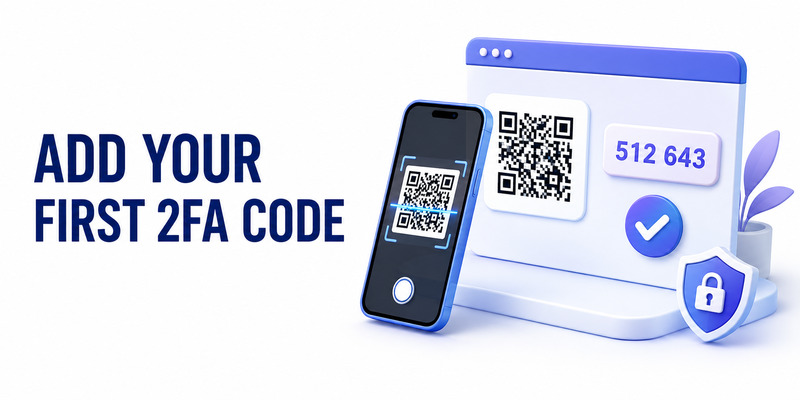
Sign in to the website or app you want to secure and open its security settings. Look for “two-factor authentication,” “authenticator app,” “verification app,” or “TOTP.” Select the authenticator-app option. The service should show a QR code and may also display a secret key for manual entry.
Do not scan a QR code delivered by an unsolicited email or chat message. A legitimate enrollment code appears inside the authenticated security settings of the service. This how to use proton authenticator precaution protects the enrollment step itself. Before continuing, confirm the domain, account name, and purpose. A QR code can contain the secret that produces future one-time passwords.
This is the most important context for how to use proton authenticator: Proton stores and calculates the code, while the third-party service decides whether that code is accepted. Changes such as disabling 2FA or replacing a lost factor must normally be completed on the protected service.
Scan or enter the secret manually
Open Proton Authenticator and select “Create new code” or the plus button. On mobile, choose the camera option and scan the service’s QR code. Grant camera permission only when the app requests it for this task. If scanning is unavailable, choose manual entry and carefully type or paste the secret key.
Add a clear title and issuer. Use labels that distinguish similar accounts, such as “Work email — admin” and “Personal email,” instead of two identical service names. Confirm that the entry appears and that a six-digit code changes with its timer.
A careful proton authenticator tutorial adds one account at a time. Do not collect screenshots of several QR codes for later. After the token is created, keep the service setup page open until a generated code has been accepted and recovery information has been stored.
🧭 Explore Guides: Proton Authenticator: Download, Setup & Complete Review Guide
3. Verify Setup and Save Recovery
Confirm with a fresh code
Return to the service’s setup page and enter the current code from Proton Authenticator. If only a few seconds remain, wait for the next code rather than racing the timer. A successful confirmation proves that the stored secret, account selection, and device time agree with the service.
To understand how to use proton authenticator reliably, separate enrollment from login testing. Enrollment confirms the factor; a subsequent sign-out and sign-in confirms the complete workflow. Before signing out of a critical service, make sure its password and recovery options are available.
If the code fails, check that you selected the correct entry, that automatic date and time are enabled, and that no spaces were introduced during manual entry. Do not repeatedly regenerate or rescan secrets without knowing which token the service currently expects.
Store service recovery codes separately
Many services issue one-time recovery codes after 2FA is enabled. These codes belong to that service, not to Proton Authenticator. Save them outside the authenticator devices, ideally in an encrypted vault or a secure offline record. Do not store the only copy beside the phone that carries the token.
Recovery is a required part of how to use proton authenticator, not an optional cleanup step. Record the service name, date, and whether unused recovery codes remain. If the service lets you regenerate them, doing so usually invalidates the previous set; update the stored record immediately.
Test one recovery process with a low-risk account so you understand the prompts without creating an emergency. Never send recovery codes to “support,” paste them into a shared ticket, or photograph them on a device that automatically uploads images to an uncontrolled cloud library.
4. Import from Another Authenticator
Export from the current app in private
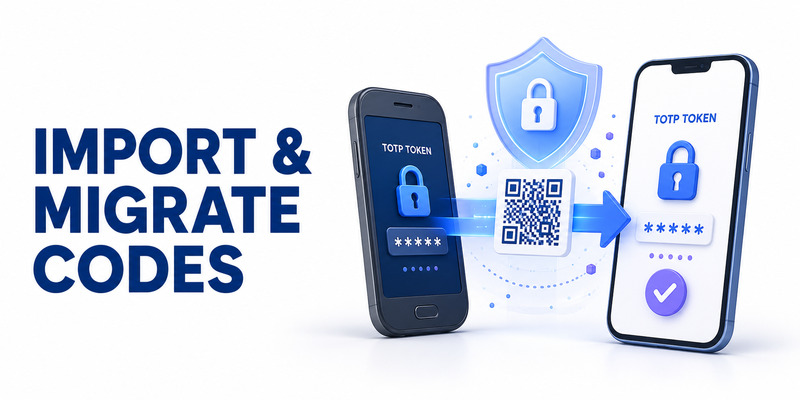
Proton’s documentation lists import support for Google Authenticator, 2FAS, Aegis, Bitwarden Authenticator, Ente Auth, and LastPass Authenticator. The source app may produce a QR sequence or an export file. Both can expose the token seeds, so perform the transfer away from cameras, screen sharing, and public spaces.
For a detailed migration from Google, use the google authenticator to proton authenticator guide. Regardless of source, update both devices first and read the current export instructions because formats and menus can change.
Migration changes the practical answer to how to use proton authenticator: instead of creating new tokens at every service, you copy existing seeds and then validate them. The old app remains a temporary safety net until testing is complete.
Import, compare, and validate
Choose Proton Authenticator’s import option, select the correct source or supported file, and follow the on-screen prompts. If the source displays multiple QR codes, scan them in order and keep the source screen private. Confirm that the expected number of entries appears.
Compare issuers and account labels between the old and new apps. Then test critical accounts individually. A matching six-digit code is useful, but an actual successful login is stronger proof. In any how to use proton authenticator migration, keep the source app until email, finance, cloud storage, developer, and admin accounts have all been verified.
After you learn how to use proton authenticator with imported codes, remove migration artifacts. Delete temporary files from download folders and cloud trash where practical. If an export or QR image was exposed, re-enroll the affected service with a new secret; simply deleting the copied file does not invalidate a leaked seed.
🗺️ Browse How-To Guides: How to Use Proton Authenticator: Complete Setup Guide
5. Organize and Use Codes
Find the correct entry quickly
During login, enter your password first, then open Proton Authenticator and select the entry matching the service and account. Proton supports search and custom icons to make larger collections easier to navigate. Copy or type the current six-digit code into the service before its timer expires.
Good naming is central to how to use proton authenticator at scale. Include the issuer and a nonsecret account identifier. For repeated tenant names, add an environment or role. Avoid putting passwords, secret keys, recovery codes, or confidential customer data in labels.
Proton can show the next code, reducing frustration when the current one is about to expire. If a service rejects a code, wait for a fresh one and check the selected entry rather than rapidly submitting several values. Repeated failures can trigger account protection or hide a time-sync problem.
Keep the collection current
When an account is closed or 2FA is replaced, remove its obsolete entry only after confirming the service change. Deleting a token from the authenticator does not disable 2FA on the service; it only removes your ability to generate the expected code.
A practical how to use proton authenticator routine includes quarterly review. Remove retired duplicates, rename ambiguous entries, confirm that important recovery codes are still accessible, and inspect the list of synchronized devices. Do not wait for a phone replacement to discover that half the collection is mislabeled.
Widgets can speed up access, but preview behavior varies. Decide whether codes or account labels may appear on the lock screen, in recent-app previews, or during screen sharing. Convenience should not expose a code to someone who cannot otherwise unlock the app.
🧭 Explore Guides: Proton Authenticator Windows: Setup and Security Guide A-Z
6. Sync Between Devices
Enable the supported sync method
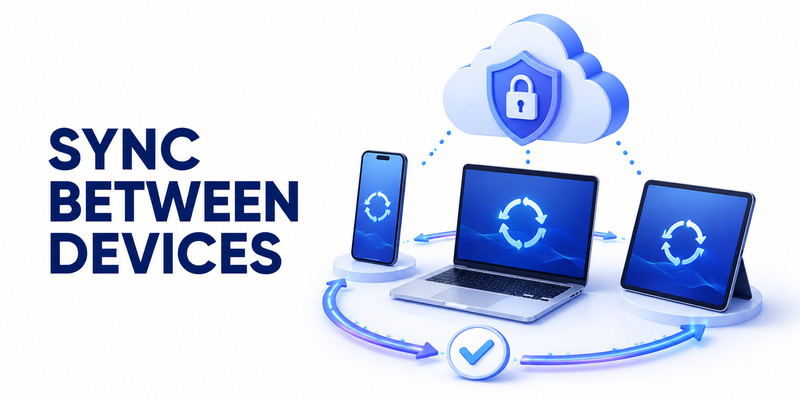
Proton’s getting-started documentation says Apple users can synchronize through iCloud. For Windows, Linux, or Android synchronization, sign in to a Proton Account inside Proton Authenticator. Proton describes synchronized codes as end-to-end encrypted.
To configure proton authenticator sync, begin with a fully verified primary device. Enable the supported method, wait for synchronization to complete, then open the second device and confirm that expected entries appear. Test one low-risk login before treating the second device as ready.
This is the safest way to learn how to use proton authenticator on multiple devices: add endpoints intentionally, validate them, and document how to remove them. Do not install the app everywhere merely because synchronization is available.
Protect every synchronized endpoint
The phrase proton authenticator sync between devices describes convenience, not automatic resilience. If every synchronized device is stored in the same bag or unlocked by the same weak password, one incident can compromise the whole set. Keep an emergency recovery path in a different place.
Review device access after a phone is lost, sold, repaired, or handed to another person. Lock or erase the operating system where possible, remove the old device from relevant accounts, and rotate high-value factors if exposure is plausible. A synchronized copy may continue to generate valid codes while the underlying seed remains enrolled.
When explaining how to use proton authenticator across devices, treat offline access as an advantage but not as proof that synchronization has completed. Put a device temporarily offline and confirm existing codes work, then reconnect and verify that a controlled label change propagates as expected.
🗺️ Browse How-To Guides: How to Use Proton Authenticator: Complete Setup Guide
7. Back Up and Export Codes
Build a recovery plan before loss
Proton supports encrypted backups when using a Proton Account or on iOS, and it allows export to an additional secure location. In a complete how to use proton authenticator plan, synchronization, backup, export, and service recovery codes serve different purposes. A good plan uses more than one path without creating uncontrolled plaintext copies.
Your proton authenticator backup should be protected by credentials you can recover without the missing device. Record where it is stored, what unlock method it requires, and when it was last tested. Keep service recovery codes independently because they can restore access even if the authenticator backup fails.
The recovery chapter of how to use proton authenticator is complete only after a test. Use a disposable token or low-risk account to verify that the chosen backup mechanism can be restored. Do not experiment with the sole copy of a production token collection.
Export only when necessary
Use proton authenticator export for migration, portability, or an intentionally managed backup. Treat the result like a file containing password-equivalent secrets. Create it in private, place it directly into encrypted storage, confirm the destination, and remove temporary copies.
Never email an unprotected export, attach it to a support case, keep it in a shared downloads folder, or upload it to a random converter. File names and previews may also reveal account information. Restrict access and avoid long retention when the export was made only for migration.
This how to use proton authenticator guide recommends recording the export date and destroying obsolete copies after a successful transfer. If an export is lost or exposed, the defensive response is to re-enroll affected services with new TOTP secrets and replace their recovery codes where appropriate.
🧭 Explore Guides: Proton Authenticator Download: How to download Step by Step
8. Secure Daily Use

Lock the app and devices
Enable biometric or PIN protection inside Proton Authenticator where supported, and keep a strong operating-system passcode. Biometrics provide convenient local access, but the device passcode often remains a fallback; choose one that is not easily guessed or observed.
Secure how to use proton authenticator habits include locking screens before stepping away, hiding codes during screen sharing, avoiding untrusted clipboard managers, and refusing unsolicited requests for one-time codes. A real-time phishing page can relay a TOTP code before it expires, so verify the domain even when the code itself is genuine.
Update the app through its trusted distribution channel. Review permission changes and avoid rooting or jailbreaking the device that holds important tokens unless you understand the added risk. A standalone authenticator reduces password-vault concentration only when the surrounding device remains trustworthy.
Avoid fake browser add-ons
Proton documents mobile and desktop apps for its standalone authenticator workflow. Searches for proton authenticator extension or proton authenticator chrome extension may surface unrelated add-ons. Do not grant an extension access to authenticator secrets simply because its name resembles Proton’s product.
The safer how to use proton authenticator pattern is to keep codes in the official clients and enter them only on verified service domains. If Proton introduces or changes a browser feature, confirm it through Proton’s official site and documentation before installation.
For a deeper assessment of the app’s privacy and trade-offs, read the proton authenticator review. Remember that TOTP improves account protection but is not as resistant to phishing as a properly implemented passkey or hardware security key.
🗺️ Browse How-To Guides: Proton Authenticator GitHub: Download, Setup, and Security Guide
9. Troubleshooting and FAQs
Why is my code not working?
Confirm that the device uses automatic date and time, select the correct account entry, and wait for a fresh code. Check whether the service recently reset or replaced 2FA. If manual enrollment was used, a typing error in the secret requires a new, careful enrollment.
Can I use Proton Authenticator without an account?
Yes. Proton supports local use without a Proton Account. Sign-in is optional for its account-based encrypted synchronization. Local-only users should maintain a tested backup and independent service recovery codes.
How do I add a code manually?
Choose “Create new code” or the plus button, select manual entry, then type or paste the secret shown by the service. Add a clear issuer and title, save, and verify a fresh generated code on the service setup page.
Can Proton Authenticator work offline?
Yes. Existing TOTP codes are calculated locally. Internet access may be needed for download, updates, account sign-in, and synchronization, but code generation itself can continue offline.
Should I delete my old authenticator after import?
Wait until every important account has been tested in Proton Authenticator and independent recovery options are verified. Then remove the old app and any temporary migration files according to your device and source-app procedures.
What if I lose my phone?
Use a synchronized authorized device, a tested backup, an export stored securely, or the recovery codes from each service. Secure or erase the missing phone where possible and rotate factors if the token data may have been exposed.
Can I use the same code on phone and desktop?
Yes, synchronized or deliberately imported copies of the same TOTP secret should calculate matching codes when device time is correct. Protect both endpoints because either copy can authenticate to the service.
Does Proton Authenticator prevent phishing?
No TOTP app fully prevents real-time phishing. Check domains, reject unexpected prompts, and use passkeys or hardware security keys where available. Never provide a one-time code to someone claiming to be support.
These answers summarize common how to use proton authenticator problems. If interface labels differ, consult Proton’s current support pages for your platform and app version before deleting data or repeating an import.
🗺️ Browse How-To Guides: Proton Authenticator Review: Privacy, Features & Verdict
10. Final Setup Checklist
Verify the complete workflow
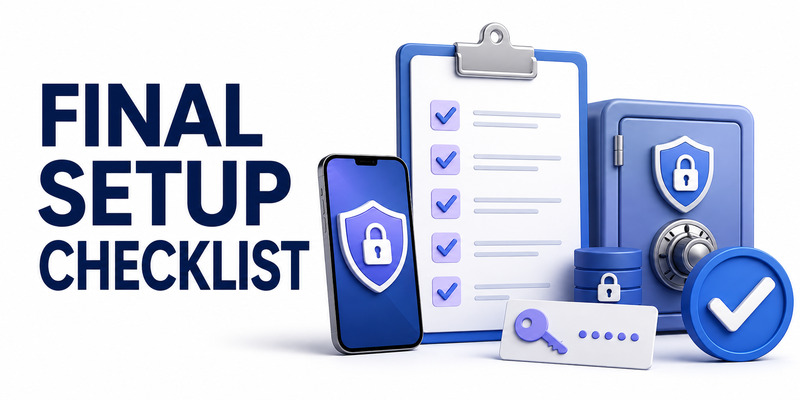
Before declaring setup finished, confirm the official app source, device lock, first successful code, service recovery codes, account labels, chosen synchronization mode, and independent backup. Then sign out of a low-risk account and complete a normal login from start to finish.
Use this how to use proton authenticator checklist:
- Install from Proton or a trusted store.
- Protect the device and app with strong locks.
- Add or import one account at a time.
- Verify a fresh code before leaving setup.
- Store service recovery codes separately.
- Enable sync only on needed devices.
- Test backup or export recovery safely.
- Remove temporary migration artifacts.
- Review labels, devices, and recovery quarterly.
- Prefer phishing-resistant methods when supported.
Keep recovery independent
The most durable lesson in how to use proton authenticator is that convenience and recovery must be designed together. Synchronization can prevent a single-device lockout, but it does not replace service recovery codes. An export can aid migration, but it becomes dangerous when left unencrypted. Local mode narrows network trust, but it fails if the only device disappears.
Choose a small, understandable setup and test it before adding high-value accounts. Maintain current devices, verify domains, and rotate any token whose seed may have been exposed. For general TOTP enrollment and recovery guidance across services, use Authenticator App as a practical companion.
Once these controls are in place, how to use proton authenticator becomes a repeatable routine: enroll carefully, verify immediately, log in from the correct entry, and preserve an independent way back into each account.
Download Authenticator App
Secure your accounts with fast, reliable two-factor authentication. Download now and protect your login in seconds.
