
Proton Authenticator Windows: Setup and Security Guide A-Z
Proton authenticator windows is the official Proton Authenticator desktop application for generating and managing TOTP two-factor codes on a PC. Proton provides it through the official Authenticator download page alongside macOS, Linux, iOS, and Android apps. The Windows app can generate codes offline and does not require a Proton Account for local use.
Signing in to a Proton Account is optional, but Proton’s current guidance says Windows, Linux, and Android users need that account when they want to synchronize codes across devices. Synchronized data is protected with end-to-end encryption according to Proton.
This guide covers source verification, installation, local versus synchronized use, manual enrollment, imports, backups, daily code handling, PC security, mobile pairing, recovery, and the distinction between a native desktop app and a browser-based authenticator.
1. Verify the Official Windows App
Start from Proton’s download page
Navigate directly to Proton’s official Authenticator download page and choose the Windows app. Avoid sponsored search results, reposted installers, software-download portals, browser extensions, and chat links. A TOTP application stores the secrets that generate future codes, so installer provenance is a core security control.
Proton’s official product and support pages currently list Windows as a supported desktop platform. They do not require a Proton Account merely to download or use the app locally.
Check the file before installation
Confirm the download came from the Proton domain, inspect the Windows publisher information when shown, and keep Microsoft’s normal reputation and malware checks enabled. If Windows reports an unexpected or unverified publisher, cancel and return to the official page.
| Source | Recommended? | Reason |
|---|---|---|
| Proton Authenticator download page | Yes | Official distribution route |
| Microsoft-provided installation flow linked by Proton | Yes | Publisher and update verification |
| Third-party installer mirror | No | Integrity and update uncertainty |
| Browser extension | No | Not the official native desktop app |
| File sent in email or chat | No | High impersonation risk |
The forthcoming proton authenticator download guide covers downloads across every platform. For Windows, always resolve the current installer from Proton rather than storing an old direct URL.
A verified source ensures proton authenticator windows begins with trusted application bytes instead of a look-alike that captures seeds, exports, or passwords.
Bookmark Proton’s product page so future proton authenticator windows updates begin from the verified channel rather than an old installer link.
Download Authenticator App
Secure your accounts with fast, reliable two-factor authentication. Download now and protect your login in seconds.
2. Prepare and Install on a PC
Secure Windows before adding secrets
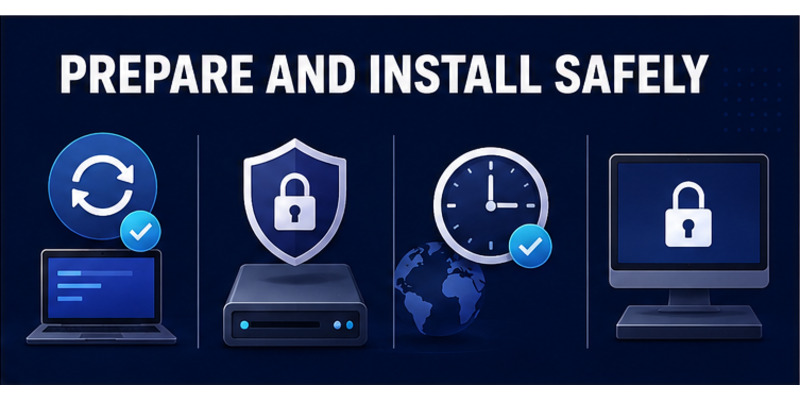
Install Windows security updates, enable device encryption where supported, use a strong Windows Hello PIN or biometric method, and create a separate operating-system account for each person. Do not place an authenticator vault inside a shared login that remains unlocked.
Set Windows date, time, and time zone to update automatically. TOTP relies on time, so a clock error can make every code appear invalid even when the correct seed is stored.
Run the official installation
Close sensitive work, launch the verified installer, review the publisher prompt, and follow Proton’s current setup flow. Do not disable antivirus or SmartScreen because an unofficial guide says the installer requires it. Launch the application from the Windows Start menu after completion.
Use this preparation checklist for proton authenticator windows:
- Windows is patched and supported by Microsoft.
- The PC uses a personal, protected user profile.
- Storage encryption is enabled where available.
- Automatic date, time, and zone are on.
- Screen lock activates promptly.
- The installer came from Proton’s official page.
- A recovery or backup location has been chosen.
Proton does not publish a clear minimum Windows version in the official pages reviewed for this guide. Use the compatibility information presented by the current official download and installer rather than relying on an assumed version number.
Once installed, proton authenticator windows should open without asking users to surrender TOTP exports to a third-party conversion website.
Record the installer source and date so proton authenticator windows can be audited after a PC repair, migration, or unexpected security warning.
📘 Find the Right Guide: Proton Authenticator Download: How to download Step by Step
3. Choose Local or Proton Account Use
Use the app without an account
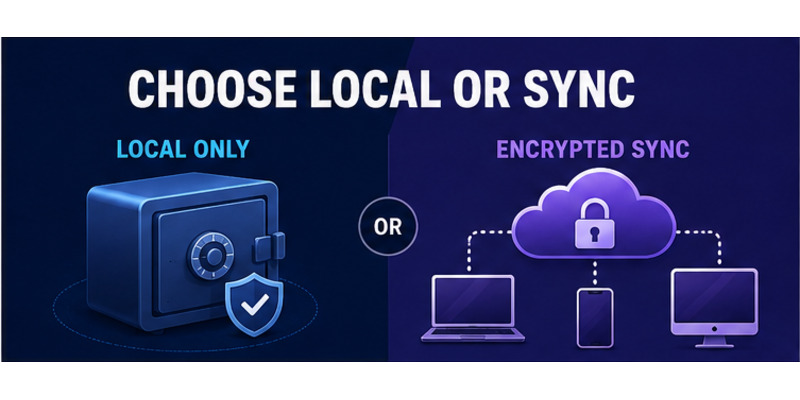
Proton says no Proton Account is required to use its authenticator. Local use avoids signup and keeps the immediate vault on the PC. It is suitable for users who want offline code generation and can maintain a secure export or backup independently.
Local-only use creates an operational responsibility: a failed disk, deleted Windows profile, or lost encryption key can remove the only copy. Save each service’s recovery codes separately and create a protected export before depending on the desktop vault.
Sign in for encrypted synchronization
Users who want the same codes on Windows and other platforms can sign in to a Proton Account. Proton’s getting-started guide says Windows, Linux, and Android use Proton Account login for synchronization, and Proton describes synced codes as end-to-end encrypted.
| Mode | Benefit | Main responsibility |
|---|---|---|
| Local only | No signup; offline operation | Maintain independent backup |
| Proton Account sync | Multi-device availability | Protect Proton login and recovery |
| Desktop plus mobile | Codes remain available if one device fails | Secure every synchronized endpoint |
| Several desktops | Convenient work across PCs | Revoke retired or shared devices |
Protect the Proton Account with a unique password and independent factor. Avoid storing the only Proton login code in an inaccessible place that creates circular recovery.
Choosing the mode before importing codes keeps proton authenticator windows aligned with the intended threat model and recovery plan.
This early decision keeps proton authenticator windows predictable when the network is unavailable or the Proton Account needs recovery.
Document the decision so future troubleshooting does not accidentally convert proton authenticator windows from a synchronized vault into an unbacked local copy.
📖 Explore Articles: Proton Authenticator GitHub: Download, Setup, and Security Guide
4. Add and Import 2FA Codes
Add a new TOTP account manually
Open the security settings of the website you want to protect and enable authenticator-based 2FA. The service will display a QR code or manual secret. Proton’s official getting-started instructions say mobile users can scan the QR, while a manual key can be entered into the app.
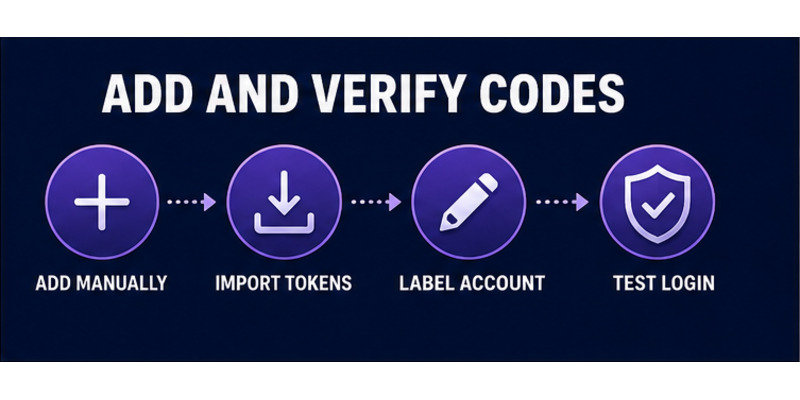
On a Windows PC, manual entry is often the direct route: choose Create new code or the plus button, select the manual option, enter the secret, add a clear title and issuer, and save. Then type the generated code back into the service to confirm enrollment.
Import existing tokens carefully
Proton supports imports from several authenticator apps and export from its own app. Use the source authenticator’s official export function and Proton’s official import flow. Never upload an export to an online converter because the file may contain every TOTP seed.
Follow this sequence for proton authenticator windows:
- Verify the protected service’s official domain.
- Create or export the TOTP credential through an official process.
- Add or import it into the Windows app.
- Check title, issuer, and account identity.
- Confirm a code on the service.
- Save the service’s recovery codes elsewhere.
- Test a signed-out login.
- Retire the old authenticator only after all tests pass.
The general proton authenticator guide explains TOTP and migration security in depth.
A code appearing in proton authenticator windows is not enough; the protected service must accept it before the enrollment or migration is complete.
Test both normal login and service recovery so proton authenticator windows never becomes the only unverified path back into an important account.
5. Sync Windows with Mobile and Desktop Devices
Connect the intended devices
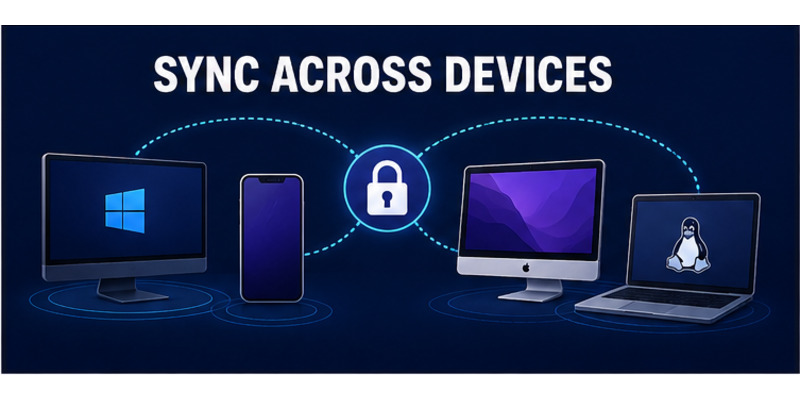
Sign in to the same Proton Account in the Windows app and the intended mobile or desktop applications. Allow synchronization to complete, then compare several low-risk account labels and codes. Do not delete the old vault after seeing only one matching entry.
The official platform list includes Windows, macOS, Linux, Android, and iOS, with Apple Watch support also advertised. Proton says codes remain available offline after setup, while synchronization naturally requires connectivity.
Limit and review synchronized endpoints
Every synchronized computer or phone can reveal usable codes after local unlock. Add only devices you control, keep them patched and encrypted, and sign out or revoke access after loss, resale, repair, or employee offboarding.
| Sync pairing | Practical benefit | Security check |
|---|---|---|
| Windows and iPhone | Desktop convenience plus mobile portability | Lock both endpoints |
| Windows and Android | Cross-device availability | Protect Proton Account login |
| Windows and Mac | Multi-desktop continuity | Separate personal user profiles |
| Windows and Linux | Work across operating systems | Verify official packages |
The phrases proton authenticator ios, proton authenticator for mac, and proton authenticator linux refer to native apps in the same product family. They are not remote viewers of the Windows vault; synchronization occurs through the optional encrypted Proton Account system.
After synchronization, test one login from each intended endpoint and store recovery codes independently. This confirms proton authenticator windows remains useful when the phone is unavailable.
Review device access periodically so proton authenticator windows convenience does not expand into an unmanaged collection of trusted endpoints.
Name synchronized devices clearly so proton authenticator windows access can be revoked precisely after a sale, loss, repair, or job change.
📖 Read More Guides: Proton Authenticator Review: Privacy, Features & Verdict
6. Use Codes Safely on Windows
Protect the desktop session
Lock Windows whenever leaving the desk, avoid copying codes into clipboard-history tools, and do not display the vault during screen sharing. A TOTP code is short-lived, but the application and any exported seed are long-term sensitive assets.
When logging in, verify the website domain, select the correct account label, and enter the current code only into a login you initiated. Proton advertises a next-code preview; use it to avoid expiry, not to prepare a code for someone else.
Reduce phishing and malware exposure
TOTP does not verify website origin. A convincing phishing page can relay a password and current code immediately. Use a password manager to confirm domains, prefer passkeys or hardware keys where available, and close unsolicited login links.
| Risk | Safe response |
|---|---|
| Unexpected code request | Do not provide it; inspect account activity |
| Screen-sharing session | Close or lock authenticator first |
| Clipboard monitoring | Type directly or clear sensitive history |
| PC malware warning | Stop logins and investigate from a clean device |
| Wrong account label | Verify issuer and identity before entry |
Avoid leaving proton authenticator pc visible on a shared workstation. Separate Windows accounts, device encryption, session locks, and application protection all reduce local exposure.
Daily proton authenticator windows use should connect one code to one intentional login on one verified domain.
If a seed or export may have been copied, replace the factor at every affected service; changing only the current code cannot invalidate the stolen secret.
7. Back Up, Export, and Recover the Vault
Create a protected backup strategy
Proton supports local or cloud backups and allows export of codes. An export can recreate future TOTP values, so encrypt it, store it separately from the PC, and limit access. Do not email the file unencrypted or upload it to a public converter.
Keep the recovery codes issued by each protected service in a separate encrypted password manager or offline record. These codes provide an independent way back into the service when every authenticator device is unavailable.
Test recovery before a failure
Verify a backup by restoring or importing it in a controlled environment only when Proton’s official process supports that test. Confirm several noncritical accounts, then remove temporary copies and revoke devices that are no longer required.
| Failure | Recovery path |
|---|---|
| Windows reinstall | Proton sync or encrypted export |
| PC lost or stolen | Revoke device, use synchronized endpoint |
| Proton Account unavailable | Local export and service recovery codes |
| TOTP entry deleted | Restore backup or re-enroll through service |
| Export exposed | Replace 2FA secrets at affected services |
For proton authenticator windows, record the backup date, encrypted-storage location, and synchronized-device inventory without writing live seeds in an exposed document.
If the PC is stolen while logged in, use another trusted device to protect the Proton Account, review sessions, and rotate sensitive service credentials. Disk encryption helps only when the thief cannot unlock the active session.
Recovery testing turns proton authenticator windows from a single-device convenience into a resilient authentication system.
🗺️ Browse How-To Guides: How to Use Proton Authenticator: Complete Setup Guide
8. Compare Windows, Linux, Mac, iOS, and Web Access
Prefer native applications
Proton officially lists native applications for Windows, macOS, Linux, Android, and iOS. Desktop apps provide code access without requiring a phone, while mobile apps offer portability and camera-based QR enrollment.
As of the official pages reviewed, Proton promotes native apps rather than a browser-based proton authenticator web vault. Avoid unofficial extensions or websites that claim to display synchronized codes. Use Proton’s current product page to verify whether web availability changes later.
Choose a platform mix deliberately
| Platform | Best fit | Key consideration |
|---|---|---|
| Windows | Primary or backup desktop vault | Secure Windows user session |
| Linux | Native desktop access | Verify distribution package |
| macOS | Apple desktop workflow | Protect FileVault and user account |
| iOS | Portable codes and Apple ecosystem backup | Protect device and Apple recovery |
| Android | Portable cross-platform codes | Protect device and Proton sync |
| Web | Not listed as an official native target reviewed | Avoid look-alike sites |
The proton authenticator desktop app is valuable for users who cannot always reach a phone or who want redundancy. However, storing a factor on the same PC as the password login reduces device separation. It still protects against password-only remote attacks, but local malware becomes more important.
Use the smallest set of devices that meets availability needs. A locked phone plus proton authenticator windows can be a practical pair when both remain patched and recovery codes stay elsewhere.
Platform diversity should improve recovery, not create forgotten copies that continue to expose TOTP secrets.
📖 Read More Guides: Google Authenticator to Proton Authenticator: Complete Migration Guide
9. Frequently Asked Questions
Is Proton Authenticator available for Windows?
Yes. Proton’s official download page lists a Windows desktop application for 2FA codes and backups on a PC.
Do I need a Proton Account on Windows?
No for local use. Proton’s current getting-started guide says a Proton Account is needed when Windows users want to synchronize codes across devices.
Can the Windows app work offline?
Yes. Proton says codes can be accessed offline. Accurate system time remains important for TOTP validation.
Can Windows scan a QR code?
Proton’s general setup flow supports mobile camera scanning and manual secret entry. On Windows, manual entry or official import is the dependable method when no camera workflow is provided.
Is there a Proton Authenticator web app?
The official pages reviewed list native Windows, Mac, Linux, iOS, and Android apps, not a browser vault. Verify current Proton documentation and avoid unofficial extensions.
Can I sync Windows with an iPhone?
Yes, by signing in where Proton’s encrypted cross-device synchronization is supported. Test several codes before deleting any old vault.
Is the Windows app open source?
Proton says all its applications, including Authenticator, are open source. Always download a verified build from the official source.
What if my Windows PC is lost?
Revoke its Proton session from a trusted device, use another synchronized endpoint or encrypted export, and rotate affected secrets if the unlocked vault may have been accessed.
📘 Find the Right Guide: How to Use Proton Authenticator: Complete Setup Guide
10. Final Thoughts
Proton authenticator windows brings an official, open-source TOTP vault to a PC, with offline code access, optional end-to-end encrypted synchronization, backups, imports, exports, and cross-platform continuity. Local use does not require a Proton Account; synchronization on Windows does.
Download only from Proton’s official page, secure the Windows profile, enable automatic time, and test each added or imported account before retiring an old authenticator. Keep service recovery codes and encrypted exports outside the primary PC.
Balance convenience with device separation. A desktop factor can protect against password-only remote attacks, but malware or an unlocked shared session may expose both the login and code. Use passkeys or hardware security keys where phishing resistance matters most.
Visit Authenticator App for broader two-factor setup, backup, migration, and phishing-defense guidance. A careful proton authenticator windows deployment ends with a verified installer, protected PC, tested synchronization, recoverable vault, and no unmanaged copies on retired devices.
After installation, complete one scheduled review of the Windows account, disk encryption, synchronized endpoints, export storage, and service recovery codes. Confirm that a trusted mobile or desktop device can still provide access if the PC fails. This final exercise ensures proton authenticator windows is part of a tested recovery system rather than a new single point of failure.
Repeat the review after a major Windows update, hardware replacement, or suspicious login. Remove obsolete exports and revoke devices you no longer control while preserving at least one independent recovery route.
Download Authenticator App
Secure your accounts with fast, reliable two-factor authentication. Download now and protect your login in seconds.
