
Google Authenticator to Proton Authenticator: Complete Migration Guide
Moving google authenticator to proton authenticator is straightforward when you treat the transfer QR code as a secret rather than an ordinary picture. Google Authenticator can export selected accounts as one or more migration QR codes, and Proton Authenticator officially supports importing Google Authenticator tokens. The technical transfer may take minutes, but verification and cleanup deserve more time.
This guide uses a cautious sequence: prepare both devices, export only in a private place, import immediately, compare entries, complete real logins, preserve service recovery codes, and remove temporary migration material. Keep Google Authenticator installed until every important account works from Proton. A matching six-digit code is useful evidence, but a successful login is the stronger test.
The safest google authenticator to proton authenticator migration also separates three different recovery mechanisms. Synced authenticator data helps restore the app, an encrypted export can provide a portable backup, and the one-time recovery codes issued by each service can bypass a failed authenticator. One mechanism should not be mistaken for another.
1. Before You Migrate: What to Know
What the transfer actually copies
An authenticator app normally stores a TOTP seed for each account. The app combines that seed with current time to generate a short-lived code. During google authenticator to proton authenticator, the migration QR code carries enough information for the destination app to recreate compatible entries and generate the same future codes. It does not move your passwords, service recovery codes, passkeys, or the account itself.
Because the transferred seed can generate valid future codes, anyone who captures the QR code may be able to clone your second factor. Perform the export away from cameras, screen sharing, public spaces, and remote-support sessions. Do not photograph the code, send it through chat, or save it to a normal cloud-synced photo library. If exposure is possible, re-enroll affected accounts at their original services.
Plan before touching the old app
Update Google Authenticator and install Proton Authenticator from official distribution channels. Charge both devices, enable automatic date and time, and confirm that you can unlock the old phone. Google’s current help states that manual transfer requires the old device containing the codes and the latest app version. Proton officially lists Google Authenticator among its supported import sources.
Create a simple inventory before the google authenticator to proton authenticator transfer. Record issuer and account labels, not secrets. Mark high-value services such as primary email, password manager, finance, cloud administration, and domain control. Confirm that their recovery codes are stored independently. This inventory becomes the acceptance checklist after import.
| Preparation item | Why it matters | Safe action |
|---|---|---|
| Updated apps | Avoids missing or changed import controls | Update from official stores |
| Old phone access | Google export requires current entries | Verify device unlock first |
| Accurate time | TOTP depends on time | Enable automatic time and zone |
| Account inventory | Detects omissions and duplicate labels | Record issuer and username only |
| Recovery codes | Provides an independent fallback | Store offline or in an encrypted vault |
| Private workspace | Protects migration QR codes | Disable cameras and screen sharing |
Download Authenticator App
Secure your accounts with fast, reliable two-factor authentication. Download now and protect your login in seconds.
2. How to Export Accounts from Google Authenticator
Generate the migration QR code
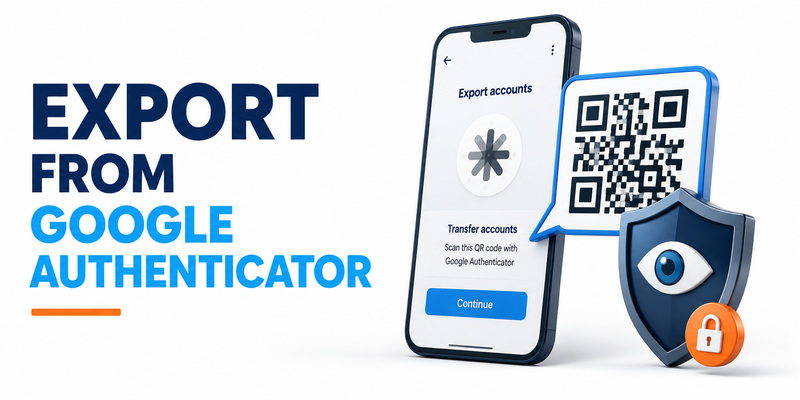
On the old device, open Google Authenticator. Open the menu, choose Transfer accounts, then Export accounts. Unlock the device when prompted, select the accounts you intend to move, and continue. Google notes that exporting several accounts can produce more than one QR code, so do not assume the first screen contains the entire collection.
For a large google authenticator to proton authenticator migration, smaller batches are easier to verify. Group accounts by risk or function, such as email first, work services second, and lower-risk accounts last. After each batch, mark the entries as imported and tested. This reduces the chance that one overlooked QR page leaves several accounts behind.
The export screen may remain visible while you switch devices. Keep the old phone in your hand and point it only at the Proton import camera. Increase brightness only if scanning requires it, then close the QR screen as soon as that batch succeeds. Never display a migration QR code during a video call or capture it with another camera for convenience.
Treat every google authenticator to proton authenticator QR page as a temporary master key: show it once to the intended scanner, verify the imported batch, and dismiss it.
Understand Google account sync
Google Authenticator can also synchronize codes through a signed-in Google Account. That behavior is separate from manual QR export. You may still choose manual google authenticator to proton authenticator transfer so you can control which entries move and verify the destination immediately. Do not assume signing out, deleting the app, or switching sync settings automatically proves that every code is safely present elsewhere.
If the old app contains duplicate issuer names, edit your inventory before exporting. Two entries labeled only “Email” can be indistinguishable during testing. Use the account identifier shown in the app and the corresponding service login page to match them. Avoid renaming entries in the middle of the transfer unless you document both old and new labels.
After generating the final QR code, keep Google Authenticator installed. Export is not a request to erase the old copy, and retaining it temporarily gives you a rollback path. Removal should happen only after the verification phase, not immediately after the scanner reports success.
🧭 Explore Guides: Proton Authenticator Review: Privacy, Features & Verdict
3. How to Import Accounts into Proton Authenticator
Use Proton’s import workflow
Open Proton Authenticator on the destination device and locate its import function. Choose Google Authenticator as the source when the current interface offers source-specific options, grant camera access only when needed, and scan every QR code produced by Google. If Google created multiple QR pages, import all of them before judging the count.
The google authenticator to proton authenticator import should create separate entries with issuer and account labels. Compare the total against your inventory, but do not rely on count alone. A duplicated entry can hide a missing one. Review the names one by one, especially accounts with identical usernames across different environments.
Proton Authenticator can be used without a Proton Account, so signing in is not required merely to complete the import. A Proton Account adds optional end-to-end encrypted synchronization across supported devices. Decide on that recovery model deliberately after the local import works; do not expand the number of synchronized endpoints during troubleshooting.
Protect camera and screen access
The camera sees a sensitive QR payload during google authenticator to proton authenticator. Close other camera apps and stop screen recording. If an operating system shows a recent-app preview containing the transfer screen, clear or lock it. On a managed work phone, verify that device policy does not capture screenshots or mirror the display to an administrative session.
Once a batch is scanned, dismiss its QR code on the old phone. Check whether Proton reports an error, a partial import, or successful creation. If it fails, do not repeatedly generate and photograph new codes. Confirm app versions, camera focus, display brightness, and whether you are scanning the correct page.
If an entry cannot be imported through the migration QR format, use the original service’s security settings to re-enroll that factor directly. Direct re-enrollment is slower but gives you a fresh secret and a clear test. It is also the correct response when an old seed might have been exposed.
This makes the google authenticator to proton authenticator process recoverable: ordinary entries use import, while uncertain or exposed entries receive fresh enrollment.
📘 Find the Right Guide: How to Use Proton Authenticator: Complete Setup Guide
4. Verify Every 2FA Account After Migration
Compare codes, then complete logins
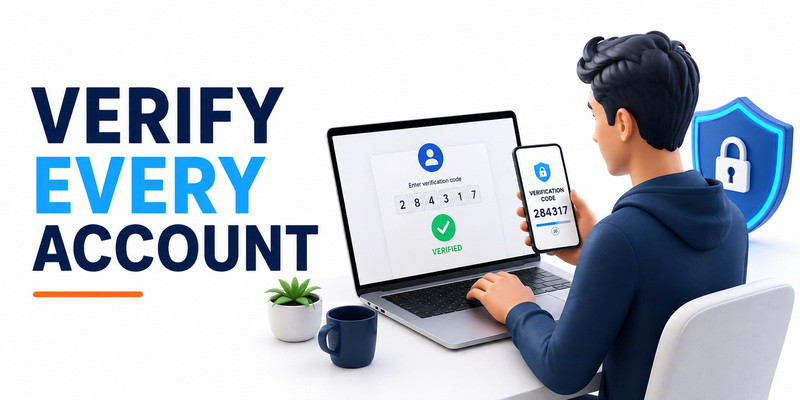
After import, place both apps side by side in a private setting. For each account, confirm that issuer and username match, then compare a code during the same time window. Codes should normally agree when both apps hold the same seed and device time is correct. Wait for a fresh cycle if only a few seconds remain.
A matching code is not enough to finish google authenticator to proton authenticator. Open the genuine service URL or app, sign in with the password, and submit a fresh code from Proton Authenticator. Complete this real-login test for every critical account. The service itself is the authority on whether the factor works.
This google authenticator to proton authenticator verification step detects stale seeds, mislabeled entries, and partial imports before the source is retired.
Start with a lower-risk account to confirm the basic workflow, then test primary email, password manager, cloud console, financial services, and administrator accounts. Avoid triggering automated lockouts by making many rushed attempts. If a service limits sign-ins, wait for a fresh code and verify the domain before trying again.
Reconcile missing and duplicate entries
Use a status table with Imported, Code Matches, Login Passed, and Recovery Codes Stored columns. A completed google authenticator to proton authenticator row requires all four checks. If Proton has fewer entries than Google, revisit every QR page and selected-account list. If it has more, distinguish legitimate duplicates from stale tokens.
Do not delete a duplicate merely because its label looks old. Confirm the associated account, test the live factor, and inspect the service’s security settings. Some users have separate production and personal accounts with the same email label, while others retain an obsolete token after re-enrollment. Only the service configuration can resolve the ambiguity.
Keep the old phone powered on and unchanged for a cooling-off period appropriate to your risk. A day or several days of normal use may reveal a rarely accessed account that the first checklist missed. Do not factory-reset, trade in, or wipe the old device until the full inventory is complete.
5. Preserve Recovery Codes
Recovery codes are independent
Most services issue one-time recovery or backup codes when 2FA is enabled. These codes belong to the service, not to Google Authenticator or Proton Authenticator, and they are not normally transferred by a TOTP migration QR code. Preserve them separately before and after google authenticator to proton authenticator.
Store recovery codes in an encrypted password manager, an encrypted offline archive, or a physically secured printed copy, according to your threat model. Do not keep the only copy on the same phone as the authenticator. If that phone is lost, damaged, or locked, a co-located recovery file may be unavailable too.
Review whether each recovery-code set is current. Re-enrolling 2FA can invalidate older codes, and some services display them only once. If you cannot confirm a set, visit the genuine service security page and generate a new set after the Proton login test succeeds. Record the date without adding the codes themselves to an ordinary checklist.
Build a layered restoration plan
An effective google authenticator to proton authenticator recovery plan has at least two independent paths. One path can be Proton’s optional encrypted synchronization or an encrypted app export. Another should be the service’s own recovery codes or a registered phishing-resistant security key. Primary email recovery deserves special attention because many other services send reset messages there.
Test restoration using a low-risk account and a controlled device. A backup that has never been opened is only an assumption. Confirm that you know the decryption password, file location, account recovery procedure, and which trusted device can approve access. Do not conduct a destructive test that removes the only working authenticator.
Recovery testing completes the google authenticator to proton authenticator safety model because it proves you can regain access without the old phone.
Document who owns recovery for business accounts. Shared TOTP seeds can create unclear accountability, so prefer separate named users and individual factors when the service supports them. A consumer authenticator migration should not replace an organization’s offboarding, access-review, and emergency-access procedures.
6. Choose Between Sync and Local-Only Use
Local-only minimizes the cloud boundary
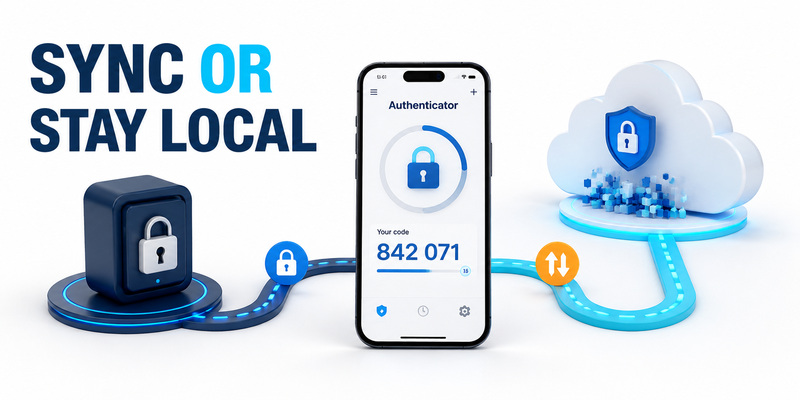
Proton Authenticator can work without a Proton Account. Local-only use keeps the code collection on the installed device, which may suit a user who wants a small endpoint boundary and is prepared to manage backups independently. The trade-off is that losing the device can become a recovery event if no verified export or service recovery codes exist.
After google authenticator to proton authenticator, local-only users should create a protected recovery method before retiring Google Authenticator. If the app supports an encrypted export on the current platform, store it in a restricted location and test the process with care. Never place an unencrypted token export in Downloads, email, or a shared drive.
Local does not mean automatically safe. Malware, an unlocked phone, screen capture, insecure backups, and physical access can still expose codes. Use a strong device passcode, biometric app lock when appropriate, operating-system updates, and minimal notification or widget exposure.
Encrypted sync improves continuity
Signing in with a Proton Account enables end-to-end encrypted synchronization across supported devices according to Proton’s official documentation. This can make replacement and multi-device access easier. It also means every synchronized endpoint, its lock state, and the Proton Account recovery path become part of the security boundary.
For a synchronized google authenticator to proton authenticator setup, enroll only devices you actually use. Review sessions periodically, remove retired hardware, and protect the Proton Account with a factor that does not create a circular dependency. Proton’s standalone authenticator can protect a Proton Account, but recovery planning must still ensure you are not locked out when the primary phone is unavailable.
Choose one model consciously and write it down: local with verified independent backup, or encrypted sync with controlled endpoints and account recovery. Convenience should follow the recovery design. Installing the authenticator everywhere “just in case” increases exposure and can make incident response harder.
💡 Discover Helpful Guides: Proton Authenticator: Download, Setup & Complete Review Guide
7. Delete QR Codes and Other Migration Data
Close and clear temporary material
When all verification checks pass, close every migration QR screen. Delete any accidental screenshots, screen recordings, temporary exports, printed test sheets, or camera captures. Check Recently Deleted folders and automatic photo backups if a sensitive image was created. Simply removing it from the visible gallery may not remove synchronized copies.
The normal google authenticator to proton authenticator process does not require saving a QR image. If you intentionally created an encrypted export for recovery, place it in its final protected location, confirm access controls, and remove working copies. Record where the backup lives without recording its password next to it.
Cleanup is part of google authenticator to proton authenticator, not optional housekeeping, because abandoned transfer material can silently clone the second factor.
Review clipboard history, file-sharing history, and remote-support tools used during the session. Migration data should never be pasted into chat, tickets, or notes. If a QR code was exposed to an unauthorized person or system, assume the corresponding seeds may be compromised and re-enroll those accounts directly.
Retire Google Authenticator carefully
Do not confuse successful import with permission to wipe the old phone. Finish the inventory, complete real logins, confirm recovery codes, and use Proton during normal activity first. Then decide whether to remove transferred entries from Google Authenticator, uninstall the app, or reset the old device.
If Google Authenticator was signed into a Google Account, review its synchronization state before retirement. The manual google authenticator to proton authenticator export does not necessarily change copies associated with Google synchronization. Follow your intended security model and verify account settings rather than assuming a local deletion affects every device.
For a phone being sold or recycled, sign out appropriately, remove device access from relevant accounts, perform the manufacturer’s secure reset procedure, and confirm activation-lock status. These device-retirement steps go beyond authenticator cleanup but prevent other personal data from remaining accessible.
💡 Discover Helpful Guides: Proton Authenticator Download: How to download Step by Step
8. How to Fix Common Transfer Problems
QR code will not scan
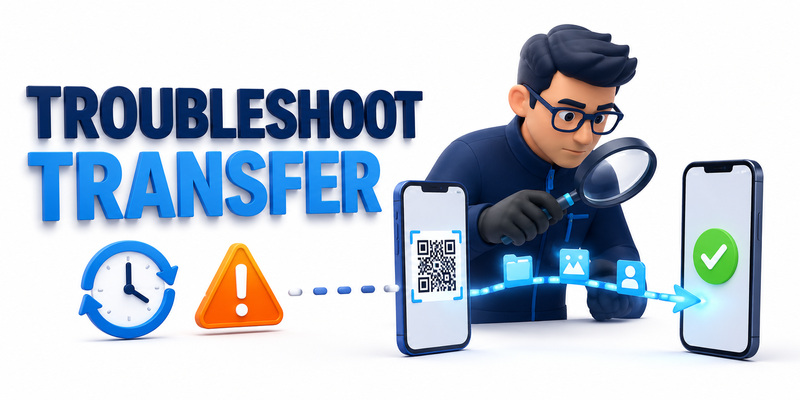
First confirm that Proton Authenticator is in the correct import flow and that the old phone shows a current Google migration QR code, not an ordinary account-enrollment code or screenshot. Clean the camera lens, adjust distance, avoid glare, and increase the old display’s brightness. Keep the entire QR code inside the frame.
If google authenticator to proton authenticator generated several QR pages, scan them in sequence. Large batches can be retried as smaller selections. Update both applications from official sources and restart them before generating a new export. Do not use an online QR decoder; that would disclose the secret payload to another system.
When camera import remains unreliable, directly re-enroll the account through the service’s security settings. This creates a fresh secret, avoids uncertain transfer state, and lets the service confirm the new factor immediately. Preserve recovery access until the change is complete.
Do not let one stubborn entry block the entire google authenticator to proton authenticator checklist; isolate it, re-enroll it safely, and continue tracking the remaining accounts.
Codes do not match or logins fail
Enable automatic date, time, and time zone on the destination device. TOTP codes depend on time, so even a modest clock error can cause failures. Wait for a new code cycle and compare again. Also confirm that you selected the correct entry when several accounts share the same issuer name.
If codes match between apps but the service rejects them, verify the domain and account. The service may have been re-enrolled after the stored token was created, making both apps hold an obsolete seed. Use a recovery code or an existing session to inspect the service’s current 2FA configuration.
If some entries are missing after google authenticator to proton authenticator, compare the selected Google export list, the number of QR pages, and your inventory. Repeat only the missing batch to avoid unnecessary duplicates. Rename entries after verification if clearer labels will prevent future mistakes.
Never solve a transfer problem by sending QR screenshots to unofficial support. Legitimate troubleshooting can be done with nonsecret details such as app version, device model, error wording, and whether the issue affects one or all accounts. Seeds, QR codes, recovery codes, and live TOTP values should remain private.
💡 Discover Helpful Guides: Proton Authenticator Windows: Setup and Security Guide A-Z
9. Google Authenticator to Proton Authenticator FAQ
Can Proton Authenticator import Google Authenticator codes?
Yes. Proton officially lists Google Authenticator as a supported import source. Use Google’s Transfer accounts and Export accounts workflow, then scan every generated migration QR code through Proton’s import function.
Does the transfer delete codes from Google Authenticator?
No. Treat export as a copy operation. Keep the old app until every critical login works in Proton and your recovery plan is confirmed. Remove the old copy later according to your intended sync and device-retirement policy.
Do I need a Proton Account?
No. Proton Authenticator supports account-free local use. A Proton Account is optional and enables end-to-end encrypted synchronization across supported devices. Choose local or sync based on recovery needs and endpoint risk.
Are migration QR codes safe to screenshot?
No. A migration QR code can contain reusable TOTP seeds. A screenshot can be copied, synchronized, backed up, or viewed later. Scan it directly in private and close it after import.
Why did Google generate more than one QR code?
Google may divide a multi-account export across several QR codes. Scan every page and reconcile the imported entries against an inventory. Missing one page can omit multiple accounts.
Why do the two apps show different codes?
Check automatic time and time zone, wait for a fresh cycle, and confirm you selected the same issuer and account. Persistent differences can mean the wrong entry or a different seed.
Can I uninstall Google Authenticator immediately?
No. Finish google authenticator to proton authenticator verification first. Test real logins, confirm recovery codes, use Proton normally for a cooling-off period, and only then retire the old app or device.
Does the migration move recovery codes?
No. Service-issued recovery codes are separate from TOTP entries. Store current copies independently so you can recover even when neither authenticator app is available.
The FAQ rule for google authenticator to proton authenticator is simple: copy privately, verify through the actual services, preserve independent recovery, and clean up only after success.
10. Final Migration Checklist

Confirm the destination
Before declaring google authenticator to proton authenticator complete, reconcile every account against the inventory. Each row should show a matching label, a valid Proton code, a successful real login, and current service recovery codes. Resolve duplicates and missing entries rather than accepting a similar total count.
Confirm the destination device uses automatic time, a strong lock, current operating-system updates, and appropriate app-lock settings. If you enabled encrypted synchronization, review the authorized endpoints and Proton Account recovery. If you chose local-only use, verify a separate encrypted backup or other recovery path.
Use the following final sequence:
- Import every Google migration QR page directly into Proton.
- Compare issuer and account labels against the inventory.
- Complete real logins for critical and representative accounts.
- Store current service recovery codes outside the authenticator device.
- Remove screenshots, QR displays, temporary exports, and transfer notes.
- Retain Google Authenticator until a suitable cooling-off period ends.
- Re-enroll any factor whose QR code or seed may have been exposed.
Retire the source without losing recovery
After normal use confirms the destination, close Google migration screens and remove old entries according to your chosen policy. Review Google Authenticator account synchronization if it was enabled. For a retired phone, remove account access and use the manufacturer’s secure reset process only after all other data is backed up.
The strongest google authenticator to proton authenticator result is not merely a populated code list. It is a tested configuration with controlled endpoints, independent recovery, accurate labels, protected backups, and no surviving migration artifacts. For broader guidance on enrollment, device security, and recovery planning, consult Authenticator App.
A careful google authenticator to proton authenticator migration ends with proof, not assumptions.
Keep this checklist with nonsecret status information only. Never include TOTP seeds, live codes, migration QR images, backup passwords, or recovery codes in an ordinary document. A concise record of what was tested is useful; a document that can recreate the factors is a liability.
Download Authenticator App
Secure your accounts with fast, reliable two-factor authentication. Download now and protect your login in seconds.
