Steam Turn Off Email Authentication: Settings and Alternatives
Published September 23, 2026
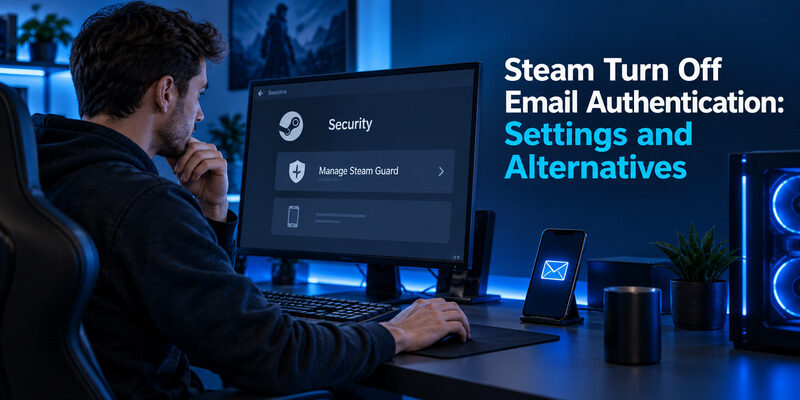
Open Steam’s Security settings, choose Manage Steam Guard, and select the option to turn Steam Guard off. If you only want to stop waiting for email codes, switching to the official is another route. The Steam turn off email authentication request can mean either of these changes, and their results are different.
You must already have the access needed to authorize the change. If the missing email code is preventing sign-in, start with Steam’s recovery process instead of expecting a settings shortcut to bypass verification. This guide covers the removal path, switching methods, delayed messages, repeated device checks, and what to review before trading or selling items. Menu wording can vary by client version; the account’s current confirmation screen controls the action.
Steam Turn Off Email Authentication: The Settings Steps
Open the correct security controls
Use the Steam desktop client and sign in to your own account. Open Steam, then Settings, then Security, and choose Manage Steam Guard. Steam Support identifies this route for managing the feature. Confirm the account before proceeding if you use more than one Steam login on the same computer.
For Steam turn off email authentication, this is the relevant account-security area. Deleting Steam messages, blocking the sender, or removing the email app from your phone does not change the account’s verification requirement. Those actions can make future access harder without changing Steam Guard at all.
Choose and confirm the intended change
Select the option to turn Steam Guard off if you intend to remove that protection. Read the warning and complete the verification or confirmation the account requires. Do not confuse an option to receive codes by email with an option to disable the feature; the former keeps email-based verification active.
Review the resulting status
Return to the security page and check the displayed method or status. Keep the current session available while checking access. If the setting did not change, read the error or incomplete confirmation instead of repeating the action blindly.
The Steam turn off email authentication process is finished only when Steam confirms the intended state. If your goal was simply fewer inbox checks, reconsider whether a method switch would meet that goal while retaining an additional sign-in check.
💡 Discover Helpful Guides: Email Authenticator: Complete Guide to Secure Email Authentication
Decide What You Actually Want to Stop
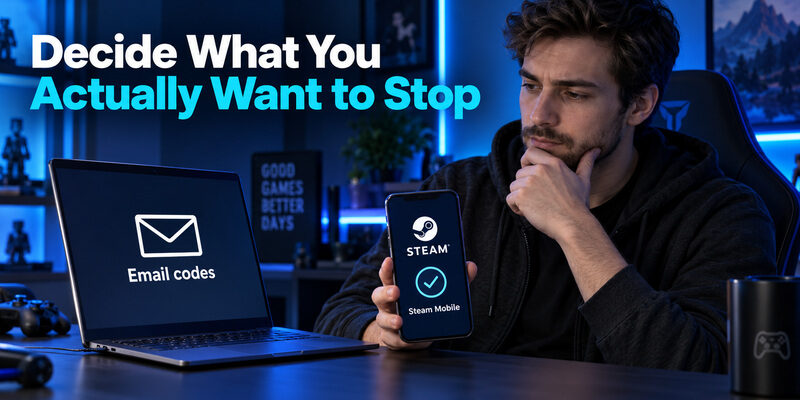
The phrase Steam commonly refers to Steam Guard codes delivered to the account’s registered mailbox. It is different from the official mobile authenticator, which belongs to the Steam Mobile App. Both protect Steam access, but they are managed through different parts of the account experience.
| Your goal | Suitable next step | Result to expect |
|---|---|---|
| Stop using email codes | Enroll the official mobile authenticator | Verification moves to Steam’s mobile method |
| Remove Steam Guard protection | Use the account’s disable option | That additional sign-in protection is removed |
| Fix a missing code | Troubleshoot delivery or recover access | You regain the ability to verify |
| Replace a phone | Follow Steam’s transfer guidance | The existing mobile method moves appropriately |
Before acting on Steam turn off email authentication instructions, decide which row matches the problem. A delivery delay does not necessarily justify disabling the feature. A phone replacement does not necessarily require removing the authenticator. Choosing the correct task first avoids introducing restrictions or losing a working method unnecessarily.
Write the intended outcome in one sentence: “I want to use the mobile app instead of email,” or “I want Steam Guard disabled.” This is especially helpful when someone else is assisting you and uses “remove authentication” loosely.
Treat Steam turn off email authentication as a change to your Steam account, not to the mailbox provider. Altering your email password or an inbox security setting does not directly select Steam’s verification method. Review the setting in Steam itself and keep the email account accessible for notices and recovery.
📘 Find the Right Guide: Email Authentication Outlook: Setup and Recovery
Switch From Email Codes to Steam Mobile
Enroll through the official app
Install the official Steam Mobile App from a trusted source, sign in, and open its Steam Guard section. Follow the app’s Add authenticator flow and complete the verification steps it presents. Steam Support provides a dedicated mobile-authenticator setup guide; use that account-specific flow rather than scanning an unrelated authenticator QR code.
If your Steam turn off email authentication goal is to avoid delayed mail, this change addresses the delivery dependency directly. It does not mean you should ignore subsequent Steam security notices or discard access to the registered email address. The mailbox can still matter for account administration and recovery.
Save recovery information and test
Store the recovery information provided during setup in a private place you can access if the phone is lost. Do not leave the only copy on the device whose loss it is meant to address. Complete a fresh sign-in using Steam’s supported mobile method and confirm that the expected account opens.
Do not assume installing the app is the same as enrolling its authenticator. The Steam Guard section should reflect the completed setup. If it still asks you to add the method, follow the remaining steps.
For Steam turn off email authentication without abandoning a second check, finish this enrollment before relying on it. The related guide covers the mobile route in more detail. Keep the distinction clear when testing: the official Steam method is the credential for Steam itself.
Fix Missing Steam Guard Emails
Check the destination and filtering
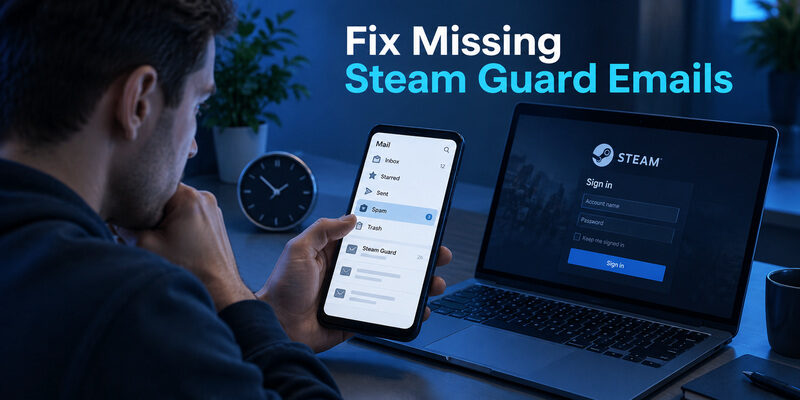
Steam Support says its Guard messages go to the last email address registered on the account. Confirm that you are checking that inbox, including spam and other filtered folders. Review rules that move or delete messages. If you no longer control the address, use the account-recovery path rather than repeatedly requesting codes you cannot receive.
Before using Steam turn off email authentication as a delivery fix, check whether the message is merely being hidden. A mailbox that receives ordinary mail can still filter a particular sender. Avoid posting the full message or active code in public support discussions.
Allow for delivery delay
Valve’s Steam Guard Code Help guidance says delivery can take up to 30 minutes and advises trying the login again for a new code if the message has not arrived after that period. Follow the current support guidance and avoid rapid repeated requests. A crowded inbox of delayed codes makes it harder to match a message to the current sign-in.
Keep the sign-in screen open and use the code associated with the active attempt. If it is rejected, check the account and restart a single clean attempt rather than cycling through every old message.
The better outcome may be restored delivery, not Steam turn off email authentication. Once access works, you can deliberately choose whether to retain email-based Steam Guard or enroll the mobile method. Solve the immediate access issue first, then make the account-security change from a stable session.
💡 Discover Helpful Guides: Email 2FA: Protect Your Inbox and Understand Email Codes
When You Cannot Access the Email or Phone
Use the sign-in help route
Open Steam Support independently and choose the help option for being unable to sign in. Select the problem that matches your missing email access or mobile authenticator. Follow the ownership-verification process presented for your account. A signed-out user cannot assume the security-settings path will be available without first recovering access.
A Steam turn off email authentication request is not an alternative to proving account ownership. Avoid services claiming they can remove the challenge instantly without verification. Work only through the official recovery process and keep sensitive evidence out of public forums.
Understand what email can and cannot do
Searching remove Steam authenticator with email does not establish that email alone is sufficient for every account. The available recovery route depends on the account’s registered information and Steam’s checks. Follow the options actually offered rather than assuming another user’s recovery screenshot describes your case.
Keep ownership evidence private
If Steam Support requests evidence, submit it only through the verified support flow. Do not send passwords, active Guard codes, or recovery secrets to someone contacting you through chat. Record the case reference and the non-secret facts needed to follow the request.
Once access is restored, review the registered contact information and authenticator status before making further changes. Completing Steam turn off email authentication immediately after recovery may be less useful than replacing the inaccessible method with one you can reliably use and recover. Test the chosen result before ending your trusted session.
📘 Find the Right Guide: Email Authentication Failed Fixes for Login and Sending
Removing a Mobile Authenticator Is a Separate Action
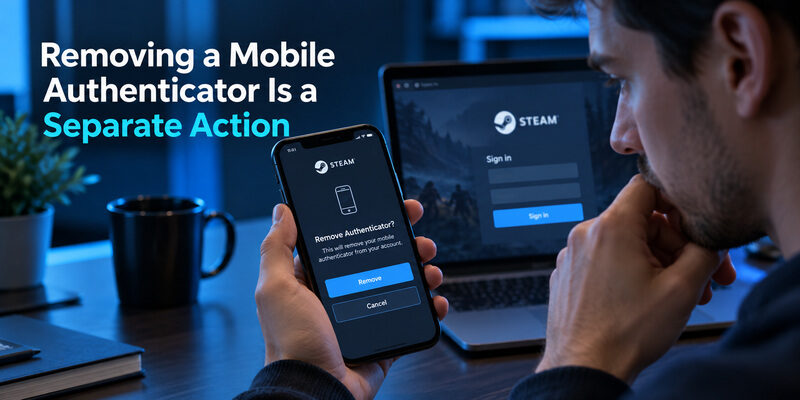
Remove it through Steam’s controls
Valve’s mobile-authenticator removal instructions direct users to the Steam Guard page in the Steam Mobile App and the Remove Authenticator control, accessed through its settings where applicable. Complete the confirmation flow shown for the account. Uninstalling the app or deleting its data is not the same as removing the server-side registration.
Someone asking how to turn off email authenticator Steam may actually be trying to remove the mobile method. Check the active method first. The Steam turn off email authentication path and the mobile-removal path should not be mixed into one generic instruction to “delete the app.”
Consider transfer before removal
If you are replacing a phone, Steam provides a separate transfer guide that can use the old and new devices. Review that route while the old phone still works. Removal and transfer can have different consequences, so do not remove a working authenticator merely to discover whether transfer was available.
Valve’s removal guidance states that removing the mobile authenticator prevents trading or selling items on the Market for 15 days. Check the current account notice before confirming any change, especially if you have planned transactions. This statement concerns mobile-authenticator removal; do not apply the same explanation indiscriminately to every email setting.
For a Steam turn off email authentication decision involving a phone change, first identify whether the task is transfer, recovery, or removal. The guide addresses the transfer branch.
💡 Discover Helpful Guides: Passwordless Email Authentication With Magic Links and Codes
Check Trading and Market Consequences
Read Steam’s current warning before changing the method. The account can have restrictions for more than one reason, and changing a security setting does not guarantee immediate trading or Market access. Distinguish an account restriction from a hold on a particular transaction and follow the explanation displayed for the affected feature.
| Change or problem | What to check | What not to assume |
|---|---|---|
| Mobile authenticator removal | Valve’s removal warning and account notice | That email access eliminates the restriction |
| Steam Guard disabled | Current trading and Market eligibility | That fewer login checks means fewer limits |
| New or changed device | The account’s displayed security notice | That an old device’s status transfers automatically |
| Existing restriction | Its stated reason and timing | That toggling Steam Guard will reset it favorably |
Plan Steam turn off email authentication around the account consequences, not a promised shortcut. If an item sale matters to you, review the warning before confirming removal. Keep a note of the message and its date so you can understand the resulting account state without relying on memory.
Do not repeatedly disable and re-enable methods to experiment with a restriction. That can add uncertainty about which change triggered the current status. Use the support explanation for the exact situation instead.
A guide to Steam turn off email authentication should separate the sign-in goal from transaction eligibility. Completing one does not prove the other is resolved. When the account’s notice is unclear, ask Steam Support about that notice rather than assuming a generic waiting-period figure applies to every case.
Download Authenticator App
Secure your accounts with fast, reliable two-factor authentication. Download now and protect your login in seconds.
Reduce Repeated Checks on a Trusted Computer
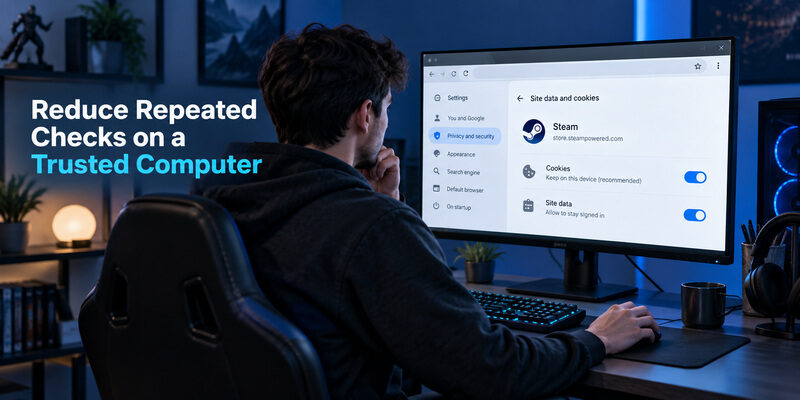
Review browser persistence
Steam Support explains that Steam Guard uses a cookie to remember a computer or browser. If your browser clears relevant cookies, runs in a private session, or blocks persistence, you may be asked to verify again. Review your browser’s settings on a device you control before deciding that the account feature is malfunctioning.
This can address the annoyance behind Steam turn off email authentication without changing the method itself. Make changes only for a genuinely private, trusted device. Do not preserve another person’s login on a shared computer or weaken a shared browser’s privacy settings for convenience.
Separate normal prompts from suspicious activity
A new browser or device can legitimately need verification. An unsolicited code or approval request, however, should not be treated as a routine annoyance. Review the account’s authorized devices and security activity through trusted access. Valve’s account-security recommendations describe reviewing authorized devices and signing out everywhere if something appears wrong.
Never give a Guard code to a person who says they need it to check your account. Codes and approvals belong to the sign-in you initiated. If an unfamiliar request appears, investigate before changing security settings.
For Steam turn off email authentication prompted by frequent checks, record where they occur: the desktop client, a browser, or a different machine. That small detail can reveal a cookie or session problem that removal would only conceal. After fixing the cause, test one ordinary sign-in and confirm whether the repeated prompt still occurs.
💡 Discover Helpful Guides
Google Email Two Factor Authentication Setup for Gmail
Protect the Email Account That Supports Steam
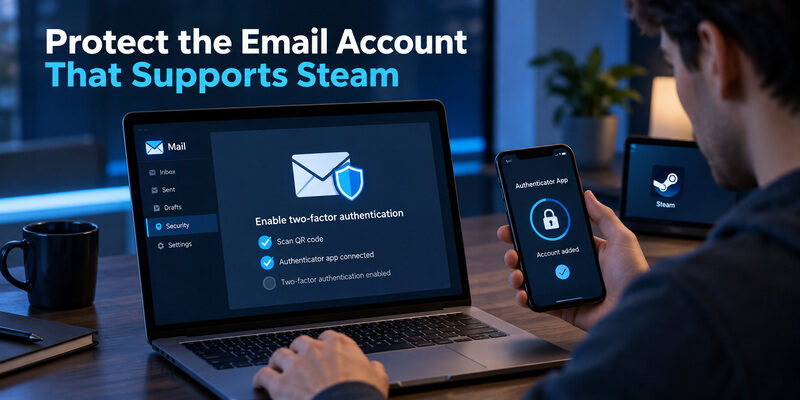
Keep the mailbox recoverable
Steam guard via email depends on your ability to access the registered inbox. Use a strong, unique email password, review recovery options, and enable the provider’s supported additional verification. If the mailbox is compromised, investigate it alongside the Steam account; changing only one password may leave another route exposed.
After Steam turn off email authentication, the registered email can still receive important notices. Do not abandon it simply because ordinary Guard codes stop arriving. Update contact information through Steam’s verified account controls when your address changes, and confirm that the new mailbox works.
Use the right app for the right account
Where your email provider supports compatible standard TOTP enrollment, is an option to evaluate for protecting that mailbox. Enroll it at the email provider and test the resulting sign-in. This protects a supporting account; it is not a substitute for Steam’s own mobile authenticator.
The Steam guard email authenticator and a TOTP app used by your mailbox provider operate at different layers. A generic six-digit code should not be expected to work as a Steam Guard code. Keep the account labels and recovery information clear so you do not confuse them during a login problem.
If your original search was how to remove Steam email authenticator, decide whether removal still solves the real problem after delivery and mailbox access are reliable. The Steam turn off email authentication choice should follow that diagnosis, with the consequences visible before you confirm it.
💡 Discover Helpful Guides: How to Add Email to Authenticator App With QR or Manual Setup
Final Thoughts
Handle Steam turn off email authentication through Steam’s own security controls. Open Settings, Security, and Manage Steam Guard, select the intended option, and complete the account’s confirmation. Then review the resulting status. Blocking email messages or uninstalling an app does not perform that account-level change.
If the real goal is to stop waiting for inbox codes, consider switching to the official Steam Mobile Authenticator. Finish enrollment, save the recovery information privately, and test a fresh sign-in. If you cannot access the current method, use Steam Support’s recovery process before attempting changes that require verification.
Keep mobile removal, phone transfer, and email-method changes separate. Review any trading or Market warning before confirming, and rely on the account’s displayed restriction details rather than a general promise that one action removes every hold. Repeatedly toggling settings is unlikely to clarify a problem with several possible causes.
The best Steam turn off email authentication outcome is the one that matches your actual need: a deliberate disable action, a reliable replacement method, or restored access after a delivery issue. Keep the registered mailbox secure and reachable in each case. When you know which method protects which account, it becomes much easier to change devices, interpret prompts, and recover access without unnecessary disruption.